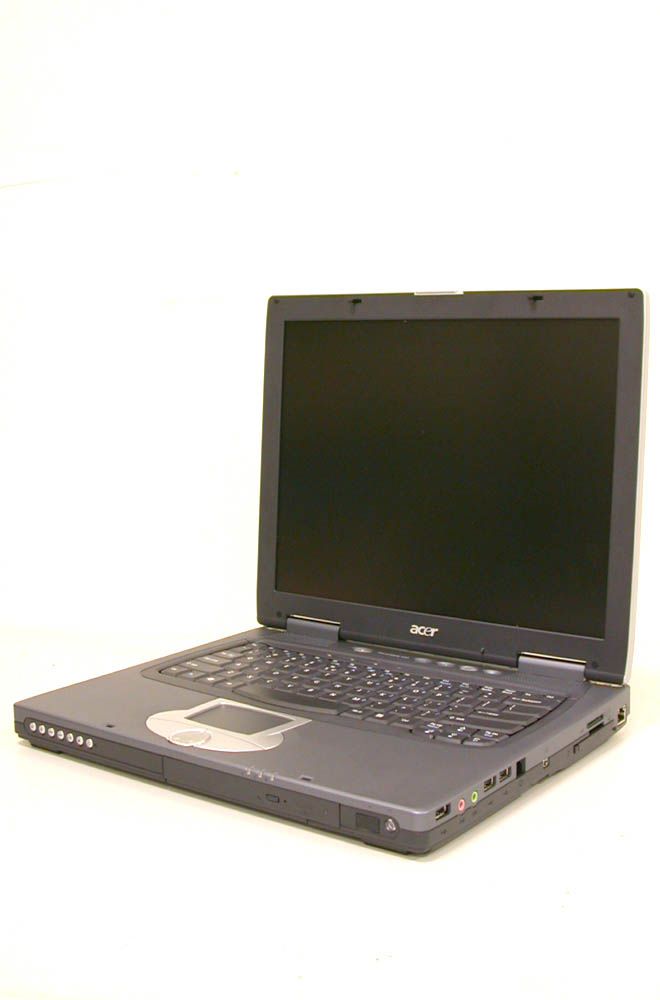
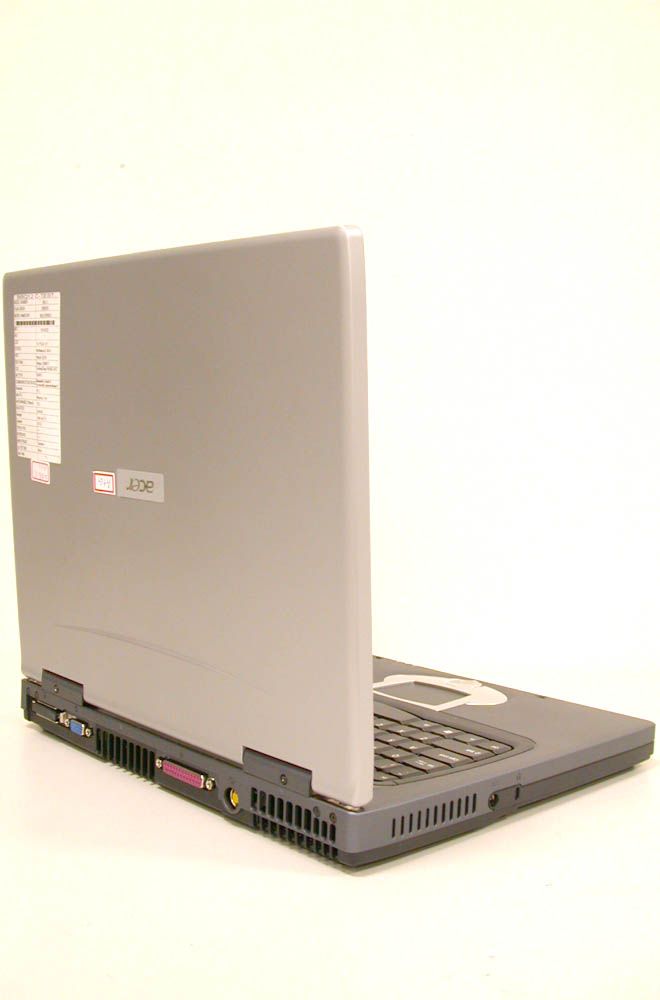
NKRBQ12ABNotebook Personal Computer
Wistron NeWeb Corporation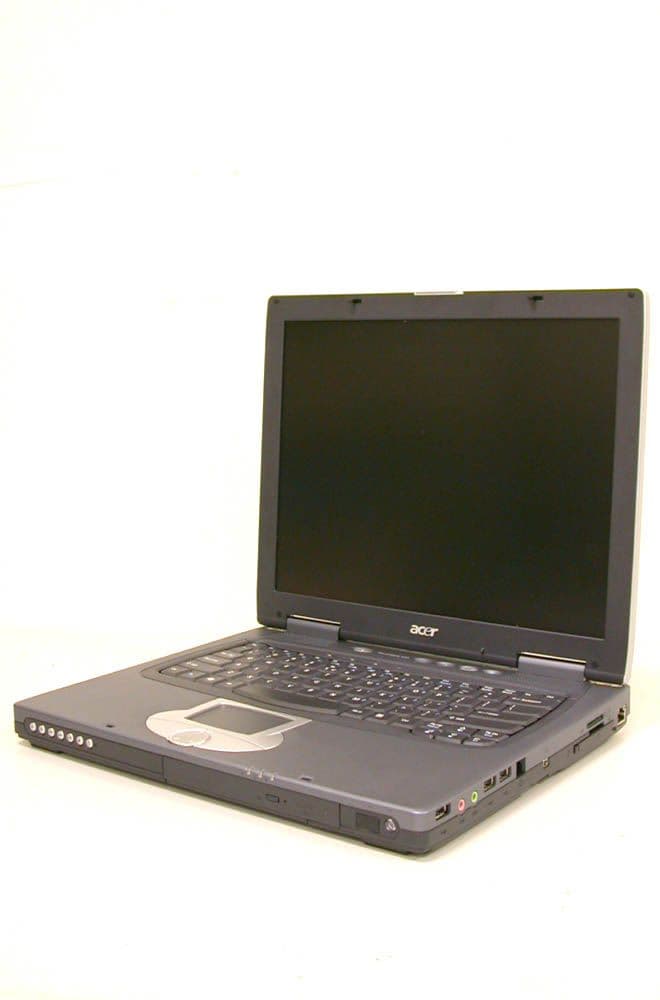
Click to zoom
Application Details
- Equipment Class
- DSS - Part 15 Spread Spectrum Transmitter
- Date of Grant
- Jun 12, 2003
- Application Purpose
- Original Equipment
- Date of Application
- Mar 18, 2003
- Equipment Note
- Notebook Personal Computer
- Frequency Range
- 2412.00000000 - 2462.00000000
- Company
- Wistron NeWeb Corporation
- Country
- Taiwan
Documents & Files
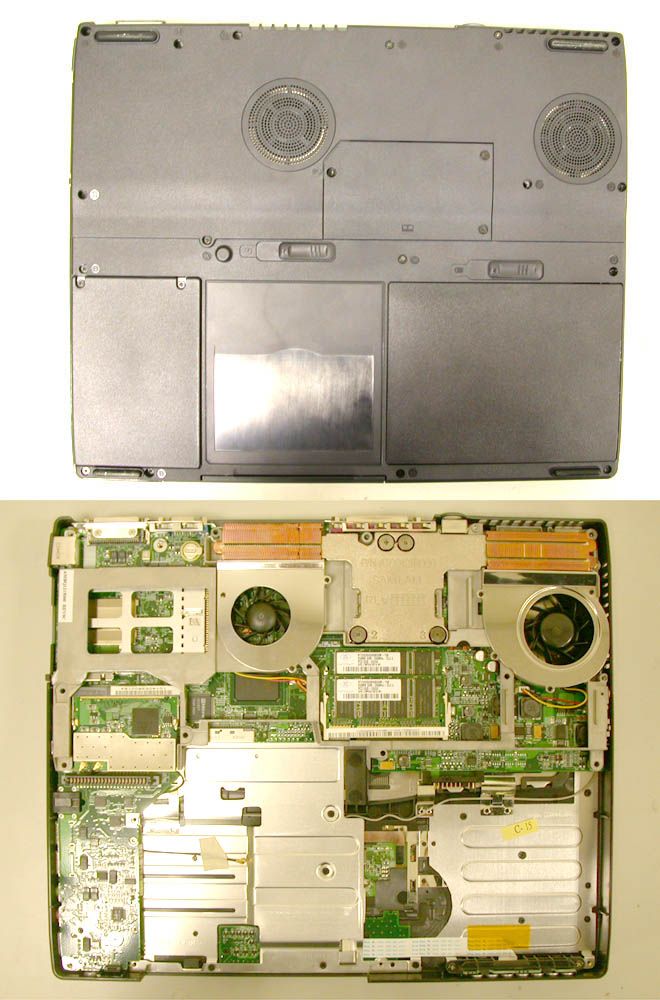
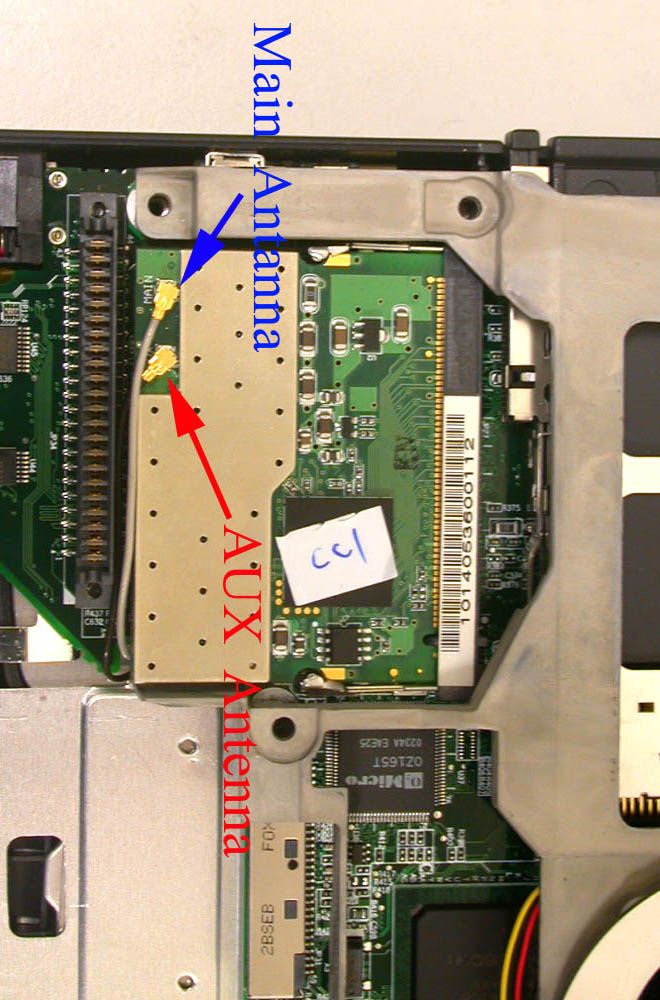
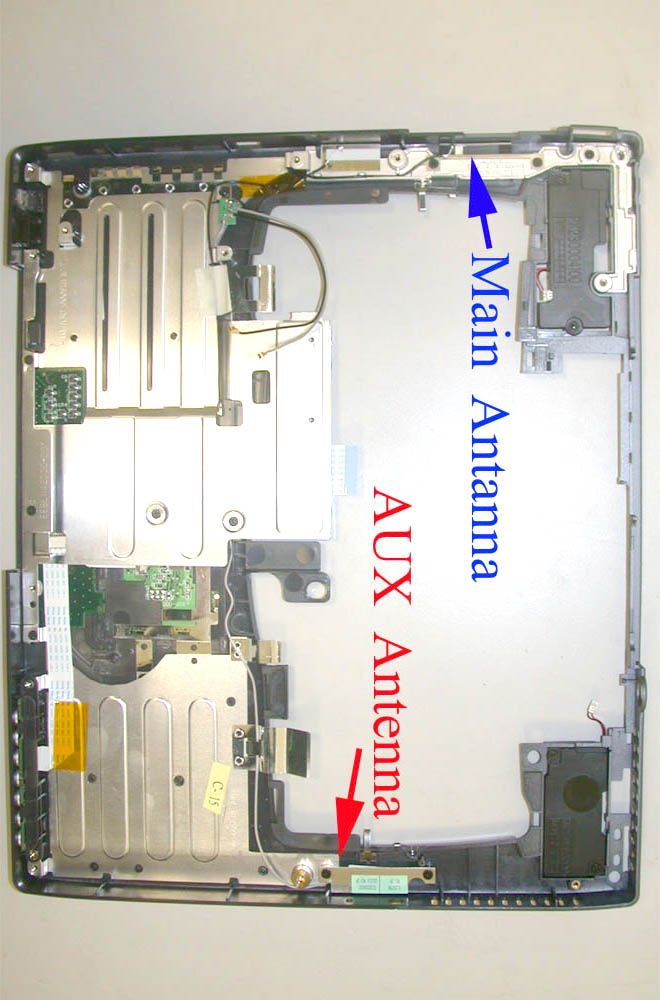
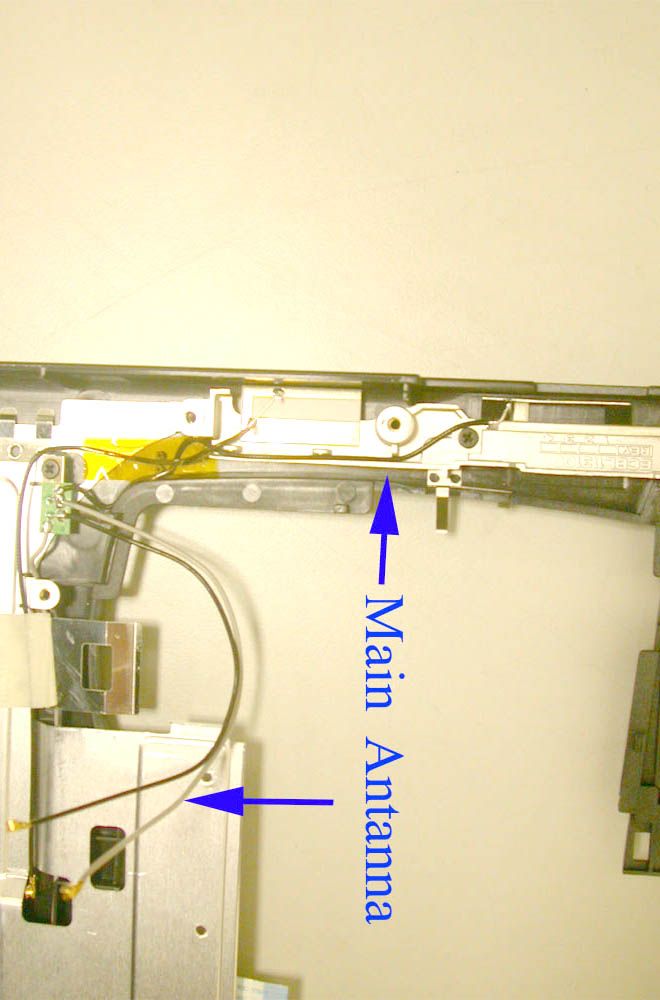
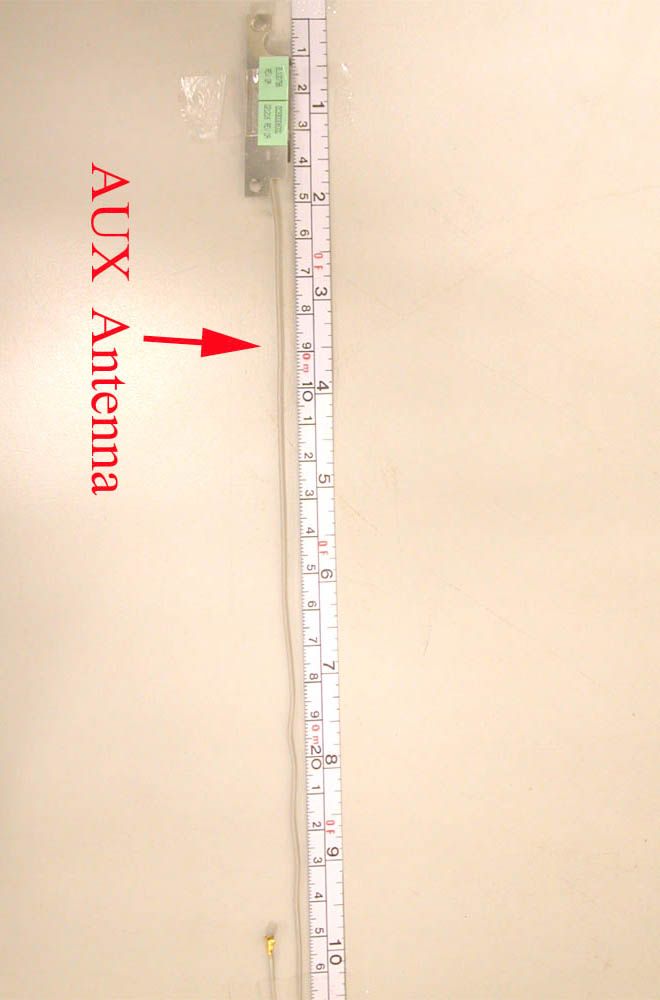
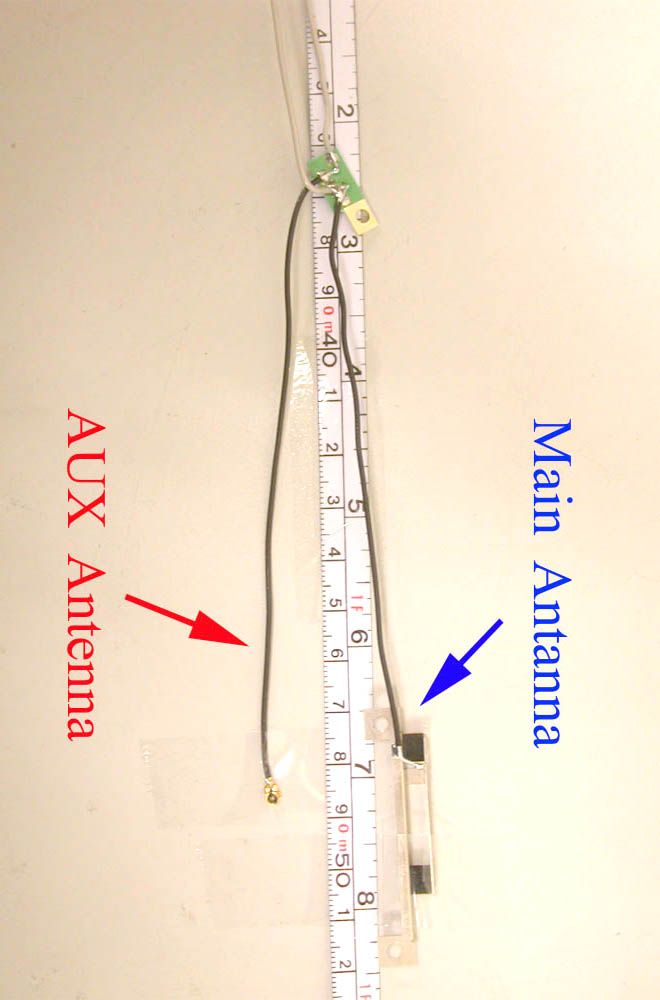
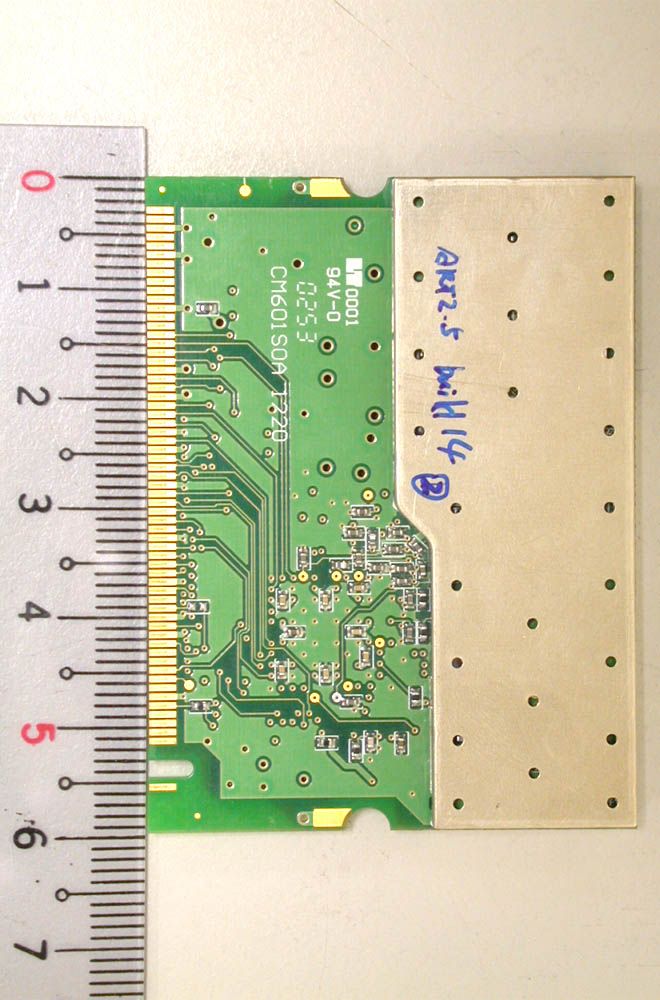
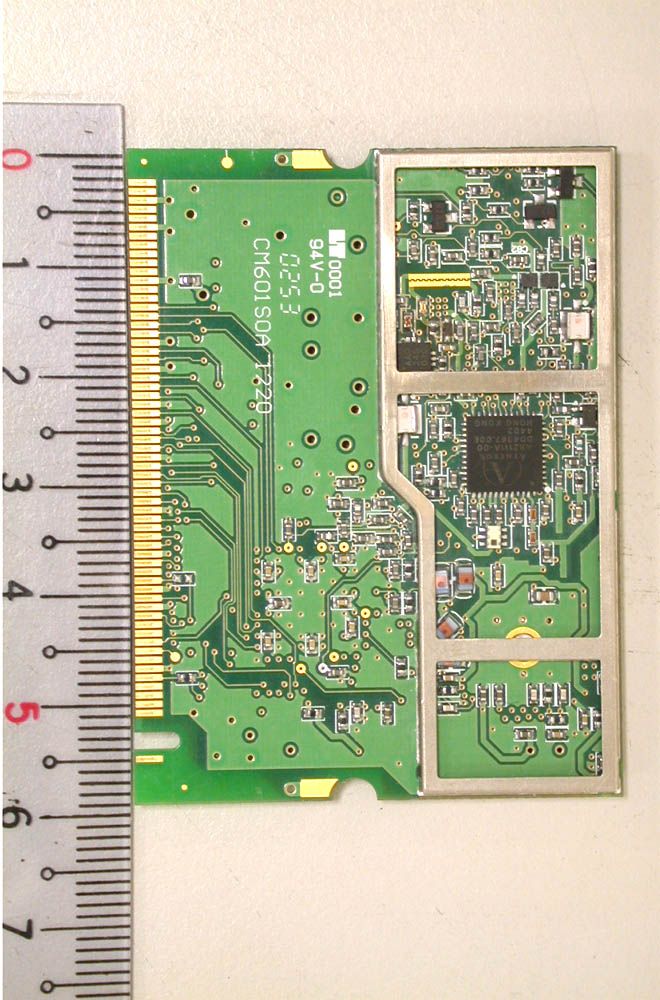
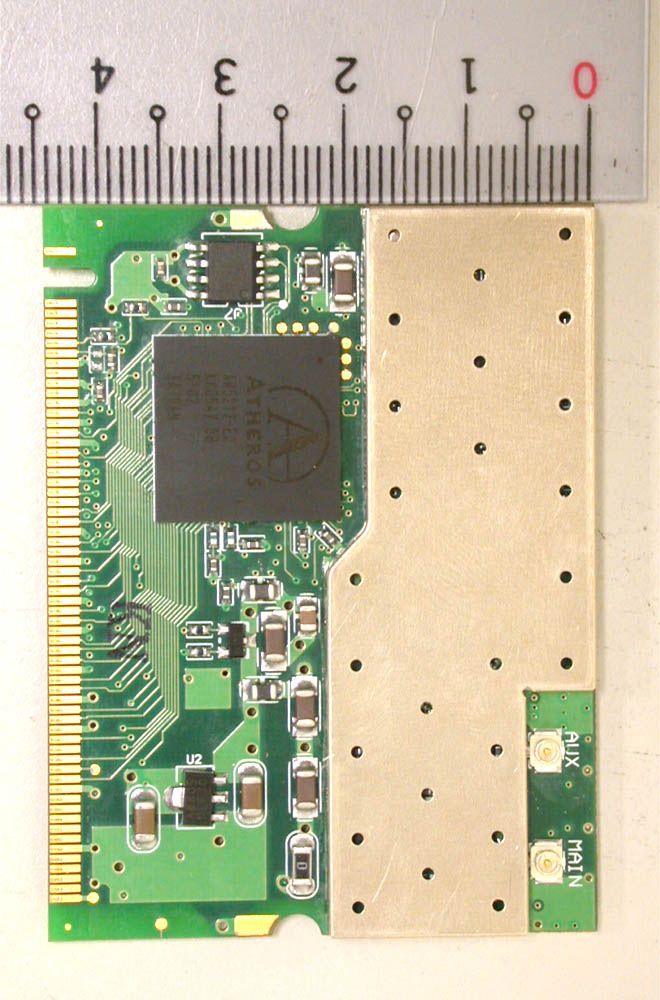
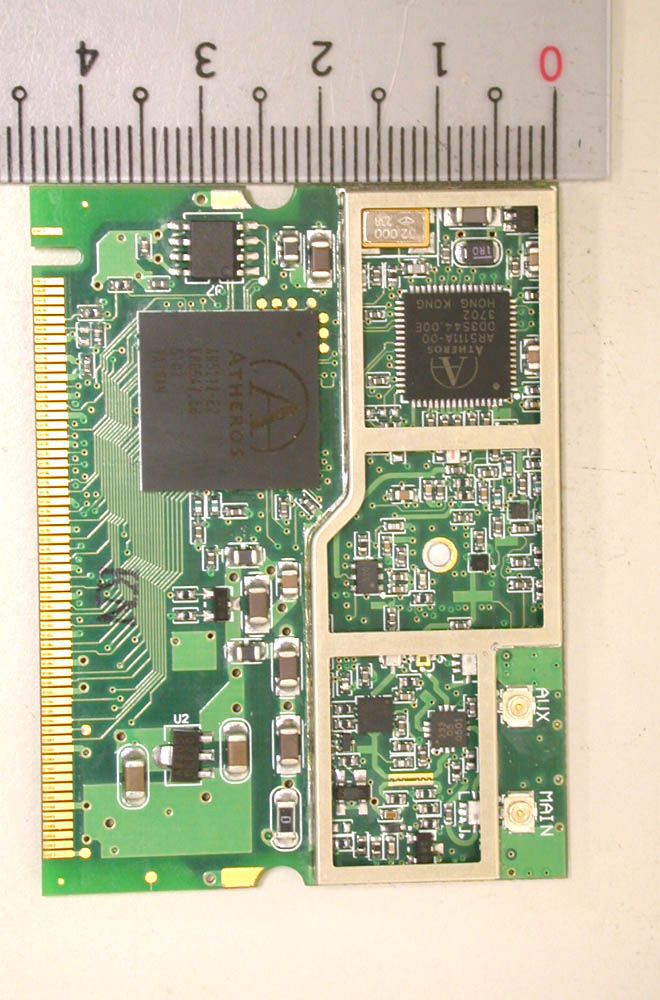
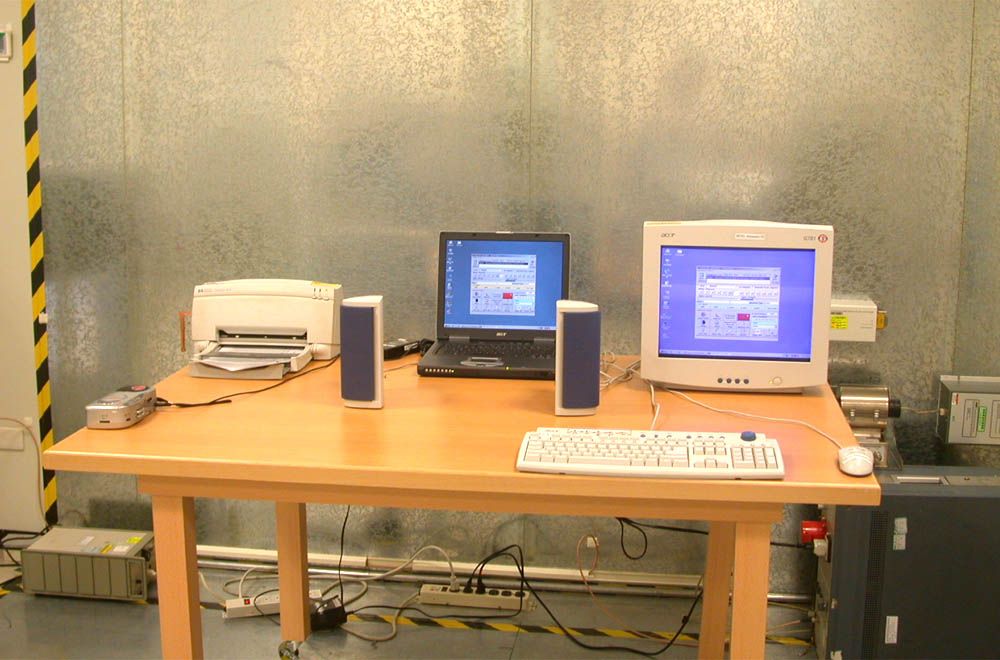
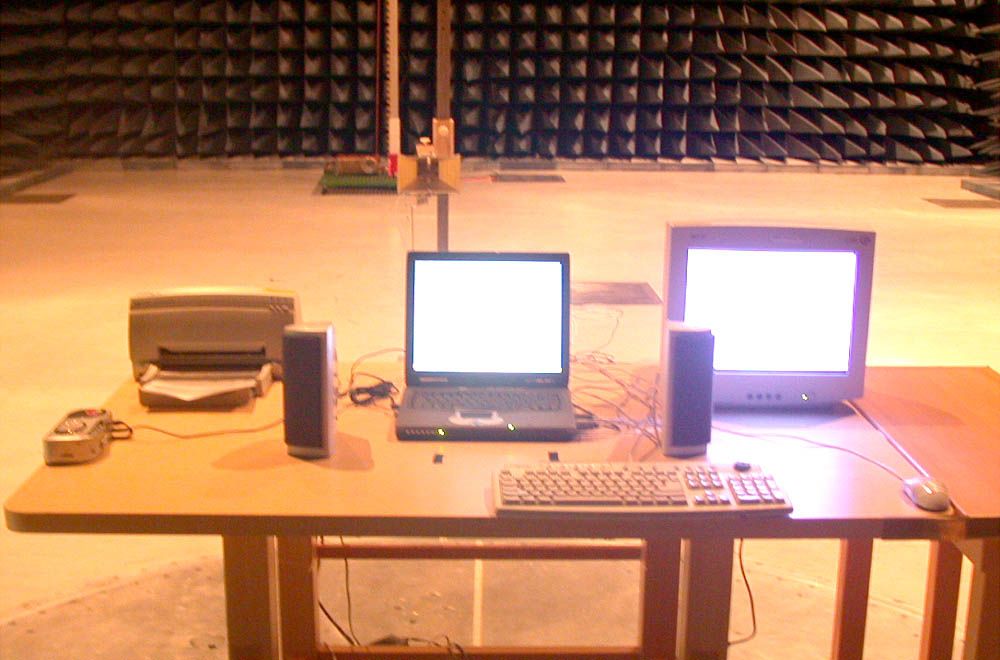
Document Text
Text extracted from the exhibit documents filed with the FCC. Open a document above to read the original.
Users Manual
WLAN a+b+g mini-PCI Module User Manual Model: EM-500AG Version: 1.0 Feb 2003 1 Copyright Statement No part of this publication may be reproduced, stored in a retrieval system, or transmitted in any form or by any means, whether electronic, mechanical, photocopying, recording or otherwise without the prior writing of the publisher. Windows ™ 98SE/2000/ME/XP are trademarks of Microsoft ® Corp. Pentium is trademark of Intel. All copyright reserved. 2 Federal Communication Commission Interference Statement This equipment has been tested and found to comply with the limits for a Class B digital device, pursuant to Part 15 of the FCC Rules. These limits are designed to provide reasonable protection against harmful interference in a residential installation. This equipment generates, uses and can radiate radio frequency energy and, if not installed and used in accordance with the instructions, may cause harmful interference to radio communications. However, there is no guarantee that interference will not occur in a particular installation. If this equipment does cause harmful interference to radio or television reception, which can be determined by turning the equipment off and on, the user is encouraged to try to correct the interference by one of the following measures: - Reorient or relocate the receiving antenna. - Increase the separation between the equipment and receiver. - Connect the equipment into an outlet on a circuit different from that to which the receiver is connected. - Consult the dealer or an experienced radio/TV technician for help. FCC Caution: To assure continued compliance, (example - use only shielded interface cables when connecting to computer or peripheral devices) any changes or modifications not expressly approved by the party responsible for compliance could void the user's authority to operate this equipment. This device complies with Part 15 of the FCC Rules. Operation is subject to the following two conditions: (1) This device may not cause harmful interference, and (2) This device must accept any interference received, including interference that may cause undesired operation. IMPORTANT NOTE: This transmitter must not be co-located or operating in conjunction with any other antenna or transmitter. 3 Table of Contents 1. INTRODUCTION 4 2. DRIVER/UTILITY INSTALLATION / UNINSTALLATION 4 2.1 INSTALLATION.........................................................................................................4 2.1.1 ADDITIONAL SETUP PROCESSES.............................................................................7 2.1.2 VERIFYING THE DRIVER.........................................................................................7 2.2 UNINSTALLATION.....................................................................................................9 3. CONNECTING TO AN EXISTING NETWORK10 3.1 ADDITIONAL NOTE FOR WINDOWS XP................................................................12 4. CREATING A NEW NETWORK 13 5. CONFIGURATION 15 5.1 DEVICE CONFIGURATION......................................................................................15 5.1.1 NON-DEFAULT SETTINGS CONFIGURATION..........................................................16 5.1.2 DEFAULT SETTINGS WINDOWS XP ZERO-CONFIGURATION.................................19 4 1. Introduction Thank you for purchasing the WLAN a+b+g mini-PCI Module that provides the easiest way to wireless networking. This User Manual contains detailed instructions in the operation of this product. Please keep this manual for future reference. 2. Driver/Utility Installation / Uninstallation 2.1 Installation Note! The Installation Section in this User Manual describes the first-time installation for Windows. To re-install the driver, please first uninstall the previously installed driver. See Chapter 2.2 “Uninstallation” section in this User Manual. Follow the steps below to complete the driver/utility installation: 1. Insert the Installation Software CD into the CD-Rom Drive. 2. Click “Next”. 5 3. Read the License Agreement and click “Yes”. 4. Click “Next” to continue or click “Browse” to choose a destination folder. 5. Click “Next”. 6 6. Click “Yes” to create a shortcut icon on your desktop. 7. Click “Finish”. 8. You should now see the shortcut icon on your desktop. 7 2.1.1 Additional Setup Processes During software installation procedure, each operating system may prompt different specific options: 1. Windows 98SE: The system will request the original Windows CD during the installation process. When the installation is finished, you’ll have to restart your computer. 2. Windows Me: Please restart your computer when the installation is finished. 3. Windows 2000/XP: Select “Install the software automatically” when the window with this option appears, and then click “Next” to continue installation. 2.1.2 Verifying the Driver 1. Windows 98SE/Me: Step 1. Right-click “My Computer” icon on the desktop and choose “Properties”. Step 2. Select “Device Manager” tab and open “Network adapters”. You should see your WLAN a+b+g mini-PCI Module in the list. Highlight it and click “Properties” button. Step 3. From the “Device status”, you should see the line “This device is working properly”. If, instead, you see error messages displayed, please remove this Adapter (highlight this Adapter and click “Remove” button). Restart your PC and go through the installation process again. 2. Windows 2000: Step 1. Right-click “My Computer” icon on the desktop and choose “Properties”. Step 2. Select “Hardware” tab and click “Device Manager”. Open “Network adapters”. You should see your WLAN a+b+g mini-PCI Module in the list. Right-click this Adapter and choose “Properties”. Step 3. From the “Device status”, you should see the line “This device is working properly”. If, instead, you see error messages displayed, please uninstall this Adapter (right-click this Adapter from the “Network adapters” list and choose “Uninstall”). Restart your PC and go through …
Text truncated - open the document above for the full version.
Users Manual
TravelMate 430 Series User’s Guide Model BQ12 Changes may be made periodically to the information in this publication without obligation to notify any person of such revision or changes. Such changes will be incorporated in new editions of this manual or supplementary documents and publications. This company makes no representations or warranties, either expressed or implied, with respect to the contents hereof and specifically disclaims the implied warranties of merchantability or fitness for a particular purpose. Record the model number, serial number, purchase date, and place of purchase information in the space provided below. The serial number and model number are recorded on the label affixed to your computer. All correspondence concerning your unit should include the serial number, model number, and purchase information. No part of this publication may be reproduced, stored in a retrieval system, or transmitted, in any form or by any means, electronic, mechanical, photocopy, recording, or otherwise, without the prior written permission of Acer Incorporated. Model number : _________________________________ Serial number: ___________________________________ Purchase date: ___________________________________ Place of purchase: ________________________________ Copyright © 2003 Acer Incorporated. All Rights Reserved. TravelMate 430 Series Notebook Computer User's Guide Original Issue: January 2003 TravelMate 430 series Notebook computer Acer and the Acer logo are registered trademarks of Acer Incorporated. Other company's product names or trademarks are used herein for identification purposes only and belong to their respective companies. 1 Federal Communication Commission Interference Statement This equipment has been tested and found to comply with the limits for a Class B digital device, pursuant to Part 15 of the FCC Rules. These limits are designed to provide reasonable protection against harmful interference in a residential installation. This equipment generates, uses and can radiate radio frequency energy and, if not installed and used in accordance with the instructions, may cause harmful interference to radio communications. However, there is no guarantee that interference will not occur in a particular installation. If this equipment does cause harmful interference to radio or television reception, which can be determined by turning the equipment off and on, the user is encouraged to try to correct the interference by one of the following measures: - Reorient or relocate the receiving antenna. - Increase the separation between the equipment and receiver. - Connect the equipment into an outlet on a circuit different from that to which the receiver is connected. - Consult the dealer or an experienced radio/TV technician for help. FCC Caution: To assure continued compliance, (example - use only shielded interface cables when connecting to computer or peripheral devices) any changes or modifications not expressly approved by the party responsible for compliance could void the user's authority to operate this equipment. This device complies with Part 15 of the FCC Rules. Operation is subject to the following two conditions: (1) This device may not cause harmful interference, and (2) This device must accept any interference received, including interference that may cause undesired operation. IMPORTANT NOTE: FCC Radiation Exposure Statement: This equipment complies with FCC radiation exposure limits set forth for an uncontrolled environment. This transmitter must not be co-located or operating in conjunction with any other antenna or transmitter. iii English First things first We would like to thank you for making the TravelMate series of notebook computers your choice for your mobile computing needs. We hope you will be happy with your TravelMate as much as we enjoyed making it for you. Your guides To help you use your TravelMate, we have designed a set of guides: For more information about our products, services, and support information, please visit our Web site (global.acer.com). First off, the Just for Starters... poster helps you get started with setting up your computer. This User’s Guide introduces you to the many ways your computer can help you be more productive. This guide provides clear and concise information about the computer, so read it thoroughly. If you ever need to print out a copy, this User’s guide is also available in PDF (Portable Document Format). Follow these steps: 1 Click on Start, Programs, AcerSystem. 2 Click on AcerSystem User’s Guide. Note: Viewing the file requires Adobe Acrobat Reader installed. For instructions on how to use Adobe Acrobat Reader, access the Help menu. iv English Basic care and tips for using your computer Turning your computer on and off To turn on the computer, simply press the power button - the leftmost button above the keybaord of your TravelMate. See page 3 for the exact location of the power button. To turn the power off, do any of the following: •Use the Windows shutdown command For Windows 2000: Click on Start, Shut Down..., and select Shut down; then click on OK. - or - For Windows XP: Click on Start, Tur n off Computer; then click Turn Off. •Use the power switch Note: You can also use the power switch to perform power management functions. See Windows help for more information. •Use the customized functions for power management You can also shut down the computer by closing the display cover, or by pressing the sleep hot key (Fn-F4). See “Hot keys” on page 15. Note: If you cannot power off the computer normally, press and hold the power switch for more than four seconds to shut down the computer. If you turn off the computer and want to turn it on again, wait at least two seconds before powering up. Taking care of your computer Your computer will serve you well if you take care of it. •Do not expose the computer to direct sunlight. Do not place it near sources of heat, such as a radiator. •Do not expose the computer to te…
Text truncated - open the document above for the full version.
Users Manual
17 English The Euro symbol If your keyboard layout is set to United States-International or United Kingdom or if you have a keyboard with a European layout, you can type the Euro symbol on your keyboard. Note for US keyboard users: The keyboard layout is set when you first set up Windows. For the Euro symbol to work, the keyboard layout has to be set to United States-International. To verify the keyboard type in Windows 2000, follow the steps below: 1Click on Start, Settings, Control Panel. 2Double-click on Keyboard. 3Click on the Language tab. 4Verify that the keyboard layout used for "En English (United States)" is set to United States-International. If not, select and click on Properties; then select United States- International and click on OK. 5Click on OK. To verify the keyboard type in Windows XP, follow the steps below: 1Click on Start, Control Panel. 2Double-click on Regional and Language Options. 3Click on the Language tab and click on Details. 4Verify that the keyboard layout used for "En English (United States)" is set to United States-International. If not, select and click on ADD; then select United States- International and click on OK. 1 Getting to know your TravelMate 18 English 5Click on OK. To type the Euro symbol: 1Locate the Euro symbol on your keyboard. 2Open a text editor or word processor. 3Hold Alt Gr and press the Euro symbol. Note: Some fonts and software do not support the Euro symbol. Please refer to www.microsoft.com/typography/faq/faq12.htm for more information. Launch Keys Located at the top of the keyboard are four buttons. These buttons are called launch keys. They are designated as P1, P2 Email button and Web browser button. Launch keyDefault application P1User-programmable P2User-programmable EmailEmail application Web browserInternet browser application 19 English E-Mail Detection Click right button at the Launch Manager icon on the taskbar and click on E-Mail Detection. In this dialog box, you have the option to enable/ disable mail checking, set the time interval for mail checking, etc. If you already have an email account, you can fill in User Name, Password and POP3 Sever in the dialog box. The POP3 Sever is the mail sever where you get your email. Aside from the email checking function, there is a mail button that is used to launch the email application. It is located above the keyboard right below the LCD. 1 Getting to know your TravelMate 20 English Touchpad The built-in touchpad is a pointing device that senses movement on its surface. This means the cursor responds as you move your finger on the surface of the touchpad. The central location on the palmrest provides optimal comfort and support. Note: When using an external USB mouse, you can press Fn-F7 to disable the touchpad. Touchpad basics The following items teach you how to use the touchpad: •Move your finger across the touchpad to move the cursor. •Press the left (1) and right (3) buttons located on the edge of the touchpad to do selection and execution functions. These two buttons are similar to the left and right buttons on a mouse. Tapping on the touchpad produces similar results. •Use the 4-way scroll (2) button (top/bottom/left and right) to scroll a page up, down, left or right. This button mimics your cursor 21 English pressing on the vertical and horizontal scroll bars of Windows applications. Note: Keep your fingers dry and clean when using the touchpad. Also keep the touchpad dry and clean. The touchpad is sensitive to finger movements. Hence, the lighter the touch, the better the response. Tapping harder will not increase the touchpad's responsiveness. FunctionLeft button Right button Scroll button Ta p ExecuteClick twice quickly Tap twice (at the same speed as double-clicking a mouse button) SelectClick onceTap once DragClick and hold, then use finger to drag the cursor on the touchpad Tap twice (at the same speed as double-clicking a mouse button) then hold finger to the touchpad on the second tap and drag the cursor Access context menu Click once ScrollClick and hold the button in the desired direction (up/down/ left/right) 1 Getting to know your TravelMate 22 English Storage This computer supplies you with the following media storage: •High-capacity Enhanced-IDE hard disk •Optical drive Hard disk The high-capacity hard disk is the answer to your storage needs. This is where your programs and data are stored. Optical drive The optical drive bay accepts a wide variety of optional media drive modules for use with your computer. These optional items include: •CD-ROM drive •DVD-ROM drive •DVD/CD-RW drive Ejecting the optical (CD or DVD) drive tray To eject the optical drive tray when the computer is turned on, press the drive eject button. When the power is off, you can eject the drive tray using the emergency eject hole. See page 51. 23 English Using software Playing DVD movies When the DVD-ROM drive module is installed in the optical drive bay, you can play DVD movies on your computer. 1Eject the DVD tray and insert a DVD movie disc; then close the DVD tray. Important! When you launch the DVD player for the first time, the program asks you to input the region code. DVD discs are divided into 6 regions. Once your DVD drive is set to a region code, it will play DVD discs of that region only. You can set the region code a maximum of five times (including the first time), after which the last region code set will remain permanent. Recovering your hard disk does not reset the number of times the region code has been set. Refer to the table below for DVD movie region code information. 2The DVD movie will automatically play after a few seconds. Note: To change the region code, insert a DVD movie of a different region into the DVD-ROM drive. Please refer to the online help for more information. Region codeCountry or region 1U.S.A., Canada 2Europe, Middle East, South Africa, Japan 3Southeast Asia, Taiwan, Korea (South) 4Latin America, Australia, New Zealand 5Former U.S.S.R., parts of…
Text truncated - open the document above for the full version.
Cover Letter(s)
Wistron Neweb Corporation No. 10-1, Li-hsin Road 1, Science-based Industrial Park,Hsinchu 300, Taiwan, R. O. C. 886-3-666-7799 886-3-666-1654 Letter Of Agency Date: Mar. 18, 2003 Federal Communications Commission Authorization and Evaluation Division 7435 Oakland Mills Road Columbia, MD. 21046 Attn: Equipment Authorization Branch To Whom It May Concern: We, the undersigned, hereby authorize International Standards Laboratory (ISL) of Taiwan, to act on our behalf in all matters relating to applications for equipment authorization, including the signing of all documents relating to these matters and payment required by FCC. Any and all acts carried out by ISL on our behalf shall have the same effect as our own. We. hereby certify that we are not subject to a denial of federal benefits, that includes FCC benefits, pursuant to Section 5301 of the Anti-Drug Abuse Act of 1988, 21 U. S. C. 853(a) Thank you for your attention to this matter. ________________ Eric Liu / Sr. Manager Engineer Wistron NeWeb Corporation Wistron Neweb Corporation No. 10-1, Li-hsin Road 1, Science-based Industrial Park,Hsinchu 300, Taiwan, R. O. C. 886-3-666-7799 886-3-666-1654 Federal Communications Commission Date: Mar. 18, 2003 Authorization and Evaluation Division 7435 Oakland Mills Road Columbia, MD. 21046 Page: 2 of 2 Attn: Equipment Authorization Branch Subject: Application for FCC Certification on Notebook Personal Computer Model No.: BQ12 FCC ID: NKRBQ12AB Dear Sir: We would like to apply for FCC Certification on the subject model (EUT). The EUT is a Notebook PC built in a Wireless LAN 802.11a/b/g Mini-PCI module, Model: EM-500AG. Due to this dual-band module being operated at different frequency ranges (see following table), we applied both part 15E and part 15C at the same time with the same FCC ID. Frequency Range FCC Rule FCC ID 802.11b+g 2412MHz to 2462MHz 15C NKRBQ12AB 802.11a 5180MHz to5320MHz 15E NKRBQ12AB We have uploaded the related document for the EUT onto FCC website. Please review the information we submitted and issue us a grant for the subject model. If you have any comments, please do not hesitate to contact us. Yours sincerely, ________________ Eric Liu / Sr. Manager Engineer Wistron NeWeb Corporation
Cover Letter(s)
Re: FCC ID NKRBQ12AB Applicant: Wistron NeWeb Corporation Correspondence Reference Number: 25128 731 Confirmation Number: EA462548 Dear Stan, Here are our answers: 1). This letter serves as a confirmation that this notebook PC (FCC ID: NKRBQ12AB) does not contain a Blue tooth transmitter. The models with Blue tooth transmitter will be applied for FCC approval under different FCC ID. 2). The SAR measurement Plots are attached. (2_SAR Test Plots - 802.11b.pdf , 3_SAR Test Plots - 802.11g.pdf) 3). System target verification infomation is attached. (1_System Validation Plots.pdf) 4). SAR Probe calibration information is attached. (4_E-Filed Probe.pdf, 5_Validation Dipole.pdf) 5). Test report of worst case position for all data rates and related information is attached. If you need any additional information, please inform us by mail ASAP. Thanks for your help. Daphne Liu/Specialist International Standards Laboratory
ID Label/Location Info
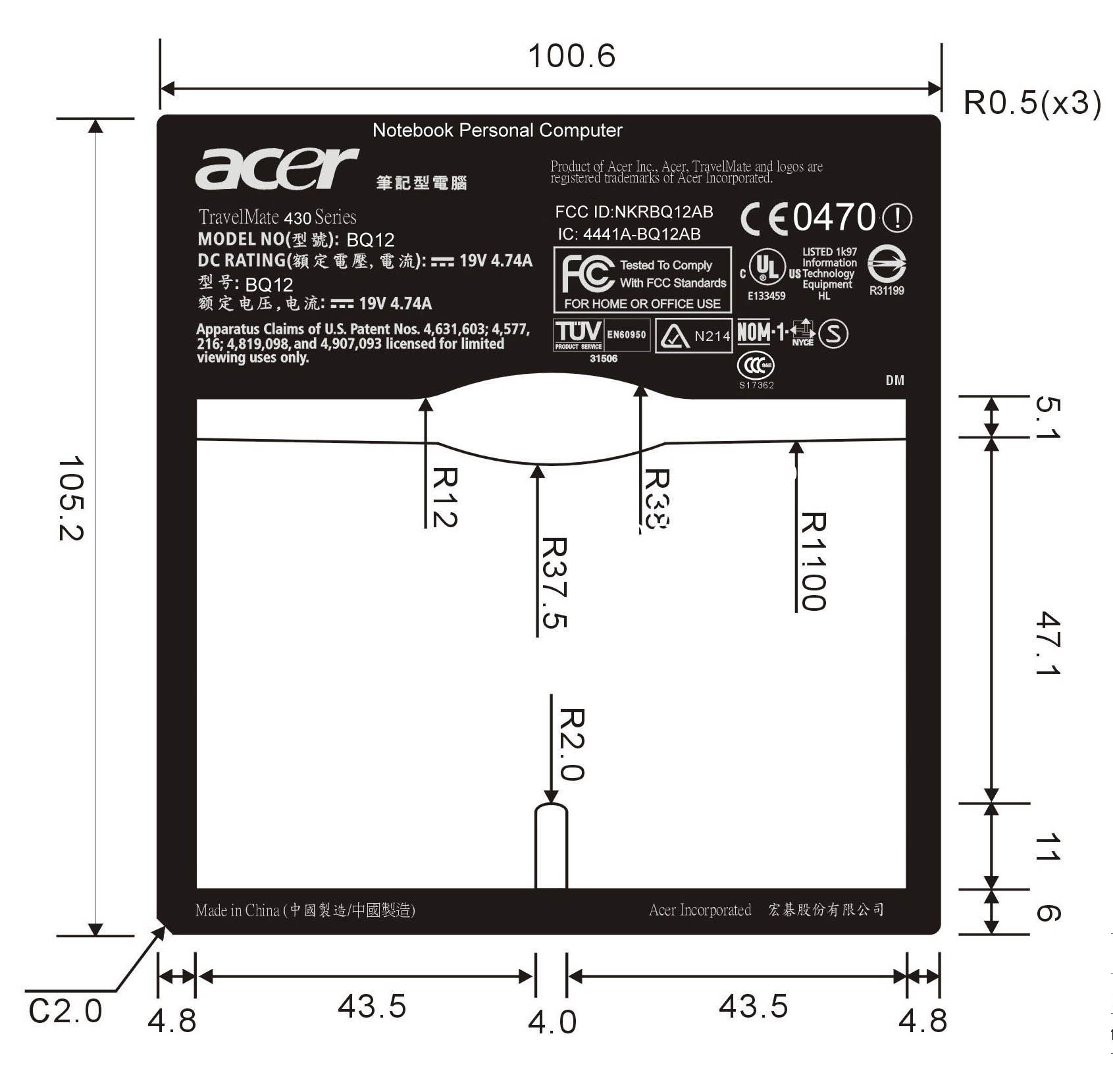
FCC Label Label Location Label Location
ID Label/Location Info
Wistron Neweb Corporation No. 10-1, Li-hsin Road 1, Science-based Industrial Park,Hsinchu 300, Taiwan, R. O. C. 886-3-666-7799 886-3-666-1654 FCC Labeling Requirements and Information Federal Communications Commission Date: Mar. 18, 2003 Authorization and Evaluation Division 7435 Oakland Mills Road Columbia, MD. 21046 Page: 1 of 1 Attn: Equipment Authorization Branch RE: FCC Labeling Requirements FCC ID: NKRBQ12AB The following label information is required by the FCC Rules and Regulations for certified devices. Please find marketing information required by the FCC Rules and Regulations as following: Label Requirements An intentional radiator device subject to certification by the FCC shall carry a warning label which includes the following statement: (Due to space limitation, this statement will be shown on Users’ Manual Page ii.) This device complies with Part 15 of the FCC Rules. Operation is subject to the following two conditions: (1) this device may not cause harmful interference, and (2) this device must accept any interference received, including interference that may cause undesired operation. The sample label shown shall be permanently affixed at a conspicuous location on the device and be readily visible to the user at the time of purchase. FCC ID: NKRBQ12AB Thank you for your attention to these matters. Sincerely, ________________ Eric Liu / Sr. Manager Engineer Wistron NeWeb Corporation
RF Exposure Info
in accordance with the requirements of FCC Report and Order: ET Docket 93-62, and OET Bulletin 65 Supplement C for NoteBook PC With 802.11a/b/g Module MODEL: BQ12 FCC ID: NKRBQ12AB February 21, 2003 REPORT NO: 03T1780-1 Prepared for Wistron NeWeb Corporation No. 10-1, Li-Hsin Road I Science-Based Industrial Park Hsinchu, Taiwan, R. O. C. Prepared by COMPLIANCE CERTIFICATION SERVICES 561F MONTEREY ROAD MORGAN HILL, CA 95037 USA TEL: (408) 463-0885 REPORT NO: 03T1780-1 DATE: February 21, 2003 FCC ID: NKRBQ12AB COMPLIANCE CERTIFICATION SERVICES Page: 2 of 24 This report shall not be reproduced except in full, without the written approval of CCS. This document may be altered or revised by Compliance Certification Services personnel only, and shall be noted in the revision section of the document. CERTIFICATE OF COMPLIANCE (SAR EVALUATION) Date of Tests: February 19 - 21, 2003 Report No: 03T1780-1 APPLICANT: Wistron NeWeb Corporation No. 10-1, Li-Hsin Road I Science-Based Industrial Park Hsinchu, Taiwan, R.O.C. MODEL: BQ12 FCC ID: NKRBQ12AB DEVICE CATEGORY: PORTABLE DEVICES EXPOSURE CATEGORY: GENERAL POPULATION/UNCONTROLLED EXPOSURE Test Sample is a: Production unit Modulation type: Direct Sequence Spread Spectrum (DSSS) Operating mode: Maximum continuous output Tx Frequency: 2412 – 2462 MHz Max. O/P Power (Conducted): 802.11b – 17.19 dBm 802.11g – 17.16 dBm Max. SAR (1g): 802.11b – 0.175 mW/g 802.11g – 0.0609 mW/g Application Type: Certification FCC Rule Part(s): §15.247 Note: CCS tested on modes 802.11b/g only, the 802.11a was tested on other facility. This wireless portable device has been shown to be capable of compliance for localized specific absorption rate (SAR) for uncontrolled environment/general population exposure limits specified in ANSI/IEEE Std. C95.1-1992 and had been tested in accordance with the measurement procedures specified in FCC OET 65 Supplement C (released on 6/29/2001 see Test Report). I attest to the accuracy of data. All measurements reported herein were performed by me or were made under my supervision and are correct to the best of my knowledge and belief. I assume full responsibility for the completeness of these measurements and vouch for the qualifications of all persons taking them. Steve Cheng EMC Engineering Manager REPORT NO: 03T1780-1 DATE: February 21, 2003 FCC ID: NKRBQ12AB COMPLIANCE CERTIFICATION SERVICES Page: 3 of 24 This report shall not be reproduced except in full, without the written approval of CCS. This document may be altered or revised by Compliance Certification Services personnel only, and shall be noted in the revision section of the document. TABLE OF CONTENT 1. EUT DESCRIPTION........................................................................................................4 2. REQUIREMENTS FOR COMPLIANCE TESTING DEFINED BY THE FCC.................5 3. DOSIMETRIC ASSESSMENT SYSTEM........................................................................5 3.1. MEASUREMENT SYSTEM DIAGRAM.......................................................................................................6 3.2. SYSTEM COMPONENTS..............................................................................................................................7 4. EVALUATION PROCEDURE..........................................................................................9 5. MEASUREMENT UNCERTAINTY................................................................................12 6. EXPOSURE LIMIT.........................................................................................................13 7. MEASUREMENT RESULTS.........................................................................................14 7.1. SYSTEM VALIDATION.................................................................................................................................14 7.2. TEST LIQUID CONFIRMATION.................................................................................................................15 7.3. EUT TUNE-UP PROCEDURE....................................................................................................................16 7.4. EUT SETUP PHOTOS.................................................................................................................................17 7.5. SAR MEASUREMENT RESULTS..............................................................................................................19 7.5.1. 802.11b........................................................................................................19 7.5.2. 802.11g........................................................................................................20 8. EUT PHOTOS................................................................................................................21 9. EQUIPMENTS LIST & CALIBRATION STATUS.........................................................22 10. REFERENCES...............................................................................................................23 11. ATTACHMENTS............................................................................................................24 REPORT NO: 03T1780-1 DATE: February 21, 2003 FCC ID: NKRBQ12AB COMPLIANCE CERTIFICATION SERVICES Page: 4 of 24 This report shall not be reproduced except in full, without the written approval of CCS. This document may be altered or revised by Compliance Certification Services personnel only, and shall be noted in the revision section of the document. 1. EUT DESCRIPTION APPLICANT: Wistron NeWeb Corporation No. 10-1, Li-Hsin Road I Science-Based Industrial Park Hsinchu, Taiwan, R.O.C. MODEL: BQ12 FCC ID: NKRBQ12AB DEVICE CATEGORY: PORTABLE DEVICES EXPOSURE CATEGORY: GENERAL POPULATION/UNCONTROLLED EXPOSURE Test Sample is a: Production unit Modulation type: Direct Sequence Spread Spectrum (DSSS) Operating mode: Maximum continuous output Tx Frequency: 2412 – 2462 MHz Max. O/P Power (Conducted): 802.11b – 17.19 dBm 802.1…
Text truncated - open the document above for the full version.
RF Exposure Info
Date/Time: 02/19/03 16:55:42 Test Laboratory: Compliance Certification Services EUT Setup Configuration 1 (802.11b, Antenna A) SAR in dB -16 -14.4 -12.8 -11.2 -9.58 -7.98 -6.38 -4.79 -3.19 -1.6 0 Date/Time: 02/19/03 16:55:42 Test Laboratory: Compliance Certification Services File Name: 1L-CH_0.0311mW.da4 DUT: Wistron Type & Serial Number: BQ12 Program: EUT Setup Configuration 1 (Antenna A); Low channel (2412MHz, 802.11b) Communication System: DSSS; Frequency: 2412 MHz; Duty Cycle: 1:1 Medium: Muscle 2450 MHz ( σ = 1.9709 mho/m, ε = 51.01, ρ = 1000 kg/m3) Phantom section: FlatSection DASY4 Configuration: - Probe: ET3DV6 - SN1578; ConvF(4.1, 4.1, 4.1); Calibrated: 2/22/2002 - Sensor-Surface: 4mm (Mechanical Surface Detection) - Electronics: DAE3 Sn500; Calibrated: 2/26/2002 - Phantom: SAM 2 - TP:1050 - Software: DASY4, V4.0 Build 51 Zoom Scan (5x5x7)/Cube 0: Measurement grid: dx=7.5mm, dy=7.5mm Reference Value = 1.83 V/m Peak SAR = 0.0848 mW/g SAR(1 g) = 0.0311 mW/g; SAR(10 g) = 0.0158 mW/g Power Drift = -0.12 dB Area Scan (10x28x1): Measurement grid: dx=10mm, dy=10mm SAR in dB -16 -14.4 -12.8 -11.2 -9.58 -7.98 -6.38 -4.79 -3.19 -1.6 0 Date/Time: 02/19/03 17:38:26 Test Laboratory: Compliance Certification Services File Name: 2M-CH_0.0248mW.da4 DUT: Wistron Type & Serial Number: BQ12 Program: EUT Setup Configuration 1 (Antenna A); Middle channel (2437MHz, 802.…
Text truncated - open the document above for the full version.
Contact Information
Applicant
William Su(Senior Director / System Engineering dept.)
Technical Contact
International Standards LaboratoryJammy Chen
[email protected]886-2-86911994
No. 65, Ku Dai keng St. · Hsichih, Taipei · Taiwan
Non-Technical Contact
International Standards LaboratoryDaphne Liu
[email protected]886-2-26462550
Test Firm
International Standards LaboratoryGrace Lai
Technical Specifications
| # | Rule Parts | Frequency Range | Power Output |
|---|---|---|---|
| 1 | 15C | 2.41 GHz - 2.46 GHz | 51.17 mW |
Other Applications from Wistron NeWeb Corporation
NKR-ATTCGW453
Aug 25, 2026Enterprise product
Equipment Class
NII - Unlicensed National Information Infrastructure TXNKR-LS06B
Aug 24, 2026Touchscreen
Equipment Class
NII - Unlicensed National Information Infrastructure TXNKR-DWSZW
Aug 10, 2026Door/Window Sensor
Equipment Class
DXX - Part 15 Low Power Communication Device TransmitterNKR-TELE2
Jun 26, 2026TELE2
Equipment Class
NII - Unlicensed National Information Infrastructure TXNKR-VMC-SA525MAX
Jun 05, 2026NAD (Network Access Device)
Equipment Class
CXX - Communications Rcvr for use w/ licensed Tx and CBs