Text extracted from the exhibit documents filed with the FCC. Open a document above to read the original.
- 1 – AnotherEYES TM QUICKSTART GUIDE Copyright 2000 AnotherWorld Inc. All rights reserved. Wicked3d are trademarks and/or registered trademarks of Metabyte, Inc. AWQSE 2000-08-02 - 2 – Sections: 1. Installing Hardware 2. Installing Software 3. Uses to Wicked3D Driver 4. Uses to AnotherWorld Software Section 1: Installing Hardware 1. Install the Another EYES Hardware after turn off the power of the computer. 2. Disconnect the monitor cable connected the computer from the computer. 3. Connect the VGA pass through adapter of Another EYES to the place that monitor cable was. 4. Re-connect the monitor cable to VGA pass through adapter. 5. After disconnect the Keyboard cable, connect the Keyboard Adapter to the place that Keyboard cable was. Connect the Keyboard cable to Keyboard Adapter. 6. Lastly, connect the Another EYES Transmitter cable to Another EYES goggle. 7. Turn on the power of the computer Section 2: Installing Software In this Another EYES CD, there’s a lot of VR image samples and four software program like VR Pic, VR Stream, Stereoshop, VR Scape. To install the program, move to the Korean folder of Another EYES CD. After that, run SETUP.EXE. Attached serial No. would be needed when you install the four software program in Another EYES CD. 1. After run SETUP.EXE , you can see a picture as follows. Press ‘Next’ button. - 3 – 2. This picture concerned about Software License. To continue the installing a program, Press ‘Yes’ button. 3. This picture for input the information of the user. Input the user information and serial No. Provided, Then press ‘Next’ button. - 4 – 4. This picture for choosing the directory to install. Basic installing directory is C:\Programs Files\AnotherWorld. If you want to change the directory, press ’Browse’ button. Then, change the directory. 5. This picture for choosing the program to install. After choosing the program, press ’Next’ button. - 5 – 6. This picture for choosing the folder to install the program. If you want to change the program, Change the name in the program folder. Then press ‘Next’ button. 7. Program installing is completed. Installing the Wicked3D Game Driver - 6 – Wicked3D is the exclusive use driver for viewing the game in 3-dimensoinal way. After install the Wicked3D program, you can see the game in 3-dimensional way. 1. Turn on the computer power, then start ‘Window 95/98’ 2. Put the Wicked3D driver CD in the CD-ROM drive. 3. ‘Window95/98’ will auto-run by install-program. To install the Wicked3D driver, Press ‘Yes’ button. Then program installing will start. 4. After unlock the compressed file by InstallShild to hard-disk, ‘Software License Agreement’ dialog box will show up. After read carefully Software License Agreement, press ‘Yes’ button. Then installing program will proceed. 8. Note : If press ‘No’ button, program installing would be cancel 5. After ‘Medical Warning’ dialog box appeared, read carefully dialog box. Press ‘Yes’ Button, then installing will proceed. 9. Note : If press ‘No’ button, program installing would be cancel. 6. Next seeing is Wicked3D setup/update dialog box. After choosing the graphic card you use, press ‘Yes’ button, program will proceed. You must choose the same graphic card with the one you use in the list. 7. If ‘Setup Complete’ dialog box show up, program installing is successful. 8. After re-start the computer, you can use the Wicked3D driver. Section 3: Uses to Wicked3D Driver 1. Run the Direct3D game 2. You can see the game in 3-Dimensinal way only on the graphic card supported by Wicked3D. 3. After the game start, press ‘Stereo on (Default <Ctl + t>) Hotkey’ to run the driver 4. If divided up&down picture show up on the monitor, press ‘AnotherEYES’ mode button to run the sync double mode. 5. To control the depth of stereoscopic image, use the Hotkey below Default Wicked3D Hotkeys: Toggle Stereo <Ctl + T> Less Stereo Separation <Ctl + O> Toggle Resolution Override <Ctl + F> More Stereo Separation <Ctl + P> Toggle Stereo and Resolution Override <Alt + G> Less Vertical Separation <Ctl + U> Reset Stereo <Ctl + R> More Vertical Separation <Ctl + I> Toggle Stereo Separation <Ctl + S> Stereo Crosshair Toggle <Alt + C> - 7 – Section 4: Uses to AnotherWorld Software 1. VR Scape VR Scape is a Web Brower Plug-in program supporting VRML. VR Scape is a real time converting browser of VRML file format into stereoscopic image, so you can experience the virtual reality with it. It is supported on Microsoft Internet Explorer and Netscape Navigator, and we recommend you to use 4.0 version or higher How to use Because VR Scape is a Plug-in program, it only works after opening VRML file by using Web browser Therefore, you should move to 3D gallery in the CD, then open the wrl file in each folder to operate VR Scape. When you use VR Scape on the Internet Explorer, set low safety level at the system security option. If a warning message is showed up, you can ignore it. Because it results from different environment of its computer.And it does not cause any problems with your computer. Main Menu Examine Button Spinning a stereoscopic VRML Look Button Moving left & right side Walk Button zoom in & out Slide Button Moving left & right side Point Button Moving toward a point you make Viewpoint list Choose a viewpoint you want Set Stereo Button Viewing a stereoscopic VRML Depth Moderating Button Moderating depth from a point you make Setting Dialogs Button Set the configuration About Button Brief review about this browser If you click the right mouse button, the following menu will be shown. - 8 – after push setting button on above menu, you will see the following menu this menu has three tabs. One is upper menu and two is below. - 9 – - 10 – 2. VR Pic VR Pic is the stereoscopic still image viewer specially designed for multimedia environment. How to use VR Pic can be classified into three main functions First, basic function such as file open Second, Slide function Third, Zoom function Open one file Open multi files …
Text truncated - open the document above for the full version.
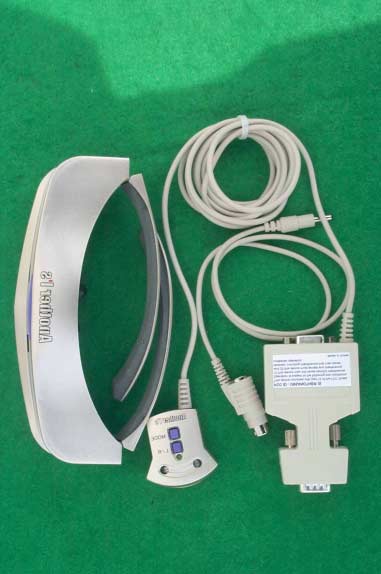
SK TECH CO., LTD. Page 1 of 3 SKT SKTOS-00115 FCC ID : XXXANOTHEREYE2000 External Photographs of EUT
SK TECH CO., LTD. Page 2 of 3 SKT SKTOS-00115 FCC ID : XXXANOTHEREYE2000
SK TECH CO., LTD. Page 3 of 3 SKT SKTOS-00115 FCC ID : XXXANOTHEREYE2000
SK TECH CO., LTD. Page 1 of 1 SKT SKTOS-00115 FCC ID : XXXANOTHEREYE2000 FCC ID Sample Label & Location Information LABELLING REQUIREMENTS PER ∫∫∫∫ ∫∫∫∫∫∫∫∫ ∫∫∫∫2.928 The Label shown shall be permanently affixed at a conspicuous location on the device and be readily visible to the user at the time of purchase. FCC ID : XXXANOTHEREYE2000 This device complies with part 15 of the FCC Rules. Operation is subject to the following two conditions: (1) This device may not cause harmful interference, and (2) this device must accept any interference received, including interference that may cause undesired operation.
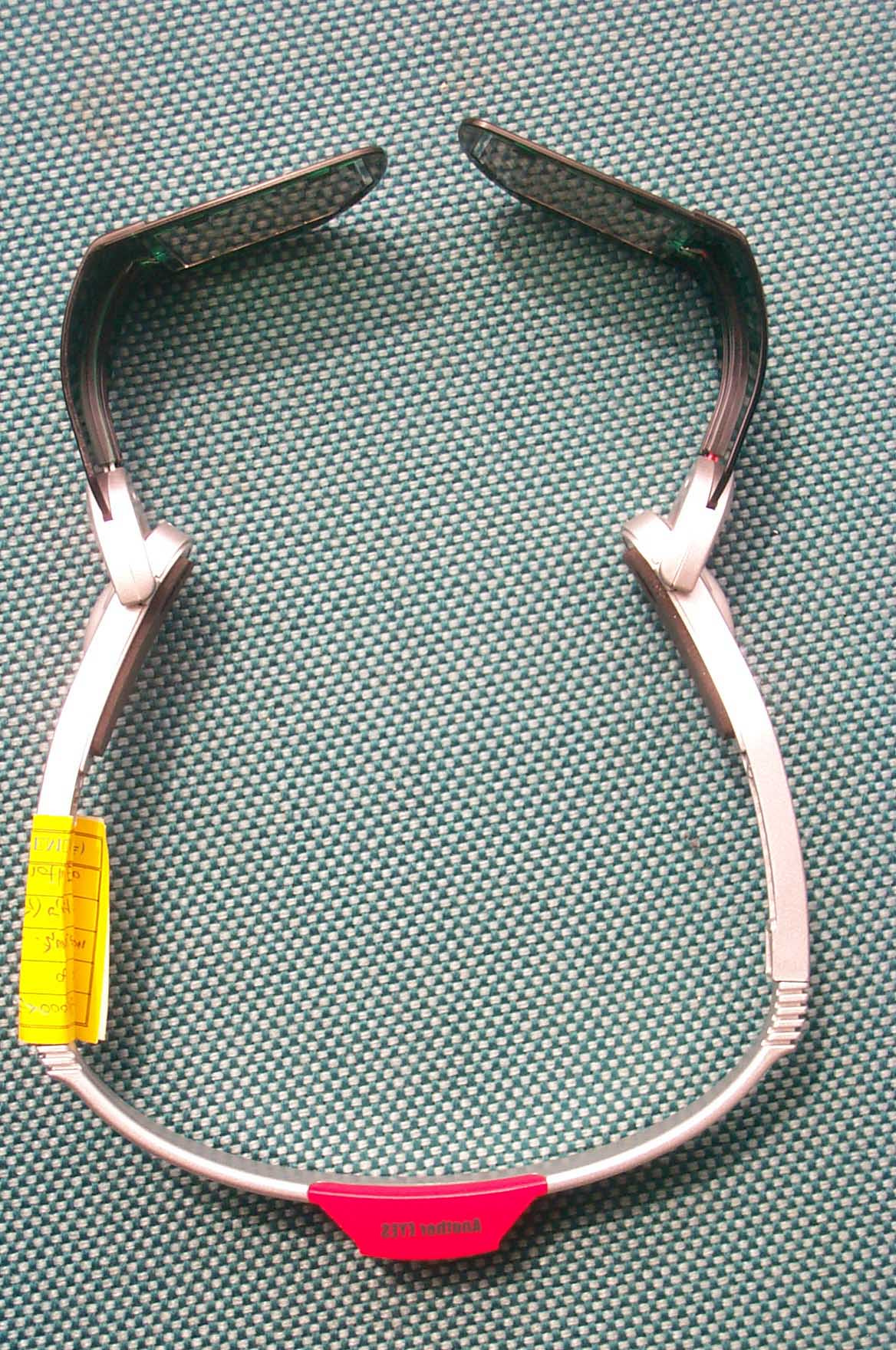
SK TECH CO., LTD. Page 1 of 3 SKT SKTOS-00115 FCC ID : XXXANOTHEREYE2000 Internal Photographs of EUT
SK TECH CO., LTD. Page 2 of 3 SKT SKTOS-00115 FCC ID : XXXANOTHEREYE2000
SK TECH CO., LTD. Page 3 of 3 SKT SKTOS-00115 FCC ID : XXXANOTHEREYE2000
SK TECH CO., LTD. Page 1 of 13 SKT SKTOS-00115 FCC ID : XXXANOTHEREYE2000 Certificate of Compliance Test Report No.: SKTOS-00115 NVLAP CODE : 200220-0 Applicant: Another World., Inc. Applicant Address: T.B.I.Center, Myong Ji University, San38-2, Nam-Dong Yongin, Kyunggi-Do, Republic of Korea Product: 3D GOGGLE FCC ID: XXXANOHTEREYE2000 Model No.: ANOTHER EYE 2000 Receipt No.: SKE20000831-651 Date of receipt: Aug. 31, 2000 Date of Issue: Sep. 21, 2000 Testing location: SK TECH CO., LTD. 820-2, Wolmoon-Ri, Wabu-Up, Namyangju-Si, Kyunggi-Do, Korea Test Standards: ANSI C63.4 / 1992 Rule Parts: FCC part 15 Subpart B Equipment Class : Class B Digital Device Peripheral Test Result: The above mentioned product has been tested and passed. Prepared by:Y.H. Kang Tested by:S.W.Han/Engineer Approved by: J.Y.Hyun /Lab.Manager Signature Date Signature Date Signature Date Other Aspects : Abbreviations : · OK, Pass = passed · Fail = failed · N/A = not applicable ☞ ☞☞ ☞ •This test report is not permitted to copy partly without our permission. •This test result is dependent on only equipment to be used. •This test result is based on a single evaluation of one sample of the above mentioned. •This test report must not be used by the client to claim product endorsement by NVLAP or any agency of the U.S Government. • We certify that this test report has been based on the measurement standards that is traceable to the national or International standards. NVLAP Lab. Code: 200220-0 SK TECH CO., LTD. Page 2 of 13 SKT SKTOS-00115 FCC ID : XXXANOTHEREYE2000 》》 》》》》 》》 Contents 《《 《《《《 《《 Contents 2 List of Tables 2 List of Figures 2 List of Photographs 2 1. General 3 2. Test Site 3 2.1 Location 3 2.2 List of Test and Measurement Instruments 4 2.3 Test Data 4 2.4 Test Environment 4 3. Description of the tested samples 5 3.1 Rating and Physical characteristics 5 3.2 Submitted documents 5 4. Measurement conditions 6 4.1 Modes of operation 6 4.2 List of Peripherals 6 4.3 Type of Used cables 7 4.4 Test Setup 7 4.5 Uncertainty 7 5. Emission Test 8 5.1 Conducted Emissions 8 5.2 Radiated Emissions 12 》 》》 》List of Tables Table 1 List of test and measurement equipment 4 Table 2 Test Data, Conducted Emissions 11 Table 3 Test Data, Radiated Emissions 13 》 》》 》List of Figures Figure 1 Spectral Diagram, LINE-PE 9 Figure 2 Spectral Diagram, Neutral-PE 10 SK TECH CO., LTD. Page 3 of 13 SKT SKTOS-00115 FCC ID : XXXANOTHEREYE2000 1. General This equipment has been shown to be capable of compliance with the applicable technical standards and was tested in accordance with the measurement procedures as indicated in this report. We attest to the accuracy of data. All measurements reported herein were performed by SK Tech Co., Ltd. and were made under Chief Engineer’s supervision. We assume full responsibility for the completeness of these measurements and vouch for the qualifications of all persons taking them. 2. Test Site SK TECH Co., Ltd. 2.1 Location 820-2, Wolmoon Ri, Wabu-Up, Namyangju-Si, Kyunggi-Do, Korea The test site is in compliance with ANSI C63.4/1992 for measurement of radio interference. SK TECH CO., LTD. Page 4 of 13 SKT SKTOS-00115 FCC ID : XXXANOTHEREYE2000 2.2 List of Test and Measurement Instruments Table 1 : List of Test and Measurement Equipment z Conducted Emissions Kind of Equipment Type S/N Calibrated until Field Strength Meter ESHS 10 862970/019 04.2001 LISN KNW-407 M63284 07.2001 LISN ESH2-Z5 862060/029 06.2001 Conducted Cable N/A N/A 07.2001 z Radiated Emissions Kind of Equipment Type S/N Calibrated until Field Strength Meter ESVS 10 825120/013 04.2001 Spectrum Analyzer R3361A 11730187 07.2001 Amplifier 8447F 3113A05153 05.2001 Log Periodic Antenna UHALP9107 91071238 04.2001 Biconical Antenna BBA9106 N/A 04.2001 Open Site Cable N/A N/A 07.2001 Antenna Mast 5907 N/A N/A Antenna & Turntable controller 5906 91X519 N/A Amp & Receiver connection cable N/A N/A 07.2001 Amp & Spectrum connection cable N/A N/A 07.2001 50Ω Switcher MP59B M93083 07.2001 2.3 Test Date Date of Application : Aug. 31, 2000 Date of Test : Sep. 19, 2000 2.4 Test Environment See each test item’s description. SK TECH CO., LTD. Page 5 of 13 SKT SKTOS-00115 FCC ID : XXXANOTHEREYE2000 3. Description of the tested samples The EUT is 3D GOGGLE. 3.1 Rating and Physical Characteristics • Power consumption : DC 5V, 25mA 3.2 Submitted Documents N/A SK TECH CO., LTD. Page 6 of 13 SKT SKTOS-00115 FCC ID : XXXANOTHEREYE2000 4. Measurement Conditions Testing Input Voltage : AC 120V, 60Hz (DC5V, 25mA by the PC) 4.1 Modes of Operation The EUT was in the following operation mode during all testing; EUT is connected all functional port in the PC. Run the Direct 3D game and 3D picture show up on the monitor. Check to normal operating condition. 4.2 List of Peripherals Description Manufacturer Model Name Serial No. FCC ID Personal Computer H.P Brio BA600/550 SG01901646 DoC Monitor Comtec Systems CT-151A None DoC Printer H.P 2225C 3245S12493 DSI6XU2225 Joystick Logitech J-ZA10 LZA01651409 DoC Keyboard W3 IGK-2000i 100060126234 HQKBITS9001 Mouse 1 A4 Tech AM-5E 951237243 H8GAM555P Mouse 2 Logitech M-BE55 LZE02551778 DoC Mouse 3 Logitech M-S48 LZA91457567 DZL211153 Speaker FAN HAI DIAN CMK600 None N/A Mic None None None N/A SK TECH CO., LTD. Page 7 of 13 SKT SKTOS-00115 FCC ID : XXXANOTHEREYE2000 4.3 Type of Used Cables Description Length Type of shield Manufacturer Remark PC power cable 1.8m Non-Shield None Monitor power cable 1.8m Non-Shield None VGA cable 1.5m Shield None Pinter power cable 1.8m Non-shield None Printer interface cable 1.6m Shield None Joystick interface cable 1.8m Non-Shield None Mouse 1 interface cable 1.8m Non-shield None Mouse 2 interface cable 1.8m Non-shield None Mouse 3 interface cable 1.8m Shield None Keyboard interface cable 1.8m Non-Shield None Speaker interface cable 1.2m Non-Shield None Speaker power cable 1.8m Non-Shield None Mic interface cable 2.0m Non-Shield None 4.4 Test Setup The test setup photographs showed the external supply …
Text truncated - open the document above for the full version.
SK TECH CO., LTD. Page 1 of 2 SKT SKTOS-00115 FCC ID : XXXANOTHEREYE2000 Test set up photos Photograph 1: Setup for Conducted Emissions
SK TECH CO., LTD. Page 2 of 2 SKT SKTOS-00115 FCC ID : XXXANOTHEREYE2000 Photograph 2: Setup for Radiated Emissions
| # | Rule Parts | Frequency Range | Power Output |
|---|---|---|---|
| 1 | 15B | - | - |

3D Goggle
Equipment Class
JBP - Part 15 Class B Computing Device Peripheral