QDJ-0302AMD01PCS Wireless Phone
Chi Mei Communication Systems, Inc.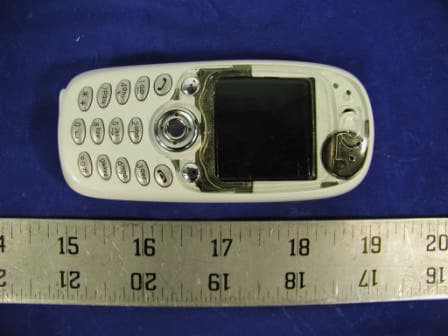
Click to zoom
Application Details
- Equipment Class
- PCE - PCS Licensed Transmitter held to ear
- Date of Grant
- Apr 03, 2003
- Application Purpose
- Original Equipment
- Date of Application
- Apr 03, 2003
- Equipment Note
- PCS Wireless Phone
- Frequency Range
- 1850.20000000 - 1909.80000000
- Country
- Taiwan
Documents & Files
Document Text
Text extracted from the exhibit documents filed with the FCC. Open a document above to read the original.
Users Manual
Amadeus User Guide CMCS GSM/GPRS Phone Copyright Statement Copyright 2003 by CMCS. All rights reserved. No part of this publication may be reproduced, trans- mitted, transcribed, stored in a retrieval system or translated into any language or computer language, in any form or by any means, electronic, mechanical, magnetic, optical, chemical, manual or other- wise, without the prior written permission of CMCS. Disclaimer CMCS makes no representations or warranties, either expressed or implied, with respect to the con- tents hereof and specifically disclaims any warranties, merchantability or fitness for any particular pur- pose. Further, CMCS reserves the right to revise this publication and to make changes from time to time in the contents hereof without obligation of CMCS to notify any person of such revision or changes. ALL INFORMATION IS PROVIDED BY CMCS ON AN "AS IS" BASIS ONLY. CMCS PRO- VIDES NO REPRESENTATIONS AND WARRANTIES, EXPRESS OR IMPLIED, INCLUD- ING THE IMPLIED WARRANTIES OF FITNESS FOR A PARTICULAR PURPOSE, MERCHANTABILITY AND NONINFRINGEMENT. Important Safety Precautions When using this product, the safety precautions below must be taken against possible legal issues and damages. SAFETY IN AIRCRAFT The interference would be caused by this product to an aircraft's navigation system and its network. In most countries, using this product on board an airplane is against the law. SAFETY FOR ENVIRONMENTS Do not use this product in gas stations. Also the use of this product is prohibited in fuel storehouse, chemical plants and locations containing explosives. SAFETY ON THE ROAD Vehicle drivers in motion are not permitted to use telephony services with the handheld device, except in the case of emergency. In some countries, using hand- free devices as an alternative is allowed. SAFETY ABOUT RADIATION This product should be operated in the suggested normal condition only to ensure the radiative performance and safety of the interference. SAFETY FOR MEDICAL EQUIPMENTS This product may cause malfunctions of medical equipments. In most hospital or medical centers, use of this product is forbidden. Attention CAUTION RISK OF EXPLOSION IF BATTERY IS REPLACED BY AN INCORRECT TYPE. DISPOSE OF USED BATTERIES ACCORDING TO THE INSTRUCTIONS Tips When Using ï Avoid using the product near metal structures (for example, large metal furniture or steel frames of a building). The transmission and reception of signal can be effected by these objects. ï Avoid using the product near strong electromagnetic sources, such as microwave ovens, sound speakers, TV and radio. ï Avoid using the product right after dramatic change of temperature. There are no user serviceable parts inside this product. If this product appears to be broken, call a qualified service personnel or send this product to your original dealer. Do not attempt to disassemble or repair this product as it may result in electric shock or unrecoverable damage to the product itself. Keep this product out of reach of small children. Store this product in its protective case in a cool dry place. Do not throw the battery into fire or other heat source. Dispose of used batteries according to your local regulations. FCC Compliance Statement This device complies with Part 15 of the FCC Rules. Operation is subject to the following two condi- tions: (1) this device may not cause harmful interference, and (2) this device must accept any interfer- ence received, including interference that may cause undesired operation. FCC ID: QDJ-0302AMD01 Statement according to FCC part 15.21 Modifications not expressly approved by CMCS could void the user's authority to operate the equip- ment. Statement according to FCC part 15.105 NOTE: This equipment has been tested and found to comply with the limits for a Class B digital device, pursuant to Part 15 of the FCC Rules. These limits are designed to provide reasonable protec- tion against harmful interference in a residential installation. This equipment generates, uses and can radiate radio frequency energy and, if not installed and used in accordance with the instructions, may cause harmful interference to radio communications. However, there is no guarantee that interference will not occur in a particular installation. If this equipment does cause harmful interference to radio or television reception, which can be determined by turning the equipment off and on, the user is encouraged to try to correct the interference by one or more of the following measures: ï Reorient or relocate the receiving antenna. ï Increase the separation between the equipment and receiver. ï Connect the equipment into an outlet on a circuit different from that to which the receiver is con- nected. ï Consult the dealer or an experienced radio/TV technician for help. RF exposure Tests for SAR are conducted using standard operating positions specified by the FCC with the phone transmitting at its highest certified power level in all tested frequency bands. Although the SAR is determined at the highest certified power level, the actual SAR level of the phone while operation can be well below the maximum value. This is because the phone is designed to operate at multiple power levels so as to use only the power required to reach the network. In general, the closer you are to a wireless base station antenna, the lower the power output. Before a phone model is available for sale to the public, it must be tested and certified to the FCC that it does not exceed the limit established by the government-adopted requirement for safe exposure. The tests are performed in positions and locations (e.g., at the ear and worn on the body) as required by the FCC for each model. (Body-worn measurements may differ among phone models, depending upon available accessories and FCC requirements). While there may be differences between the SAR levels of various phones and at various positions, they all meet the government requirement for safe exposure. For body w…
Text truncated - open the document above for the full version.
Users Manual
23 Basic Operations Erasing text If you have entered a wrong character or number, press Clear to erase. Press- ing and holding Clear will clear a whole line. Press Left or Right to move the cursor backward/forward. Using key lock The key lock helps to prevent unwanted key operations when you carry your phone. To enable key lock: In standby mode, press the left soft key, then key. To unlock: (Space) Basic Operations 24 Press Unlock, and then press key. 25 Phone Book Phone Book 26 Adding a Phone Book entry You can add a new entry to Phone Book in the following ways: Method 1 1. Enter Phone Book by pressing the right soft key in standby mode. 2. Scroll to Add and press Select. 3. You will be prompted to enter the name of the entry. Enter the name and press OK. 4. Enter the phone number and press OK. Method 2 1. In standby mode, enter the number using the alphanumeric keys. 2. Press Save. You will be prompted to enter the name of the entry. Enter the name and press OK. Method 3 1. During a call, enter the number using the alphanumeric keys. 2. Press Save. You will be prompted to enter the name of the entry. Enter the name and press OK. Searching for a Phone Book entry To search for a Phone Book entry: 1. Enter Phone Book by pressing the right soft key in standby mode. 2. Press Select. 3. Enter the name of the Phone Book entry you want to look for. You can also enter only the beginning few letters of the name. 4. The entries that match the name (or contain the letters) you entered will appear on the screen. Editing a Phone Book entry Editing name 1. Scroll to a Phone Book entry. 2. Press Detail. 3. Scroll to the name and press Options. 4. Press Select. 27 Phone Book 5. Edit the name and when finished, press OK. Editing number 1. Scroll to a Phone Book entry. 2. Press Detail. 3. Scroll to the number and press Options. 4. Scroll to Edit in the menu that appears and press Select. 5. Edit the number and when finished, press OK. Adding new phone number to existing entries You can record up to 4 different phone numbers under a Phone Book entry that is stored in the phone memory. 1. Scroll to a Phone Book entry. 2. Press Detail. 3. Scroll to the name (or number) and press Options. 4. Scroll to Add Number and press Select. 5. Enter the new number and when finished, press OK. 6. You will be prompted to select a type for the new number. Scroll to an appropriate type and press Select. Changing caller group The Caller group function allows you to separate your Phone Book entries in different groups. For details about the Caller group function, please refer to "Setting up Caller Group"on page 31. 1. Scroll to a Phone Book entry. 2. Press Detail. 3. Scroll to the name (or number) and press Options. 4. Scroll to Change Group and press Select. 5. Scroll to a desired caller group and press Select. Sending a entry as business card With this function, you can send the details of a Phone Book entry to another person as a business card. 1. Scroll to a Phone Book entry. 2. Press Detail. 3. Scroll to the name (or number) and press Options. 4. Scroll to Send business card and press Select. Phone Book 28 5. If you want to send the business card as a new message immediately, scroll to Send as SMS and press Select. Enter the number of the recipient (or pick up a recipient from Phone Book by pressing Names) and press Send. If you want to edit the business card before sending it, scroll to Send as text and press Select. Assigning default phone number If you have multiple phone numbers in a Phone Book entry, you can assign one of these numbers as default number. This default number is dialed when you make a call from the Phone Book or using the Speed Dial function. 1. Scroll to a Phone Book entry. 2. Press Detail. 3. Scroll to the number you want to set as default and press Options. 4. Scroll to Set as default and press Select. Changing the type of number 1. Scroll to a Phone Book entry. 2. Press Detail. 3. Scroll to the number and press Options. 4. Scroll to Change Type and press Select. 5. Scroll to a desired type for the number and press OK. Sending messages from Phone Book To send a new message from Phone Book: 1. Scroll to a Phone Book entry. 2. Press Detail. 3. Scroll to the number and press Options. 4. Scroll to Send message and press Select. 5. Compose the message. When finished, press Options and then Send to send the message. Erasing Phone Book entry Method 1 1. Enter Phone Book by pressing the right soft key in standby mode. 2. Scroll to Erase and press Select. To erase Phone Book entries one by one: 29 Phone Book 1. Scroll to One by one and press Select. 2. Scroll to select the Phone Book entry you want to erase and press OK. 3. Press OK. To erase all Phone Book entries: 1. Scroll to All. 2. To delete all Phone Book entries stored in phone memory, scroll to Phone. To delete entries on the SIM card, scroll to SIM. 3. Press Select. Method 2 1. In Phone Book, scroll to the entry you want to erase and press Detail. 2. Scroll to the name (or number) and press Options. 3. Scroll to Erase and press Select. Copying Phone Book entry Method 1 With the copy function, you can copy (or moving) Phone Book entries in the phone memory to SIM card memory and vise versa. Please note that if you copy a Phone Book entry with multiple numbers from phone memory to SIM card, only the first (default) number will remain. 1. Enter Phone Book by pressing the right soft key in standby mode. 2. Scroll to Copy and press Select. To copy Phone Book entries from phone to SIM card: ï Press Select. You can choose to copy Phone Book entries one by one or all at once. ï Select Keep original (copy the Phone Book entry to a new location) or Move original (move the Phone Book entry to a new location). To copy Phone Book entries from SIM card to phone: ï Scroll to SIM to Phone and press Select. You can choose to copy Phone Book entries one by one or all at once. ï Select Keep original (copy the Phone Book entry to a new location) or Move original (mo…
Text truncated - open the document above for the full version.
Users Manual
The Main Menu Sound 63 Play: Press Select to play the ringing tone you just created. Save: Press Select to save the ringing tone you just created. Instruments: Press Select to choose an instrument that is used to play the ring tone. Tempo: Press Select to change the speed of tempo. Scroll to a tempo and press OK. The larger the number, the slower the tempo. Clear Screen: Press Select to delete all symbols. Erase: Press Select to erase this ring tone. Rename: Press Select to change the name of current ringing tone. Enter the new name and press OK. Quick silence If you want your phone not to emit any sound under all circumstances, you can activate the quick silence function. The phone will not issue any sound no matter what sound profile is used. 1. In standby mode, press the left soft key. 2. Scroll to Sound and press Select. 3. Scroll to Silence and press On (to activate it) or Off (to deactivate it). Minute reminder If this function is activated, your phone will generate a beep tone every 50 sec- onds when you are on a call to remind you of the call time. 1. In standby mode, press the left soft key. 2. Scroll to Sound and press Select. 3. Scroll to Minute reminder and press On (to activate it) or Off (to deactivate it). The Main Menu Phone setup 64 Phone setup The options in the Phone Setup menu allows you to setup the phone accord- ing to your preferences. Changing menu language 1. In standby mode, press the left soft key. 2. Scroll to Phone setup and press Select. 3. Press Select. 4. Scroll to preferred language and press Select. Adjusting backlight duration This option allows you to change the duration of backlight in standby mode. Note that longer backlight consumes more battery power. You can also choose to turn it off. 1. In standby mode, press the left soft key. 2. Scroll to Phone setup and press Select. 3. Scroll to Backlight and press Select. 4. Scroll to desired duration and press OK. If Off is selected, the backlight will be turned off. Adjusting screen contrast 1. In standby mode, press the left soft key. 2. Scroll to Phone setup and press Select. 3. Scroll to Adjust contrast and press Select. 4. Press Left or Right to select an appropriate contrast level and press OK. Clock Showing/hiding clock on the screen 1. In standby mode, press the left soft key. 2. Scroll to Phone setup and press Select. 3. Scroll to Clock and press Select. 4. Press On (to show clock) or Off (to hide clock). Setting up current time and date The Main Menu Phone setup 65 Before you can use the clock of your phone, you need to setup current time and date first. Selecting time zone 1. In standby mode, press the left soft key. 2. Scroll to Phone setup and press Select. 3. Scroll to Clock and press Select. 4. Scroll to Local time zone and press Select. 5. Press Left or Right to scroll to the time zone where you are located and press Save. Setting up current date 1. In standby mode, press the left soft key. 2. Scroll to Phone setup and press Select. 3. Scroll to Clock and press Select. 4. Scroll to Set the date and press Select. 5. Enter current date using alphanumeric keys and press Save. Setting up current time 1. In standby mode, press the left soft key. 2. Scroll to Phone setup and press Select. 3. Scroll to Clock and press Select. 4. Scroll to Set the time and press Select. 5. Enter current time using the alphanumeric keys and press Save. Setting up date format Here you can select a preferred date format. 1. In standby mode, press the left soft key. 2. Scroll to Phone setup and press Select. 3. Scroll to Clock and press Select. 4. Scroll to Date Format and press Select. 5. Scroll to desired format and press OK. World clock The world clock function allows you to view current time of major cities in the world. The Main Menu Phone setup 66 1. In standby mode, press the left soft key. 2. Scroll to Phone setup and press Select. 3. Scroll to Clock and press Select. 4. Scroll to World Clock and press Select. 5. Press Left or Right to scroll to a desired city, and the current time will appear on the screen. You can also press Detail to view detailed time infor- mation of selected city. Auto power off If this function is activated, your phone can be switched off automatically at the specified time. Activating Auto power off 1. In standby mode, press the left soft key. 2. Scroll to Phone setup and press Select. 3. Scroll to Auto power off and press Select. 4. Scroll to On and press OK. 5. Enter the power off time using alphanumeric keys. When done, press Down. 6. Press Left or Right to select desired repeat type. 7. Press Save. Deactivating Auto power off To deactivate Auto power off function, scroll to Off and press OK in step 4 above. Display settings Changing color scheme Your phone provides several color schemes and you can change it whenever you like. 1. In standby mode, press the left soft key. 2. Scroll to Phone setup and press Select. 3. Scroll to Display and press Select. 4. Press Select two times. 5. Scroll to a desired color scheme and press OK. The Main Menu Phone setup 67 Changing wallpaper Wallpaper is the background image that is displayed under standby mode. You can change it whenever you like. 1. In standby mode, press the left soft key. 2. Scroll to Phone setup and press Select. 3. Scroll to Display and press Select. 4. Scroll to Wall paper and press Select. 5. Scroll to a desired wallpaper and press OK. If Off is selected, the wallpaper image will not be displayed. Key lock Activating Key lock 1. In standby mode, press the left soft key. 2. Scroll to Phone setup and press Select. 3. Scroll to Key lock and press Select. 4. Scroll to Auto (the phone activates key lock automatically if there is no key operation in 20 seconds) or Lock now (activate Key lock immediately) and press Select. In standby mode, you can activate key lock by pressing the left soft key and then key. To temporarily unlock, press Unlock, key. Deactivating Key lock To deactivate Key lock function, scroll to Off and press OK in…
Text truncated - open the document above for the full version.
Cover Letter(s)
Federal Communications Commission Authorization and Evaluation Division Confidentiality Request regarding application for certification of FCC ID: QDJ-0302AMD01 Pursuant to Sections 0.457 and 0.459 of the Commission’s Rules, we hereby request confidential treatment of information accompanying this application as outlined below: Schematics Block Diagram Baseband Specification The above materials contain trade secrets and proprietary information not customarily released to the public. The public disclosure of these materials may be harmful to the applicant and provide unjustified benefits to its competitors. The applicant understands that pursuant to Section 0.457 of the Rules, disclosure of this application and all accompanying documentation will not be made before the date of the Grant for this application. Sincerely, Kara Liao Engineer Configuration Management
Cover Letter(s)
Bay Area Compliance Laboratory Corp. 230 Commercial Street Sunnyvale, CA 94085 Tel: (408) 732-9162 Fax: (408) 732-9164 www.baclcorp.com Formal Request for an extension of time Re: FCC ID: QDJ-0302AMD01 TC910900 We hereby request an additional 30 days extension to provide technical information to TC 910900. We were just informed by our client that this device can operate GPRS in two timeslots. According to your request for more information, you requested SAR data for two timeslots if it transmits in two timeslots. As you require, the response is due this week but the only SIM chip that exists is on its way to your facility in the requested sample audit. We are unable to start new testing at this time until we receive an additional SIM chip. The initial response is due on June 7, 2003 as per your letter of May 7, 2003, reference number: 8203. Please keep this application in audit mode and we will submit the answers as soon as possible. Thank you for your kind help! Jennifer BACL From: "Martin Perrine" <[email protected]> To: <[email protected]> Cc: <[email protected]> X-OriginalArrivalTime: 05 Jun 2003 20:22:13.0531 (UTC) FILETIME=[26634EB0:01C32BA0] X-RCPT-TO: <[email protected]> An extension should be ok. Please respond to the RT with your formal request. Best Regards Martin Perrine Martin Perrine FCC/OET/LAB/EAB Non-Public Bay Area Compliance Laboratory Corp. 230 Commercial Street Sunnyvale, CA 94085 Tel: (408) 732-9162 Fax: (408) 732-9164 www.baclcorp.com For Internal Use Only >>> hansm 06/05/03 02:58PM >>> Dear Mr. Martin Perinne Regarding TC 910900, ChiMei portable, We were just informed by our client that this device can operate GPRS in two timeslots. According to your request for more information, you requested SAR data for two timeslots if it transmits in two timeslots. As you require, the response is due this week but the only SIM chip that exists is on its way to your facility in the requested sample audit. We are unable to start new testing at this time until we receive an additional SIM chip. May I request for an extension of time and if it is not possible to grant an extension then I would ask if the commission would conditionally grant and we subsequently add the two timeslot GPRS with a PCII. Please advice. Hans Mellberg Engineering Manager BACL 230 Commercial Street Sunnyvale CA 94085 USA 408-732-9162 x38 408-732-9164 fax
Cover Letter(s)
Response to FCC for the 05/07/03 audit: EMC 1) Data demonstrating compliance at all block edges A-F. Please include data within the first and second 1 MHZ band outside the edge. Please see the file “EMC_blockEdge.pdf” for the block edges A-F data. 2) Clarification of conducted power measurements. Specification states 32 dBm while measurements show 14.33 dBm. Please include details of how conducted power was measured given the statement on page 7 of 21 that there is no connector. Please see the file “Detail to measure the conductive output power.doc” for the detail of conducted power measurements. The specification has been corrected. Please see the updated tune up procedure “CMCS Amadeus Tune Up Procedures.pdf” page 4 and 5. 3) Tune-up procedure. The tune up procedure has been updated. Please see file “CMCS Amadeus Tune Up Procedures.pdf” SAR 1) Details of power measurement procedures used for SAR testing. Please confirm that power was measured for each scan. Exact agreement with EMC radiated power measurement was not expected. We measured the conducted power for SAR testing. Please see section 4 in the updated SAR test report “R0302191S.pdf” page 11-14. 2) Maximum number of time slots GPRS mode is capable of. Please provide SAR results with maximum number of time slots if other than one. The maximum number of time slots is 2. The test results are provided in the updated SAR report “R0302191S.pdf” Section 7, page 31. 3) Additional details of system verification. Please provide SAR data plots used to develop body target value. Please provide head liquid SAR taken on same day as body target development measurements. Details of power scaling used for head SAR re- measurement value. Alternatively please provide manufacturer support information. Please see the file “SAR Question 3.doc” for the answer of this question. 4) SAR results with and without a typical memory chip as mentioned in the user manual. Please test in worst case position for both head and body. The user manual mentioning a typical memory chip is a wrong one (submitted on 4/4/03). We already superceded it with the correct one on 4/8/03. There is no typical memory chip. Please check out the one submitted on 4/8/03.
Cover Letter(s)
Bay Area Compliance Laboratory Corp. 230 Commercial Street Sunnyvale, CA 94085 Tel: (408) 732-9162 Fax: (408) 732-9164 www.baclcorp.com Dear Mr. Martin Perrine EMC Conducted power was re-measured and the results are: Channel MHz dBm Low 1852.02 29.17 Mid 1880 29.5 High 1909.8 28.67 With an antenna gain of -5.1, the resultant value of 24.07 dBm which now correlates to the value reported. Please see the test report updated page 7, 8 and 10. For two time slot 0-gap additional plots are provided on SAR report page 56, 57 58. Regarding the expected SAR value with 2 time slots, please refer to table on pages 32 and 33. First entry on page 32 labelled "Back 1.5cm separation to phantom with the similarly labelled entry on page 33 show values 0.179 and 0.322 rsp, approximately an 80% increase in the expected range. Similarly, Face to phantom at 1.5 cm also show an increase of 109.6% increase, again, in the expected region. The output power must therefore be corrected to 0.826 Watts on the Grant of Equipment Authorization. Jennifer Song Document Control Bay Area Compliance Lab. Corp. Tel: 408-732-9162 x39 Bay Area Compliance Laboratory Corp. 230 Commercial Street Sunnyvale, CA 94085 Tel: (408) 732-9162 Fax: (408) 732-9164 www.baclcorp.com > > To: John Chan > > From: Martin Perrine > > [email protected] > > FCC Equipment Authorization Branch > > > > Re: FCC ID: QDJ-0302AMD01 > > > > Applicant: Chi Mei Communication Systems, Inc. Correspondence > > Reference Number: 11240 731 Confirmation Number: TC910900 > > Date of Original Email: 02/13/2004 > > > > Subject: Request for additional information > > > > Regarding your answer to EMC question 2 please explain EMC conducted power > of approximately 14 dBm while SAR reported 27 dBm. Also, with an > antenna gain of -5.1 how can radiated power be approximately 25 dBm as > reported. > > > > Regarding your answer to SAR question 2 please provide SAR results > > for > worst case body-worn position (0 gap) using two time slots. Also, > please explain how SAR values with 2 time slots values reported on > page 31 were reduced over the 1 time slot data on page 30. Normally a > factor of 2 increase is expected.
External Photos
Chi Mei Communication Systems, Inc. FCC ID: QDJ-0302AMD01 EXHIBIT C - EUT EXTERNAL PHOTOGRAPHS EUT – Front View EUT – Rear View Chi Mei Communication Systems, Inc. FCC ID: QDJ-0302AMD01 EUT – Port View Adapter View Chi Mei Communication Systems, Inc. FCC ID: QDJ-0302AMD01 Battery With Housing Housing without Battery
ID Label/Location Info
EXHIBIT A - FCC PRODUCT LABELING AND WARNING STATEMENT FCC ID Label Specifications: Text is black or white in color and is left justified. Labels are silk-screened and shall be “permanently affixed” at a conspicuous location on the EUT. Proposed Label Location on EUT FCC Warning Statement A FCC Warning Statement is provided in the product manual. FCC ID: QDJ-0302AMD01
Internal Photos
Chi Mei Communication Systems, Inc. FCC ID: QDJ-0302AMD01 EXHIBIT C - EUT INTERNAL PHOTOGRAPHS EUT – Cover Off EUT – Main Board with LCD Screen Chi Mei Communication Systems, Inc. FCC ID: QDJ-0302AMD01 EUT – Board Solder View Screen Board Bottom View Chi Mei Communication Systems, Inc. FCC ID: QDJ-0302AMD01 Screen Board Top View
Operational Description
CMCS Proprietary & Confidential Date: 2003/2/18 Version: Doc. No.: Amadeus Antenna Specification Copyright Statement Copyright 2002 by Chi Mei Communication Systems, Inc. All rights reserved. No part of this publication may be reproduced, transmitted, transcribed, stored in a retrieval system or translated into any language or computer language, in any form or by any means, electronic, mechanical, magnetic, optical, chemical, manual or otherwise, without the prior written permission of Chi Mei Communication Systems, Inc. Disclaimer Chi Mei Communication Systems, Inc. makes no representations or warranties, either expressed or implied, with respect to the contents hereof and specifically disclaims any warranties, merchantability or fitness for any particular purpose. Further, Chi Mei Communication Systems, Inc. reserves the right to revise this publication and to make changes from time to time in the contents hereof without obligation of Chi Mei Communication Systems, Inc. to notify any person of such revision or changes. ALL INFORMATION IS PROVIDED BY CMCS ON AN "AS IS" BASIS ONLY. CMCS PROVIDES NO REPRESENTATIONS AND WARRANTIES, EXPRESS OR IMPLIED, INCLUDING THE IMPLIED WARRANTIES OF FITNESS FOR A PARTICULAR PURPOSE, MERCHANTABILITY AND NONINFRINGEMENT. Amadeus Antenna Specification History 2003-02-18 Created by Alfred Lin CMCS Proprietary & Confidential Amadeus Antenna Specification Specification of Amadeus antenna Band Frequency (MHz) Gain(dBi) VSWR GSM 880-960 -3.6 2.9 : 1 DCS 1710-1880 -3.8 PCS 1850-1990 -5.1 3.1 : 1 CMCS Proprietary & Confidential Page 1 of 1
Operational Description
CMCS Proprietary & Confidential Date: 2003/2/18 Version: Doc. No.: Amadeus Setup Procedures Copyright Statement Copyright 2002 by Chi Mei Communication Systems, Inc. All rights reserved. No part of this publication may be reproduced, transmitted, transcribed, stored in a retrieval system or translated into any language or computer language, in any form or by any means, electronic, mechanical, magnetic, optical, chemical, manual or otherwise, without the prior written permission of Chi Mei Communication Systems, Inc. Disclaimer Chi Mei Communication Systems, Inc. makes no representations or warranties, either expressed or implied, with respect to the contents hereof and specifically disclaims any warranties, merchantability or fitness for any particular purpose. Further, Chi Mei Communication Systems, Inc. reserves the right to revise this publication and to make changes from time to time in the contents hereof without obligation of Chi Mei Communication Systems, Inc. to notify any person of such revision or changes. ALL INFORMATION IS PROVIDED BY CMCS ON AN "AS IS" BASIS ONLY. CMCS PROVIDES NO REPRESENTATIONS AND WARRANTIES, EXPRESS OR IMPLIED, INCLUDING THE IMPLIED WARRANTIES OF FITNESS FOR A PARTICULAR PURPOSE, MERCHANTABILITY AND NONINFRINGEMENT. Amadeus Setup Procedures History 2003-02-18 Created by Alfred Lin CMCS Proprietary & Confidential Amadeus Setup Procedures 1. Add a dummy battery in handset and connect to CMU200 directly 2. set CMU200 in Signal mode 3. change to MS signal menu, set PCL to level 5 CMCS Proprietary & Confidential Page 1 of 5 Document Name 3. change to BS signal menu, set TCH level to –60dBm 4. set ext. att to 0 in input and output Page 2 of 5 CMCS Proprietary & Confidential Ama…
Text truncated - open the document above for the full version.
Contact Information
Applicant
James Wen(Manager)
Test Firm
Bay Area Compliance LaboratoryJohn Chan
Technical Specifications
| # | Rule Parts | Frequency Range | Power Output | Emission | Tolerance |
|---|---|---|---|---|---|
| 1 | 24E | 1.85 GHz - 1.91 GHz | 275.00 mW | 305KGXW | 180.0000000000 Hz |
Other Applications from Chi Mei Communication Systems, Inc.

QDJ-GOXW
Mar 11, 2012Tablet PC
Equipment Class
DSS - Part 15 Spread Spectrum TransmitterQDJ-VPHN1044G
May 15, 2011Smart Phone
Equipment Class
DSS - Part 15 Spread Spectrum Transmitter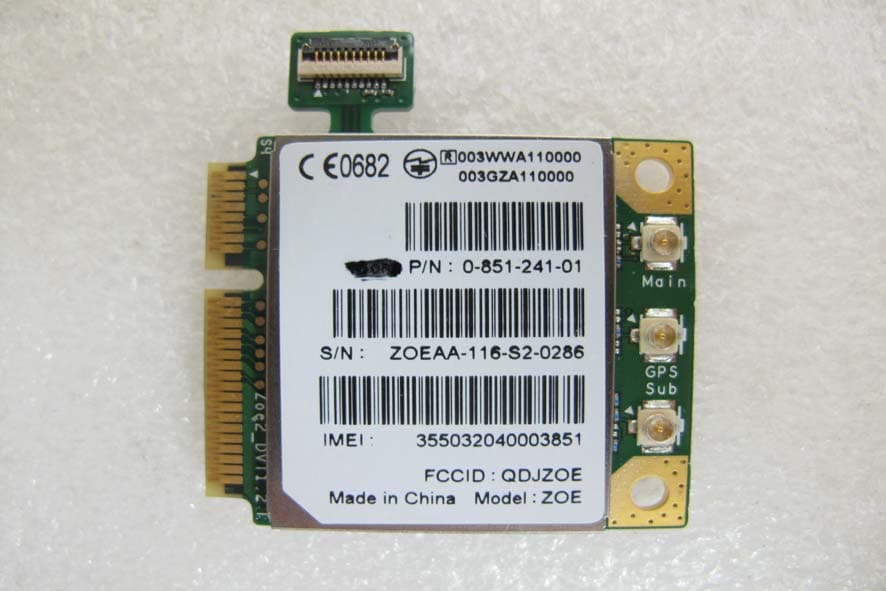
QDJZOE
Feb 21, 20113G Data Module
Equipment Class
PCB - PCS Licensed Transmitter
QDJ-F902
Feb 25, 2010SMART PHONE
Equipment Class
DSS - Part 15 Spread Spectrum Transmitter
QDJ-0602DBS01
Jun 13, 2006Smart Phone
Equipment Class
DTS - Digital Transmission System