QI3BIL-7800VNOXWireless-N ADSL2+/Fibre Broadband Router
Billion Electric Co., Ltd.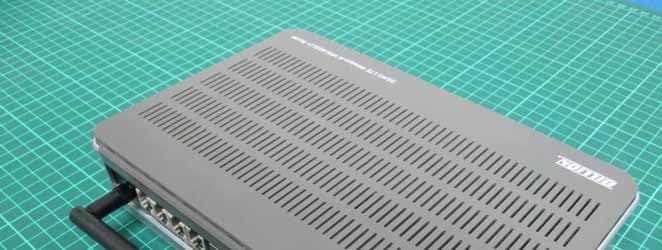
Click to zoom
Application Details
- Equipment Class
- DTS - Digital Transmission System
- Date of Grant
- Apr 24, 2013
- Application Purpose
- Original Equipment
- Date of Application
- Apr 24, 2013
- Equipment Note
- Wireless-N ADSL2+/Fibre Broadband Router
- Frequency Range
- 2412.00000000 - 2462.00000000
- Company
- Billion Electric Co., Ltd.
- Country
- Taiwan
Documents & Files
Document Text
Text extracted from the exhibit documents filed with the FCC. Open a document above to read the original.
Users Manual
BiPAC 7800VNP(O)X Wireless-N ADSL2+/ Fibre Broadband Router User Manual Version Released: 2.23 Last revised date: April 10, 2013 Click to buy NOW! P D F - X C h a n g e V i e w e r w w w . d o c u - t r a c k . c o m Click to buy NOW! P D F - X C h a n g e V i e w e r w w w . d o c u - t r a c k . c o m Table of Contents Chapter 1: Introduction..................................................................................................................................1 Introduction to your Router.....................................................................................................................1 Features...................................................................................................................................................3 ADSL Compliance........................................................................................................................................................................................................4 Network Protocols and Features...........................................................................................................................................................................4 Firewall............................................................................................................................................................................................................................4 Quality of Service Control .........................................................................................................................................................................................5 VOIP.................................................................................................................................................................................................................................5 ATM, PTM and PPP Protocols.................................................................................................................................................................................5 IPTV Applications.........................................................................................................................................................................................................5 Wireless LAN.................................................................................................................................................................................................................6 USB Application Server..............................................................................................................................................................................................6 Virtual Private Network (VPN) (7800VNOX only).............................................................................................................................................6 Management...............................................................................................................................................................................................................7 Hardware Specifications..........................................................................................................................8 Physical Interface.........................................................................................................................................................................................................8 Chapter 2: Installing the Router......................................................................................................................9 Package Contents.....................................................................................................................................9 Important note for using this router.....................................................................................................10 Device Description .................................................................................................................................11 The Front LEDs ...........................................................................................................................................................................................................11 The Rear Ports............................................................................................................................................................................................................12 Cabling....................................................................................................................................................13 Chapter 3: Basic Installation .........................................................................................................................14 Connecting Your Router.........................................................................................................................15 Network Configuration..........................................................................................................................17 Configuring a PC in Windows 7.............................................................................................................................................................................17 Configuring a PC in Wi ndows Vista......................................................................................................................................................................20 Configuring a PC in Wi ndows XP..........................................................................................................................................................................23 Configuring PC in Win dows 2000........................................................................................................................................................................25 Configuring PC in Windows 95/98/M…
Text truncated - open the document above for the full version.
Users Manual
72 3G/LTE 1. Select 3G/LTE, press Continue to go on to next step。 2. Select the 3G mode, and enter the APN, username, password from your ISP; and check with your ISP with the authentication method setting. 3. Wait while the device is configured. 4. WAN port configuration is successful. Click to buy NOW! P D F - X C h a n g e V i e w e r w w w . d o c u - t r a c k . c o m Click to buy NOW! P D F - X C h a n g e V i e w e r w w w . d o c u - t r a c k . c o m 73 5. After the configuration is successful, click Next to Wireless button and you may proceed to configure the Wireless setting. In Quick Start part, users can only enable or disable the wireless and set the exact SSID and encryption Key (1. Leave it empty to disable the wireless security; 2. Fill in the Key, and the encryption mode will be WPA2-PSK/AES). For detail setting, please go to the Wireless part in this Manual. 7. Set the VoIP parameters. First user should turn to a VoIP service provider to register a SIP account, write down the registration information and fill it in the following blanks. In this page, user can continue to add SIP account and configure dial plan, for more, please refer to SIP Account and VoIP Plan. Click to buy NOW! P D F - X C h a n g e V i e w e r w w w . d o c u - t r a c k . c o m Click to buy NOW! P D F - X C h a n g e V i e w e r w w w . d o c u - t r a c k . c o m 74 If Quick Start is finished, user can turn to Status > Summary to see the basic information. Click to buy NOW! P D F - X C h a n g e V i e w e r w w w . d o c u - t r a c k . c o m Click to buy NOW! P D F - X C h a n g e V i e w e r w w w . d o c u - t r a c k . c o m 75 VoIP Quick Setup “VoIP Quick Setup” links to quick VoIP setting pages. In this part, users can conduct the necessary settings (SIP account, VoIP Dial Plan, etc) of VoIP for use. For detail settings, please refer to VoIP . Picture1 Click Add SIP Account to add new sip accounts (set the registration information). Picture2 Click Apply to save the settings. For example: Click to buy NOW! P D F - X C h a n g e V i e w e r w w w . d o c u - t r a c k . c o m Click to buy NOW! P D F - X C h a n g e V i e w e r w w w . d o c u - t r a c k . c o m 76 In picture1, click Configure Dial Plan to extend to configure the dial plan. Please go to VOIP Plan to get more. Picture3 Click to buy NOW! P D F - X C h a n g e V i e w e r w w w . d o c u - t r a c k . c o m Click to buy NOW! P D F - X C h a n g e V i e w e r w w w . d o c u - t r a c k . c o m 77 Configuration When you click this item, the column will expand to display the sub-items that will allow you to further configure your router. LAN, Wireless, WAN, VOIP, System, USB, IP Tunnel, Security, Quality of Service, NAT and Wake On LAN. (7800VNPX) The function of each configuration sub-item is described in the following sections. Click to buy NOW! P D F - X C h a n g e V i e w e r w w w . d o c u - t r a c k . c o m Click to buy NOW! P D F - X C h a n g e V i e w e r w w w . d o c u - t r a c k . c o m 78 LAN - Local Area Network A Local Area Network (LAN) is a shared communication system network where many computers are connected. This type of network is area defined and is usually limited to a confined region within a building. Ethernet Parameters Group Name: This refers to the group you set in Interface Grouping section; you can set the parameters for the specific group. Select the group via the drop-down box. For more information please refer to Interface Grouping of this manual. IP address: the IP address of the router. Default is 192.168.1.254. Subnet Mask: the default Subnet mask on the router. IGMP Snooping: Enable or disable the IGMP Snooping function. Without IGMP snooping, multicast traffic is treated in the same manner as broadcast traffic - that is, it is forwarded to all ports. With IGMP snooping, multicast traffic of a group is only forwarded to ports that have members of that group.” When enabled, you will see two modes: Standard Mode: In standard mode, multicast traffic will flood to all bridge ports when no client subscribes to a multicast group. Blocking Mode: In blocking mode, the multicast data will be blocked when there are no client subscribes to a multicast group, it won’t flood to the bridge ports. LAN side firewall: Enable to drop all traffic from the specified LAN group interface. After activating it, all incoming packets by default will be dropped, and the user on the specified LAN group interface can't access CPE anymore. But, you can still access the internet service. If user wants to manage the CPE, please turn to IP Filtering Incoming to add the allowing rules. Note that all incoming packets by default will be dropped if the LAN side firewall is enabled and user cannot manage this Click to buy NOW! P D F - X C h a n g e V i e w e r w w w . d o c u - t r a c k . c o m Click to buy NOW! P D F - X C h a n g e V i e w e r w w w . d o c u - t r a c k . c o m 79 CPE from the specified LAN group. DHCP Server You can disable or enable the DHCP (Dynamic Host Configuration Protocol) server or enable the router’s DHCP relay functions. The DHCP protocol allows your router to dynamically assign IP addresses to PCs on your network if they are configured to obtain IP addresses automatically. Disable Disable the DHCP Server function. Enable Enable the DHCP function, enter the information wanted. Here as default. Start IP Address: The start IP address of the range the DHCP Server used to assign to the Clients. End IP Address: The end IP address f the range the DHCP Server used to assign to the Clients. Leased Time (hour): The leased time for each DHCP Client. Option 66: Click Enable to activate DHCP option 66 for some special devices, like IPTV Set Box. The devices can get firmware or some special service from the TFTP server. User needs to set the IP or hostname of the TFTP server. Static IP List The specified IP will be assigned to the corresponding MAC Address listed in the following table when DHCP Server…
Text truncated - open the document above for the full version.
Users Manual
147 Firmware Upgrade Software upgrading lets you experience new and integral functions of your router. Restart device with: Factory Default Settings: Restart the device with factory default settings automatically when finishing upgrading. Current Settings: Restart the device with the current settings automatically when finishing upgrading. Your router’s “firmware” is the software that allows it to operate and provides all its functionality. Think of your router as a dedicated computer, and the firmware as the software it runs. Over time this software may be improved and revised, and your router allows you to upgrade the software it runs to take advantage of these changes. Clicking on Browse will allow you to select the new firmware image file you have downloaded to your PC. Once the correct file is selected, click Upgrade to update the firmware in your router. 148 Backup / Update These functions allow you to save and backup your router’s current settings to a file on your PC, or to restore from a previously saved backup. This is useful if you wish to experiment with different settings, knowing that you have a backup handy in the case of any mistakes. It is advisable to backup your router’s settings before making any significant changes to your router’s configuration. Click Backup Settings, a window appears, click save , then browse the location where you want to save the backup file. Click Browse and browse to the location where your backup file is saved, the click Open. Then in the above page, click Update Settings, the following process indicating screen will appear. Let it update to 100%, it will automatically turn to the Device Info page. 149 Access Control Access Control is used to prevent unauthorized access to the router configuration page. Here you can change the login user password. Three user levels are provided here. Each user level there’s a default provided user. You must access the router with the appropriate username and password. Here the corresponding passwords are allowed to change. Level: select which level you want to change password to. There are three default levels. Administrator: the root user, corresponding default username and password are admin and admin respectively. Remote: username for the remote user to login, corresponding default username and password are support and support respectively. Local: username for the general user, when logon to the web page, only lit items would be listed for common user, corresponding default username password are user and user respectively. Username: the default username for each user level. Old Password: Enter the old password. New Password: Enter the new password. Confirm Password: Enter again the new password to confirm. Note: By default the accounts of Remote and Local are disabled, please click Valid check-box to activate the accounts. Click Apply to apply your new settings. 150 Mail Alert Mail alert is designed to keep system administrator or other relevant personnel alerted of any unexpected events that might have occurred to the network computers or server for monitoring efficiency. With this alert system, appropriate solutions may be tackled to fix problems that may have arisen so that the server can be properly maintained. WAN Port: Mail Alert feature can be applicable to every WAN mode: Ethernet,DSL and 3G/LTE. Select the port you want to use Mail Alert. For example DSL, then when the WAN connection is in DSL mode and when there is any unexpected event, the alert message will be sent to your specified E-mail. Apply all settings to: check whether you want to have a copy of the settings to apply to other WAN port, suppose the above Main port is DSL, then if you enable this function, then Ethernet port will have the same configuration. SMTP Server: Enter the SMTP server that you would like to use for sending emails. Username: Enter the username of your email account to be used by the SMTP server. Password: Enter the password of your email account. Sender’s Email: Enter your email address. SSL: check to whether to enable SSL encryption feature. Port: the port, default is 25. Recipient’s Email (WAN IP Change Alert): Enter the email address that will receive the alert message once a WAN IP change has been detected. 151 Configure Log Log: Enable or disable this function. Log level: Select your log level. The log level allows you to configure which types of events are logged. There are eight log levels from high to low are displayed below: Emergency = system is unusable Alert = action must be taken immediately Critical = critical conditions Error = error conditions Warning = warning conditions Notice = normal but significant conditions Informational = information events Debugging = debug-level messages The gateway records all log events at the chosen level and above. For instance, if you set the log level to Critical, all critical, alert, and emergency events are logged, but none of the others are recorded Display Level: Display the log according to the level you set when you view system log. Once you set the display level, the logs of the same or higher priority will be displayed. Mode: Select the mode the system log adopted. Three modes: local, Remote and Both. Local: Select this mode to store the logs in the router’s local memory. Remote: Select this mode to send the log information to a remote log server. Then you must assign the remote log server and port, 514 is often used. Both: Logs stored adopting above two ways. Click Apply to save your settings. 152 USB Storage here refers to network sharing in the network environment, USB devices act as the storage carrier for DLNA, common file sharing. Storage Device Info This part provides users direct access to the storage information like the total volume, the used and the remaining capacity of the device. Volume Name: Display the storage volume name FileSystem: Display the storage device’s file system format, well-known is FAT. Total Space:…
Text truncated - open the document above for the full version.
Cover Letter(s)
Product Number: AN2400-58L13RS Product Name: Antenna COR/F-G-15b Specification For Approval Date: 2012 / 12 / 11 File No.: 121211006 Version: 1.0 Customer: 盛達電業股份有限公司 Customer P/N: / INVAX P/N: AN2400-58L13RS Description : Antenna Cortec Checked By: Customer Approved By: INVAX System Technology Corp. Cortec Technology Inc. 4F. No. 815.Chung Hsiao East Rd.,Sec.5 Xian-Xi Industrial, Sha-Tou Administration Zone, Taipei, TAIWAN Chang-An Town, Dong-Guan City, Guangdong Province, China TEL:886-2-2788-5218 FAX:886-2-2783-1658 TEL:86-769-85388261 FAX:86-769-85317869 htt p://www.invaxsystem.com http://www.cortec.com.cn Product Number: AN2400-58L13RS Product Name: Antenna Page 1 Version: 1.0 Issue Date: 2012-12-11 Index: 1. Specification / Page 2 2. Characteristics and Reliability Test / Page 3 3. Antenna - S Parameter Test Data / Page 4 4. Antenna - Radiation Pattern Test Data / Page 5 ~ 7 5. Mechanical and Packing Drawing / Page 8 ~ 9 6. Material Description and RoHS Test Report / Page 10 ~ end Product Number: AN2400-58L13RS Product Name: Antenna Page 2 Version: 1.0 Issue Date: 2012-12-11 1. Specification Sample Photo A. Electrical Characteristics Frequency 2400 ~ 2500 MHz S.W.R. <= 2.0 Antenna Gain 4.0 dBi Polarization Linear Impedance 50 Ohm B. Material & Mechanical Characteristics Material of Radiator Cu Material of Plastic Body: TPE Hinge: ABS Holder: POM Cable Type RG-178 Connector Type SMA Male Reverse Connector Pull Test >= 3Kg C. Environmental Operation Temperature - 40 ̊C ~ + 65 ̊C Storage Temperature - 40 ̊C ~ + 80 ̊C Product Number: AN2400-58L13RS Product Name: Antenna Page 3 Version: 1.0 Issue Date: 2012-12-11 2. Characteristics and Reliability Test Test Items Test Condition and Procedure Requirements C1 S.W.R. Set DUT on Network Analyzer; make individual calibration to test Directive DUT specification C2 Antenna Gain Set DUT on Antenna Chamber; make individual calibration to test Directive DUT specification M1 Vibration GB / T2423 . 48-1997 Amplitude: 0.03 inch (1.5mm); Freq: 20 to 80 to 20 Hz 3 directions; 2 hours for each direction 1. No Visual Damage 2. Frequency Tol.<= 5% M2 Random Drop GB / T2423.8-1995 Height: 1.0 Meter; 3 directions; 1 time for each direction 1. No parts separated 2. Frequency Tol.<= 5% M3 Solderability GB 2423 . 28- 82 Solder iron: 260±5°C; Duration: 5 seconds 1. Mounted on PCB 2. No Visual Damage M4 Terminal- Pull Test Holding with individual specification; force applied to axis of terminal 1. Directive DUT specification 2. Frequency Tol.<= 5% M5 Terminal- Torque Test Holding with individual specification; applied clockwise and counterclockwise to the axis of terminal 1. Directive DUT specification 2. Frequency Tol.<= 5% M6 Dimension Inspection of dimension, color, material, package, surface process Directive DUT specification E1 Salt Spray GB / T 2423 . 17- 93 Temp: 35°C; RH: >= 95%; NaCl solution: >= 5%; Time: 24 hours After 2 Hours Recovery 1. No Visual Damage 2. Frequency Tol.<= 5% E2 Humidity GB / T 2423 . 4 - 93 Temp: 80°C / 12 H; -40°C / 12H RH: >= 90%; Time: 24 hours After 2 Hours Recovery 1. No Visual Damage 2. Frequency Tol.<= 5% E3 Thermal Shock GB / T 2423 . 22 - 87 1 Cycle: - 40°C (30 minutes) to + 80°C (30 minutes) Cycles: 24 After 2 Hours Recovery 1. No Visual Damage 2. Frequency Tol.<= 5% E4 Life (High Temp.) GB /T 2423 . 2 - 89 Temp: 80°C; Time: 24 hours After 2 Hours Recovery 1. No Visual Damage 2. Frequency Tol.<= 5% R1 RoHS With Reference to IEC 62321:2008 with flow chart Directive RoHS 2002/95/EC R2 PFOS With Reference to USA EPA 3540C:1996 by LC/MS Directive RoHS 2006/122/EC R3 PFOA With Reference to USA EPA 3540C:1996 by LC/MS Directive RoHS 2006/122/EC Product Number: AN2400-58L13RS Product Name: Antenna Page 4 Version: 1.0 Issue Date: 2012-12-11 3. Antenna - S Parameter Test Data Product Number: AN2400-58L13RS Product Name: Antenna Page 5 Version: 1.0 Issue Date: 2012-12-11 4. Antenna - Radiation Pattern Test Data Testing Equipment Specification: Antenna Anechoic Chamber Dimension: 8 x 4 x 4 m Quite Zone: 600mm @1 GHz Isolation: >100dB @ 1 MHz ~ 10 GHz Testing Equipment: Agilent 5071B Received Antenna: 0.7 ~ 6.0 GHz for Gain Calibration Double Ridged Horn Antenna 5. Mechanical Drawing See attached files 6. Material Description and RoHS Test Report See attached files 填表: 黃柳英 部門: 研發部 職務: 文員 Cd Pb Hg Cr(VI) PBBs PBDEs 1 AN58L-01B Body1 TPEE N.D. N.D. N.D. N.D. N.D. N.D. RLSZD001081200002C 2012.10.10 TPEE CTI 2 AN58L-06B Body2 ABS N.D. N.D. N.D. N.D. N.D. N.D. KA/2011/C1889 2012.01.02 ACRYLONITRILE SGS 3 AN57-12B-1 Body3 POM N.D. N.D. N.D. N.D. N.D. N.D. RLSZE001229340002 2012.04.05 POM CTI 4 AN01-1215-P-1 Hinge Pin POM N.D. N.D. N.D. N.D. N.D. N.D. RLSZE001229340002 2012.04.05 POM CTI 5 SMA804-ZCR5A56 Male Reverse 鋅合金 N.D. 13 N.D. Negative N.D. N.D. A001C11122704902-1 2011.12.30 鋅合金 AVO PTFE N.D. N.D. N.D. N.D. N.D. N.D. RLSHE001125120001C 2012.08.21 电线电缆料 CTI FEP N.D. N.D. N.D. N.D. N.D. N.D. RLSHE001125120002C 2012.08.21 电线电缆料 CTI 镀银铜丝 N.D. N.D. N.D. N.D. N.D. N.D. RLSHE001125120003C 2012.08.21 电线电缆料 CTI 7 R-AN9402S R-AN1901-06 Tube Spring 銅 51 28156 N.D. Negative CANEC1112556702 2012.01.04 B RASS(IN CHINESE AS SGS 根據測試報告如實填寫鉛、鎘、汞、六價鉻、 PBBs 和 PBDEs 六項禁用物質的含量 包裝材料中鉛、鎘、汞、六價鉻總含量不超過 100ppm ,鎘的允許濃度為 5ppm Cable (RG178) R-RG-178U 6 檢測報告編號 測試機構 名稱 測試名稱 測試日期 歐盟ROHS指令豁免條款2009/95/BC、钢中合金元素中的铅含量达0.35%、铝含量达0.4%、铜合金中的铅含量达4% COR/F-G-47a 各構成物料的材 質 物料名稱: AN2400-58L13RS 序號 物料型號 物料各構成 名稱 康捷電子有限公司 物料中 HSF 對象物質含量調查表 測試報告裡 RoHS 對應物質測試結果 SGS Taiwan Ltd. 台灣檢驗科技股份有限公司 No. 61, Kai-Fa Road, Nanzih Export Processing Zone , Kaohsiung, Taiwan / 高雄市楠梓加工出口區開發路61號 t + 886 (07)301 2121 f + 886 (07)3010867 www.tw.sgs.com Member of the SGS Group Unless otherwise stated the results shown in this test report refer only to the sample(s) tested. This test report cannot be reproduced, except in full, without prior written permission of the Company. This document is issued by the Company subject to its General Conditions of Service printed overleaf, available on request or a…
Text truncated - open the document above for the full version.
Cover Letter(s)
RF_160, Issue 03 Declaration of Authorization We Name: Billion Electric Co., Ltd. Address: 8F, No.192, Sec. 2, Zhongxing Rd., Xindian Dist., City: New Taipei City 231 Country: Taiwan (R.O.C.) Declare that: Name Representative of agent: Rubeca Yu Agent Company name: Compliance Certification Services Inc. Address: No.989-1 Wen Shan Rd., Shang Shan Village,Qionglin Township, City: Hsinchu County 30741, Country Taiwan, R.O.C is authorized to apply for Certification of the following product(s): Product description: Wireless-N ADSL2+/Fibre Broadband Router Type designation: BiPAC 7800VNOX Trademark: BILLIONBEC on our behalf. Date:2013-03-20 Signature: ... ............................ Name/Title: Ted Ho / CTO Company Name: Billion Electric Co., Ltd. Notes: (1): Required for FCC application (2): For FCC it must be the Grantee Code “owner” or the authorized agent.
Cover Letter(s)
FCC, Request for non-disclosure Date: 16-Jul-10 RF_501, Issue 6 Page 1 of 1 Company Name: Billion Electric Co., Ltd. Address : 8F,No.192, Sec. 2, Zhongxing Rd., Xindian Dist., City: New Taipei City 231, Country: Taiwan (R.O.C.) To: Telefication B.V., Dept. FCC TCB Edisonstraat 12A 6902 PK ZEVENAAR The Netherlands Subject: Request for confidentiality FCC ID: QI3BIL-7800VNOX Reference number: ###### Dear FCC TCB, 1. Long-Term Confidentiality Pursuant to 47 CFR Section 0.459(a) & (b), we hereby requests non-disclosure and confidential treatment of the following materials submitted in support of FCC certification application: Bill(s) of Material Block Diagrams Operational Description Schematic Diagrams Tune-up Procedure Above materials contain secrets, proprietary and technical information, which would customarily be guarded from competitors under 47 CFR, section 0.457(d)(2). Disclosure or publication or any portion of this company confidential material to other parties could cause substantial competitive harm and provide unjustified benefits for competitors. 2. Short-Term Confidentiality (STC) Pursuant to Public Notice DA 04-1705 of the Commission’s policy, in order to comply with the marketing regulations in 47 CFR §2.803 and the importation rules in 47 CFR §2.1204, a pplicant hereby requests Short-Term Confidential treatment of the following materials (note 1): Internal Photos User’s Manual Test Set-up Photos External Photos Justification: Planned Release Date STC: (notes 2, 3, 4, 5) Date: 2013-03-20 Name and signature of applicant: Ted Ho Notes: 1) A document or type of document can only have ONE type of confidentiality! 2) Short-Term confidentiality is in principle for 45 days from date of grant; it can be extended max 3 times (total time 180 days max.)! 3) FCC must be informed when marketing begins earlier. 4) Release takes place automatically thus extension must be requested in time. Telefication does not remind you of this! 5) Request for extension or for release must be received by Telefication at least 7 days before date of actual marketing or before expiration of the STC period
Cover Letter(s)
FEDERAL COMMUNICATIONS COMMISSION DECLARATION OF CONFORMITY (DoC) Equipment:Wireless-N ADSL2+/Fibre Broadband Router Trademark(s) and Model(s): BILLIONBEC / BiPAC 7800VNOX FCC ID in case other parts of this equipment are subject to certification: QI3BIL-7800VNOX This device complies with Part 15 of the FCC Rules. Operation is subject to the following two conditions: (1) this device may not cause harmful interference, and (2) this device must accept any interference received, including interference that may cause undesired operation. The following test reports are subject to this declaration: Test report number:T130226S03Issue date:2013-3-20 Test Lab: Compliance Certification Services Inc. The following manufacturer/importer/entity (located in the USA) is responsible for this declaration: Company name: Billion Electric Co., Ltd. Name/Title (legal representative): Ted Ho / CTO Address: 8F, No.192, Sec. 2, Zhongxing Rd., Xindian Dist., New Taipei City 231, Taiwan, (R.O.C.) E-mail: [email protected] Date: 2013-03-20 Signature: FCC
External Photos
Report No.T130226S03 Page 1 of 5 External Photo Report No.T130226S03 Page 2 of 5 Report No.T130226S03 Page 3 of 5 Power Adapter(Model:PAW018A12UL) Report No.T130226S03 Page 4 of 5 Report No.T130226S03 Page 5 of 5 Antenna Photo
ID Label/Location Info
2013/04/08 RoxyKatie Nicole Billion BiPAC 7800VNOX 1. 材質為反銀龍貼紙 2. Billion Electric Co., Ltd. 為 Arial Bold 8.5級 3. 為 Arial Bold 6級 4. 為 Arial Bold 5.5級 5. 其餘文字為 Arial Regular 5.5 級 6. 黑色印刷 7. 產地別需依照生產地作變動 59.7x39.7mm/±0.15mm 0.15mm 59.7±0.15 39.7±0.15 R1.0 R1.0 R1.0 R1.0 Billion Electric Co., Ltd. This device complies with Part 15 of the FCC Rules. Operation is subject to the following two conditions: (1) this device may not cause harmful interference, and (2) this device must accept any interference received, including interference that may cause undesired operation. Made in Taiwan Model: BiPAC 7800VNOX FCC ID: QI3BIL-7800VNOX Made in Taiwan Model: BiPAC 7800VNOX FCC ID: QI3BIL-7800VNOX Product: Wireless-N ADSL2+/Fibre Broadband Router Power Input: 12V 1.5A Product: Wireless-N ADSL2+/Fibre Broadband Router Power Input: 12V 1.5A N12127
Internal Photos
Report No.T130226S03 Page 1 of 8 Internal Photo Report No.T130226S03 Page 2 of 8 Report No.T130226S03 Page 3 of 8 Report No.T130226S03 Page 4 of 8 Report No.T130226S03 Page 5 of 8 Report No.T130226S03 Page 6 of 8 Report No.T130226S03 Page 7 of 8 Report No.T130226S03 Page 8 of 8
RF Exposure Info
FCC IDQI3BIL-7800VNOX Report No.T130226S03-RP1 Page 1 of 2 This report shall not be reproduced, except in full, without the written approval of Compliance Certification Services Inc. APPENDIX I MAXIMUM PERMISSIBLE EXPOSURE According to FCC 1.1310 : The criteria listed in the following table shall be used to evaluate theenvironment impact of human exposure to radio frequency (RF) radiation as specified in 1.1307(b)LIMITS FOR MAXIMUM PERMISSIBLE EXPOSURE (MPE) Frequency Range (MHz) Electric Field Strength (V/m) Magnetic Field Strength (A/m) Power Density (mW/cm 2 ) Average Time (A) Limits for Occupational / Cont…
Text truncated - open the document above for the full version.
Contact Information
Applicant
Kevin Lien
Technical Contact
Compliance Certification Services Inc. Hsinchu LabSb. Lu
[email protected]886-3-5921698
NO. 989-1 Wen Shan Rd., Shang Shan Village, · Taiwan
Non-Technical Contact
Compliance Certification Services Inc. Hsinchu LabRubeca Yu
[email protected]886-3-5921698
Test Firm
Compliance Certification Services Inc.Winnie Chen
Technical Specifications
| # | Rule Parts | Frequency Range | Power Output |
|---|---|---|---|
| 1 | 15C | 2.41 GHz - 2.46 GHz | 670.00 mW |
Other Applications from Billion Electric Co., Ltd.
QI3BECMX220UT5GAB
Jul 01, 2024Advanced 5G Industrial Router
Equipment Class
CBD - Citizens Band Category A and B DevicesQI3BEC-8355P
Jul 01, 20245G NR Wi-Fi 6 AX1800 CPE, 5G NR CPE
Equipment Class
DTS - Digital Transmission System
QI3BEC-8112
Jul 04, 20235G Enterprise Router
Equipment Class
PCB - PCS Licensed Transmitter
QI3BEC-8231
Sep 18, 20225G CBRS Outdoor Router
Equipment Class
CBD - Citizens Band Category A and B Devices
QI3BEC-MX200PL9
Jan 08, 20224G LTE Industrial Router
Equipment Class
TNB - Licensed Non-Broadcast Station Transmitter