QR7IOPDA
MilleTech Co., Ltd.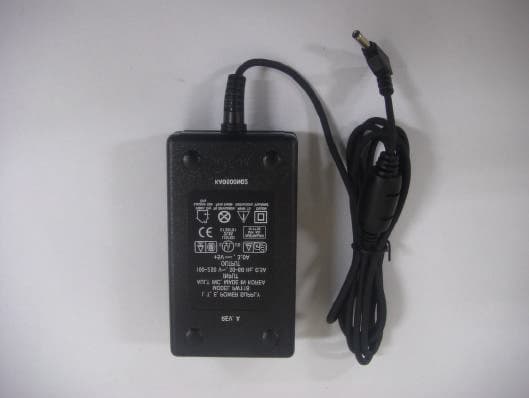
Click to zoom
Application Details
- Equipment Class
- JBC - Part 15 Class B Computing Device/Personal Computer
- Date of Grant
- Dec 30, 2002
- Application Purpose
- Original Equipment
- Date of Application
- Dec 30, 2002
- Equipment Note
- PDA
- Company
- MilleTech Co., Ltd.
- Country
- South Korea
Documents & Files
Document Text
Text extracted from the exhibit documents filed with the FCC. Open a document above to read the original.
Users Manual
Notice The information contained in this document is subject to change without notice. Milletech makes no warranty of any kind with regard to this manual, including, but not limited to, the implied warranties of merchantability and fitness for a particular purpose. Milletech shall not be liable for any errors or for incidental or consequential damage in connection with the furnishing, performance, or use of this manual. All right reserved. Reproduction, adaptation, or translation of this manual is prohibited without prior written consent of Milletech, except as allowed under the copyright laws. Microsoft, Microsoft ActiveSync, Pocket PC, Outlook, Windows, and the Windows logo are either registered trademarks or trademark of Microsoft Corporation in the United States and/or other countries. Microsoft products are licensed to OEMs by Microsoft Licensing, Inc., a wholly owned subsidiary of Microsoft Corporation. All other brand names and product names used in this manual are the trade names, service marks, trademarks, or registered trademarks of their respective owners. Copyright©2003 Milletech Co., Ltd. All rights reserved. Milletech, Io, Milletech logo and the Io logo are trademarks of Milletech Co., Ltd., and may be registered in jurisdiction. 1 Using This User’ s Guide Thank you for buying the IO, the Microsoft Windows CE-powered device. The IO lets you keep well organized with managing your business and personal information. You will notice that IO has many of the same characteristics with Microsoft Windows. So you can become familiar with the functionality of your IO and benefit from quick access to essential information, interface with your desktop PC applications. Enjoy the convenience and portability of IO. This User Guide provides you quick and effective introduction for use of IO. It describes all you need to know about how to use your device and the programs on your IO. For more information, see the online Help on your IO. Conventions Explanation Some conventions may be used in this User’ s Guide that will help you get the additional or highlight important information about the topic. Warning( ): Caution or warning information about the topic. This is important information that should be observed to prevent loss of data or damage to the IO. Note( ) : Helpful information or a another way to do something about the topic. 2 Table of Contents Chapter 1. Getting Started 1.1.Introducing the Io 1.2.Io Hardware Features 1.3.Charging the Battery 1.4. Using the Stylus 1.5. Entering Data 1.6. Taskbar and Command bars 1.7. Configuring Settings Options 1.8. Using PC Cards Chapter 2. Microsoft ActiveSync 2.1. Setting up Microsoft ActiveSync 2.2. Connecting to Your Desktop PC 2.3. Synchronizing Data 2.4. Browsing your Io on Your Desktop PC 2.5. Backing up and Restoring Data 2.6. Adding or Removing Programs Chapter 3. Microsoft Outlook Applications 3.1. Calendar : Keeping Appointments and Meetings 3.2. Contacts : Managing Friends and Colleagues 3.3. Tasks : Keeping to Do List 3.4. Inbox : Sending and Receiving E-mail Message Chapter 4. Companion Programs 4.1. Pocket Word 4.2. Spreadsheet 4.3. Microsoft File Viewers 4.4. Internet Explorer 4.5. Media Player 4.6. Inbox 4.7. Voice Recorder 4.8. Screen Rotation 4.9. IPSM 3 4.10. Game Chapter 5. Remote Connections 5.1 Connecting to an ISP 5.2 Connecting to Your Network 5.3 Connecting Directly to an E-mail Server Chapter 6. Tips & Troubleshooting Appendix A: Hardware Specification Appendix B : Limited Warranty FCC Statement 4 Chapter 1. Getting Started 1.1. Introducing the Io Here’ s what comes in the box. Before you start, check that your package contains the following items. 5 1.2. Io Hardware Features 1. Flip Cover The cover protects the LCD when it is not in use. 2. Antenna Hole You can build CDMA module into your Io optionally, and then antenna will be equipped in the hole. 3. Stylus and Stylus Slot Allows you tap items or write on the screen. 4. Serial Port Connect to your desktop PC to transfer files or synchronize data by serial connection. 5. USB Port Connect to your desktop PC to transfer files or synchronize data by USB connection. 6. Earphone Jack Listen to the stereo sound using earphone. 7. CDMA LED When you connected by optional CDMA module, a steady green light stays on indicating connection in progress. 8. Charge LED A red light indicates charging the battery while connected to AC adapter. 6 9. Hot Key Allows you to quickly start 3 applications. Also you can change the functions of the hot key to open different applications. 10. Infrared Port Exchange data by infrared beam between your Io and other infrared-equipped device. 11. Microphone Allows you to record a sound files, such as voice memos. 12. Direction Button Press it left and right to select the items. 13. Power Button Turn on and turn off your Io. Just press power button to suspend operation, and later when you turn it on, you can start working exactly where you left. 14. DC Jack Connect to your Io to AC adapter to charge the battery. 15. PC Type II Card Slot Insert a PC Card to expand memory or add other PC Card accessories. 16. PC type II Card Release Tab 7 Press it to eject a PC Card from the PC Card slot. 17. Battery Pack Rechargeable Li-Ion battery that provides power to your Io. 18. Battery Latch Slide the latch in the direction of the arrow to install or remove the battery. 19. Speaker Allows you to listen to sound. 20. Reset Hole Restart your Io with the touch of a hole. 1.3. Setting Up the IO Turning the IO On and Off Using the power button, you can start and stop the operation of your IO. You can start working immediately by pressing the power button on the front of your IO. When you are finished, turn off your IO by pressing the power button or taping Suspend on the Start menu. Turning off IO means suspending system operations not closing the system. When you power on your IO, you will resume at the same point as when you suspended operation. You can also set IO set…
Text truncated - open the document above for the full version.
Block Diagram
Strong_ARM SA-1110 processor Flash_Memory E28F128J3A150 Flash_Memory E28F128J3A150 SDRAM K4S561632C SDRAM K4S561632C Display Color STN 640*480 UCB_1200 MIC_INPUT Touch_Panal Audio_Codec UDA_1341 Mono_AMP LM4862 Stereo_AMP LM4880 Mono INT SPK Stereo EarPhone Clock_Generator CY2292F X-TAL 18.432Mhz 11.2896Mhz USB_SLAVE (PC_SYNC) PCMCIA_SOLT IrDA RS-232 (UART _1) X-TAL 32.768KHz X-TAL 3.6864MHz BUTTON Battery_Charger DC 5V INPUT Battery 3.8V/6000mA JUPITER SYSTEM BLOCK DIAGRAM SYSTEM Version : Ver3.0
External Photos
KTI02EF12006 FCC ID: QR7IO Korea Technology Institute Co., Ltd. Page 1 of 3 External photo (front) KTI02EF12006 FCC ID: QR7IO Korea Technology Institute Co., Ltd. Page 2 of 3 External photo (Rear) KTI02EF12006 FCC ID: QR7IO Korea Technology Institute Co., Ltd. Page 3 of 3 Adaptor photo
ID Label/Location Info
KTI02EF12006 FCC ID: QR7IO Korea Technology Institute Co., Ltd. Page 1 of 1 FCC ID Sample Label Model Number: IO FCC ID: QR7IO S/N: Milletech Co., Ltd. Made in Korea This device complies with part 15 of the FCC Rules. Operation is subject to the following two conditions: (1)This device may not cause harmful interference, and (2)This device must accept any interference received, including interference that may cause undesired operation.
ID Label/Location Info
KTI02EF12006 FCC ID: QR7IO Korea Technology Institute Co., Ltd. Page 1 of 1 Label location FCC Label Location
Internal Photos
KTI02EF12006 FCC ID: QR7IO Korea Technology Institute Co., Ltd. Page 1 of 12 Internal photo (Front) KTI02EF12006 FCC ID: QR7IO Korea Technology Institute Co., Ltd. Page 2 of 12 Internal photo (Rear)
Test Report
KTI02EF12006 FCC ID: QR7IO Korea Technology Institute Co., Ltd. Page 1 of 13 Test Report Test Report No.: KTI02EF12006 Registration No.: 99058 Applicant: Milletech Co., Ltd. Applicant Address: 7F ASEM Tower. World Trade Center 159-1 Samsung-Dong, Kangnam-Gu, Seoul 135-798 South Korea Product: PDA FCC ID: QR7IO Model No. IO Receipt No.: 02-1119 Date of receipt: November 25, 2002 Date of Issue: December 27, 2002 Testing location Korea Technology Institute Co., Ltd. 51-19, Sanglim3-Ri, Docheok-Myeun, Gwangju-Shi, Gyeungki-Do, Korea Test Standards: FCC/ANSI. C63.4: 2001 Rule Parts: FCC Part 15, Class B Equipment Class: Computing Device Test Result: The above-mentioned product has been tested with compliance. Tested by: M.H.Jang / Engineer Approved by: G. C. Min /President Signature Date Signature Date Other Aspects: Abbreviations: * OK, Pass=passed * Fail=failed * N/A=not applicable ? - This test report is not permitted to copy partly without our permission. - This test result is dependent on only equipment to be used. - This test result is based on a single evaluation of one sample of the above mentioned. - This test report must not be used by the client to claim product endorsement by NVLAP or any agency of the U.S Government. - We certify this test report has been based on the measurement standards that is traceable to the national or international standards. KTI02EF12006 FCC ID: QR7IO Korea Technology Institute Co., Ltd. Page 2 of 13 »» Contents «« 1. 2. 3. 4. 5. 6. Annex1 Annex2 Contents List of Tables List of Figures List of Photographs General Test Site 2.1 Location 2.2 List of Test and Measurement Instruments 2.3 Test Data 2.4 Test Environment Description of the tested samples 3.1 Rating and Physical characteristics 3.2 Submitted documents Measurement conditions 4.1 Modes of operation 4.2 List of peripherals 4.3 Uncertainty 4.4 Test Setup Emission Test 5.1 Conducted Emissions 5.2 Radiated Emissions Photographs of the Test Set-up Label Photographs of EUT 2 2 2 2 3 3 3 4 4 4 5 5 5 6 6 6 6 7 8 8 12 14 16 18~20 » List of Tables Table 1 List of test and measurement equipment Table 2 Test Data. Conducted Emissions Table 3 Test Data. Radiated Emissions » List of Figures Figure 1 Spectral Diagram, LINE-PE Figure 2 Spectral Diagram, Neutral-PE » List of Photographs Photograph 1 Setup for Radiated Emissions Photograph 2 Setup for Conducted Emissions 4 11 13 9 10 14 15 KTI02EF12006 FCC ID: QR7IO Korea Technology Institute Co., Ltd. Page 3 of 13 1. General This equipment has been shown to be capable of compliance with the applicable technical standards and was tested in accordance with the measurement procedures as indicated in this report. We attest to the accuracy of data. Korea Technology Institute Co., Ltd. performed all measurements reported herein. And were made under Chief Engineer’s supervisor. We assume full responsibility for the completeness of these measurements and vouch for the qualifications of all persons taking them. 2. Test Site Korea Technology Institute Co., Ltd. 2.1 Location 51-19, Sanglim3-Ri, Docheok-Myeun, Gwangju-Shi, Gyeungki-Do, Korea The Test Site is in compliance with ANSI C63.4/2001 for measurement of radio Interference. KTI02EF12006 FCC ID: QR7IO Korea Technology Institute Co., Ltd. Page 4 of 13 2.2 List of Test and Measurement Instruments Table 1: List of Test and Measurement Equipment - Conducted Emissions Kind of Equipment Type S/N Calibrated until Spectrum Analyzer R3261C 61720417 11.2003 Field Strength Meter ESPC 832827/011 9.2003 LISN KNW407 8-1157-2 10.2003 LISN EM-7823 115019 3.2003 Conducted Cable N/A N/A 11.2003 - Radiated Emissions Kind of Equipment Type S/N Calibrated until Field Strength Meter ESPC 832827/011 9.2003 Spectrum Analyzer R3261C 61720417 11.2003 Pre Amplifier 8447D 2944A06874 11.2003 BiconiLog Antenna 3142B 1705 12.2003 Bilog Antenna CBL6140A 1217 5.2003 Open Site Cable N/A N/A 11.2003 Antenna Mast DETT-03 N/A N/A Antenna & Turntable controller DETT-04 91X519 N/A 2.3 Test Date Date of Application: November 25, 2002 Date of Test: December 23, 2002 2.4 Test Environment See each test item’s description. KTI02EF12006 FCC ID: QR7IO Korea Technology Institute Co., Ltd. Page 5 of 13 3. Description of the tested samples The EUT is PDA . 3.1. Rating and Physical Characteristics Display : 8.2” CSTN LCD with backlight 640 × 480 resolution / 256 colors , touch Screen Backlight Control : Transmissive Display(Indoor/Outdoor) with 32 degrees O/S : Win CE.NET 4.1 Processor : 206 MHz Strong ARM SA-1110 Memory : 64 MB RAM on main board (128 MB maximum) / 32 MB Flash ROM Interface : USB 1.0 Device Compliant (Series B connector) IrDA 1.1 (SIR, 115,2kbps) RS-232C serial communication / DC Power User Controls : 3 Hot key, 2 Direction button, Power button Audio : Internal Microphone and speaker / Stereo Headphone Jack Battery : 6000 mA Li-ion Rechargeable battery External Input : 110 V and 220 V Dimension : 224mm(W) × 190mm(H) × 26mm(D) Weight : 934g with battery Submitted Documents - User’s Guide - Block Diagram KTI02EF12006 FCC ID: QR7IO Korea Technology Institute Co., Ltd. Page 6 of 13 4. Measurement Conditions Testing Input Voltage: AC 230V 4.1 Modes of Operation The EUT was in the following operation mode during all testing; 1) Download the file from PC. 2) Playing MP3 file. 4.2 Additional Equipment DEVICE TYPE Manufacturer M/N S/N FCC ID PC Compaq computer Corp. ARMADA M700 3J14FmpzBD2C - 4.3 Uncertainty 1) Radiated disturbance Uc (Combined standard Uncertainty) = ± 1.8dB Expanded uncertainty U=KUc K = 2 ? U = ± 3.6dB 2) Conducted disturbance Uc = ± 0.88dB U = KUc=2 x Uc = ± 1.8dB KTI02EF12006 FCC ID: QR7IO Korea Technology Institute Co., Ltd. Page 7 of 13 4.4 Test Setup Signal Line Power Line EUT NoteBook PC Adaptor Adaptor KTI02EF12006 FCC ID: QR7IO Korea Technology Institute Co., Ltd. Page 8 of 13 5. EMISSION Test 5.1.Conducted Emissions Result: Pass The line-conducted facility is located inside a 2.3M x 3.5M x 5.5M shielded closure. The shielding effect…
Text truncated - open the document above for the full version.
Test Setup Photos
KTI02EF12006 FCC ID: QR7IO Korea Technology Institute Co., Ltd. Page 1 of 2 6. Photograph of the Test Set-Up Photograph 1 : Setup for radiated Emissions KTI02EF12006 FCC ID: QR7IO Korea Technology Institute Co., Ltd. Page 2 of 2 Photograph 2 : Setup for Conducted Emissions
Contact Information
Applicant
H. D. Kim(Director)
Test Firm
Korea Technology Institute Co., Ltd.Seung Hyun Song
Technical Specifications
| # | Rule Parts | Frequency Range | Power Output |
|---|---|---|---|
| 1 | 15B | - | - |