RK3-USBBT03Bluetooth Wireless USB Adapter
AmbiCom Technology, Inc.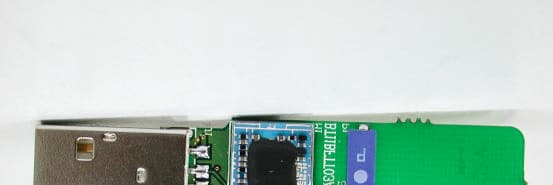
Click to zoom
Application Details
- Equipment Class
- DSS - Part 15 Spread Spectrum Transmitter
- Date of Grant
- Nov 23, 2003
- Application Purpose
- Original Equipment
- Date of Application
- Nov 23, 2003
- Equipment Note
- Bluetooth Wireless USB Adapter
- Frequency Range
- 2402.00000000 - 2480.00000000
- Company
- AmbiCom Technology, Inc.
- Country
- Taiwan
Documents & Files
Document Text
Text extracted from the exhibit documents filed with the FCC. Open a document above to read the original.
Users Manual
1 AmbiCom Technology, Inc Bluetooth Wireless USB Adapter User’s Manual 2 Bluetooth Software’s installation manual You can follow these instructions to install the Bluetooth software for your Bluetooth Adapter. Note: 1. You should install the Widcomm’s Bluetooth Software for Windows (BTW) before you use the Bluetooth Adapter. 2. The version of BTW software in this CD is BTW1.4.2. 3. Each Bluetooth Adapter has its own Bluetooth Device Address (BD address), and also each BTW has its own Security Key (i.e. Security Code), corresponding to your Bluetooth Adapter. 4. We strongly recommend you to install Bluetooth software by using the security key number on the label instead of via the Internet. The security key (S.K.) number and BD address (B.D.) is on the label on your Bluetooth Adapter 1. Start 1.1 You will see the following screen when you plug your Bluetooth Adapter into the USB slot in your computer. Click “Cancel” to skip the driver installation of ”Found New Hardware Wizard of Windows”. 2. Installing from a CD Installing BTW software is an automated process made easy by the use of the InstallShield Wizard. You will need to: 2.1 Exit all applications. 2.2 Insert the CD, the main menu of software will show up automatically. Please click “Install” icon on the CD. NOTE: Any previous version of BTW software will be uninstalled when installing this BTW 1.4.2 version. 3 Or you can uninstall BTW manually by using the Add/Remove Programs window in the Control Panel. 2.3 Automatically execute BTW and you will go to the following screen. When the Welcome screen appears, Click “Next” to continue. 2.3.1 Choose “I accept the terms in the license agreement” and Click “Next” to continue. 2.3.2 Select the destination directory you prefer, then click “Next” button 2.3.3 Click “Install” to begin the installation. 4 2.3.4 The status bar will display your progress. 2.3.5 Click “No” to the next step. 2.3.6 Click “Yes” button to enter security key now 5 2.3.7 Type the security key number into the following row. Note: The security key number is on the label on your Bluetooth Adapter. Then click “OK” to continue installation. 2.3.8 Click “Finish” to compete the installation. Re-boot your computer, you can begin to use Bluetooth software (BTW1.4.2). Note: If you have any installation problem, please refer to the following Troubleshooting section. Enter Your Security Key number 6 Troubleshooting 1. Your Bluetooth Adapter can not work? 1.1 Please go to the main menu, “BD address” page, 1.2 Double check the security key number and key-in the correct one. Re-boot your computer, and you can begin to use Bluetooth software (BTW1.4.2). Enter the correct security key number 7 2. To retrieve the security key via the Internet Note: 1. Connect your computer to the Internet first. 2. You can only retrieve the security key via the Internet in the same computer, but you can’t do it with other computer. 2.1 Installing from a CD Installing BTW software is an automated process made easy by the use of the InstallShield Wizard. You will need to: 2.1.1 Exit all applications. 2.1.2 Insert the CD, the main menu of software will show up automatically. Please click “Install” icon on the CD. NOTE: Any previous version of BTW software will be uninstalled when installing this BTW 1.4.2 version. Or you can uninstall BTW manually by using the Add/Remove Programs window in the Control Panel. 2.2 Automatically execute BTW and you will go to the following screen. When the Welcome screen appears, Click “Next” to continue. 8 2.2.1 Choose “I accept the terms in the license agreement” and Click “Next” to continue. 2.2.2 Select the destination directory you prefer, then click “Next” button 2.2.3 Click “Install” to begin the installation. 9 2.2.4 The status bar will display your progress. 2.2.5 Click “Yes ” to the next step. Then click “OK” button to the next step. 2.2.6 Click “finish” button to complete the installation. Re-boot your computer, you can begin to use Bluetooth software (BTW1.4.2). Note: the Bluetooth software installation is done via the Internet. Note: If your office network system has been setup with firewall, or your network have any trouble to the Internet, please follow the below steps to retrieve the security key manually by connecting to the WIDCOMM’s Website. 10 3. To retrieve the security key manually via the WIDCOMM’s website In the above step 2.2.5, if your office network system have any problem connecting to the Internet, the following message will appear. Then click “OK” button to the next step. Click “Yes” button to find the BD Address of your Bluetooth Adapter. Connect to the http://66.45.42.85/formosa. At the following screen, please enter the related information. Then you will get the Security Key sent from the WIDCOMM’s company through the e-mail system. Note: 1.If you lose the security key, you must use the same e-mail address to get yours again. 2. Make sure the BD address you type is12 characters long (No commas, colons, semicolons, or spaces) the BD address of your Bluetooth device 11 Finally, you should click the “BD address” icon on the main menu of the CD, and enter the Security Key you get on your e-mail, and then type it into the “Security Code” row and click “OK”. Re-boot your computer, you can begin to use Bluetooth software (BTW1.4.2). 12 4. How to get the BD address of your Bluetooth Adapter? You must plug your Bluetooth Adapter into your notebook or PC and insert the CD. The main menu will show up automatically. Please click “BD address” icon on the CD. The following screen will appear and you can read the BD address of your Bluetooth Adapter. 5. Software Problem of Bluetooth Adapter If you can not get the BD address at the following page, it means you don’t install the Bluetooth Software correctly You must : 1. Follow the steps: “Start” Settings Control Panel System 2. Go to the “Hardware” tag and click the ”Device Manager” button, then find the device which has problem, as show in the following scree…
Text truncated - open the document above for the full version.
Cover Letter(s)
1 Mike Kuo From: [email protected] Sent: November062003Thursday 1:24 AM To: Mike Kuo Subject: Re: Ambicom Technology FCC ID:RK3-USBBT03, AN03T3385 Diagram.pdfID Label.pdfUser Manual.pdf Dear Mike, Attached please find Internal Photo and revised User Manual & ID Label, this is a top urgent project, we wish we can get the certificate tomorrow. Thank you in advance! Best regards, Rick Hu ----- Original Message ----- From: "Mike Kuo" <[email protected]> To: <[email protected]> Sent: Thursday, November 06, 2003 10:35 AM Subject: Ambicom Technology FCC ID:RK3-USBBT03, AN03T3385 > Question #1: Please provide additional internal photo by removing the metal > plate. > > Question #2: This USB BT transceiver is only considered as PC peripheral > device. The proposed FCC ID label format does not include FCC DoC labeling > requirement. Please provide revised FCC ID label with FCC ID number and FCC > DoC labeling requirement. > > Question #3: Please provide FCC DoC statement to indicate that this device > comply with FCC Part 15 Subpart B as PC peripheral devices. > > Best Regards > > Mike Kuo > Compliance Certification Services > 561F Monterey Road > Morgan Hill CA 95037 > Tel: (408)463-0885 x: 105 > Fax: (408)463-0888 > http://www.ccsemc.com > >
External Photos
ETC Report No.: ET92S-10-199-01 Page A1 of A1 FCC ID: RK3-USBBT03 ANNEX A: EXTERNAL CONSTRUCTION PHOTOS OF EUT 1. Outside view 1 of EUT 2. Outside view 2 of EUT
Internal Photos
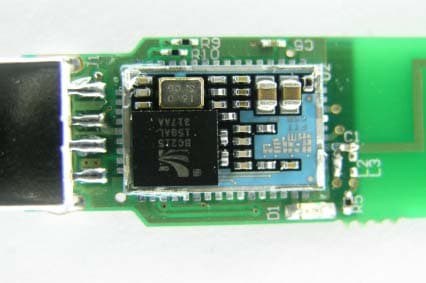
ETC Report No.: ET92S-10-199-01 Page B1 of B2 FCC ID: RK3-USBBT03 ANNEX B: INTERNAL CONSTRUCTION PHOTOS OF EUT 1. Inside View 1 of EUT 2. Inside View 2 of EUT ETC Report No.: ET92S-10-199-01 Page B2 of B2 FCC ID: RK3-USBBT03 3. Front View of PCB 4. Rear View of PCB
Operational Description
Description of Operation Principle This device is connected to PC or other host devices through USB connector on one side, and propagates microwave signals from the antenna on the other side. The microwave signals in the air are received by the antenna of the receiver, through Tx/Rx switch which is controlled by the transceiver, then mixed with the 12MHz signals generated by the crystal, and down convert to frequency of base-band. The signals from the transceiver finally transfer to USB signals through base-band controller and exchange data with PC or other host devices.
Test Report
Rev. No 1.0 FCC Part 15 EMI TEST REPORT of E.U.T. : Bluetooth wireless USB Adapter MODEL : BT2000.C-USB FCC ID. : RK3-USBBT03 for APPLICANT : AmbiCom Technology, Inc. ADDRESS : 4F, No, 6, Lane 345, Yangguang St., Nei Hu Dist., Taipei 114 Taiwan Test Performed by ELECTRONICS TESTING CENTER, TAIWAN NO. 8 LANE 29, WENMIMG ROAD, LOSHAN TSUN, KWEISHAN HSIANG, TAOYUAN, TAIWAN, R.O.C. Tel:(03)3280026#570~576 Fax:(03)3276188 Report Number : ET92S-10-199-01 ETC Report No. : ET92S-10-199-01 FCC ID. : RK3-USBBT03 Rev. No 1.0 TEST REPORT CERTIFICATION Applicant : AmbiCom Technology, Inc. 4F, No, 6, Lane 345, Yangguang St., Nei Hu Dist., Taipei 114 Taiwan Manufacturer : Formosa Teletek Corporation 358, Huaya 2nd Rd., Gueishan Shiang, Taoyuan, Taiwan Description of EUT : a) Type of EUT : Bluetooth wireless USB Adapter b) Trade Name : AmbiCom c) Model No. : BT2000.C-USB d) Power Supply : DC 5V (PROVIDED BY NOTEBOOK PC ASUS / A1300) Regulation Applied : FCC Rules and Regulations Part 15 Subpart B & C (2002) I HEREBY CERTIFY THAT: The data shown in this report were made in accordance with the procedures given in ANSI C63.4, and the energy emitted by the device was founded to be within the limits applicable. I assume full responsibility for accuracy and completeness of these data. Note: 1. The result of the testing report relate only to the item tested. 2. The testing report shall not be reproduced expect in full, without the written approval of ETC. Issued Date : May 28, 2003 Test Engineer : Approve & Authorized Signer : Signature Win-Po Tsai Manager of EMC Testing Department Electronics Testing Center, Taiwan ETC Report No. : ET92S-10-199-01 FCC ID. : RK3-USBBT03 Rev. No 1.0 Table of Contents Page 1 GENERAL INFORMATION .......................................................................................................................1 1.1 Product Description ......................................................................................................................................1 1.2 Characteristics of Device ..............................................................................................................................1 1.3 Test Methodology .........................................................................................................................................1 1.4 Modifiction List of EUT ...............................................................................................................................1 1.5 Test Facility ..................................................................................................................................................1 2 PROVISIONS APPLICABLE ......................................................................................................................2 2.1 Definition ......................................................................................................................................................2 2.2 Requirement for Compliance ........................................................................................................................3 2.3 Restricted Bands of Operation ......................................................................................................................5 2.4 Labeling Requirement...................................................................................................................................5 2.5 User Information ...........................................................................................................................................6 3. SYSTEM TEST CONFIGURATION ..........................................................................................................7 3.1 Justification ...................................................................................................................................................7 3.2 Devices for Tested System............................................................................................................................7 4 RADIATED EMISSION MEASUREMENT ..............................................................................................8 4.1 Applicable Standard......................................................................................................................................8 4.2 Measurement Procedure ...............................................................................................................................8 4.3 Measuring Instrument .................................................................................................................................10 4.4 Radiated Emission Data ..............................................................................................................................11 4.4.1 RF Portion...........................................................................................................................................................11 4.4.2 Other Emission 30M~25G ...........................................................................................................................14 4.5 Field Strength Calculation ..........................................................................................................................14 4.6 Photos of Radiation Measuring Setup ........................................................................................................17 5 CONDUCTED EMISSION MEASUREMENT ........................................................................................18 5.1 Applicable Standard....................................................................................................................................18 5.2 Measurement Procedure .............................................................................................................................18 5.3 Conducted Emission Data...................................................................................................…
Text truncated - open the document above for the full version.
Test Setup Photos
ETC Report No. : ET92S-10-199-01 Sheet 1 of 2 Sheets FCC ID. : RK3-USBBT03 4.6 Photos of Radiation Measuring Setup ETC Report No. : ET92S-10-199-01 Sheet 2 of 2 Sheets FCC ID. : RK3-USBBT03 5.6 Photos of Conduction Measuring Setup
Contact Information
Applicant
Denny Hsu(Product Manager)
Test Firm
Electronics Testing Center, TaiwanWin-Po Tsai
Technical Specifications
| # | Rule Parts | Frequency Range | Power Output |
|---|---|---|---|
| 1 | 15C | 2.40 GHz - 2.48 GHz | 100.00 µW |
Other Applications from AmbiCom Technology, Inc.
RK3-USBDGE
Apr 13, 2004Bluetooth USB Adapter
Equipment Class
DSS - Part 15 Spread Spectrum Transmitter