SBVCR001Controller for Digital Music Distribution System
Sonos, Inc.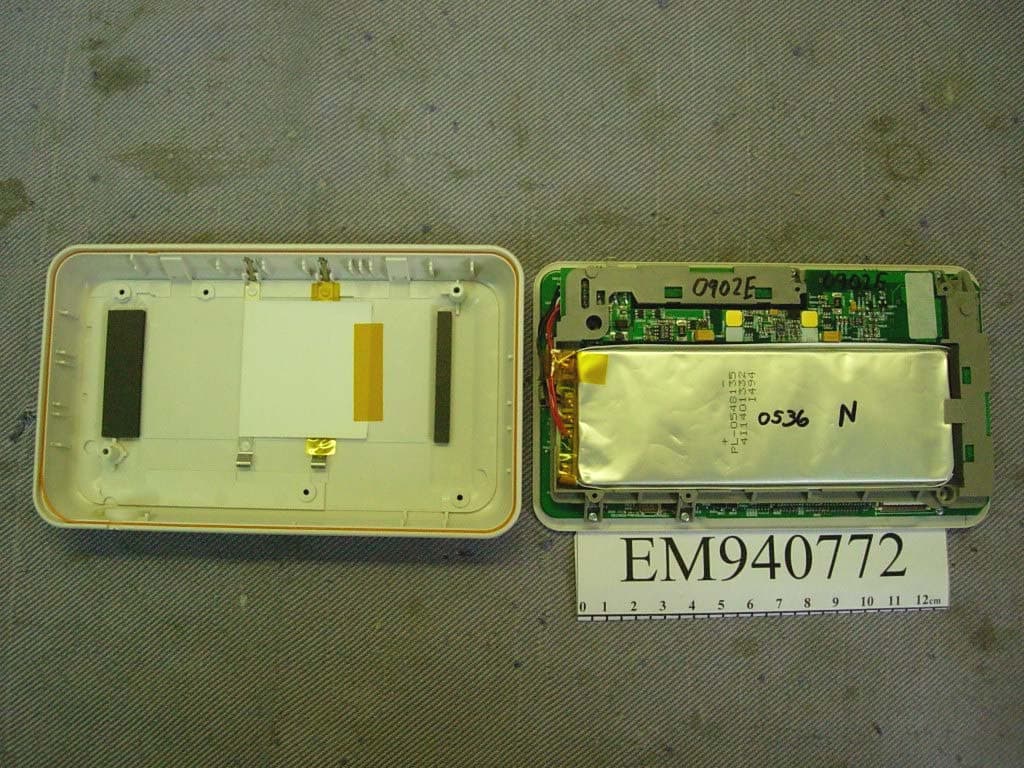
Click to zoom
Application Details
- Equipment Class
- DTS - Digital Transmission System
- Date of Grant
- Aug 21, 2005
- Application Purpose
- Original Equipment
- Date of Application
- Aug 21, 2005
- Equipment Note
- Controller for Digital Music Distribution System
- Frequency Range
- 2412.00000000 - 2462.00000000
- Company
- Sonos, Inc.
- Country
- United States
Documents & Files
Document Text
Text extracted from the exhibit documents filed with the FCC. Open a document above to read the original.
Users Manual
Sonos Digital Music System User Guide TM Sonos Digital Music System User Guide. For use with the Sonos ZonePlayer ZP100 (including Sonos System Setup software CD-ROM) and the Sonos Controller CR100. THIS DOCUMENT CONTAINS INFORMATION THAT IS SUBJECT TO CHANGE WITHOUT NOTICE. No part of this publication may be reproduced or transmitted in any form or by any means, electronic or mechanical, including but not limited to photocopying, recording, information retrieval systems, or computer network without the written permission of Sonos, Inc. Sonos, Sonosnet, and all Sonos logos are trademarks of Sonos, Inc. Macintosh® and Mac OS® are trademarks of Apple Computer, Inc., registered in the U.S. and other countries. Windows® XP and Windows® 2000 are either registered trademarks or trademarks of Microsoft Corporation in the United States and/or other countries. This product includes technology owned by Microsoft Corporation and under a license from Microsoft Licensing, GP. Use or distribution of such technology outside of this product is prohibited without a license from Microsoft Corporation and/or Microsoft Licensing, GP as applicable. MPEG Layer-3 audio decoding technology licensed from Fraunhofer IIS and Thomson. Sonos uses MSNTP software, which was developed by N.M. Maclaren at the University of Cambridge. © Copyright, N.M. Maclaren, 1996, 1997, 2000; © Copyright, University of Cambridge, 1996, 1997, 2000. All other products and services mentioned may be trademarks or service marks of their respective owners. © 2004-2005 by Sonos, Inc. All rights reserved. Please visit our Web site at www.sonos.com for the latest product news. For the latest product documentation, go to http://sonos.com/support and click Documents. Version: 0504 April, 2005 Contents Chapter 1 The Sonos Digital Music System Your Computer Network . . . . . . . . . . . . . . . . . . . . . . . . . . . . . . . . . . . . . . . . . . . . . . . . . . . . . . . . . . 1-2 Sonos Online Services . . . . . . . . . . . . . . . . . . . . . . . . . . . . . . . . . . . . . . . . . . . . . . . . . . . . . . . . . . . . . 1-3 Technical Support . . . . . . . . . . . . . . . . . . . . . . . . . . . . . . . . . . . . . . . . . . . . . . . . . . . . . . . . . . . . . . . . . 1-4 Chapter 2 ZonePlayer Setup and Operation Where to Begin . . . . . . . . . . . . . . . . . . . . . . . . . . . . . . . . . . . . . . . . . . . . . . . . . . . . . . . . . . . . . . . . . . . . 2-1 1-2-3 Setup . . . . . . . . . . . . . . . . . . . . . . . . . . . . . . . . . . . . . . . . . . . . . . . . . . . . . . . . . . . . . . . . . . . . . . . . 2-1 ZonePlayer ZP100 Front . . . . . . . . . . . . . . . . . . . . . . . . . . . . . . . . . . . . . . . . . . . . . . . . . . . . . . . . . . . 2-2 Rear Panel Connectors . . . . . . . . . . . . . . . . . . . . . . . . . . . . . . . . . . . . . . . . . . . . . . . . . . . . . . . . . . . . 2-3 Adding More ZonePlayers . . . . . . . . . . . . . . . . . . . . . . . . . . . . . . . . . . . . . . . . . . . . . . . . . . . . . . . . . 2-7 Chapter 3 Windows® Setup and Operation Installing the Desktop Controller Software . . . . . . . . . . . . . . . . . . . . . . . . . . . . . . . . . . . . . . . . 3-2 Renaming a ZonePlayer . . . . . . . . . . . . . . . . . . . . . . . . . . . . . . . . . . . . . . . . . . . . . . . . . . . . . . . . . . . 3-6 Playback Controls . . . . . . . . . . . . . . . . . . . . . . . . . . . . . . . . . . . . . . . . . . . . . . . . . . . . . . . . . . . . . . . . . 3-8 Controlling the Volume . . . . . . . . . . . . . . . . . . . . . . . . . . . . . . . . . . . . . . . . . . . . . . . . . . . . . . . . . . . 3-9 Adjusting ZonePlayer Sound Settings . . . . . . . . . . . . . . . . . . . . . . . . . . . . . . . . . . . . . . . . . . . .3-10 Managing Your Zones . . . . . . . . . . . . . . . . . . . . . . . . . . . . . . . . . . . . . . . . . . . . . . . . . . . . . . . . . . . .3-10 Making Music Selections . . . . . . . . . . . . . . . . . . . . . . . . . . . . . . . . . . . . . . . . . . . . . . . . . . . . . . . . .3-13 The Music Queue . . . . . . . . . . . . . . . . . . . . . . . . . . . . . . . . . . . . . . . . . . . . . . . . . . . . . . . . . . . . . . . . .3-14 Sonos Playlists . . . . . . . . . . . . . . . . . . . . . . . . . . . . . . . . . . . . . . . . . . . . . . . . . . . . . . . . . . . . . . . . . . . .3-17 Internet Radio . . . . . . . . . . . . . . . . . . . . . . . . . . . . . . . . . . . . . . . . . . . . . . . . . . . . . . . . . . . . . . . . . . . .3-18 Connecting Line-In Sources . . . . . . . . . . . . . . . . . . . . . . . . . . . . . . . . . . . . . . . . . . . . . . . . . . . . . .3-20 Managing Music Folders . . . . . . . . . . . . . . . . . . . . . . . . . . . . . . . . . . . . . . . . . . . . . . . . . . . . . . . . .3-21 Getting Software Updates . . . . . . . . . . . . . . . . . . . . . . . . . . . . . . . . . . . . . . . . . . . . . . . . . . . . . . . .3-24 Sonos System Registration . . . . . . . . . . . . . . . . . . . . . . . . . . . . . . . . . . . . . . . . . . . . . . . . . . . . . . .3-27 Turning Off All ZonePlayers . . . . . . . . . . . . . . . . . . . . . . . . . . . . . . . . . . . . . . . . . . . . . . . . . . . . . .3-27 Resetting Your Desktop Controller Software . . . . . . . . . . . . . . . . . . . . . . . . . . . . . . . . . . . . .3-27 Chapter 4 Macintosh® OS X Setup and Operation Installing the Sonos Setup Assistant Software . . . . . . . . . . . . . . . . . . . . . . . . . . . . . . . . . . . . 4-1 ii The Sonos Assistant Main Menu . . . . . . . . . . . . . . . . . . . . . . . . . . . . . . . . . . . . . . . . . . . . . . . . . . 4-4 Renaming a ZonePlayer . . . . . . . . . . . . . . . . . . . . . . . . . . . . . . . . . . . . . . . . . . . . . . . . . . . . . . . . . . . 4-5 Changing Your Preferences . . . . . . . . . . . . . . . . . . . . . . . . . . . . . . . . . . . . . . . . . . . . . . . . . . . . . . . 4-6 Updating Your Sonos Assistant Software . . . . . . . . . . .…
Text truncated - open the document above for the full version.
Users Manual
Sonos Digital Music System User Guide5-6 To adjust volume or mute zones 1.From the Zone menu, use the scroll wheel to select the zone you want to change the volume settings for. 2.Use the Volume Up and Down buttons to change the volume to the desired level. 3.To u c h OK, and the Volume panel disappears. 4.To mute a zone or a zone group, touch the Mute button (within a zone group, the mute button automatically mutes the last room where volume controls were adjusted.) Touch the Mute button again to unmute. 5.To mute all the ZonePlayers in your household, touch and hold the Mute button for 3 seconds. Touch and hold again for 3 seconds to unmute all ZonePlayers. The volume panel appears over the current screen. Volume can be controlled for a zone group or for an individual zone. Single zone volume bar Group volume bar Mute indicator Mute indicator Chapter 5: Using Your Sonos Controller 5-7 The Controller Main Menus Zone menu •View zones •Select zones •Link or drop zones in a zone group •Pause all ZonePlayers Music menu • Music Library • Sonos Playlists • Internet Radio • Line-In Music Sources •System Settings Managing Your Zones To u c h t h e Zones button on your Controller to display the Zone menu where you can view the music selections playing in each room. From this menu, you can: • See an alphabetical list of the zones in your household, along with the music cur- rently playing in each zone • Group zones together to play the same music across zones (create a zone group) • Drop a zone from a zone group • Pause all ZonePlayers in your household Sonos Digital Music System User Guide5-8 Music will continue to play while you browse the Zone menu. Music you select will play in the zone you highlight on the Zone menu. Use the scroll wheel to highlight a zone, and touch OK. The Now Playing window appears. You can then touch the Music button to change the music selection for this zone. Zone groups Two or more zones can be grouped together to form a zone group, which allows you to play the same music across zones. You can also link all the ZonePlayers in your house with one touch by selecting All Zones-Party Mode. You can add and drop zones from a zone group while your music is playing. Note: The currently selected zone will always show at the top of your Controller screen so you can see which zone you are making changes to. Note: Any zones you add to a group will automatically drop their current music queue and begin to play the music that is playing in the zone group. You may sometimes want to save your music queue as a Sonos playlist before linking zones. See "To save a music queue as a Sonos playlist" on page 5-15. Zones button Touch the Zones button to view the music playing in each room Chapter 5: Using Your Sonos Controller 5-9 To add a zone to a zone group 1.To u c h t h e Zones button on your Controller. 2.Highlight the zone or zone group you want to add a zone to, and touch Link Zone. 3.Highlight the zone you want to add to the group, and touch OK. If you want to join all the zones in your house to this music queue, select All Zones-Party Mode . All of your ZonePlayers will then play the same music until you drop the zones from the zone group. Note: The order in which you add a zone makes a difference. If you select Link Zone from a zone where there is no music playing, any zone you link to it will also be silent. Select zone to add to group Select zone where desired music is playing Kitchen and Garden make up a zone group The music queue from the added zone is automatically replaced by the music queue from the zone or zone group it was linked to so that both zones play the same music Sonos Digital Music System User Guide5-10 To drop a room from your zone group 1.To u c h t h e Zones button on your Controller. 2.Use the scroll wheel to highlight the zone group you want to change, and touch Drop Zone. 3.Highlight the zone you want to drop from the group, and touch OK. The room that’s removed from the zone group stops playing music. The other zones in the zone group continue unaffected. To turn off all ZonePlayers If you want to stop your Sonos Digital Music System from playing music, press Pause All from the Zones menu. All of your ZonePlayers will remain off until you touch Play to restart each zone or zone group. Select zone to drop from group Chapter 5: Using Your Sonos Controller 5-11 Making Music Selections Browsing your music library You can browse for songs in a number of different ways. Using the Controller, you can make broad music selections like play all available music by a particular artist, or you can make specific selections like play a single track by a particular artist on a specified album. Selection choices include: •Artist •Album • Composer •Genre •Tracks • Imported Playlists • Browse by Folder The Music Queue When you make music selections, they are added to a list of tracks called a music queue. You can create a different music queue for each zone in your house, or you can create a zone group and play the same music across multiple zones. A play indicator appears to the left of the currently playing track. When the current track ends, the next track in the queue starts to play, and play continues down through the list until the queue is completed. When you add tracks to a queue, they are placed at the end of the queue. Note: If a computer on your network is turned off or is in "standby" mode, the music folders on that computer are unavailable to the Sonos Digital Music System until the computer is turned back on. Note: You can add tracks to the music queue while other tracks in the queue are playing. Sonos Digital Music System User Guide5-12 To select from your music library 1.From the Zone menu, highlight the zone where you want to play music, and then touch the Music button. 2.Select Music Library, and touch OK. 3.Use the scroll wheel to browse the music library, and then highlight a selection. 4.Choose one of the following options: •Touch the Play button to play…
Text truncated - open the document above for the full version.
Attestation Statements
Sheet1 Sonos Inc. FCC ID: SBVCR001 802.11g music distribution system controllerCalculate mW/cm2 here. Enter frequency in MHz: RF Hazard Distance CalculationCalculation of Limits from 1.1310 Table 1 ControlledUncontrolled Ave 6 minAve 30 min mW/cm2 from Table1:1.00(E: 61 V/m)F(MHz)Actual F, MHzOcc, mW/c2Gen, mW/cm2 0.3-30.5100.0100.0 Max RF PowerTX AntennaMPE distanceS, mW/[email protected] - 30.05180.036.0 P, dBmG, dBicmat 20 cm30.0-300551.00.2 300-15005551.90.37 18.85.04.40.05bg cardbus1500-10000055555.01.0 bg module BBGW Enter P(mW)Equivalent dBmEnter dBmEquivalent Watts Basis of Calculations:6418.118.164.6 E^2/3770 = S, mW/cm2 E, V/m = (Pwatts*Ggain*30)^.5/d, meters d = ((Pwatts*G*30)/3770*S))^0.5Pwatts*Ggain = 10^(PdBm-30+GdBi)/10) S@20cm = 20 log (MPE dist/20cm) NOTE: For mobile or fixed location transmitters, minimum separation distance is for FCC compliance is 20 cm, even if calculations indicate MPE distance is less Page 1
Cover Letter(s)
tel: 650-726-1263 fax: 650-726-1252 [email protected] Thomas N. Cokenias EMC &Radio Approvals Test & Consulting Services for Commercial, Military, International Compliance P.O. Box 1086 El Granada, CA 94018 Compliance Certification Services 11 August 2005 561F Monterey Road Morgan Hill, CA 95037 Attention: Application Examiner Reviewing Engineer Re: Request per 0.457 and 0.459 of FCC Rules to withhold certain documents from routine public access Applicant: Sonos Inc. FCC ID: SBVCR001 802.11g controller for wireless music system To whom it may concern, Request is hereby submitted, on behalf of my client Sonos Inc. to withhold from public review certain portions of the application for equipment certification for the referenced FCC identifier. In particular, the following sections of the application and report are requested to be kept confidential: Block Diagrams Schematic Operational Description Antenna pattern description Rationale for request for confidentiality: Sonos has invested considerable time and materials in research and development to produce the referenced product. Disclosure of the confidential portions of this application to competitors would give them competitive advantage in developing similar products. If you have questions or need further information, please contact the undersigned. Sincerely, tel: 650-726-1263 fax: 650-726-1252 [email protected] THOMAS N. COKENIAS EMC Consultant Agent for Sonos Inc.
Cover Letter(s)
Helen Zhao Subject: FW: FW: Sonos Inc., FCC ID: SBVCR001, Assessment NO.: AN05T5034, Notice#1 8/22/2005 From: Tom Cokenias [mailto:[email protected]] Sent: Saturday, August 20, 2005 6:27 PM To: Helen Zhao Subject: Re: FW: Sonos Inc., FCC ID: SBVCR001, Assessment NO.: AN05T5034, Notice#1 Hi Helen, Answers follow questions best regards Tom -----Original Message----- From: Compliance Certification Services [mailto:[email protected]] Sent: Wednesday, August 17, 2005 1:03 PM Subject: Sonos Inc., FCC ID: SBVCR001, Assessment NO.: AN05T5034, Notice#1 Question # 1 : This is a 802.11g device, by default, with 11b capability as well. The test report shows the EUT was tested at 802.11g mode only. Based upon following FCC QA, both modes need to be tested, please submit additional test data for 11b mode. Q: A primary question is if a device has both 802.11b (DSSS) and 802.11g (OFDM) capability, must both modulation modes be tested for EMC compliance? A: Yes, if a device is capable of operating with two different modulation types, both types need to be tested. ANS 1 This product by virtue of Sonos software does not have capability of operating on 802.11b, it can only operate on 802.11g. It does not associate with any other WiFi devices except for similar Sonos products also limited to 802.11g operation by virtue of software. Question # 2 : The test report (page 6) indicates "The EUT is a modified version of FCC ID: SBVCR001", which is not true. It might be "SBVCR000" instead. Please confirm. ANS 2 There was a typo in the report, the correct ID is SBVCR000 The items indicated above must be submitted before processing can continue on the above referenced application. Failure to provide the requested information within 30 days of the original e-mail date may result in application dismissal and forfeiture of the filing fee. Also, please note that partial responses increase processing time and should not be submitted. Any questions about the content of this correspondence should be directed to the e-mail address listed below the name of the sender.
External Photos
APPENDIX I Audix Corporation Report No. EM-E940122 APPENDIX I (Photos of EUT) Total Pages : 4 APPENDIX I - 1/4 Audix Corporation Report No. EM-E940122 Figure 1 ITE Power Supply, Controller (General Appearance) Figure 2 General Appearance (Front & Side View) APPENDIX I - 2/4 Audix Corporation Report No. EM-E940122 Figure 3 General Appearance (Rear & Bottom & Side View) Figure 4 Internal View (Removed Back Cover)
ID Label/Location Info
CR Label 27July05 65.8 48.4 Die-cut outline All text and graphics: PMS 427 C Background: PMS 430 C R2.2 © 2 0 0 5 Y S T U D I O S L L C • Y S T U D I O S . C O M •
Internal Photos
APPENDIX I - 2/4 Audix Corporation Report No. EM-E940122 Figure 3 General Appearance (Rear & Bottom & Side View) Figure 4 Internal View (Removed Back Cover) APPENDIX I - 3/4 Audix Corporation Report No. EM-E940122 Figure 5 Internal View (Removed Battery) Figure 6 Internal View (Removed Battery) APPENDIX I - 4/4 Audix Corporation Report No. EM-E940122 Figure 7 Internal View (Removed Shielded Cover, Wireless LAN Card/Front View) Figure 8 Internal View (Removed Shielded Cover, Wireless LAN Card/Back View)
Test Report
FCC ID. SBVCR001 Page 1 of 46 Audix Corporation Report No. EM-F940148 APPLICATION FOR CERTIFICATION On Behalf of Sonos, Inc Controller Model No.:CR100 FCC ID:SBVCR001 Prepared for : Sonos, Inc 506 Chapala Street, Santa Barbara, CA93101, USA Prepared by : Audix Corporation Technical Division EMC Department No. 53-11, Tin-Fu Tsun, Lin-Kou, Taipei County, Taiwan, R.O.C. Tel : (02) 2609-9301, 2609-2133 Fax: (02) 2609-9303 File Number : EM940772 Report Number : EM-F940148 Date of Test : Jun. 27 ~ 30, 2005 Date of Report : Jul. 05, 2005 FCC ID. SBVCR001 Page 2 of 46 Audix Corporation Report No. EM-F940148 TABLE OF CONTENTS Description Page TEST REPORT CERTIFICATION .......................................................................................................4 1. GENERAL INFORMATION .........................................................................................................5 1.1. Description of Device (EUT).................................................................................................................. 5 1.2. Description of Test Facility .................................................................................................................... 6 1.3. Measurement Uncertainty....................................................................................................................... 6 2. CONDUCTED EMISSION MEASUREMET...............................................................................7 2.1. Test Equipment ....................................................................................................................................... 7 2.2. Block Diagram of Test Setup.................................................................................................................. 7 2.3. Conducted Emission Limits (§15.207) ................................................................................................... 7 2.4. Operating Condition of EUT .................................................................................................................. 7 2.5. Test Procedure ........................................................................................................................................ 8 2.6. Conducted Emission Measurement Results............................................................................................ 8 3. RADIATED EMISSION MEASUREMENT ..............................................................................13 3.1. Test Equipment ..................................................................................................................................... 13 3.2. Test Setup ............................................................................................................................................. 13 3.3. Radiated Emission Limits (§15.209) .................................................................................................... 14 3.4. Operating Condition of EUT ................................................................................................................ 14 3.5. Test Procedure ...................................................................................................................................... 14 3.6. Radiated Emission Measurement Results............................................................................................. 15 4. 6dB BANDWIDTH MEASUREMENT .......................................................................................31 4.1. Test Equipment ..................................................................................................................................... 31 4.2. Block Diagram of Test Setup................................................................................................................ 31 4.3. Specification Limits (§15.247(a)(2)) .................................................................................................... 31 4.4. Operating Condition of EUT ................................................................................................................ 31 4.5. Test Procedure ...................................................................................................................................... 31 4.6. Test Results........................................................................................................................................... 32 5. MAXIMUM PEAK OUTPUT POWER MEASUREMENT .....................................................34 5.1. Test Equipment ..................................................................................................................................... 34 5.2. Block Diagram of Test Setup................................................................................................................ 34 5.3. Specification Limits (§15.247(b)-(3))................................................................................................... 34 5.4. Operating Condition of EUT ................................................................................................................ 34 5.5. Test Procedure ...................................................................................................................................... 34 5.6. Test Results........................................................................................................................................... 34 6. EMISSION LIMITATIONS MEASUREMENT ........................................................................35 6.1. Test Equipment ..................................................................................................................................... 35 6.2. Block Diagram of Test Setup................................................................................................................ 35 6.3. Specification Limits (§15.247(c))......................................................................................................... 35 6.4…
Text truncated - open the document above for the full version.
Test Setup Photos
FCC ID. SBVCR001 Page 44 of 46 Audix Corporation Report No. EM-F940148 10. PHOTOGRAPHS 10.1. Photos of Conducted Emission Measurement FRONT VIEW OF CONDUCTED MEASUREMENT BACK VIEW OF CONDUCTED MEASUREMENT FCC ID. SBVCR001 Page 45 of 46 Audix Corporation Report No. EM-F940148 10.2. Photos of Radiated Measurement at Semi-Anechoic Chamber 10.2.1. Frequency Range: 30MHz to 1GHz FRONT VIEW OF RADIATED MEASUREMENT BACK VIEW OF RADIATED MEASUREMENT FCC ID. SBVCR001 Page 46 of 46 Audix Corporation Report No. EM-F940148 10.2.2. Frequency Range: Above 1GHz FRONT VIEW OF RADIATED MEASUREMENT BACK VIEW OF RADIATED MEASUREMENT
Contact Information
Applicant
Mark Keefe(Compliance Engineer)
Test Firm
Audix Technology CorporationJeff Chen
Technical Specifications
| # | Rule Parts | Frequency Range | Power Output |
|---|---|---|---|
| 1 | 15C | 2.41 GHz - 2.46 GHz | 76.00 mW |
Other Applications from Sonos, Inc.
SBVRM059
Aug 14, 2026wireless smart speaker
Equipment Class
NII - Unlicensed National Information Infrastructure TXSBVRM052
Aug 10, 2026Wireless Headphone
Equipment Class
DTS - Digital Transmission SystemSBVRM051
Mar 12, 2026Wireless Amplifier
Equipment Class
DTS - Digital Transmission SystemSBVRM058
Dec 19, 2025Wireless Smart Speaker
Equipment Class
DSS - Part 15 Spread Spectrum TransmitterSBVRM045
Jul 10, 2024Wireless Smart Speaker
Equipment Class
DTS - Digital Transmission System