SEDIGEACOMANALOG SPEAKERPHONE WITH WIRELESS RECEIVER
IgeaCare Systems Inc.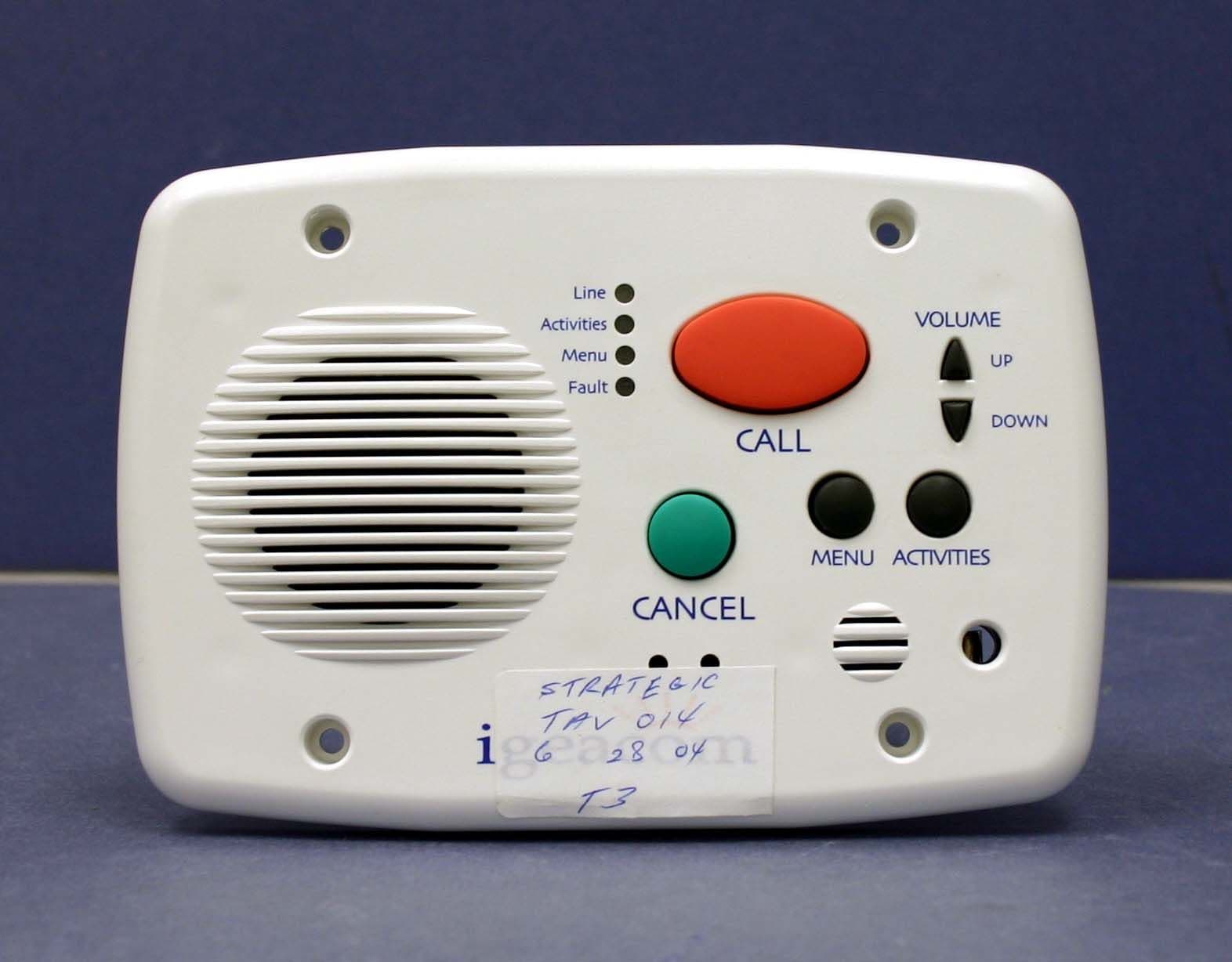
Click to zoom
Application Details
- Equipment Class
- CYY - Communications Receiver used w/Pt 15 Transmitter
- Date of Grant
- Aug 16, 2004
- Application Purpose
- Original Equipment
- Date of Application
- Aug 16, 2004
- Equipment Note
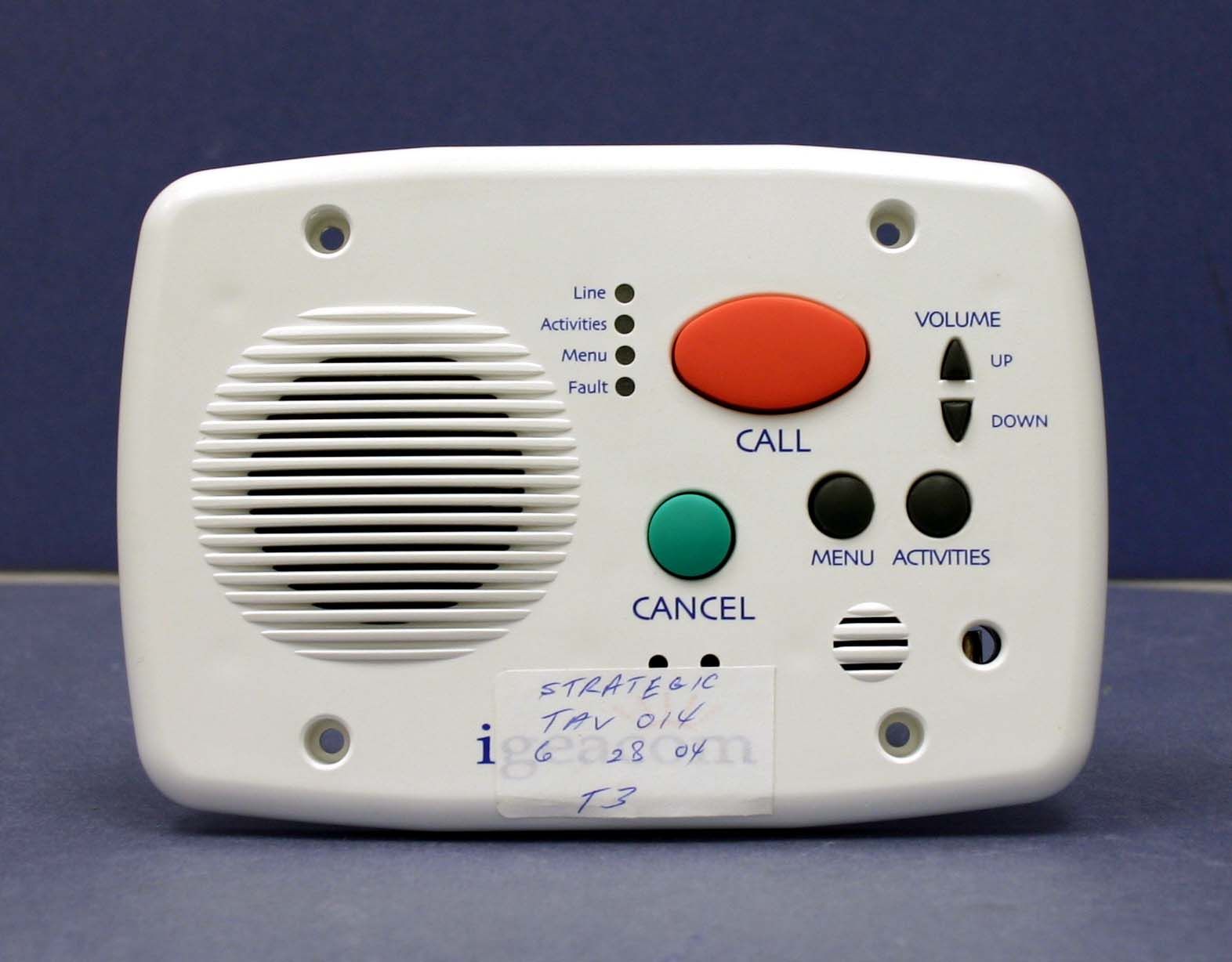
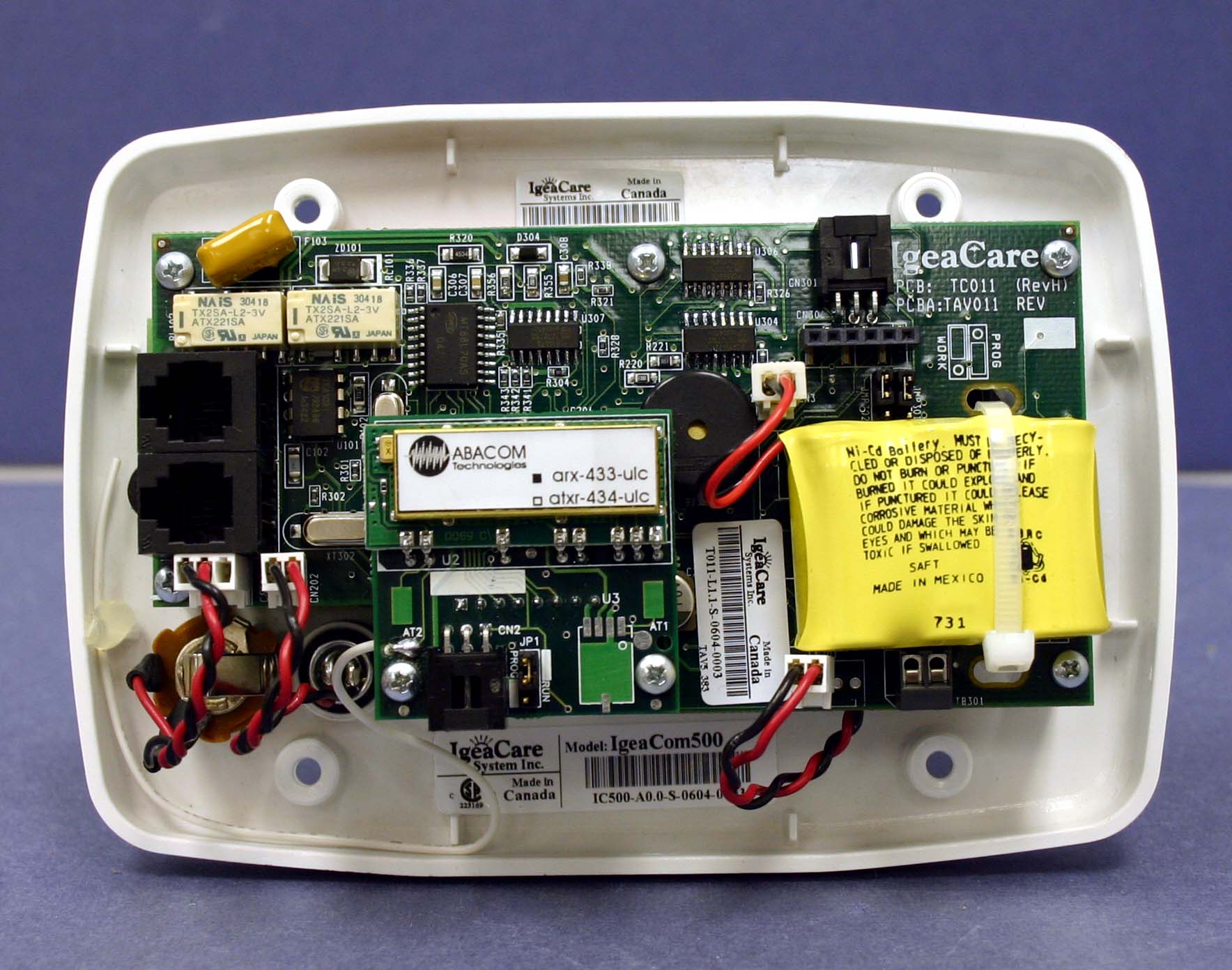
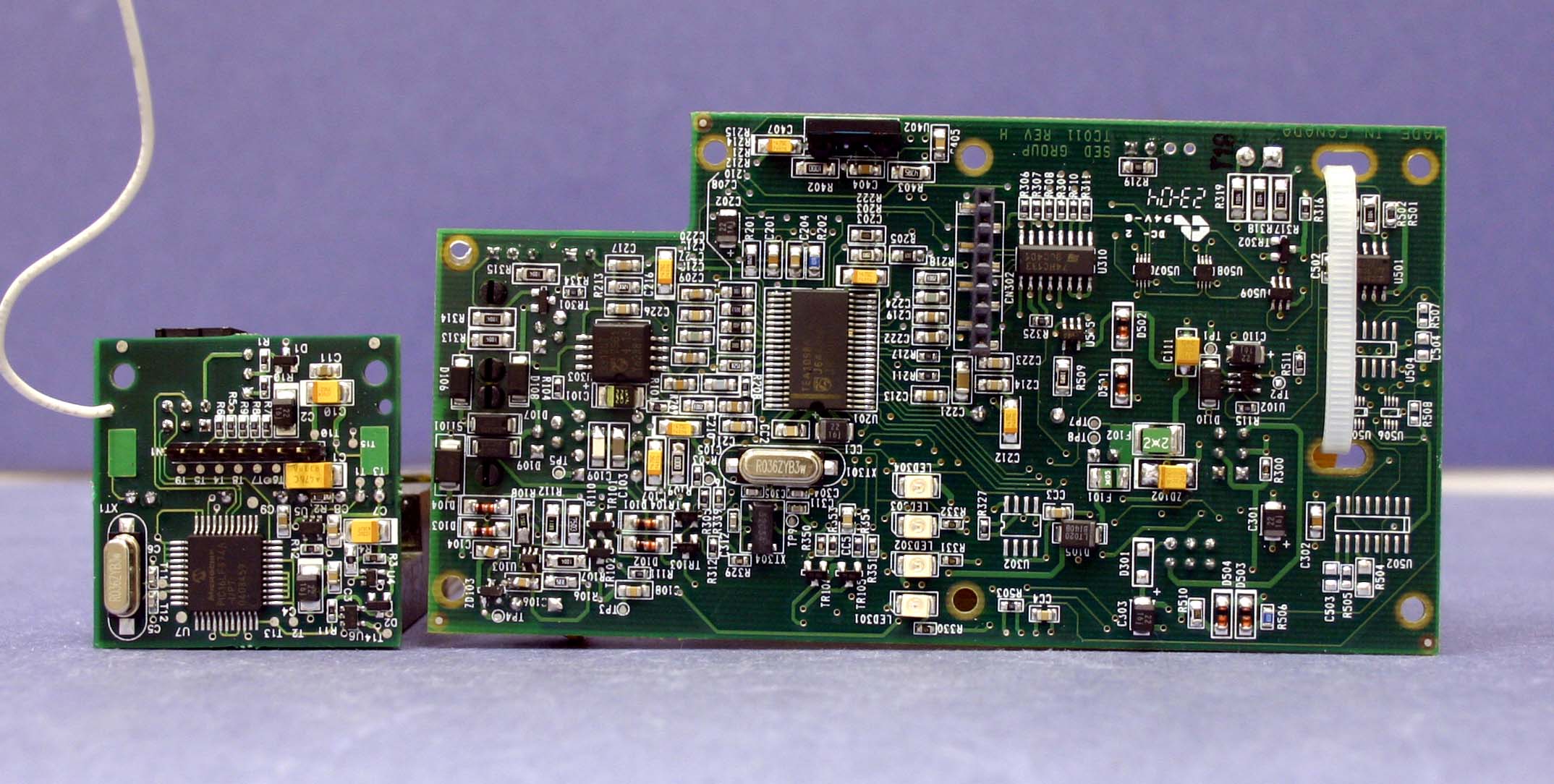
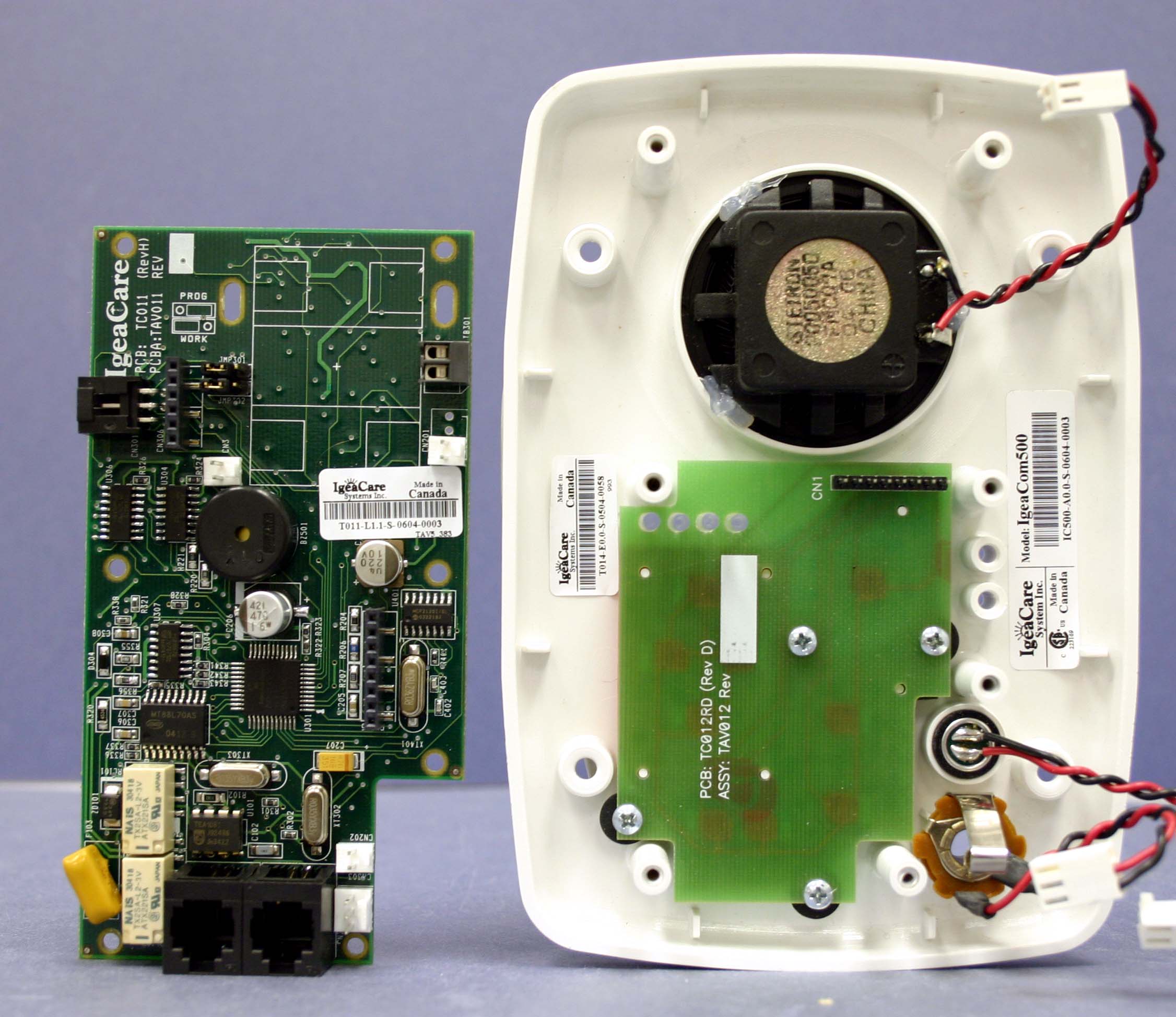
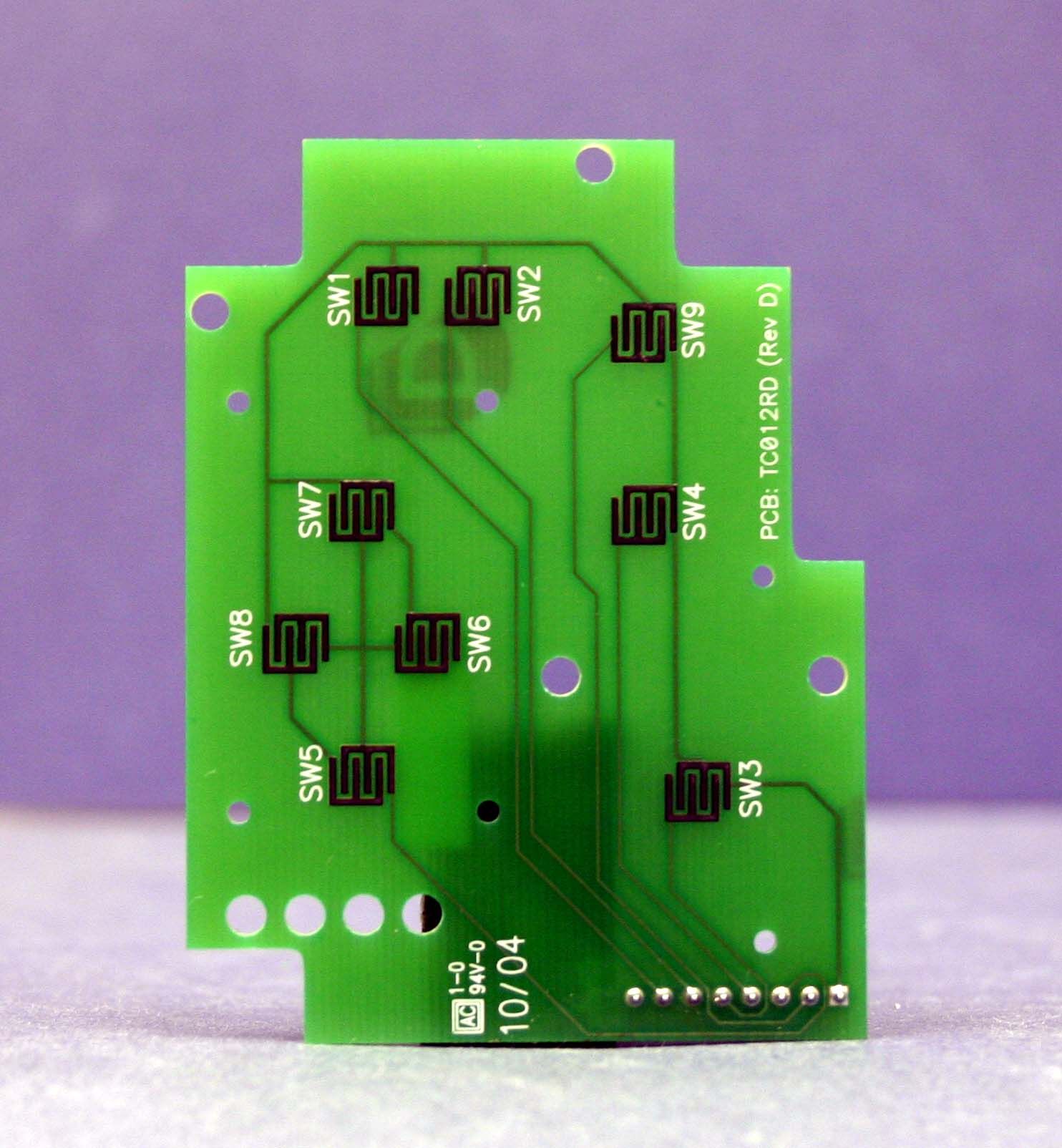
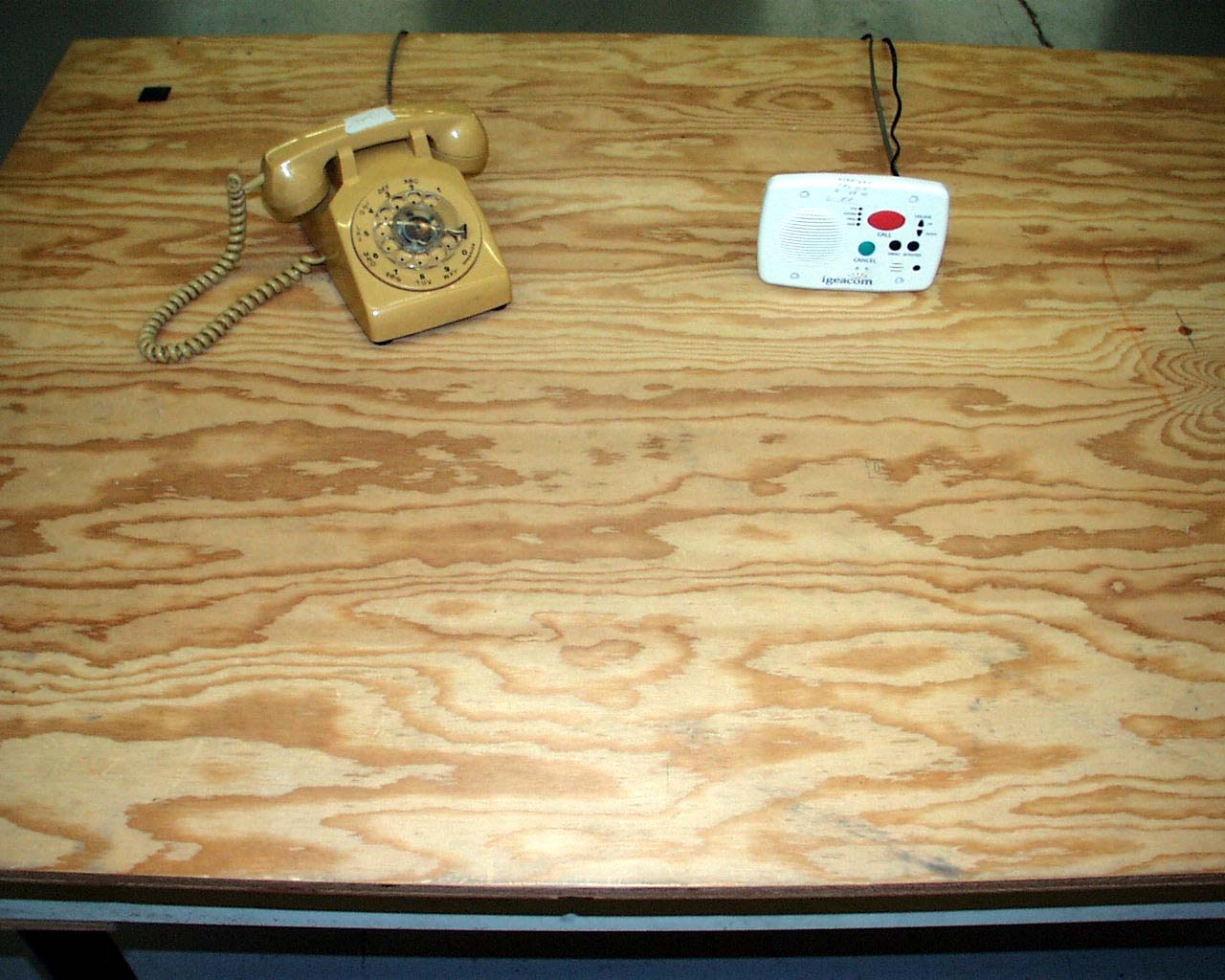
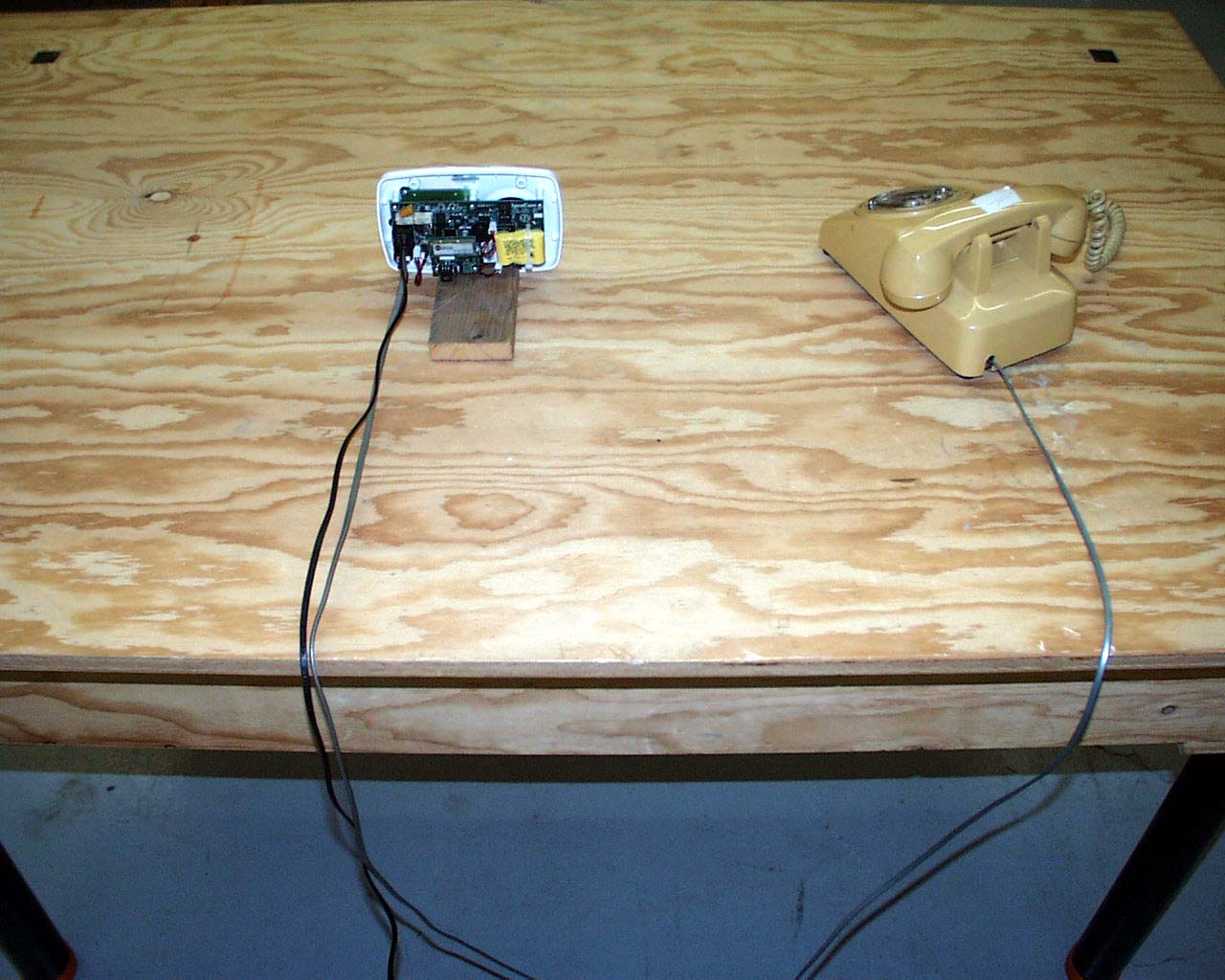
- ANALOG SPEAKERPHONE WITH WIRELESS RECEIVER
- Frequency Range
- 433.92000000 - 433.92000000
- Company
- IgeaCare Systems Inc.
- Country
- Canada
Documents & Files
Document Text
Text extracted from the exhibit documents filed with the FCC. Open a document above to read the original.
Users Manual
igeacom User Guide V2.0 IgeaCare Systems Inc. 5650 Tomken Road, Unit #9, Mississauga, Ontario, L4W 4P1, Canada Tel: 905.361.6225 Fax: 905.361.6209 www.igeacare.com Toll Free: 1.866.361.6225 Part Number 9001001 Quality Care through innovative technology igeacom User Guide V2.0 IgeaCare Systems Inc. 5650 Tomken Road, Unit #9, Mississauga, Ontario, L4W 4P1, Canada Tel: 905.361.6225 Fax: 905.361.6209 www.igeacare.com Toll Free: 1.866.361.6225 Part Number 9001001 Quality Care through innovative technology 500 igeacom User’s Guide Version 2.0 F IRSTEDITION July 2004 S ECONDEDITION August 2004 C OPYRIGHT ©2004 by IgeaCare Systems Inc. All rights reserved. The content of this document is for information purposes only and is subject to change without notice. Igeacare Inc. assumes no liability or responsibility for any errors which may appear within this document. The material presented herein should not be construed as a com- mitment or warranty. No part of this publication may be reproduced, transmitted, transcribed or translated into any language in any form by any means without the express written permission of IgeaCare Systems Inc. S OFTWARELICENSENOTICE Your license agreement with IgeaCare Systems Inc., which is included with the product, specifies the permitted and prohibited uses of the product. Any unautho- rised duplication or use of igeacom Version 2.0 in whole or in part, in print, or in any other system is prohibited. L ICENSES ANDTRADEMARKS Macintosh is a trademark of Apple Computer, Inc. The IgeaCare logo is a registered trademark of IgeaCare Systems Inc. QuarkXpress is a registered trademark of Quark, Inc. Adobe Photoshop is a registered trademark of Adobe Systems Incorporated. All other brand or product names mentioned in this user’s guide are trademarks or registered trademarks of their respective holders. This document has been produced using QuarkXpress. All graphics have been taken from the IgeaCare application using Windows Print Screen function and enhanced using Adobe Photoshop. IgeaCare Systems Inc. wishes to sincerely thank all of the individuals who made this product possible igeaCare systems Inc. 5650 Tomken Road, Unit #9, Mississauga, ON L4W 4P1 Visit our Web site at: www.igeacare.com Printed In Canada Contents Section 1 - User Overview Requesting Help . . . . . . . . . . . . . . . . . . . . . . . . . . . . . . . . .1-3 Cancelling a Call . . . . . . . . . . . . . . . . . . . . . . . . . . . . . . . . .1-4 Increasing/Decreasing Volume . . . . . . . . . . . . . . . . . .1-4 Retrieving Menus & Activities . . . . . . . . . . . . . . . . . . .1-5 Indicator Lights . . . . . . . . . . . . . . . . . . . . . . . . . . . . . . . . . .1-6 Line Indicator . . . . . . . . . . . . . . . . . . . . . . . . . . . . . . . .1-6 Fault Indicator . . . . . . . . . . . . . . . . . . . . . . . . . . . . . . . .1-7 Activities Indicator . . . . . . . . . . . . . . . . . . . . . . . . . . .1-8 Menu Indicator . . . . . . . . . . . . . . . . . . . . . . . . . . . . . . .1-8 Indicator Lights warning Chart . . . . . . . . . . . . . .1-9 Section 2 - Circuit Board Overview Overview . . . . . . . . . . . . . . . . . . . . . . . . . . . . . . . . . . . . . . . .2-3 Internal Hardwire Input connections . . . . . . . . . . . .2-5 Section 3 - Diagnostic Procedures Diagnostic Procedures during Boot-up . . . . . . . . . .3-3 Section 4 - Programming Overview . . . . . . . . . . . . . . . . . . . . . . . . . . . . . . . . . . . . . . . .4-3 1.0 Parameters . . . . . . . . . . . . . . . . . . . . . . . . . . . . . . . . . . . .4-3 2.0 Calling . . . . . . . . . . . . . . . . . . . . . . . . . . . . . . . . . . . . . . . .4-4 2.1 Hardwire Buttons . . . . . . . . . . . . . . . . . . . . . . . .4-4 2.2 RF Modules . . . . . . . . . . . . . . . . . . . . . . . . . . . . . . .4-4 3.0 Call Recognition . . . . . . . . . . . . . . . . . . . . . . . . . . . . . .4-4 4.0 Cancelling . . . . . . . . . . . . . . . . . . . . . . . . . . . . . . . . . . . .4-5 5.0 Redialing . . . . . . . . . . . . . . . . . . . . . . . . . . . . . . . . . . . . . .4-6 6.0 Call Priority . . . . . . . . . . . . . . . . . . . . . . . . . . . . . . . . . . .4-7 7.0 RF Modules Learning Process . . . . . . . . . . . . . . . .4-7 User Overview 1 Using the igeacom Emergency Call Device: The igeacom emergency call device is easy to use. Requesting Help: ›To Request Help: Press the red call button on the unit, or Press the red button on the pendant, or Press the red button on the push cord or Toggle any of the pull cords. By activating any one of the peripheral devices your igeacom emergency call device will send a signal to the emergency call unit to call the emergency call station or control center. All of your peripheral devices can be programmed according to their priority or associated degree of emergency as programmed by the facility for each device. 1-3 User Overview Cancelling a call: If you accidentally activate an alarm call you can cancel the call from the emergency call unit. ›To Cancel a Call: (Emergency Call Unit) Press the green cancel button. The wireless pull cord can also be cancelled at the source. ›To Cancel a Call: (Wireless Pull Cord) Push down on the cancel area. If the call is accepted by the operator prior to cancelling the call, simply explain to them it was an error and the operator or yourself can then cancel the call. Increasing/Decreasing Volume It is easy to increase or decrease the volume of your emergency call device. ›To Increase the Volume: Press the up arrow ›To Decrease the Volume: Pressing the down arrow. 1-4 User Overview Retrieving Menus & Activities The black buttons labeled Menuand Activitieson the igeacom emergency call unit activate the menu or activity announcements for the week or day, as programmed by your facility. ›To Retrieve the Menu Hold down the black Menu button to hear a pre-recorded announcement. ›To Retrieve Activities Press the black Activities button. 1-5 User Overview Indicator Lights Line Indicato…
Text truncated - open the document above for the full version.
Contact Information
Applicant
Peter Tassiopoulos(CEO)
Test Firm
Intertek Testing Services NA LtdTuat Huynh
Technical Specifications
| # | Rule Parts | Frequency Range | Power Output |
|---|---|---|---|
| 1 | 15B | 433.92 MHz - 433.92 MHz | - |