V8VCNE6104RSMultimedia Navigation System
SKYPINE ELECTRONICS (SHEN ZHEN) CO., LTD.Application Details
- Equipment Class
- DXX - Part 15 Low Power Communication Device Transmitter
- Date of Grant
- Jun 19, 2012
- Application Purpose
- Original Equipment
- Date of Application
- Jun 19, 2012
- Equipment Note
- Multimedia Navigation System
- Frequency Range
- 2402.00000000 - 2480.00000000
- Country
- China
Documents & Files
Document Text
Text extracted from the exhibit documents filed with the FCC. Open a document above to read the original.
Users Manual
Navigation Bluetooth Hands-Free iPod ® and MP3 compatible Back-up camera ready Play DVDs, Audio CDs, MP3 Discs Supports steering wheel controls Customizable backgrounds Satellite Radio ready Bluetooth Phonebook and favorites Multimedia Navigation System Quick Start Guide E N T E R T A I N M E N T S Y ST E M S Toyota NOTICE OF INTENDED USE Some features of Rosen Entertainment Systems are not intended for viewing by the driver when the vehicle is in motion, such as movie playback. When using navigation, minimize the amount of time spent viewing the screen and use voice prompts as much as possible. Avoid prolonged use of the touch screen controls. Such use might distract the driver or interfere with the driver’s safe operation of the vehicle, and thus result in serious injury or death. Such use might also violate state or local laws. Rosen Entertainment Systems disclaims any liability for any bodily injury or property damage that might result from any improper or unintended use. ABOUT THE REGISTERED TRADEMARKS This item incorporates copy protection technology that is protected by U.S. patents and other intellectual property rights of Rovi Corporation. Reverse engineering and disassembly are prohibited. iPod ® is a registered trademark of Apple Computer, Inc. NAVIGATION MAPS Car navigation maps are frequently updated. While the database was judged to be as ac- curate as possible at the time of its release, a map database can never be 100% accurate. Road information that is maintained in the map databases, such as turn restrictions or road names may change over time. Errors or missing information in the map data are not covered by the Product Warranty. New and/or updates for the map data are the responsibility of the End-user. NOTE: Features listed in this manual are subject to change without notice. Copyright © 2012 by Rosen Entertainment Systems. All rights reserved. Except as permitted under the Copyright Act of 1976, no part of this publication may be reproduced or distributed in any form or by any means, or stored in a database or retrieval system, without the prior written permission of Rosen Entertainment Systems. For complete Owner’s and Navigation Manuals, please visit Rosen Entertainment Systems online at www.RosenEntertainment.com Button & Knob Functions The buttons and knobs on all of our Toyota units (With the exception of Camry) will function the same. Please reference the key below as shown on a Toyota Sienna. 1) SEEK: Next Station/Track 2) TRACK: Previous Station/Track 3) NAV: Enter/Exit Navigation 4) RADIO: Radio Function 5) SOURCE: Change Sources 6) MENU: Enter/Exit Setting Menu ●Power: Press & hold ●Press for display to Dim/Off/On ●Volume Control ●Turn to change station/track ●Press for audio menu *For Camry specific functions and menus, please go to pages 10-11 in this guide 1 Your system will automatically default to the last screen you were on prior to turning off the unit. The Information Bar is located at the top of the screen. Depending on the source, it will provide information or content sensitive controls This will take you to the Settings Menu for advanced control settings. The Source Tabs located at the bottom of the screen will give you direct access to common sources. Screen Organization Note: “PHONE” is highlighted BLUE when a phone is paired to Rosen Bluetooth. Customizing Source Tabs You have the option to customize the Source Tabs 3-6 on the bottom of the screen. AM/FM, DISC and PHONE are not customizable. To access the tab menu: 1) Press MENU and select SETTINGS 2) In left panel, select TABS 3) For each tab select the left and right arrows to toggle through the selections 4) Once you are satisfied with your choices, press RETURN to save. The customized tabs will now appear The Basics Voice Dial Screen Dimmer Mute ON/OFF (if supported) E 2 Short touch to seek previous and next available stations. Touch to scan. Each station will play for several seconds. Push the volume knob for Tuning, push again to go back to volume. In Tuning mode, after several seconds it will automatically go back to volume if it is not used. Note: This is only for vehicles with one knob. Touch to select AM1 & 2 and FM1,2 & 3 preset screens. To set a station as a Preset, press and hold the button. The name of the channel for SAT Radio or station frequency for AM/FM Radio will appear in the button when saved. Short touch the desired Preset button to select that channel. Touch to select SAT 1,2 & 3 preset screens Use numeric keypad to directly enter a channel station Short touch to seek previous and next available stations. Channel Selection Satellite Radio (If Equipped) Preset Channels E Radio To learn how to access preset channels while in navigation mode, please refer to the Navigation section of this Quick Start Guide. You can access music files on your iPod by using your Apple iPod cable to connect to the unit. Simply plug it into the USB slot located on the front or rear of the unit. Touch Button Descriptions Press once to restart current track, press again for Previous Track Play/Pause Next track Repeat the current played song Shuffle tracks Search for artist, album, or song by the first letter Main iPod root menu 3 Note: Sleep mode should be enabled on the iPod to reduce battery drain if the iPod is left connected with the vehicle off. Root Menu Use this to toggle between Video and Audio menus Use to search by first letter Toggle between song details and root menu From the list of songs, press once to play the track and the song playing will be highlighted Press a second time to display song details and album artwork. Select to go back to track list To Play a Song Note: A special iPod video cable is required iPod 4 DVD Previous Chapter Play/Pause Next Chapter Shows information such as Chapter, Time Elapsed, etc Main DVD menu Exit Menu and return to full screen DVD Settings menu Long Touch in DVD mode to show the DVD control screen. To return to full screen, either touch the image…
Text truncated - open the document above for the full version.
Users Manual
Camry Settings Main TPMS Fuel 11 Press CAR SET to enter the vehicle information pages. This screen displays the vehicle’s tire pressures. If the tire pressure goes below the recommended level, it will highlight the specific tire in RED. Also, a TPMS warning icon will appear in the top menu bar. Note: Please refer to the vehicle’s manufacturer owner’s manual for settings on non-factory tires. Displays the “Trip Information” and “HISTORY” screens. Please refer to the vehicle’s owner’s manual for details. Settings This screen allows you to change the vehicle customization settings. Note: Please refer to the vehicle’s factory owner’s manual for a list of settings that can be changed. E To access navigation, press the NAV button on the left side of the unit. To exit navigation, you will need to press the same NAV button. Entering Navigation Note: The only way to exit navigation is by selecting the NAV button on the left side of the unit as pictured above. Before operating your Rosen Navigation system, please carefully read and follow the instructions provided in the “Safety Information and Precautions” located on the inside back cover of this Quick Start Guide. When the navigation software starts, you will see the reminder warning to use your navigation software safely and lawfully. Start Up You must accept these conditions to continue Please refer to the User’s Manual for additional information and warning on proper use of the Rosen Navigation product. 12 Navigation 13 Understanding the Map Select the Quick Menu to access the most used functions These displays show you the distance, time left and the estimated arrival time of your trip The top part of the screen shows you what the next street is and which direction to turn on your route Shows you the street you are currently on Access the Navigation Menu Find an address or Point of Interest and access the Favorites and History menu Displays the route details and allows you to edit, change or cancel existing route Displays current position, surrounding map area and route. Customize the navigation software 14 Modifying Existing Routes You can modify an existing route by accessing either the Quick Menu or Main Navigation menu Quick Menu Located in the top right corner of the map screen is the Quick Menu. In this screen, there is a selection of functions that are frequently needed during navigation. You can use this option to search for places of interest along the way of your route, such as: Gas Stations, Restaurants, Parking, etc. You can use this option to se- lect an alternative route to your destination. This option is a good way to change road types and modes. You can avoid highways, allow toll roads, etc. While in navigation, you can access the current Audio function you are listening to (Radio, SAT, iPod and CD) without leaving navigation. Note: This will not scroll through all stations in Radio and SAT mode, only presets. Accessing Audio Functions in Navigation There are several features in navigation that allows you to interact with functions within the Rosen unit. UP/DOWN arrows on the unit Radio/SAT Radio: Previous Preset Next Preset iPod/CD: Previous Song/Track Next Song/Track 15 Enter or Find Address If you are on the Map screen, press MENU. In the Navigation Menu, select Find Address. Note: By default, the software proposes the country and state where you are currently located. 1. Touch “City Name” and the key- board screen will appear. 2. Your current city will automatically default. To search for a different city, start typing each letter of the City name Tap to confirm city 3. A “Select City” screen will appear. This will show a list of cities that match your selection. Touch the city you desire. 4. Select “Street” and the keyboard screen will appear. 16 17 7. Repeat these steps for House number, or if you do not know it, you can select the SELECT STREET option. 8. A map will appear. Click Next and a short summary of the route will flash on the screen for a few seconds. 9. After the summary, the map ap- pears showing the entire route. Tap to start your journey. 5. Start typing each letter of the street name. 6. A Street Name list will appear. Se- lect the one you are looking for. 18 Setting Favorites You can set Favorite destinations (like Home, etc) so you do not have to enter it manually each time. -Once you have entered all information and press DONE, in the next screen, you will select MORE -Select ADD TO FAVORITES -It will take you to keyboard where you can rename your favorite. (Example: HOME) -Select DONE and you Favorite is now saved. Route History You can also set a Favorite from the History section. Please see below. You can search through the History menu to access past routes or to set a past route as a Favorite. -From the QUICK MENU or SETTINGS in the main menu, select HISTORY - To set as a Route, select the address, then tap SELECT. -To set as a Favorite, select the address, then tap MORE. Select ADD TO FAVORITES. E Adjusting the Time Zone To adjust the time displayed on the unit, please use the steps below. 1. Press MENU in the bottom left corner of the screen 2. Select SETTINGS ---->REGIONAL ---->Time Zone 3. Now you are in the clock setting screen. -Use can set the time zone to change automatically when entering a new time zone. -Use the minus and plus icons to adjust the time in increments of 15 min -Set Daylight Savings OFF/ON 19 From the map screen select the Quick Menu button. Select Map Settings from the list Map Settings You can modify and customize the way your maps are displayed by accessing the Map Settings Map Setting Options View Mode: Set as 3D or 2D Viewpoint: Low, Med or High Automatic Overview: ON/OFF Colors: Day, Night or Auto Day Map Color: Select from several themes Night Map Color: Select from several themes 3D Vehicle Gallery: Select from several vehicles/people that will be displayed as your marker Landmarks: ON/OFF Buildings: ON/OFF Track Logs: ON/OFF Place Markers: Select what markers (su…
Text truncated - open the document above for the full version.
Cover Letter(s)
[company header optional] Authorization Letter Number: CF101 Version: V01 Date: 01-02-2010 We, (the approval holder) Company name SKYPINE ELECTRONICS (SHEN ZHEN) CO., LTD. Addresss A1 BUILDING, NO.6 XINXING INDUSTRIAL PARK XINHE VILLAGE, FUYONG TOWN, BAOAN, City SHENZHEN Country China declare that the following representative (agent): Name (person) Daniel Zhu Company name Anbotek Compliance Laboratory Limited Addresss 1/F, 1 /Build, SEC Industrial Park, No. 4 Qianhai Road, Nanshan District City Shenzhen Country China is hereby authorized to apply the following equipment for certification on our behalf: Product Description Multimedia Navigation System Type or Model(s) PR-GM1210, CNE-6104-RS Tradename or Brand(s) Rosen, Skypine We also authorize Teleconformity to process this application. Attestation: City and Country: Date: Name: (this must be a person) Function: Signature: (or official company stamp) SHENZHEN 2012-06-19 Aaron Zheng Vice GM SKYPINE ELECTRONICS (SHENZHEN) CO., LTD.
Cover Letter(s)
SKYPINE ELECTRONICS (SHENZHEN) CO., LTD Confidentiality Request Number: CF303 Version: V01 Date: 01-02-2010 To the FCC and FCC TCB handling this application for certification Pursuant to 47 CFR Section 0.459(a) & (b), we, (the applicant / grantee) Company name SKYPINE ELECTRONICS (SHEN ZHEN) CO., LTD. Addresss A1 BUILDING, NO.6 XINXING INDUSTRIAL PARK XINHE VILLAGE, FUYONG TOWN, BAOAN, City SHENZHEN Country China request non-disclosure and confidential treatment for our certification under: Grantee Code Product Number FCC ID: V8V CNE6104RS of the following materials submitted within this certification application: (please cross what is applicable, or add other documents) √ Schematics Diagrams √ Block Diagrams √ Circuit Description Above materials contain secrets, proprietary and technical information, which would customarily be guarded from competitors under 47 CFR, section 0.457(d)(2). Disclosure or publication or any portion of this company confidential material to other parties could cause substantial competitive harm and provide unjustified benefits for competitors. We understand that pursuant to 47 CFR section 0.457(d)(1)(ii) disclosure of the applicant and all accompanying documentation will not be made before the date of the grant. Attestation: City and Country: Date: Name: (this must be a person) Function: Signature: (or official company stamp) SHENZHEN 2012-06-19 Aaron Zheng Vice GM
External Photos
Page 17 of 20 FCC ID: V8VCNE6104RS Anbotek Compliance Laboratory Limited Report No.201205818F APPENDIX I (ExternalPhotos) Figure 1 The EUT- Front View Figure 2 The EUT-Back View
ID Label/Location Info
The proposed Label Location on EUT Proposed FCC ID Label Location Proposed Label Location on EUT The EUT-Top View/Proposed FCC ID Label Location
ID Label/Location Info
FCC ID Label Sample for FCC ID: V8VCNE6104RS FCC ID: V8VCNE6104RS This device complies with Part 15 of the FCC Rules. Operation is subject to the following two conditions: 1. This device may not cause harmful interference, and 2. This device must accept any interference received, including interference that may cause undesired operation.
Internal Photos
Page 18 of 20 FCC ID: V8VCNE6104RS Anbotek Compliance Laboratory Limited Report No.201205818F APPENDIX II(InternalPhotos) Figure 3 The EUT-Inside View Figure 4 PCB of the EUT-Front View Page 19 of 20 FCC ID: V8VCNE6104RS Anbotek Compliance Laboratory Limited Report No.201205818F Figure 5 PCB of the EUT-Back View Figure 6 PCB of the EUT-Front View Page 20 of 20 FCC ID: V8VCNE6104RS Anbotek Compliance Laboratory Limited Report No.201205818F Figure 7 PCB of the EUT-Back View Figure 8 PCB of the EUT-Front View(BT Module)
Test Report
Page 1 of 20 FCC ID: V8VCNE6104RS Anbotek Compliance Laboratory Limited Report No.201205818F FCC TEST REPORT for SKYPINE ELECTRONICS (SHEN ZHEN) CO., LTD. Multimedia Navigation System Model No.: PR-GM1210, CNE-6104-RS Report Number : 201205818F Date of Test : May 20~26, 2012 Date of Report : May 27, 2012 Prepared for : SKYPINE ELECTRONICS (SHEN ZHEN) CO., LTD. Address : A1 BUILDING, NO.6 XINXING INDUSTRIAL PARK XINHE VILLAGE, FUYONG TOWN, BAOAN, SHENZHEN, CHINA Prepared By : Anbotek Compliance Laboratory Limited Address : 1/F, 1 /Building, SEC Industrial Park, No. 4 Qianhai Road, Nanshan District, Shenzhen, 518054, China Tel: (86) 755-26066544 Fax: (86) 755-26014772 Page 2 of 20 FCC ID: V8VCNE6104RS Anbotek Compliance Laboratory Limited Report No.201205818F TABLE OF CONTENTS Description Page Test Report 1.GENERAL INFORMATION ..........................................................................................................4 1.1.Description of Device (EUT).....................................................................................................................4 1.2.Auxiliary Equipment Used during Test .....................................................................................................5 1.3.Description of Test Facility .......................................................................................................................6 1.4.Measurement Uncertainty..........................................................................................................................6 2. MEASURING DEVICE AND TEST EQUIPMENT.................................................................... 7 3. TEST PROCEDURE ....................................................................................................................... 8 4. RADIATION INTERFERENCE.................................................................................................... 9 4.1. Requirements (15.249, 15.209): ...............................................................................................................9 4.2 Test Procedure ...........................................................................................................................................9 4.3 Test Results................................................................................................................................................9 5. OCCUPIED BANDWIDTH..........................................................................................................13 5.1. Requirements (15.249): ..........................................................................................................................13 5.2. Test Procedure ........................................................................................................................................13 5.3. Test Configuration:.................................................................................................................................13 5.4. Test Results.............................................................................................................................................13 6. PHOTOGRAPH............................................................................................................................. 16 6.1. Photo of Radiation Emission Test ..........................................................................................................16 APPENDIX I (ExternalPhotos) (1 Page) APPENDIX II(InternalPhotos) (3 Pages) Page 3 of 20 FCC ID: V8VCNE6104RS Anbotek Compliance Laboratory Limited Report No.201205818F TEST REPORT Applicant : SKYPINE ELECTRONICS (SHEN ZHEN) CO., LTD. Manufacturer : SKYPINE ELECTRONICS (SHEN ZHEN) CO., LTD. EUT : Multimedia Navigation System Model No. : PR-GM1210, CNE-6104-RS Serial No. : N/A Rating : 12V Trade Mark : Rosen, Skypine Measurement Procedure Used: FCC Part15 Subpart C, Paragraph 15.207, 15.249 & 15.209 The device described above is tested by Anbotek Compliance Laboratory Limited to determine the maximum emission levels emanating from the device and the severe levels of the device can endure and its performance criterion. The measurement results are contained in this test report and Anbotek Compliance Laboratory Limited is assumed full of responsibility for the accuracy and completeness of these measurements. Also, this report shows that the EUT (Equipment Under Test) is technically compliant with the FCC Part 15 Subpart C requirements. This report applies to above tested sample only and shall not be reproduced in part without written approval of Anbotek Compliance Laboratory Limited Date of Test : May 20~26, 2012 Prepared by : (Tested Engineer / Andy Chen) Reviewer : (Project Manager / Jerry Du) Approved & Authorized Signer : (Manager / Tom Chen) Page 4 of 20 FCC ID: V8VCNE6104RS Anbotek Compliance Laboratory Limited Report No.201205818F 1. GENERAL INFORMATION 1.1. Description of Device (EUT) EUT : Multimedia Navigation System Model Number : PR-GM1210, CNE-6104-RS Test Power Supply : 12V Frequency : 2402~2480MHz Antenna Specification : Printed Antenna:1.87dBi Applicant : SKYPINE ELECTRONICS (SHEN ZHEN) CO., LTD. Address : A1 BUILDING, NO.6 XINXING INDUSTRIAL PARK XINHE VILLAGE, FUYONG TOWN, BAOAN, SHENZHEN,China Manufacturer : SKYPINE ELECTRONICS (SHEN ZHEN) CO., LTD. Address : A1 BUILDING, NO.6 XINXING INDUSTRIAL PARK XINHE VILLAGE, FUYONG TOWN, BAOAN, SHENZHEN,China Date of receiver : May 20, 2012 Date of Test : May 20~26, 2012 Page 5 of 20 FCC ID: V8VCNE6104RS Anbotek Compliance Laboratory Limited Report No.201205818F 1.2. Auxiliary Equipment Used during Test PC : Manufacturer: DELL M/N: OPTIPLEX 380 S/N: 1J63X2X CE , FCC: DOC MONITOR : Manufacturer: DELL M/N: E170Sc S/N: CN-00V539-64180-055-0UPS CE , FCC: DOC MOUSE : Manufacturer: DELL M/N: M-UARDEL7 S/N: N/A CE , FCC: DOC Cable: 1m, unshielded Printer : Manufacturer:Brother M/N: MFC-3360C S/N: N/A CE, FCC:DOC Power Line : Non-Shielded, 1.5m VGA Cable : Non-Shielded…
Text truncated - open the document above for the full version.
Test Setup Photos
Page 16 of 20 FCC ID: V8VCNE6104RS Anbotek Compliance Laboratory Limited Report No.201205818F 6. PHOTOGRAPH 6.1. Photo of Radiation Emission Test
Contact Information
Applicant
bobe Li(Senior Director)
Technical Contact
TeleconformityMark Koop
[email protected]+31 84 839 5876
Rietven 31 · Enschede, Overyssel · Netherlands
Test Firm
Shenzhen Anbotek Compliance Laboratory LimitedDaniel zhu
[email protected]86-755-26014771
Technical Specifications
| # | Rule Parts | Frequency Range | Power Output |
|---|---|---|---|
| 1 | 15C | 2.40 GHz - 2.48 GHz | - |
Other Applications from SKYPINE ELECTRONICS (SHEN ZHEN) CO., LTD.
V8V-WZA12000
Jan 28, 2026Car Multimedia
Equipment Class
DSS - Part 15 Spread Spectrum Transmitter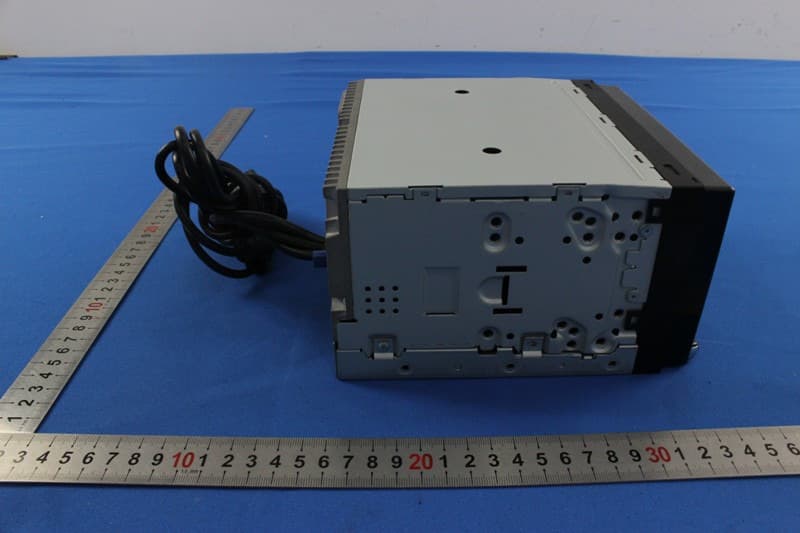
V8VNX706
Dec 13, 2015ALL IN ONE DVD PLAYER
Equipment Class
DTS - Digital Transmission System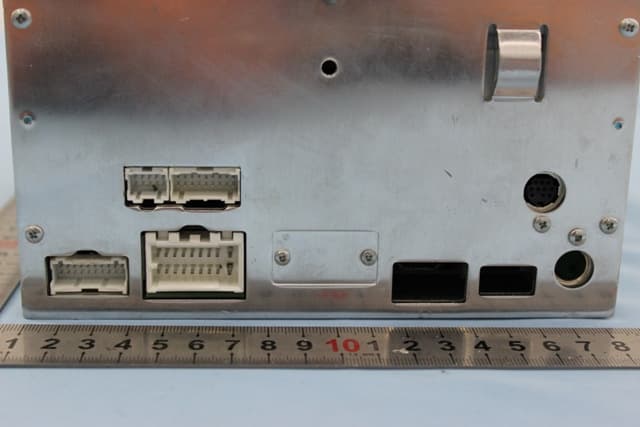
V8VCES8243CL
Dec 21, 2014All In One DVD Player
Equipment Class
DTS - Digital Transmission System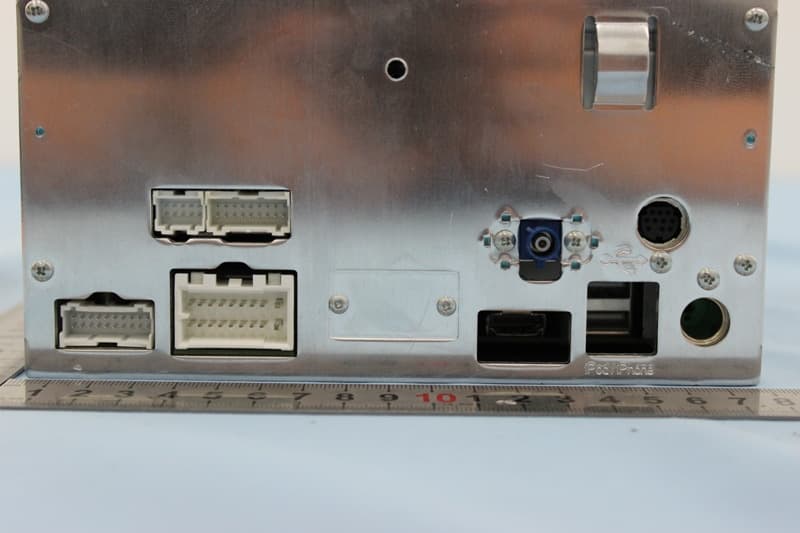
V8VCNE8243CCL
Dec 21, 2014All In One DVD Player
Equipment Class
DTS - Digital Transmission System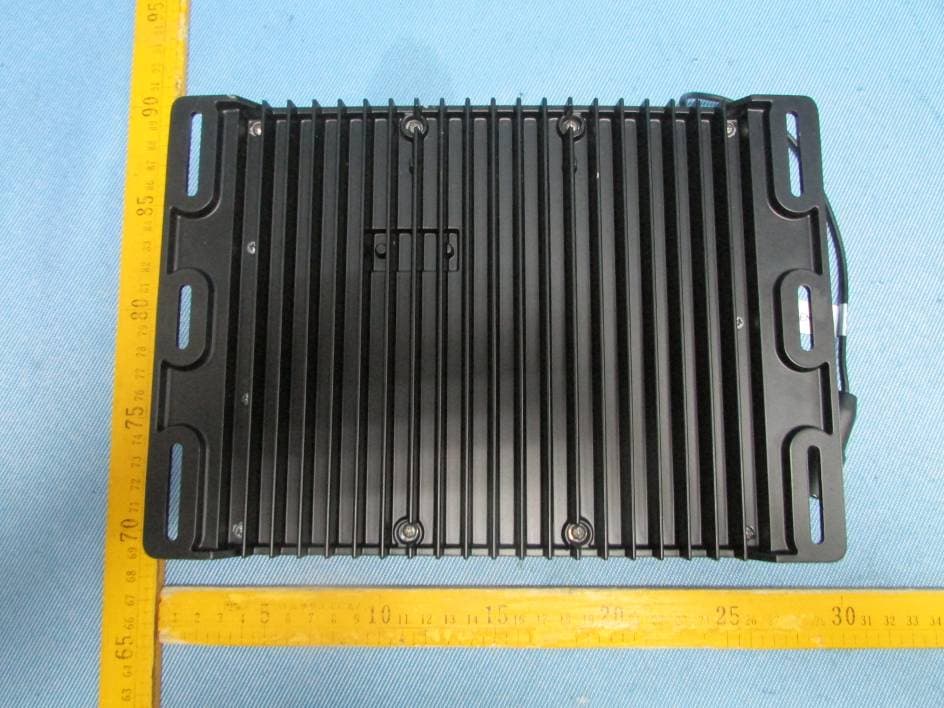
V8VMW4
Jul 07, 2014MARINE AUDIO SYSTEMS
Equipment Class
DSS - Part 15 Spread Spectrum Transmitter