V8VCNE8415BSMHLRSmart High Line
SKYPINE ELECTRONICS (SHEN ZHEN) CO., LTD.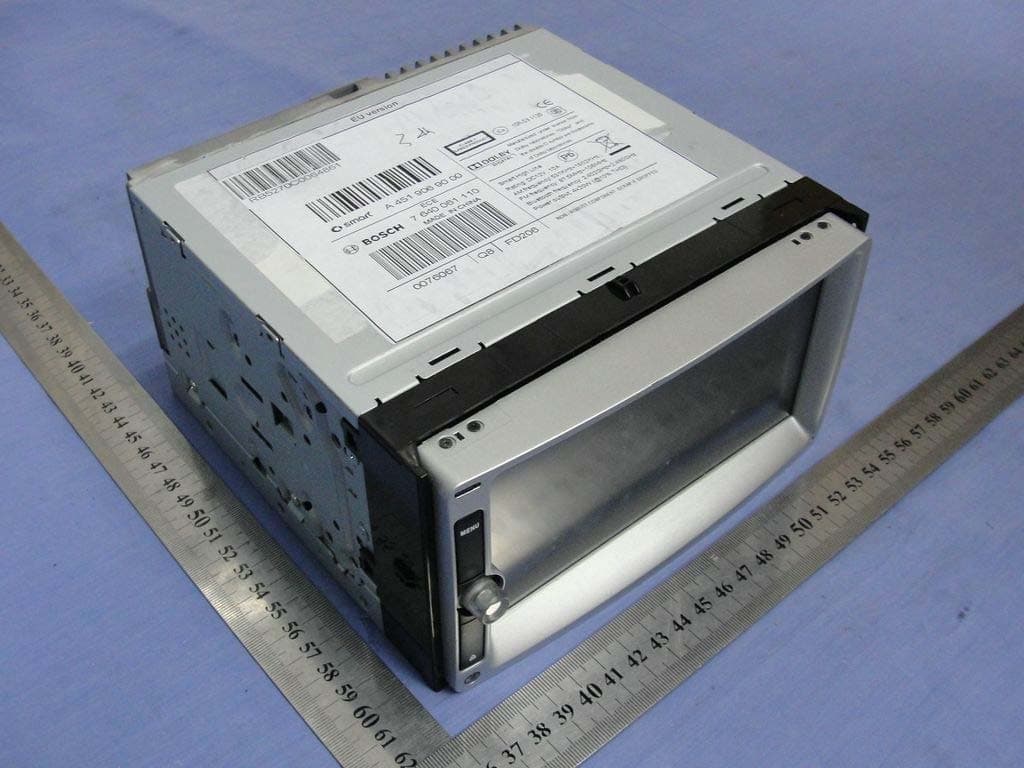
Click to zoom
Application Details
- Equipment Class
- DSS - Part 15 Spread Spectrum Transmitter
- Date of Grant
- Aug 22, 2012
- Application Purpose
- Original Equipment
- Date of Application
- Aug 21, 2012
- Equipment Note
- Smart High Line
- Frequency Range
- 2402.00000000 - 2480.00000000
- Country
- China
Documents & Files
Document Text
Text extracted from the exhibit documents filed with the FCC. Open a document above to read the original.
Users Manual
>> smart high line radio. Supplement Symbols *Optional equipment $ Warning % Environmental note ! Possible vehicle damage + Tip X Action required Y Y Continuation symbol (Y page) Page reference Index ............................................2 smart high line radio .......................5 4515848382 É45158483825ËÍ Contents 1 A Address entry menu .........................28 Adjusting the balance .....................16 Adjusting the volume Click ......................................18 Confirmation tone .....................18 Navigation messages ..............15, 17 Switch-on volume ....................... 18 Traffic announcements ............ 15, 17 Alternative route Calculating ..............................32 Viewing information ..................32 Automatic full screen (video) ...........88 Auto zoom (navigation) ....................48 AUX jack ....................................... 73 B Bluetooth ® Conditions (telephone) ...............54 Editing device names .................64 LED display ..............................56 Searching for and registering a mobile phone ............................55 C Call Ending ....................................59 Transferring from the hands- free system to the mobile phone .... 59 CD/DVD Ejecting (DVD single drive) .........72 Inserting (DVD single drive) ........72 Character entry Navigation ...............................12 Phone book ...............................13 Connecting an audio device ..............74 Connecting a USB device ..................74 Connecting Bluetooth ® audio devi- ces ..............................................75 D Destination (navigation) Entering a destination by address ...................................28 Entering a destination using the map ...................................35 Entering a special destination ....35 Entering using geo-coordinates ... 33 Selecting from favourites ...........34 Selecting from previous towns .....34 Viewing on the map ....................31 Destination input ..........................27 Destination memory see Favourites DNC see Dynamic Noise Covering Dynamic Noise Covering ..................82 E Easy mode (navigation) ....................26 Electromagnetic compatibility ..........5 Emergency call 999 or 112 .................54 Example: entering an address ...........28 Expert mode (navigation) .................26 F Factory settings ............................23 Favourites ....................................45 Creating a new favourite .............46 Deleting a destination ...............46 Renaming a destination ..............46 Saving a destination ..................45 Front panel Moving up/down ..........................8 Full screen mode (video mode) ..........84 Function restrictions Using the telephone ...................54 G Guarantee ......................................5 H Home address Entering and saving ...................31 2 Index I Interference ................................... 5 iPod ® Connecting ...............................73 J Junction Entering ..................................30 M Main menu ...................................... 8 Navigation ...............................25 Map (navigation) Adjusting the scale ....................47 Display ...................................47 Moving ....................................47 Map view ......................................48 Master device (mobile phone) Determining .............................57 Menu All special destinations .............35 Audio settings ..........................81 Bluetooth ® settings .................... 63 Detailed information .................30 Editing a route .........................43 Entering a new destination (navigation) .............................28 Entering a street .......................29 Programme settings (navigation) .. 49 Screen settings .........................19 Searching for a special desti- nation .....................................36 Settings (radio) ........................68 Settings (video) ........................86 System settings .........................21 Time entry ...............................20 Volume settings ......................... 17 Mobile phone Connecting (Bluetooth ® inter- face) .......................................55 De-authorising .........................57 Registering (authorising) ...........55 Music main menu ............................75 Music mode Activating ...............................75 Switching off ............................76 N Navigation Deactivating ............................25 Navigation announcements Switching off ...........................40 Switching on ............................40 Navigation menu Showing ...................................85 Navigation mode Switching on ............................24 O Operating safety .............................5 P Phone book Downloading (from mobile phone) ..................................... 64 Mobile phone ............................60 smart high line radio .................61 Picture viewer Calling up ...............................90 Displaying pictures ...................91 Rotating pictures ......................91 Plotting the GPS track (Expert mode) .. 44 Previous towns (navigation) .............45 Product information .......................23 Proper use .....................................5 Q Quick menu (navigation, Expert mode) Calling up ...............................44 Editing ...................................45 R Radio display ................................65 Radio text .....................................71 Index 3 Route Alternative routes .....................32 Calculating ..............................31 Route guidance Map view .................................38 Route information (Expert mode) .......41 Trip info .................................42 Route options Checking/changing ....................31 Setting .................................... 27 S Screen Dimming ..................................19 SD/MMC memory card Inserting ....…
Text truncated - open the document above for the full version.
Users Manual
R you move from one GSM transmit- ter / receiver area (GSM cell) into another and no channels are free. R you use a SIM card which is not compat- ible with the available network. R you are using a mobile phone with "Twin- card" and the mobile phone with the sec- ond SIM card is already logged into the network. Function restrictions You will not be able to use the telephone, will no longer be able to use the telephone, or you may have to wait before using it, in the following situations: R if the mobile phone is not switched on R when the "Bluetooth ® " function is switched off in the mobile phone R if the mobile phone is not logged into a mobile phone network The telephone automatically tries to log on to a network. If no network is availa- ble, you will not be able to make a "999" or "112" emergency call. R If you switch off the smart high line radio during a call in hands-free mode, the call is transferred to the mobile phone. "999" or "112" emergency call Making emergency calls without entering a PIN is only possible using the mobile phone. The following conditions must be fulfilled in order to make a 112 emergency call: R the mobile phone must be switched on. R a network must be available. R a valid and operational SIM card must be inserted in the mobile phone. R the PIN must have been entered. If you cannot make an emergency call, you must arrange rescue measures yourself. The 999 emergency call number is a public service. Any misuse is punishable by law. Bluetooth ® interface telephony Conditions To use Bluetooth ® interface telephony in conjunction with the smart high line radio, you need a Bluetooth ® -capable mobile phone. Not all mobile phones available on the market are equally suitable. For more information on suitable mobile phones and on connecting the Bluetooth mobile phone to the smart high line radio, contact your smart Centre. The battery of the mobile phone should always be kept sufficiently charged in order to prevent malfunctions. In preparation for telephoning via the Bluetooth ® interface, you should check the following items on your mobile phone (see the mobile phone operating instructions): X Hands-Free Profile The mobile phone must support Hands- Free Profile 1.0 or above. i Some displays depend on the supported version of the Hands-free Profile. X Bluetooth ® visibility On certain mobile phones, the device itself must be made "visible" for other devices, as well as activating the Blue- tooth ® function (see the mobile phone operating instructions). X Bluetooth ® device name Every Bluetooth ® device has its own Blue- tooth ® device name. This device name is freely definable, but can be identical for all devices from the same manufac- turer. It is therefore recommended that you change this name so that you can eas- ily recognise your mobile phone (see the mobile phone operating instructions). 54 >> smart high line radio. Registering and connecting the mobile phone General information You will need to register your mobile phone before using it with the smart high line radio for the first time. The mobile phone is then entered in the smart high line radio's Bluetooth ® phone list. This process includes: R the search by the Bluetooth ® mobile phone R subsequent registration. If you want to reconnect a phone that has already been registered, it is connected automatically. The Bluetooth ® device name for the smart high line radio is smart Radio. You can register a maximum of five Blue- tooth ® devices (mobile phones and Blue- tooth ® audio devices). i If the smart Radio Bluetooth ® device name is already in the Bluetooth ® device list, it may not be possible to connect a mobile phone. Searching for and registering a mobile phone X Press Mobile phone in the main menu (Y page 8). The Telephone menu appears X Press Options in the telephone menu. The "Bluetooth settings" menu appears. X Press New device in the menu. "New device" menu (for Bluetooth ® connection) X Press Mobile phone. The Please start searching from mobile device !PIN xxxx message appears. X To start a search: start the Bluetooth ® search on the mobile phone (see mobile phone operating instructions). Example input: select the "New device" entry in the mobile phone's Bluetooth ® device list. The mobile phone starts the search for Bluetooth ® devices within range. If the smart radio is found, the Bluetooth ® device name smart Radio appears in the mobile phone's Bluetooth ® device list. X Select the smart high line radio on the mobile phone. X To register a mobile phone: enter the PIN that is shown in the smart high line radio display into the mobile phone and con- nect the mobile phone. The following messages are shown one after another in the smart high line radio display when registering: R Calling... R Phone connected <Device name> The LED lights up blue. R Call history downloading... R Downloading phonebook... The Bluetooth ® device name for the mobile phone is entered in the smart high line radio's telephone device list. >> smart high line radio. 55 Z The mobile phone is registered on the smart high line radio. i If you connect a mobile phone with the Bluetooth ® audio function, the Stream‐ ing connected message also appears. LED display for Bluetooth ® connection The LED shows whether a Bluetooth ® device is connected or not (Y page 6). LED displayExplanation Blue Bluetooth ® device (mobile phone, audio equipment) is connected Flashes blue Bluetooth ® connection is being established No display (dark) No Bluetooth ® device is connected Selecting a mobile phone from the tele- phone device list If you have registered multiple mobile phones, you can select a mobile phone from the Bluetooth ® telephone list and connect it to the smart high line radio. i You can only switch to another regis- tered mobile phone if no phone call is active. X Press Mobile phone in the main menu (Y page 8). The Telephone menu appears X Press Options in the telephone menu. The "Bluetooth settings" menu appears. X Press Device lis…
Text truncated - open the document above for the full version.
Cover Letter(s)
DATE 2012-08-14 Nemko Canada Inc 303 River Road Ottawa, Ontario, Canada K1V 1H2 Attn: Director of Certification Authority to Act as Agent On our behalf, I appoint Christy Chen of ‘Centre Testing International Corporation’ , to act as our agent in the preparation of this application for equipment certification. I certify that submitted documents properly describe the device or system for which equipment certification is sought. I also certify that each unit manufactured, imported or marketed, as defined in the Federal Communications Commission’s regulations will have affixed to it a label identical to that submitted for approval with this application. For instances where our authorized agent signs the application for certification on our behalf, I acknowledge that all responsibility for complying with the terms and conditions for certification, as specified by Nemko Canada Inc, still resides with Centre Testing International Corporation, Hongwei Industrial Zone, Bao’an 70 District, Shenzhen, Guangdong, China. Dated this Day of 20 Agency agreement expiration date:Aug. 14, 2012 to Aug. 14, 2013 By: Aaron Zheng Signature Printed Title: Vice President On behalf of : SKYPINE ELECTRONICS (SHENZHEN) CO., LTD. Telephone: 0755-61187308
Cover Letter(s)
DATE 2012-08-14 Equipment Autorisation Division Federal Communications Commission 7435 Oakland Mills Road Columbia, MD 21046 FCC ID: V8VCNE8415BSMHLR Product Name: Smart High Line Request for Confidentiality Pursuant to Sections 0.457 and 0.459 of the commissions rules, we hereby request that the following documents be held confidential: (List here the documents for which you are seeking confidentiality – for example ...) • Schematics • Block diagram • Operation description These materials contain trade secrets and proprietary information and are not customarily released to the public. The public disclosure of this information might be harmful to the company and provide unjustified benefits to our competitors. Dated this Day of 20 Agency agreement expiration date:Aug. 14, 2012 to Aug. 14, 2013 By: Aaron Zheng Signature Printed Title: Vice President On behalf of : SKYPINE ELECTRONICS (SHENZHEN) CO., LTD. Telephone: 0755-61187308
Cover Letter(s)
Model Different Letter The model names are SAM and NAR. And they are same product just different model names. Client’s signature: Client’s name / title: Aaron Zheng / Vice President Contact information / address: 2/F. A incubation Building, Taohua Yuan High‐Te c h innovation Park, Baoan Distrtict, Shenzhen City, China
Test Report
Report No. : EESZE07200009-1 Page 2 of 47 TABLE OF CONTENTS 1. GENERAL INFORMATION ......................................................................................... 4 2. TEST SUMMARY ........................................................................................................ 4 3. MEASUREMENT UNCERTAINTY .............................................................................. 5 4. PRODUCT INFORMATION ......................................................................................... 5 5. SYSTEM TEST CONFIGURATION ............................................................................. 5 5.1 JUSTIFICATION ............................................................................................. 5 5.2 EUT EXERCISING SOFTWARE .................................................................... 6 6. TABLE OF TEST MODE ............................................................................................. 6 7. TEST EQUIPMENT LIST ............................................................................................. 7 8. SUPPORT EQUIPMENT LIST .................................................................................... 7 9. 20DB BANDWIDTH MEASUREMENT ........................................................................ 8 9.1 LIMITS ............................................................................................................ 8 9.2 BLOCK DIAGRAM OF TEST SETUP ............................................................ 8 9.3 TEST PROCEDURE ....................................................................................... 8 9.4 TEST RESULT ................................................................................................ 8 10. CARRIER FREQUENCY SEPARATION ................................................................. 11 10.1 LIMITS ........................................................................................................ 11 10.2 BLOCK DIAGRAM OF TEST SETUP ........................................................ 11 10.3 TEST PROCEDURE ................................................................................... 11 10.4 TEST RESULT ............................................................................................ 11 11. NUMBER OF HOPPING FREQUENCY .................................................................. 14 11.1 LIMITS ........................................................................................................ 14 11.2 BLOCK DIAGRAM OF TEST SETUP ........................................................ 14 11.3 TEST PROCEDURE ................................................................................... 14 11.4 TEST RESULT ............................................................................................ 14 12. TIME OF OCCUPANCY (DWELL TIME) ................................................................. 15 13.1 LIMITS ........................................................................................................ 15 12.2 BLOCK DIAGRAM OF TEST SETUP ........................................................ 15 12.3 TEST PROCEDURE ................................................................................... 15 12.4 TEST RESULT ............................................................................................ 15 13. MAXIMUM PEAK CONDUCTED OUTPUT POWER MEASUREMENT ................. 19 13.1 LIMITS ........................................................................................................ 19 13.2 BLOCK DIAGRAM OF TEST SETUP ........................................................ 19 13.3 TEST PROCEDURE ................................................................................... 19 13.4 TEST RESULT ............................................................................................ 19 Report No. : EESZE07200009-1 Page 3 of 47 14. BAND EDGE EMISSION MEASUREMENT ............................................................ 22 14.1 LIMITS (FCC ‘s requirement) .................................................................... 22 14.2 BLOCK DIAGRAM OF TEST SETUP ........................................................ 22 14.3 TEST PROCEDURE ................................................................................... 22 14.4 TEST RESULT ............................................................................................ 22 15. SPURIOUS RF CONDUCTED EMISSIONS MEASUREMENT ............................... 24 15.1 LIMITS ........................................................................................................ 24 15.2 BLOCK DIAGRAM OF TEST SETUP ........................................................ 24 15.3 TEST PROCEDURE ................................................................................... 24 15.4 TEST RESULT ............................................................................................ 24 16. RADIATED EMISSIONS MEASUREMENT ............................................................ 27 16.1 LIMITS ........................................................................................................ 27 16.2 BLOCK DIAGRAM OF TEST SETUP ........................................................ 27 16.3 TEST PROCEDURE ................................................................................... 28 16.4 TEST RESULT ............................................................................................ 29 APPENDIX 1 PHOTOGRAPHS OF TEST SETUP ....................................................... 39 APPENDIX 2 PHOTOGRAPHS OF EUT ...................................................................... 41 (Note: N/A means not applicable) Report No. : EESZE07200009-1 Page 4 of 47 1. GENERAL INFORMATION The above equipment was tested by Centre Testing International for compliance with the requirements set forth in the FCC Rules and Regulations Part 15, Subpart C and the measurement procedure according to ANSI C63.4:2003. 2. TEST SUMMARY The c…
Text truncated - open the document above for the full version.
Contact Information
Applicant
bobe Li(Senior Director)
Technical Contact
SKYPINE ELECTRONICS (SHENZHEN) CO., LTDAaron Zheng
+86-755-2794 8418
A1 Building, No.6 Xinxing Industrial Park · Shenzhen · China
Test Firm
Centre Testing InternationalLouisa Lu
[email protected]86-755-33683919
Technical Specifications
| # | Rule Parts | Frequency Range | Power Output |
|---|---|---|---|
| 1 | 15C | 2.40 GHz - 2.48 GHz | 1.04 mW |
Other Applications from SKYPINE ELECTRONICS (SHEN ZHEN) CO., LTD.
V8V-WZA12000
Jan 28, 2026Car Multimedia
Equipment Class
DSS - Part 15 Spread Spectrum Transmitter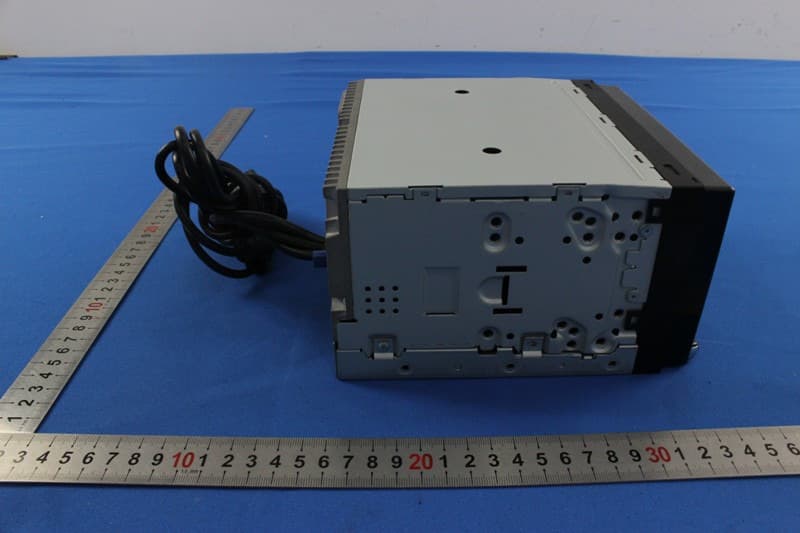
V8VNX706
Dec 13, 2015ALL IN ONE DVD PLAYER
Equipment Class
DTS - Digital Transmission System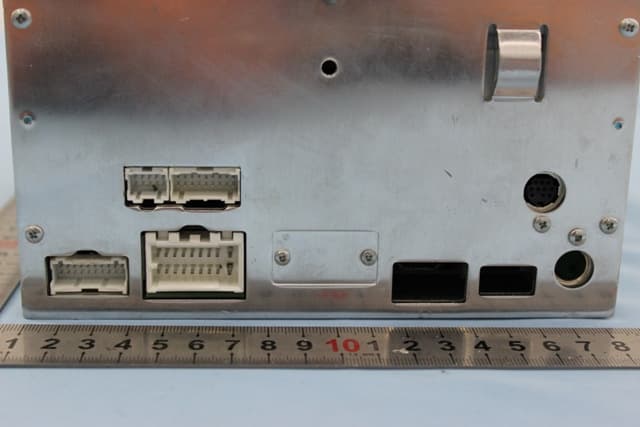
V8VCES8243CL
Dec 21, 2014All In One DVD Player
Equipment Class
DTS - Digital Transmission System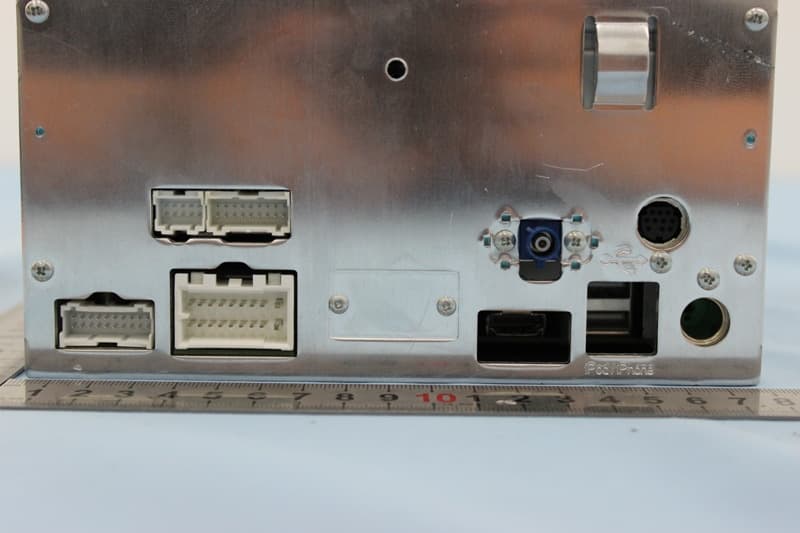
V8VCNE8243CCL
Dec 21, 2014All In One DVD Player
Equipment Class
DTS - Digital Transmission System
V8VMW4
Jul 07, 2014MARINE AUDIO SYSTEMS
Equipment Class
DSS - Part 15 Spread Spectrum Transmitter