XD6U318AASmart Phone
Shenzhen Tinno Mobile Technology Corp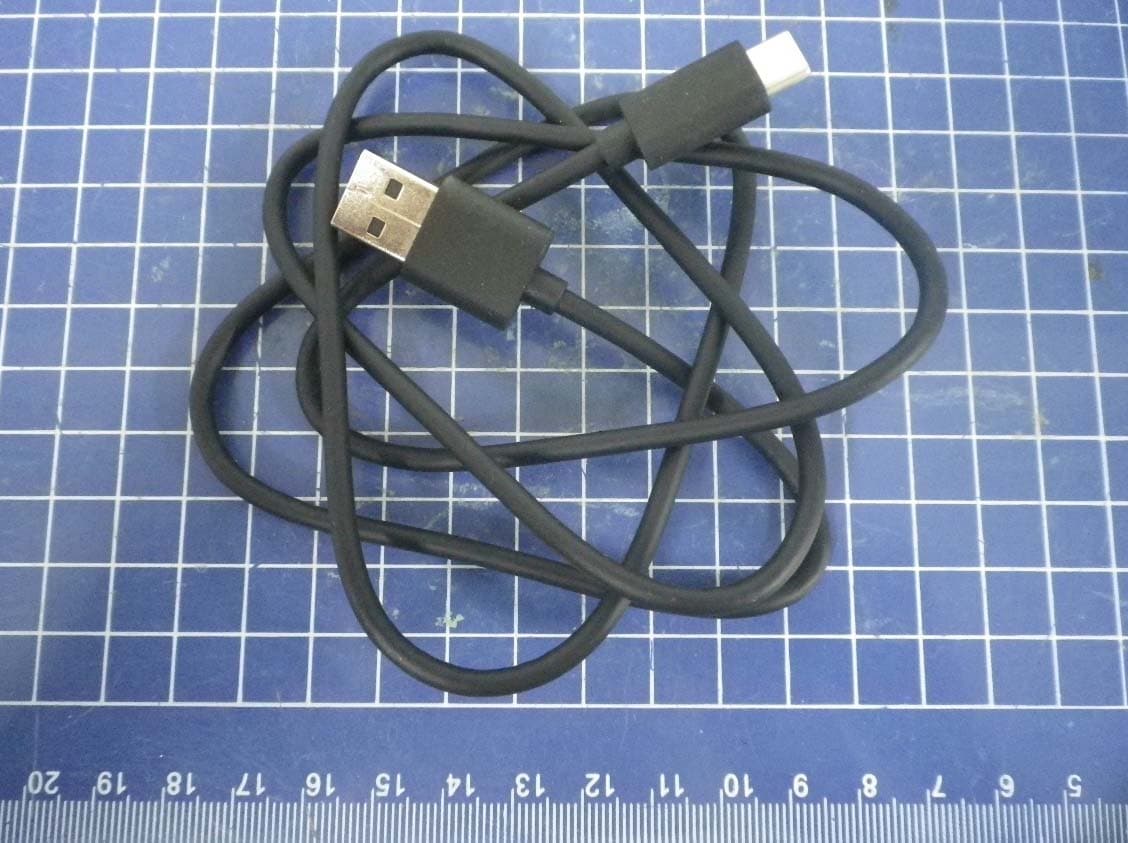
Click to zoom
Application Details
- Equipment Class
- CXX - Communications Rcvr for use w/ licensed Tx and CBs
- Date of Grant
- Jun 07, 2020
- Application Purpose
- Original Equipment
- Date of Application
- Jun 04, 2020
- Equipment Note
- Smart Phone
- Frequency Range
- 869.00000000 - 894.00000000
- Country
- China
Documents & Files
Document Text
Text extracted from the exhibit documents filed with the FCC. Open a document above to read the original.
Users Manual
1 AT&T Calypso ™ Max User Guide DOC20200402 2 Contents Getting started . . . . . . . . . . . . . . . . . . . . . . . . . . . . . . . . . . . . . . . . . . . . . . . . . . . . . . . . .9 Introduction . . . . . . . . . . . . . . . . . . . . . . . . . . . . . . . . . . . . . . . . . . . . . . . . . . . . . . . . .10 About the user guide . . . . . . . . . . . . . . . . . . . . . . . . . . . . . . . . . . . . . . . . . . . . . . . . . . .10 Set up your phone . . . . . . . . . . . . . . . . . . . . . . . . . . . . . . . . . . . . . . . . . . . . . . . . . . . .11 Parts and functions . . . . . . . . . . . . . . . . . . . . . . . . . . . . . . . . . . . . . . . . . . . . . . . . . . . .11 Battery use . . . . . . . . . . . . . . . . . . . . . . . . . . . . . . . . . . . . . . . . . . . . . . . . . . . . . . . . . . .14 Install a SIM/SD Card . . . . . . . . . . . . . . . . . . . . . . . . . . . . . . . . . . . . . . . . . . . . . . . . . . .17 Turn your phone on and off . . . . . . . . . . . . . . . . . . . . . . . . . . . . . . . . . . . . . . . . . . . . . .20 Use the touch screen . . . . . . . . . . . . . . . . . . . . . . . . . . . . . . . . . . . . . . . . . . . . . . . . . . .21 Complete the setup screens . . . . . . . . . . . . . . . . . . . . . . . . . . . . . . . . . . . . . . . . . . . . .22 Basic operations . . . . . . . . . . . . . . . . . . . . . . . . . . . . . . . . . . . . . . . . . . . . . . . . . . . . . . .23 Home screen and Apps list . . . . . . . . . . . . . . . . . . . . . . . . . . . . . . . . . . . . . . . . . . . . . .24 Phone settings menu . . . . . . . . . . . . . . . . . . . . . . . . . . . . . . . . . . . . . . . . . . . . . . . . . . .27 Portrait and landscape screen orientation . . . . . . . . . . . . . . . . . . . . . . . . . . . . . . . . .28 Capture screenshots . . . . . . . . . . . . . . . . . . . . . . . . . . . . . . . . . . . . . . . . . . . . . . . . . . .29 Applications . . . . . . . . . . . . . . . . . . . . . . . . . . . . . . . . . . . . . . . . . . . . . . . . . . . . . . . . . .29 Phone number . . . . . . . . . . . . . . . . . . . . . . . . . . . . . . . . . . . . . . . . . . . . . . . . . . . . . . . .37 Airplane mode . . . . . . . . . . . . . . . . . . . . . . . . . . . . . . . . . . . . . . . . . . . . . . . . . . . . . . . .38 Enter text . . . . . . . . . . . . . . . . . . . . . . . . . . . . . . . . . . . . . . . . . . . . . . . . . . . . . . . . . . . .39 Google account . . . . . . . . . . . . . . . . . . . . . . . . . . . . . . . . . . . . . . . . . . . . . . . . . . . . . .43 Lock and unlock your screen . . . . . . . . . . . . . . . . . . . . . . . . . . . . . . . . . . . . . . . . . . . .47 Home screen basics . . . . . . . . . . . . . . . . . . . . . . . . . . . . . . . . . . . . . . . . . . . . . . . . . . .48 Status bar and Notification panel . . . . . . . . . . . . . . . . . . . . . . . . . . . . . . . . . . . . . . . . .51 Customize the Home screen . . . . . . . . . . . . . . . . . . . . . . . . . . . . . . . . . . . . . . . . . . . . .56 Making connections . . . . . . . . . . . . . . . . . . . . . . . . . . . . . . . . . . . . . . . . . . . . . . . . . . . .61 Phone . . . . . . . . . . . . . . . . . . . . . . . . . . . . . . . . . . . . . . . . . . . . . . . . . . . . . . . . . . . . .62 Make a call . . . . . . . . . . . . . . . . . . . . . . . . . . . . . . . . . . . . . . . . . . . . . . . . . . . . . . . . . . .62 Call settings . . . . . . . . . . . . . . . . . . . . . . . . . . . . . . . . . . . . . . . . . . . . . . . . . . . . . . . . . .71 3 Contacts . . . . . . . . . . . . . . . . . . . . . . . . . . . . . . . . . . . . . . . . . . . . . . . . . . . . . . . . . . . .73 Add a contact . . . . . . . . . . . . . . . . . . . . . . . . . . . . . . . . . . . . . . . . . . . . . . . . . . . . . . . .73 Edit a contact . . . . . . . . . . . . . . . . . . . . . . . . . . . . . . . . . . . . . . . . . . . . . . . . . . . . . . . . .79 Delete a contact . . . . . . . . . . . . . . . . . . . . . . . . . . . . . . . . . . . . . . . . . . . . . . . . . . . . . .80 Share a contact . . . . . . . . . . . . . . . . . . . . . . . . . . . . . . . . . . . . . . . . . . . . . . . . . . . . . .81 Messages . . . . . . . . . . . . . . . . . . . . . . . . . . . . . . . . . . . . . . . . . . . . . . . . . . . . . . . . . . .82 Text and multimedia messages . . . . . . . . . . . . . . . . . . . . . . . . . . . . . . . . . . . . . . . . . .82 Gmail . . . . . . . . . . . . . . . . . . . . . . . . . . . . . . . . . . . . . . . . . . . . . . . . . . . . . . . . . . . . . . .86 Internet and social networking . . . . . . . . . . . . . . . . . . . . . . . . . . . . . . . . . . . . . . . . . .90 Chrome browser . . . . . . . . . . . . . . . . . . . . . . . . . . . . . . . . . . . . . . . . . . . . . . . . . . . . . . .90 Facebook Lite . . . . . . . . . . . . . . . . . . . . . . . . . . . . . . . . . . . . . . . . . . . . . . . . . . . . . . . . .91 Connectivity . . . . . . . . . . . . . . . . . . . . . . . . . . . . . . . . . . . . . . . . . . . . . . . . . . . . . . . . .92 Transfer files between your phone and a computer . . . . . . . . . . . . . . . . . . . . . . . . . .92 Wi-Fi . . . . . . . . . . . . . . . . . . . . . . . . . . . . . . . . . . . . . . . . . . . . . . . . . . . . . . . . . . . . . . . . .95 Bluetooth . . . . . . . . . . . . . . . . . . . . . . . . . . . . . . . . . . . . . . . . . . . . . . . . . . . . . . . . . . . . .96 Apps and entertainment . . . . . . . . . . . . . . . . . . . . . . . . . . . . . . . . . . . . . . . . . . . . . . .102 Camera and video . . . . . . . . . . . . . . . . . . . . . . . . . . . . . . . . . . . . . . . . . . . . . . . . . .103 Camera overview . . . . . . . . . . . . . . . . . . . . . . . . . . . . . . . . . . . . . . . . . . . . . . . . . . . . .103 Take photos and record videos . . . . . . . . . . . . . . . . . . . . . . . . . . . . . . . . . . . . . . . . . .105 Camera settings . . . . . . . . . . . . . . . . . . . . .…
Text truncated - open the document above for the full version.
Users Manual
88 Open an email message from a notification When a new email is received, you will see in the Status bar . 1 . Swipe the Status bar down to display the Notification panel . 2 . Tap the new message from the Notification panel . If you have two or more new email messages, tapping the notification will open the Gmail app . 89 Email settings You can access settings for the Gmail app and for your individual email accounts from the Gmail Settings menu . 1 . From the Home screen, swipe up to access Apps, and tap Gmail . 2 . Tap Menu > Settings . 3 . Tap General settings to access settings for all accounts, or tap an account name to configure settings for a specific email account . Note: Available settings are subject to change . 90 Internet and social networking The following topics describe how to connect to and use the Internet on your phone and how to access popular social networking sites such as Facebook, Duo, and more . Chrome browser From the Home screen, tap Chrome to browse the Internet, search for information, and bookmark your favorite web pages for convenient access . Browsing web pages 1 . Tap the address field . 2 . Enter a web address or a keyword to browse for web pages . Adding a bookmark 1 . Open the web page you want to bookmark . 2 . Tap Menu> . Opening a bookmark 1 . From the Chrome browser screen, tap Menu> Bookmarks . 2 . Select the bookmark of the website you want to view . Customizing browser settings 1 . From the Chrome browser screen, tap Menu> Settings . 2 . In the Settings list, you can select options to customize the browser . Tip: For more information, visit: google.com/intl/en/chrome/browser/mobile/ . 91 Facebook Lite Post updates, see what your friends are up to, upload pictures and check-ins, and more with Facebook Lite . Sign in to your Facebook account or create a new account 1 . From the Home screen, swipe up to access Apps and tap Lite . 2 . Enter your mobile number or email and password and tap Log In, or tap Create New Account to join Facebook . 3 . Once completed, your Facebook account will be added to your phone . Use Facebook Lite Once you’ve either created an account or signed in, you can post and view updates, upload pictures, tag locations, and more, all from your phone . 1 . From the Home screen, swipe up to access Apps and tap Lite . 2 . Tap What’s on your mind? to type an update . You can also share photos and videos, start a live video, scroll through your Facebook feed, and more . 92 Connectivity The following topics address your phone’s connectivity options, including USB file transfer, Wi-Fi, Bluetooth, IR connectivity, and more . Transfer files between your phone and a computer You can use the USB cable to connect your phone directly to your computer and transfer music, photos, and other content files . For example, if you have a music album stored on your computer that you want to transfer to your phone, you can attach your phone to the computer and copy the files to the music folder . File transfer tips If you want to save data to an SD card on your phone, make sure the SD card is installed and active . For more information, see “” on page 165 . Important: Avoid removing the battery or SD card while transferring data . Data exchange may use the methods outlined in the following table: MethodDescription File Transfer Transfer files between your phone and PC such as photos, videos, and music . PTP Transfer photo and video files between your phone and PC . 93 Transfer files between the phone and a computer 1 . Connect your phone to your computer using the USB charging cable . • Insert the end of the cable to the charger/accessory jack at the bottom of the phone . • Insert the USB end of the cable into an available USB port on your computer . You may need to remove the USB cable from the AC adapter to access it . 2 . Drag the Status bar down to display the Notification panel . You will see Charging this device via USB . 94 3 . To transfer files from your phone to your computer: • From the Home screen, swipe up to access Apps and tap Settings . • Tap Connected devices> USB . • Tap File Transfer . You can also select other options available . 4 . On your computer, navigate to the detected device (such as through the My Computer menu) and open it . 5 . If available, select a drive (Internal shared storage or SD card) . 6 . Select a folder and copy files from your computer to your phone or from your phone to your computer . 7 . When done, disconnect your phone from your computer . 95 Wi-Fi Wi-Fi provides wireless Internet access over distances of up to 300 feet . To use your phone’s Wi-Fi, you need access to a wireless access point or hotspot . Turn Wi-Fi on and connect to a wireless network 1 . From the Home screen, swipe up to access Apps and tap Settings . 2 . Tap Network & internet> Wi-Fi . 3 . Slide the Wi-Fi switch to the On position . 4 . Wi-Fi is enabled . Tap Wi-Fi to see the names and security settings of in-range Wi-Fi networks . 5 . To disable Wi-Fi, slide the Wi-Fi switch to the Off position . 6 . Tap a Wi-Fi network to connect, enter the password (if applicable), and then tap CONNECT . Your phone will be connected to the Wi-Fi network . You will see in the status bar . For more information on Wi-Fi see “Wi-Fi” on page 138 . 96 Bluetooth Bluetooth is a short-range communications technology that allows you to connect wirelessly to a number of Bluetooth devices, such as headsets and hands-free car kits, Bluetooth-enabled handhelds, computers, printers, and wireless phones . Bluetooth communication range is approximately 30 feet . Note: Bluetooth is unavailable in Airplane mode . The following table describes different options and functions available with certain Bluetooth accessories . FunctionDescription Audio outputWirelessly listen to music, podcasts, etc . Hands-free calls Call hands-free, using Bluetooth-capable hands- free devices and headsets . Data exchangeExchange data with Bluetooth devices . 97 Enable Bluetooth To enable Blu…
Text truncated - open the document above for the full version.
Users Manual
161 Display size Drag the slider to adjust the display size . Lock screen display Manage what will show on the lock screen . 162 Sound The Sound settings menu lets you control your phone’s audio, from ringtones and alerts to tap tones and notifications . 1 . From the Home screen, swipe up to access Apps and tap Settings . 2 . Tap Sound . Media volume Drag the slider to adjust the media volume . Call volume Drag the slider to adjust the call volume . 163 Ring volume Drag the slider to adjust the ring volume . Alarm volume Drag the slider to adjust the alarm volume . Vibrate for calls Slide the switch to the On position to activate vibration for calls . Do Not Disturb Tap to manage Do Not Disturb settings . Some notifications will be silenced when Do Not Disturb is turned on . Shortcut to prevent ringing Tap to set the key shortcut to prevent ringing . Phone ringtone Select a ringtone for incoming phone calls . You can customize your own ringtone by tappingAdd ringtone . Default notification sound Select the default notification sound . You can customize your own notification sound by tappingAdd notification . Default alarm sound Select the default alarm sound . You can customize your own alarm sound by tappingAdd alarm . 164 Other sounds and vibrations • Dial pad tones: Enable or disable dial pad tones . • Screen locking sounds: Enable or disable screen locking sounds • Charging sound and vibration: Enable or disable the charging sound and vibration . • Touch sounds: Enable or disable touch sounds . • Touch vibration: Enable or disable touch vibration . 165 Storage The Storage settings menu allows you to manage internal storage on your phone and provides menu choices for an optional SD card (not included) . 1 . From the Home screen, swipe up to access Apps and tap Settings . 2 . Tap Storage . 3 . Tap Internal shared storage, then tap an app category to view the storage amount used by each app . 4 . Delete backed up files by tapping FREE UP SPACE . 166 SD card Tap SD CARD to view files stored on your SD card . • Tap to unmount the card to allow for safe removal . • Tap SD CARD > MOUNT to mount the card and make it available for use . • Tap SD CARD >> Storage settings > Format to format your SD card . 167 Privacy The Privacy settings will help you to secure your device, protect your data, and keep your privacy . 1 . From the Home screen, swipe up to access Apps and tap Settings . 2 . Tap Privacy . Permission manager Control permission for apps that use your camera, location, microphone, contacts, storage, etc . Show passwords Display characters briefly as you type passwords . 168 Lock screen Choose to show or hide notification content on the lock screen . Autofill service from Google Autofill your information from your Google account . 1 . From the Home screen, swipe up to access Apps and tap Settings . 2 . Tap Privacy> Autofill service from Google > CONTINUE . 3 . Fill in the categories with information you’d like to autofill such as address, payment methods, etc . Google location history Tap to view your location history . Activity controls Choose the activities and information you allow Google to save . Ads Tap to control advertising ID and personalization . Usage & diagnostics Share data to help improve Android . 1 . From the Home screen, swipe up to access Apps and tap Settings . 2 . Tap Privacy> Advanced > Usage & diagnostics . • Slide the switch to the On position to enable Usage & diagnostics . 169 Location The Location settings will help you to secure your device, protect your data, and keep your privacy . 1 . From the Home screen, swipe up to access Apps and tap Settings . 2 . Tap Location . 3 . Slide the use location switch to the On position to turn location services on . 170 Recent location requests View a list of apps that have recently requested your location . App permission Tap to view which apps have permission to access location services . Wi-Fi and Bluetooth scanning • Wi-Fi scanning: Improve location accuracy by allowing system apps and services to detect Wi-Fi networks at any time . • Bluetooth scanning: Improve location accuracy by allowing system apps and services to detect Bluetooth devices at any time . Emergency Location Service Slide the switch to the On position to turn Emergency Location Services (ELS) on . When you call or text an emergency number, your device will use ELS to automatically send your location to emergency responders . Google Location Accuracy Slide the Google Location Accuracy switch to the On position to use GPS, Wi-Fi, Bluetooth, mobile networks, and sensors to determine your location . Google Location History Tap to view your location history . Google Location Sharing Tap to share your location . 171 Security The Security settings will help you to secure your device, protect your data, and keep your privacy . 1 . From the Home screen, swipe up to access Apps and tap Settings . 2 . Tap Security . 172 Google Play Protect Google will regularly check your device and prevent/warn you of potential harm . Only apps from Play Store will be checked . 1 . From the Home screen, swipe up to access Apps and tap Settings . 2 . Tap Security> Google Play Protect . • Tap Scanto start scanning your device for harmful apps . • Tap Settingsto view Play Protect settings: • Slide the Scan apps with Play Protect switch to the On position to enable regular scanning for harmful apps on your device . • Slide the Improve harmful app detection switch to the On position to enable sending unknown apps to Google for better detection . Find My Device Find My Device helps you locate your device remotely, keeping your data safe in the event that your phone is lost . 1 . From the Home screen, swipe up to access Apps and tap Settings . 2 . Tap Security> Find My Device . 3 . Slide the switch to the On position to activate Find My Device . • There are several ways available for your selection to locate your device . 173 Security update Check for new software updates for your dev…
Text truncated - open the document above for the full version.
Cover Letter(s)
ShenzhenTinnoMobileTechnologyCorp. 4/F,H-3Building,OCTEasternlndustrialPark.NO.1XiangShanEastRoad,NanShan District,Shenzhen,P.R.China Declaration Towhomitmayconcern: ThisisaWLAN/BluetoothcombinationantennawithFCCID:XD6U318AA. ThisWLAN/Bluetoothco-existencemechanismistoensurethattheWLANandBluetooth transmitterswouldnotsimultaneouslyoperate.Therefore,WLANandBluetoothantennain FCCID:XD6U318AAshouldnotbeconsideredtobeabletotransmitsimultaneously. ThoughtheuserscanuseWLANandBluetoothsimultaneously,buttherealsituationisthat WLANandBluetoothareusedbytimesharingandnooverlaptransmission. Shouldyouhaveanyquestion,pleasehavemybestattention. Signature: JobTitleandDept.:Productcertificationmanager
Cover Letter(s)
ShenzhenTinnoMobileTechnologyCorp. Declaration We,ShenzhenTinnoMobileTechnologyCorp.,declarethatthedevice,FCCID: XD6U318AA,don'toperateonChannels12and13.US2.4Gchannel12-13andCountry codeselectionaredisabledthroughproprietarysoftwareandarenotuserchangeable. Shouldyouhaveanyquestionorcommentregardingthismatter,pleasedonot hesitatetocontactme. Sincerelyyours, PrintedName:吉洪将 Signature: Position:ProjectsManager
Cover Letter(s)
Declarationofpre-installofOTTvoiceservice We,[ShenzhenTinnoMobileTechnologyCorp.],asthemanufacturerofFCC ID:XD6U318AA(Model:U318AA),declaresthatthismodelsupportsWi-Fi Callingandonlypre-installsGoogleDUOofOTTservicewithAndroidOS,and doesn’tsupportanyotherOTTservices.WetestedDUOusingthesoftware fromGoogleaccordingtoKDB285076D02v03Guidanceforperforming T-CoiltestsforairinterfacessupportingVOIPtosupportCMRSbased telephoneservices. APPROVEDBY: ProjectsManager:吉洪将 Signature: Companyname:ShenzhenTinnoMobileTechnologyCorp. Date:5/25/2020
Cover Letter(s)
ShenzhenTinnoMobileTechnologyCorp Date:2020/5/25 To:FederalCommunicationsCommission, Authorization&EvaluationDivision, 7435OaklandMillsRoad, Columbia,MD21046 AndAmericanCertificationBody,Inc. 6731WhittierAvenue SuiteC110 McLean,VA22101 ToWhomItMayConcern: TheTinno,theundersigned,herebyauthorizesCTTL,Telecommunication TechnologyLabs,CAICTtoactonthebehalfoftheTinnosolelyinmatters relatingtotheapplicationforanFCCequipmentauthorizationforFCCID: XD6U318AAincludingthesigningofdocumentsinconnectionwiththis Application.NecessaryactscarriedoutCTTL,TelecommunicationTechnology Labs,CAICTonourbehalfoftheTinnoinconnectionwiththeApplicationshall havethesameeffectasactsoftheTinno.Tinnoalsoherebycertifythatnoparty tothisapplicationissubjecttoadenialofbenefits,includingFCCbenefits, pursuanttoSection5301oftheAnti-DrugAbuseActof1988,21U.S.C.862. Thankyouforyourattentiontothismatter. YoursSincerely, Signatory: Contactname:Xiaoping.li Title:Productcertificationmanager Tel:+86-755-8609-5550 Email:[email protected] Companyname:ShenzhenTinnoMobileTechnologyCorp
Cover Letter(s)
Date:May25,2020 To:FederalCommunicationsCommission, Authorization&EvaluationDivision, 7435OaklandMillsRoad, Columbia,MD21046 Re:Tinno FCCID:XD6U318AA FCCPart15CCertification ConfidentialityRequest Gentlemen: 1.Long-TermConfidentiality Thisletteristocomplywith47CFR0.457and0.459pertainingtoconfidentialitymaterial. TinnorequeststhatthefollowingdocumentsregardingthissubmissionforFCCID: XD6U318AAbekeptconfidential: ExhibitTypeFileName BlockDiagramBlockDiagram.pdf SchematicsCircuitDiagram.pdf OperationalDescriptionOperationalDescription.pdf PartlistBOM.pdf TuneupTuneup.pdf 2.Short-TermConfidentiality PursuanttoPublicNoticeDA04-1705oftheCommission’spolicy,inordertocomplywiththe marketingregulationsin47CFR§2.803andtheimportationrulesin47CFR§2.1204, applicantherebyrequestsShort-TermConfidentialtreatmentofthefollowingmaterialsuntil 180daysaftertheGrantDateofEquipmentAuthorizations. ExhibitTypeFileName InternalPhotosInternalPhotos.pdf User’sManualUserManual.pdf SetupPhotosSetupPhotos.pdf ExternalPhotosExternalPhotos.pdf Thosedocumentscontaindetailedsystemandequipmentdescriptionandrelatedinformation abouttheproductwhichFCCID:XD6U318AAconsiderstobeconfidentialproprietary,a customdesignand,otherwise,notreleasabletothegeneralpublic.Sincethisdesignisa basisformwhichfuturetechnologicalproductswillevolve,Tinnoconsidersthisinformation wouldbeofbenefittoitscompetitors,andthatthedisclosureoftheinformationinthese documentswouldgivecompetitorsanunfairadvantageinthemarket. Signature: JobTitleandDept.:Productcertificationmanager
External Photos
XD6U318AA LT25H426271B TN-050100U6_Guang Dong TN-050100U6_Guang Dong TN-050100U6_Dong Guan TN-050100U6_Dong Guan Cable 1 Model: P103-BP6130-010/STN-A108A Cable 2 Model: P103-BP6130-020/336233
Test Report
©Copyright. All rights reserved by CTTL. FCC 15B TEST REPORT No. I20Z60571-EMC01 for Client name: Shenzhen Tinno Mobile Technology Corp. Product name: U318AA Model name: Smart phone With FCC ID: XD6U318AA Hardware Version: V1.0 Software Version: U318AAV01.14.11 Issued Date: 2020-06-03 Note: The test results in this test report relate only to the devices specified in this report. This report shall not be reproduced except in full without the written approval of CTTL. The report must not be used by the client to claim product certification, approval, or endorsement by NVLAP, NIST, or any agency of the U.S.Government. Test Laboratory: CTTL, Telecommunication Technology Labs, CAICT No. 52, Huayuan North Road, Haidian District, Beijing, P. R. China 100191. Tel:+86(0)10-62304633-2512, Fax:+86(0)10-62304633-2504 Email: [email protected], website: www.caict.ac.cn No. I20Z60571-EMC01 ©Copyright. All rights reserved by CTTL. Page 2 of 41. REPORT HISTORY Report Number Revision Description Issue Date I20Z60571-EMC01 Rev.0 1 st edition 2020-05-25 I20Z60571-EMC01 Rev.1 Add the conversion formula in P12 2020-06-03 I20Z60571-EMC01 Rev.2 Delete the FM describe in P12 2020-06-04 No. I20Z60571-EMC01 ©Copyright. All rights reserved by CTTL. Page 3 of 41. CONTENTS 1. TEST LABORATORY ............................................................................................................... 4 1.1. TESTING LOCATION ........................................................................................................... 4 1.2. TESTING ENVIRONMENT ................................................................................................... 4 1.3. PROJECT DATA ................................................................................................................... 4 1.4. SIGNATURE .......................................................................................................................... 4 2. CLIENT INFORMATION ........................................................................................................... 5 2.1. APPLICANT INFORMATION ................................................................................................ 5 2.2. MANUFACTURER INFORMATION ...................................................................................... 5 3. EQUIPMENT UNDER TEST (EUT) AND ANCILLARY EQUIPMENT (AE) ............................ 6 3.1. ABOUT EUT .......................................................................................................................... 6 3.2. INTERNAL IDENTIFICATION OF EUT USED DURING THE TEST ................................... 6 3.3. INTERNAL IDENTIFICATION OF AE USED DURING THE TEST ...................................... 6 3.4. EUT SET-UPS ....................................................................................................................... 7 4. REFERENCE DOCUMENTS .................................................................................................... 8 4.1. REFERENCE DOCUMENTS FOR TESTING....................................................................... 8 5. LABORATORY ENVIRONMENT .............................................................................................. 9 6. SUMMARY OF TEST RESULTS ............................................................................................ 10 7. TEST EQUIPMENTS UTILIZED ............................................................................................. 11 ANNEX A: MEASUREMENT RESULTS ....................................................................................... 12 ANNEX B: PERSONS INVOLVED IN THIS TESTING ................................................................. 41 No. I20Z60571-EMC01 ©Copyright. All rights reserved by CTTL. Page 4 of 41. 1. Test Laboratory 1.1. Testing Location Location 1: CTTL(huayuan North Road) Address: No. 52, Huayuan North Road, Haidian District, Beijing, P. R. China 100191 1.2. Testing Environment Normal Temperature: 15-35°C Relative Humidity: 20-75% 1.3. Project data Testing Start Date: 2020-02-27 Testing End Date: 2020-03-06 1.4. Signature Zhang Ying (Prepared this test report) Wang Junqing (Reviewed this test report) Liu Baodian (Approved this test report) No. I20Z60571-EMC01 ©Copyright. All rights reserved by CTTL. Page 5 of 41. 2. Client Information 2.1. Applicant Information Company Name: Shenzhen Tinno Mobile Technology Corp. Address: 4/F, H-3 Building,OCT Eastern lndustrial Park. NO.1 XiangShan East Road, Nan Shan District,Shenzhen, P.R.China City: Shenzhen Postal Code: / Country: China Telephone: 0755-86095550 Fax: / 2.2. Manufacturer Information Company Name: Shenzhen Tinno Mobile Technology Corp. Address: 4/F, H-3 Building,OCT Eastern lndustrial Park. NO.1 XiangShan East Road, Nan Shan District,Shenzhen, P.R.China City: Shenzhen Postal Code: / Country: China Telephone: 0755-86095550 Fax: / No. I20Z60571-EMC01 ©Copyright. All rights reserved by CTTL. Page 6 of 41. 3. Equipment Under Test (EUT) and Ancillary Equipment (AE) 3.1. About EUT Description Smart phone Model Name U318AA FCC ID XD6U318AA This device contains the receivers which tune and operate between 30MHz-960MHz in the following bands: GSM850MHz, WCDMA850MHz, LTE bands 5/12/14. Note: Components list, please refer to documents of the manufacturer; it is also included in the original test record of CTTL,Telecommunication Technology Labs, Academy of Telecommunication Research, MIIT. 3.2. Internal Identification of EUT used during the test EUT ID* SN or IMEI HW Version SW Version EUT5 864862040015529 V1.0 U318AAV01.14.11 *EUT ID: is used to identify the test sample in the lab internally. 3.3. Internal Identification of AE used during the test AE ID* Description SN Remarks AE1 Battery / / AE2 Charger / / AE3 Charger / / AE4 USB Cable / / AE5 USB Cable / / AE1 Model LT25H426271B Manufacturer Shenzhen BYD Lithium Battery Company Limited Capacitance 2500mAh Nominal voltage 3.85 V AE2 Model TN-050100U6 Manufacturer Guan…
Text truncated - open the document above for the full version.
Test Setup Photos
FCC ID: XD6U318AA Part15B RE Charging 30MHz-1GHz USB 30MHz-1GHz Charging 1GHz-18GHz USB 1GHz-18GHz CE Charging USB Part15C RE CE Radiated Spurious Emission and Output Power
Contact Information
Applicant
xiaoping LI(Manager)
Technical Contact
CTTL-Terminals Test Lab of China Academy of TelecoXue Zhen
[email protected]86-10-62304633
No. 52, Huayuan Bei Road, Haidian District, · Beijing · China
Test Firm
Telecommunication Technology Labs, CAICTYaqin Shen
Technical Specifications
| # | Rule Parts | Frequency Range | Power Output |
|---|---|---|---|
| 3 | 15B | 869 MHz - 894 MHz | - |
Other Applications from Shenzhen Tinno Mobile Technology Corp
XD6U651DS
Apr 14, 2026Smart phone
Equipment Class
DSS - Part 15 Spread Spectrum TransmitterXD6U205AA
Mar 20, 20265G Feature Phone
Equipment Class
DSS - Part 15 Spread Spectrum TransmitterXD6V461A
Jan 15, 2026Smart Phone
Equipment Class
JBP - Part 15 Class B Computing Device PeripheralXD6WM2508T
Jan 07, 2026onn 8.1 inches Core Tablet
Equipment Class
DTS - Digital Transmission SystemXD6WM2511T
Dec 29, 2025onn 11 inches Core Tablet
Equipment Class
NII - Unlicensed National Information Infrastructure TX