XKK-CAM760Mobile Internet Devices
Sakar Internation Inc.
Click to zoom
Application Details
- Equipment Class
- JBC - Part 15 Class B Computing Device/Personal Computer
- Date of Grant
- Nov 02, 2014
- Application Purpose
- Original Equipment
- Date of Application
- Nov 02, 2014
- Equipment Note
- Mobile Internet Devices
- Company
- Sakar Internation Inc.
- Country
- United States
Documents & Files
Document Text
Text extracted from the exhibit documents filed with the FCC. Open a document above to read the original.
Users Manual
Android Family Tablet Quick Start Guide 2 Features Latest Android Operating System Theme Manager lets you personalize your Tablet with your favorite characters adding as many as you want and changing as often as you want Supports 5 users - each with their own theme and application preferences Separate Parental Controls for each theme Built-in Bluetooth High Resolution (1024x600) 7 Inch display Front & Rear Cameras Built In Google Play Store lets you download hundreds of thousands of free apps and apps available for purchase Extra Long Life Battery Getting to Know Your CAMELIO 2 Tablet CAMELIO 2 TABLET FRONT BACK 3 CHARGING YOUR TABLET You need to charge the tablet for at least 3 hours; however, we suggest that you charge the tablet overnight before you use it for the first time. The Camelio 2 Tablet is supplied with a USB cable and AC Charger. To charge your tablet, connect the USB cable to your Tablet on one end and connect the other end of the USB cable to either your computer USB Port or to the AC Charger (which is then connected to an electric outlet). NOTE: The charge light turns on while your tablet is being charged. The charge light turns off when fully charged. POWERING ON YOUR TABLET Once your tablet is fully charged, press and hold the Power button for 2 seconds to turn on your Tablet. NOTE: In order to power off our Tablet, press and hold the Power button for 2 seconds. A window appears with mode options. Touch Power off, and then touch OK to confirm. When your Tablet is in Sleep Mode, simply press the Power button to re- activate your Tablet. UNLOCK To unlock your tablet when re-activated from Sleep Mode, touch and hold the Lock icon. When it turns into a circle drag it towards the right, to the Unlock icon. Note: To unlock and activate the camera, touch and hold the Lock icon, and when it turns into a circle drag it towards the left, to the Camera icon. 4 Initial Setup The first time you power on your tablet you will be taken through the initial setup. Note: It is recommended to fully charge your tablet before first use. CHOOSE LANGUAGE Touch one of the language options to select the on screen language for your Camelio 2 tablet. The language options include English, Spanish (SA), French, Portuguese (BR) and German. Note: You can set your tablet to other languages included in the tablet’s Settings. This will only set the language for the Android Setup menus. SELECT WIFI Touch one of the available WiFi connections listed to select your network. If the Wifi connects automatically, touch Connect. If a password is required by the WiFi connection, you will be prompted to first type in the WiFi password and then touch Connect. Touch Next to continue. Once connected, the WiFi icon will appear on the status bar. Note: If you do not wish to connect to WiFi during the Setup, the WiFi connection can be set at any time using the Android Settings menu. 5 SET TIME AND DATE Use the automatic date & time setup (selected by default) or set the date and time manually. Touch Next to continue. LICENSE AGREEMENT Please review the License Agreement. Touch I Agree to complete the Initial Setup and to begin your experience with the ever changing Camelio 2 tablet. CAMELIO 2 TABLET TUTORIAL VIDEO When you power on your tablet for the first time only and complete the initial setup, the Camelio 2 Tablet Tutorial video appears. Note: If you would like to watch the Camelio 2 Tablet Tutorial video again after the initial setup viewing, touch the Settings icon , and then touch Tutorial. PARENTAL CONTROL SETUP The Parental Control setup allows you to have full control of what your child can access on the tablet. The following options appear next in the initial setup: NEXT: Touch Next to continue to the Parental Control setup. Note: Before continuing with the Parental Controls, you will be prompted to register a Google Account. See the ‘Parental Control’ section of this Quick Start Guide for more information about setting up your Parental Control. 6 SKIP: Touch Skip to continue to the Home screen without setting up Parental Control. REMIND ME LATER: Touch Remind me later to continue to the Home screen. Each time the tablet is powered on, a notification will be displayed reminding you to setup the Parental Controls. Note: If you choose ‘Skip’ or ‘Remind me Later’ during this initial tablet setup, you can setup your Parental Control settings at any time by opening the Parental Control app from the Home screen or from the Apps list. GOOGLE ACCOUNT SETUP Upon initial Parental Control setup (or when accessing Gmail or the Google Play Store for the first time), you will be prompted to register a Google account by either signing in to an existing one or by creating a new account. Google Registration Using the Android Settings: You can also setup your Google account at any time using the Android Settings. Touch Apps, then touch Settings to open the Android settings. Under the ‘WIRELESS & NETWORKS’ setting, make sure WiFi is ON and connected. Under the setting option ‘ACCOUNTS’, touch +Add Account and then touch Google. Follow the instructions to either sign in or create a new Google account. Google Registration Using the Initial Setup: You must add a Google Account in order to use Parental Control, Gmail, Google Talk and other Google Apps that require an active Google Account. If you don’t have a Google Account you can create one. Once you have created a new account or registered your existing account, you can continue the Parental Control setup. 7 Touch Existing if you already have a Google Account and continue to the instructions: Sign into Your Google Account Touch New if you do not have a Google Account and continue to the instructions: Create a New Google Account SIGN INTO YOUR GOOGLE ACCOUNT If you have a Google Account and have touched Existing, please follow these instructions below. Make sure you are connected to a WiFi network. - Sign In: To sign into your account enter y…
Text truncated - open the document above for the full version.
Cover Letter(s)
SCS-F18: Project and Product Certification Representative Authorization Letter Page 1 of 2 Rev 5.0 775 Montague Expressway Milpitas, CA 95035 Tel: 408-526-1188 Fax: 408-526-1088 Email: [email protected] Project and Product Certification Representative Authorization Letter Reason for Amendment (current / obsolete) Revision History Approved Date From To Initial Release (obsolete) 1.0 1.0 Nov-14-2006 Revised wording (obsolete) 1.0 2.0 Sept–25-2007 Updated company template (obsolete) 2.0 3.0 Jan-31-2012 Updated letter information (obsolete) 3.0 4.0 May-23-2014 Added FCC ID field (current) 4.0 5.0 Sept 16 2014 SCS-F18: Project and Product Certification Representative Authorization Letter Page 2 of 2 Rev 5.0 Sakar Internation Inc. October 24, 2014 To: SIEMIC, INC. 775 Montague Expressway, Milpitas, CA 95035 USA Dear Sir/Madam, Re: Product Certification Representative Authorization Letter We, Sakar Internation Inc. hereby authorize SIEMIC, Inc. to act as a Certification Body for certifying for the following project(s): Mobile Internet Devices Model: CAM760 FCC ID: XKK-CAM760 Sincerely, Client’s signature Client’s name / title Xu Jing / Manager Contact information / address Address: 195 Carter Drive Edison, New Jersey 08817, United States mail: [email protected];[email protected] Fax: (732) 248-1306 Tel: (732) 248-5032
Cover Letter(s)
SCS-F19: Confidentiality Request Letter Page 1 of 2 Rev 3.0 775 Montague Expressway Milpitas, CA 95035 Tel: 408-526-1188 Fax: 408-526-1088 Email: [email protected] Confidentiality Request Letter Reason for Amendment (current / obsolete) Revision History Approved Date From To Initial Release (obsolete) 1.0 1.0 Nov-14-2006 Adding CFR 2.459 (obsolete) 1.0 2.0 August – 11 - 2008 Updated company template & Added text box (current) 2.0 3.0 Jan-31-2012 SCS-F19: Confidentiality Request Letter Page 2 of 2 Rev 3.0 Sakar Internation Inc. 195 Carter Drive, Edison, NJ 08817 U.S.A To: Federal Communications Commission Authorization and Evaluation Division 7435 Oakland Mills Road Columbia, MD Subject: Permanent Confidentiality Request for FCC ID: XKK-CAM760 We hereby request confidential treatment of information accompanying this application as outlined below: - Block Diagram- Long-term confidential - Schematics- Long-term confidential - Operational Description- Long-term confidential The above materials contain trade secrets and proprietary information not customarily released to the public. The public disclosure of these materials may be harmful to the applicant and provide unjustified benefits to its competitors. The applicant understands that pursuant to Section 0.457 & 0.459 of the Rules, disclosure of this application and all accompanying documentation will not be made before the date of the Grant for this application. Sincerely, Client’s signature : Client’s name / title: Xu Jing / Manager Company Name: Sakar Internation Inc. Address: 195 Carter Drive Edison, New Jersey, 08817 United States mail: [email protected]; [email protected] Fax: (732) 248-1306 Tel: (732) 248-5032
External Photos
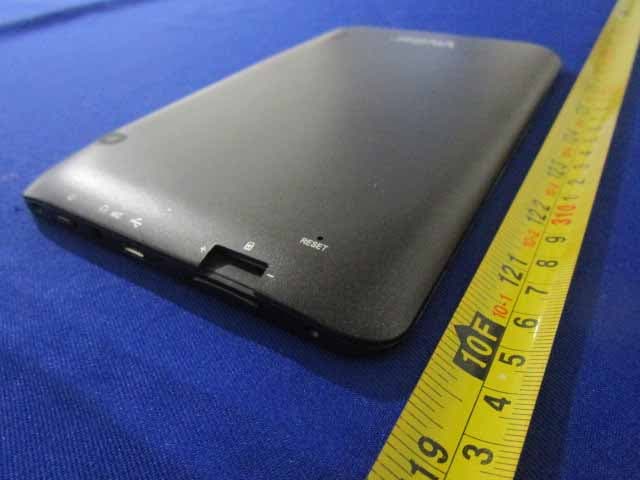
Report No : TRE1409008801 Page 49 of 53 6. External and Internal Photos of the EUT External photos of the EUT Report No : TRE1409008801 Page 50 of 53 Report No : TRE1409008801 Page 51 of 53
ID Label/Location Info
Mo b Mod FCC This subj caus inte und bile Internet del: CAM76 C ID: XKK-C s device com ject to the f se harmful erference re desired oper t Devices 60 CAM760 mplies with following tw interference ceived, incl ration. Sakar Lab Part 15 of t wo condition e, and (2) t uding interf Internation I bel Loca the FCC Ru ns: (1) this this device m ference tha Inc ation les. Operat device ma y must accept t may cause Length ion is y not t any e h X width h=85mm X 3 30mm
Internal Photos
Report No : TRE1409008801 Page 52 of 53 Internal photos of the EUT WIFI/BT Antenna Report No : TRE1409008801 Page 53 of 53 .......................End of Report.........................
Test Report
The test report merely corresponds to the test sample. It is not permitted to copy extracts of these test result without the written permission of the test laboratory. FCC REPORT Report Reference No. .................... : TRE1409008803 R/C..........: 57317 FCC ID ............................................. : XKK-CAM760 Applicant’s name ........................... : Sakar Internation Inc Address ............................................. : 195 Carter Drive, Edison, NJ 08817 U.S.A Manufacturer......................................: Sakar Internation Inc Address...............................................: 195 Carter Drive, Edison, NJ 08817 U.S.A Test item description .................... : Mobile Internet Devices Trade Mark ....................................... : / Model/Type reference ....................... : CAM760 Listed Model(s) ................................. : / Standard ......................................... : 47 CFR FCC Part 15 Subpart B - Unintentional Radiators ANSI C63.4: 2009 Date of receipt of test sample...........: Sept 18, 2014 Date of testing..............................: Sept 19~ Oct 16, 2014 Date of issue.................................: Oct 16, 2014 Result .................. ........................: Pass Compiled by ( position+printed name+signature) .. : File administrators Any Yang Supervised by ( position+printed name+signature) .. : Project Engineer Jeff Sun Approved by ( position+printed name+signature) .. : RF Manager Hans Hu Testing Laboratory Name ............. : Shenzhen Huatongwei International Inspection Co., Ltd Address ............................................. : Keji Nan No.12 Road, Hi-tech Park, Shenzhen, China Shenzhen Huatongwei International Inspection Co., Ltd. All rights reserved. This publication may be reproduced in whole or in part for non-commercial purposes as long as the Shenzhen Huatongwei International Inspection Co., Ltd is acknowledged as copyright owner and source of the material. Shenzhen Huatongwei International Inspection Co., Ltd takes no responsibility for and will not assume liability for damages resulting from the reader's interpretation of the reproduced material due to its placement and context. Report No.: TRE1409008803 Page 2 of 16 Contents 1. T EST STANDARDS AND TEST DESCRIPTION ...................................... 3 1.1. Test Standards 3 2. SUMMARY ............................................................................. 4 2.1. Client Information 4 2.2. Product Description 4 2.3. EUT operation mode 4 2.4. EUT configuration 4 2.5. Configuration of Tested System 5 3. TEST ENVIRONMENT .................................................................. 6 3.1. Address of the test laboratory 6 3.2. Test Facility 6 3.3. Environmental conditions 7 3.4. Statement of the measurement uncertainty 7 3.5. Equipments Used during the Test 7 4. TEST CONDITIONS AND RESULTS ............................................. 8 4.1. Conducted Emissions Test 8 4.2. Radiated Emission Test 11 5. TEST SETUP PHOTOS OF THE EUT .......................................... 15 6. EXTERNAL AND INTERNAL PHOTOS OF THE EUT ....................... 16 Report No.: TRE1409008803 Page 3 of 16 1 . T EST STANDARDS AND TEST DESCRIPTION 1.1. Test Standards The tests were performed according to following standards: 47 CFR FCC Part 15 Subpart B - Unintentional Radiators ANSI C63.4: 2009 – American National Standard for Methods of Measurement of Radio-Noise Emissions from Low-Voltage Electrical and Electronic Equipment in the Range of 9 kHz to 40GHz Report No.: TRE1409008803 Page 4 of 16 2. SUMMARY 2.1. Client Information Applicant: Sakar Internation Inc Address: 195 Carter Drive, Edison, NJ 08817 U.S.A Manufacturer: Sakar Internation Inc Address: 195 Carter Drive, Edison, NJ 08817 U.S.A 2.2. Product Description Name of EUT Mobile Internet Devices Trade Mark: / Model No.: CAM760 Listed Model(s): / Power supply: DC 3.7V From Internal Battery Adapter information: Model No.:WLC050200UU Input: AC 100~240V, 50/60Hz, 0.35A Output: DC 5.0V 2A 2.3. EUT operation mode The EUT has been tested under typical operating condition. 2.4. EUT configuration The following peripheral devices and interface cables were connected during the measurement: ● - supplied by the manufacturer ○ - supplied by the lab ○ Power Cable Length (m) : / Shield : / Detachable : / ○ Multimeter Manufacturer : / Model No. : / Report No.: TRE1409008803 Page 5 of 16 2.5. Configuration of Tested System Configuration of Tested System Equipment Used in Tested System No. Equipment Manufacturer Model No. Serial No. Lengthshielded/unshieldedNotes 1 PC DELL DIMEN SION E520 1RNN42X / / DOC 2 Printer ESPOn C3990 C3990A / / DOC 3 Mouse DELL MO56U OA G0E02SY7 1.00munshielded DOC 4 Display DELL 1707FPt CN-OFC237-71618- 65G-AAKC / / DOC 5 Keyboard DELL L100 CNRH65665890726 009L / / DOC 6 USB Cable (EUT to PC) ITALCOM GROUP USB 2.0N/A 0.80munshielded N/A 7 USB Cable (Printer to PC) Genshuo USB 2.0N/A 1.20munshielded N/A 8 Power line / / N/A 1.00munshielded N/A PC EUT AC 120V/60Hz Printer Mouse AC 120V/60Hz Display Keyboard Report No.: TRE1409008803 Page 6 of 16 3. TEST ENVIRONMENT 3.1. Address of the test laboratory Test Laboratory: Shenzhen Huatongwei International Inspection Co., Ltd Nanshan Laboratory Address: Keji Nan No.12 Road, Hi-tech Park, Shenzhen, China Gongming Laboratory Address: Bldg3, Hongfa Hi-tech Industrial Park, Genyu Road, Shenzhen, China Phone: 86-755-26715686 Fax: 86-755-26748089 3.2. Test Facility The test facility is recognized, certified, or accredited by the following organizations: CNAS-Lab Code: L1225 Shenzhen Huatongwei International Inspection Co., Ltd. has been assessed and proved to be in compliance with CNAS-CL01 Accreditation Criteria for Testing and Calibration Laboratories (identical to ISO/IEC 17025: 2005 General Requirements) for the Competence of Testing and Calibration Laboratories, Date of Registration: Mar. 01, 2012. Valid time is until February 28, 2015. A2LA-Lab Cert…
Text truncated - open the document above for the full version.
Test Setup Photos
Report No.: TRE1409008803 Page 15 of 15 5. Test Setup Photos of the EUT Conducted Emission (AC Mains) Radiated Emission (30MHz-1GHz) 6. External and Internal Photos of the EUT Reference to the test report No. TRE1409008801 .......................End of Report.........................
Contact Information
Applicant
Xu Jing(Manager)
Test Firm
Shenzhen Huatongwei International Insp. Co., LtdMoffy Yu
Technical Specifications
| # | Rule Parts | Frequency Range | Power Output |
|---|---|---|---|
| 1 | 15B | - | - |
Other Applications from Sakar Internation Inc.
XKK-CAM760V2
Dec 30, 2015MID
Equipment Class
DTS - Digital Transmission System
XKK-CAM4302
May 12, 2015Mini tablet
Equipment Class
JBP - Part 15 Class B Computing Device PeripheralXKK-XO1020
Oct 28, 2014MID
Equipment Class
DSS - Part 15 Spread Spectrum TransmitterXKK-CAM430
Sep 29, 2014Mobile Internet Devices
Equipment Class
DTS - Digital Transmission System
XKK-IMW395
Jul 13, 2014Bluetooth Speaker
Equipment Class
DTS - Digital Transmission System