YIZRT-MWK09MINI KEYBOARD
Shenzhen Riitek Technology Co., Ltd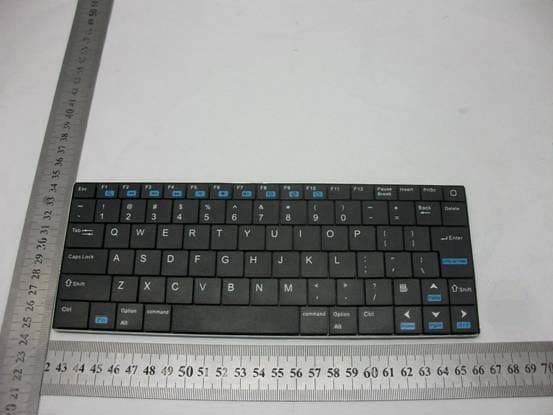
Click to zoom
Application Details
- Equipment Class
- DXX - Part 15 Low Power Communication Device Transmitter
- Date of Grant
- May 03, 2012
- Application Purpose
- Original Equipment
- Date of Application
- May 03, 2012
- Equipment Note
- MINI KEYBOARD
- Frequency Range
- 2402.00000000 - 2480.00000000
- Country
- China
Documents & Files
Document Text
Text extracted from the exhibit documents filed with the FCC. Open a document above to read the original.
Users Manual
Ultra Slim Bluetooth keyboard User’s Manual Contents 1、Introduction 2、Hardware Installation 3、Software Setup Microsoft Windows Mobile OS Google Android OS Symbian OS Windows OS (with IVT Bluetooth Stack) Windows OS (Broadcom Bluetooth Stack) Linux(Ubuntu) 4、Product overview 5、Technical parameters 6、Maintenance 1、Introduction Thank you for purchasing the Ultra Slim Bluetooth Keyboard! You can use it for emails, chat, or to enjoy your favorite games. It is compatible with desktop computers running Windows or Linux but also with handhelds running Android, Windows Mobile Pocket PCs or Symbian S60 Operating systems. It also supports the Sony Playstation3. Use it with your HTPC on your Sofa or browse the internet in the most comfortable fashion. Computer System Requirements z Windows 98/ME/2000/XP/Vista/7 z Mac OS 10.2.8 or Later Mobile System Requirements z Google Android z Apple IOS 4 or Later z Microsoft Windows Mobile 5.0 or Later z Nokia Symbian S60 System z Sony Playstation 3 Package Contents: z Ultra Slim Bluetooth Keyboard z Bluetooth USB Dongle(Optional) z Driver CD(Optional) z Charging Cable z User Manual 2、Hardware Setup Please Note: The battery may be empty when you first unbox the product.Make sure to charge the device before attempting to set it up Paring Mode 1. Turn ON the power swith,the green LED will illuminate for 2 seconds. 2. Click on the “Bluetooth Pair/Connect”button.The green LED will blink intermittently. 3. The Keyboard is now in paring mode and is ready to be paired with your device. Recharging Connect the mini Bluetooth keyboard to your computer by using the included USB charging cable.When connected,the Red LED will illuminate and get dimmer as the battery charge level nears capacity. 3、Software Setup Microsoft Windows Mobile OS Setup: 1. Connect your mobile device to your computer using the USB port. 2. On your PC,insert the Driver CD and access the drive by clicking on”My Computer” 3. Locate the “Mobile” folder and inside the “windowsmobile.cab” (Bluetooth input driver) CAB file. 4. Open ActiveSync on your desktop and Click Explore 5. Copy the CAB file to your mobile device. You can do this by dragging and dropping the file from the desktop folder to My Documents folder on your device. 6. On the device,click on Start,Program,File Explorer,My Documents. 7. Run the windowsmobile.cab file by taping on it. 8. The Bluetooth keyboard drivers will install on your device. 9. After your device is reset,ensure the keyboard is in pairing mode. 10. On the device open”Bluetooth Devices”and click”Add New”. 11. After the keyboard is discovered,select it and then tap on”Next”. 12. When prompted for the passkey leave the field blank and click on”Next”if the pairing fails,repeat this step and use”0000”as the passcode. 13. Ensure”Input Device”is checked and tap on”Finish”. 14. Go to the Software settings panel and tap on”Connect” Troubleshooting: The software is not responding.You need to reinstall this software-This error is caused by a problem with the communication between the software components.Check to ensure your Windows Mobile Device is supported by the keyboard(Version 5.0 or higher)and try to reinstall the software. Bluetooth is turned off-Bluetooth needs to be enabled in ordr to use this device.Make sure to turn it on in the settings menu. No active input device found-Make sure the keyboard is properly paired with your smartphone. Settings: To open the setting menu,tap on Start,Settings,System and tap the icon named”Bluetooth Input Driver”. Keyboard Page: This page allows you to enable or disable the keyboard functionality and sounds. Status Page: Allows you to view the status and autostart when windows mobile starts. About: Displays the software version and other useful info. Google Android OS Setup: 1. On your PC,insert the Driver CD and access the drive by clicking on”My Computer”. 2. Open the”Android”folder and copy the file labeled”android.apk”to your android’s memory card. 3. On your device,open”Market”and install the”AppManager” Software. 4. Tap Install from SD option and run the” android.apk”file. 5. You will be presented with a screen requesting activation.Make sure to click”OK” with an active internet connection. 6. Make sure your Bluetooth mini keyboard is in the pairing mode and access the “Bluetooth Keyboard”icon under the main menu. 7. Make sure that Bluetooth is turned on and tap on”Search and Connect”.The software will automatically find the keyboard and connect to it. Troubleshooting: Keyboard Disconnected-If your device loses the connection with the keyboard,you can reconnect by pressing the reconnect button. Symbian OS: Setup 1. On your PC,insert the Driver CD and access the drive by clicking on”My Computer”. 2. Open the “Nokia Wireless Keyboard Application” folder on the CD and choose your device model by operating system version. 3. Copy the .sis file to your devices memory card or directly to the device via a USB cable. 4. On the device,find the .sis file and select it. Follow the onscreen instructions for installation. 5. Run the installed application-Wireless Keyboard and search for nearby Bluetooth devices. 6. After the device is paired and connected you may need to set the keyboard layout. Windows OS(IVT Bluetooth Stack) Setup 1. Make sure that Bluetooth is enabled on your PC. 2. Double click on the Bluetooth icon and select”Bluetooth Device Discovery”. 3. Right click on the Bluetooth keyboard found and click on”Refresh Services”. 4. Right click on the Bluetooth keyboard and select”Connect-Bluetooth Input Service”. 5. A popup dialog will appear with a code.Input this code to the keyboard and press OK.The system will automatically install the drivers for the keyboard. Windows OS(Broadcom Bluetooth stack) 1. Make sure that the Bluetooth function is active on your PC. Double click the Bluetooth icon, then click “View devices in range” 2. Click “Search devices in range” and wait until the Mini Bluetooth keyboard is discovered. 3. Right clicking the…
Text truncated - open the document above for the full version.
Block Diagram
BCM20730 BGA64 Singl e-Chip Bluetooth Transceive r Bluetooth 3.0 EEPROM Antenna UART Interfac e GPIO Power supply KEYBOARD BCM20730 is master Bluetooth controller. Power supply of BCM20730 to carry all power. eeprom Storage key value. Keyboard Input key code,Through the GPIO,Into electrical Signals BCM20730 into After treatment, a bluetooth wireless signal, after Antenna launch out. UART Interface for the program to the download. XTAL 24MHz
External Photos
FRONT VIEW OF TX BACK VIEW OF TX Page 1 of 4 LEFT VIEW OF TX RIGHT VIEW OF TX Page 2 of 4 TOP VIEW OF TX BOTTOM VIEW OF TX Page 3 of 4 Page 4 of 4 PHOTO OF BATTERY PHOTO OF BATTERY
ID Label/Location Info
FCC ID Label Sample for FCC ID: YIZRT-MWK09_ FCC ID: YIZRT-MWK09 This device complies with Part 15 of the FCC Rules. Operation is subject to the following two conditions: (1) this device may not cause harmful interference, and (2) this device must accept any interference received, including interference that may cause undesired operation.
Internal Photos
INTERNAL PHOTO OF TX – 1 INTERNAL PHOTO OF TX – 2 Page 1 of 2 Page 2 of 2 INTERNAL PHOTO OF TX – 3
Schematics
RT-MWK09 Riitek B 11 REV:SIZE:CODE: DRAWN:DATED: DATED:CHECKED: QUALITY CONTROL:DATED: DATED:RELEASED: COMPANY: TITLE: DRAWING NO: SHEET: OFSCALE: REVISION RECORD APPROVED:ECO NO: A B D DATE: 123456 D C A B C LTR BT 烧录 USB充电口 + C9 4.7UF C10 0.1UF D1 充电指示 R8 1K 1 2 34 5 U3 TP4055 R3 3.3K C8 1UF 1 GND 2 VOUT 3 VIN U4 6206 + C14 4.7UF/10V C11 0.1UF BAT1 3.7V C15 1UF R4 51K 1% R13 100K 1% D2 工作指示 C1 0.1UF 1 2 3 4 J3 1 GND 2 3 D+ 4 D- 5 V J2 2 2 1 1 3 GND K1 1 2 3 4 5 6 7 8 9 10 11 12 13 14 15 16 17 18 19 20 21 22 23 24 25 26 2728 J1 26PIN 12 S1 ID_KEY 1 GND 2 GND 3 P13 4 P8 5 P17 6 P22 7 P6 8 UP_RX 9 UP_TX 10 P0 11 P1 12 P5 13 P4 14 P32 15 P2 16 RST_N 17 P3 18 GND 19 GND 20 P33 21 P18 22 P16 23 P35 24 P21 25 P19 26 VDD3V3 27 P25 28 P20 29 P24 30 P34 31 P7 32 P29 33 P28 34 P27 35 P26 36 P36 37 P30 38 XTALI32K 39 XTALO32K 40 P37 41 P15 42 P14 43 P12 44 P9 45 P23 46 P11 47 P10 48 GND U1 DJH-BCM20730-208 R1 1K + C2 4.7UF 3.3V GND GND GND BAT C5 C0 R6 UP_RX UP_TX R0 R1 R5 R4 R2 R3 BATT_LOW C7 C6 C4 C1 C3 C2 C10 BAT C9 BATT_LOW 3.3V C13 C15 C14 BAT UP_RX UP_TX GND +5V C8 C15 C7 C13 C12 C11 C14 C10 C8 C9 C6 C3 C2 C1 C0 R7 R6 R5 R4 R3 R2 C5 R0 R1 C4 R7C12 C11 3.3V C12 R7
Test Report
FCC 47 CFR PART 15 SUBPART C TEST REPORT For Applicant: Shenzhen Riitek Technology Co., Ltd. Address: A1-4, A Zone, Baoyunda Logistic Center, Avenue Xixiang, Baoan District, Shenzhen, China Product Name: Mini Keyboard Model Name: RT-MWK09, i9, K09, Rii09, BT09, RF09, VT2009, K09BT, K09RF, MWK09, Riimini i9, ZW-53001BT Brand Name: N/A FCC ID: YIZRT-MWK09 Report No.: MTE/DAL/D12040396 Date of Issue: Apr. 13, 2012 Issued by : Most Technology Service Co., Ltd. Address : No.5, Langshan 2nd Road, North District, Hi-tech Industrial Park, Nanshan, Shenzhen, Guangdong, China Tel : 86-755-8617 0306 Fax : 86-755-8617 0310 The report consists 27 pages in total. It may be duplicated completely for legal use with the approval of the applicant. It should not be reproduced except in full, without the written approval of our laboratory. The client should not use it to claim product endorsement by MOST. The test results in the report only apply to the tested sample. The test report shall be invalid without all the signatures of testing engineers, reviewer and approver. FCC ID: YIZRT-MWK09 Report No.: MTE/DAL/D12040396 Page 2 of 27 TABLE OF CONTENTS 1. VERIFICATION OF CONFORMITY ............................................................................................................... 3 2. GENERAL INFORMATION ............................................................................................................................ 4 2.1 Product Information ...................................................................................................................................... 4 2.2 Objective ...................................................................................................................................................... 5 2.3 Test Standards and Results .......................................................................................................................... 5 2.4 Environmental Conditions............................................................................................................................. 5 3. TEST FACILITY.............................................................................................................................................. 6 3.1TEST FACILITY............................................................................................................................................. 6 3.2 GENERAL TEST PROCEDURES ................................................................................................................ 6 3.3 FCC PART 15.205 RESTRICTED BANDS OF OPERATIONS..................................................................... 7 4. SETUP OF EQUIPMENT UNDER TEST ....................................................................................................... 8 4.1 SUPPORT EQUIPMENT.............................................................................................................................. 8 4.2 TEST EQUIPMENT LIST ............................................................................................................................. 9 5. 47 CFR Part 15C 15.249 Requirements....................................................................................................... 10 5.1 Spurious Emission Test .............................................................................................................................. 10 5.1.1 Requirement............................................................................................................................................ 10 5.1.2 Test Description ........................................................................................................................................11 5.1.3 Test Description ....................................................................................................................................... 12 5.1.4 TEST RESULT ........................................................................................................................................ 13 5.2 Band Edge ................................................................................................................................................. 19 5.2.1 Requirement............................................................................................................................................ 19 5.2.2 Test Description ....................................................................................................................................... 19 5.2.3Test Result................................................................................................................................................ 19 5.3 LINE CONDUCTED EMISSION TEST ............................................................................................... ........ 22 5.3.1. LIMITS OF LINE CONDUCTED EMISSION TEST ................................................................................ 22 5.3.2. BLOCK DIAGRAM OF TEST SETUP..................................................................................................... 22 5.3.3. PRELIMINARY PROCEDURE OF LINE CONDUCTED EMISSION TEST ............................................ 23 5.3.4. FINAL PROCEDURE OF LINE CONDUCTED EMISSION TEST .......................................................... 23 5.3.5. TEST RESULT OF LINE CONDUCTED EMISSION TEST .................................................................... 24 APPENDIX 1 .................................................................................................................................................... 26 PHOTOGRAPHS OF TEST SETUP................................................................................................................. 26 FCC ID: YIZRT-MWK09 Report No.: MTE/DAL/D12040396 Page 3 of 27 1. VERIFICATION OF CONFORMITY Equipment Under Test: Mini Keyboard Brand Name: N/A Model Number: RT-MWK09 FCC ID: YIZRT-MWK09 Shenzhen Riitek Technology Co.,LTD Applican…
Text truncated - open the document above for the full version.
Test Setup Photos
CE TEST SETUP RE TEST SETUP(30MHz-1000MHz) RE TEST SETUP (f>1GHz) CE TEST SETUP
Contact Information
Applicant
JunKui Chen
Test Firm
Most Technology Service Co., Ltd.Mark Wen
Technical Specifications
| # | Rule Parts | Frequency Range | Power Output |
|---|---|---|---|
| 1 | 15C | 2.40 GHz - 2.48 GHz | - |
Other Applications from Shenzhen Riitek Technology Co., Ltd
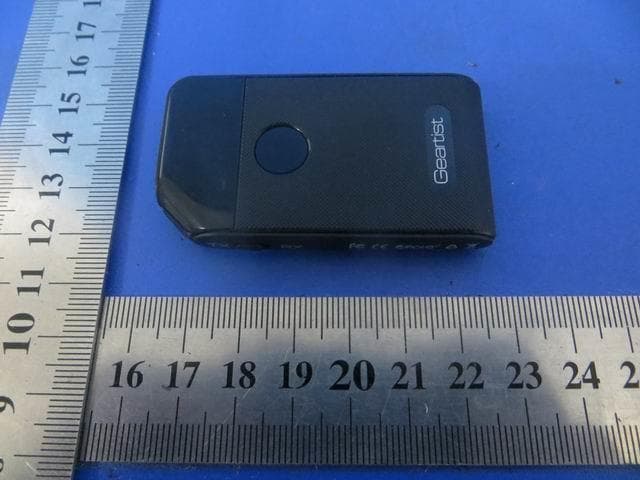
YIZRT419
Sep 13, 2015Dual mode Bluetooth Transceiver
Equipment Class
DSS - Part 15 Spread Spectrum Transmitter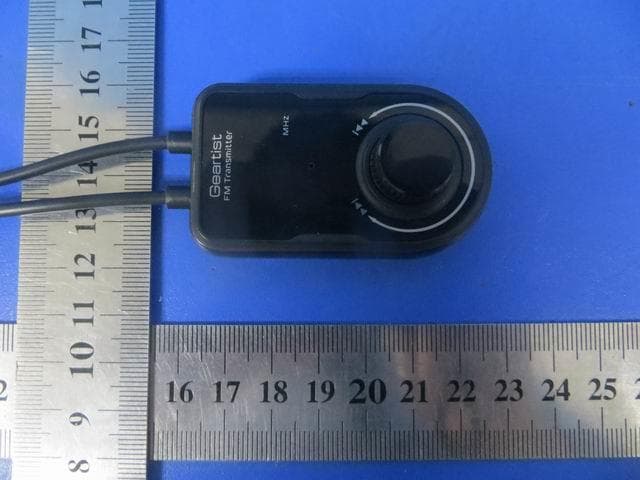
YIZRT507
Sep 12, 2015FM transmitter
Equipment Class
DXX - Part 15 Low Power Communication Device Transmitter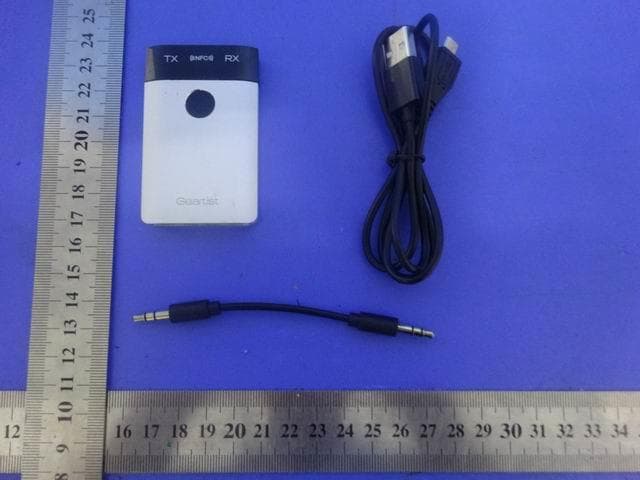
YIZRT418
Sep 10, 2015Dual mode Bluetooth Transceiver
Equipment Class
DSS - Part 15 Spread Spectrum Transmitter
YIZGB01
Jan 15, 2015Bluetooth Car-Kit
Equipment Class
DSS - Part 15 Spread Spectrum Transmitter
YIZRE413
Dec 22, 2014Bluetooth Smart(Bluetooth activity tracker)
Equipment Class
DTS - Digital Transmission System