Z3ZN-32SWCOPYBOARD (Network board)
PLUS Corporation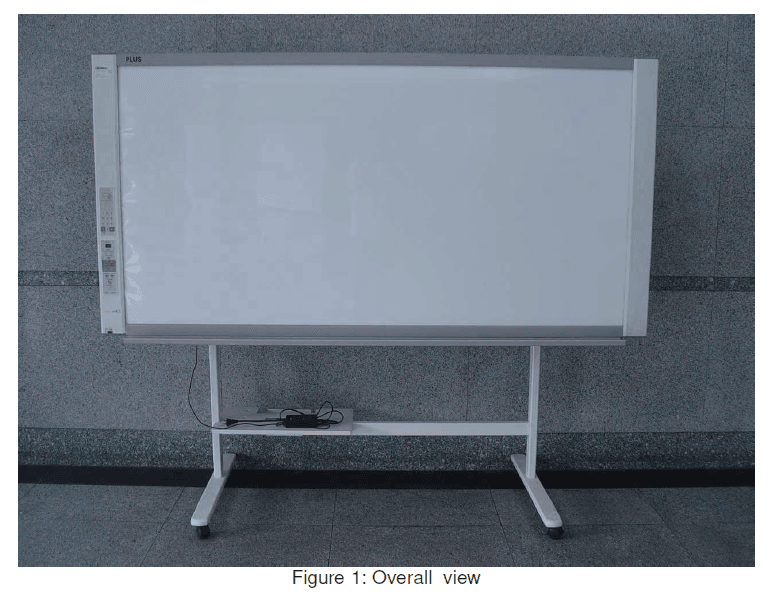
Click to zoom
Application Details
- Equipment Class
- DXX - Part 15 Low Power Communication Device Transmitter
- Date of Grant
- Oct 29, 2020
- Application Purpose
- Original Equipment
- Date of Application
- Oct 29, 2020
- Equipment Note
- COPYBOARD (Network board)
- Frequency Range
- 13.56000000 - 13.56000000
- Company
- PLUS Corporation
- Country
- Japan
Documents & Files
Document Text
Text extracted from the exhibit documents filed with the FCC. Open a document above to read the original.
Users Manual
Copyboard (Network board) User’s Manual Thank you for your purchase of the PLUS Copyboard. Please read this User’s Manual carefully before use to take full advan- tage of the functions of this product. After you have finished reading the manual, please keep it for future reference. E-2 Introduction This manual is for the network board (model name: N-31S/N-31W/N-314). • The models are categorized into different types. ModelType N-31SStandard size for two screens N-31WWide size for two screens N-314Standard size for four screens The descriptions and diagrams in this manual refer to the model N-31S. For using a network, refer to “N-31 Series Network Manual”. * When functions or operations are specific to a certain model of network board, the model name is speci- fied. NOTE • Use only the power cord and AC power adapter supplied with the network board. The supplied power cord and AC power adapter cannot be used with other products. • You will be punished for merely owning illegal copies. • Do not use ruled type tapes. Do not move the sheet with tape, etc., attached to it. Doing so could result in malfunction. • Do not attach template sheets or paper to the sheet. (Supported model: N-314) Do not copy while film-type objects or papers are attach to the sheet. Doing so could result in malfunction. Trademarks • Microsoft and Windows are registered trademarks or trademarks in the United States and other countries of the Microsoft Cor- poration. • Adobe and Adobe Acrobat Reader are trademarks of Adobe Systems Incorporated. • Safari, Apple, Mac OS and Macintosh are trademarks or registered trademark of Apple Computer, Inc., of the United States. • Mifare is a registered trademark of NXP Semiconductors. The trademarks of the various companies and the product trademarks, even when not written down, will be given due respect. Product names and company names appearing in this manual are registered trademarks or trademarks of the respective compa- nies. (1) The contents of this manual may not be reprinted in part or whole without permission. (2) The contents of this manual are subject to change without notice. (3) Great care has been taken in the creation of this manual; however, should any questionable points, errors, or omissions be apparent, please contact us. (4) Notwithstanding Section (3), this company will not be responsible for any claims of loss or profit or other matters deemed to be the result of using this unit. (5) Since printer connected with the network board is based on the use as a peripheral device for the PLUS network board, we do not warrant direct connection with a computer. (6) Manuals with incorrect collating or missing pages will be replaced. E-3 Table of Contents Meaning of the Terms Used in this Manual • Main unit (or set): This refers to the network board. • USB memory: refers to USB flash memory. • USB memory storage: means the saving of sheet surface data using MEMORY (i.e., the USB port) of the operation panel. • Memory for computer storage: indicates a temporary saving location of the image that has been read. • “copy”: Both “print” and “USB memory saving” mean to “copy.” • “Sheet surface”: refer to the drawing portion. • “Scroll” or “move”: indicates feeding of the sheet • Memory for network storage: Memory used for network storage. • Network: The communications network on which devices are interconnected in net fashion for communication (exchange of data) between the devices. For this network board, the “network” indicates the LAN below. • LAN (Local Area Network): A closed communications network for communicating within a restricted area, such as within a com- pany. • FTP (File Transfer Protocol): The protocol (communications rules) used when transferring files on a TCP/IP network. Introduction ...............................................................E-2 Package Contents ......................................................E-4 Names of the Parts ....................................................E-5 Front ......................................................................E-5 Input/output terminals .............................................E-6 Changing the Height of the Unit................................E-7 Control Panel ..........................................................E-8 Keypad panel ..........................................................E-9 Functions of the Network board .............................E-10 Printing Functions .................................................E-10 Saving Functions ...................................................E-11 Operation Steps .......................................................E-12 Setting the Time .......................................................E-13 Printing (printer sold separately) ............................E-15 Preparing the Printer .............................................E-15 Preparing the Printer connected to a Network .........E-15 Basic Printing Operation ........................................E-16 Moving the sheet surface manually ........................E-18 Printing Thumbnails...............................................E-18 Consecutive Printing ..............................................E-19 Changing Printing Color .........................................E-19 Using USB Memory ..................................................E-20 USB Memory Storage Procedure ............................E-20 Saving Image Files on a Computer/Deleting Image Files .....................................................................E-22 Using the network board connected to a computer ..................................................................E-24 CB Setup (Operating the Network Board’s Buttons)....................................................................E-26 Basic setting operation ..........................................E-26 Table of Function Numbers and Settings .................E-27 Meaning of Error Messages ....................................E-29 Troubleshooting .....…
Text truncated - open the document above for the full version.
Users Manual
E-19 Printing Consecutive Printing Multiple screens from the screen at the current position can be printed (or stored). 1. Press the Continue button and select the number of screens. Changing Printing Color Printing color can be selected between color and monochrome. 1. Press the Color / B/W button to select color or monochrome. The mode switches in the following order each time the button is pressed. Screens 1 and 2 → Cancel ... (Screens 1 and 2 → Screens 1 to 3 → Screens 1 to 4 → Cancel ... on model N-314) The number of consecutive screens is indicated by the number of consecutive printing number indicators that are lit yellow. (“CP” is displayed on the display window when consecutive printing is selected.) * The screens are counted in order from the currently visible screen as screen 1 and screen 2 (screen 1, screen 2, screen 3, and screen 4 on model N-314). To start from a particular screen, press the Scroll/Stop or button to scroll to that screen. Notice • Note that if you have drawn on the sheet after moving it manually part way or after stopping scrolling in the middle, the amount of movement for one screen’s worth changes, so the position of the scanned images will be substantially off. • This product uses an endless sheet. Note that the position of the scanned images may go slightly off due to stretching of the sheet or slippage. Consecutive printing number indicators Consecutive printing number indicators One lit: Cancel (single-screen printing/storing) Two lit: Screens 1 and 2 printed/stored consecutively Three lit: Screens 1 to 3 printed/stored consecutively Four lit: Screens 1 to 4 printed/stored consecutively One lit: Cancel (single- screen printing/storing) Two lit: Screens 1 and 2 printed/stored consecu- tively When printing is finished, consecutive printing is canceled. Note • If there is a blank screen in the specified sequence, that screen is printed as a blank. • If the ON/Standby button is pressed during scanning, scanning is interrupted and only the images that have been scanned are printed. • If printing of multiple copies has been specified (with the Number of Copies button), after scanning, the specified num- ber of copies is printed, and this is repeated until the specified number of screens has been scanned and printed. The Color Print status indicator lights to indicate the following condition: Lit green: Color print Off: Monochrome print Note • If “Color Print” in CB Setup is set to “Invalid”, a press of the Color / B/W button will select forcibly monochrome color. To select “Valid” for “Color Print” in CB Setup, see page E-26 in “CB Setup (Operating the Network Board’s Buttons)”. 2. Press Network Print or On Board Print button to print. When one of the print buttons is pressed, the screens are scanned and printed repeatedly until the specified number of screens has been scanned and printed. or (Button on model N-314) E-20 Using USB Memory The content of what has been drawn on the sheet surface of the network board can be saved in USB memory. Later, the saved image can be read into a personal computer and made into a document of the proceedings of the meeting, or affixed to a document. Notice • No USB flash memory device is included. When purchasing a USB flash memory device, pay attention to the following: 1. USB flash memory devices formatted in FAT16/FAT32 are supported. USB flash memory devices in NTFS format cannot be used. 2. USB flash memory devices protected by a security function cannot be used. 3. USB flash memory devices with a capacity of over 32 GB cannot be used. 4. If the USB flash memory device is divided into multiple partitions, only one partition can be recognized with this unit. USB Memory Storage Procedure Preparation: Check that the network board’s AC power plug is connected to a wall power outlet. Press the ON/Standby button and switch on the power. Note • When turning on the power, wait about 5 seconds or more after the power plug has been connected before pressing the ON/Standby button. • Press the ON/Standby button to switch on the power. The LED of the display window will light. Insert the USB memory device into the USB A Memory port of the network board. Notice • Check the side (polarity) of the USB mem- ory device before inserting it. Forcing it in the reverse orientation will damage the USB A Memory port or USB memory device. • Be careful not to bump into the USB memory device with hand or body while it is mounted. Doing so could damage the USB memory device or USB A Memory port. The procedure for displaying the sheet surface you want to store is the same as for printing. See “Basic Printing Operation” on page E-16. Note • The one screen portion that is viewable will be saved in USB memory. • Saving of the portion located around the sheet surface might not be pos- sible. Please see “Effective reading size” on Page E-5. Press the Scroll/Stop or button to display the screen to be stored. E-21 Using USB Memory Removing the USB memory Check that the flashing rotation of the display window has changed to steady lighting and that the USB memory access indicator is not flashing, then pull the USB memory straight out. (Please see your USB memory manual for details.) Notice • Do not unplug the USB memory device during the USB memory storage operation (i.e., during the rotating, flashing display in the display win- dow), or while the access indicator of the USB memory device is flashing because data will be destroyed. When the network board is not going to be used, press the ON/Standby button and switch off the power (standby mode). Note • “” letters appearing at one-second intervals in a moving display in the display window indicate that a USB memory device is mounted. Unplugging the USB memory device will switch off the power. (A function that serves as a reminder to unplug the USB memory device) • When the network board and a computer are connected by USB cable, the auto power off function (which turns the power off automatically) is ca…
Text truncated - open the document above for the full version.
ID Label/Location Info
N-31S ATTENTION: Pour applicables des alimentations voir le mode d'emploi CAUTION: For applicable power supplies see user manual N-31W ATTENTION: Pour applicables des alimentations voir le mode d'emploi CAUTION: For applicable power supplies see user manual N-314 ATTENTION: Pour applicables des alimentations voir le mode d'emploi CAUTION: For applicable power supplies see user manual
RF Exposure Info
Produkte Products Prüfbericht - Nr.: Test Report No. 60414056 001 Seite 29 von 32 Page 29 of 32 6Safety Human Exposure 6.1Radio Frequency Exposure Compliance 6.1.1Electromagnetic Fields RESULT:Pass Test standard:RSS-102 issue 5 March 2015 FCC KDB Publication 447498 D01 v06 The maximum peak output power of the transmitter is 0.09uW (-40.47dBm) only, which less than 20mW. Hence the EUT is exempted from routine evaluation limits (SAR Evaluation) according to clause 2.5.1 of RSS-102 Issue 5. Since maximum peak output power of the transmitter is 0.09uW (-40.47dBm), and the distance from EUT to human is >50mm, hence the EUT is excluded from SAR evaluation according to FCC KDB publication 447498 D01 General RF Exposure Guidance v06.
Test Setup Photos
Produkte Products Prüfbericht - Nr.: Test Report No. 60414056 001 Seite 30 von 32 Page 30 of 32 7Photographs of the Test Set-Up Photograph 1: Set-up for Radiated Spurious Emissions, below 30MHz Photograph 2: Set-up for Radiated Spurious Emissions, above 30MHz Produkte Products Prüfbericht - Nr.: Test Report No. 60414056 001 Seite 31 von 32 Page 31 of 32 Photograph 3: Set-up for Conducted Emissions Photograph 4: Set-up for Radiated Emissions
Contact Information
Applicant
Isao Watanabe(Deputy General Manager of Quality & Reliability)
Technical Contact
Test Firm
TUV Rheinland (Shenzhen) Co., Ltd.Gina Yang
[email protected]86 755 8268 1497
Technical Specifications
| # | Rule Parts | Frequency Range | Power Output |
|---|---|---|---|
| 1 | 15C | 13.56 MHz - 13.56 MHz | - |
Other Applications from PLUS Corporation
Z3ZN-31SW
Sep 21, 2014COPYBOARD
Equipment Class
DXX - Part 15 Low Power Communication Device Transmitter