ZNF329GGSM/WCDMA Phone
LG Electronics USA, Inc.Application Details
- Equipment Class
- PCE - PCS Licensed Transmitter held to ear
- Date of Grant
- Nov 22, 2015
- Application Purpose
- Original Equipment
- Date of Application
- Nov 22, 2015
- Equipment Note
- GSM/WCDMA Phone
- Frequency Range
- 1852.40000000 - 1907.60000000
- Company
- LG Electronics USA, Inc.
- Country
- United States
Documents & Files
Document Text
Text extracted from the exhibit documents filed with the FCC. Open a document above to read the original.
Users Manual
www.lg.com MFL69121501 (1.0)USER GUIDE ENGLISH LG 329G BC www.lg.com Printed in China GUÍA DEL USUARIO ESPAÑOL LG 329G • Screen displays and illustrations may differ from those you see on actual phone. • Actual displays and the color of the phone may vary. • Some of the contents of this guide may not apply to your phone, depending on the software and your service provider. All information in this document is subject to change without notice. • This handset is not suitable for people who have a visual impairment due to the touch screen keyboard. • Copyright © 2015 LG Electronics, Inc. All rights reserved. LG and the LG logo are registered trademarks of LG Group and its related entities. All other trademarks are the property of their respective owners. User Guide ENGLISH 2 Phone Overview ................................... 5 Getting Started ..................................... 7 Installing the Battery ......................... 7 Removing the Battery ........................ 8 Charging the Battery ......................... 9 On-Screen Icons ................................ 9 General Functions .............................. 11 Before you begin ............................. 11 Making a Call ................................... 11 Making a Call with the Send Key ......11 Making International Calls ...............11 Ending a Call ..................................12 Making a Call from the Contacts ......12 Answering a Call .............................. 12 Adjusting the Volume ....................... 13 Slient Mode (Quick) .........................13 Signal Strength ...............................13 Entering Text .................................... 13 Changing the Text input mode .........13 123 mode (Numbers mode) .............13 Using the 123 (Numbers) mode .......14 Symbol mode .................................14 ABC mode ......................................14 Using the ABC mode .......................14 In-Call Menu ...................................... 16 During a Call .................................... 16 Making a Second Call .....................16 Swapping Between Two Calls ..........16 Answering an Incoming Call ............16 Rejecting an Incoming Call ..............17 Muting the Microphone ...................17 Using the Speakerphone .................17 Prepaid ............................................... 18 Add airtime ...................................... 18 Buy airtime ...................................... 18 My phone number ........................... 18 My airtime (balance) info ................. 18 Airtime display ................................. 19 Serial number .................................. 19 SIM number ..................................... 19 Code entry mode ............................. 19 Contacts ............................................. 20 Contact list ...................................... 20 New contact .................................... 20 Groups ............................................. 20 Speed dial ........................................ 21 SIM management ............................ 21 Own number .................................... 21 My business card ............................ 21 Contents 3 Messages ........................................... 22 Create message ............................... 22 Inbox ................................................ 25 Drafts ............................................... 26 Outbox ............................................. 26 Message settings ............................ 27 Message alert .................................27 Save to ..........................................27 Signature .......................................27 Text message .................................27 Multimedia message .......................28 Voicemail .......................................28 Recent calls ....................................... 29 Accessibility ....................................... 30 Menu readout .................................30 Keypad tone ...................................30 Large text .......................................30 Invert color .....................................30 Mono sound ...................................30 Senior mode ...................................30 TTY ................................................30 Hearing aid .....................................31 Voice command ..............................31 Notepad ........................................... 31 My Folder ........................................... 32 Audio ............................................... 32 Pictures ........................................... 32 Video ................................................ 32 Other fi les ........................................ 33 File manager.................................... 33 Tools ................................................... 34 Voice command ............................... 34 Voice command Options ..................35 Calculator ........................................ 36 Tasks ............................................... 36 Stopwatch ....................................... 37 Tip calculator ................................... 38 Unit converter .................................. 38 Voice recorder ................................. 38 Browser .............................................. 40 Launch the Browser ........................ 40 Using the Browser ........................... 40 Menus for the Browser .................... 41 Using the Navigation Keys ............... 41 Alarm clock ........................................ 42 Calendar ............................................. 43 Settings .............................................. 44 Audio & ringtones ............................ 44 Ringtone ........................................44 Message tone .................................44 Alert tone .......................................45 Keypad tone ...................................45 Multimedia .....................................45 4 Ca…
Text truncated - open the document above for the full version.
Users Manual
20 Contacts Contact list This menu allows you to save and manage contact address information. The Contact List allows you to add a new address or search saved contact addresses by name. To access Contact list, from the standby screen, press the Left Selection Key Menu, Contacts and Contact List. New contact This menu allows you to add a new contact to the Contact List. You can enter contact address information including name, phone numbers, group information items, memos, ringtones, and a contact Picture ID. To access New contact, from the standby screen, press the Left Selection Key Menu, Contacts and New contact. Groups This menu allows you to manage group information. You can also configure a ringtone for a group so that the group ringtone sounds when a call from a specific contact address within that group is received and there is no ringtone configured for the specific contact address. To access Groups, from the standby screen, press the Left Selection Key Menu, Contacts and Groups. Contacts 21 Contacts Speed dial This menu allows you to assign a frequently-called contact to the Speed Dial List. You can select a number from 2 to 9 as a speed dial. To access Speed dial list, from the standby screen, press the Left Selection Key Menu, Contacts and Speed dial. SIM management This menu allows you to copy information from your SIM card to your phone and vice versa. If a name is duplicated during the copying operation, the information is also duplicated. You can also delete information from the SIM card. To access SIM management, from the standby screen, press the Left Selection Key Menu, Contacts and SIM management. Own number This displays your personal phone number. To access Own number, from the standby screen, press the Left Selection Key Menu, Contacts and Own Number. My business card This displays your business card stored in the phone. You can also edit it. To access My business card, from the standby screen, press the Left Selection Key Menu, Contacts and My Business Card. 22 Messages This menu includes functions related to SMS (Short Message Service), MMS (Multimedia Message Service), Voicemail as well as the network’s service messages. Create message 1 From the standby screen, press the Left Selection Key Menu. 2 Select Messages . 3 Press Create message. NOTE: If you insert a picture, audio, or video file while writing a multimedia message, the file loading time will take about 5 seconds. You will not be able to activate any key during the file loading time. When the file loading is complete, you will be able to continue writing your multimedia message. Editing a message The following options are available when editing a message. Using Insert While entering text, press the Right Selection Key Insert. The following options are available. • Symbol: You can insert various symbols into your message. Pressing the Left Selection Key and Right Selection Key scrolls through the pages. • Picture: You can select a picture to insert by using the Navigation Keys. You can preview the selected picture by pressing the Right Selection Key View. • Audio: You can insert an audio file from your saved audio files. • Video: You can insert a video clip from your saved video clips. Messages 23 Messages • Record new audio: You can record a new audio clip by pressing the OK Key Record. Press the Left Selection Key Options before you begin recording to set the options (below). After recording a new audio clip, you can delete it by pressing the Left Selection Key Discard. Quality: Set the audio’s quality to Fine, Normal, or Economy. • Template Text: Allows you to easily insert frequently used sentences in the text message. Multimedia: Preset multimedia templates can be created ( Menu > Messages > Message settings > Multimedia message > Multimedia templates > New). Signature: Allows you to insert your own created signature. • More: Allows you to insert vCard, vCalendar, vNote, vTask or Contact. NOTE: vCard, vCalendar, vNote and vTask are created by the Contacts, Calendar, Notepad, and Tasks functions, respectively. Using Options While entering text, press the Left Selection Key Options. • Text entry mode: Sets the text input mode. • Text entry settings Text entry language: Allows you to set the text entry language to English or Spanish. T9 word candidate list: Displays the word candidates as you type. T9 next word prediction: Allows the phone to predict the next word when typing in T9 mode. T9 dictionary: Allows you to add, delete, reset, and modify words. Save to drafts: Saves the message to Drafts. 24 Messages Cancel message: Allows you to exit the text input mode without saving your message. Sending a Message After completing a message, press the OK Key Send To to select a recipient. • Enter the recipient(s). For more options, press the Left Selection Key Options. In this menu, you can choose from the following options: Enter number: Allows you to enter the phone number using the keypad. Enter email : Allows you to enter an email address instead of a phone number. Insert symbol: Allows you to enter symbols. Caller groups: Displays Contacts Groups. Recent messages: Choose a Contact from Recent Messages. Recent calls: Choose a Contact from Recent Calls. Delivery options: Allows you to set the options for Add Cc and Add Bcc. Save to drafts: Saves the selected message to Drafts. Text entry mode: Allows you to change the text entry mode. Text entry settings: Allows you to set the options for Text entry language, T9 Word candidate list, T9 next word prediction, and T9 dictionary. Cancel message: Allows you to cancel the message. 25 Messages Inbox You will be alerted when you receive a message. New messages are stored in the Inbox. In the Inbox, you can identify each message by icons. If you are notified that you have received a multimedia message, you can download the whole multimedia message by selecting it in the Inbox menu. To reach the Inbox, from the standby screen, press the Left Selection Key Menu > M…
Text truncated - open the document above for the full version.
Users Manual
34 Tools Voice command Voice Command is the function whereby your phone’s voice recognition engine identifies the voice of the user and carries out the requested commands. When the user operates the Voice Command function, there are four possible commands, Call <Name or Number>, Listen voicemail, Missed calls, and Time & date. To activate the Voice Command function, press the Clear/Back Key while the phones is in standby mode or press the Left Selection Key Menu, Tools , and Voice command. 1 Call <Name or Number>: This function is activated only when the user says the command “Call” followed by the name stored in the address book or say the phone number. Please note that interfering noise might cause a problem displaying candidates. Additionally, the user has the option to select a number type at the end, such as “mobile”, “home”, or “work”. 2 Listen voicemail: This command is activated when the user says “Listen Voicemail”. The user will then be automatically connected to voicemail. 3 Missed calls: This command is activated when the user says the words “Missed Calls”. The mobile phone presents the missed call list. • Follow-up Commands Available Yes: Make the phone call. No: Moves to the next result. Cancel: Go back to the main Voice Command menu. Exit: Terminate Voice Command. Next: Moves to the next result. 4 Time & date: This command is activated when the user says “Time & Date”. The phone displays the current local time and date. Tools 35 Tools Voice command Options When the Voice Command option is activated, you can press the Left Selection Key Options for the following options: • Mode Speed: Voice Command is abbreviated. Normal: Voice Command is played normally with prompts. • Best match 1 match: The most likely match will be displayed when finding a number from the address book. 4 matches: The four most likely matched names will be displayed when finding a name from the address book. • Sensitivity High: Operation and performance of the voice recognition engine is rarely affected by the user’s voice command and surrounding sound. Medium: Operation of the voice recognition engine is normally affected by user’s voice command and surrounding sound. Low: Operation of the voice recognition engine is strongly affected by user’s voice command and surrounding sound. • Spk. on mode Automatic on: When this option is selected, the speakerphone is turned on and the sound is loud enough so you can hear the output when the phone is away from the ear, at a distance Off: When this option is selected, the speakerphone is turned off and the sound comes from the earpiece, which is quieter and cannot be heard when the phone is away from the ear, at a distance. 36 Tools • Call alert Ring only: This option will not read out the caller name. You will only hear the selected ringtone. Ring after name: This option will read out the caller name once, and then will ring. Name repeat: This option will read out the caller name continuously. Calculator The Calculator function allows you to calculate simple mathematical equations. To access Calculator, from the standby screen, press the Left Selection Key Menu, Tools , and Calculator. Tasks This feature allows you to save and manage a task. To access Tasks, from the standby screen, press the Left Selection Key Menu, Tools , and Tasks. 1 To add a new task item, press the Left Selection Key New. 2 Input the Due Date, Note, Priority, and Status information for the new Task. 3 Press the Left Selection Key Save to save the Task item. The following options are available in the Task list by pressing the Left Selection Key Options: • Mark ‘Complete’: Allows you to change the status of the selected task as Completed. • Edit: Allows you to edit a saved task. • Delete: Deletes the selected task. • Selective delete: Allows you to delete All completed/All past tasks/All tasks selectively. 37 Tools • Send task via: Enables the selected task to be sent via Text message, Multimedia message. • Select multiple: Allows you to select multiple Tasks. • View calendar: Allows you to view the Calendar. Stopwatch This menu allows you to record the elapsed time of an event. The duration of an individual lap time (up to 20 laps) and the total time can also be displayed. To access Stopwatch, from the standby screen, press the Left Selection Key Menu, Tools , and Stopwatch. • Show last: Displays the last time recorded (only available if previous time was not reset). • New time 1 To start timing, press the OK Key Start. The running time is displayed as HH.MM.SS.hh (hours, minutes, seconds, hundredths of a second). 2 During the timing, you can record an individual lap time by pressing the Right Selection Key Lap. Up to 20 lap times can be recorded. 3 You can stop or restart timing by pressing the OK Key again. 4 To reset the stop watch, press the Right Selection Key Reset after stopping the time, or to save the stop watch, press the Left Selection Key Options and then select Save. • Saved times: Allows you to see a list of the saved recorded times. 38 Tools Tip calculator This feature allows you to quickly and easily calculate the tip amount based on the total bill as well as the split of the total bill based on the number of people. To access Tip calculator, from the standby screen, press the Left Selection Key Menu, Tools , and Tip calculator. 1 Enter the Total bill ($), Tip (%), and Split amounts. 2 The Tip ($) and You owe ($) amounts will be automatically calculated. Unit converter This function allows you to convert units of measurement. There are 6 types of units that can be converted: Area, Length, Weight, Temperature, Volume, and Velocity. To access Unit converter, from the standby screen, press the Left Selection Key Menu, Tools , and Unit converter. Voice recorder Allows you to record an audio clip to your phone. The recorded audio file is saved automatically in the Audio menu. To access Voice recorder, hold down the Clear/Back Key while the phone is in standby mode or press the Lef…
Text truncated - open the document above for the full version.
Users Manual
53 Accessories These accessories are available for use with your phone. (Items described below may be optional and sold separately.) • Travel adapter • User Guide • Battery NOTE: • Always use genuine LG accessories. Failure to do this may invalidate your warranty. • Accessories may be different in different regions; please check with our regional service company or agent for further enquiries. Open Source Software Notice Information To obtain the source code under GPL, LGPL, MPL, and other open source licenses, that is contained in this product, please visit http://opensource.lge.com. In addition to the source code, all referred license terms, warranty disclaimers and copyright notices are available for download. LG Electronics will also provide open source code to you on CD-ROM for a charge covering the cost of performing such distribution (such as the cost of media, shipping, and handling) upon email request to [email protected]. This offer is valid for three (3) years from the date on which you purchased the product. Accessories 54 For your safety WARNING! This product contains chemicals known to the State of California to cause cancer and birth defects or reproductive harm. Wash hands after handling. Important Information This user guide contains important information on the use and operation of this phone. Please read all the information carefully for optimal performance and to prevent any damage to or misuse of the phone. Any changes or modifications not expressly approved in this user guide could void your warranty for this equipment. Any changes or modifications not expressly approved by the manufacturer could void the user’s authority to operate the equipment. Before You Start Safety Instructions WARNING! To reduce the possibility of electric shock, do not expose your phone to high humidity areas, such as the bathroom, swimming pool, etc. Always store your phone away from heat. Never store your phone in settings that may expose it to temperatures less than 32°F (0°C) or greater than 113°F (45°C), such as outside during extreme weather conditions or in your car on a hot day. Exposure to excessive cold or heat will result in malfunction, damage and/or catastrophic failure. Be careful when using your phone near other electronic devices. RF emissions from your mobile phone may affect nearby in adequately shielded electronic equipment. You should consult with manufacturers of any personal medical devices such as pacemakers and hearing aides to determine if they are susceptible to For your safety 55 For your safety interference from your mobile phone. Turn off your phone in a medical facility or at a gas station. Never place your phone in a microwave oven as this will cause the battery to explode. Safety Information Read these simple guidelines. Breaking the rules may be dangerous or illegal. Further detailed information is given in this user guide. • Do not disassemble this unit. Take it to a qualified service technician when repair work is required. • Keep away from electrical appliances such as TVs, radios, and personal computers. • The unit should be kept away from heat sources such as radiators or cookers. • Do not drop. • Do not subject this unit to mechanical vibration or shock. • The coating of the phone may be damaged if covered with wrap or vinyl wrapper. • Use dry cloth to clean the exterior of the unit. (Do not use solvent such as benzene, thinner or alcohol.) • Do not subject this unit to excessive smoke or dust. • Do not keep the phone next to credit cards or transport tickets; it can affect the information on the magnetic strips. • Do not tap the screen with a sharp object; otherwise, it may damage the phone. • Do not expose the phone to liquid or moisture. • Use the accessories like an earphone cautiously. Do not touch the antenna unnecessarily. Memory card information and care • The memory card cannot be used for recording copyright- protected data. • Keep the memory card out of the small children’s reach. 56 For your safety • Do not leave the memory card in extremely hot location. • Do not disassemble or modify the memory card. FCC RF Exposure Information WARNING! Read this information before operating the phone. In August 1996, the Federal Communications Commission (FCC) of the United States, with its action in Report and Order FCC 96-326, adopted an updated safety standard for human exposure to radio frequency (RF) electromagnetic energy emitted by FCC regulated transmitters. Those guidelines are consistent with the safety standard previously set by both U.S. and international standards bodies. The design of this phone complies with the FCC guidelines and these international standards. CAUTION Use only the supplied and approved antenna. Use of unauthorized antennas or modifications could impair call quality, damage the phone, void your warranty and/ or result in violation of FCC regulations. Do not use the phone with a damaged antenna. If a damaged antenna comes into contact with skin, a minor burn may result. Contact your local dealer for a replacement antenna. Body-worn Operation This device was tested for typical body-worn operations with the back of the phone kept 1.5cm (0.59 inches) between the user’s body and the back of the phone. To comply with FCC RF exposure requirements, a minimum separation distance of 1.5cm (0.59 inches) must be maintained between the user’s body and the back of the phone. Any belt-clips, holsters, and similar accessories containing metallic components may not be used. Body-worn accessories that cannot maintain 1.5cm (0.59 inches) separation distance between the user’s body and the back of the 57 For your safety phone, and have not been tested for typical body-worn operations may not comply with FCC RF exposure limits and should be avoided. Part 15.19 statement This device complies with part15 of FCC rules. Operation is subject to the following two conditions: (1) This device may not cause harmful interference, and (2) This device mus…
Text truncated - open the document above for the full version.
Attestation Statements
Date: May 26 th , 2015 Federal Communications Commission Equipment Approval Services 7435 Oakland Mills Road Columbia, MD 21046 SUBJECT : LG Electronics MobileComm U.S.A. FCC ID : ZNF329G Part 20.19 Certification To Whom It May Concern: The following are the model designations and their associated key features for this FCC ID, according to requirement in the TCB Guidance issued on June 20, 2008. FCC ID: ZNF329G Air Interface: GSM/WCDMA Wireless Technologies: HSDPA Band: GSM 850,1900, WCDMA 850,1900 Key Features: GPS Should you have any questions or comments concerning the above, please contact the undersigned Sincerely Yours, Jongchul Lee Director On behalf of LG Electronics Mobilecomm U.S.A.,Inc
Cover Letter(s)
Date : January 9, 2015 UL Verification Services Inc. Certification Division 47173 Benicia Street Fremont, CA 94538, USA To whom it may concern: I, the undersigned, hereby authorize UL Verification Services Inc. to act on our behalf in all manners relating to application for equipment authorization, including signing of all documents relating to these matters. Any and all acts carried out by UL Verification Services Inc. on our behalf shall have the same effect as acts of our own. In authorizing UL Verification Services Inc as our agent, we still recognize that we are responsible to: a) comply with the relevant provisions of the certification program; b) make all necessary arrangements for the conduct of the evaluation, including provision for examining documentation and access to all areas, records (including internal audit reports) and personnel for the purposes of evaluation (e.g. testing, inspection, assessment, surveillance, reassessment) and resolution of complaints; c) make claims regarding certification only in respect of the scope for which certification has been granted; d) do not use our product certification in such a manner as to bring the Certification Division into disrepute and not make any statement regarding our product certification which the Certification Division may consider misleading or unauthorized; e) upon suspension or cancellation of certification, discontinue use of all advertising matter that contains any reference thereto and return any certification documents as required by the Certification Division; f) use certification only to indicate the products are certified as being in conformity with specified standards; LG Electronics MobileComm U.S.A 1000 Sylvan Avenue Englewood Cliffs, NJ 07632 g) endeavor to ensure that no certificate or report nor any part thereof is used in a misleading manner; h) ensure that any reference to our product certification in communication media such as documents, brochures or advertising, complies with the requirements of the Certification Division; i) keep a record of all complaints made known to the us relating to the product’s compliance with requirements of the relevant standard and to make these records available to the Certification Division when requested; j) take appropriate action with respect to such complaints and any deficiencies found in products or services that affect compliance with the requirements for certification; k) document the actions taken. This authorization is valid until further written notice from the applicant. Sincerely Yours, Signature Jongchul Lee Director, NA Regulatory & Environmental Affairs. LG Electronics USA, Inc.
Cover Letter(s)
Date : May 25, 2015 Federal Communications Commission Authorization and Evaluation Division 7435 Oakland Mills Road Columbia MD 21046 Subject: Request for Confidentiality FCC ID: ZNF329G To Whom It May Concern: Pursuant to Sections 0.457 and 0.459 of the Commission’s Rules (CFR 47), and Section 552 (b) (4) of the Freedom of Information Act, LG ELECTRONICS MobileComm USA hereby requests confidentiality and treatment of certain information accompanying this application. The materials contain trade secrets and proprietary information not customarily released to the public. The public disclosure of these matters might be harmful to the Applicant and provide unjustified benefits to its competitors. We are also hereby request Short-Term Confidentiality for 180 days after the grant as outlined in Public Notice DA 04-1705. This provision will give LG ELECTRONICS MobileComm USA temporary confidentiality of commercially sensitive information prior to product release. The requested Permanent and Temporary Confidential exhibits are listed as follows: PERMANENT AND SHORT-TERM CONFIDENTIAL LIST Exhibit Description PERMANENT 1 Block Diagram, Operational Descriptions 2 Schematics, Part placement, and Part List 3 Antenna Specification 4 Tune-Up Procedure SHORT-TERM 1 External Photos 2 Internal Photos 3 Test-Setup Photos 4 User’s Manual The Applicant understands that pursuant to Rule 0.457, disclosure of this application and all accompanying documentations, where applicable, will not be made public before the date of the Grant for this application. Sincerely Yours, Jongchul Lee Director On behalf of LG Electronics Mobilecomm U.S.A.,Inc
ID Label/Location Info
※ FCC ID Label Form Model No: LG329G FCC ID : ZNF329G S/N : Made in XXXXX IMEI : * N ote! We, LG Electronics MobileComm USA, State that our device, FCC ID:ZNF329G, has a FCC ID label inside of the battery compartment. Additionally, the battery will not be assembled with the device when delivery, so FCC ID label is visible to t he users as they purchase the product and install the battery, The label is attached permanently to the EUT by an adhesive since the adhesive is a permanent type with strong strength.
RF Exposure Info
NVLAP LAB CODE 200065-0 SAR EVALUATION REPORT FCC 47 CFR § 2.1093 IEEE Std 1528-2013 For GSM/WCDMA PHONE FCC ID: ZNF329G Model Name: LG329G, 329G Report Number: 15I20528-S1 Issue Date: 5/26/2015 Prepared for LG ELECTRONICS MOBILECOMM U.S.A., INC. 1000 SYLVAN AVE. ENGLEWOOD CLIFFS, NJ 07632 Prepared by UL VERIFICATION SERVICES INC. 47173 BENICIA STREET FREMONT, CA 94538, U.S.A. TEL: (510) 771-1000 FAX: (510) 661-0888 Report No.: 15I20528 -S1 Issue Date: 5/26/2015 Page 2 of 25 UL…
Text truncated - open the document above for the full version.
Contact Information
Applicant
David Kim(Team leader, LGEUS NA Policy & Regulatory Affairs)
Test Firm
UL Verification Services Inc. (formerly UL CCS)Jay Kogoma
Technical Specifications
| # | Rule Parts | Frequency Range | Power Output | Emission | Tolerance |
|---|---|---|---|---|---|
| 4 | 24E | 1.85 GHz - 1.91 GHz | 153.00 mW | 4M17F9W | 2.5 ppm |
Other Applications from LG Electronics USA, Inc.
ZNFTONET80S
Nov 13, 2023Bluetooth Earbuds
Equipment Class
DTS - Digital Transmission System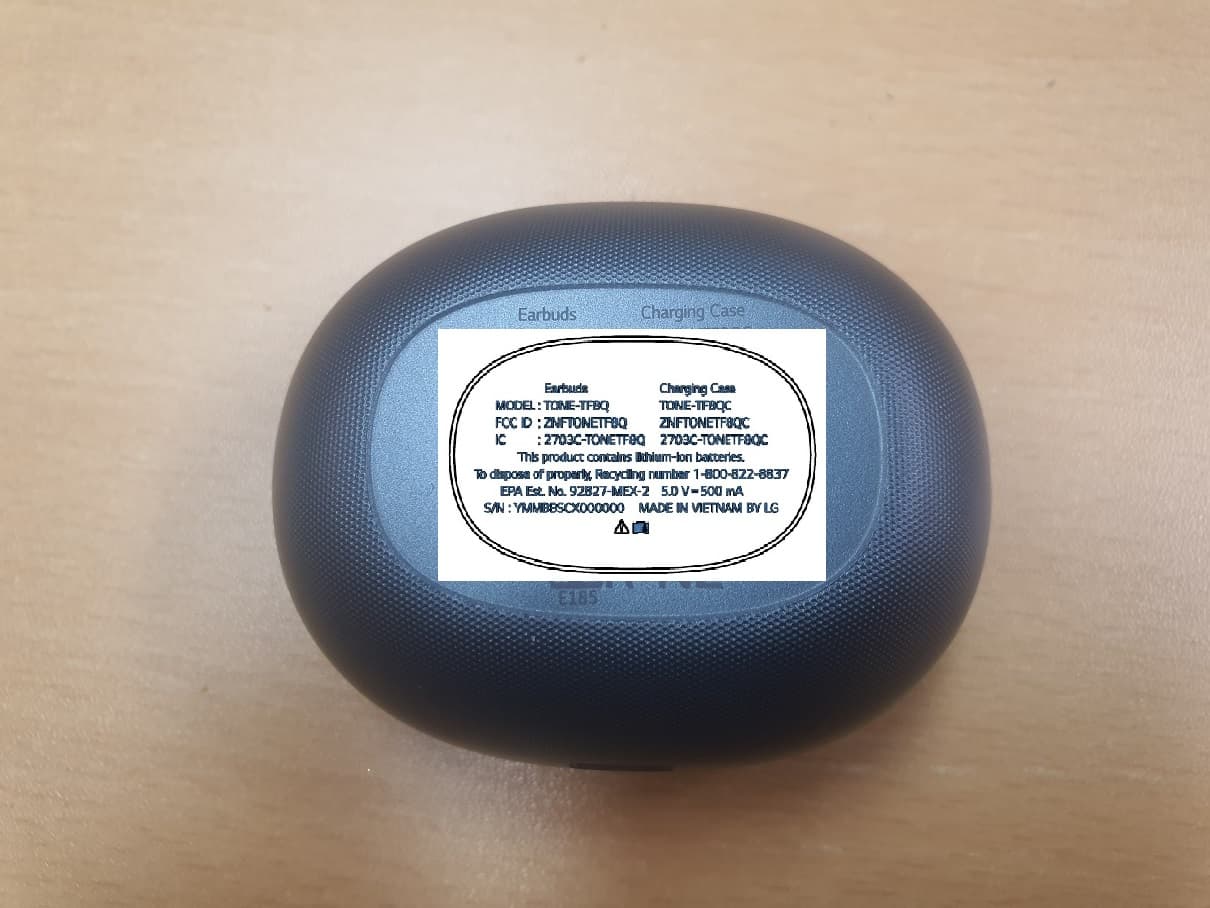
ZNFTONETF8QC
Jun 21, 2022Bluetooth Earbud (Cradle)
Equipment Class
JBP - Part 15 Class B Computing Device Peripheral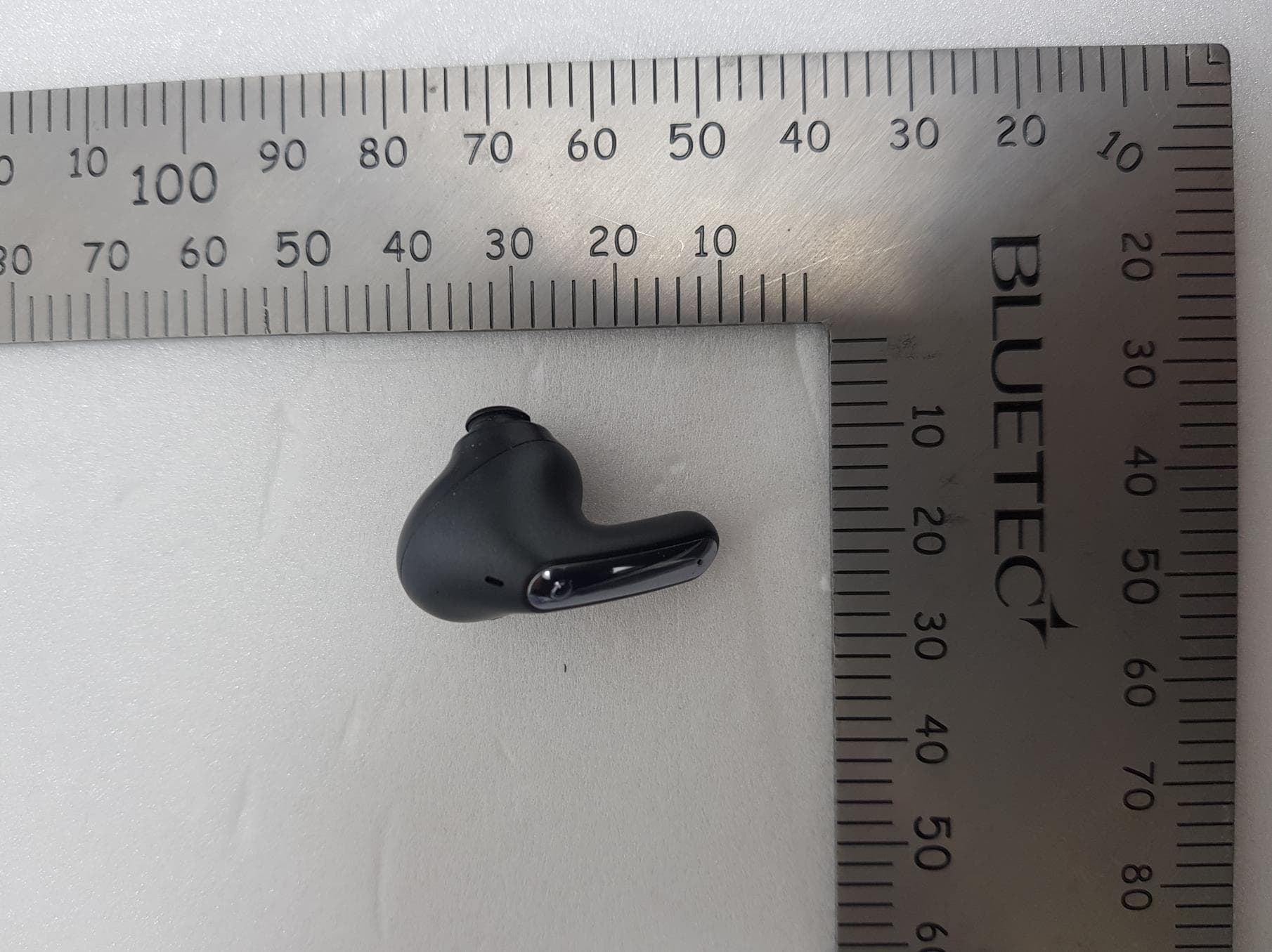
ZNFTONEFP8
May 30, 2021Bluetooth Earbud
Equipment Class
DTS - Digital Transmission System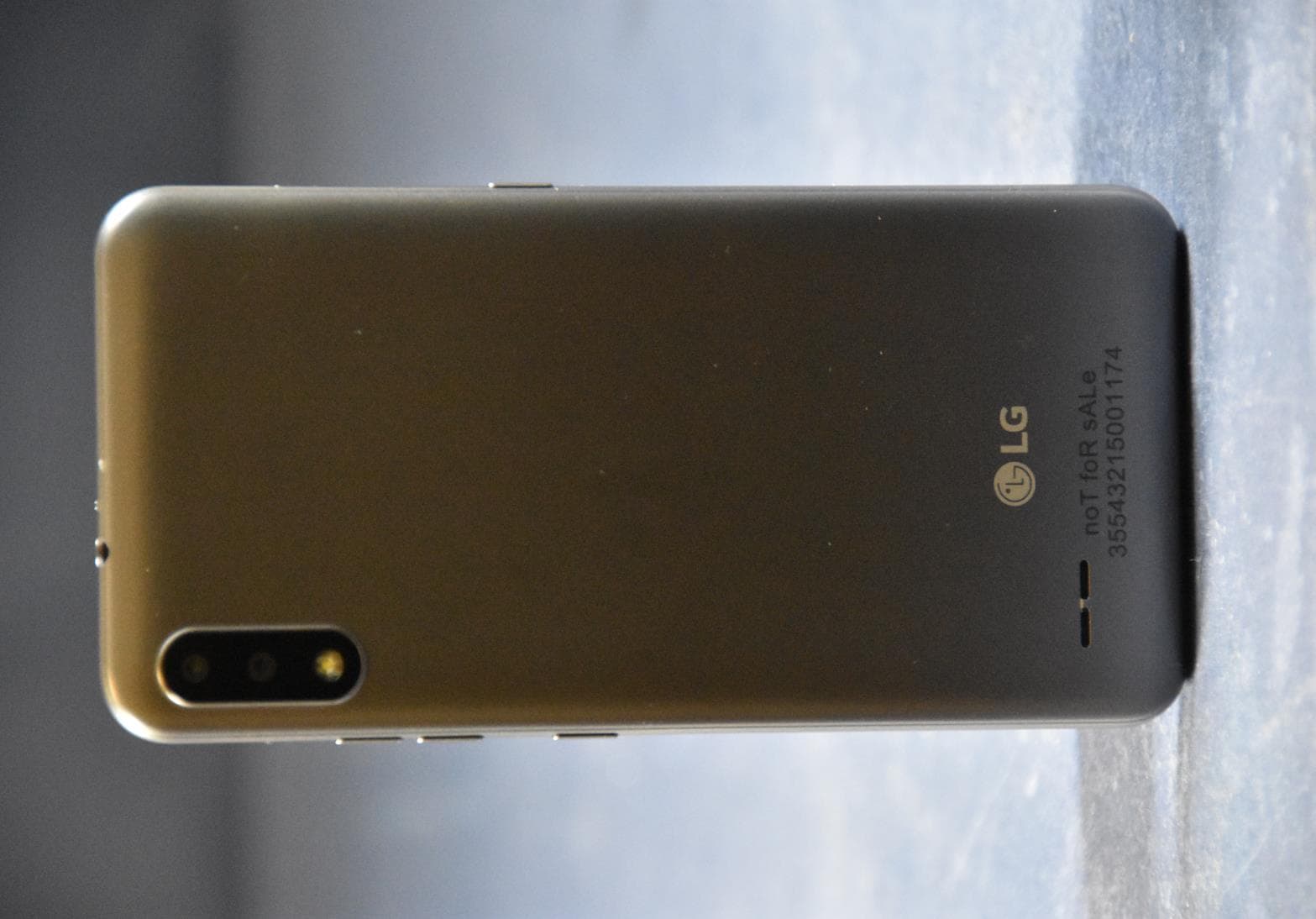
ZNFK200AM
Feb 18, 2021Portable Handset
Equipment Class
DSS - Part 15 Spread Spectrum Transmitter
ZNFK735MM
Feb 10, 2021Portable Handset
Equipment Class
NII - Unlicensed National Information Infrastructure TX