ZNFB460Cellular/PCS GSM/WCDMA Phone with Bluetooth
LG Electronics USA, Inc.
Click to zoom
Application Details
- Equipment Class
- JBP - Part 15 Class B Computing Device Peripheral
- Date of Grant
- Jun 19, 2014
- Application Purpose
- Original Equipment
- Date of Application
- Jun 19, 2014
- Equipment Note
- Cellular/PCS GSM/WCDMA Phone with Bluetooth
- Company
- LG Electronics USA, Inc.
- Country
- United States
Documents & Files
Document Text
Text extracted from the exhibit documents filed with the FCC. Open a document above to read the original.
Users Manual
User Guide LG-B460 MFL68488201 (1.0)www.lg.com Guía del Usuario LG-B460 Printed in China www.lg.com ENGLISH ESPAÑOL ENGLISH • Screen displays and illustrations may differ from those you see on the actual phone. • Some of the contents of this manual may not apply to your phone depending on your phone’s software or your service provider. All information in this document is subject to change without notice. • Copyright ©2014 LG Electronics, Inc. All rights reserved. LG and the LG logo are registered trademarks of LG Group and its related entities. All other trademarks are the property of their respective owners. LG-B460 User Guide 1. WHAT THIS WARRANTY COVERS : LG offers you a limited warranty that the enclosed subscriber unit and its enclosed accessories will be free from defects in material and workmanship, according to the following terms and conditions: 1. The limited warranty for the product extends for TWELVE (12) MONTHS beginning on the date of purchase of the product with valid proof of purchase, or absent valid proof of purchase, FIFTEEN (15) MONTHS from date of manufacture as determined by the unit’s manufacture date code. 2. The limited warranty extends only to the original purchaser of the product and is not assignable or transferable to any subsequent purchaser/end user. 3. This warranty is good only to the original purchaser of the product during the warranty period as long as it is in the U.S, including Alaska, Hawaii, U.S. Territories and Canada. 4. The external housing and cosmetic parts shall be free of defects at the time of shipment and, therefore, shall not be covered under these limited warranty terms. 5. Upon request from LG, the consumer must provide information to reasonably prove the date of purchase. 6. The customer shall bear the cost of shipping the product to the Customer Service Department of LG. LG shall bear the cost of shipping the product back to the consumer after the completion of service under this limited warranty. 2. WHAT THIS WARRANTY DOES NOT COVER : 1. Defects or damages resulting from use of the product in other than its normal and customary manner. 2. Defects or damages from abnormal use, abnormal conditions, improper storage, exposure to moisture or dampness, unauthorized modifications, unauthorized connections, unauthorized repair, misuse, neglect, abuse, accident, alteration, improper installation, or other acts which are not the fault of LG, including damage caused by shipping, blown fuses, spills of food or liquid. 3. Breakage or damage to antennas unless caused directly by defects in material or workmanship. 4. That the Customer Service Department at LG was not notified by consumer of the alleged defect or malfunction of the product during the applicable limited warranty period. 5. Products which have had the serial number removed or made illegible. 6. This limited warranty is in lieu of all other warranties, express or implied either in fact or by operations of law, statutory or otherwise, including, but not limited to any implied warranty of marketability or fitness for a particular use. 7. Damage resulting from use of non-LG approved accessories. 8. All plastic surfaces and all other externally exposed parts that are scratched or damaged due to normal customer use. 9. Products operated outside published maximum ratings. 10. Products used or obtained in a rental program. 11. Consumables (such as fuses). LIMITED WARRANTY STATEMENT 3. WHAT LG WILL DO: LG will, at its sole option, either repair, replace or refund the purchase price of any unit that does not conform to this limited warranty. LG may choose at its option to use functionally equivalent reconditioned, refurbished or new units or parts or any units. In addition, LG will not re-install or back-up any data, applications or software that you have added to your phone. It is therefore recommended that you back-up any such data or information prior to sending the unit to LG to avoid the permanent loss of such information. 4. STATE LAW RIGHTS : No other express warranty is applicable to this product. THE DURATION OF ANY IMPLIED WARRANTIES, INCLUDING THE IMPLIED WARRANTY OF MARKETABILITY, IS LIMITED TO THE DURATION OF THE EXPRESS WARRANTY HEREIN. LG INFOCOMM INC. SHALL NOT BE LIABLE FOR THE LOSS OF THE USE OF THE PRODUCT, INCONVENIENCE, LOSS OR ANY OTHER DAMAGES, DIRECT OR CONSEQUENTIAL, ARISING OUT OF THE USE OF, OR INABILITY TO USE, THIS PRODUCT OR FOR ANY BREACH OF ANY EXPRESS OR IMPLIED WARRANTY, INCLUDING THE IMPLIED WARRANTY OF MARKETABILITY APPLICABLE TO THIS PRODUCT. Some states do not allow the exclusive of limitation of incidental or consequential damages or limitations on how long an implied warranty lasts; so these limitations or exclusions may not apply to you. This warranty gives you specific legal rights and you may also have other rights which vary from state to state. 5. HOW TO GET WARRANTY SERVICE : To obtain warranty service, please call or fax to the following telephone numbers from anywhere in the continental United States: Tel. 1-800-793-8896 or Fax. 1-800-448-4026 Or visit www.lg.com. Correspondence may also be mailed to: LG Electronics MobileComm U.S.A., Inc. 201 James Record Road Huntsville, AL 35824 DO NOT RETURN YOUR PRODUCT TO THE ABOVE ADDRESS. Please call or write for the location of the LG authorized service center nearest you and for the procedures for obtaining warranty claims. 4 Phone Components ..........................7 Rear view ..................................9 Installing the SIM card and battery ............10 Charging your phone ........................11 Before you begin ...........................13 Making a Call ..............................13 Answering a Call ...........................14 Adjusting the Volume ........................14 Entering Text ...............................15 During a Call ...............................17 Making a Second Call . . . . . . . . . . . . . . . . . . . . . . . . . . . . . .17 Swapping Between Two Calls . .…
Text truncated - open the document above for the full version.
Users Manual
16 Key Characters in the Order Displayed Upper CaseLower Case 3 D E F 3d e f 3 4 G H I 4g h i 4 5 J K L 5j k l 5 6 M N O 6m n o 6 7 P Q R S 7p q r s 7 8 T U V 8t u v 8 9 W X Y Z 9w x y z 9 0 Space Key, 0 (Long press) Space Key, 0 (Long press) Using the 123 (Numbers) Mode The 123 Mode enables you to enter numbers in a text message (a telephone number, for example) more quickly. Press the keys corresponding to the required digits before manually switching back to the appropriate text entry mode. 17 During a Call Your phone provides a number of control functions that you can use during a call. To access these functions during a call, press the Left Soft Key Options. Making a Second Call You can select a number you wish to dial from the Contacts to make a second call. 1 Press the Left Soft Key Options, then select Contacts. 2 Highlight the contact, then press the Send Key to make a second call. Swapping Between Two Calls Once the second call has been dialed (or answered), you can switch between the calls by using one of the following three methods: dPress the Send Key . d Press the Left Soft Key Options and then select Swap Calls. dPress the up or down Navigation Keys. Answering an Incoming Call To answer an incoming call when the phone is ringing, simply press the Send Key . The phone is also able to warn you of an incoming call while you are already on a call. A tone sounds in the earpiece and the display will show that a second call is waiting. This feature, known as Call Waiting, is only available if your network supports it. If Call Waiting is turned on, you can put the first call on hold and answer the second call by pressing the Send Key . Rejecting an Incoming Call You can reject an incoming call without answering by simply pressing the End/Power Key . Muting the Microphone You can mute the microphone during a call by pressing the Right Soft Key Mute. The phone can be unmuted by pressing the Right Soft Key Unmute. When the phone is muted, the caller cannot hear you, but you can still hear the caller. In-Call Menu 18 Using the Speakerphone You can use the integrated Speakerphone during a call by pressing the OK Key Spk. On. The loudspeaker is automatically deactivated when you end the call. Warning Due to increased volume levels, do not place the phone near your ear while the speakerphone is enabled. 19 This menu allows you to see the list of recently received calls. To access Recent Calls, from the standby screen, press the Left Soft Key Menu and Recent Calls. You can access the following menus: All Calls, Missed Calls, Dialed Calls, and Received Calls. Recent Calls 20 Contact List This menu allows you to save and manage contact address information. The Contact List allows you to add a new address or search saved contact addresses by name. To access Contact List, from the standby screen, press the Left Soft Key Menu, Contacts and Contact List. New Contact This menu allows you to add a new contact to the Contact List. You can enter contact address information including name, phone numbers, email addresses, group information items, memos, ring tones, and a contact Picture ID. To access New Contact, from the standby screen, press the Left Soft Key Menu, Contacts and New Contact. Groups This menu allows you to manage group information. You can also configure a ring tone for a group so that the group ring tone sounds when a call from a specific contact address within that group is received and there is no ring tone configured for the specific contact address. To access Groups, from the standby screen, press the Left Soft Key Menu, Contacts and Groups. Speed Dial This menu allows you to assign a frequently-called contact to the Speed Dial List. You can select a number from 2 to 9 as a speed dial. To access Speed Dial List, from the standby screen, press the Left Soft Key Menu, Contacts and Speed Dial. Contacts 21 SIM Management This menu allows you to copy information from your SIM card to your phone and vice versa. If a name is duplicated during the copying operation, the information is also duplicated. You can also delete information from the SIM card. To access SIM Management, from the standby screen, press the Left Soft Key Menu, Contacts and SIM Management. Own Number This displays your phone numbers stored in the SIM card. To access Own Number, from the standby screen, press the Left Soft Key Menu, Contacts and Own Number. My Business Card This displays your business card stored in the phone. You can also edit it. To access My Business Card, from the standby screen, press the Left Soft Key Menu, Contacts and My Business Card. 22 This menu includes functions related to SMS (Short Message Service), MMS (Multimedia Message Service), Voicemail as well as the network’s service messages. Create Message 1 From the standby screen, press the Left Soft Key Menu. 2 Select Messages. 3 Press Create Message. OR You can simply press the Message Hot Key from the standby screen. Note If you insert a Picture, Audio, or Video file while writing a multimedia message, the file loading time will take about 5 seconds. You will not be able to activate any key during the file loading time. When the file loading is complete, you will be able to write a multimedia message. Editing a message The following options are available when editing a message. Using Insert While entering text, press the Right Soft Key Insert. The following options are available. dSymbol: You can insert various symbols into your message. Pressing the Left Soft Key and Right Soft Key scrolls through the pages. d Picture: You can select a picture to insert by using the Navigation Keys. You can preview the selected picture by pressing the Right Soft Key View. d Audio: You can insert an audio file from your saved audio files. dVideo: You can insert a video clip from your saved video clips. dTake New Picture: You can take and insert a picture in your message. dRecord New Audio: You can record a new audio clip by pressing the OK Key Record. Pre…
Text truncated - open the document above for the full version.
Users Manual
26 Press the Right Soft Key Forward to send the selected message to another. Message Settings To access and configure your Message Settings, from the standby screen, press the Left Soft Key Menu, Messages, and Message Settings. Message Alert Allows you to set the Sounds, Volume, Alert Type, and Alert Interval. Save To Allows you to choose whether to save to the SIM Card or the Phone. Signature Allows you to create, edit, and delete your signature, which can be configured to be sent out with your outgoing messages. Text Message Allows you to set preferences for text messages. The following options are available: dText Templates: Predefined messages that can quickly be sent. Press the Left Soft Key Options to access the following available options: • Send: Allows you to send the selected template via Message. • Delete: Allows you to delete the selected template message. • Edit: Allows you to edit the selected template message. • Delete All: Deletes all messages in the folder. • Cancel: Returns to Text Message menu. d Msg Center No.: Allows you to view and edit the phone number for the Message Center. Do not edit unless instructed to do so by your service provider. d Insert Signature: Allows you to insert your signature in outgoing messages. Multimedia Message Allows you to set your preferences for multimedia messages. The following options are available: d Multimedia Templates: Allows you to add, edit, and delete multimedia templates. Press the Right Soft Key New to create a new multimedia template. Press the Left Soft Key Options while creating a message to access the following available options: 27 • Text Entry Mode: Sets the text input mode. For more details, refer to Entering Text (page 15). • Text Entry Settings -Text Entry Language: Allows you to set the text entry language to English or Spanish. -T9 Word Candidate List: Displays the word candidates as you type. -T9 Next Word Prediction: Allows the phone to predict the next word when typing in T9 mode. -T9 Dictionary: Allows you to add, delete, reset, and modify words. • Cancel: Allows you to exit the text input mode without saving your message. d Download Options • Download Without Ask: Allows Multimedia Messages to be downloaded automatically. • Ask Always: You are prompted to download when a Multimedia Message is received. • Discard: Enabling this option will block incoming Multimedia Messages from being received. dMessage Center: Allows you to view and edit the phone number for the Message Center. Do not edit unless instructed to do so by your service provider. Voicemail This menu allows you to set the Voicemail Center Number if this feature is supported. Please check with for details of their service in order to configure the phone correctly. 28 Sending an email using your new account To send/receive an email, you should set up an email account. 1 Press the Left Soft Key Menu, select Email and choose the account you want to use. 2 Press the Left Soft Key Menu Options and choose Write Email to write an email. 3 Enter the recipient’s address in the To field. Then use the down Navigation Key to access the Subject and Messages fields. 4 Enter your message using the keypad and press the OK Key Send to send the email. Retrieving your email 1 Press the Left Soft Key Menu, and select Email. 2 Select the account you want to use. 3 Press the Left Soft Key Options and select to connect to your email account and retrieve your new messages. Message folders Open Email, press the Left Soft Key Options, and select Mailbox. The list of folders will be displayed. dWrite Email: Create your new message. dInbox: All the e-mails you receive are placed into your Inbox. From here you can reply, forward and more. dDrafts: If you don’t have time to finish writing a e-mail, you can save what you have written so far in here. dOutbox: This is a temporary storage folder while e-mail are being sent or stores the messages that are failed to sent. dSent: Copies of all the e-mail you send are kept into your Sent folder. dTrash: All the e-mail you remove are placed into your Trash. Changing your email settings 1 Press the Left Soft Key Menu, choose Email > Left Soft Key Options > Mailbox > Options > Settings. 2 Set any of the following options. dAccounts: You can edit e-mail account settings. Email 29 dNotification: Choose whether or not to be alerted to new emails. dDefault Account: Choose which account to compose e-mail by default. dSignature: Create an email signature and switch this feature on. 30 The alarm function allows you to set up multiple separate alarms. You can also set the time, repetition interval, and alarm tone. If there is no alarm setting, press the Left Soft Key New to add a new alarm. To access Alarm Clock, from the standby screen, press the Left Soft Key Menu, Alarm Clock. Edit Alarm dTime: Input your desired alarm time by specifying the hour and minutes. You can also choose a predefined amount of time (15 Minutes Later, 30 Minutes Later, 45 Minutes Later, 1 Hour Later, Off). dRepeat: Select the desired repeat mode (Once, Daily, Mon ~ Fri, Sat ~ Sun, Select Weekday). dAlarm Tone: Press the OK Key List to access the list of available Alarm Tones. dVolume: Press the OK Key List and then set the volume of the alarm by pressing the up and down Volume Keys. Then press the OK Key Set. dType: Select the Ring Alert Type between Ring, Vibrate, Ring & Vibrate and Vibrate after Ring. dMemo: Enter an alarm name. dSnooze Interval: Select the snooze interval between 5 Minutes, 15 Minutes, 30 Minutes, 45 Minutes, 1 Hour and Off. Press the Left Soft Key Save to save your new Alarm. Alarm Clock 31 Browser is one of the services provided by your network operator and it gives you access to all the cool things you can do with your wireless phone. Note Check the availability of services, pricing, and tariffs with your network operator and/or the service provider whose service you wish to use. Service providers will also give you instructions on how to use their …
Text truncated - open the document above for the full version.
Users Manual
41 - 4 Matches: The four most likely matched names will be displayed when finding a name from the address book. • Sensitivity -High: Operation and performance of the voice recognition engine is rarely affected by the user’s voice command and surrounding sound. -Medium: Operation of the voice recognition engine is normally affected by user’s voice command and surrounding sound. -Low: Operation of the voice recognition engine is strongly affected by user’s voice command and surrounding sound. • Spk. On Mode -Automatic On: When this option is selected, the speakerphone is turned on and the sound is loud enough so you can hear the output when the phone is away from the ear, at a distance -Off: When this option is selected, the speakerphone is turned off and the sound is quieter and cannot be heard when the phone is away from the ear, at a distance • Call Alert -Ring Only: The phone rings repeatedly during an incoming call. -Ring After Name: The phone announces the name or number of the incoming call, then rings repeatedly. -Name Repeat: The phone announces an incoming call by repeating the name or number of the caller. Alarm Clock The alarm function allows you to set up multiple separate alarms. You can also set the time, repetition interval, and alarm tone. If there is no alarm setting, press the Left Soft Key New to add a new alarm. To access Alarm Clock, from the standby screen, press the Left Soft Key Menu, Alarm Clock or press the Left Soft Key Menu, Tools, and Alarm Clock. For more details, refer to Alarm Clock on page 30. Games & Apps This menu allows you to download or access the various games. To access the Games, from the standby screen, press the Left Soft Key Menu, Tools and Games & Apps. 42 Notepad You can create up to a maximum of 30 memos. To access Notepad, from the standby screen, press the Left Soft Key Menu, Tools, and Notepad. 1 Press the Left Soft Key New to create a new memo. 2 Input the memo and press the OK Key Save to save. Calculator The Calculator function allows you to calculate simple mathematical equations. To access Calculator, from the standby screen, press the Left Soft Key Menu, Tools, and Calculator. Tasks This feature allows you to save and manage a task. To access Tasks, from the standby screen, press the Left Soft Key Menu, Tools, and Tasks. 1 To add a new task item, press the Left Soft Key New. 2 Input the Due Date, Note, Priority, and Status information for the new Task. 3 Press the Left Soft Key Save to save the Task item. The following options are available in the Task list by pressing the Left Soft Key Options: dMark ‘Complete’: Allows you to change the status of the selected task as Completed. dEdit: Allows you to edit a saved task. dDelete: Deletes the selected task. d Selective Delete: Allows you to delete All Completed/All Past Tasks selectively. dSend Task Via: Enables the selected task to be sent via Text Message, Multimedia Message, Email, or Bluetooth. dSelect Multiple: Allows you to select multiple Tasks. d View Calendar: Allows you to view the Calendar. Stopwatch This menu allows you to record the elapsed time of an event. The duration of an individual lap time (up to 20 laps) and the total time can also be displayed. To access Stopwatch, from the standby screen, press the Left Soft Key Menu, Tools, and Stopwatch. dShow Last: Displays the last time recorded (only available if previous time was not reset). 43 dNew Time 1 To start timing, press the OK Key Start. The running time is displayed as HH.MM.SS.hh (hours, minutes, seconds, hundredths of a second). 2 During the timing, you can record an individual lap time by pressing the Right Soft Key Lap. Up to 20 lap times can be recorded. 3 You can stop or restart timing by pressing the OK Key again. 4 To reset the stop watch, press the Right Soft Key Reset after stopping the time, or to save the stop watch, press the Left Soft Key Options and then select Save. dSaved Times: Allows you to see a list of the saved recorded times. Tip Calculator This feature allows you to quickly and easily calculate the tip amount based on the total bill as well as the split of the total bill based on the number of people. To access Tip Calculator, from the standby screen, press the Left Soft Key Menu, Tools, and Tip Calculator. 1 Enter the Total Bill ($), Tip (%), and Split amounts. 2 The Tip ($) and You Owe ($) amounts will be automatically calculated. Unit Converter This function allows you to convert units of measurement. There are 6 types of units that can be converted: Area, Length, Weight, Temperature, Volume, and Velocity. To access Unit Converter, from the standby screen, press the Left Soft Key Menu, Tools, and Unit Converter. Voice Recorder Allows you to record an audio clip to your phone. The recorded audio file is saved automatically in the Audio menu. To access Record Voice, from the standby screen, press the Left Soft Key Menu, Tools, and Voice Recorder. The following options are available when you press the Left Soft Key Options: dRecord Mode: Sets the recording mode to either MMS Mode or General Mode. dQuality: Allows you to set the quality of an audio clip. You can set it to Fine, Normal, or Economy. When you press the Right Soft Key Gallery, it will take you to the Audio gallery. 44 Audio & Ringtones This menu allows you to configure the audio and ringtone settings for your phone. To access Audio & Ringtones, from the standby screen, press the Left Soft Key Menu, Settings, and Audio & Ringtones. Ringtone dSounds: Allows you to set a sound as the ringtone for your phone. dVolume: Allows you to control your Ringtone volume. dAlert Type: Supports 3 ring alert types: Ring, Ring and Vibration, and Ring after Vibration. Note Full length music tracks cannot be set as either ringtones or message tones. Message Tone dSounds: Allows you to set a sound as your message tone. dVolume: Allows you to control your Message Tone volume. dAlert Type: Supports 4 message alert types: Silent, Vibrate, Ring Only, Ring…
Text truncated - open the document above for the full version.
Users Manual
56 There are a variety of accessories available for your mobile phone, some of which may be sold separately. You can select these options according to your personal communication requirements. Consult your local dealer for availability. Travel Adapter This adapter allows you to charge the battery. Battery Standard battery is available. Note • Always use genuine LG accessories. Failure to do this may invalidate your warranty. • Accessories may be different in different regions; please check with our regional service company or agent for further enquiries. Accessories 57 WARNING! This product contains chemicals known to the State of California to cause cancer and birth defects or reproductive harm. Wash hands after handling . Important Information This user guide contains important information on the use and operation of this phone. Please read all the information carefully for optimal performance and to prevent any damage to or misuse of the phone. Any changes or modifications not expressly approved in this user guide could void your warranty for this equipment. Any changes or modifications not expressly approved by the manufacturer could void the user’s authority to operate the equipment. Before You Start Safety Instructions WARNING! To reduce the possibility of electric shock, do not expose your phone to high humidity areas, such as the bathroom, swimming pool, etc. Always store your phone away from heat. Never store your phone in settings that may expose it to temperatures less than 32°F (0°C) or greater than 113°F (45°C), such as outside during extreme weather conditions or in your car on a hot day. Exposure to excessive cold or heat will result in malfunction, damage and/or catastrophic failure. Be careful when using your phone near other electronic devices. RF emissions from your mobile phone may affect nearby in adequately shielded electronic equipment. You should consult with manufacturers of any personal medical devices such as pacemakers and hearing aides to determine if they are susceptible to interference from your mobile phone. Turn off your phone in a medical facility or at a gas station. Never place your phone in a microwave oven as this will cause the battery to explode. For Your Safety 58 Safety Information Read these simple guidelines. Breaking the rules may be dangerous or illegal. Further detailed information is given in this user guide. dDo not disassemble this unit. Take it to a qualified service technician when repair work is required. dKeep away from electrical appliances such as TVs, radios, and personal computers. dThe unit should be kept away from heat sources such as radiators or cookers. dDo not drop. d Do not subject this unit to mechanical vibration or shock. d The coating of the phone may be damaged if covered with wrap or vinyl wrapper. dUse dry cloth to clean the exterior of the unit. (Do not use solvent such as benzene, thinner or alcohol.) d Do not subject this unit to excessive smoke or dust. dDo not keep the phone next to credit cards or transport tickets; it can affect the information on the magnetic strips. dDo not tap the screen with a sharp object; otherwise, it may damage the phone. dDo not expose the phone to liquid or moisture. dUse the accessories like an earphone cautiously. Do not touch the antenna unnecessarily. Memory card information and care ► The memory card cannot be used for recording copyright- protected data. ► Keep the memory card out of the small children’s reach. ► Do not leave the memory card in extremely hot location. ► Do not disassemble or modify the memory card. FCC RF Exposure Information WARNING! Read this information before operating the phone. In August 1996, the Federal Communications Commission (FCC) of the United States, with its action in Report and Order FCC 96-326, adopted an updated safety standard for human exposure to radio frequency (RF) electromagnetic energy emitted by FCC regulated transmitters. Those guidelines are consistent with the safety standard previously set by both U.S. and international standards bodies. The design of this phone complies with the FCC guidelines and these international standards. 59 CAUTION Use only the supplied and approved antenna. Use of unauthorized antennas or modifications could impair call quality, damage the phone, void your warranty and/ or result in violation of FCC regulations. Do not use the phone with a damaged antenna. If a damaged antenna comes into contact with skin, a minor burn may result. Contact your local dealer for a replacement antenna. Body-worn Operation This device was tested for typical body-worn operations with the back of the phone kept 1.5cm (0.59 inches) between the user’s body and the back of the phone. To comply with FCC RF exposure requirements, a minimum separation distance of 1.5cm (0.59 inches) must be maintained between the user’s body and the back of the phone. Third-party belt-clips, holsters, and similar accessories containing metallic components may not be used. Body-worn accessories that cannot maintain 1.5cm (0.59 inches) separation distance between the user’s body and the back of the phone, and have not been tested for typical body-worn operations may not comply with FCC RF exposure limits and should be avoided. Part 15.19 statement This device complies with part15 of FCC rules. Operation is subject to the following two conditions: (1) This device may not cause harmful interference. (2) This device must accept any interference received, including interference that may cause undesired operation. Part 15.21 statement Changes or modifications that are not expressly approved by the manufacturer could void the user’s authority to operate the equipment. Part 15.105 statement This equipment has been tested and found to comply with the limits for a class B digital device, pursuant to Part 15 of the FCC Rules. These limits are designed to provide reasonable protection against harmful interference in a residential installation. This equipment gener…
Text truncated - open the document above for the full version.
Contact Information
Applicant
David Kim(Team leader, LGEUS NA Policy & Regulatory Affairs)
Technical Contact
PCTEST Engineering Laboratory, Inc.Randy Ortanez
[email protected]410-290-6652
6660-B Dobbin Road · Columbia, Maryland · United States
Test Firm
HCT Co., LTDSang Lee
Technical Specifications
| # | Rule Parts | Frequency Range | Power Output |
|---|---|---|---|
| 1 | 15B | - | - |
Other Applications from LG Electronics USA, Inc.
ZNFTONET80S
Nov 13, 2023Bluetooth Earbuds
Equipment Class
DTS - Digital Transmission System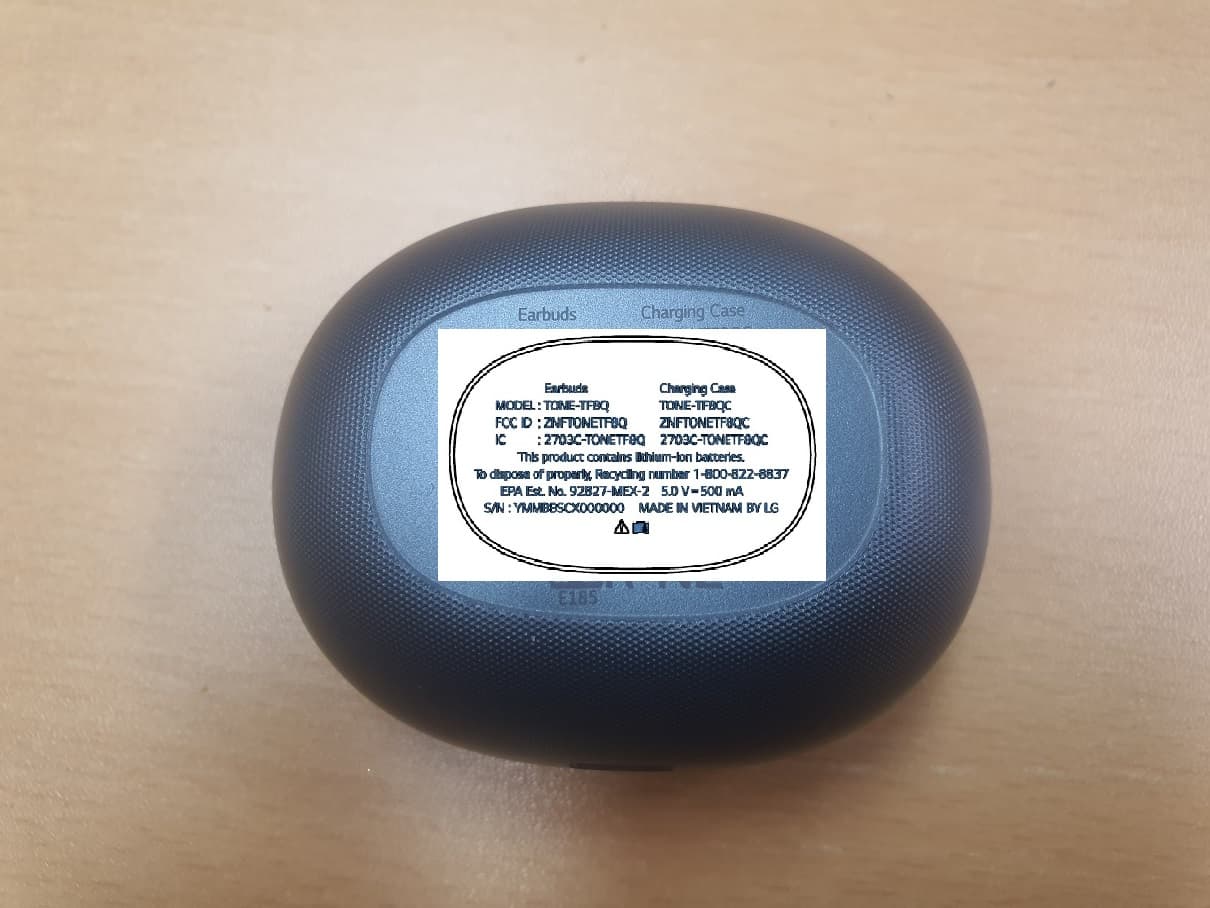
ZNFTONETF8QC
Jun 21, 2022Bluetooth Earbud (Cradle)
Equipment Class
JBP - Part 15 Class B Computing Device Peripheral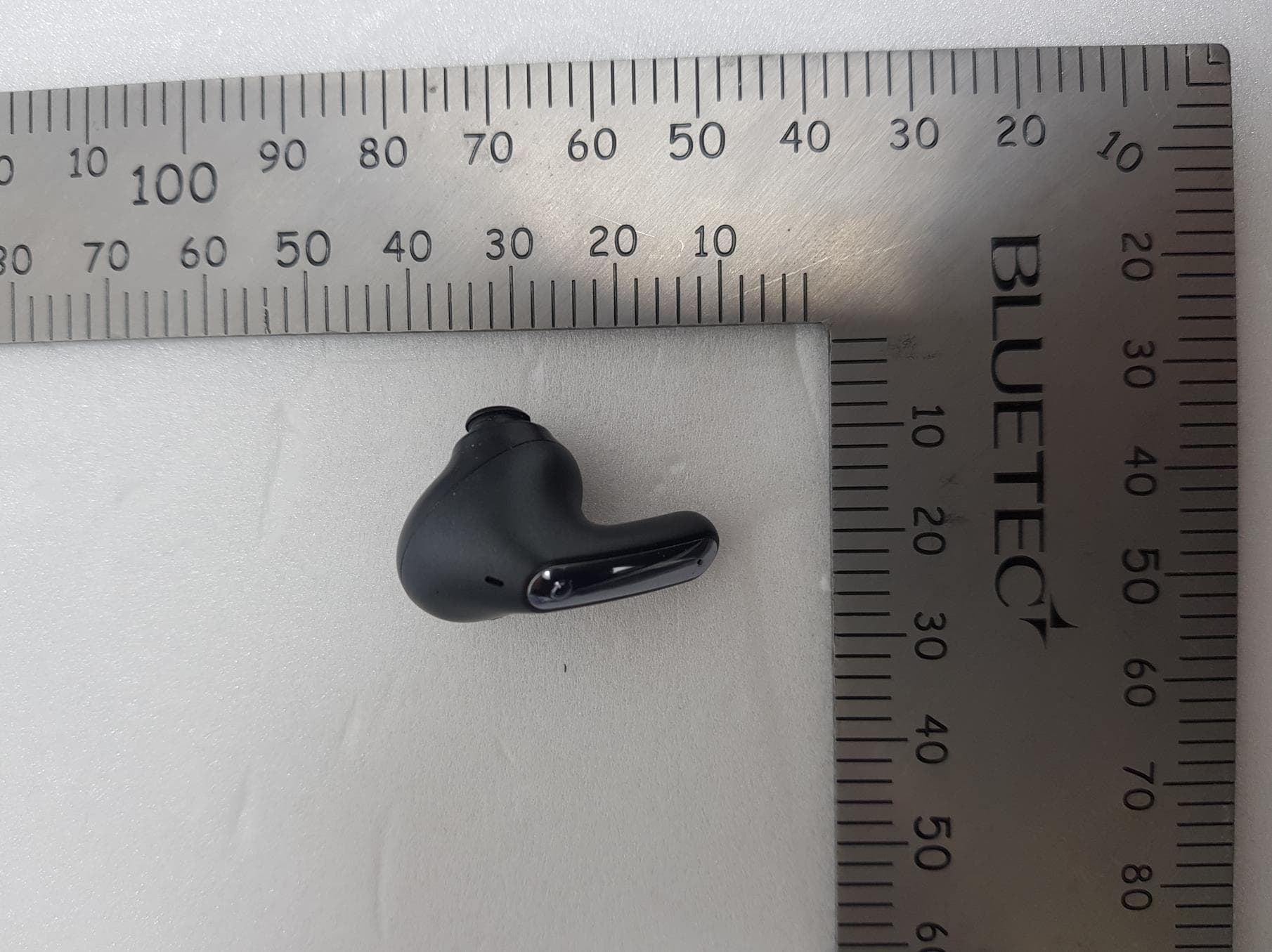
ZNFTONEFP8
May 30, 2021Bluetooth Earbud
Equipment Class
DTS - Digital Transmission System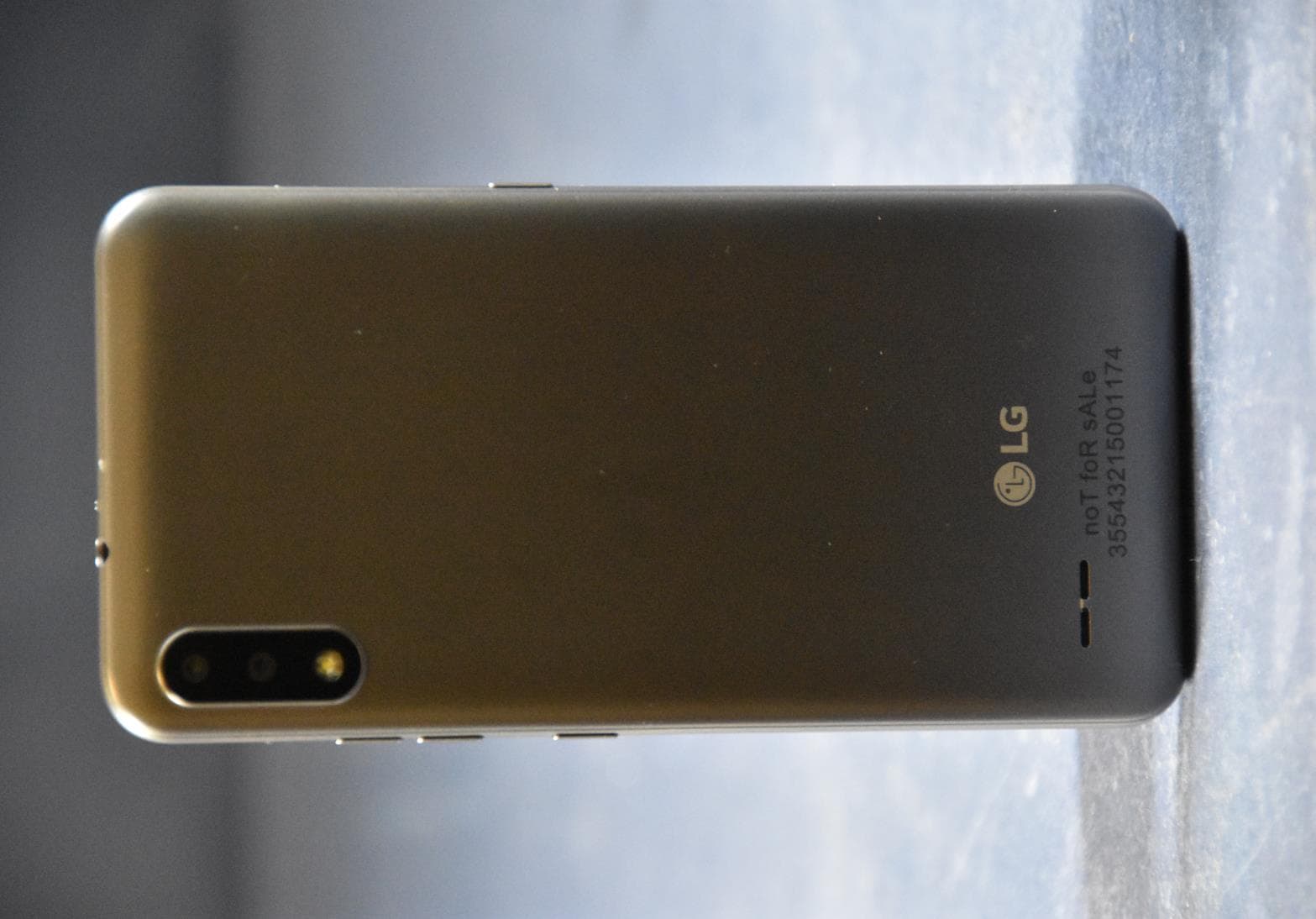
ZNFK200AM
Feb 18, 2021Portable Handset
Equipment Class
DSS - Part 15 Spread Spectrum Transmitter
ZNFK735MM
Feb 10, 2021Portable Handset
Equipment Class
NII - Unlicensed National Information Infrastructure TX