ZNFD160JCellular/PCS GSM/EDGE and PCS WCDMA Phone with WLAN and Bluetooth
LG Electronics USA, Inc.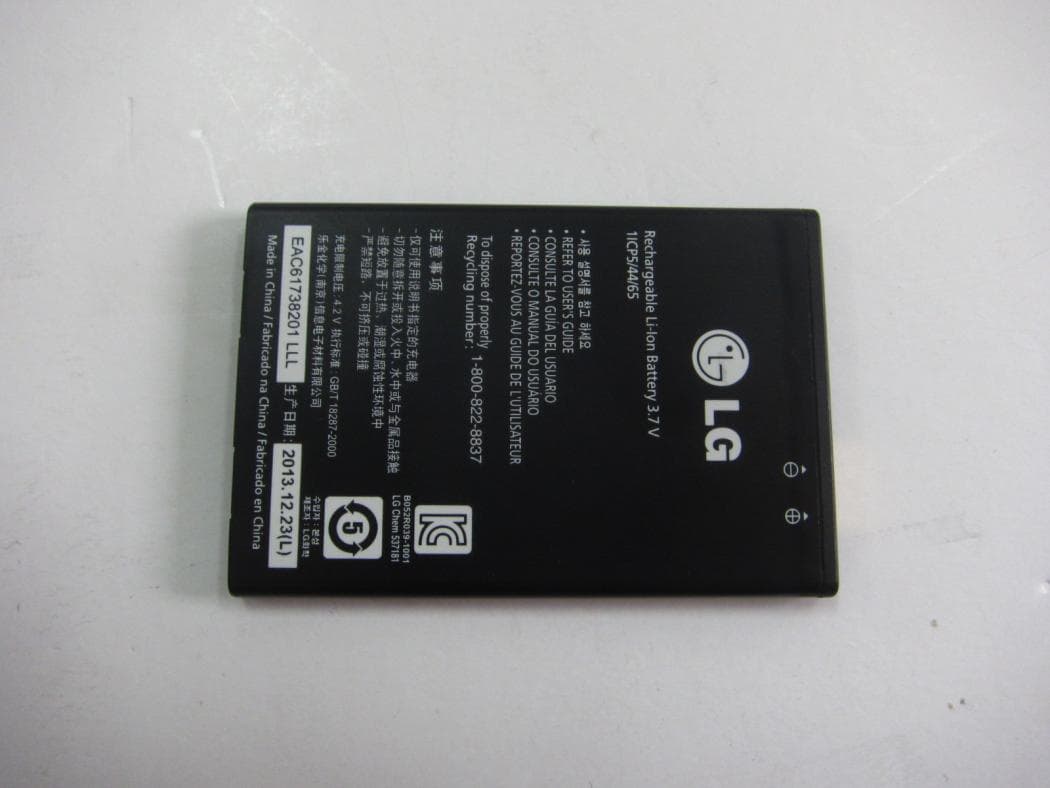
Click to zoom
Application Details
- Equipment Class
- JBP - Part 15 Class B Computing Device Peripheral
- Date of Grant
- Mar 11, 2014
- Application Purpose
- Original Equipment
- Date of Application
- Mar 11, 2014
- Equipment Note
- Cellular/PCS GSM/EDGE and PCS WCDMA Phone with WLAN and Bluetooth
- Company
- LG Electronics USA, Inc.
- Country
- United States
Documents & Files
Document Text
Text extracted from the exhibit documents filed with the FCC. Open a document above to read the original.
Users Manual
00000000 (1.0) www.lg.com ENGLISH User Guide LG-D160j Part 15.21 statement Part 15.105 statement I 31 Your Home screen Touch screen tips Here are some tips on how to navigate on your phone. Tap or touch – A single finger tap selects items, links, shortcuts and letters on the on-screen keyboard. Touch and hold – Touch and hold an item on the screen by tapping it and not lifting your finger until an action occurs. For example, to open a contact's available options, touch and hold the contact in the Contacts list until the context menu opens. Drag – Touch and hold an item for a moment and then, without lifting your finger, move your finger on the screen until you reach the target position. You can drag items on the Home screen to reposition them. Swipe or slide – To swipe or slide, quickly move your finger across the surface of the screen, without pausing when you first tap it (so you don’t drag an item instead). For example, you can slide the screen up or down to scroll through a list, or browse through the different Home screens by swiping from left to right (and vice versa). Double-tap – Double-tap to zoom on a webpage or a map. For example, quickly double-tap a section of a webpage to adjust that section to fit the width of the screen. You can also double-tap to zoom in and out while viewing the picture. Pinch-to-Zoom – Use your index finger and thumb in a pinching or spreading motion to zoom in or out when using the browser or Maps, or when browsing pictures. Rotate the screen – From many applications and menus, the orientation of the screen adjusts to the device's physical orientation. NOTE: • To select an item, tap the center of the icon. • Do not press too hard; the tap screen is sensitive enough to pick up a light, yet firm tap. • Use the tip of your finger to tap the option you want. Be careful not to tap any other keys. 32 Home screen The Home screen is the starting point for many applications and functions, and it allows you to add items like application shortcuts, or Google widgets to give you instant access to information and applications. This is the default canvas and accessible from any menu by tapping . Status Bar Shows phone's status information including the time, signal strength, battery status, and notification icons. Widget Widgets are self-contained applications that can be accessed through the Apps screen or on the Home screen or an extended home screen. Unlike a shortcut, the Widget appears as an on-screen application. Application Icons Tap an icon (application, folder, etc.) to open and use it. Location Indicator Indicates which Home screen canvas you are viewing. Quick Key Area Provides one-touch access to the function in any home screen canvas. Front Touch Keys Extended home screen The operating system provides multiple Home screen canvases to provide more space for adding icons, widgets, and more. Slide your finger left or right across the Home screen. Your Home screen 33 Customizing the Home screen You can customize your Home screen by adding apps, widgets or changing wallpapers. To add items on your Home screen 1 Touch and hold the empty part of the Home screen. 2 In the Add Mode menu, select the item you wish to add. You will then see this added item on the Home screen. 3 Drag it to the desired location and lift your fi nger. TIP! To add an application icon to the Home screen from the Apps menu, touch and hold the application you want to add. To remove an item from the Home screen Home screen > touch and hold the icon you want to remove > drag it to . To add an app as a Quick key From the Apps menu or on the Home screen, touch and hold an application icon and drag it to the Quick key area. Up to 7 apps can be added. To remove an app from the Quick key area Touch and hold the desired quick key and drag it to . NOTE: Apps key cannot be removed. To customize apps icons on the Home screen 1 Touch and hold an application icon until it is unlocked from its current position. Then drop it on the screen. The editing icon will appear in the upper right corner of the application. 2 Tap the application icon again and select the desired icon design and size. 3 Ta p OK to save the change. 34 Returning to recently-used applications 1 Touch and hold . The screen displays a pop-up containing the icons of applications you used recently. 2 Tap an icon to open the application. Or tap to return to your previous screen. Notifications panel Notifications alert you the arrival of new messages, calendar events, and alarms, as well as to ongoing events, such as when you are on a call. When a notification arrives, its icon appears at the top of the screen. Icons for pending notifications appear on the left, and system icons such as Wi-Fi or battery strength shown on the right. NOTE: The available options may vary depending on the region or service provider. Pending notifications Bluetooth, Wi-Fi & battery status Your Home screen 35 Opening the notifications panel Swipe down from the status bar to open the notifications panel. Quick Toggle Area Tap each quick toggle key to turn it on/off. Touch and hold the key to access the settings menu of the function. To see more toggle keys, swipe left or right. Ta p to remove, add, or rearrange toggle keys. QSlide Apps Tap a QSlide app to open as a small window on your screen. Tap to remove, add, or rearrange QSlide apps. Tap to clear all the notifications. Notifications The current notifications are listed, each with a brief description. Tap a notification to view it. To close the notifications panel, touch and drag the tab toward the top of the screen. Indicator icons on the Status Bar Indicator icons appear on the status bar at the top of the screen to report missed calls, new messages, calendar events, device status and more. 36 The icons displayed at the top of the screen provide information about the status of the device. The icons listed in the table below are some of the most common ones. IconDescriptionIconDescription No SIM card…
Text truncated - open the document above for the full version.
Users Manual
77 • File transfer (mobile phone to PC): sends files from your mobile phone (e.g. photos, videos, music and Polaris Office files) to your PC. Simply right-click on the file which you want to send to PC and click on "Save to PC". • File transfer (PC to mobile phone): sends files from your PC to your mobile phone. Just select the files you wish to transfer and drag and drop them into the On-Screen Phone window. The files sent are stored in internal SD card. • Real-time event notifications: prompts a pop-up to inform you of any incoming calls or text/multimedia messages. How to install On-Screen Phone on your PC 1 Visit LG Home (www.lg.com) and select a country of your choice. 2 Go to Support > Mobile Phone Support > Select the Model (LG-D160j) > Click OSP ( On-Screen Phone ) to download. You can install the On-Screen Phone on your PC. 78 Gallery Open the Gallery application to view albums of your pictures and videos. 1 Ta p > > Apps tab > Gallery. You can manage and share all your image and video fi les with Gallery. NOTE: • Some file formats are not supported, depending on the software installed on the device. • Some files may not play properly, depending on how they are encoded. Viewing pictures Launching Gallery displays your available folders. When another application, such as Email, saves a picture, the download folder is automatically created to contain the picture. Likewise, capturing a screenshot automatically creates the Screenshots folder. Select a folder to open it. Pictures are displayed by creation date in a folder. Select a picture to view it full screen. Scroll left or right to view the next or previous image. Zooming in and out Use one of the following methods to zoom in on an image: • Double-tap anywhere to zoom in. • Spread two fingers apart on any place to zoom in. Pinch to zoom out, or double-tap to return. Multimedia 79 Playing videos Video files show the icon in the preview. Select a video to watch it and tap . The Videos application will launch. Editing photos When viewing an photo, tap the Menu key > Edit. Deleting photos/videos Use one of the following methods: • In a folder, tap and select photos/videos by ticking, and then tap on Delete. • When viewing a photo/Video, tap . Setting as wallpaper When viewing a photo, tap the Menu key > Set image as to set the image as wallpaper or assign to a contact. NOTE: • Some file formats are not supported, depending on the device software. • If the file size exceeds the available memory, an error can occur when you open files. Videos Your phone has a built-in video player that lets you play all of your favorite videos. To access the video player, tap > > Apps tab > Videos. 80 Multimedia Playing a video 1 Ta p > > Apps tab > Videos. 2 Select the video you want to play. Tap the desired direction for audio zoom. Tap to use Zoom to Track feature. Tap to enter into Qslide mode. Tap to share your video via the SmartShare function. Tap to lock a video screen. Tap to view the video list. Tap to capture the screen shot. Tap to pause video playback. Tap to resume video playback. Tap to go 10 seconds forward. Tap to go 10 seconds backward. Tap to manage the video volume. Tap to change the ratio of the video screen. To change the volume while watching a video, press the up and down volume keys on the rear side of the phone. Touch and hold a video in the list. The Share, Delete, Trim and Details options will be displayed. 81 Video Editor You can edit the photos or videos stored on the phone. Ta p > > Apps tab > Video Editor. NOTE: Video Editing function is supported only for photos or videos which recorded with this phone. < Project list screen > Buttons Area Project Title Tap here to edit the title. Project List Area Tap a project to edit it. Create a new project. Share the video project with other applications, such as YouTube. Export the finished project to play in other applications. Delete the video project. View the help information. 82 Multimedia < Project edit screen > Timeline area Viewer area Tap to view the Project list screen. Tap to play the current clip. Tap to remove the last the selected clip. Tap to add additional video clips. Tap to choose to video style. Tap to add text in video clip. Tap to split video clip. Music Your phone has a built-in music player that lets you play all your favorite tracks. To access the music player, tap > > Apps tab > Music. Add music files to your phone Start by transferring music files to your phone: • Transfer music using Media sync (MTP). • Download from the wireless Web. 83 • Synchronize your phone to a computer. • Receive files via Bluetooth. Transfer music using Media sync (MTP) 1 Connect the phone to your PC using the USB cable. 2 Select the Media sync (MTP) option. Your phone will appear as another hard drive on your computer. Click on the drive to view it. Copy the fi les from your PC to the drive folder. 3 When you’re fi nished transferring fi les, swipe down on the Status Bar and tap USB connected > Charge phone. You may now safely unplug your device. Playing a song 1 Ta p > > Apps tab > Music. 2 Ta p Songs. 3 Select the song you want to play. Tap to pause playback. Tap to resume playback. Tap to skip to the next track in the album, playlist, or shuffle. Touch and hold to fast forward. Tap to restart the current track or skip to the previous track in the album, playlist, or shuffle. Touch and hold to rewind. Tap to display the Volume slider bar, then adjust the playback volume on the slider bar. Tap to set audio effects. Tap to find the files with YouTube. Tap to open the current playlist. 84 Multimedia Tap to add the song to your favourites. Tap to play the current playlist in shuffle mode (tracks are played in random order). Tap to toggle through the repeat modes to repeat all songs, repeat current song, or repeat off. Tap to share your music via the SmartShare funtion. To change the volume while listening to music, press the up and down volume keys on the back side of the phone…
Text truncated - open the document above for the full version.
Cover Letter(s)
LG Electronics USA 1000 Sylvan Avenue Englewood Cliffs, NJ 07632 Date: February 28, 2014 Federal Communications Commission Authorization and Evaluation Division 7435 Oakland Mills Road, Columbia, MD 21046 RE: Request of Confidentiality for FCC ID: ZNFD160J Equipment Class: JBP: P art 15 Class B Computing Device Peripheral To Whom It May Concer n: Pursuant to Sections 0.4 57 and 0.459 of the Commission’s Rules (CFR 4 7), and Section 55 2 (b) (4) of the Freedom of In formation Act, LG Electronics MobileComm USA her eby requests confidentiality and treatment of certain information accompanying this application. The materials contain trade secrets and proprietary information no t customarily released to the public. The public disclosure of thes e matters might be harmful to the Applicant and provide unjustified benefits to its competitors. We are also hereby request Short-Term Confidentiality for 180 days after the grant as outlined in Public Notice DA 04-1705. This provision will give LG Electronics MobileComm USA temporary confidentiality of commercially sensitive information prior to product release. The requested Permanent and Temporary Confidential exhibits are listed as follows: PERMANENT AND SHORT-TERM CONFIDENTIAL LIST Exhibit Description 1 Block Diagram PERMANENT 2 Operational Descriptions 3 External Photos 4 Internal Photos 5 Test-Setup Photos SHORT-TERM 6 User’s Manual The Applicant understands that pursuant to Rule 0.457, disclosure of this application and all accompanying documentations, where applicable, will not be made public before the date of the Grant for this application. Sincerely, Jacob Cho Director On behalf of LG Electronics MobileComm U.S.A, Inc. LG Electronics MobileComm U.S.A 1000 Sylvan Avenue Englewood Cliffs, NJ 07632
External Photos
FCCID: ZNFD160J Copyright Ⓒ 2014, Digital EMC Co., Ltd. View 1 FCCID: ZNFD160J Copyright Ⓒ 2014, Digital EMC Co., Ltd. View 2 FCCID: ZNFD160J Copyright Ⓒ 2014, Digital EMC Co., Ltd. View 3 FCCID: ZNFD160J Copyright Ⓒ 2014, Digital EMC Co., Ltd. View 4
ID Label/Location Info
※ FCC ID Label Form Note: The FCC ID shown will be readily visible at the time of purchase. Note! The label of the EUT is made of a white polypropylene laminate film and it's attached to the EUT by an adhesive. The adhesive is permanent type with strong strength. Additionally, the FCC ID is readily visible to the purchaser at the time of purchase because the phone will be marketed without the battery installed. Model No : LG-D160j FCC ID : ZNFD160J S/N : Made in Korea
Internal Photos
FCCID: ZNFD160J Copyright Ⓒ 2014, Digital EMC Co., Ltd. View 1 FCCID: ZNFD160J Copyright Ⓒ 2014, Digital EMC Co., Ltd. View 2 FCCID: ZNFD160J Copyright Ⓒ 2014, Digital EMC Co., Ltd. View 3 FCCID: ZNFD160J Copyright Ⓒ 2014, Digital EMC Co., Ltd. View 4 FCCID: ZNFD160J Copyright Ⓒ 2014, Digital EMC Co., Ltd. View 5 <WIFI> <GSM Antenna>
Test Report
TRF-EM-003(00)081218 Copyright ○ c 2014, DIGITAL EMC CO., LTD. Page 2 of 20 FCC ID: ZNFD160J Report No.: DREFCC1402-0053 To t a l 2 0 pages CONTENTS 1. General Remarks ........................................................................................................................ 3 2. Test Laboratory ........................................................................................................................... 3 3. General Information of EUT ....................................................................................................... 4 4. Test Summary ............................................................................................................................. 5 4.1 Applied standards and test results ........................................................................................... 5 4.2 Test environment and conditions ............................................................................................. 5 4.3 Test result Summary ................................................................................................................ 5 5. Test Set-up and operation mode ............................................................................................... 6 5.1 Principle of Configuration Selection ......................................................................................... 6 5.2 Test Operation Mode ............................................................................................................... 6 5.3 Support Equipment Used ......................................................................................................... 6 6. Test Results : Emission .............................................................................................................. 7 6.1 Conducted Disturbance ........................................................................................................... 7 6.2 Radiated Disturbance ............................................................................................................ 10 Appendix 1 ..................................................................................................................................... 18 List of Test and Measurement Instruments ............................................................................. 18 Appendix 2 ..................................................................................................................................... 20 Report Revision History ............................................................................................................ 20 TRF-EM-003(00)081218 Copyright ○ c 2014, DIGITAL EMC CO., LTD. Page 3 of 20 FCC ID: ZNFD160J Report No.: DREFCC1402-0053 To t a l 2 0 pages 1. General Remarks This report contains the result of tests performed by: DIGITAL EMC CO., LTD. Address : 42, Yurim-ro, 154beon-gil, Cheoin-gu, Yongin-si, Gyeonggi-do, Korea 449-935 http://www.digitalemc.com Tel: +82-31-321-2664 Fax: +82-31-321-1664 2. Test Laboratory Digital EMC Co., Ltd. has been accredited / filed / authorized by the agencies listed in the following table; Certificate Nation Agency Code Mark Accreditation Korea KOLAS 393 ISO/IEC 17025 Site Filing USA FCC 101842 678747 596748 Test Facility list & NSA Data Canada IC 5740A-1 5740A-2 Test Facility list & NSA Data Japan VCCI C-1427 R-1364, R-3385, R-4076, T-1442, G-338, G754 Test Facility list & NSA Data Certification Korea KC KR0034 Test Facility list & NSA Data Germany TUV CARAT 13 11 86721 001 ISO/IEC 17025 Quality control in the testing laboratory is implemented as per ISO/IEC 17025 which is the “General requirements for the competent of calibration and testing laboratory”. TRF-EM-003(00)081218 Copyright ○ c 2014, DIGITAL EMC CO., LTD. Page 4 of 20 FCC ID: ZNFD160J Report No.: DREFCC1402-0053 To t a l 2 0 pages 3. General Information of EUT Model No. LG-D160j Serial No NONE FCC ID ZNFD160J Supplied Power for Test AC 120 V, 60 Hz Clock Frequency 1.2 GHz Applicant LG Electronics MobileComm U.S.A., Inc. 1000 Sylvan Avenue, Englewood Cliffs NJ 07632 Manufacturer LG Electronics MobileComm U.S.A., Inc. 1000 Sylvan Avenue, Englewood Cliffs NJ 07632 Related Submittal(s) / Grant(s) Original submittal only. TRF-EM-003(00)081218 Copyright ○ c 2014, DIGITAL EMC CO., LTD. Page 5 of 20 FCC ID: ZNFD160J Report No.: DREFCC1402-0053 To t a l 2 0 pages 4. Test Summary 4.1 Applied standards and test results Test Items Applied Standards Results Conducted Disturbance ANSI C63.4:2009 C Radiated Disturbance ANSI C63.4:2009 C C=Comply N/C=Not Comply N/T=Not Tested N/A=Not Applicable The data in this test report are traceable to the national or international standards. 4.2 Test environment and conditions Test Items Test date (YYYY-MM-DD) Temp ()°C Humidity (% R.H.) Conducted Disturbance 2014-02-19 21 34 Radiated Disturbance 2014-02-19 2014-02-19 22 24 34 36 4.3 Test result Summary (1) Conducted Emission Frequency [MHz] Phase Result [dBμV] Detector Limit [dBμV] Margin [dB] 3.62680 L1 37.4 Average-Peak 46.0 8.6 (2) Radiated Emission Frequency [MHz] Pol. Result [dB(μV/m)] Detector Limit [dB(μV/m)] Margin [dB] 271.608 H 37.8 Quasi-Peak 46.0 8.2 TRF-EM-003(00)081218 Copyright ○ c 2014, DIGITAL EMC CO., LTD. Page 6 of 20 FCC ID: ZNFD160J Report No.: DREFCC1402-0053 To t a l 2 0 pages 5. Test Set-up and operation mode 5.1 Principle of Configuration Selection Emission : The equipment under test (EUT) was configured to measure its highest possible radiation level. The test modes were adapted accordingly in reference to the instructions for use. 5.2 Test Operation Mode - PC link mode (The measurement was made of the maximized by: data exchange speed; moving the cable) 5.3 Support Equipment Used Unit Model No. Serial No. Manufacturer CABLE BackshellFCC ID Connect type Length (m) shield PC DC8M D8FQFBX DELL POWER DVI USB USB USB USB STEREO PARALLEL ETHERNET 1.8 2.0 1.7 1.6 1.2 1.0 2.0 2.1 20.0 Non-Shield Shield Shield Shield Shield Shield Non-S…
Text truncated - open the document above for the full version.
Test Setup Photos
FCC ID: ZNFD160J Copyright © 2014, DIGITAL EMC Co., Ltd. Conducted Emission FCC ID: ZNFD160J Copyright © 2014, DIGITAL EMC Co., Ltd. Radiated Emission < 30 MHz ~ 1 GHz > FCC ID: ZNFD160J Copyright © 2014, DIGITAL EMC Co., Ltd. Radiated Emission < (1 ~ 6) GHz >
Contact Information
Applicant
David Kim(Team leader, LGEUS NA Policy & Regulatory Affairs)
Technical Contact
PCTEST Engineering Laboratory, Inc.Randy Ortanez
[email protected]410-290-6652
6660-B Dobbin Road · Columbia, Maryland · United States
Test Firm
DT&C Co.,Changho Lee
Technical Specifications
| # | Rule Parts | Frequency Range | Power Output |
|---|---|---|---|
| 1 | 15B | - | - |
Other Applications from LG Electronics USA, Inc.

ZNFTONET80S
Nov 13, 2023Bluetooth Earbuds
Equipment Class
DTS - Digital Transmission System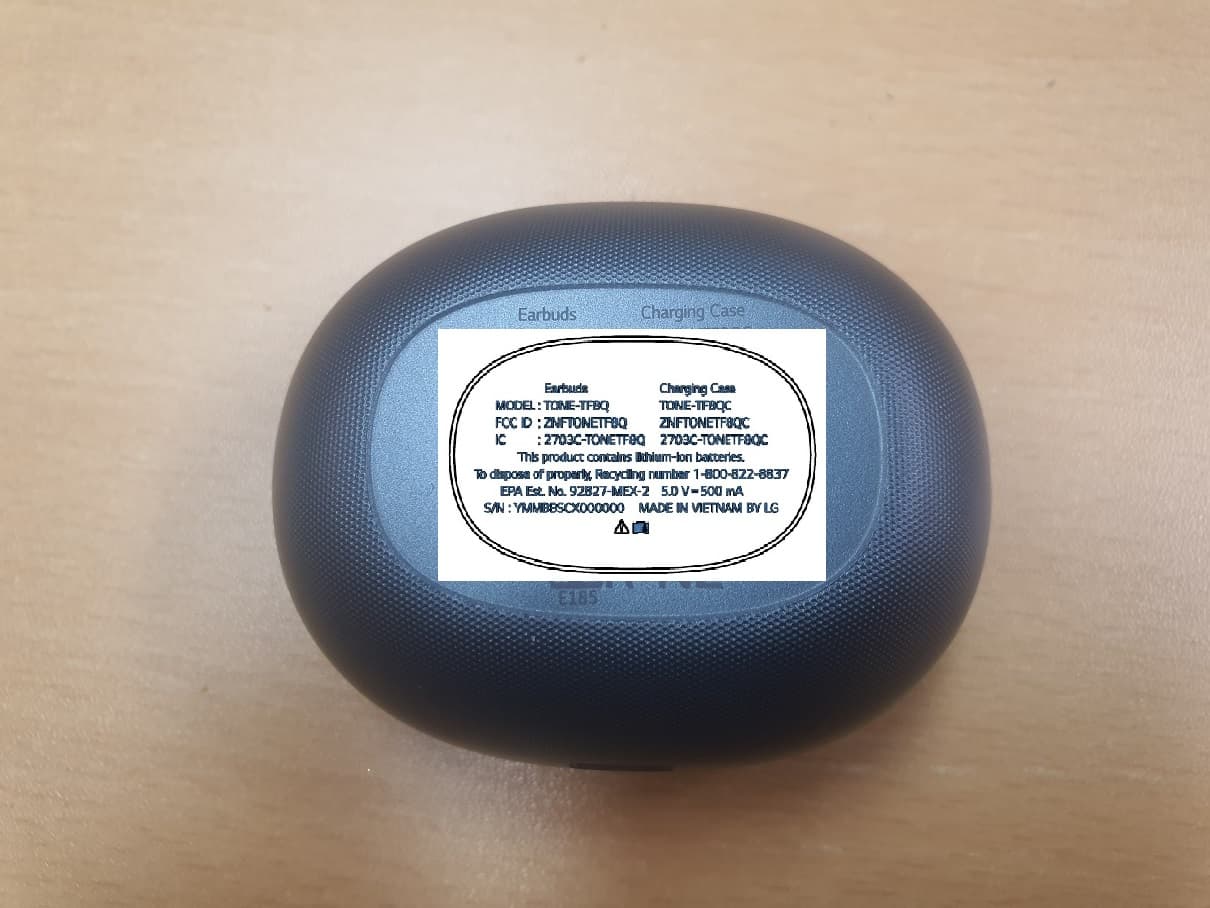
ZNFTONETF8QC
Jun 21, 2022Bluetooth Earbud (Cradle)
Equipment Class
JBP - Part 15 Class B Computing Device Peripheral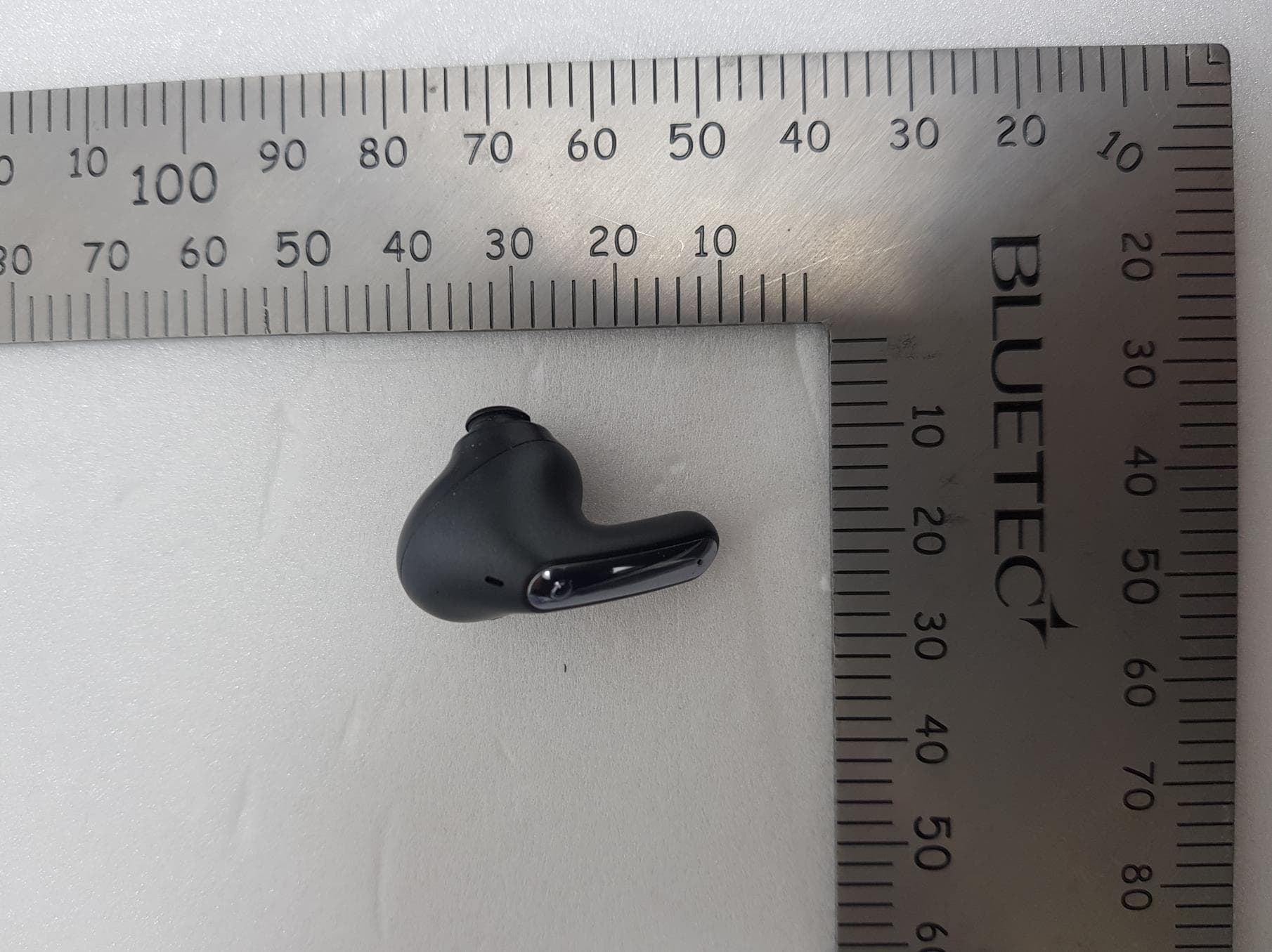
ZNFTONEFP8
May 30, 2021Bluetooth Earbud
Equipment Class
DTS - Digital Transmission System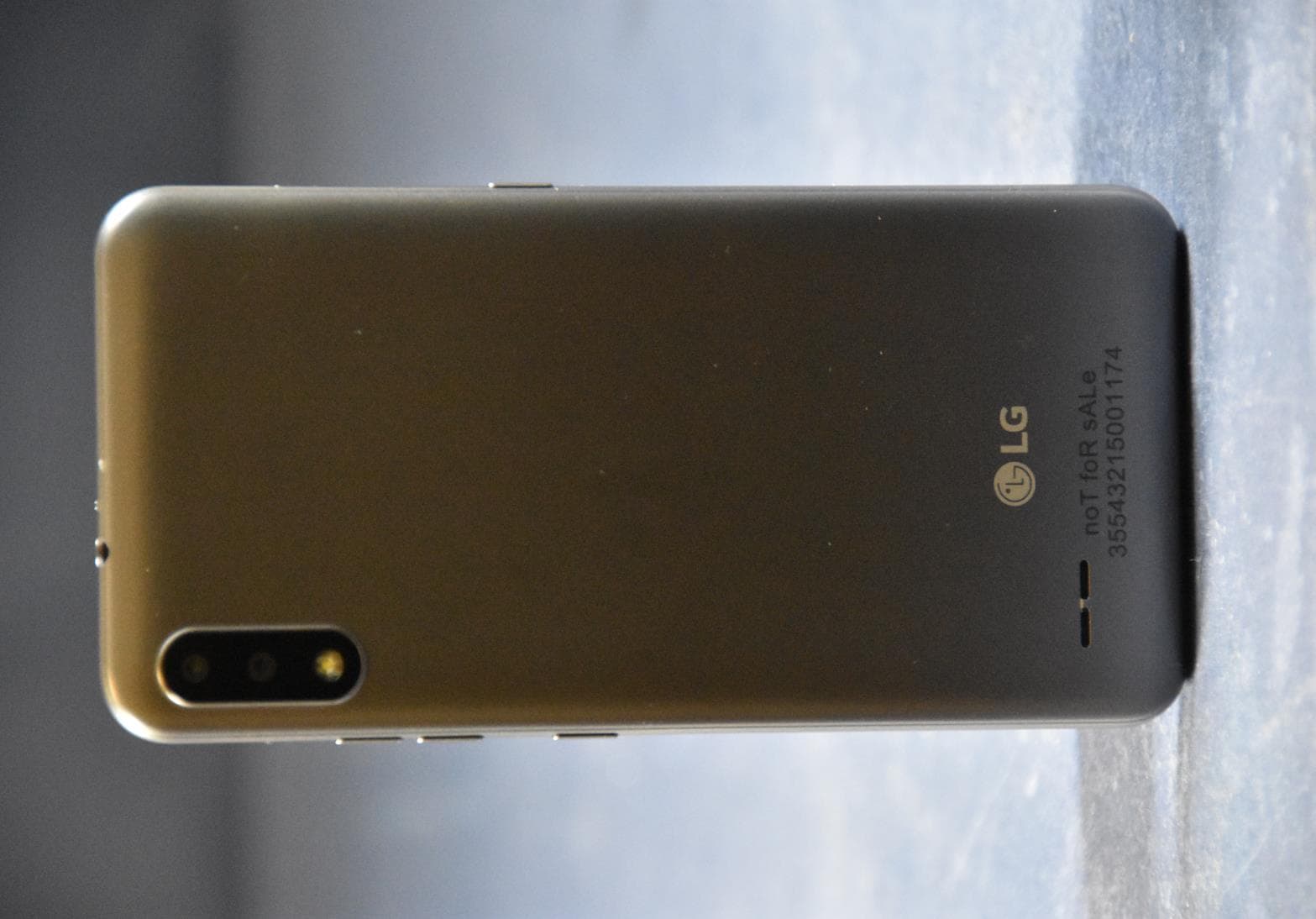
ZNFK200AM
Feb 18, 2021Portable Handset
Equipment Class
DSS - Part 15 Spread Spectrum Transmitter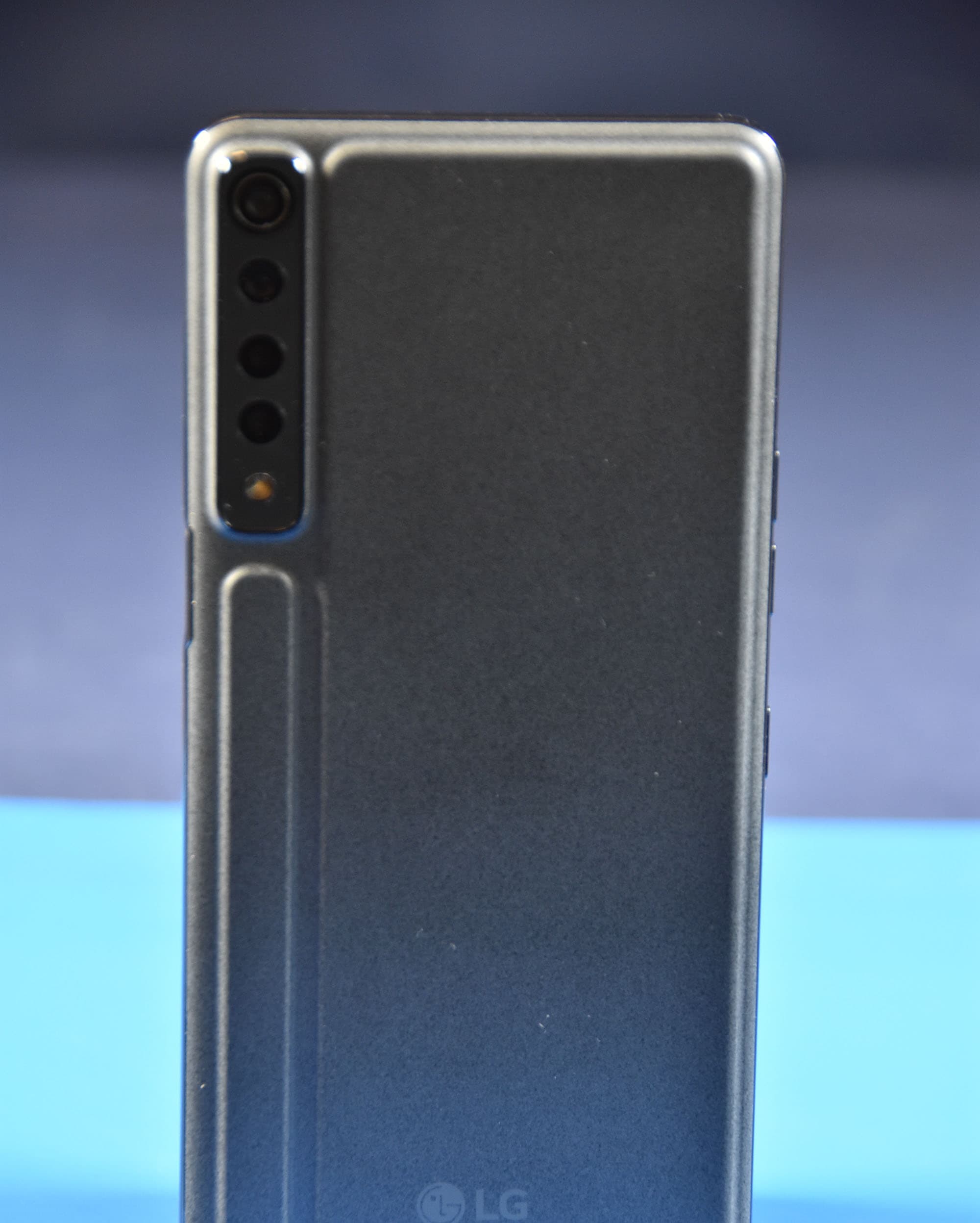
ZNFK735MM
Feb 10, 2021Portable Handset
Equipment Class
NII - Unlicensed National Information Infrastructure TX