ZNFD855Mutli-band GSM/EDGE/WCDMA/LTE Phone with WLAN, Bluetooth and RFID
LG Electronics USA, Inc.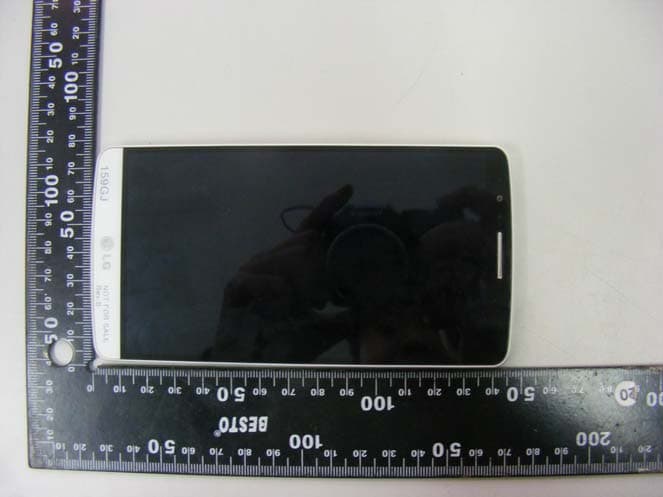
Click to zoom
Application Details
- Equipment Class
- JBP - Part 15 Class B Computing Device Peripheral
- Date of Grant
- May 29, 2014
- Application Purpose
- Original Equipment
- Date of Application
- May 29, 2014
- Equipment Note
- Mutli-band GSM/EDGE/WCDMA/LTE Phone with WLAN, Bluetooth and RFID
- Company
- LG Electronics USA, Inc.
- Country
- United States
Documents & Files
Document Text
Text extracted from the exhibit documents filed with the FCC. Open a document above to read the original.
Users Manual
User Guide LG-D855 MFL00000000 (1.0) www.lg.com ENGLISH 2 Table of contents Guidelines for safe and efficient use .......5 Important notice .....................................14 Getting to know your phone ...................20 Phone overview .....................................20 Installing the micro-USIM card ...............22 Charging your phone .............................23 Locking and unlocking the screen ..........24 KnockON .............................................24 Stereo headset with microphone............25 Plug & Pop .............................................26 Your Home screen ...................................27 Touch screen tips ..................................27 Home screen .........................................28 Extended home screen .......................28 Customizing the Home screen ..............29 Returning to recently-used applications .30 Notifications panel .................................30 Opening the notifications panel .............31 Indicator icons on the Status Bar ..........31 On-screen keyboard ..............................33 Entering accented letters ......................33 Google account setup .............................34 Connecting to Networks and Devices ....35 Wi-Fi .....................................................35 Connecting to Wi-Fi networks ...............35 Turning Wi-Fi on and connecting to a Wi-Fi network ...............................................35 Bluetooth ...............................................36 Sharing your phone's data connection ...37 Wi-Fi Direct ...........................................39 Using SmartShare ..................................39 PC connections with a USB cable ...........41 Calls ........................................................42 Making a call .........................................42 Calling your contacts .............................42 Answering and rejecting a call ...............42 Adjusting the in-call volume ...................43 Making a second call .............................43 Viewing your call logs ............................43 Call settings ...........................................44 Contacts ..................................................45 Searching for a contact ..........................45 Adding a new contact ............................45 Favourites contacts ................................45 Creating a group ....................................46 Messaging ...............................................47 Sending a message ...............................47 Threaded box .......................................48 Changing your message settings ...........48 E-mail ......................................................49 Managing an email account ...................49 Working with account folders .................49 Composing and sending email ...............50 Camera ....................................................51 Getting to know the viewfinder ..............51 Using the advanced settings ..................52 3 Taking a quick photo .............................53 Using Shot & Clear mode .......................53 Using Dual camera mode .......................54 Using Time catch shot mode ..................54 Once you've taken a photo.....................55 From your Gallery ..................................56 Video camera ..........................................57 Getting to know the viewfinder ..............57 Using the advanced settings ..................58 Recording a quick video .........................59 After recording a video...........................59 From your Gallery ..................................60 Adjusting the volume when viewing a video .....................................................60 Using Audio Zoom ..................................60 Using Dual recording mode ....................61 Using Tracking zoom mode ....................61 Function ..................................................62 QuickMemo ...........................................62 Using the QuickMemo options ..............63 Viewing the saved QuickMemo ............63 QuickTranslator .....................................64 QSlide ....................................................65 QuickRemote .........................................66 Zoom to Track ........................................67 Live Zooming .........................................68 VuTalk ...................................................69 Register VuTalk Before Use ....................69 VuTalk Settings ......................................69 Communicate Visually with VuTalk ........70 Voice Mate.............................................70 Use Voice Mate ......................................71 Voice Mate Settings ...............................71 LG SmartWorld ......................................71 How to Get to LG SmartWorld from Your Phone .................................................71 How to use LG SmartWorld ...................72 On-Screen Phone ..................................72 On-Screen Phone icons ........................72 On-Screen Phone features ...................73 How to install On-Screen Phone on your PC ......................................................73 Multimedia ..............................................74 Gallery ...................................................74 Viewing pictures ..................................74 Playing videos .....................................75 Editing photos......................................75 Deleting photos/videos .........................75 Setting as wallpaper ............................75 Videos ...................................................75 Playing a video ....................................76 Video Editor ...........................................77 Music ....................................................78 Add music files to your phone ...............78 Transfer music using Media sync (MTP) 79 Playing a song .....................................79 Utilities .................…
Text truncated - open the document above for the full version.
Users Manual
53 E-mail You can use the E-mail application to read emails from services like Gmail. The E-mail application supports the following account types: POP3, IMAP and Exchange. Your service provider or system administrator can provide you with the account settings you need. Managing an email account The first time you open the E-mail application, a set-up wizard opens to help you to set up an email account. After the initial set-up, E-mail displays the contents of your inbox. To add another email account: • Tap > > Apps tab > E-mail >tap > Settings > Add account. To change an email account's settings: • Tap > > Apps tab > E-mail > tap > Settings > General settings. To delete an email account: • Tap > > Apps tab > E-mail > tap > Settings > tap > Remove account > Select the account to delete > Remove > select Yes. Working with account folders Tap > > Apps tab > E-mail > tap and select Folders. Each account has an Inbox, Outbox, Sent and Drafts folder. Depending on the features supported by your account's service provider, you may have additional folders. 54 E-mail Composing and sending email To compose and send a message 1 While in the E-mail application, tap the . 2 Enter an address for the message's intended recipient. As you enter text, matching addresses will be proposed from your Contacts. Separate multiple addresses using semicolons. 3 Tap the to add a Cc/Bcc and tap to attach files, if required. 4 Enter the text of the message. 5 Tap . TIP! When a new email arrives in your Inbox, you will be notified by a sound or vibration. 55 Camera With the OIS (Optical Image Stabilizer) camera on the phone, you can take a clearer picture by removing physical shaking. The Multi Point AF (Autofocus) feature enables you to get a clearer and natural picture even if the objects are not in the center. To open the Camera application, tap Camera on the Home screen. Getting to know the viewfinder Flash – Choose from Off , On , Auto . Swap camera – Switch between the rear–facing camera lens and the front–facing camera lens. Shot mode – Choose from Normal, Shot & Clear, Dynamic tone (HDR), Panorama, VR panorama, Burst shot, Beauty shot, Dual camera, Time catch shot, Intelligent auto, Sports or Night. Settings – Tap this icon to open the settings menu. Video mode – Tap and slide down this icon to switch to video mode. Capture button Gallery – Tap to view the last photo you captured. This enables you to access your gallery and view saved photos while in camera mode. NOTE: Please ensure the camera lens is clean before taking pictures. 56 Camera Using the advanced settings In the viewfinder, tap to open the advanced options. You can change the camera settings by scrolling through the list. After selecting the option, tap . To take a photo, say one of the following words: Cheese, Smile, Whisky, Kimchi or LG. Defines and controls the amount of sunlight entering the photo. Tap to select the focus mode. Selects photo resolution. If you choose high resolution, file size will increase, which means you will be able to store fewer photos in the memory. The ISO rating determines the sensitivity of the camera's light sensor. The higher the ISO, the more sensitive the camera. This is useful in darker conditions when you cannot use the flash. Improves color quality in various lighting conditions. Applies artistic effects to your pictures. Sets a delay after the capture button is pressed. This is ideal if you want to be in the photo. Activate this to use your phone's location-based services. Take pictures wherever you are and tag them with the location. If you upload tagged pictures to a blog that supports Geotagging, you can see the pictures displayed on a map. NOTE: This function is only available when the GPS function is active. Selects a shutter sound. Set the Volume Key whether to use for the capture or zoom. Opens the help guide to know how a function operates. 57 Restores all camera default settings. TIP! • When you exit the camera, some settings return to their defaults, such as white balance, color effect, timer and shot mode. Check these before you take your next photo. • The setting menu is superimposed over the viewfinder, so when you change photo color or quality elements, you will see a preview of the changed image behind the Settings menu. Taking a quick photo 1 Open the Camera application and point the lens toward the subject your want to photograph. 2 Focus boxes will appear in the center of the viewfinder screen. You can also tap anywhere on the screen to focus on that spot. 3 When the focus box turns green, the camera has focused on your subject. 4 Tap to capture the photo. Using Shot & Clear mode This feature allows the camera to identify objects you may not want in your photo. After taking the photo, tap an outlined object* to remove it, then save the photo. 1 Open the Camera application. 2 Tap > Shot & Clear. 3 Tap to take a picture. 58 Camera 4 Tap any of the outlined objects to remove them from the photo, then tap . * When taking a picture, moving objects are shown as dashed lines. NOTES • Take a picture after fixing the camera in one place. • If the color of a subject is similar to the background, only a part may be detected or it may be difficult to erase. • If a moving subject is too small or too large, it may be difficult to erase. • If the subject is moving insignificantly, it may not be detected. Using Dual camera mode Allows you to take a picture with the front and rear cameras at the same time, combined into one picture. 1 Open the Camera application. 2 Tap > Dual camera. 3 A small viewfinder box appears on the main viewfinder screen. Set up your shot. • Drag the small viewfinder to move it where you want it in the shot. • Touch and hold the small viewfinder to resize it, if necessary. • Tap the small viewfinder to swap the lens between the main viewfinder and the small viewfinder. 4 Tap to take the combined picture. Using Time catch shot mode Sets the camera to capture missing moments by taking …
Text truncated - open the document above for the full version.
Cover Letter(s)
LG Electronics USA 1000 Sylvan Avenue Englewood Cliffs, NJ 07632 Date: May 17, 2014 Fe de ral Communications Commission Authorization and Evaluation Division 7435 Oakland Mills Road, Columbia, MD 21046 RE: Request of Confidentiality for FCC ID: ZNFD855 Equip ment Class: JBP: Part 15 Cl ass B Computing Device Peripheral To Whom It May Concern: Pursuant to Sections 0.4 57 and 0.459 of the Commi ssion’s Rules (CFR 47) , and Section 552 (b) (4) of the Freedom of Information Act, L G Electronics MobileComm USA hereby requests confidentiality and treatment of certain information accompanying this application. The materials contain trade secrets and proprietary information not customaril y released to the public. The public disclosure of these matters might be harmful to the Applicant and provide unjustified benefits to its competitors. We are also hereby request Short-Term Confidentiality for 180 days after the grant as outlined in Public Notice DA 04-1705. This provision will give LG Electronics MobileComm USA temporary confidentiality of commercially sensitive information prior to product release. The requested Permanent and Temporary Confidential exhibits are listed as follow s: PERMANENT AND SHORT-TERM CONFIDENTIAL LIST Exhibit Description 1 Block Diagram PERMANENT 2 Operational Descriptions 3 External Photos 4 Internal Photos 5 Test-Setup Photos SHORT-TERM 6 User’s Manual The Applicant understands that pursuant to Rule 0.457, disclosure of this application and all accompanying documentations, where applicable, will not be made public before the date of the Grant for this application. Sincerely, Jacob Cho Director On behalf of LG Electronics MobileComm U.S.A, Inc. LG Electronics MobileComm U.S.A 1000 Sylvan Avenue Englewood Cliffs, NJ 07632
External Photos
Model : LG-D855 External photos of EUT Model : LG-D855 Top view of EUT Bottom view of EUT Model : LG-D855 Side view of EUT
ID Label/Location Info
Model No: LG-D855 FCC ID : ZNFD855 S/N : Made in Korea LG Electronics MobileComm USA, Inc. LGE
Internal Photos
Model : LG-D855 Internal photos of EUT Model : LG-D855 Internal view of EUT Model : LG-D855 Top view of PCB Bottom view of PCB Model : LG-D855 View of WLAN, BT, BT LE, ANT+ Antenna View of GSM&WCDMA Antenna Model : LG-D855 View of NFC Tag and Wireless Charging cover
Test Report
Test Report No. : F690501/RF-EMG005116 Page : 2 of 28 EMC5101-01A(2013.08.12.)(0) A4(210mm*297mm) Contents 1. General Information ................................................................................................... 3 1.1 Client Information ................................................................................................ 3 1.2 Test Laboratory ................................................................................................... 3 1.3 General Information of E.U.T. ............................................................................. 3 1.4 Operating Modes and Conditions ........................................................................ 4 1.5 Auxiliary Equipments .......................................................................................... 4 1.6 Cable List ............................................................................................................ 5 1.7 System Configurations ........................................................................................ 6 1.8 Test System Layout ............................................................................................ 6 1.9 Modifications ....................................................................................................... 6 1.10 Applicable Standards for Testing ...................................................................... 7 1.11 Summary of Test Results .................................................................................. 7 2. Emission Test ............................................................................................................ 8 2.1 Test Results ........................................................................................................ 8 2.2 Test Method and Limits ....................................................................................... 8 2.2.1 Test Method ............................................................................................... 8 2.2.2 Test Limits .................................................................................................. 8 2.3 Conducted Emission ........................................................................................... 9 2.3.1 Test Equipments ........................................................................................ 9 2.3.2 Test Site ..................................................................................................... 9 2.3.3 Environment Conditions ........................................................................... 10 2.4 Radiated Emission ............................................................................................ 11 2.4.1 Test Equipments ...................................................................................... 11 2.4.2 Test Site ................................................................................................... 11 2.4.3 Environment Conditions ........................................................................... 12 Appendix A : Conducted Emission .............................................................................. 18 Appendix B : Radiated Emission (3 Scan Data) ....................................................... 20 Test Report No. : F690501/RF-EMG005116 Page : 3 of 28 EMC5101-01A(2013.08.12.)(0) A4(210mm*297mm) 1. General Information 1.1 Client Information Applicant : LG Electronics MobileComm U.S.A., Inc. Address of Applicant : 10101 Old Grove Road, San Diego, CA 92131 Manufacturer : LG Electronics MobileComm U.S.A., Inc. Address of Manufacturer : 10101 Old Grove Road, San Diego, CA 92131 1.2 Test Laboratory Name and Address : SGS Korea Co., Ltd. (Gunpo Laboratory) 4, LS-ro 182beon-gil, Gunpo-si, Gyeonggi-do, 435-040 Korea Phone : + 82 31 428 5700 Fax : + 82 31 427 2370 e-mail : [email protected] 1.3 General Information of E.U.T. Product Name Cellular/PCS GSM/GPRS/EDGE/WCDMA and LTE phone with Bluetooth, WLAN and RFID Model Name LG-D855 Added Model Names LGD855, D855 LG-D855k, LG-D855K, LGD855k, LGD855K, D855k, D855K Model Difference Only model name is difference Serial No. - EMI Classification Class B Rated Voltage (Travel Adapter) Input : (100 ~ 240) ., (50/60) , 0.3 Output : 5.0., 1.8 Test Voltage 120 ., 60 Highest Internal Frequency 2.45 Operating Frequency 2 402 ~ 2 480 Test Report No. : F690501/RF-EMG005116 Page : 4 of 28 EMC5101-01A(2013.08.12.)(0) A4(210mm*297mm) 1.4 Operating Modes and Conditions 1.5 Auxiliary Equipments Operating mode Operating condition Mode 1 Camera Camera View Mode 2 CIF Camera View Mode 3 MP3 Player MP3 Player Mode 4 FM Radio FM Radio Player Mode 5 USB Communication PC Link USB Communication Mode 6 Slim Port Mode Video Player Description Model Serial No. Manufacturer HDMI Cable - - - USB Mouse M-U48a - COMPAQ USB Keyboard KB212-B CN-00GD4Y-65890- 12N-08XL-A00 DELL Inc. LED LCD Monitor E2251VQ 202LTAQ1F608 LG Slim Port - - - Notebook Computer 7658 L3-E5323 Lenovo (singapore) Pte. Ltd. Local Area Network - - - LCD Monitor S2740Lb CN-DP7D0G-74261- 352-05CL DELL Inc. Test Report No. : F690501/RF-EMG005116 Page : 5 of 28 EMC5101-01A(2013.08.12.)(0) A4(210mm*297mm) 1.6 Cable List Start END Cable Spec. Name I/O Port Name I/O Port Length Shield USB Communication Mode EUT Micro USB Notebook Computer USB 1.0 Shield 3.5 Headset Headset - 1.4 Shield Notebook Computer USB USB Mouse - 1.8 Shield USB USB Keyboard - 1.5 Shield USB EUT Micro USB1.0 Shield DC IN AC Adapter DC OUT 1.8 Unshield RGB LCD MonitorRGB 1.0 Shield LAN Local Area Network LAN 3.0 Unshield AC Adapter AC IN AC Source - 1.5 Unshield LCD Monitor AC IN AC Source - 1.0 Unshield Slim Port Mode EUT Micro USB Slim Port - 0.1 Shield 3.5 Headset Headset - 1.4 Shield Slim Port HDMI LED LCD Monitor HDMI 1.5 Shield Micro USB Travel Adapter DC OUT 1.3 Shield LED LCD Monitor DC IN Switching Adapter DC OUT 1.2 Unshield Switching Adapter AC IN AC Source - 1.5 Unshield Camera, CIF, MP3, FM Radio Mode EUT 3.5 Headset Headset - 1…
Text truncated - open the document above for the full version.
Test Setup Photos
Page : 1 of 10 Set-Up Photo Reference No. : G-45-2014-01097 Applicant : LG Electronics MobileComm U.S.A., Inc. Equipment Under Test (EUT) : Product Name : Cellular/PCS GSM/GPRS/EDGE/WCDMA and LTE phone with Bluetooth, WLAN and RFID Model Name : LG-D855 Added Model Names : LGD855, D855 LG-D855k, LG-D855K, LGD855k, LGD855K, D855k, D855K Page : 2 of 10 Contents 1. Photographs of Conducted Emission .................................................................... 3 2. Photographs of Radiated Emission (3 method below 1) ................................ 5 3. Photographs of Radiated Emission (3 method above 1) ............................... 8 Page : 3 of 10 1. Photographs of Conducted Emission - USB Communication Mode Page : 4 of 10 - Slim Port Mode Page : 5 of 10 2. Photographs of Radiated Emission (3 method below 1) - USB Communication Mode Page : 6 of 10 - Slim Port Mode Page : 7 of 10 - Other Modes Page : 8 of 10 3. Photographs of Radiated Emission (3 method above 1) - - USB Communication Mode Page : 9 of 10 - Slim Port Mode Page : 10 of 10 - Other Modes
Contact Information
Applicant
David Kim(Team leader, LGEUS NA Policy & Regulatory Affairs)
Technical Contact
PCTEST Engineering Laboratory, Inc.Randy Ortanez
[email protected]410-290-6652
6660-B Dobbin Road · Columbia, Maryland · United States
Test Firm
SGS Korea Co., Ltd.Forest Lee
Technical Specifications
| # | Rule Parts | Frequency Range | Power Output |
|---|---|---|---|
| 1 | 15B | - | - |
Other Applications from LG Electronics USA, Inc.
ZNFTONET80S
Nov 13, 2023Bluetooth Earbuds
Equipment Class
DTS - Digital Transmission System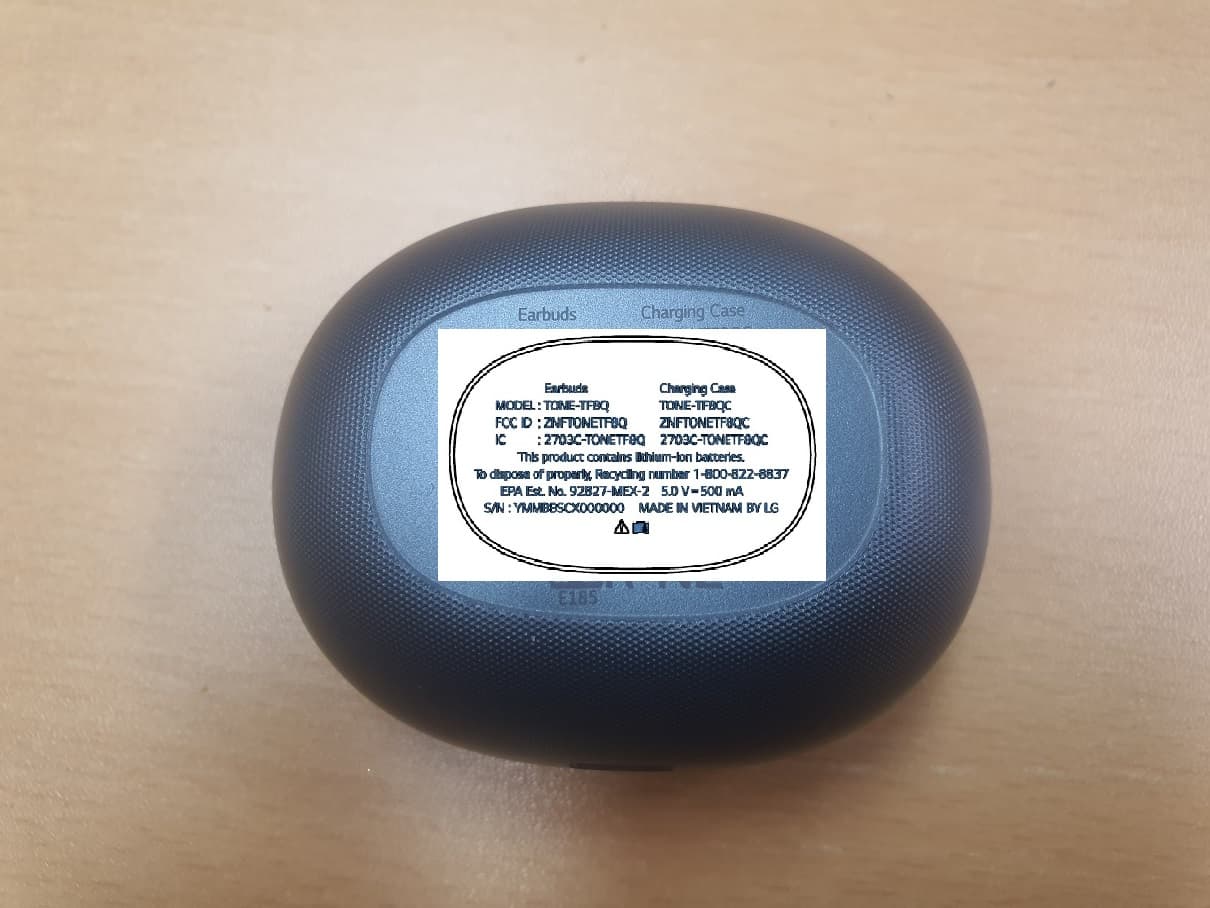
ZNFTONETF8QC
Jun 21, 2022Bluetooth Earbud (Cradle)
Equipment Class
JBP - Part 15 Class B Computing Device Peripheral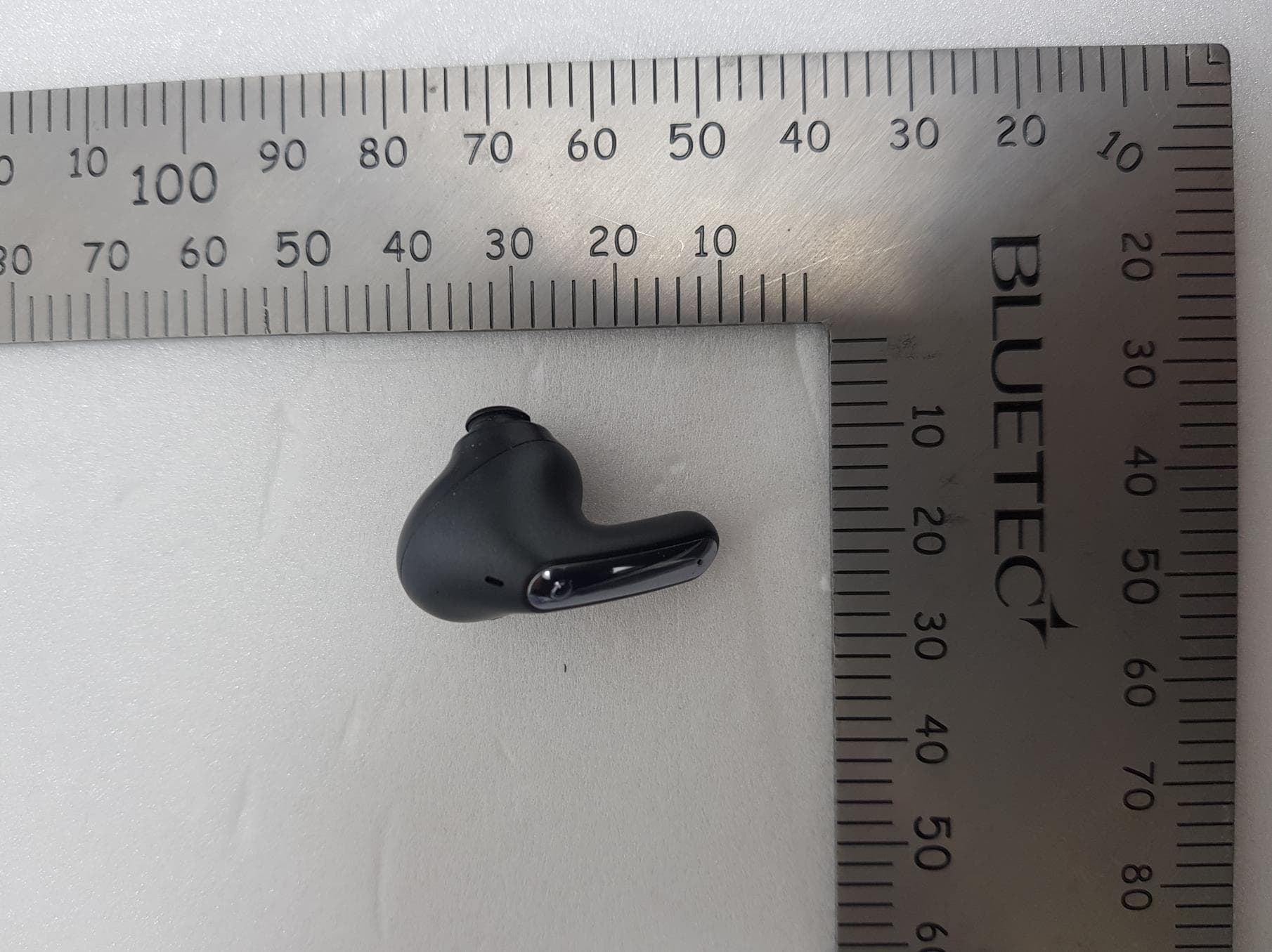
ZNFTONEFP8
May 30, 2021Bluetooth Earbud
Equipment Class
DTS - Digital Transmission System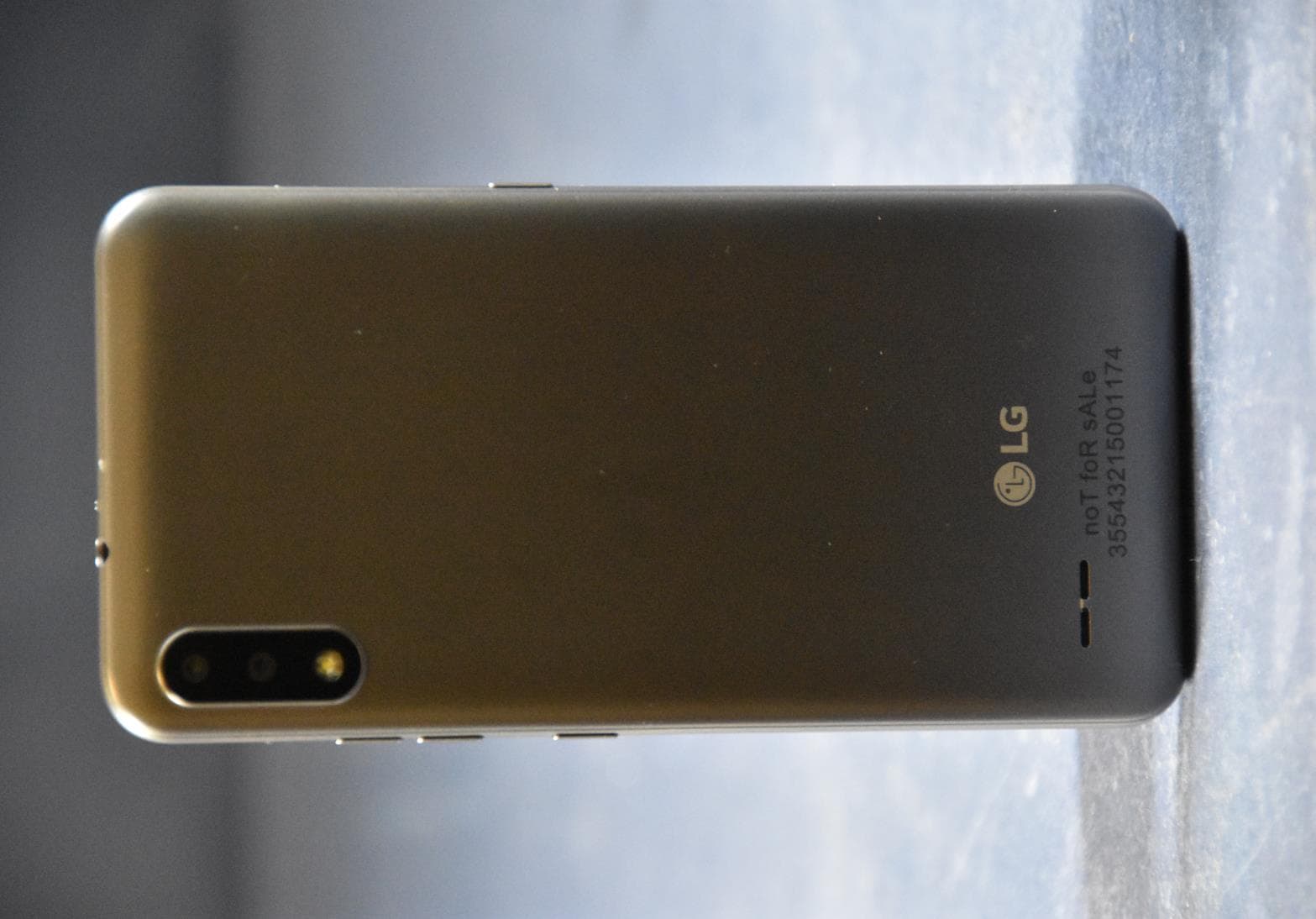
ZNFK200AM
Feb 18, 2021Portable Handset
Equipment Class
DSS - Part 15 Spread Spectrum Transmitter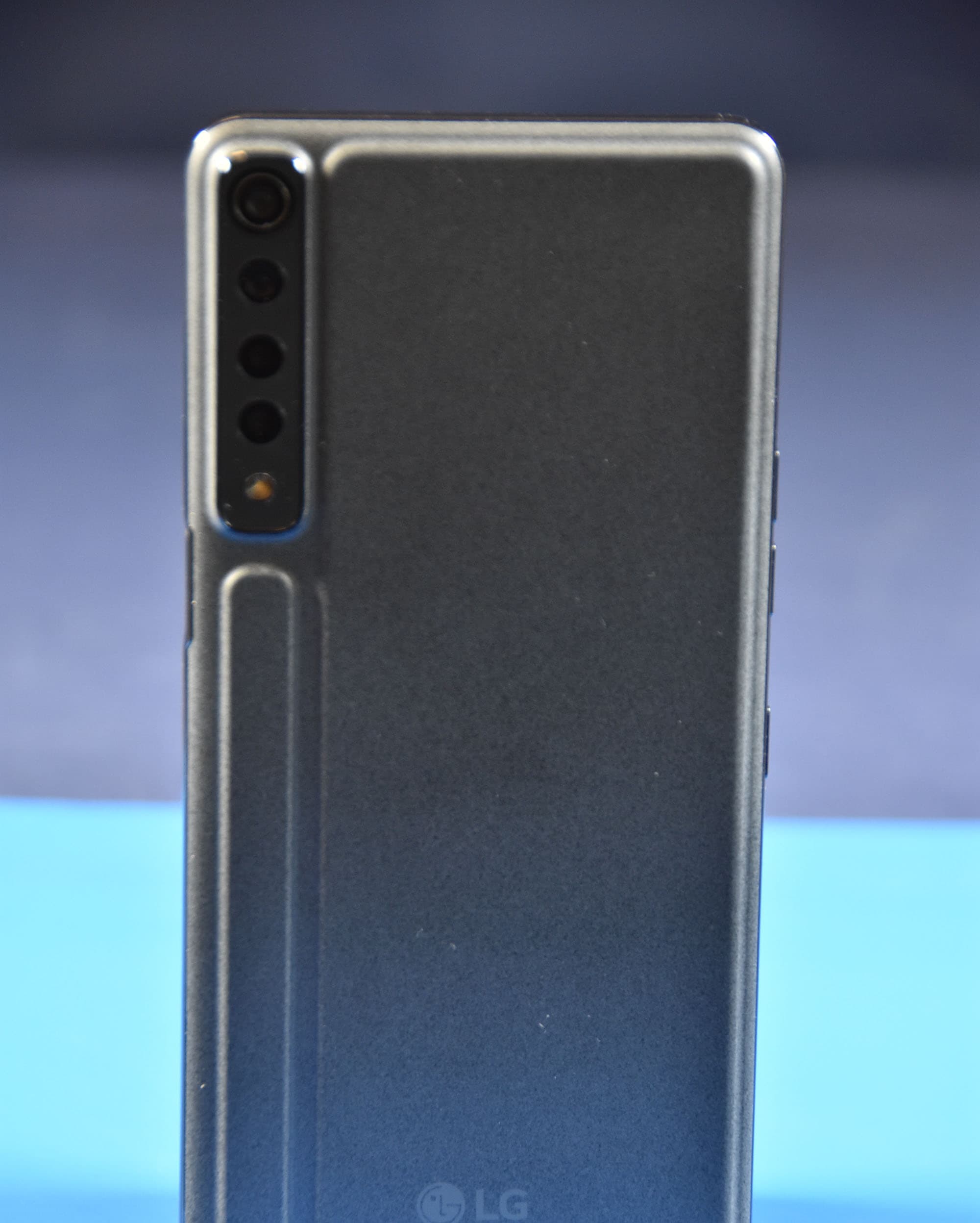
ZNFK735MM
Feb 10, 2021Portable Handset
Equipment Class
NII - Unlicensed National Information Infrastructure TX