ZNFE410GCellular/PCS GSM/UMTS Phone with WLAN and Bluetooth
LG Electronics USA, Inc.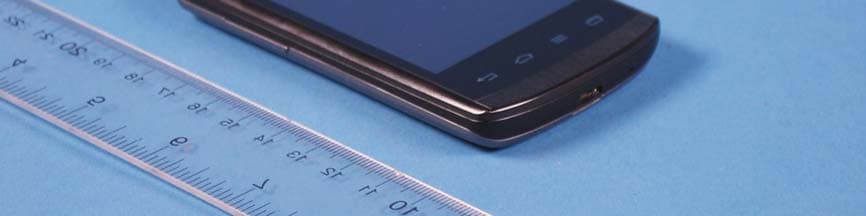
Click to zoom
Application Details
- Equipment Class
- JBP - Part 15 Class B Computing Device Peripheral
- Date of Grant
- May 30, 2013
- Application Purpose
- Original Equipment
- Date of Application
- May 30, 2013
- Equipment Note
- Cellular/PCS GSM/UMTS Phone with WLAN and Bluetooth
- Company
- LG Electronics USA, Inc.
- Country
- United States
Documents & Files
Document Text
Text extracted from the exhibit documents filed with the FCC. Open a document above to read the original.
Users Manual
User Guide LG-E410g 00000000 (1.0) www.lg.com ENGLISH User Guide • Screen displays and illustrations may differ from those you see on an actual phone. • Some of the contents of this guide may not apply to your phone, depending on the software and your service provider. All information in this document is subject to change without notice. • This handset is not suitable for people who are visually impaired, due to the touch screen keyboard. • Copyright ©2013 LG Electronics, Inc. All rights reserved. LG and the LG logo are registered trademarks of LG Group and its related entities. All other trademarks are the property of their respective owners. • Google™, Google Maps™, Gmail™, YouTube™ and Play Store™ are trademarks of Google, Inc. ENGLISH 2 Table of contents For your safety ..........................................5 Safety instructions .................................12 Important notice .....................................20 Getting to know your phone ...................25 Phone overview .....................................25 Installing the SIM card and battery .........27 Charging your phone .............................29 Reducing the battery consumption ........31 Using the memory card..........................31 Locking and unlocking the screen ..........33 Your Home screen ...................................34 Touch screen tips ..................................34 Home screen .........................................35 Home Screen Overview ........................35 Navigating Through the Home Screens ..35 Navigating Through the Application Menu ..................................................36 Navigating Through the Sub-Menus ......36 Customizing the Screen .........................37 Changing the Wallpaper of Home screen ... 37 Creating Shortcuts on Home screen ......37 Adding and Removing Widgets on Home screen ................................................38 Customizing the Apps Menu screen ......39 Returning to recently-used applications .39 Notifications ..........................................39 Swipe down for notifications & settings .40 Quick Settings .....................................40 Indicator icons on the Status Bar ..........41 Onscreen keyboard ................................42 Entering accented letters ......................42 Google account setup .............................43 Connecting to Networks and Devices ....44 Wi-Fi .....................................................44 Connecting to Wi-Fi networks ...............44 Turning Wi-Fi on and connecting to a Wi-Fi network ...............................................44 Bluetooth ...............................................45 Sharing your phone's data connection ...46 PC connections with a USB cable ...........48 Calls ........................................................50 Making a call .........................................50 Calling your contacts .............................50 Answering and rejecting a call ...............50 Adjusting the in-call volume ...................51 Making a second call .............................51 Viewing your call logs ............................51 Call settings ...........................................52 Contacts ..................................................53 Searching for a contact ..........................53 Adding a new contact ............................53 Favorite contacts ...................................53 Creating a group ....................................54 Messaging ...............................................55 Sending a message ...............................55 3 Threaded box .......................................56 Changing your message settings ...........56 E-mail ......................................................57 Managing an email account ...................57 Working with account folders .................57 Composing and sending email ...............58 Camera ....................................................59 Getting to know the viewfinder ..............59 Using the advanced settings ..................60 Taking a quick photo .............................61 Once you've taken a photo.....................61 Viewing your saved photos ....................63 Video camera ..........................................64 Getting to know the viewfinder ..............64 Using the advanced settings ..................65 Recording a quick video .........................65 After recording a video...........................66 Watching your saved videos ..................66 Adjusting the volume when viewing a video .....................................................66 LG Unique Function.................................67 QuickMemo function ..............................67 Using the QuickMemo options ..............68 Viewing the saved QuickMemo ............68 LG SmartWorld ......................................69 How to Get to LG SmartWorld from Your Phone .................................................69 How to use LG SmartWorld ...................69 Multimedia ..............................................71 Gallery ...................................................71 Viewing pictures ..................................71 Playing videos .....................................72 Editing photos......................................72 Deleting images ...................................72 Setting as wallpaper ............................72 Videos ...................................................72 Playing a video ....................................73 Music ....................................................73 Add music files to your phone ...............73 Transfer music using Media sync (MTP) 74 Playing a song .....................................74 Utilities ....................................................76 Setting your alarm .................................76 Using your calculator .............................76 Adding an event to your calendar ...........76 Voice Recorder ......................................77 …
Text truncated - open the document above for the full version.
Users Manual
53 Contacts Add contacts to your phone and synchronize them with the contacts in your Google account or other accounts that support contact syncing. Searching for a contact On the Home screen 1 Touch to open your contacts. 2 Touch Search contacts and enter the contact name using the keyboard. Adding a new contact 1 Touch , enter the new contact's number, then touch the Menu key . Touch Add to Contacts > Create new contact. 2 If you want to add a picture to the new contact, touch the image area. Choose from Take photo or Select from Gallery. 3 Select the contact type by touching . 4 Touch a category of contact information and enter the details about your contact. 5 Touch Save. Favorite contacts You can classify frequently called contacts as favorites. Adding a contact to your favorites 1 Touch to open your contacts. 2 Touch a contact to view its details. 3 Touch the star to the right corner of the contact's name. The star will turn to yellow color. 54 Contacts Removing a contact from your favorites list 1 Touch to open your contacts. 2 Touch the tab, and choose a contact to view its details. 3 Touch the yellow color star to the right corner of the contact's name. The star turns to grey color and the contact is removed from your favorites. Creating a group 1 Touch to open your contacts. 2 Touch Groups and touch the Menu key . Select New group. 3 Enter a name for the new group.You can also set a ringtone for the newly created group. 4 Touch Save to save the group. NOTE: If you delete a group, the contacts assigned to that group will not be lost. They will remain in your contacts. 55 Messaging Your phone combines SMS and MMS into one intuitive, easy-to-use menu. Sending a message 1 Touch on the Home screen and touch to open a blank message. 2 Enter a contact name or contact number in the To field. As you enter the contact name, matching contacts will appear. You can touch a suggested recipient. You can add more than one contact. NOTE: You will be charged for a text message for every person you send the message to. 3 Touch the Enter message field and begin composing your message. 4 Touch to open the Options menu. Choose from Quick message, Insert smiley, Schedule sending, Add subject and Discard. TIP! You can touch the icon to attach the file you want to share to your message. 5 Touch Send to send your message. 6 Responses will appear on the screen. As you view and send additional messages, a message thread is created. WARNING: The 160-character limit may vary from country to country, depending on the language and how the SMS is coded. WARNING: If an image, video or audio file is added to an SMS message, it is automatically converted into an MMS message and you are charged accordingly. 56 Messaging Threaded box Unread messages (SMS, MMS) are located on the top. And the others exchanged with another party can be displayed in chronological order so that you can conveniently see an overview of your conversation. Changing your message settings Your phone message settings are pre-defined, so you can send messages immediately. You can change the settings according to your preferences. • Touch the Messaging icon on the Home screen, touch and then tap Settings. 57 E-mail You can use the Email application to read emails from services like Gmail. The Email application supports the following account types: POP3, IMAP and Exchange. Your service provider or system administrator can provide you with the account settings you need. Managing an email account The first time you open the E-mail application, a set-up wizard opens to help you to set up an email account. After the initial set-up, E-mail displays the contents of your inbox. If you have added more than one account, you can switch among accounts. To add another email account: • Touch > Apps tab > E-mail > touch > Accounts > in the Accounts screen, touch > Add account. To change an email account's settings: • Touch > Apps tab > E-mail > touch > Accounts > in the Accounts screen, touch > Entire settings. To delete an email account: • Touch > Apps tab > E-mail > touch > Accounts > in the Accounts screen, touch > Remove account > touch an account you want to delete > Remove > select Yes. Working with account folders Touch > Apps tab > E-mail > touch and select Folders. Each account has an Inbox, Outbox, Sent and Drafts folder. Depending on the features supported by your account's service provider, you may have additional folders. 58 E-mail Composing and sending email To compose and send a message 1 While in the E-mail application, touch . 2 Enter an address for the message's intended recipient. As you enter text, matching addresses will be proposed from your Contacts. Separate multiple addresses using semicolon. 3 Touch the Cc/Bcc field to add Cc/Bcc and Touch to attach files, if required. 4 Enter the text of the message. 5 Touch . If you aren't connected to a network, for example, if you're working in airplane mode, the messages that you send will be stored in your Outbox folder until you connect to a network again. If it contains any pending messages, the Outbox will be displayed on the Accounts screen. TIP! When a new email arrives in your Inbox, you will be notified by a sound or vibration. 59 Camera To open the Camera application, tap Camera on the Home screen. Getting to know the viewfinder Zoom – Zoom in or zoom out. Cheese shutter – To take a photo, say one of the following words: Cheese, Smile, Whisky, Kimchi or LG. Brightness – Defines and controls the amount of sunlight entering the image. Camera size – Selects photo resolution. If you choose high resolution, file size will increase, which means you will be able to store fewer photos in the memory. Settings – Touch this icon to open the settings menu. See Using the advanced settings. Video mode – Touch this icon to switch to video mode. Taking a photo Gallery – Touch to view the last photo you captured. This enables you to access your gallery and view saved photos while in camera mode. NOTE: P…
Text truncated - open the document above for the full version.
Users Manual
71 Gallery You can store multimedia files in internal memory for easy access to all your multimedia files. Use this application to view multimedia files like pictures and videos. 1 Touch > Apps tab > Gallery. Open a list of catalog bars that store your multimedia files. NOTE: • Some file formats are not supported, depending on the software installed on the device. • Some files may not play properly, depending on how they are encoded. Viewing pictures Launching Gallery displays your available folders. When another application, such as Email, saves a picture, the download folder is automatically created to contain the picture. Likewise, capturing a screenshot automatically creates the Screenshots folder. Select a folder to open it. Pictures are displayed by creation date in a folder. Select a picture to view it full screen. Scroll left or right to view the next or previous image. Zooming in and out Use one of the following methods to zoom in on an image: • Double-tap anywhere to zoom in. • Spread two fingers apart on any place to zoom in. Pinch to zoom out or double-tap to return. Multimedia 72 Multimedia Playing videos Video files show the icon in the preview. Select a video to watch it and tap . The Videos application will launch. Editing photos When viewing an photo, tap the Menu key > Edit to use the use the advanced editing options. Deleting images Use one of the following methods: • In a folder, tap and select photos/Videos by ticking, and then tap on Delete. • When viewing a photo/Video, tap . Setting as wallpaper When viewing an photo, touch the Menu key > Set image as to set the image as wallpaper or to assign it to a contact. NOTE: • Some file formats are not supported, depending on the device software. • If the file size exceeds the available memory, an error can occur when you open files. Videos Your phone has a built-in video player that lets you play all of your favorite videos. To access the video player, touch > Apps tab > Videos. 73 Playing a video 1 Touch > Apps tab > Videos. 2 Select the video you want to play. Touch to pause video playback. Touch to resume video playback. Touch to go 10 seconds forward. Touch to go 10 seconds backward. Touch to manage the video volume. Touch to change the ratio of the video screen. To change the volume while watching a video, press the up and down volume keys on the left-hand side of the phone. Touch and hold a video in the list. The Share, Delete, Details options will be displayed. Music Your phone has a built-in music player that lets you play all your favorite tracks. To access the music player, touch > Apps tab > Music. Add music files to your phone Start by transferring music files to your phone: • Transfer music using Media sync (MTP). • Download from the wireless Web. • Synchronize your phone to a computer. • Receive files via Bluetooth. 74 Multimedia Transfer music using Media sync (MTP) 1 Connect the phone to your PC using the USB cable. 2 Select the Media sync (MTP) option. Your phone will appear as another hard drive on your computer. Click on the drive to view it. Copy the files from your PC to the drive folder. 3 When you’re finished transferring files, swipe down on the Status Bar and touch USB connected > Charge only. You may now safely unplug your device. Playing a song 1 Touch > Apps tab > Music. 2 Touch Songs. 3 Select the song you want to play. Touch to pause playback. Touch to resume playback. Touch to skip to the next track on the album or in the playlist. Touch to go back to the beginning of the song. Touch twice to return to the previous song. Touch to find the files with YouTube Touch to manage the music volume Touch to set repeat mode Touch to set shuffle mode Touch to set the favorites Touch to see the current playlist 75 To change the volume while listening to music, press the up and down volume keys on the left-hand side of the phone. Touch and hold any song in the list. The Play, Add to playlist, Share, Set as ringtone, Delete, Details and Search options will be displayed. NOTE: • Some file formats are not supported, depending on the device software. • If the file size exceeds the available memory, an error can occur when you open files. NOTE: Music file copyrights may be protected by international treaties and national copyright laws. Therefore, it may be necessary to obtain permission or a licence to reproduce or copy music. In some countries, national laws prohibit private copying of copyrighted material. Before downloading or copying the file, check the national laws of the relevant country concerning the use of such material. 76 Setting your alarm 1 Touch > Apps tab > Alarm/Clock > . 2 After you set the alarm, your phone lets you know how much time is left before the alarm will go off. 3 Set Repeat, Snooze duration, Vibration, Alarm sound, Alarm volume, Auto App starter, Puzzle lock and Memo. Touch Save. NOTE: To change alarm settings in the alarm list screen, touch the Menu key and select Settings. Using your calculator 1 Touch > Apps tab > Calculator. 2 Touch the number keys to enter numbers. 3 For simple calculations, touch the function you want to perform (+, –, x or ÷) followed by =. 4 For more complex calculations, touch , select the Advanced panel, then choose sin, cos, tan, log etc. 5 To check the history, tap the icon . Adding an event to your calendar 1 Touch > Apps tab > Calendar. 2 On the top of the screen, you can find the different view types for the Calendar (Day, Week, Month, Agenda). 3 Tap on the date for which you wish to add an event and touch . 4 Touch Event name and enter the event name. 5 Touch Location and enter the location. Check the date and enter the time you wish your event to start and finish. Utilities 77 6 If you wish to add a note to your event, touch Description and enter the details. 7 If you wish to repeat the alarm, set REPEAT, and set REMINDERS, if necessary. 8 Touch Save to save the event in the calendar. Voice Recorder Use the voice recorder to record voice memos o…
Text truncated - open the document above for the full version.
Cover Letter(s)
LG Electronics USA 1000 Sylvan Avenue Englewood Cliffs, NJ 07632 Date: May 24, 2013 Federal Communications Commission Authorization and Evaluation Division 7435 Oakland Mills Road, Columbia, MD 21046 RE: Request of Confidentiality for FCC ID: ZNFE410G Eq uipment Cl ass: JBP: Part 15 Cla ss B Computing Device Peripheral To Whom It May Concern: Pursuant to Sections 0.4 57 and 0.459 of the Commi ssion’s Rules (CFR 47) , and Section 552 (b) (4) of the Freedom of Information Act, L G Electronics MobileComm USA hereby requests confidentiality and treatment of certain information accompanying this application. The materials contain trade secrets and proprietary information not customaril y released to the public. The public disclosure of these matters might be harmful to the Applicant and provide unjustified benefits to its competitors. We are also hereby request Short-Term Confidentiality for 180 days after the grant as outlined in Public Notice DA 04-1705. This provision will give LG Electronics MobileComm USA temporary confidentiality of commercially sensitive information prior to product release. The requested Permanent and Temporary Confidential exhibits are listed as follow s: PERMANENT AND SHORT-TERM CONFIDENTIAL LIST Exhibit Description 1 Block Diagram PERMANENT 2 Operational Descriptions 3 External Photos 4 Internal Photos 5 Test-Setup Photos SHORT-TERM 6 User’s Manual The Applicant understands that pursuant to Rule 0.457, disclosure of this application and all accompanying documentations, where applicable, will not be made public before the date of the Grant for this application. Sincerely, Jacob Cho Director On behalf of LG Electronics MobileComm U.S.A, Inc. LG Electronics MobileComm U.S.A 1000 Sylvan Avenue Englewood Cliffs, NJ 07632
External Photos
LG FCC ID: ZNFE410G Model: LG-E410g External Photos EUT Type: Portable Handset Page 1 of 4 © 2013 PCTEST Engineering Laboratory Inc. EXTERNAL PHOTOGRAPHS LG FCC ID: ZNFE410G Model: LG-E410g External Photos EUT Type: Portable Handset Page 2 of 4 © 2013 PCTEST Engineering Laboratory Inc. LG FCC ID: ZNFE410G Model: LG-E410g External Photos EUT Type: Portable Handset Page 3 of 4 © 2013 PCTEST Engineering Laboratory Inc. LG FCC ID: ZNFE410G Model: LG-E410g External Photos EUT Type: Portable Handset Page 4 of 4 © 2013 PCTEST Engineering Laboratory Inc.
ID Label/Location Info
※ FCC ID Label Form Note: The FCC ID shown will be readily visible at the time of purchase. Note! We, LG Electronics MobileComm USA, state that our device, FCC ID ZNFE410G, has a battery. Howev er, the battery will not be placed in the battery compartment when delivery, so it is visible to the users as they purchase the product and install the battery. Additionally, the label is permanently attached. The label it's attached to the EUT by an adhesive. Model No : LG-E410g FCC ID : ZNFE410G S/N : Made in Korea
Internal Photos
LG FCC ID: ZNFE410G Model: LG-E410g Internal Photos EUT Type: Portable Handset Page 1 of 8 © 2013 PCTEST Engineering Laboratory Inc. INTERNAL PHOTOGRAPHS LG FCC ID: ZNFE410G Model: LG-E410g Internal Photos EUT Type: Portable Handset Page 2 of 8 © 2013 PCTEST Engineering Laboratory Inc. LG FCC ID: ZNFE410G Model: LG-E410g Internal Photos EUT Type: Portable Handset Page 3 of 8 © 2013 PCTEST Engineering Laboratory Inc. LG FCC ID: ZNFE410G Model: LG-E410g Internal Photos EUT Type: Portable Handset Page 4 of 8 © 2013 PCTEST Engineering Laboratory Inc. LG FCC ID: ZNFE410G Model: LG-E410g Internal Photos EUT Type: Portable Handset Page 5 of 8 © 2013 PCTEST Engineering Laboratory Inc. LG FCC ID: ZNFE410G Model: LG-E410g Internal Photos EUT Type: Portable Handset Page 6 of 8 © 2013 PCTEST Engineering Laboratory Inc. LG FCC ID: ZNFE410G Model: LG-E410g Internal Photos EUT Type: Portable Handset Page 7 of 8 © 2013 PCTEST Engineering Laboratory Inc. LG FCC ID: ZNFE410G Model: LG-E410g Internal Photos EUT Type: Portable Handset Page 8 of 8 © 2013 PCTEST Engineering Laboratory Inc.
Test Report
FCC ID: ZNFE410G Report No.: HCTE1305FE12 Date: May 13, 2013 HCT CO., LTD. 74, SEOICHEON-RO, 578BEON-GIL, MAJANG-MYEON, ICHEON-SI, GYEONGGI-DO, KOREA TEL: +82 31 645 6300 FAX: +82 31 645 6401 www.hct.co.kr Page 2 of 19 DOCUMENT HISTORY The revision history for this document is shown in table. Version Date Description HCTE1305FE12 May 13, 2013 Initial Release FCC ID: ZNFE410G Report No.: HCTE1305FE12 Date: May 13, 2013 HCT CO., LTD. 74, SEOICHEON-RO, 578BEON-GIL, MAJANG-MYEON, ICHEON-SI, GYEONGGI-DO, KOREA TEL: +82 31 645 6300 FAX: +82 31 645 6401 www.hct.co.kr Page 3 of 19 TABLE OF CONTENTS PAGE 1. GENERAL INFORMATION ....................................................................................................... 4 1.1 Product Description ................................................................................................................. 4 1.2 Related Submittal(s) / Grant(s)................................................................................................ 4 1.3 Tested System Details.............................................................................................................. 5 1.4 Cable Description .................................................................................................................... 6 1.5 Noise Suppression Parts on Cable. (I/O cable) ....................................................................... 6 1.6 Test Methodology .................................................................................................................... 7 1.7 Test Facility ............................................................................................................................. 7 1.8 Frequency Range of Radiated Measurements ......................................................................... 7 2. SYSTEM TEST CONFIGURATION ........................................................................................... 8 2.1 Configuration of Test System .................................................................................................. 8 3. PRELIMINARY TEST ................................................................................................................. 9 3.1 Conducted Emission Test ........................................................................................................ 9 3. 2 Radiated Emission Test .......................................................................................................... 9 4. CONDUCTED AND RADIATED EMISSION TEST SUMMARY ......................................... 10 4.1 Conducted Emission Test ...................................................................................................... 10 4.2 Radiated Emission Test ......................................................................................................... 15 5. FIELD STRENGTH CALCULATION ...................................................................................... 17 6. TEST EQUIPMENT ................................................................................................................... 18 7. CONCLUSION .......................................................................................................................... 19 ATTACHMENT: TEST SETUP PHOTOGRAPHS FCC ID: ZNFE410G Report No.: HCTE1305FE12 Date: May 13, 2013 HCT CO., LTD. 74, SEOICHEON-RO, 578BEON-GIL, MAJANG-MYEON, ICHEON-SI, GYEONGGI-DO, KOREA TEL: +82 31 645 6300 FAX: +82 31 645 6401 www.hct.co.kr Page 4 of 19 1. GENERAL INFORMATION 1.1 Product Description Equipment Under Test is EUT type: GSM/WCDMA Phone with Bluetooth3.0, WIFI802.11 b/g/n, Model: LG-E410g manufactured by LG Electronics MobileComm U.S.A., Inc. Its basic purpose is used for communications. Model LG-E410g FCC ID ZNFE410G Additional Model LGE410g, E410g, LG-E410B, LGE410B, E410B EUT Type GSM/WCDMA Phone with Bluetooth3.0, WIFI802.11 b/g/n TX Frequency 824.2 ㎒ ~ 848.80 ㎒ (GSM 850) 1850.20 ㎒ ~ 1909.80 ㎒ (GSM 1900) 1852.4 ㎒ ~ 1907.6 ㎒ (WCDMA B2) 826.40 ㎒ ~ 846.60 ㎒ (WCDMA B5) RX Frequency 869.20 ㎒ ~ 893.80 ㎒ (GSM 850) 1930.20 ㎒ ~ 1989.80 ㎒ (GSM 1900) 1932.4 ㎒ ~ 1987.6 ㎒ (WCDMA B2) 871.40 ㎒ ~ 891.60 ㎒ (WCDMA B5) 1.2 Related Submittal(s) / Grant(s) Original submittal only. FCC ID: ZNFE410G Report No.: HCTE1305FE12 Date: May 13, 2013 HCT CO., LTD. 74, SEOICHEON-RO, 578BEON-GIL, MAJANG-MYEON, ICHEON-SI, GYEONGGI-DO, KOREA TEL: +82 31 645 6300 FAX: +82 31 645 6401 www.hct.co.kr Page 5 of 19 1.3 Tested System Details All equipment descriptions used in the tested system (including inserted cards) are: Device Type Manufacturer Model Name FCC ID / DoC Connected To EUT LG LG-E410g ZNFE410G Notebook PC Ear-phone USB cable IS EAD62377901 - E.U.T Notebook PC Ear-phone I-SOUND EAB62808211 - E.U.T Notebook PC H.P ProBook6560b DoC EUT Notebook PC adapto r Notebook PC adaptor CHICONY POWER TECHNOLOGY Series PPP012H-S - Notebook PC Mouse Radio shack Series 2-button mouse FSUGMZE3 Notebook PC Net hard LG N1A1DD1 DoC NotebookPC Net hard adapto r Net hard adaptor Yang Ming Industrial DA-60M12 - Net hard RJ45 cable - - - Net hard Notebook PC Micro SD card SanDisk 8 GB - E.U.T FCC ID: ZNFE410G Report No.: HCTE1305FE12 Date: May 13, 2013 HCT CO., LTD. 74, SEOICHEON-RO, 578BEON-GIL, MAJANG-MYEON, ICHEON-SI, GYEONGGI-DO, KOREA TEL: +82 31 645 6300 FAX: +82 31 645 6401 www.hct.co.kr Page 6 of 19 1.4 Cable Description Product Name Port Power Cord Shielded (Y/N) I/O Cable Shielded (Y/N) Length (m) EUT Micro USB Y Y (P,D)1.1 Ear-phone N/A Y (D)1.2 Notebook PC RJ 45 N/A N (D)1.5 Serial (Mouse) N/A Y (D)1.8 DC in N N/A (P)1.8 Net hard DC in N N/A (P)1.8 * The marked "(D)" means the data cable and "(P)" means the power cable. 1.5 Noise Suppression Parts on Cable. (I/O cable) Product Name Port Ferrite Bead (Y/N) Location Metal Hood (Y/N) Location EUT Micro USB N N/A Y Both End Ear-phone N N/A Y EUT End Notebook PC RJ 45 N N/A N N/A Serial (Mouse) N N/A Y Notebook PC End FCC ID: ZNFE410G Report No.: HCTE1305FE12 Date: May 13, 2013 HCT CO.,…
Text truncated - open the document above for the full version.
Test Setup Photos
FCC ID: ZNFE410G Report No.: HCTE1305FE12 Date: May 13, 2013 HCT CO., LTD. 74, SEOICHEON-RO, 578BEON-GIL, MAJANG-MYEON, ICHEON-SI, GYEONGGI-DO, KOREA TEL: +82 31 645 6300 FAX: +82 31 645 6401 www.hct.co.kr Page 1 of 7 ATTACHMENT - TEST SETUP PHOTOS - FCC ID: ZNFE410G Report No.: HCTE1305FE12 Date: May 13, 2013 HCT CO., LTD. 74, SEOICHEON-RO, 578BEON-GIL, MAJANG-MYEON, ICHEON-SI, GYEONGGI-DO, KOREA TEL: +82 31 645 6300 FAX: +82 31 645 6401 www.hct.co.kr Page 2 of 7 1. CONDUCTED MEASUREMENT PHOTOS FCC ID: ZNFE410G Report No.: HCTE1305FE12 Date: May 13, 2013 HCT CO., LTD. 74, SEOICHEON-RO, 578BEON-GIL, MAJANG-MYEON, ICHEON-SI, GYEONGGI-DO, KOREA TEL: +82 31 645 6300 FAX: +82 31 645 6401 www.hct.co.kr Page 3 of 7 FCC ID: ZNFE410G Report No.: HCTE1305FE12 Date: May 13, 2013 HCT CO., LTD. 74, SEOICHEON-RO, 578BEON-GIL, MAJANG-MYEON, ICHEON-SI, GYEONGGI-DO, KOREA TEL: +82 31 645 6300 FAX: +82 31 645 6401 www.hct.co.kr Page 4 of 7 2. RADIATED MEASUREMENT PHOTOS [30 MHz - 1 GHz ] FCC ID: ZNFE410G Report No.: HCTE1305FE12 Date: May 13, 2013 HCT CO., LTD. 74, SEOICHEON-RO, 578BEON-GIL, MAJANG-MYEON, ICHEON-SI, GYEONGGI-DO, KOREA TEL: +82 31 645 6300 FAX: +82 31 645 6401 www.hct.co.kr Page 5 of 7 FCC ID: ZNFE410G Report No.: HCTE1305FE12 Date: May 13, 2013 HCT CO., LTD. 74, SEOICHEON-RO, 578BEON-GIL, MAJANG-MYEON, ICHEON-SI, GYEONGGI-DO, KOREA TEL: +82 31 645 6300 FAX: +82 31 645 6401 www.hct.co.kr Page 6 of 7 [ 1 ㎓ - 12 ㎓ ] FCC ID: ZNFE410G Report No.: HCTE1305FE12 Date: May 13, 2013 HCT CO., LTD. 74, SEOICHEON-RO, 578BEON-GIL, MAJANG-MYEON, ICHEON-SI, GYEONGGI-DO, KOREA TEL: +82 31 645 6300 FAX: +82 31 645 6401 www.hct.co.kr Page 7 of 7
Contact Information
Applicant
David Kim(Team leader, LGEUS NA Policy & Regulatory Affairs)
Technical Contact
PCTEST Engineering Laboratory, Inc.Randy Ortanez
[email protected]410-290-6652
6660-B Dobbin Road · Columbia, Maryland · United States
Test Firm
HCT Co., LTDSang Lee
Technical Specifications
| # | Rule Parts | Frequency Range | Power Output |
|---|---|---|---|
| 1 | 15B | - | - |
Other Applications from LG Electronics USA, Inc.

ZNFTONET80S
Nov 13, 2023Bluetooth Earbuds
Equipment Class
DTS - Digital Transmission System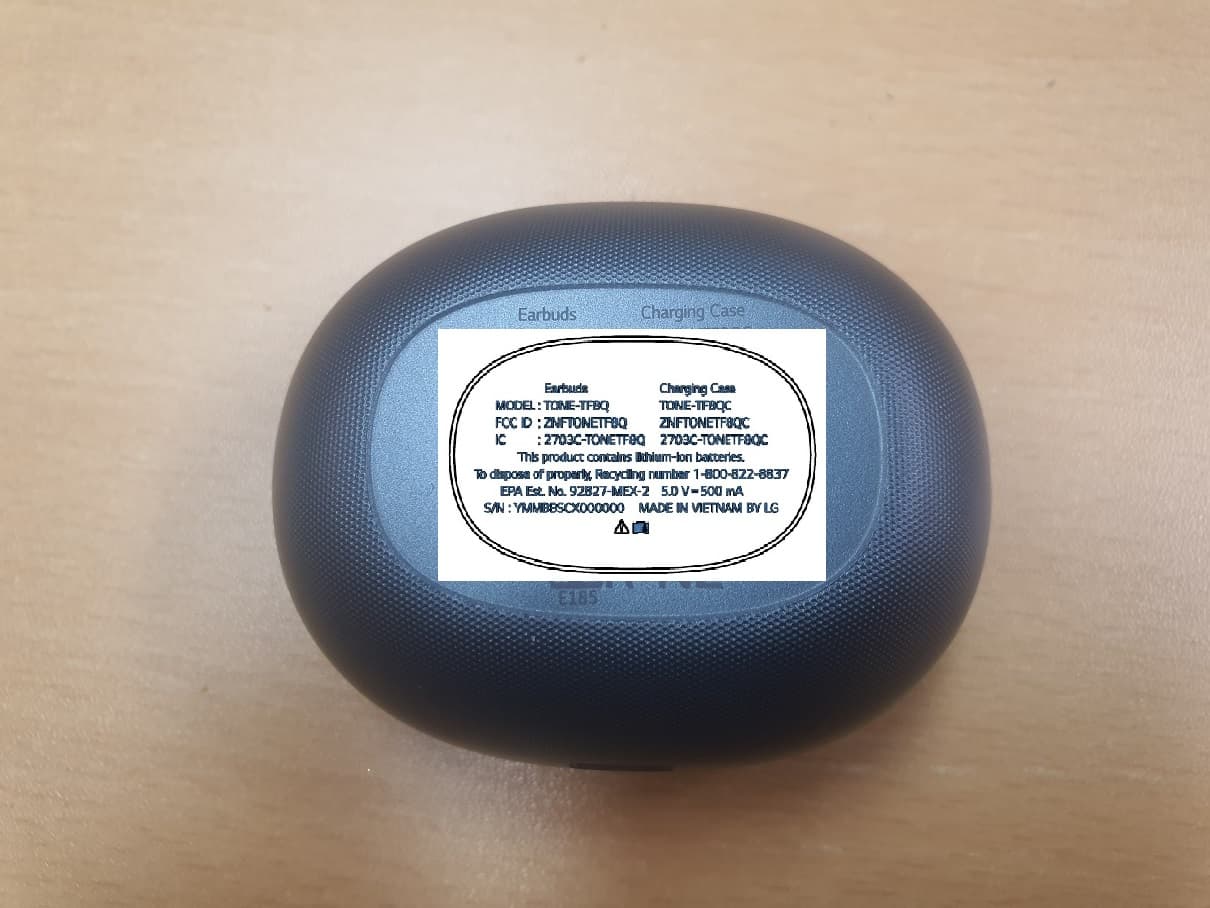
ZNFTONETF8QC
Jun 21, 2022Bluetooth Earbud (Cradle)
Equipment Class
JBP - Part 15 Class B Computing Device Peripheral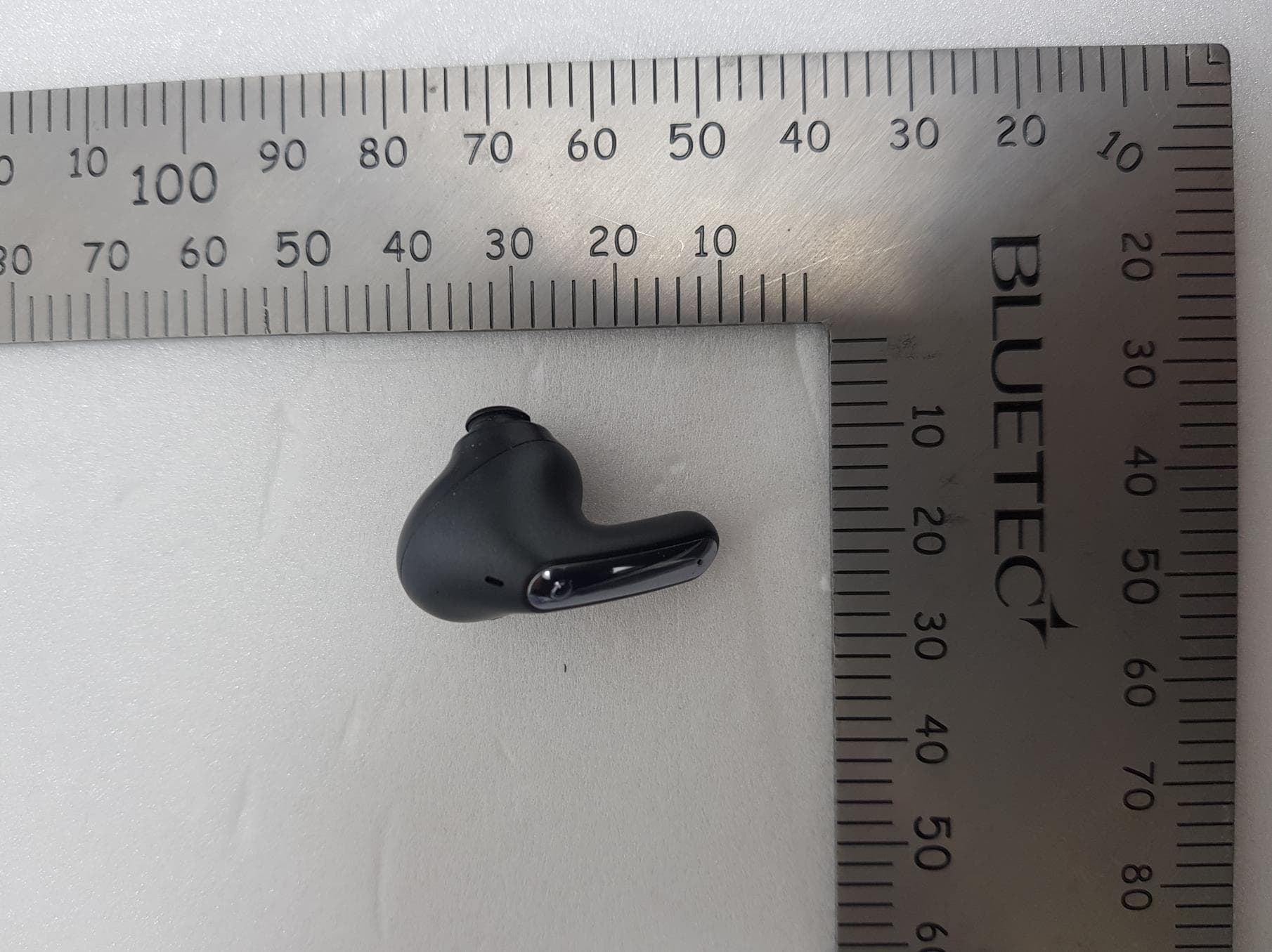
ZNFTONEFP8
May 30, 2021Bluetooth Earbud
Equipment Class
DTS - Digital Transmission System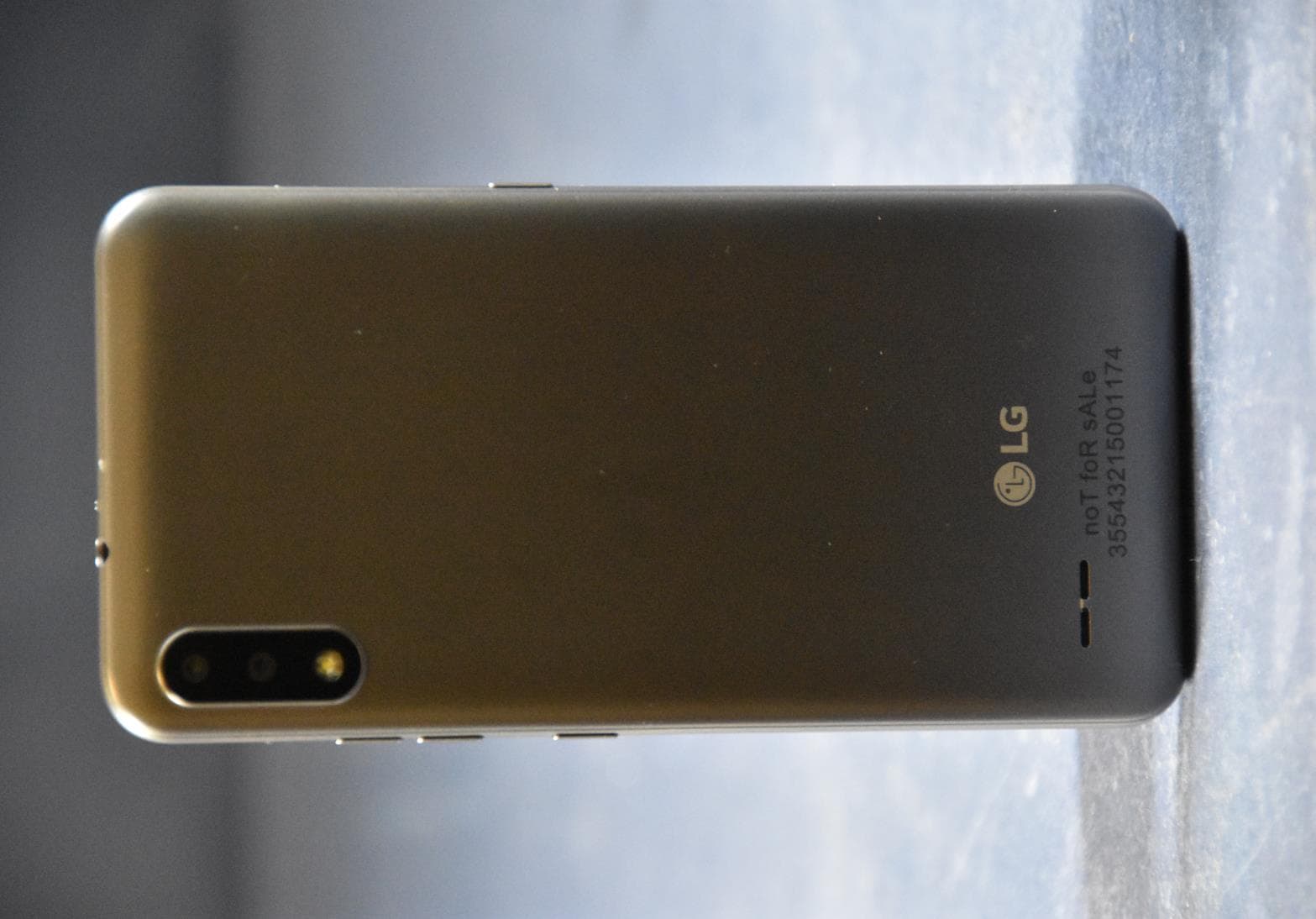
ZNFK200AM
Feb 18, 2021Portable Handset
Equipment Class
DSS - Part 15 Spread Spectrum Transmitter
ZNFK735MM
Feb 10, 2021Portable Handset
Equipment Class
NII - Unlicensed National Information Infrastructure TX