ZNFMS659LTE Phone Bluetooth and WLAN
LG Electronics USA, Inc.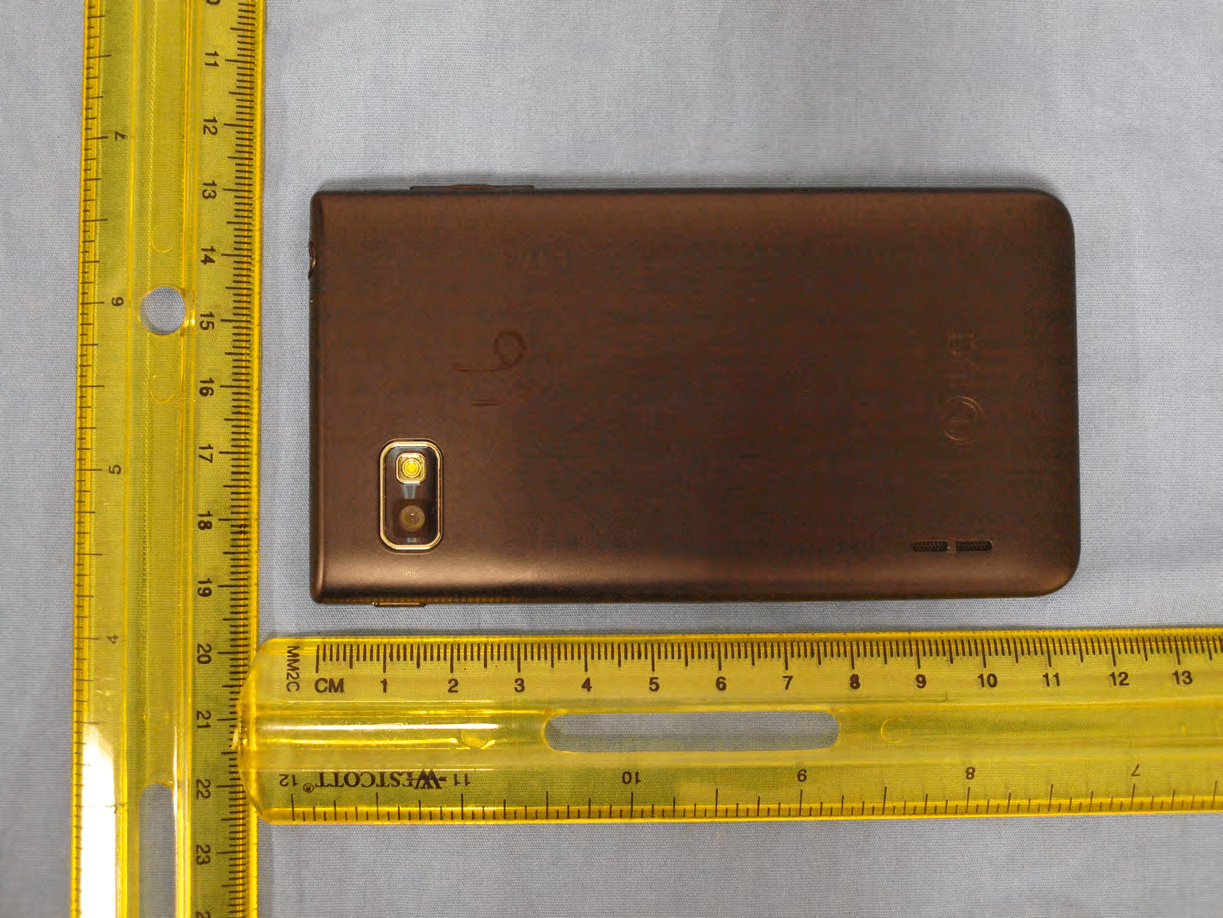
Click to zoom
Application Details
- Equipment Class
- PCE - PCS Licensed Transmitter held to ear
- Date of Grant
- Jun 11, 2013
- Application Purpose
- Original Equipment
- Date of Application
- Jun 09, 2013
- Equipment Note
- LTE Phone Bluetooth and WLAN
- Frequency Range
- 709.00000000 - 711.00000000
- Company
- LG Electronics USA, Inc.
- Country
- United States
Documents & Files
Document Text
Text extracted from the exhibit documents filed with the FCC. Open a document above to read the original.
Users Manual
User Guide MS 659 MFLXXXXXXXX (1.0) E N G L I S H www.lg.com 1 Important Customer Information WARNING: This product contains chemicals known to the State of California to cause cancer and birth defects or other reproductive harm. Wash hands after handling. When using this product, the safety precautions below must be taken to avoid possible legal liabilities and damages. Retain and follow all product safety and operating instructions. Observe all warnings in the product operating instructions. To reduce the risk of bodily injury, electric shock, fire, and damage to the equipment, observe the following precautions. ELECTRICAL SAFETY This product is intended for use when supplied with power from the designated battery or power supply unit. Other usage may be dangerous and will invalidate any approval given to this product. SAFETY PRECAUTIONS FOR PROPER GROUNDING INSTALLATION CAUTION: Connecting to improperly grounded equipment can result in an electric shock to your device. This product is equipped with a USB cable for connecting to a desktop or notebook computer. Be sure your computer is properly grounded (earthed) before connecting this product to the computer. The power supply cord of a desktop or notebook computer has an equipment-grounding conductor and a grounding plug. The plug must be plugged into an appropriate outlet which is properly installed and grounded in accordance with all local codes and ordinances. SAFETY PRECAUTIONS FOR POWER SUPPLY UNIT Use the correct external power source A product should be operated only from the type of power source indicated on the electrical ratings label. If you are not sure of the type of power source required, consult your authorized service provider or local power company. For a product that operates from battery power or other sources, refer to the operating instructions that are included with the product. 2 Important Customer Information Handle battery packs carefully This product contains a Li-ion battery. There is a risk of fire and burns if the battery pack is handled improperly. Do not attempt to open or service the battery pack. Do not disassemble, crush, puncture, short external contacts or circuits, dispose of in fire or water, or expose a battery pack to temperatures higher than 60°C (140°F). WARNING: Danger of explosion if battery is incorrectly replaced. To reduce risk of fire or burns, do not disassemble, crush, puncture, short external contacts, expose to temperature above 60°C (140°F), or dispose of in fire or water. Replace only with specified batteries. Recycle or dispose of used batteries according to the local regulations or reference guide supplied with your product. Take extra precautions ● Keep the battery or device dry and away from water or any liquid as it may cause a short circuit. ● Keep metal objects away so they don’t come in contact with the battery or its connectors as it may lead to short circuit during operation. ● The phone should be only connected to products that bear the USB-IF logo or have completed the USB-IF compliance program. ● Do not use a battery that appears damaged, deformed, or discolored, or one that has any rust on its casing, overheats, or emits a foul odor. ● Always keep the battery out of the reach of babies and small children, to avoid swallowing of the battery. Consult a doctor immediately if the battery is swallowed. ● Only use the battery with a charging system that has been qualified with the system per this standard, IEEE-Std-1725-200x. Use of an unqualified battery or charger may present a risk of fire, explosion, leakage or other hazard. ● Replace the battery only with another battery that has been qualified with the system per this standard, IEEE-Std-1725-200x. Use of an unqualified battery may present a risk of fire, explosion, leakage or other hazard. 3 Important Customer Information ● Avoid dropping the phone or battery. If the phone or battery is dropped, especially on a hard surface, and the user suspects damage, take it to a service center for inspection. ● If the battery leaks: Do not allow the leaking fluid to come in contact with skin or clothing. If contact occurs, flush the affected area immediately with clean water and seek medical advice. Do not allow the leaking fluid to come in contact with eyes. If contact occurs, DO NOT rub; rinse with clean water immediately and seek medical advice. Take extra precautions to keep a leaking battery away from fire as there is a danger of ignition or explosion. SAFETY PRECAUTIONS FOR DIRECT SUNLIGHT Keep this product away from excessive moisture and extreme temperatures. Do not leave the product or its battery inside a vehicle or in places where the temperature may exceed 140°F (60°C), such as on a car dashboard, window sill, or behind glass that is exposed to direct sunlight or strong ultraviolet light for extended periods of time. This may damage the product, overheat the battery, or pose a risk to the vehicle. PREVENTION OF HEARING LOSS CAUTION: Permanent hearing loss may occur if earphones or headphones are used at high volume for prolonged periods of time. SAFETY IN AIRCRAFT Due to the possible interference caused by this product to an aircraft’s navigation system and its communications network, using this device’s phone function on board an airplane is against the law in most countries. If you want to use this device when its use is restricted on board an aircraft, remember to switch to Airplane Mode which turns off RF functions that could cause interference. 4 Important Customer Information ENVIRONMENT RESTRICTIONS Do not use this product in gas stations, fuel depots, chemical plants or where blasting operations are in progress, or in potentially explosive atmospheres such as fueling areas, fuel storehouses, below deck on boats, chemical plants, fuel or chemical transfer or storage facilities, and areas where the air contains chemicals or particles, such as grain, dust, or metal powders. Please be aware that sparks in such area…
Text truncated - open the document above for the full version.
Users Manual
Calls 31 Making a second call 1. During your initial call, tap the Menu Key and select Add call. 2. Dial the number or search your contacts. 3. Tap Call to connect the call. 4. Both calls will be displayed on the call screen. Your initial call will be put on hold. 5. Tap the call entry on the screen to toggle between active calls or tap Merge calls to merge the calls. 6. To end active calls, tap End . If there is no active call, it will end the call on Hold. Ending a Call Tap End to end a call. NOTE To redial recent numbers, touch Redial at the end of the call or find the number within the Call logs and tap Call to the right of the entry. If you exit the current call screen and return to the Home screen, you will be notified that you are still on an active call by the green phone icon within the Status Bar. Active Call Notification Ending a Call from the Status Bar 1. Touch and drag the Status Bar down to open the Notifications Panel. 2. Tap End call to end the currently active call. Viewing your call logs From the Home screen, tap Phone , then tap the Call logs tab. View a complete list of all dialed, received, and missed voice calls. Calls 32 TIP! Tap any single call log entry to view the date, time, and duration of the call. Tap the Menu Key , then tap Clear to delete entries individually or Clear all to delete all. Call settings You can configure phone call settings, such as call forwarding, and other special features offered by MetroPCS. 1. From the Home screen, tap the Menu Key and tap System settings. 2. Tap Call and set any desired options. 33 Contacts You can add contacts on your phone and synchronize them with the contacts in your Google Account or other accounts that support syncing contacts. Searching for a contact 1. From the Home screen, tap Apps and then tap Contacts to open your contacts. 2. Tap the Search contacts box and enter the contact name using the keypad. You can also tap a letter along the right side of the screen to access names starting with the chosen letter. Adding a new contact 1. From the Home screen, tap Phone and enter the new contact’s number. 2. Tap Add to Contacts > Create new contact. Select the desired account (if applicable). 3. If you want to add a picture to the new contact, tap . Choose from Take photo to take a picture using the camera or Select from Gallery. Then browse for an image and select it. 4. Tap to enter more specific name information. 5. Enter the details about your contact. 6. Tap Save to save the contact entry. Favorite Contacts You can classify frequently called contacts as favorites. To add a contact to your favorites 1. From the Home screen, tap Apps and then tap Contacts to open your contacts. 2. Tap a contact to view its details. 3. Tap the star to the right of the contact’s name. The star turns gold and the contact is added to your favorites. Contacts 34 To remove a contact from your favorites list 1. From the Home screen, tap Apps and then tap Contacts to open your contacts. 2. Tap the Favorites tab to view your favorite contacts. 3. Tap a contact to view its details. 4. Tap the gold star to the right of the contact’s name. The star turns grey and the contact is removed from your favorites. Creating a group 1. From the Home screen, touch Apps and then touch Contacts to open your contacts. 2. Touch the Groups tab, then touch the Menu Key and select New group. 3. Enter a name for the new group. You can also set a ringtone for the group. 4. Touch Save to save the group. NOTE If you delete a group, the contacts assigned to that group will not be lost. They will remain in your contacts. 35 Messaging Your phone combines text and multimedia messages into one intuitive, easy-to-use menu. Conversation view Messages exchanged with another party are displayed in chronological order so that you can conveniently see an overview of your conversations. Sending a message 1. From the Home screen, tap Messaging , then tap Compose to create a new message. 2. Enter a contact name or phone number in the To field. As you enter the contact name, matching message appear. You can tap a suggested recipient. You can also add multiple message 3. Tap the text field to start entering your message. 4. Tap the Menu Key to open the options menu. Choose from any of the available options. 5. Tap Send(or Send MMS) to send your message. WARNING! The 160-character limit may vary from country to country depending on how the text message is coded and the language used in the message. If an image, video, or audio file is added to a text message, it will be automatically converted into a multimedia message and your service plan will be decremented accordingly. NOTE When you get a text message during a call, there will be an audible notification. Using smilies Liven up your messages using smilies. When writing a new message, tap the Menu Key , then tap Insert smiley. Changing your message settings Your phone’s message settings are predefined, so you can send messages immediately. You can change the settings based on your preferences. • From the Home screen, tap Messaging > Menu Key > Settings. 36 Email You can use the Email application to read emails from services like Gmail. The Email application supports the following account types: POP3, IMAP and Exchange. Your service provider or system administrator can provide you with the account settings you need. Managing an email account The first time you open the Email application, a set-up wizard opens to help you to set up an email account. After the initial setup, Email displays the contents of your inbox. If you have added more than one account, you can switch among accounts. To add another email account: • Open the Email application and tap the Menu Key > Accounts > Menu Key > Add account. To change an email account’s settings: • Open the Email application and tap the Menu Key > Account settings. To delete an email account: • Open the Email application and tap the Menu Key > Accounts > Menu Key > Remove account > tap …
Text truncated - open the document above for the full version.
Users Manual
62 Settings Access the Settings menu 1. From the Home screen, tap Apps > Apps tab > Settings . OR From the Home screen, tap the Menu Key > System settings. 2. Select a setting category and select an option. WIRELESS & NETWORKS < Airplane mode > Tap the Airplane mode switch to toggle between On and Off. Activating Airplane mode disables all wireless connections. < Wi-Fi > Tap the Wi-Fi switch to turn Wi-Fi on and connect to available Wi-Fi networks. Tap again to turn Wi-Fi off. TIP! How to obtain the MAC address To set up a connection in some wireless networks with MAC filters, you may need to enter the MAC address of your phone in the router. You can find the MAC address in the following user interface: From the Home screen, tap Apps > Settings > Wi-Fi > Menu Key > Advanced > MAC address. < Bluetooth > Tap the Bluetooth switch to turn Bluetooth on and connect to available Bluetooth devices. Tap again to turn Bluetooth off. < Mobile data > Displays the data usage and allows you to set the mobile data usage limit. < Call > Configure phone call settings such as call forwarding and other special features offered by your carrier. Fixed dialing numbers – Turn on and compile a list of numbers that can be called from your phone. You’ll need your PIN2, which is available from your operator. Only numbers within the fixed dial list can be called from your phone. 63 Settings Voicemail – Allows you to select your carrier’s voicemail service. Call reject – Allows you to set the call reject function. Choose from Call reject mode or Rejection list. Decline with message – When you want to reject a call, you can send a quick message using this function. This is useful if you need to reject a call during a meeting. Power button ends call – Allows you end calls by pressing the Power/Lock Key instead of the End button on your screen. TTY mode – Opens a dialog box to set TTY mode to communicate with other TTY devices. Hearing aids – Checkmark enables hearing aid compatibility. Call forwarding – Choose whether to divert all calls when the line is busy, when there is no answer or when you have no signal. < More... > USB tethering & Mobile Hotspot – Allows you to share mobile network via Wi-Fi and you can configure portable Wi-Fi hotspot settings. Wi-Fi Calling Important! Wi-Fi Calling requires that you use the SIM card that is shipped with your phone. Also, you must register your address for 9-1-1. Wi-Fi Calling will not work until you have registered for 9-1-1 by logging into your account at www.metropcs.com. Go to your profile and click Customer Info and continue on to enter your address. About Wi-Fi Calling Wi-Fi Calling can improve your coverage and allows you to make phone calls and send messages over a Wi-Fi network (when a Wi-Fi network is available). Unless your rate plan provides otherwise, Wi-Fi Calling minutes count the same as MPCS cellular calling minutes on your phone bill. - To use Wi-Fi Calling, you must first turn on Wi-Fi, connect to a Wi-Fi network, and then turn on Wi-Fi Calling. - When the Wi-Fi Calling feature is on, your phone displays the Wi-Fi Calling icon on the Status Bar. 64 Settings - To stay on a Wi-Fi call, you must remain within range of the Wi-Fi network. Your call will drop as you leave the Wi-Fi range. When your Wi-Fi signal weakens, your phone will beep and display a warning message alerting you that your call will drop if the signal gets weaker. Wi-Fi Calling offers three connection options: - Wi-Fi Preferred: All calls are made over an available Wi-Fi network. If there are no available Wi-Fi networks calls are made over the cellular network. - Cellular Network Preferred: All calls are made over the cellular network unless the cellular network is not available, then calls are made over an available Wi-Fi network. - Never use Cellular Network: All calls are made over an available Wi- Fi network. If there are no available Wi-Fi networks, your calls will not connect. Call duration – View the duration of calls including Last call, All calls, Dialed calls and Received calls. Additional settings – Allows you to change the following settings: • Caller ID: Choose whether to display your number in an outgoing call. • Call waiting: If call waiting is activated, the handset will notify you of an incoming call while you are on a call (depending on your network provider). VPN – Displays the list of Virtual Private Networks (VPNs) that you’ve previously configured. Allows you to add different types of VPNs. NOTE You must set a lock screen PIN or password before you can use credential storage. Mobile networks – Set options for data roaming, network mode & operators, access point names (APNs) etc. DEVICE < Sound > Sound profile – Choose Sound, Vibrate only or Silent. Volumes – Manage the volume of Phone ringtone, Notification sound, 65 Settings Touch feedback & system, Music, video, games and other media. Quiet time – Set times to turn off all sounds except alarm and media. Ringtone with vibration – Vibration feedback for calls and notifications. Phone ringtone – Allows you to set your default incoming call ringtone. Notification sound – Allows you to set your default notification ringtone. Dial pad touch tones – Allows you to set the phone to play tones when using the dialpad to dial numbers. Touch sounds – Allows you to set your phone to play a sound when you touch buttons, icons and other onscreen items that react to your touch. Screen lock sound – Allows you to set your phone to play a sound when locking and unlocking the screen. Vibrate on touch – Allows you to set the vibration feedback when the phone screen is touched. < Display > Brightness – Adjust the screen brightness. Screen timeout – Set the time for screen timeout. Auto-rotate screen – Set to switch orientation automatically when you rotate the phone. Font type – Change the type of display font. Font size – Change the size of the display font. Front key light – Set the front key light duration. Aspect ratio correction – Change…
Text truncated - open the document above for the full version.
Attestation Statements
Date: April 25, 2013 CCS TCB Div. of UL CCS Engineering Lab., Inc. 47173 Benicia Street Fremont, CA 94538-7366 SUBJECT : LG Electronics MobileComm U.S.A. FCC ID : ZNFMS659 LTE MPR for FCC SAR testing To whom it may concern: We, LG Electronics MobileComm USA, hereby confirm that MPR specified in 3GPP will be permanently implemented in ZNFMS659 so that the powers found in this application will not be found to exceed the levels indicated. Additionally, A-MPR(Additional MPR) was disabled for all SAR samples for SAR testing purposes. Should you have any questions or comments concerning the above, please contact the undersigned. Sincerely Yours, Jacop Cho Director On behalf of LG Electronics Mobilecomm U.S.A.,Inc .
Cover Letter(s)
Date: May 03, 2013 UL LLC Certification Division 47173 Benicia Street Fremont, CA 94538, USA To whom it may concern: I, the undersigned, hereby authorize UL LLC to act on our behalf in all manners relating to application for equipment authorization, including signing of all documents relating to these matters. Any and all acts carried out by UL LLC on our behalf shall have the same effect as acts of our own. I, the undersigned, hereby certify that we are not subject to a denial of federal benefits, that includes FCC benefits, pursuant to Section 5301 of the Anti-Drug Abuse Act of 1988, 21 U.S.C. 853(a). In authorizing UL LLC as our agent, we still recognize that we are responsible to: a) comply with the relevant provisions of the certification program; b) make all necessary arrangements for the conduct of the evaluation, including provision for examining documentation and access to all areas, records (including internal audit reports) and personnel for the purposes of evaluation (e.g. testing, inspection, assessment, surveillance, reassessment) and resolution of complaints; c) make claims regarding certification only in respect of the scope for which certification has been granted; d) do not use our product certification in such a manner as to bring the Certification Division into disrepute and not make any statement regarding our product certification which the Certification Division may consider misleading or unauthorized; e) upon suspension or cancellation of certification, discontinue use of all advertising matter that contains any reference thereto and return any certification documents as required by the Certification Division; f) use certification only to indicate the products are certified as being in conformity with specified standards; g) endeavor to ensure that no certificate or report nor any part thereof is used in a misleading manner; h) ensure that any reference to our product certification in communication media such as documents, brochures or advertising, complies with the requirements of the Certification Division; i) keep a record of all complaints made known to the us relating to the product’s compliance with requirements of the relevant standard and to make these records available to the Certification Division when requested; j) take appropriate action with respect to such complaints and any deficiencies found in products or services that affect compliance with the requirements for certification; k) document the actions taken. This authorization is valid until further written notice from the applicant. Sincerely Yours, Jacop Cho Director On behalf of LG Electronics Mobilecomm U.S.A.,Inc REMARK: 1. This authorization letter will be sent along with your application when filing with the Certification Division. 2. Please follow the format and type it on company letterhead and send original to us. 3. Authorized signature must be in agreement with grantee code contact in FCC database.
Cover Letter(s)
Date : April 25, 2013 Federal Communications Commission Authorization and Evaluation Division 7435 Oakland Mills Road Columbia MD 21046 Subject: Request for Confidentiality FCC ID: ZNFMS659 To Whom It May Concern: Pursuant to Sections 0.457 and 0.459 of the Commission’s Rules (CFR 47), and Section 552 (b) (4) of the Freedom of Information Act, LG ELECTRONICS MobileComm USA hereby requests confidentiality and treatment of certain information accompanying this application. The materials contain trade secrets and proprietary information not customarily released to the public. The public disclosure of these matters might be harmful to the Applicant and provide unjustified benefits to its competitors. We are also hereby request Short-Term Confidentiality for 180 days after the grant as outlined in Public Notice DA 04-1705. This provision will give LG ELECTRONICS MobileComm USA temporary confidentiality of commercially sensitive information prior to product release. The requested Permanent and Temporary Confidential exhibits are listed as follows: PERMANENT AND SHORT-TERM CONFIDENTIAL LIST Exhibit Description PERMANENT 1 Block Diagram 2 Operational Descriptions and Tune-Up Procedure 3 Schematics 4 Part List 5 Antenna Specification 6. Antenna distance 7 PCB Layout 8 simultaneous scenarios for SAR analysis SHORT-TERM 1 External Photos 2 Internal Photos 3 Test-Setup Photos 4 User’s Manual The Applicant understands that pursuant to Rule 0.457, disclosure of this application and all accompanying documentations, where applicable, will not be made public before the date of the Grant for this application. Sincerely Yours, Jacop Cho Director On behalf of LG Electronics Mobilecomm U.S.A.,Inc
Cover Letter(s)
Date: Ju n Federal C Office of 7435 Oa Columbi Attn: Of f Re: HAC To who m LG Elect r modes fo determin R U 1 1 Sincerel y ______ _ Jacop Ch Director On beha ne 11, 2013 Communicat f Engineering kland Mills R a MD 21046 fice of Engine Attestation ‐ m it may conc ronics hereby or all air inte ning MIF valu Reference Te UID 10021‐DAA 10011‐CAA y, ___________ ho lf of LG Elec t tions Commis g and Techno Rd. eering and Te ‐ FCC ID: ZNF cern: y declares th erfaces for wh ues. est report Nu Comm GSM‐ F UMTS‐ ____ tronics Mobi ssion ology Laborat echnology FMS659 hat the MIF v hich the HAC umber(s): UL SPEAG t e munication Sy FDD (TDMA, G ‐FDD (WCDM lecomm U.S. tory Division values detaile C rating is pro Verification est files ystem Name GMSK) MA) .A.,Inc ed below are ovided based Services Tes MIF 3.6 3 ‐27. e based on w d on the curr st Report 3U1 (dB) 3 23 orst case op e ent methodo 14916‐2 erating ology for
ID Label/Location Info
Note: The FCC ID shown will be readily visible at the time of purchase. Note! We, LG Electronics MobileComm USA, state that our device, FCC ID ZNFMS659, has a battery. However, the battery will not be placed in the battery compartment when delivery, so it is visible to the users as they purchase the product and install the battery. Additionally, the label is permanently attached. ※ FCC ID Label Form
RF Exposure Info
Test Laboratory: UL CCS SAR Lab B Date: 3/11/2013 20130311_SystemPerformanceCheck-D2450V2 SN 899 Frequency: 2450 MHz; Duty Cycle: 1:1; Room Ambient Temperature: 24.0C; Liquid Temperature: 23.0C Medium parameters used: f = 2450 MHz; σ = 1.948 S/m; ε r = 50.677; ρ = 1000 kg/m 3 DASY5 Configuration: - Area Scan Setting: Find Secondary Maximum Within: 2.0 dB and with a peak SAR value greater than 0.0012W/kg - Averaged Fast SAR: Polynomial fit - Electronics: DAE3 Sn427; Calibrated: 1/9/2013 - Probe: EX3DV4 - SN3751; ConvF(6.61, 6.61, 6.61); Calibrated: 11/15/2012; - Sensor-Surface: 2.5mm (Mechanical Surface Detection) - Phantom: ELI v5.0 (A); Type: QDOVA001BB; Serial: 1120 Body/Pin=100 mW/Area Scan (71x71x1): Interpolated grid: dx=1.200 mm, dy=1.200 mm Reference Value = 63.263 V/m; Power Drift = 0.07 dB Fast SAR: SAR(1 g) = 5.55 W/kg; SAR(10 g) = 2.4 W/kg Maximum value of SAR (interpolated) = 8.13 W/kg Body/Pin=100 mW/Zoom Scan (7x7x7)/Cube 0: Measurement grid: dx=5mm, dy=5mm, dz=5mm Reference Value = 63.263 V/m; Power Drift = 0.07 dB Peak SAR (extrapolated) = 11.6 W/kg SAR(1 g) = 5.61 W/kg; SAR(10 g) = 2.61 W/kg Maximum value of SAR (measured) = 7.98 W/kg 0 dB = 7.98 W/kg = 9.02 dBW/kg Test Laboratory: UL CCS SAR Lab B Date: 3/11/2013 20130311_SystemPerformanceCheck-D2450V2 SN 899 Frequency: 2450 MHz; Duty Cycle: 1:1 Body/Pin=100 mW/Z Scan (1x1x21): Measurement grid: dx=20mm, dy=20mm, dz=5mm Maximum value of SAR (measured) = 7.75 W/kg Test Laboratory: UL CCS SAR Lab E Date: 3/12/2013 20130312_SystemPerformanceCheck-D1750V2 SN 1053 Frequency: 1750 MHz; Duty Cycle: 1:1; Room Ambient Temperature: 24.0C; Liquid Temperature: 23.0C Medium parameters used: f = 1750 MHz; σ = 1.361 S/m; ε r = 38.891; ρ = 1000 kg/m 3 DASY5 Configuration: - Area Scan Setting: Find Secondary Maximum Within: 2.0 dB and with a peak SAR value greater than 0.0012W/kg - Averaged Fast SAR: Polynomial fit - Electronics: DAE4 Sn1357; Calibrated: 2/5/2013 - Probe: EX3DV4 - SN3901; ConvF(8.25, 8.25, 8.25); Calibrated: 2/13/2013; - Sensor-Surface: 2.5mm (Mechanical Surface Detection) - Phantom: SAM with CRP; Type: SAM; Serial: GF-VE20 Head/Pin=100 mW/Area Scan (61x61x1): Interpolated grid: dx=1.500 mm, dy=1.500 mm Reference Value = 61.095 V/m; Power Drift = -0.00 dB Fast SAR: SAR(1 g) = 3.86 W/kg; SAR(10 g) = 2.06 W/kg Maximum value of SAR (interpolated) = 4.99 W/kg Head/Pin=100 mW/Zoom Scan (7x7x7)/Cube 0: Measurement grid: dx=5mm, dy=5mm, dz=5mm Reference Value = 61.095 V/m; Power Drift = -0.00 dB Peak SAR (extrapolated) = 6.68 W/kg SAR(1 g) = 3.71 W/kg; SAR(10 g) = 1.98 W/kg Maximum value of SAR (measured) = 4.97 W/kg 0 dB = 4.97 W/kg = 6.96 dBW/kg Test Laboratory: UL CCS SAR Lab E Date: 3/12/2013 20130312_SystemPerformanceCheck-D1750V2 SN 1053 Frequency: 1750 MHz; Duty Cycle: 1:1 Head/Pin=100 mW/Z Scan (1x1x21): Measurement grid: dx=20mm, dy=20mm, dz=5mm Maximum value of SAR (measured) = 5.00 W/kg Test Laboratory: UL CCS SAR Lab E Date: 3/13/2013 20130313_SystemPerformanceCheck-D1900V2 SN 5d043 Frequency: 1900 MHz; Duty Cycle: 1:1; Room Ambient Temperature: 24.0C; Liquid Temperature: 23.0C Medium parameters used: f = 1900 MHz; σ = 1.503 S/m; ε r = 51.738; ρ = 1000 kg/m 3 DASY5 Configuration: - Area Scan Setting: Find Secondary Maximum Within: 2.0 dB and with a peak SAR value greater than 0.0012W/kg - Averaged Fast SAR: Polynomial fit - Electronics: DAE4 Sn1357; Calibrated: 2/5/2013 - Probe: EX3DV4 - SN3901; ConvF(7.73, 7.73, 7.73); Calibrated: 2/13/2013; - Sensor-Surface: 2.5mm (Mechanical Surface Detection) - Phantom: ELI v5.0 A; Type: QDOVA002AA; Serial: 1180 Body/Pin=100 mW/Area Scan (61x61x1): Interpolated grid: dx=1.500 mm, dy=1.500 mm Reference Value = 58.741 V/m; Power Drift = -0.00 dB Fast SAR: SAR(1 g) = 3.79 W/kg; SAR(10 g) = 1.91 W/kg Maximum value of SAR (interpolated) = 5.05 W/kg Body/Pin=100 mW/Zoom Scan (7x7x7)/Cube 0: Measurement grid: dx=5mm, dy=5mm, dz=5mm Reference Value = 58.741 V/m; Power Drift = -0.00 dB Peak SAR (extrapolated) = 6.69 W/kg SAR(1 g) = 3.78 W/kg; SAR(10 g) = 2.01 W/kg Maximum value of SAR (measured) = 5.04 W/kg 0 dB = 5.04 W/kg = 7.02 dBW/kg Test Laboratory: UL CCS SAR Lab E Date: 3/13/2013 20130313_SystemPerformanceCheck-D1900V2 SN 5d043 Frequency: 1900 MHz; Duty Cycle: 1:1 Body/Pin=100 mW/Z Scan (1x1x21): Measurement grid: dx=20mm, dy=20mm, dz=5mm Maximum value of SAR (measured) = 5.08 W/kg Test Laboratory: UL CCS SAR Lab A Date: 3/14/2013 20130314_SystemPerformanceCheck-D835V2 SN 4d002 Frequency: 835 MHz; Duty Cycle: 1:1; Room Ambient Temperature: 24.0C; Liquid Temperature: 23.0C Medium parameters used: f = 835 MHz; σ = 1.018 mho/m; ε r = 53.001; ρ = 1000 kg/m 3 DASY5 Configuration: - Area Scan Setting: Find Secondary Maximum Within: 2.0 dB and with a peak SAR value greater than 0.0012W/kg - Averaged Fast SAR: Polynomial fit - Electronics: DAE4 Sn1343; Calibrated: 8/20/2012 - Probe: EX3DV4 - SN3749; ConvF(8.67, 8.67, 8.67); Calibrated: 1/15/2013; - Sensor-Surface: 2.5mm (Mechanical Surface Detection) - Phantom: ELI v5.0 (B); Type: QDOVA001BB; Serial: 1118 Body/Pin=100 mW/Area Scan (61x61x1): Interpolated grid: dx=1.500 mm, dy=1.500 mm Reference Value = 35.326 V/m; Power Drift = -0.07 dB Fast SAR: SAR(1 g) = 1.04 W/kg; SAR(10 g) = 0.695 W/kg Maximum value of SAR (interpolated) = 1.23 W/kg Body/Pin=100…
Text truncated - open the document above for the full version.
Contact Information
Applicant
David Kim(Team leader, LGEUS NA Policy & Regulatory Affairs)
Technical Specifications
| # | Rule Parts | Frequency Range | Power Output | Emission | Tolerance |
|---|---|---|---|---|---|
| 19 | 27 | 709 MHz - 711 MHz | 110.90 mW | 8M96D7W | 2.5 ppm |
Other Applications from LG Electronics USA, Inc.
ZNFTONET80S
Nov 13, 2023Bluetooth Earbuds
Equipment Class
DTS - Digital Transmission System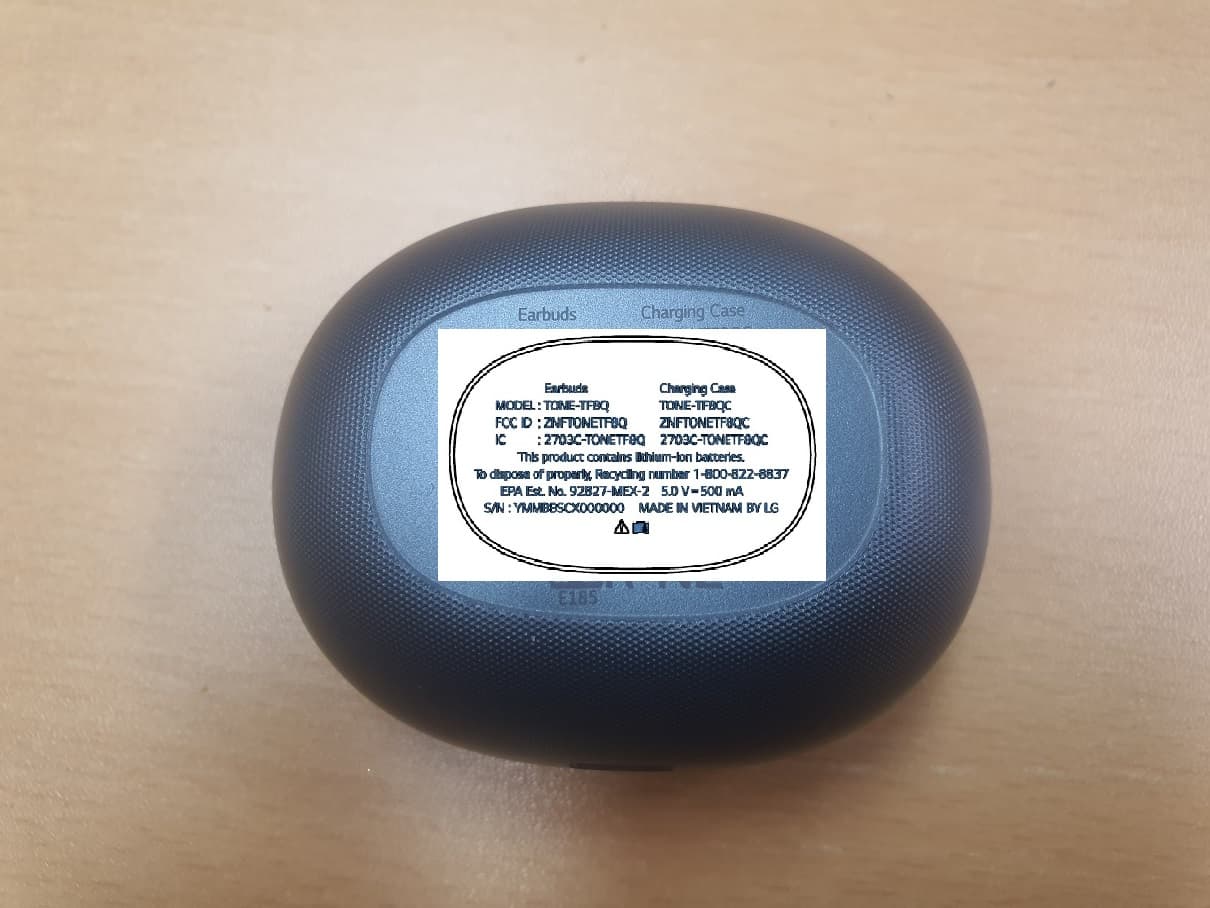
ZNFTONETF8QC
Jun 21, 2022Bluetooth Earbud (Cradle)
Equipment Class
JBP - Part 15 Class B Computing Device Peripheral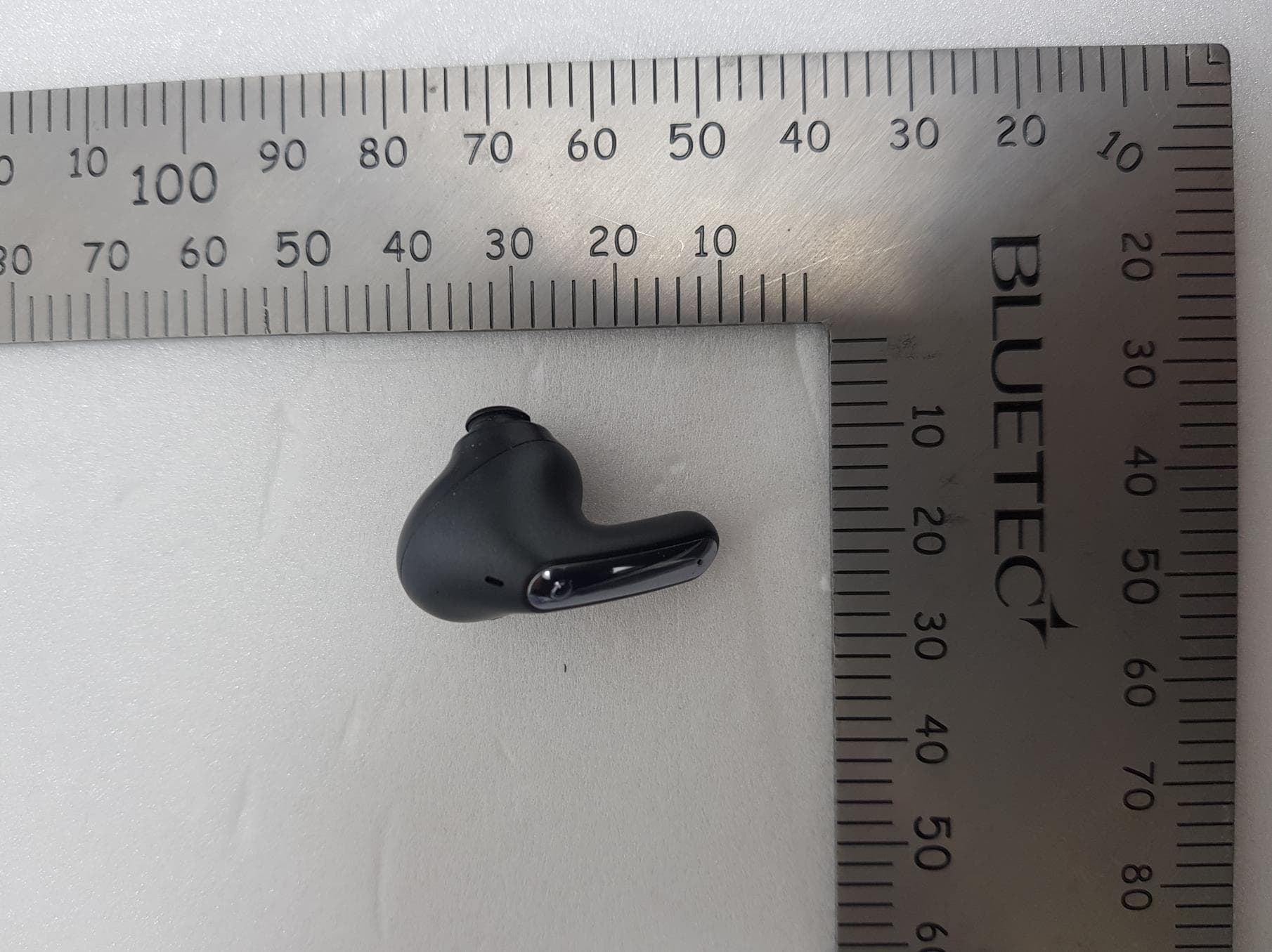
ZNFTONEFP8
May 30, 2021Bluetooth Earbud
Equipment Class
DTS - Digital Transmission System
ZNFK200AM
Feb 18, 2021Portable Handset
Equipment Class
DSS - Part 15 Spread Spectrum Transmitter
ZNFK735MM
Feb 10, 2021Portable Handset
Equipment Class
NII - Unlicensed National Information Infrastructure TX