ZNFVK410Tablet Computer with LTE, Bluetooth and WLAN
LG Electronics USA, Inc.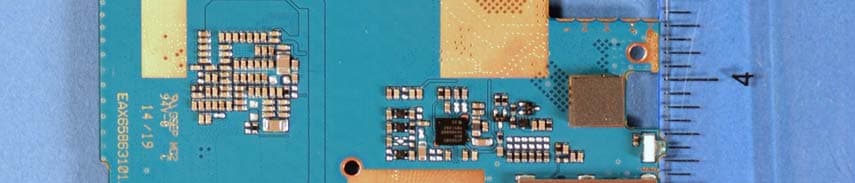
Click to zoom
Application Details
- Equipment Class
- JBC - Part 15 Class B Computing Device/Personal Computer
- Date of Grant
- Jul 06, 2014
- Application Purpose
- Original Equipment
- Date of Application
- Jul 06, 2014
- Equipment Note
- Tablet Computer with LTE, Bluetooth and WLAN
- Company
- LG Electronics USA, Inc.
- Country
- United States
Documents & Files
Document Text
Text extracted from the exhibit documents filed with the FCC. Open a document above to read the original.
Users Manual
User Guide VK410 XXXXXXXXXX (1.0) XX This booklet is made from 98% post-consumer recycled paper. This booklet is printed with soy ink. Printed in xxxxx User Guide VK410 VK410 Guía del Usuario Copyright©2014 LG Electronics, Inc. All rights reserved. LG and the LG logo are registered trademarks of LG Corp. All other trademarks are the property of their respective owners. 1 Important Customer Information Before you begin Before reading this user guide and getting started, please review the separate Product Safety and Warranty Information guide for important product safety and warranty information about your device. 2 Important Customer Information...............................................1 Table of Contents .......................................................................2 The Basics ...................................................................................5 Tablet Overview ....................................................................................................5 Help .......................................................................................................................8 Non-Removable Battery ......................................................................................9 Home Screen .......................................................................................................16 Notifications .......................................................................................................20 Plug & Pop ..........................................................................................................28 Capturing a Screenshot .....................................................................................28 Google Account Setup ......................................................................................29 Entering Text .......................................................................................................30 Connecting to Networks and Devices ...................................33 Connecting to Networks and Devices ..............................................................33 Bluetooth .............................................................................................................34 SmartShare .........................................................................................................35 PC connections with a USB cable ....................................................................36 Web ...........................................................................................38 Chrome ................................................................................................................38 Communication .......................................................................42 Contacts ..............................................................................................................42 Email ....................................................................................................................43 Gmail ...................................................................................................................45 Hangouts .............................................................................................................50 Entertainment ..........................................................................52 Camera ................................................................................................................52 Video Camera .....................................................................................................57 Gallery .................................................................................................................60 Videos ...................................................................................................................61 Music ...................................................................................................................62 Play Store ............................................................................................................64 YouTube™ ............................................................................................................67 Table of Contents 3 Table of Contents Tools ..........................................................................................68 QPair ...................................................................................................................68 QSlide ..................................................................................................................69 QuickMemo .........................................................................................................71 QuickRemote ......................................................................................................72 QuickTranslator ..................................................................................................74 Voice Mate ..........................................................................................................75 Alarm/Clock ........................................................................................................76 Calculator ............................................................................................................77 Calendar ..............................................................................................................77 File Manager .......................................................................................................79 Maps ....................................................................................................................80 Weather ...............................................................................................................80 Voice Recorder ....................................................................................................81 Application Manager ..........................................................................…
Text truncated - open the document above for the full version.
Users Manual
67 Entertainment YouTube™ Opening YouTube and Watching Videos You can browse, search for, view, upload, and rank YouTube videos on your tablet with the YouTube app. To open the YouTube app From the Home screen, tap Apps (in the Quick Access Bar) > YouTube . Tap a video to watch it or tap the Menu key (in the Touch Keys Bar) for other YouTube options (Settings, Feedback, Help, and Sign in/out). To search for videos 1. At the top of the main YouTube screen, tap the Search icon . 2. Enter the text to search for or tap the Microphone icon to search by voice. 3. Tap a suggestion below the search box or tap on the keyboard. 4. Scroll through the search results and tap a video to watch it. 68 QPair Stay connected with QPair when using your tablet, even when your smartphone is in another room. Get instant notifications when your smartphone receives an incoming call, messages, and social networking notifications. 1. From the Home screen, tap Apps > QPair > Get Started > OK > Start on your tablet first then run the same steps on your smartphone. 2. Bluetooth connection will be turned on automatically. TIP! QPair may not be pre-installed on your smartphone. To download, go to the Play Store app, then search for QPair for Verizon Wireless and install it. NOTE QPair works with smartphones running Android 4.1 or later. Some features may be limited depending on your smartphone model. QPair features Call notification – Sends the tablet a notification when the smartphone receives a call. The notification displays the caller’s number and allows you to decline the call. Message notification – Sends the tablet a notification when the smartphone receives a message. SNS notification – Displays a social networking notification on your tablet’s Status Bar when it arrives on your smartphone. NOTE To enable this feature, turn on the QPair social network notifications option in your phone (Settings > Accessibility > QPair social network notifications). This option allows you to be notified of social networking notifications on your tablet. Tools 69 Tools QuickMemo transfer – Saves your current QuickMemo in the tablet’s Gallery, and then syncs the tablet’s Gallery with the Gallery on your smartphone. Recent app sticker – When the tablet screen is unlocked, a sticker will display the last app used on the phone. Tap the sticker to run the app. Make sure that the app is installed on the smartphone and tablet. QSlide The QSlide function enables an overlay window on your tablet’s display for easy multi-tasking. The overlay window can be moved, resized, or made transparent. QSlide windows can be opened from the QSlide apps bar on the Notifications Panel, or directly from the apps that support the QSlide function. To open a QSlide window 1. Drag the Notification Panel at the top of your screen downward, then tap the desired app from the QSlide apps section. OR While using an app that supports QSlide, tap the QSlide icon . Using QSlide The QSlide function opens the associated app in a window in the foreground, allowing you to access other applications in the background. It is displayed continuously on the screen until you close it. OR 70 Tools Tap to run QSlide. Tap to return to full window view. Slide to adjust the transparency. Tap to exit the QSlide function. Drag to adjust the size. NOTE The QSlide Function can support up to two windows at the same time. QSlide only supports the following apps: Videos, Richnote, Calendar, Calculator, Email, File Manager, and Voice Mate. Customizing the QSlide bar icons You can set the order of the icons displayed in the QSlide bar, as well as which icons are displayed. 1. Open the Notifications Panel and swipe to the left to the end of the QSlide apps bar, then tap the Edit icon . 4 Drag one of the icon handles at the right side of the screen to move its icon to another position in the QSlide icon bar. 4 Checkmark the icons you want to display and remove the checkmark for the ones you want to remove. 2. Tap the Back key (in the Touch Keys Bar) to return to the Notifications Panel. 71 Tools QuickMemo Use the QuickMemo feature to capture a screen shot and use it to write a memo. To access the QuickMemo feature 1. While viewing the screen you want to capture, drag the Notification Panel at the top of your screen downward, then tap . 2. Select the desired tool from the Edit menu (Pen type, Color, and Eraser). Then create a memo. 3. Tap (at the top of the screen) to display the Edit menu. Tap to save the memo. To exit QuickMemo at any time, tap the Back key . (in the Touch Key Bar). NOTE Please use a fingertip to draw or erase pen marks. Do not use your fingernail or any other rigid object. 72 Tools Using QuickMemo options The following options are available when using QuickMemo. Tap to keep the memo on top and continue using other tablet features. NOTE Tap the disable icon in the bottom left corner of the screen to enable or disable the Touch Keys while using the QuickMemo feature. Touch to select the type of background image you want to use. Tap to undo the previous action. Tap to redo the previously deleted action. Tap to select pen type and pen color. Tap to use the eraser to erase any part of the memo that you created. Tap to share your memo with others via any of the available applications. Saves the memo in the Notebook or Gallery. NOTE Use your fingertip instead of your fingernail to draw or erase pen marks. Viewing saved QuickMemos From the Home screen, tap Apps (in the Quick Access Bar) > Gallery or Notebook , then select the QuickMemo album. QuickRemote QuickRemote turns your tablet into a Universal Remote for your home TV or cable box. NOTE QuickRemote may not be available for some devices and areas. Set up QuickRemote 1. From the Home screen, tap Apps (in the Quick Access Bar) > QuickRemote . NOTE You can also perform the initial set up of your QuickRemote from the Notifications Panel. Swipe the Status Bar downward, tap the QuickRemote icon (in the Quick Settings Bar), then tap…
Text truncated - open the document above for the full version.
Cover Letter(s)
LG Electronics USA 1000 Sylvan Avenue Englewood Cliffs, NJ 07632 Date: June 30, 2014 Federal Communications Commission Authorization and Evaluation Division 7435 Oakland Mills Road, Columbia, MD 21046 RE: Request o f Confidentiality for FCC ID: ZNFVK410 Equipment Class: JBP: Part 15 Class B Computing Device Peripheral To Whom It May Co ncern: Pursuant to Sections 0.45 7 and 0.459 of the Commiss ion’s Rules (CFR 47), and Section 552 (b) (4) of the Freedom of Information Act, LG Electronics MobileComm USA hereby requests confidentiality and treatment of certain information accompanying this application. The materials contain trade secrets and proprietary information not customarily released to the public. The public disclosure of these matters might be harmful to the Applicant and provide unjustified benefits to its competitors. We are also hereby request Short-Term Confidentiality for 180 days after the grant as outlined in Public Notice DA 04-1705. This provision will give LG Electronics MobileComm USA temporary confidentiality of commercially sensitive information prior to product release. The requested Permanent and Temporary Confidential exhibits are listed as follows: PERMANENT AND SHORT-TERM CONFIDENTIAL LIST Exhibit Description 1 Block Diagram PERMANENT 2 Operational Descriptions 3 External Photos 4 Internal Photos 5 Test-Setup Photos SHORT-TERM 6 User’s Manual The Applicant understands that pursuant to Rule 0.457, disclosure of this application and all accompanying documentations, where applicable, will not be made public before the date of the Grant for this application. Sincerely, Jacob Cho Director On behalf of LG Electronics MobileComm U.S.A, Inc. LG Electronics MobileComm U.S.A 1000 Sylvan Avenue Englewood Cliffs, NJ 07632
External Photos
LG Electronics MobileComm U.S.A FCC ID: ZNFVK410 Model: LG-VK410 External Photos EUT Type: Portable Tablet Page 1 of 4 © 2014 PCTEST Engineering Laboratory, Inc. V 1.2 05/28/2014 EXTERNAL PHOTOGRAPHS LG Electronics MobileComm U.S.A FCC ID: ZNFVK410 Model: LG-VK410 External Photos EUT Type: Portable Tablet Page 2 of 4 © 2014 PCTEST Engineering Laboratory, Inc. V 1.2 05/28/2014 LG Electronics MobileComm U.S.A FCC ID: ZNFVK410 Model: LG-VK410 External Photos EUT Type: Portable Tablet Page 3 of 4 © 2014 PCTEST Engineering Laboratory, Inc. V 1.2 05/28/2014 LG Electronics MobileComm U.S.A FCC ID: ZNFVK410 Model: LG-VK410 External Photos EUT Type: Portable Tablet Page 4 of 4 © 2014 PCTEST Engineering Laboratory, Inc. V 1.2 05/28/2014
ID Label/Location Info
Note: The FCC ID shown will be readily visible at the time of purchase. Note! LG-VK410 Model is applied an embedded type battery. So, FCC ID is printed to the outside surface of a battery cover. so it is visible to the users as they purchase the product. ※ FCC ID Label Form Position of FCC ID Stamp * Printing on the surface of battery cover IMEI Barcode Sticker LG-VK410 FCC ID:ZNFVK410 MADE IN CHINA
Internal Photos
LG Electronics MobileComm U.S.A FCC ID: ZNFVK410 Model: LG-VK410 Internal Photos EUT Type: Portable Tablet Page 1 of 13 © 2014 PCTEST Engineering Laboratory, Inc. V 1.2 05/28/2014 INTERNAL PHOTOGRAPHS LG Electronics MobileComm U.S.A FCC ID: ZNFVK410 Model: LG-VK410 Internal Photos EUT Type: Portable Tablet Page 2 of 13 © 2014 PCTEST Engineering Laboratory, Inc. V 1.2 05/28/2014 LG Electronics MobileComm U.S.A FCC ID: ZNFVK410 Model: LG-VK410 Internal Photos EUT Type: Portable Tablet Page 3 of 13 © 2014 PCTEST Engineering Laboratory, Inc. V 1.2 05/28/2014 LG Electronics MobileComm U.S.A FCC ID: ZNFVK410 Model: LG-VK410 Internal Photos EUT Type: Portable Tablet Page 4 of 13 © 2014 PCTEST Engineering Laboratory, Inc. V 1.2 05/28/2014 LG Electronics MobileComm U.S.A FCC ID: ZNFVK410 Model: LG-VK410 Internal Photos EUT Type: Portable Tablet Page 5 of 13 © 2014 PCTEST Engineering Laboratory, Inc. V 1.2 05/28/2014 LG Electronics MobileComm U.S.A FCC ID: ZNFVK410 Model: LG-VK410 Internal Photos EUT Type: Portable Tablet Page 6 of 13 © 2014 PCTEST Engineering Laboratory, Inc. V 1.2 05/28/2014 LG Electronics MobileComm U.S.A FCC ID: ZNFVK410 Model: LG-VK410 Internal Photos EUT Type: Portable Tablet Page 7 of 13 © 2014 PCTEST Engineering Laboratory, Inc. V 1.2 05/28/2014 LG Electronics MobileComm U.S.A FCC ID: ZNFVK410 Model: LG-VK410 Internal Photos EUT Type: Portable Tablet Page 8 of 13 © 2014 PCTEST Engineering Laboratory, Inc. V 1.2 05/28/2014 LG Electronics MobileComm U.S.A FCC ID: ZNFVK410 Model: LG-VK410 Internal Photos EUT Type: Portable Tablet Page 9 of 13 © 2014 PCTEST Engineering Laboratory, Inc. V 1.2 05/28/2014 LG Electronics MobileComm U.S.A FCC ID: ZNFVK410 Model: LG-VK410 Internal Photos EUT Type: Portable Tablet Page 10 of 13 © 2014 PCTEST Engineering Laboratory, Inc. V 1.2 05/28/2014 LG Electronics MobileComm U.S.A FCC ID: ZNFVK410 Model: LG-VK410 Internal Photos EUT Type: Portable Tablet Page 11 of 13 © 2014 PCTEST Engineering Laboratory, Inc. V 1.2 05/28/2014 LG Electronics MobileComm U.S.A FCC ID: ZNFVK410 Model: LG-VK410 Internal Photos EUT Type: Portable Tablet Page 12 of 13 © 2014 PCTEST Engineering Laboratory, Inc. V 1.2 05/28/2014 LG Electronics MobileComm U.S.A FCC ID: ZNFVK410 Model: LG-VK410 Internal Photos EUT Type: Portable Tablet Page 13 of 13 © 2014 PCTEST Engineering Laboratory, Inc. V 1.2 05/28/2014
Test Report
FCC ID: ZNFVK410 Report No.: HCT-E-1406-F023 Page: 2 of 23 F-01P-02-014 (Rev.00) HCT C O., LTD DOCUMENT HISTORY The revision history for this document is shown in table. Version Date Description HCT-E-1406-F023 June 12, 2014 Initial Release FCC ID: ZNFVK410 Report No.: HCT-E-1406-F023 Page: 3 of 23 F-01P-02-014 (Rev.00) HCT CO., LTD TABLE OF CONTENTS PAGE 1. GENERAL INFORMATION ....................................................................................................... 4 1.1 Description of EUT ................................................................................................................. 4 1.2 Related Submittal(s) / Grant(s)................................................................................................ 4 1.3 Test Facility ............................................................................................................................. 5 1.4 Tested System Details.............................................................................................................. 6 1.5 Cable Description .................................................................................................................... 7 1.6 Noise Suppression Parts on Cable. (I/O Cable) ...................................................................... 7 2. DESCRIPTION OF TEST ............................................................................................................ 8 3. PRELIMINARY TEST ............................................................................................................... 11 3.1 Conducted Emission Test ...................................................................................................... 11 3. 2 Radiated Emission Test ........................................................................................................ 11 4. CONDUCTED AND RADIATED EMISSION TEST SUMMARY ......................................... 12 4.1 Conducted Emission Test ...................................................................................................... 12 4.2 Radiated Emission Test ......................................................................................................... 19 5. LIST OF TEST EQUIPMENT ................................................................................................... 22 6. CONCLUSION .......................................................................................................................... 23 ATTACHMENT: TEST SETUP PHOTOGRAPHS FCC ID: ZNFVK410 Report No.: HCT-E-1406-F023 Page: 4 of 23 F-01P-02-014 (Rev.00) HCT CO., LTD 1. GENERAL INFORMATION 1.1 Description of EUT Equipment Under Test is manufactured by LG Electronics MobileComm U.S.A., Inc. Its basic purpose is used for communications. Model LG-VK410 FCC ID ZNFVK410 Additional Model LGVK410, VK410 EUT Type LTE Phone with WLAN and Bluetooth TX Frequency 1 710 ㎒ to 1 755 ㎒ (LTE B4) 777 ㎒ to 787 ㎒ (LTE B13) RX Frequency 2 110 ㎒ to 2 155 ㎒ (LTE B4) 746 ㎒ to 756 ㎒ (LTE B13) 1.2 Related Submittal(s) / Grant(s) Original submittal only. FCC ID: ZNFVK410 Report No.: HCT-E-1406-F023 Page: 5 of 23 F-01P-02-014 (Rev.00) HCT CO., LTD 1.3 Test Facility Test site is located at 74, SEOICHEON-RO, 578BEON-GIL, MAJANG-MYEON, ICHEON-SI, GYEONGGI-DO, SOUTH KOREA. Those measurement facilities are constructed in conformance with the requirements of ANSI C63.4-2003. Measurement Facilities Reg. No. Radiated Field strength measurement facility (3 m) 90661 (February 28, 2014) Radiated Field strength measurement facility (10 m) 90661 (February 28, 2014) FCC ID: ZNFVK410 Report No.: HCT-E-1406-F023 Page: 6 of 23 F-01P-02-014 (Rev.00) HCT CO., LTD 1.4 Tested System Details All equipment descriptions used in the tested system (including inserted cards) are: Device Type Model Name Manufacturer FCC ID / DoC Connected To EUT LG-VK410 LG ZNFVK410 Notebook PC, Earphone USB cable EAD62290205 Ningbo Broad - EUT, Notebook PC USB cable EAD62290206 CRESYN - EUT, Notebook PC Earphone EAB62209205 FOXLINK - EUT Notebook PC ProBook6560b HP DoC EUT, Notebook PC adapto r Notebook PC adaptor PPP009D DELTA Electronics (JIANGSU)LTD - Notebook PC Gateway MV440 Axesstel PH7MV440 Notebook PC, Adaptor Serial mouse Serial 2 button mouse Radio shack FSUGMZE3 Notebook PC Adaptor DA-60M12 Yang Ming Industrial - Gateway RJ45 cable - - - Notebook PC, Gateway Micro SD card (8 GB) - SanDisk - EUT ※NOTE: This tablet device does not contain the minimum number of ports required for personal computer testing per ANSI C63.4, but the EUT is attached to a computer through its only available port, which represents worst case emissions. All other aspects of ANSI C63.4 testing requirements were maintained. FCC ID: ZNFVK410 Report No.: HCT-E-1406-F023 Page: 7 of 23 F-01P-02-014 (Rev.00) HCT CO., LTD 1.5 Cable Description Product Name Port Power Cord Shielded (Y/N) I/O Cable Shielded (Y/N) Length (m) EUT Micro USB Y Y (P,D)1.0 Earphone N/A N (D)1.1 Notebook PC RJ 45 N/A N (D)1.5 Serial (Mouse) N/A Y (D)1.8 DC in N N/A (P)1.8 Gateway DC in N N/A (P)1.8 * The marked "(D)" means the data cable and "(P)" means the power cable. 1.6 Noise Suppression Parts on Cable. (I/O Cable) Product Name Port Ferrite Bead (Y/N) Location Metal Hood (Y/N) Location EUT Micro USB N N/A Y Both End Earphone N N/A Y EUT End Notebook PC RJ 45 N N/A N N/A Serial (Mouse) N N/A Y Notebook PC End FCC ID: ZNFVK410 Report No.: HCT-E-1406-F023 Page: 8 of 23 F-01P-02-014 (Rev.00) HCT CO., LTD 2. DESCRIPTION OF TEST 2.1 Measurement of Conducted Emission The test procedure was in accordance with ANSI C63.4-2003, Clause 7 a. The EUT was placed 0.4 meters from the conducting wall of the shielded room with EUT being connected to the power mains through a line impedance stabilization network (LISN). Other support units were connected to the power mains through another LISN. The two LISNs provide 50 Ohm/ 50uH of coupling impedance for the measuring instrument. b. Both conducted lines are measured in Quasi-Pea…
Text truncated - open the document above for the full version.
Test Setup Photos
FCC ID: ZNFVK410 Report No.: HCT-E-1406-F023 Page: 1 of 7 F-01P-02-014 (Rev.00) HCT CO., LTD ATTACHMENT - TEST SETUP PHOTOS - FCC ID: ZNFVK410 Report No.: HCT-E-1406-F023 Page: 2 of 7 F-01P-02-014 (Rev.00) HCT CO., LTD 1. CONDUCTED MEASUREMENT PHOTOS FCC ID: ZNFVK410 Report No.: HCT-E-1406-F023 Page: 3 of 7 F-01P-02-014 (Rev.00) HCT CO., LTD FCC ID: ZNFVK410 Report No.: HCT-E-1406-F023 Page: 4 of 7 F-01P-02-014 (Rev.00) HCT CO., LTD 2. RADIATED MEASUREMENT PHOTOS -For Measurement Below 1 ㎓ FCC ID: ZNFVK410 Report No.: HCT-E-1406-F023 Page: 5 of 7 F-01P-02-014 (Rev.00) HCT CO., LTD FCC ID: ZNFVK410 Report No.: HCT-E-1406-F023 Page: 6 of 7 F-01P-02-014 (Rev.00) HCT CO., LTD -For Measurement Above 1 ㎓ FCC ID: ZNFVK410 Report No.: HCT-E-1406-F023 Page: 7 of 7 F-01P-02-014 (Rev.00) HCT CO., LTD
Contact Information
Applicant
David Kim(Team leader, LGEUS NA Policy & Regulatory Affairs)
Technical Contact
PCTEST Engineering Laboratory, Inc.Randy Ortanez
[email protected]410-290-6652
6660-B Dobbin Road · Columbia, Maryland · United States
Test Firm
HCT Co., LTDSang Lee
Technical Specifications
| # | Rule Parts | Frequency Range | Power Output |
|---|---|---|---|
| 1 | 15B | - | - |
Other Applications from LG Electronics USA, Inc.

ZNFTONET80S
Nov 13, 2023Bluetooth Earbuds
Equipment Class
DTS - Digital Transmission System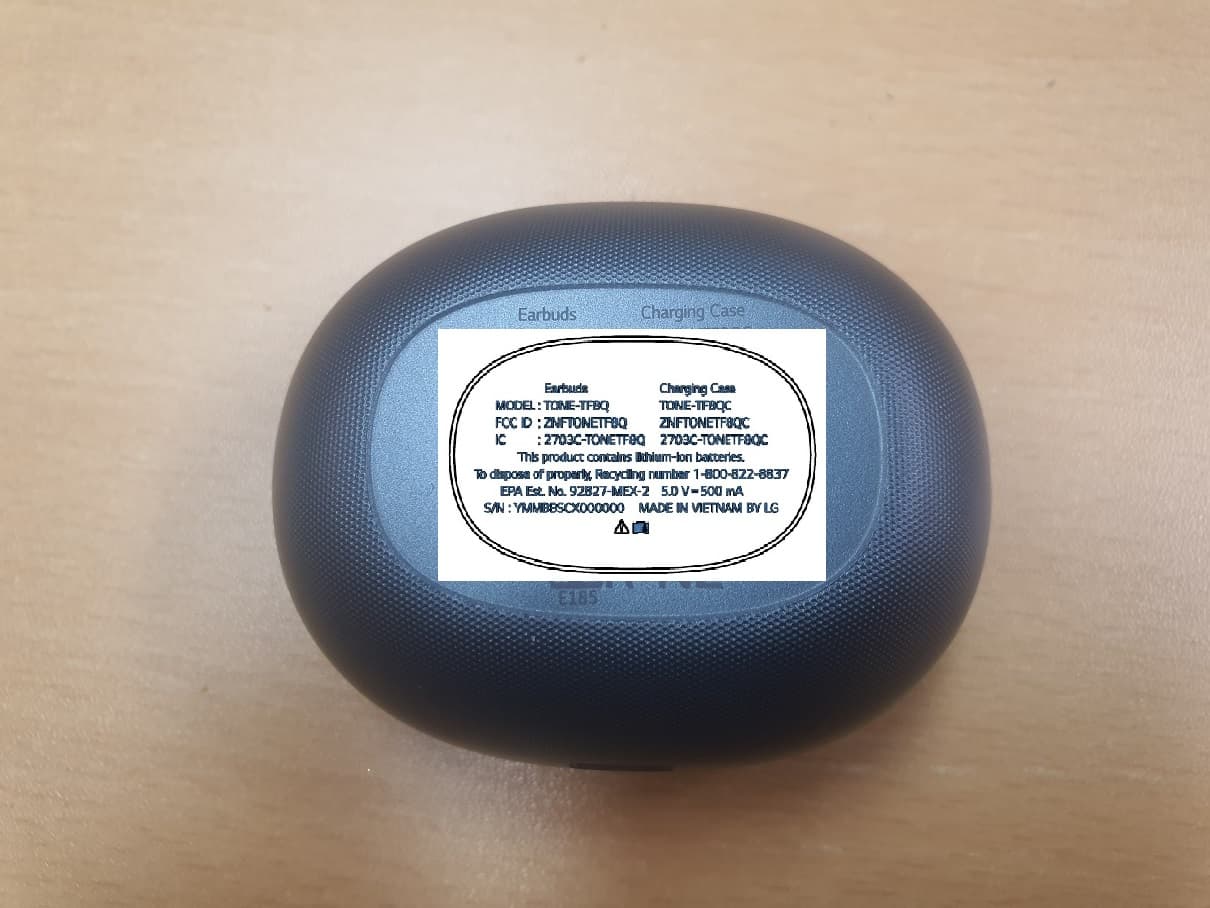
ZNFTONETF8QC
Jun 21, 2022Bluetooth Earbud (Cradle)
Equipment Class
JBP - Part 15 Class B Computing Device Peripheral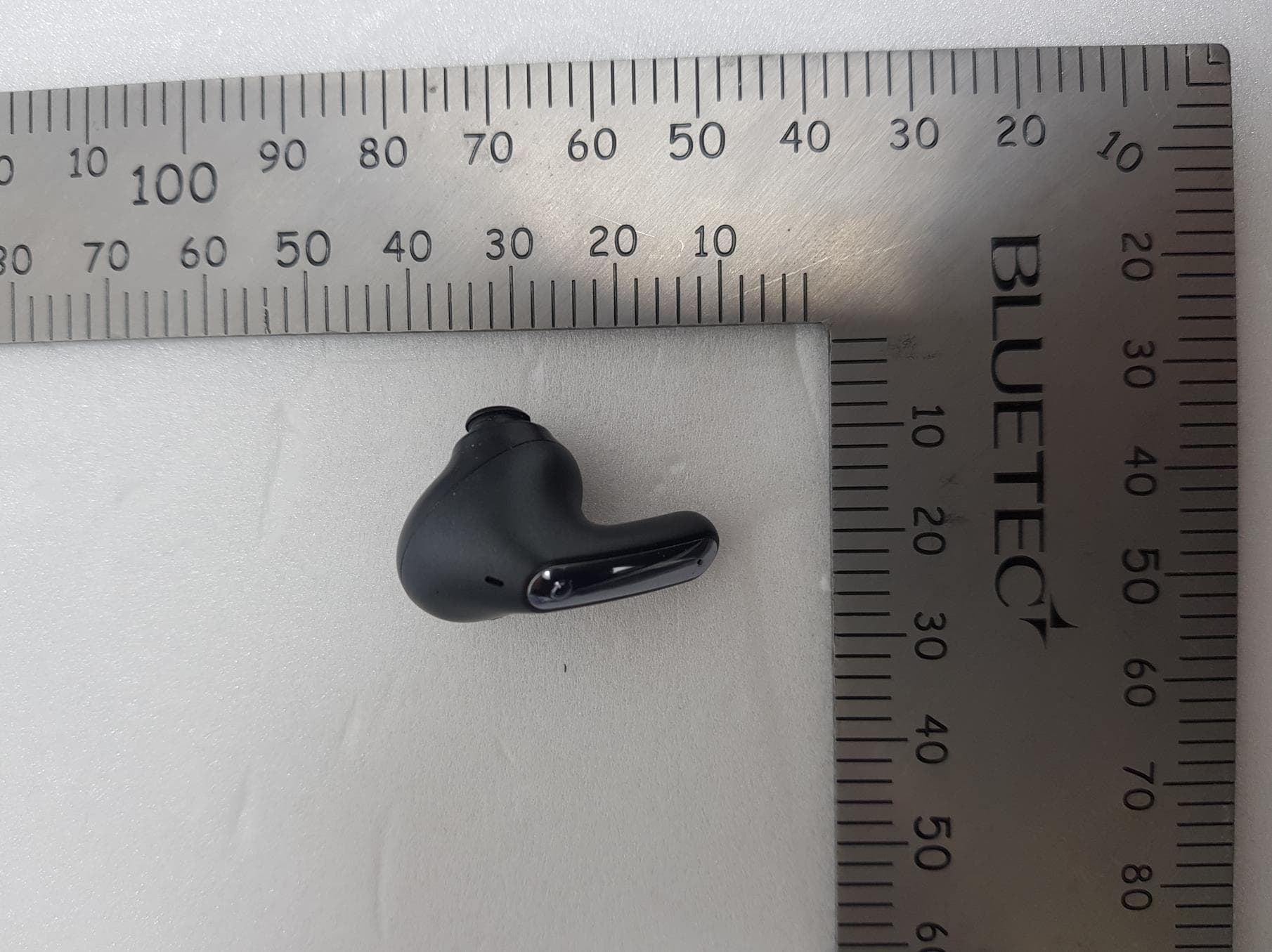
ZNFTONEFP8
May 30, 2021Bluetooth Earbud
Equipment Class
DTS - Digital Transmission System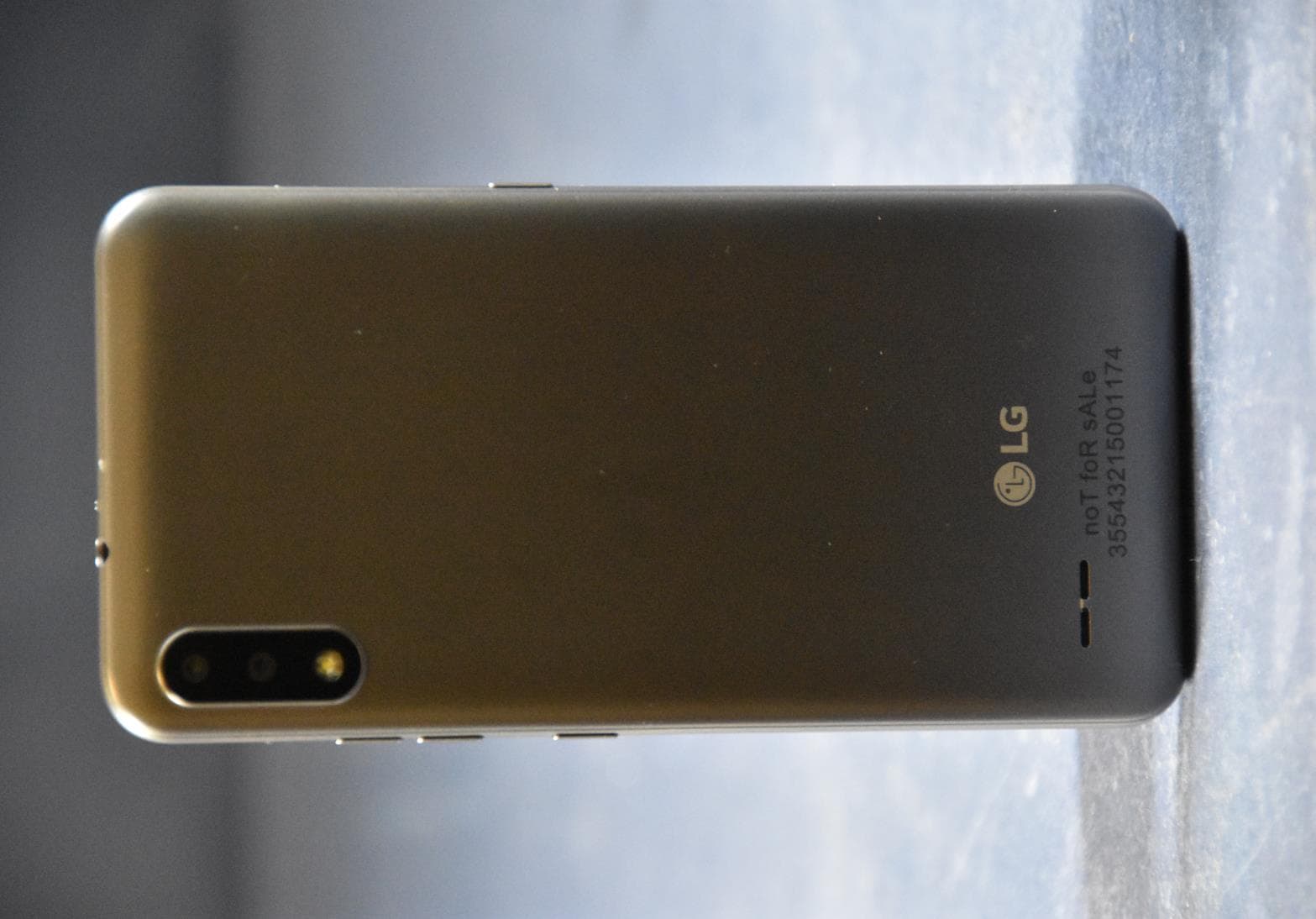
ZNFK200AM
Feb 18, 2021Portable Handset
Equipment Class
DSS - Part 15 Spread Spectrum Transmitter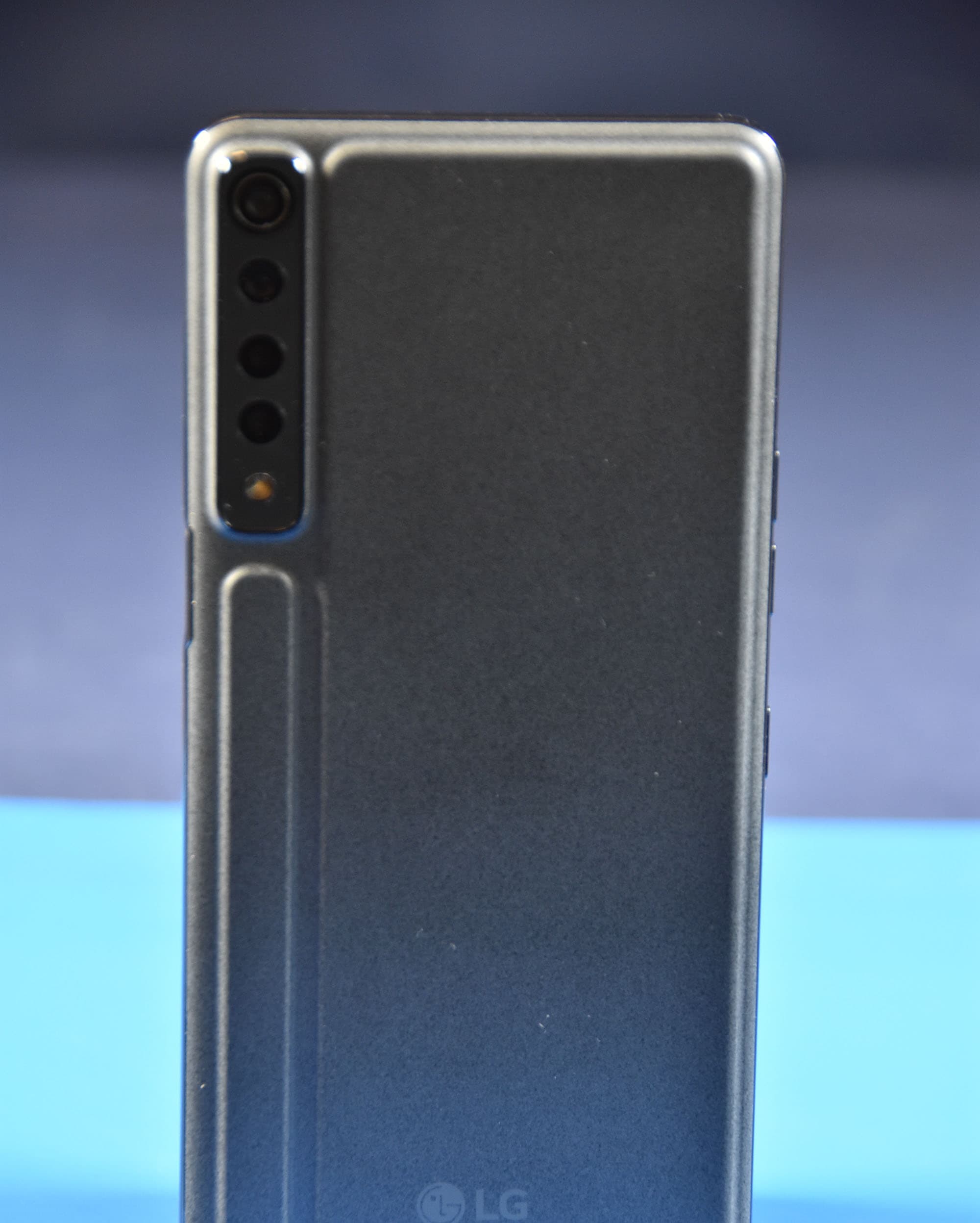
ZNFK735MM
Feb 10, 2021Portable Handset
Equipment Class
NII - Unlicensed National Information Infrastructure TX