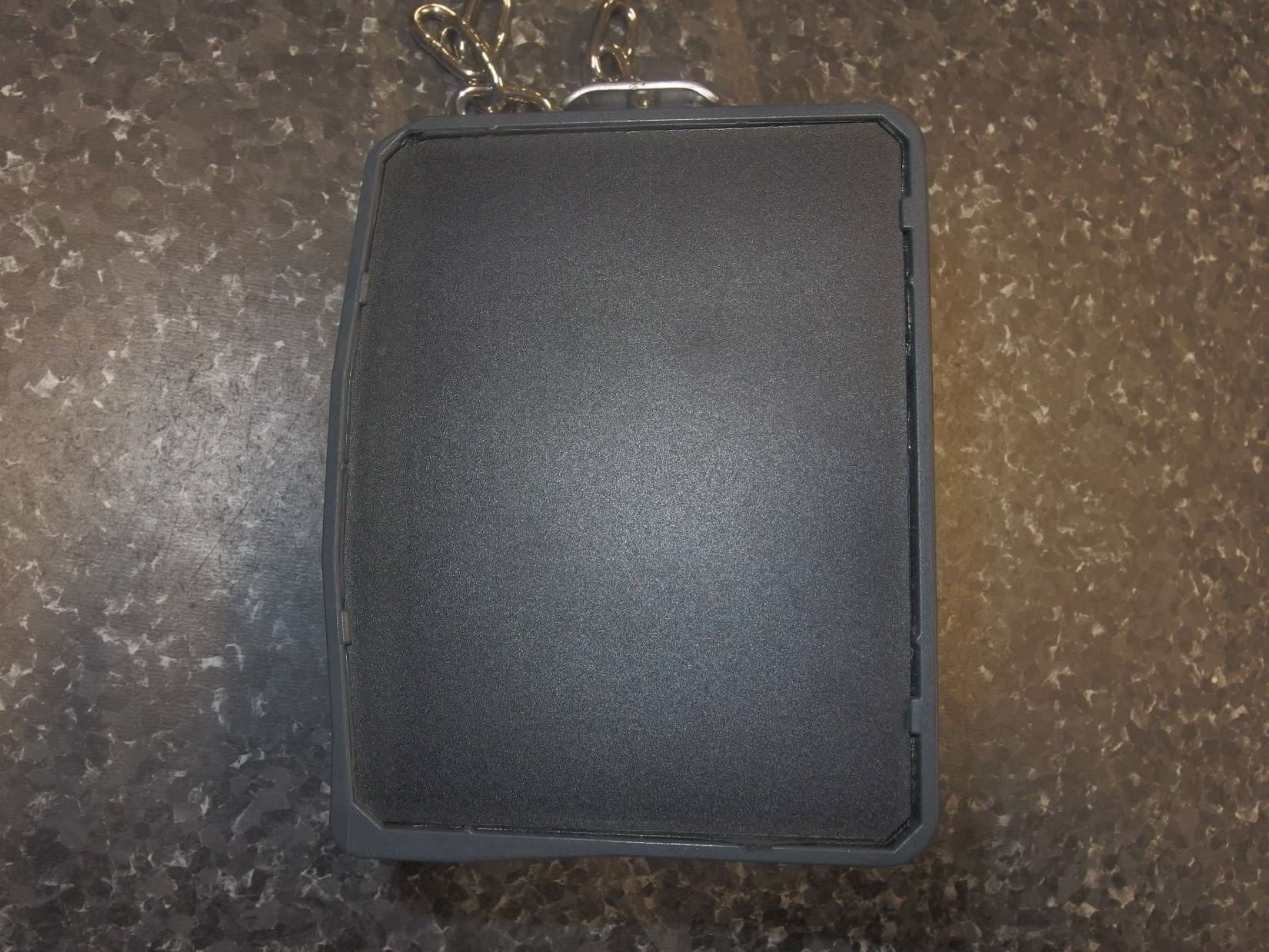
2A3V8SG2SG2 Sheep/Goat Collar
Nofence AS
Click to zoom
Application Details
- Equipment Class
- DTS - Digital Transmission System
- Date of Grant
- Jul 11, 2022
- Application Purpose
- Original Equipment
- Date of Application
- Jul 10, 2022
- Equipment Note
- SG2 Sheep/Goat Collar
- Frequency Range
- 2402.00000000 - 2480.00000000
- Company
- Nofence AS
- Country
- Norway
Documents & Files
Document Text
Text extracted from the exhibit documents filed with the FCC. Open a document above to read the original.
Users Manual
User Guide - UK 2021—Last update:Apr 05, 2022 Nofence AS Copyright © 2022 Nofence AS Table of Contents 1.What is good animal welfare?...........................................................................................................1 2.How the technology works................................................................................................................3 2.1.The basics................................................................................................................................4 2.2.The animals interacting with the system.....................................................................................7 2.3.Fitting collars..............................................................................................................................9 2.4.Training animals.......................................................................................................................12 2.5.Shelter beacon.........................................................................................................................16 3.How-to videos..................................................................................................................................19 4.How to use the app..........................................................................................................................20 4.1.Symbols used in the app..........................................................................................................21 4.2.Status......................................................................................................................................23 4.3.Pastures...................................................................................................................................27 4.4.Collars.....................................................................................................................................32 4.5.Move........................................................................................................................................37 4.6.More........................................................................................................................................40 4.6.1.My user............................................................................................................................41 4.6.2.Search for Shelter beacons nearby..................................................................................45 4.6.3.Statistics and analysis......................................................................................................46 4.6.4.Point and line markers in map..........................................................................................51 4.6.5.Remove pasture via Bluetooth.........................................................................................53 4.6.6.Help and info...................................................................................................................54 5.Technical description......................................................................................................................55 5.1.Product sheets.........................................................................................................................56 6.Maintenance and storage................................................................................................................57 6.1.Maintenance and storage for cattle collars...............................................................................58 6.2.Maintenance and storage for sheep and goat collars................................................................59 7.Contact us........................................................................................................................................61 8.FCC USA Compliance Statement....................................................................................................62 9.ISED Canada Compliance Statement..............................................................................................63 1.What is good animal welfare? The concept of animal welfare is concerned with the individual animal, the type of situation the animal is in, and how the animal experiences its situation. When animals have good welfare, they thrive. Well- being draws on interactions between health, environment, animal care, and the characteristics of the animal itself. An often-used explanation of what good animal welfare is, can be found in the ‘Five Freedoms’ laid out by the Brambell Committee (1965): Freedom from Hunger and Thirst: by ready access to fresh water and a diet to maintain full health and vigour. Freedom from Discomfort: by providing an appropriate environment including shelter and a comfortable resting area in all situations. Freedom from Pain, Injury, and Disease: by working towards prevention or rapid diagnosis and treatment of sick animals. Freedom from Fear and Distress: by ensuring that the animal has conditions and treatment that avoid mental suffering. Freedom to Express Normal Behaviour: by providing sufficient space, proper facilities, and company of the animal’s own kind. So on one hand, we must make ethical assessments, while on the other, we must use facts from research. The subject of ethics addresses subjective values in relation to animal welfare. We can ask ourselves ‘What would our society consider to be a sufficient quality of life for animals?’ Another question is ‘How can we understand the concept of “quality of life” for animals specifically?’ How are animals affected by their surroundings and how do they experience their situation? We often try to describe the condition of an animal based on its mastery of the environment in which it lives. The level of welfare is described as the balance between positive and negative experiences. Based on such an understanding, we use the following definition of animal welfare: “Anima…
Text truncated - open the document above for the full version.
Users Manual
When an individual experiences the audio warning and the subsequent delivery of the electric pulse, it normally begins to understand the relationship between the two. Most animals learn to associate the sound with the electric pulse within three days. We recommend that you set aside 1-2 weeks for the training. When the animals have learned to master the connection between their behavior and the audio warning, and they turn upon the sound, they can be moved to new pastures without physical fences. Nofence ASUser Guide - UK - 2021_en Page 14 of 63 Are you new to keeping livestock? Make sure to allow your animals enough time to get to know their new grounds before embarking on the training. The animals should know and feel safe in the area where the training takes place. Experience shows that they establish a sense of security in a completely new location after approximately one week. However, this period will depend on several factors, such as the make-up of the herd and the individuals in it. * Nofence ASUser Guide - UK - 2021_en Page 15 of 63 2.5.Shelter beacon Environmental factors can cause degradedGPSsignals. A roof can interfere with the collar’s ability to receive accurateGPSsignals, which may cause the position to drift. If the drifting position is logged outside of the Nofence boundary, the collar may emit audio warnings and electric pulses. This is why we recommend using a shelter beacon if your animals have access to a barn or a shed. The Nofence shelter beacon is a Bluetooth unit which disables the collar’sGPSreceiver. When the collar picks up the signal from the shelter beacon, the operating mode is disabled. Whenever the animal moves out of the shelter beacon’s range, the operating mode comes back on. The reach of a shelter beacon is approximately 10 metres. The Bluetooth symbol will appear in the app when the collar has contact with a shelter beacon. To check the reach of a shelter beacon, you should take a collar in your hand and walk around with it to see when the beacon symbol appears in the app. Physical obstacles such as wall may limit the reach. In larger rooms, we recommend using several shelter beacons. If the animals often lay down alongside the outside walls of the building, you should also consider placing shelter beacons here. Observe where the animals lay down to rest to estimate where the beacon should be installed. Be aware that a shelter beacon could make a dent in the Nofence boundary if the reach tangents the boundary. Nofence ASUser Guide - UK - 2021_en Page 16 of 63 This is the symbol you will see in the app when the collar is in contact with the shelter beacon. In larger rooms, we recommend using several shelter beacons. If the animals often lay down alongside the outside walls of the building, you should also consider placing shelter beacons here. Observe where the animals lay down to rest to estimate where the shelter beacon should be installed. Nofence ASUser Guide - UK - 2021_en Page 17 of 63 Please note that reverting to the operating mode may take some time. The animal can therefore move outside the pasture before regaining active fence function if the Nofence boundary is close to where the shelter beacon is located. ! Nofence ASUser Guide - UK - 2021_en Page 18 of 63 3.How-to videos Introduction to NofenceTurning the collar on or off Fitting the Nofence collarThe Nofence app The Nofence boundaryIntuitive pastures Training your animalsDifficult terrain Moving the animalsLocating the animals Nofence ASUser Guide - UK - 2021_en Page 19 of 63 4.How to use the app As a Nofence customer, you get access to the Nofence app when we ship your collars. An activation email has been sent to the email address – follow the instructions in the email to create a password. Your username is your email address, then download the app from App Store (iOS) or Play Store (Android). If you have received your collars, but still can’t find the activation email in your inbox, use the app to request a new activation email. Open the app and press on the “new user? Please activate your account” heading. Then select “Have you not received the activation email?” and enter the correct email address. Then confirm by pressing “Send me the activation email”. If you enter another email address than the one you are registered with in our system, an error message will appear. Nofence ASUser Guide - UK - 2021_en Page 20 of 63 4.1.Symbols used in the app Cattle collarSheep and goat collar Report missing. This means that the collar is unable to report over the mobile network, and can be caused by poor mobile coverage or an defective collar. The operating mode may still be working. Report missing. This means that the collar is unable to report over the mobile network, and can be caused by poor mobile coverage or an defective collar. The operating mode may still be working. The animal has escaped, the collar is out of power or the collar is not moving The animal has escaped, the collar is out of power or the collar is not moving Add new (collar or pasture)Status Pasture Exclution zone Operating mode onOperating mode off Delete marked post or marked pastureArea Collar can be moved to new pastureEscaped Collar has Bluetooth-contact og can play the localization tone Collar lacking Bluetooth-contact og can therefore not play the localization tone BluetoothBluetooth disabled HelpInfo Undo (one step back)Shelter beacon Nofence ASUser Guide - UK - 2021_en Page 21 of 63 Lacking position Time since last reportRemaining battery life in percentage Number of audio warnings in the past 24 hours Number of electric pulses in the past 24 hours Show map or satelliteTeach mode Update statusReorder list Nofence ASUser Guide - UK - 2021_en Page 22 of 63 4.2.Status The Status page When opening the app for the first time you are greeted by the Status page. Since it is your first visit, you have no active pastures yet, and you will be guided to Pastures, where you can draw your first virtual grazing area. Once you…
Text truncated - open the document above for the full version.
Users Manual
Heat map on status screen To show the heat map on the status screen, press on the white icon for map layers on the top right of the Status screen. Slide the Positions today button to the right to switch this functionality on. The heat map will show pasture data for the past 24 hours. Nofence ASUser Guide - UK - 2021_en Page 24 of 63 Notifications and messages Click on the bell icon on the top right of the status screen to access notifications and messages. The notifications bar shows notifications received on today’s date, or alternatively, notifications received during the past week. Press on Messages to see your message inbox. When you receive a new message from Nofence, the app will also notify you by sending a push notification. As long as you have unread messages, a red dot will be visible across the Messages bar. The messages you will receive here are read-only. Nofence ASUser Guide - UK - 2021_en Page 25 of 63 Nofence ASUser Guide - UK - 2021_en Page 26 of 63 4.3.Pastures Creating a virtual pasture A good place to start is by creating a Nofence pasture. Find the Pastures option in the menu at the bottom of the screen, and follow the instructions. Put your finger down on the point in the map where you want to start drawing your first Nofence post. You can choose between several map types – satellite map, standard map and aerial photos. Be aware that the aerial option may diverge some from the former. Nofence ASUser Guide - UK - 2021_en Page 27 of 63 The Pastures overview will list both active and inactive pastures, and as you create more pastures, the list grows longer. Nofence ASUser Guide - UK - 2021_en Page 28 of 63 Exclusion zones Use exclusion zones to close off areas of the pasture that you want to prevent the animals from entering, such as dangerous cliffs/drops, shelters or marshland. You can create up to nine exclusion zones per pasture. To create one or more exclusion zones inside the pasture, go to the Pastures option in the menu and select the pasture you want to edit. Press Edit pasture boundary, followed by the symbol for exclusion zones down to the left. Three choices will appear, press New exclusion zone. Create the exclusion zone in the same way as you created your pasture. All exclusion zones must be inside the boundaries of a pasture. Press Save exclusion zone to the top right when you are satisfied. Remember to press Save to the top right on the next screen, and confirm by pressing Save, and update collars, otherwise the changes will be discarded. Do you want to change or delete an exclusion zone? Go to the pasture that you want to edit, chose Edit pasture boundary and press on the exclusion zone symbol again. Opt for Edit exclusion zone or Delete exclusion zone, and then press on the exclusion zone you want to change or delete. Follow the instructions depending on whether you want to make changes or delete the exclusion zone. Remember to press Save again unless you want to lose the changes you have made. Nofence ASUser Guide - UK - 2021_en Page 29 of 63 Nofence ASUser Guide - UK - 2021_en Page 30 of 63 Pasture analysis From the Pasture screen, select the pasture you want to see more information about. Press on the Analysis button on the top right and choose between today’s data, data from yesterday or last week. Opt for positions, electrical pulses, or escapes (heat map view). Nofence ASUser Guide - UK - 2021_en Page 31 of 63 4.4.Collars Press on the Collars section of the menu to find a list of all your collars. The first time you use the app, the collars will not be assigned to any pasture, and will hence be found in the Not assigned list. Press on any one collar to get more information about it. Give the collar a name or animal ID in order to recognize which animal you are receiving information about. The Bluetooth search function The Bluetooth search function can be used to find a collar that is lost. Your phone will use Bluetooth to find the collar, so make sure this feature is enabled before you start your search. Please remember to allow your phone to show your location as well. Open the Nofence app and find the last recorded position for the collar in question, and go to this spot in the terrain. Select ‘Collars’ at the bottom of your screen and find the lost collar in the list that appears. Find the ‘Play to localize’ option and press the tone icon to the right. If the collar is able to connect to the phone via Bluetooth, it will start playing a tune, making it a lot easier to find it in the terrain. Keep in mind that the Bluetooth reach is approximately 164 ft / 50 metres in open landscapes. If you don’t find the collar immediately, try moving around in the landscape a bit to see if you can establish a connection. When the app has found a collar, it also gives an indication of how far away the collar is. Remember that if the collar is out of battery, the Bluetooth search function will not work. Nofence ASUser Guide - UK - 2021_en Page 32 of 63 Adding collars to your user This functionality uses Bluetooth technology, so make sure to switch on Bluetooth on your mobile and insert a battery into the collar before you start. Go to Collars in the main menu to see the collar list. Press on the plus icon on the top right of the screen to add the new collar to your user. The app will now show a list of all collars with Bluetooth contact. Select the one(s) you want to add to your user and confirm your choice. The search function should not be used as long as an animal is wearing the collar as the animal may confuse the sound with the audio warning. ! Nofence ASUser Guide - UK - 2021_en Page 33 of 63
Users Manual
The collars that appear with Bluetooth contact on the list, are all collars with Bluetooth contact. You will however only be able to add collars which do not have an owner. If you attempt to add a collar belonging to another user, an error message will appear. Removing collars from your user Remove single collars from your user by selecting the Collars option from the main menu. You are only able to remove collars without an active pasture, so make sure the collar you want to remove is found in the Without pasture list. Nofence ASUser Guide - UK - 2021_en Page 34 of 63 Select the collar you want to remove and scroll down to press the Advanced button at the bottom of the screen. Select Remove collar and submit the reason for the removal. Confirm to remove the collar from your user. To remove several collars at the same time, select More from the main menu, then press Account settings and Administrate collars. Tick the boxes of the collars you want to remove or press on the Select all box at the top of the list. Select Remove collars and submit the reason for the removal. Confirm to remove the collars from your user. You are only able to remove your own collars from your own user. Remember that anyone who has access to your app also can perform this operation. Nofence ASUser Guide - UK - 2021_en Page 35 of 63 Note that changes in the number of collars may affect your price plan. * Nofence ASUser Guide - UK - 2021_en Page 36 of 63 4.5.Move Transferring collars to a new pasture When transferring the animals to a new pasture, select ‘Collars’ from the bottom of the screen. Find the option ‘Set pasture’ on top left of the collar list and select the collars you want to move. Opt for ‘Select all’ if you would like to transfer all the collars on the list. Find ‘Set pasture’ to the upper right. Your available pastures will appear in a new window. Select the pasture you want to move the collars to and choose “next” at the bottom of the list. Select “confirm, set pasture” to transfer the collars. Nofence ASUser Guide - UK - 2021_en Page 37 of 63 The app will inform you that the collars are downloading a new pasture. When the collars have received the new pasture, the app will tell you that it is now safe to transfer the collars. It’s time to take the animals to the new location! The operating mode will be activated as soon as the collar reports of being located inside the new pasture area. Transferring the animals out of a Nofence pasture/switching off a Nofence pasture When moving the animals into a building or a vehicle, follow the same procedure as when moving the animals to a new pasture. Find ‘Collars’ at the bottom of the screen. Find the option ‘Set pasture’ on the new page and select the collars you want to move. Opt for ‘Select all’ if you would like to transfer all the collars on the list. When you have chosen the collars you want to transfer, select “Set pasture” from the upper right corner of the screen. A list of all your available pastures will appear. Select the “No pasture” option at the top of the list. Go down to the bottom of the list and select “Next”. Then “Confirm, remove pasture” at the bottom of the next window. Nofence ASUser Guide - UK - 2021_en Page 38 of 63 When all the collars have downloaded the ‘No pasture’ option, the app will tell you that it is safe to move your animals to their new location. If you are taking the collars off and plan to store them for some time, remember to remove the batteries to stop the usage costs from running. We would also recommend performing maintenance on the collars before putting them away for storage. Nofence ASUser Guide - UK - 2021_en Page 39 of 63 4.6.More More The last menu option is More, where you find Account settings, the shelter beacon search function, Statistics and analysis, a function for switching a pasture off via Bluetooth and finally; Help and info. If you press on the question mark icons found in various places in the app you will find relevant info about the present app options. * Nofence ASUser Guide - UK - 2021_en Page 40 of 63 4.6.1.My user Under the menu option More you will find My user. From here, opt for My account or choose what incidents to receive push notifications for. This is also where you decide which data you want to share in Nofence’ official Grazing map and the space where you can remove multiple collars from your user. This is also where you log out from your user. My account Click here to go to your account page, where you will find info related to your account. Push notifications Go to More, press on My user and then Push notifications to enable or disable push notifications for electric pulses, multiple electric pulses per collar, escapes, low battery, empty battery, or for inactivity. The latter could be an indication of disease or injury and should be followed up by the farmer. Nofence ASUser Guide - UK - 2021_en Page 41 of 63 Sharing of data to Nofence’ official Grazing map Nofence’ official Grazing map is a service that allows the farmer to share the animals’ most current positions as well as their current grazing boundary with the public. Many animals graze on grounds where members of the public are passing through, and making the animals positions and pasture boundaries available through the Grazing map could be of great benefit to the farmer. You are also able to share your contact info (name and email address) in the map, allowing members of the public to contact you in case they notice a sick or injured animal. Under this section you also find grazing posters with QR codes. The codes directs to the Grazing map and the posters further inform of animals grazing in the area using Nofence collars, as well as encourages people to keep their dogs on a lead around the animals. Nofence ASUser Guide - UK - 2021_en Page 42 of 63 Administrate collars To remove several collars from your account at the same time, select More from the main menu, then press Account settings and Administrate collars. Tic…
Text truncated - open the document above for the full version.
Users Manual
4.6.6.Help and info In the Help and info section we have gathered a selection of topics from the user guide. These topics will provide answers to the most frequently asked questions from our customers, and are great to have easily accessible as you progress with your Nofence career. Nofence ASUser Guide - UK - 2021_en Page 54 of 63 5.Technical description Nofence ASUser Guide - UK - 2021_en Page 55 of 63 5.1.Product sheets Click on the links below to find product sheets: Cattle collar Cattle collar battery Cattle collar battery charger Sheep and goat collar Sheep and goat collar battery Sheep and goat battery charger Nofence ASUser Guide - UK - 2021_en Page 56 of 63 6.Maintenance and storage Choose the right maintenance routine for your collars: Maintenance and storage for cattle collars Maintenance and storage for sheep and goat collars Nofence ASUser Guide - UK - 2021_en Page 57 of 63 6.1.Maintenance and storage for cattle collars At the end of the grazing season •Move the collars in the app to “no pasture” •Remove the battery from the collar •Clean the collars and batteries in lukewarm water, using a nylon brush such as a toothbrush. Do not use chlorine as this can damage the solar panels. If you wish to use disinfection, we recommend using Virkon S. •Charge the battery. We recommend removing the battery from the charger when fully charged •The collars and batteries should be stored in a dry and clean place at room temperature. Ahead of the new grazing season •Make sure there is no dust or mud on the battery poles. Clean the poles using q-tips if needed •Apply Vaseline at the bottom of the battery poles. Vaseline should only be applied to the poles on each side of the battery (+ and -), not in the middle one. See picture below •The battery is now ready to be used Nofence ASUser Guide - UK - 2021_en Page 58 of 63 6.2.Maintenance and storage for sheep and goat collars Maintain your collars to ensure longevity and stable functionality When changing batteries: •Remove dust and debris from the collar’s battery slot •ApplyCRC5-56 or WD-40 to the battery poles every time you charge the battery •ApplyCRC5-56 or WD-40 to the collar’s contact pins when needed •See to it that the solar panels are not covered by something (fur, clay, etc.), this will make the collars charge poorly CRC Our recommendation is to useCRC5-56 or WD-40 as a lubricant for the contact pins and battery poles. These products drive out humidity and protect the contact points from corrosion. The contact pins need lubrication The contact pins providing contact between the collar and the battery are spring loaded. To ensure that they pop out easily, we recommend that you apply one of the products mentioned above using a cotton bud. You may also press the pins slightly in and out using something soft, such as cotton buds. We also recommend that you apply the same procedure for the battery poles every time you charge the battery. This will protect against corrosion. At the end of the season •Move the collars in the app to “no pasture” •Remove the batteries from the collars – this will turn the system off and usage costs are halted •Rinse the collars (including the solar panels) in lukewarm water, and use a nylon brush such as a toothbrush. Alternatively, use cotton buds. Do not use chlorine as it damages the solar panels. If Nofence ASUser Guide - UK - 2021_en Page 59 of 63 you wish to use disinfectant, we recommend Virkon S •Charge the batteries, they are to be stored fully charged to ensure maximum performance and durability. •The collars and batteries should be stored in a dry and clean place at room temperature. •If you are using leather neck straps, they should be treated with leather care products so that they stay soft and last longer Nofence ASUser Guide - UK - 2021_en Page 60 of 63 7.Contact us If you have any questions concerning the use of Nofence, please do not hesitate to call us on +44 1952 924044 or send an email to [email protected]. Nofence ASUser Guide - UK - 2021_en Page 61 of 63 8.FCC USA Compliance Statement This equipment has been tested and found to comply with the limits for a Class B digital device, pursuant to Part 15 of theFCCRules. These limits are designed to provide reasonable protection against harmful interference in a residential installation. This equipment generates uses and can radiate radio frequency energy and, if not installed and used in accordance with the instructions, may cause harmful interference to radio communications. However, there is no guarantee that interference will not occur in a particular installation. If this equipment does cause harmful interference to radio or television reception, which can be determined by turning the equipment off and on, the user is encouraged to try to correct the interference by one of the following measures: •Reorient or relocate the receiving antenna. •Increase the separation between the equipment and receiver. •Connect the equipment into an outlet on a circuit different from that to which the receiver is connected. •Consult the dealer or an experienced radio/TV technician for help. Nofence has not approved any changes or modifications to this device by the user. Any changes or modifications could void the user’s authority to operate the equipment. This device complies with part 15 of theFCCRules. Operation is subject to the following two conditions: (1) This device may not cause harmful interference, and (2) this device must accept any interference received, including interference that may cause undesired operation. ContainsFCCID: XPYUBX18ZO01,ISEDID:8595A-UBX18ZO01) with a integrated antenna. This product emits radio frequency energy, but the radiated output power of this device is far below the FCCradio frequency exposure limits. This equipment complies withFCCRF radiation exposure limits for an uncontrolled environment. Nevertheless, the device should be used in such a manner that the potential for human contact with the antenna during normal…
Text truncated - open the document above for the full version.
Users Manual
08/07/2022, 15:59FCC USA Compliance Statement - User Guide - UK - 2021 Page 1 of 2https://www.manula.com/manuals/nofence-as/user-guide-uk/1/en/topic/fcc-usa-compliance-statement FCC USA Compliance Statement This equipment has been tested and found to comply with the limits for a Class B digital device, pursuant to Part 15 of the FCC Rules. These limits are designed t…
Text truncated - open the document above for the full version.
Contact Information
Applicant
Steinar Fagerli
Test Firm
Nemko Scandinavia ASFrode Sveinsen
[email protected]+4796905548
Technical Specifications
| # | Rule Parts | Frequency Range | Power Output |
|---|---|---|---|
| 1 | 15C | 2.40 GHz - 2.48 GHz | 1.10 mW |
Other Applications from Nofence AS
2A3V8SG25
Sep 04, 2023SG25 Sheep/Goat Collar
Equipment Class
DTS - Digital Transmission System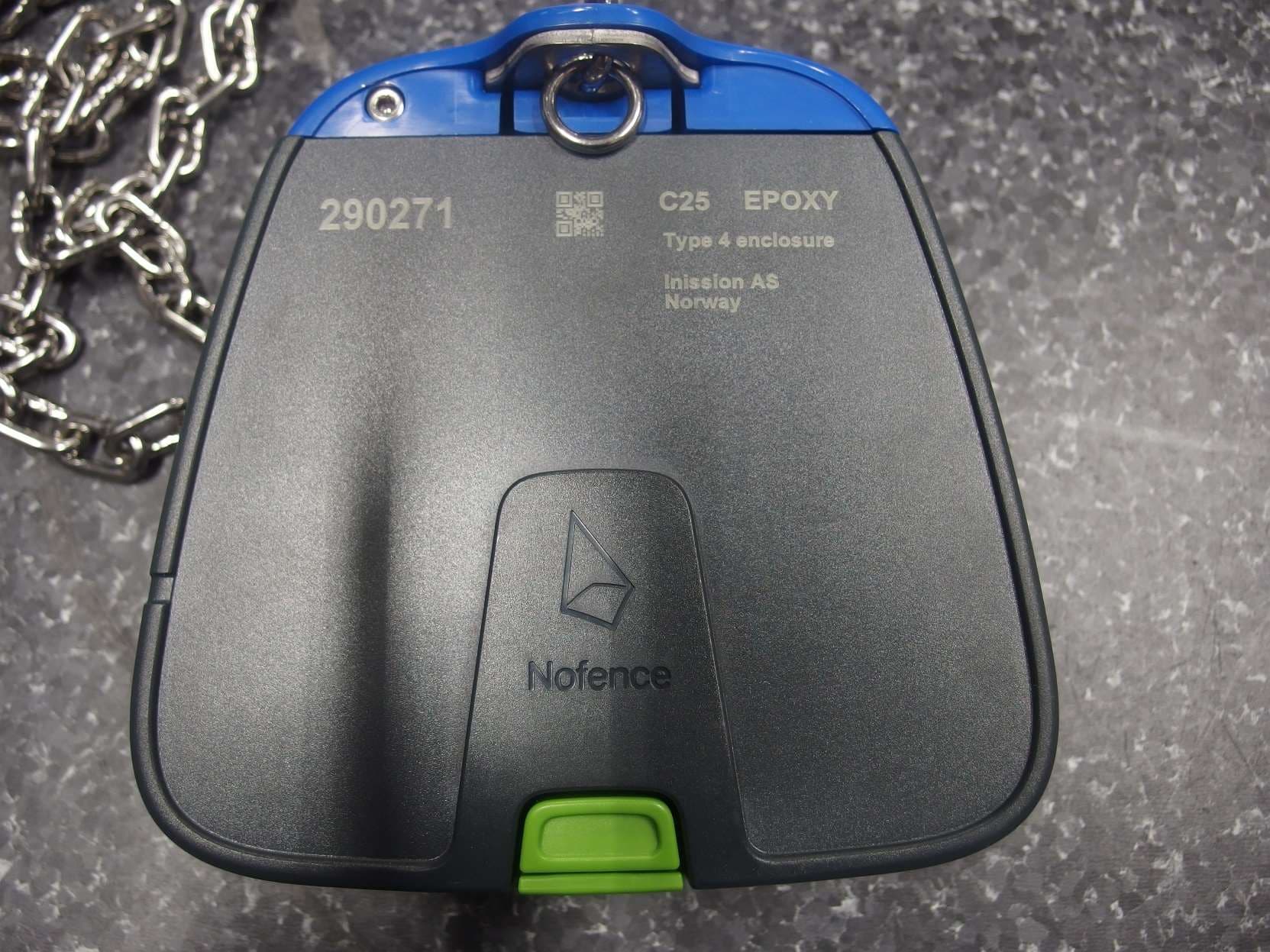
2A3V8C25
Sep 04, 2023C25 Cattle Collar
Equipment Class
DTS - Digital Transmission System
2A3V8C2
Jul 11, 2022C2 Cattle Collar
Equipment Class
DTS - Digital Transmission System