2AA3N-RB1VO2Peloton Console Tablet
Peloton Interactive Inc.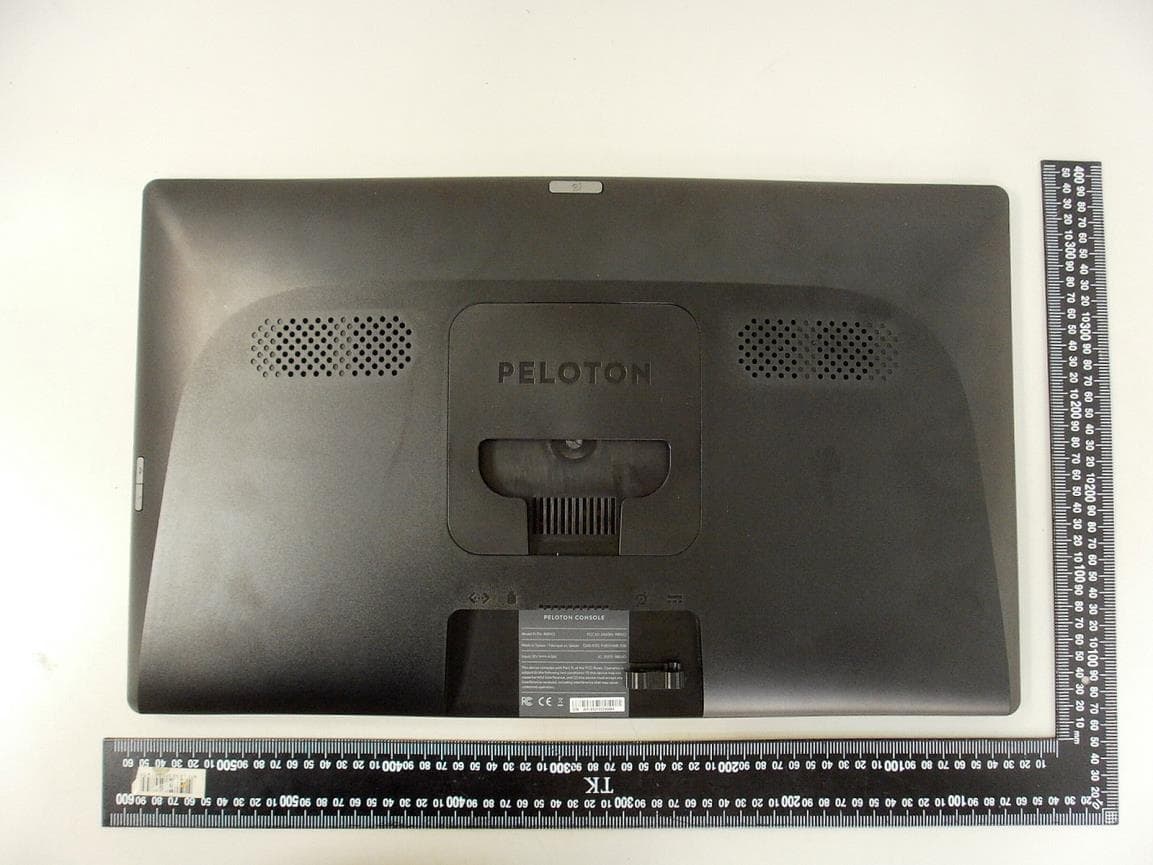
Click to zoom
Application Details
- Equipment Class
- DXX - Part 15 Low Power Communication Device Transmitter
- Date of Grant
- Jul 12, 2021
- Application Purpose
- Original Equipment
- Date of Application
- Jul 12, 2021
- Equipment Note
- Peloton Console Tablet
- Frequency Range
- 2402.00000000 - 2480.00000000
- Company
- Peloton Interactive Inc.
- Country
- United States
Documents & Files
Document Text
Text extracted from the exhibit documents filed with the FCC. Open a document above to read the original.
Users Manual
Peloton Console Model No.: PLTN-RB1VO-2 User Manual FCC ID: 2AA3N-RB1VO2 IC ID: 21377-RB1VO2 2021/06/10 Peloton Console Setting The equipment is used as below: Peloton console will be setting on bike, our engineer will assembly it for you. Peloton Console Basic Info Getting to Know Your Peloton Console Speake r Device Label Connec t to power cable from bike Connec t to data cable from bile Connec t to PC for log Connec t to Ethern et Cable Peloton Console Rear View VESA Hole s Getting Around Your Peloton console • There are different ways to navigate around the Home screen, menus and application screens on your Peloton console. You can also change the screen orientation of the Peloton console as well.. • Touch When you want to type using the onscreen keyboard, select items onscreen such as Join Class and personal profile icons and touch them with your finger. • Swipe or slide To swipe or slide means to quickly drag your finger vertically or horizontally across the screen. • Soft Key functions and status bar Touch the control keys on the front panel of your Peloton console to do the following: Key Function HOME While on any application or screen, touch to return the main Home screen BACK Touch to go back to the previous screen, or to close a dialog box, options menu, or close the Notifications panels. Touch and hold to return to the main screen of the current application When the onscreen keyboard is open, touch to close the onscreen keyboard Time Display Local Time There is Date and Time in the setting, it will be change by time zone an user define. Ethernet Ethernet status icon There is Ethernet menu in the setting, it will connect to Ethernet automatically by connecting RJ45 Ethernet cable. Wi-Fi Wi-Fi status icon There is Wi-Fi menu in the setting, it could be configure to connect AP. BT Bluetooth status icon Getting Started The equipment can function with external DC adapter only, and no battery included. Once you’ve plug in the DC adapter, you can turn on your Peloton console and start using it. Turn your Peloton console on and off To turn on the Peloton console Press the POWER key on the top side of the Peloton console. To turn off the Peloton console 1 Press and hold the POWER key until the Power off options menu opens. 2 Touch OK when prompted to turn off the Peloton console. Set up your Peloton console for the first time When you turn on the Peloton console for the first time, you will be requested to connect to your Internet connection if any. Please follow the instruction showed on the Peloton console. Home Screen The Home screen is your starting point for using the applications on your Peloton console. You can control the icons on Home screen to process application. Settings Press Status Bar on bottom Right of Peloton console screen, then touch to open the Notification tab, and then touch Settings Ethernet configuration Configure your Peloton console’s Ethernet connections, Wi-Fi Configure your Peloton console’s WLAN connections, Bluetooth Configure your Peloton console’s BT connections, Sound Set the notification ring tones Display Set the screen brightness and screen timeout. Storage Check internal Storage and Available storage Apps Manage applications in system and check memory status Security Select the password visable, or set the screen unlock pattern Language & keyboard Set the operating system language and region. You can also set onscreen keyboard options. Backup & Reset Backup the personal settings and other application data, restore the backed up and back to the factory setting Add Accounts Sync your data with Google services. Date & time Set the date, time, time zone, and date or time format. About Peloton console View the Peloton console status such as the network type. You can also view the legal information and software version of your Peloton console. Ethernet configuration Ethernet connect will automatically connect to network and when you insert RJ45 connecter. You can Configure Ethernet connections for static IP, or DHCP etc, To uncheck option to Turn Off Ethernet automatic connection The internet connection will use Ethernet when Wi-Fi is Turn On. WLAN connection Wi-Fi can only be used when it connects with home Wi-Fi Access Point (AP) or a free unsecured Wi-Fi hotpot. Under “Wireless & networks”, tap “Wi-Fi” to turn it on. After a moment, your Wi-Fi network list should populate. If you need to rescan for available networks, tap "scan" • Turn on WLAN Tap “Settings” → then “Wireless & networks” → “Wi-Fi”to turn on Wi-Fi. Your Peloton console lists the networks it finds within range. Tap a network to connect. If necessary, enter Network SSID, Security, and Wireless password, and tap “Connect”. When your Peloton console is connected to the network, the wireless indicator appears in the status bar. Waves indicate connection strength. BT connection • Make device discoverable: You must pair your Peloton console with a device before you can connect to it. Once you pair your Peloton console with a device, they stay paired unless you unpair them. Under “Settings”, choose “Bluetooth”. Tap Bluetooth to turn on it and tap “Search for devices”. The Bluetooth indicator then appears in the status bar. • Scan for devices After scanning, there will be a list of the IDs of all available Bluetooth devices in range. If the device you want to pair with isn’t in the list, ensure that the other device is turned on and set to be discoverable. • Pair with the Bluetooth device Tap the name of an available Bluetooth device to pair with. In the popup“Bluetooth pairing request” dialog, type a PIN. If the pairing is successful, your Peloton console connects to the device. You can touch the right icon to unpair the device. • Note: After pairing, it shows under the Bluetooth device “Paired but not connected”, but file transmission is still possible. • Adjusting the Volume Adjusting the Media volume changes the volume level of sound notifications and music or video p…
Text truncated - open the document above for the full version.
Cover Letter(s)
Peloton Interactive Inc. 125 W 25th St, 11th Floor, New York, NY 10001 Tel: 646-759-8482 2021/06/10 To: Federal Communications Commission Authorization and Evaluation Division 7435 Oakland Mills Road Columbia, MD Subject: Permanent Confidentiality Request for FCC ID: 2AA3N-RB1VO2 Pursuant to sections 0.457 and 0.459 of CFR 47, we respectfully request permanent confidential treatment of the following Exhibits accompanying this application as: Block Diagram Schematics Operational Description Software Security Declaration The above materials contain trade secrets and proprietary information not customarily released to the public. The public disclosure of these materials may be harmful to the applicant and provide unjustified benefits to its competitors. The applicant understands that disclosure of this application and all accompanying documentation will not be made before the date of the Grant for this application. Sincerely, Client’s signature :__________________ Client’s name & title : Minqaad Rana/Product Compliance Engineering Contact information / address: 125 W 25th St, 11th Floor, New York, NY 10001 Tel: 405-819-1773
Cover Letter(s)
Peloton Interactive Inc. 125 W 25th St, 11th Floor, New York, NY 10001 Tel: 646-759-8482 Date:2021/06/17 To: Federal Communications Commission Office of Engineering and Technology Equipment Authorization Division 7345 Oakland Mills Road Columbia, Maryland 21046 Subject: Short Term Confidentiality Request for FCC ID: 2AA3N-RB1VO2 To Whom It May Concern: Pursuant to sections 0.457 and 0.459 of CFR 47, and to avoid premature release of sensitive information prior to marketing or release of the product to the public, the applicant requests the following documents contained in this certification application be temporarily withheld from public disclosure for an initial period of 45 or 180 days; or for a specified date of / / not to exceed 180 days from the Grant Date. See KDB 726920.. Internal Photos User’s Manual Test Set-up Photos External Photos The above materials contain trade secrets and proprietary information not customarily released to the public. The public disclosure of these materials may be harmful to the applicant and provide unjustified benefits to its competitors. Sincerely, Client’s signature : Client’s name & title : Minqaad Rana& Manager, Product Compliance Engineering Contact information / address : Peloton Interactive Inc./ 125 W 25th St, 11th Floor, New York, NY 10001
Cover Letter(s)
Peloton Interactive Inc. 125 W 25th St, 11th Floor, New York, NY 10001 Tel: 646-759-8482 Authority to Act as Agent Date: 2021/06/17 To: BVCPS Inc. 775 Montague Expressway Milpitas, CA 95035 USA To Whom It May Concern: Intertek Testing Services Taiwan Ltd (Rico Deng) is authorized to act on our behalf, until otherwise notified, for applications to Bureau Veritas Consumer Product Services, Inc. We certify that we are not subject to denial of federal benefits, that includes FCC benefits, pursuant to Section 5301 of the Anti-Drug Abuse Act of 1988, 21 U.S.C. 862. Further, no party, as defined in 47 CFR 1.2002 (b), to the application is subject to denial of federal benefits, that includes FCC benefits. Thank you, By: Minqaad Rana (Signature) (Print name) Title: Manager, Product Compliance Engineering On behalf of: Peloton Interactive Inc. (Company Name) Telephone: 405-819-1773
External Photos
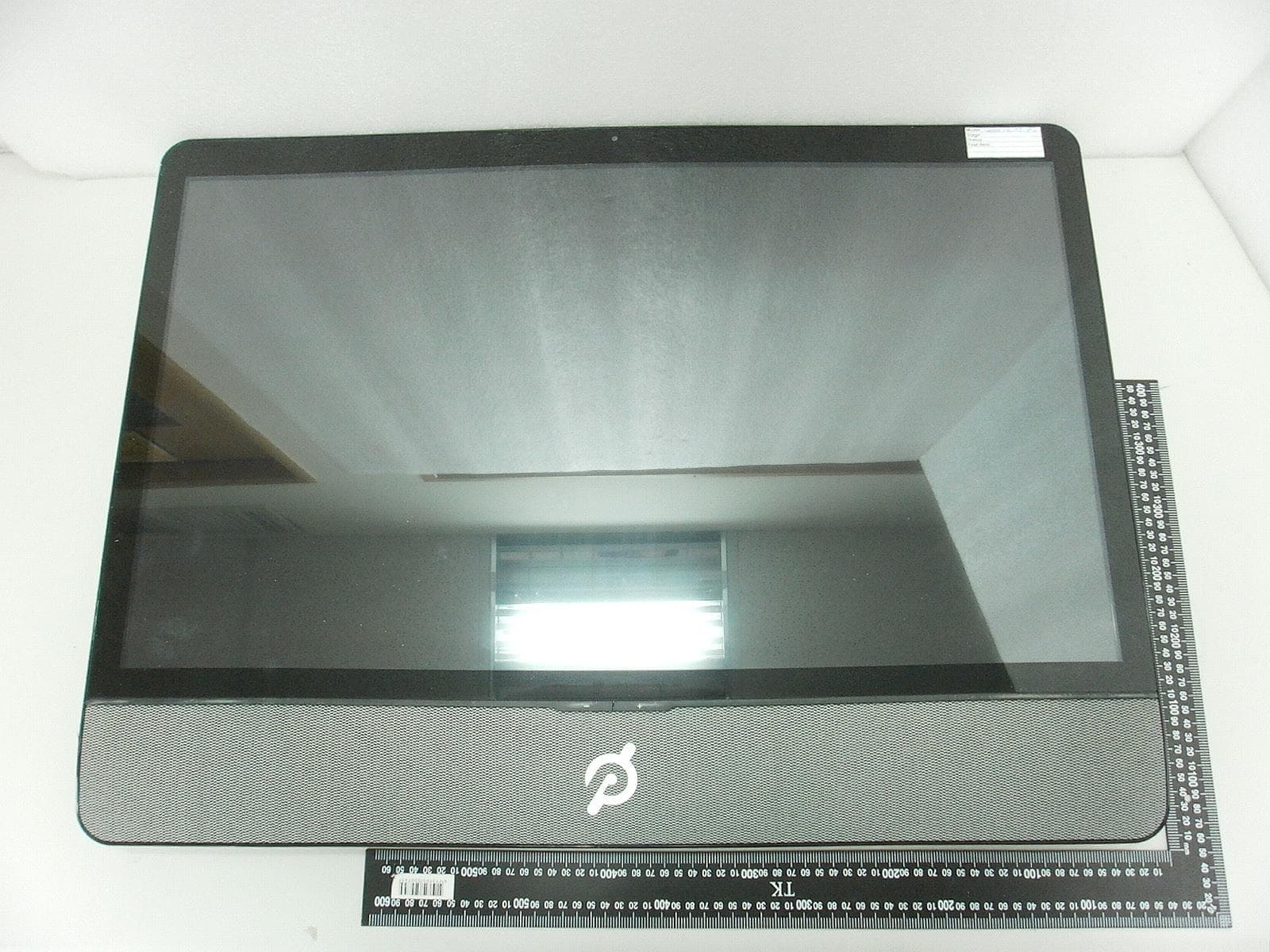
External photo of EUT External photo of EUT
ID Label/Location Info
InnoComm Moblie Technology Corp.
Internal Photos
Internal photo of EUT Internal photo of EUT Internal photo of EUT Internal photo of EUT Internal photo of EUT Internal photo of EUT Internal photo of EUT
Test Report
Peloton Interactive Inc. TEST REPORT SCOPE OF WORK: 47 CFR FCC Part 15.249 – Radio Spectrum report Model: PLTN-RB1VO-2 REPORT NUMBER 210400309THC-001 ISSUE DATE Jun. 23, 2021 PAGES 28 DOCUMENT CONTROL NUMBER GFT-OP-10h (28-Nov-2018) © 2020 Intertek Report No.: 210400309THC-001 This report is for the exclusive use of Intertek's Client and is provided pursuant to the agreement between Intertek and its Client. Intertek's responsibility and liability are limited to the terms and conditions of the agreement. Intertek assumes no liability to any party, other than to the Client in accordance with the agreement, for any loss, expense or damage occasioned by the use of this report. Only the Client is authorized to permit copying or distribution of this report and then only in its entirety. Any use of the Intertek name or one of its marks for the sale or advertisement of the tested material, product or service must first be approved in writing by Intertek. The observations and test results in this report are relevant only to the sample tested. This report by itself does not imply that the material, product, or service is or has ever been under an Intertek certification program. GFT-OP-10h (28-Nov-2018) Page 1 of 28 Test Report 0597 Radio Spectrum TEST REPORT Applicant: PELOTON INTERACTIVE, INC. 125 West 25th street, FL11, New York, NY 10001, USA Product: Peloton Console Tablet Model No.: PLTN-RB1VO-2 FCC ID: 2AA3N-RB1VO2 Test Method/ Standard: 47 CFR FCC Part 15.249 & ANSI C63.10 2013 Test By: Intertek Testing Services Taiwan Ltd., Hsinchu Laboratory No. 11, Lane 275, Ko-Nan 1 Street, Chia-Tung Li, Shiang-Shan District, Hsinchu City, Taiwan Zero Chen Engineer Durant Wei Reviewer Report No.: 210400309THC-001 GFT-OP-10h (28-Nov-2018) Page 2 of 28 TEST REPORT Revision History Report No. Issue Date Revision Summary 210400309THC-001 Jun. 23, 2021 Original report Report No.: 210400309THC-001 GFT-OP-10h (28-Nov-2018) Page 3 of 28 TEST REPORT Table of Contents Summary of Tests ....................................................................................................................... 4 1. General Information ............................................................................................................... 5 1.1 Identification of the EUT .................................................................................................. 5 1.2 Antenna description ......................................................................................................... 5 1.3 Operation mode ............................................................................................................... 6 1.4 Peripherals equipment ..................................................................................................... 6 2. 20dB Bandwidth test .............................................................................................................. 7 2.1 Test setup & procedure .................................................................................................... 7 2.2 Measured data of modulated bandwidth test results ...................................................... 7 3. Radiated emission test FCC 15.249 (C) ................................................................................... 9 3.1 Test setup & procedure .................................................................................................... 9 3.3 Emission limit ................................................................................................................. 11 3.3.1 Fundamental and harmonics emission limits.............................................................. 11 3.3.2 General radiated emission limits ................................................................................. 11 3.4 Radiated spurious emission test data ............................................................................ 12 3.4.1 Measurement results: frequency range from 9 kHz to 30 MHz .................................. 12 3.4.2 Measurement results: frequencies equal to or less than 1 GHz ................................. 15 3.4.3 Measurement results: frequency above 1GHz ............................................................ 17 3.4.4 Measurement results: Fundamental ........................................................................... 18 4. Radiated emission on the band edge FCC 15.249(d) ........................................................... 19 4.1 Radiated emission on the band edge test data .............................................................. 19 5. AC Power Line Conducted Emission ..................................................................................... 22 5.1 Measuring instrument setting ........................................................................................ 22 5.2 Test Procedure ................................................................................................................ 22 5.3 Test Diagram ................................................................................................................... 22 5.4 Limit ................................................................................................................................ 23 5.5 Test Results ..................................................................................................................... 24 Appendix A: Test equipment list ............................................................................................... 26 Appendix B: Measurement Uncertainty ................................................................................... 28 Report No.: 210400309THC-001 GFT-OP-10h (28-Nov-2018) Page 4 of 28 TEST REPORT Summary of Tests Test Reference Results 20dB Bandwidth 15.215(c) Pass Radiated Emission test 15.249(c), 15.209 Pass Emission on the Band Edge 15.249(d) Pass Conducted Emission of AC Power 15.207 Pass Antenna Requirement 15.203 Pass Note: Please note that the test results with statement of con…
Text truncated - open the document above for the full version.
Test Setup Photos
Radiated Emission Test set-up photo 9kHz ~ 30MHz Radiated Emission Test set-up photo 30 MHz ~ 1GHz Radiated Emission Test set-up photo Above 1GHz
Test Setup Photos
Conducted Emission Test set-up photo
Contact Information
Applicant
Minqaad Rana(Manager, Product Compliance Engineering)
Test Firm
Intertek Testing Services Taiwan LtdTed Wu
Technical Specifications
| # | Rule Parts | Frequency Range | Power Output |
|---|---|---|---|
| 1 | 15C | 2.40 GHz - 2.48 GHz | - |
Other Applications from Peloton Interactive Inc.
2AA3N-TC1VS2
Jun 07, 2021Peloton Tread Tablet
Equipment Class
DTS - Digital Transmission System
2AA3N-TTR01
Jun 22, 2020Peloton Console
Equipment Class
DXX - Part 15 Low Power Communication Device Transmitter