2AC67-CS61Speak CS61
Xiamen VBeT Electronic Co.,Ltd.
Click to zoom
Application Details
- Equipment Class
- JAB - Part 15 Class B Digital Device
- Date of Grant
- Oct 04, 2020
- Application Purpose
- Original Equipment
- Date of Application
- Oct 04, 2020
- Equipment Note
- Speak CS61
- Country
- China
Documents & Files
Document Text
Text extracted from the exhibit documents filed with the FCC. Open a document above to read the original.
Users Manual
CS61 User manual Designed and engineered in China Made in China MODEL: CS61 1. Welcome......................................... 5 2. Overview......................................... 6 3. Where To Position......................... 7 3.1 Small Meeting Room 3.2 Desk 4. How To Charge........................... 9 4.1 USB Charging 4.2 Automatic Power Off 4.3 Battery Status 5. How To Connect ............................... 11 5.1 Connect To PC (Bluetooth) 5.2 Connect To PC (USB Cable) 5.3 Connect To Smartphone 6. How To Use ....................................... 13 6.1 Button Visibility 6.2 Typical Use 6.3 The LED Light-Ring Status 6.4 Voice assistant button CS61 3 7. Software .............................................. 17 7.1 UC Manager 7.2 Update Firmware 8. Support ................................................ 19 8.1 Faq And Technical Specifications 8.2 How To Care For Your VT Device CS61 4 1. Welcome Thank you for using the CS61. We hope you will enjoy it ! CS61 features • Immersive sound for calls and music • Intuitive plug and play connectivity - connect to laptop, smartphone and tablet via USB or Bluetooth • Integrated Busy light • Light weight design, protective travel pouch, and 12 hours of battery life • Flexible and scalable for small meetings • Interact with your voice assistant with the one-touch voice assistant button • Compatible with Avaya, Cisco Jabber and Skype for Business for a plug-and- play experience CS61 5 2. Overview CS61 6 USB Cable Table Stand BT 100U Bluetooth Battery status Answer Call Volume Down Power On/Off Mute/ Voice assistant Volume Up End Call Busylight 3. Where to position 3.1 Small meeting room Position the speakerphone in the center of the table, up to 2m/6ft from each participant. A single CS61 is ideal for up to 6 people. 2m/6ft CS61 7 3.2 Desk When using the CS61 at your desk it is recommended to put the speakerphone into an upright position using the table stand. This will better direct the audio towards you. CS61 8 4. How to charge 4.1 USB charging Plug the CS61 into a USB power source using the attached USB cable. The CS61 battery lasts for up to 12 hours of talk time and takes approx. 3 hours to fully charge. 4.2 Automatic power off To preserve battery while unplugged, the CS61 will automatically power off when it has not been connected to a bluetooth device for 15 minutes. CS61 9 4.3 Battery status To view the current battery status, press the Battery status button. The LED on the Battery status button, When the battery is full, the LED is Green, when the battery is medium, the LED is Blue, When the battery is low battery, the LED is Red, When the battery is very low battery, the Red LED is flashing. Full battery Medium battery Low battery CS61 10 5. How to connect 5.1 Connect to PC (Bluetooth) Plug the BT 100U into a USB port on your PC. The CS61 and the BT 100U are pre-paired and ready to use out of the box. The bluetooth range is 30m. 30m/100 ft For the CS61 to work correctly you may need to set the BT 100U as the audio device in your operating system’s audio settings. To manually pair the CS61 with the BT 100U, please use UC Manager. CS61 11 5.2 Connect to PC (USB cable) Plug the CS61 into a USB port on your PC. You may need to set the CS61 as the playback device in your operating system’s audio settings. 5.3 Connect to smartphone Hold the Bluetooth button for 2 seconds and follow the voice-guided instructions to pair to your smartphone. The bluetooth range is 10m. 10 m/30 ft To disconnect or reconnect, Double tap the Bluetooth button again. CS61 12 6. How to use 6.1 Button visibility The buttons are backlit and only visible when the speakerphone is powered on. After 20 second of inactivity the buttons will fade, and can be reactivated by tapping the area where the buttons are located. The Voice assistant button, and Mute button will only be visible under certain conditions (e.g. the Voice assistant button is only visible when the CS61 is connected smart phone and not on call). CS61 13 Bluetooth Battery status Answer Call Volume Down Power On/Off Mute/ Voice assistant Volume Up End Call Busylight 6.2 Typical use CS61 14 6.3 The LED Light-Ring Status WHAT HOW Power on or off The LED light-ring flashes Green, Blue and Red Incoming call The LED light-ring Green breathing On call The LED light-ring glow Red Mute The LED light-ring red breathing Low Battery The LED light-ring flashes Red CS61 15 6.4 Voice assistant button By default, the voice assistant button will activate your smartphone’s voice assistant (Siri®, Google Now™, Cortana™,Xiaoai,Xiaoyi). When you press the voice assistant button, the button will turn Green light , and it will awaken the voice assistant. CS61 16 7. Software 7.1 UC Manager UC Manager is PC software designed to support, manage and enable optimal functionality for VT devices. Download the latest version from vbet.cn/UCM CS61 17 7.2 Update firmware Firmware updates improve performance or add new functionality to VT devices. 1. Connect the CS61 to a PC using the USB cable. 2. Install UC Manager on your PC. 3. Use UC Manger to check for the latest firmware updates. CS61 18 8. Support 8.1 FAQ and technical specifications View the FAQ, certifications, and technical specifications at vbet.cn/conference-speaker/ 8.2 How to care for your VT device • The CS61 is for indoor use only. • Avoid storage at extreme temperatures (above 65°C/149°F or below -40°C/-40°F). • Do not expose the CS61 to rain or other liquids. • Do not cover the CS61 with stickers or labels. CS61 19
Users Manual
CS61 User manual Designed and engineered in China Made in China MODEL: CS61 1. Welcome......................................... 5 2. Overview......................................... 6 3. Where To Position......................... 7 3.1 Small Meeting Room 3.2 Desk 4. How To Charge........................... 9 4.1 USB Charging 4.2 Automatic Power Off 4.3 Battery Status 5. How To Connect ............................... 11 5.1 Connect To PC (Bluetooth) 5.2 Connect To PC (USB Cable) 5.3 Connect To Smartphone 6. How To Use ....................................... 13 6.1 Button Visibility 6.2 Typical Use 6.3 The LED Light-Ring Status 6.4 Voice assistant button CS61 3 7. Software .............................................. 17 7.1 UC Manager 7.2 Update Firmware 8. Support ................................................ 19 8.1 Faq And Technical Specifications 8.2 How To Care For Your VT Device CS61 4 1. Welcome Thank you for using the CS61. We hope you will enjoy it ! CS61 features • Immersive sound for calls and music • Intuitive plug and play connectivity - connect to laptop, smartphone and tablet via USB or Bluetooth • Integrated Busy light • Light weight design, protective travel pouch, and 12 hours of battery life • Flexible and scalable for small meetings • Interact with your voice assistant with the one-touch voice assistant button • Compatible with Avaya, Cisco Jabber and Skype for Business for a plug-and- play experience CS61 5 2. Overview CS61 6 USB Cable Table Stand BT 100U Bluetooth Battery status Answer Call Volume Down Power On/Off Mute/ Voice assistant Volume Up End Call Busylight 3. Where to position 3.1 Small meeting room Position the speakerphone in the center of the table, up to 2m/6ft from each participant. A single CS61 is ideal for up to 6 people. 2m/6ft CS61 7 3.2 Desk When using the CS61 at your desk it is recommended to put the speakerphone into an upright position using the table stand. This will better direct the audio towards you. CS61 8 4. How to charge 4.1 USB charging Plug the CS61 into a USB power source using the attached USB cable. The CS61 battery lasts for up to 12 hours of talk time and takes approx. 3 hours to fully charge. 4.2 Automatic power off To preserve battery while unplugged, the CS61 will automatically power off when it has not been connected to a bluetooth device for 15 minutes. CS61 9 4.3 Battery status To view the current battery status, press the Battery status button. The LED on the Battery status button, When the battery is full, the LED is Green, when the battery is medium, the LED is Blue, When the battery is low battery, the LED is Red, When the battery is very low battery, the Red LED is flashing. Full battery Medium battery Low battery CS61 10 5. How to connect 5.1 Connect to PC (Bluetooth) Plug the BT 100U into a USB port on your PC. The CS61 and the BT 100U are pre-paired and ready to use out of the box. The bluetooth range is 30m. 30m/100 ft For the CS61 to work correctly you may need to set the BT 100U as the audio device in your operating system’s audio settings. To manually pair the CS61 with the BT 100U, please use UC Manager. CS61 11 5.2 Connect to PC (USB cable) Plug the CS61 into a USB port on your PC. You may need to set the CS61 as the playback device in your operating system’s audio settings. 5.3 Connect to smartphone Hold the Bluetooth button for 2 seconds and follow the voice-guided instructions to pair to your smartphone. The bluetooth range is 10m. 10 m/30 ft To disconnect or reconnect, Double tap the Bluetooth button again. CS61 12 6. How to use 6.1 Button visibility The buttons are backlit and only visible when the speakerphone is powered on. After 20 second of inactivity the buttons will fade, and can be reactivated by tapping the area where the buttons are located. The Voice assistant button, and Mute button will only be visible under certain conditions (e.g. the Voice assistant button is only visible when the CS61 is connected smart phone and not on call). CS61 13 Bluetooth Battery status Answer Call Volume Down Power On/Off Mute/ Voice assistant Volume Up End Call Busylight 6.2 Typical use CS61 14 6.3 The LED Light-Ring Status WHAT HOW Power on or off The LED light-ring flashes Green, Blue and Red Incoming call The LED light-ring Green breathing On call The LED light-ring glow Red Mute The LED light-ring red breathing Low Battery The LED light-ring flashes Red CS61 15 6.4 Voice assistant button By default, the voice assistant button will activate your smartphone’s voice assistant (Siri®, Google Now™, Cortana™,Xiaoai,Xiaoyi). When you press the voice assistant button, the button will turn Green light , and it will awaken the voice assistant. CS61 16 7. Software 7.1 UC Manager UC Manager is PC software designed to support, manage and enable optimal functionality for VT devices. Download the latest version from vbet.cn/UCM CS61 17 7.2 Update firmware Firmware updates improve performance or add new functionality to VT devices. 1. Connect the CS61 to a PC using the USB cable. 2. Install UC Manager on your PC. 3. Use UC Manger to check for the latest firmware updates. CS61 18 8. Support 8.1 FAQ and technical specifications View the FAQ, certifications, and technical specifications at vbet.cn/conference-speaker/ 8.2 How to care for your VT device • The CS61 is for indoor use only. • Avoid storage at extreme temperatures (above 65°C/149°F or below -40°C/-40°F). • Do not expose the CS61 to rain or other liquids. • Do not cover the CS61 with stickers or labels. CS61 19
Users Manual
CS61 User manual Designed and engineered in China Made in China MODEL: CS61 1. Welcome......................................... 5 2. Overview......................................... 6 3. Where To Position......................... 7 3.1 Small Meeting Room 3.2 Desk 4. How To Charge........................... 9 4.1 USB Charging 4.2 Automatic Power Off 4.3 Battery Status 5. How To Connect ............................... 11 5.1 Connect To PC (Bluetooth) 5.2 Connect To PC (USB Cable) 5.3 Connect To Smartphone 6. How To Use ....................................... 13 6.1 Button Visibility 6.2 Typical Use 6.3 The LED Light-Ring Status 6.4 Voice assistant button CS61 3 7. Software .............................................. 17 7.1 UC Manager 7.2 Update Firmware 8. Support ................................................ 19 8.1 Faq And Technical Specifications 8.2 How To Care For Your VT Device CS61 4 1. Welcome Thank you for using the CS61. We hope you will enjoy it ! CS61 features • Immersive sound for calls and music • Intuitive plug and play connectivity - connect to laptop, smartphone and tablet via USB or Bluetooth • Integrated Busy light • Light weight design, protective travel pouch, and 12 hours of battery life • Flexible and scalable for small meetings • Interact with your voice assistant with the one-touch voice assistant button • Compatible with Avaya, Cisco Jabber and Skype for Business for a plug-and- play experience CS61 5 2. Overview CS61 6 USB Cable Table Stand BT 100U Bluetooth Battery status Answer Call Volume Down Power On/Off Mute/ Voice assistant Volume Up End Call Busylight 3. Where to position 3.1 Small meeting room Position the speakerphone in the center of the table, up to 2m/6ft from each participant. A single CS61 is ideal for up to 6 people. 2m/6ft CS61 7 3.2 Desk When using the CS61 at your desk it is recommended to put the speakerphone into an upright position using the table stand. This will better direct the audio towards you. CS61 8 4. How to charge 4.1 USB charging Plug the CS61 into a USB power source using the attached USB cable. The CS61 battery lasts for up to 12 hours of talk time and takes approx. 3 hours to fully charge. 4.2 Automatic power off To preserve battery while unplugged, the CS61 will automatically power off when it has not been connected to a bluetooth device for 15 minutes. CS61 9 4.3 Battery status To view the current battery status, press the Battery status button. The LED on the Battery status button, When the battery is full, the LED is Green, when the battery is medium, the LED is Blue, When the battery is low battery, the LED is Red, When the battery is very low battery, the Red LED is flashing. Full battery Medium battery Low battery CS61 10 5. How to connect 5.1 Connect to PC (Bluetooth) Plug the BT 100U into a USB port on your PC. The CS61 and the BT 100U are pre-paired and ready to use out of the box. The bluetooth range is 30m. 30m/100 ft For the CS61 to work correctly you may need to set the BT 100U as the audio device in your operating system’s audio settings. To manually pair the CS61 with the BT 100U, please use UC Manager. CS61 11 5.2 Connect to PC (USB cable) Plug the CS61 into a USB port on your PC. You may need to set the CS61 as the playback device in your operating system’s audio settings. 5.3 Connect to smartphone Hold the Bluetooth button for 2 seconds and follow the voice-guided instructions to pair to your smartphone. The bluetooth range is 10m. 10 m/30 ft To disconnect or reconnect, Double tap the Bluetooth button again. CS61 12 6. How to use 6.1 Button visibility The buttons are backlit and only visible when the speakerphone is powered on. After 20 second of inactivity the buttons will fade, and can be reactivated by tapping the area where the buttons are located. The Voice assistant button, and Mute button will only be visible under certain conditions (e.g. the Voice assistant button is only visible when the CS61 is connected smart phone and not on call). CS61 13 Bluetooth Battery status Answer Call Volume Down Power On/Off Mute/ Voice assistant Volume Up End Call Busylight 6.2 Typical use CS61 14 6.3 The LED Light-Ring Status WHAT HOW Power on or off The LED light-ring flashes Green, Blue and Red Incoming call The LED light-ring Green breathing On call The LED light-ring glow Red Mute The LED light-ring red breathing Low Battery The LED light-ring flashes Red CS61 15 6.4 Voice assistant button By default, the voice assistant button will activate your smartphone’s voice assistant (Siri®, Google Now™, Cortana™,Xiaoai,Xiaoyi). When you press the voice assistant button, the button will turn Green light , and it will awaken the voice assistant. CS61 16 7. Software 7.1 UC Manager UC Manager is PC software designed to support, manage and enable optimal functionality for VT devices. Download the latest version from vbet.cn/UCM CS61 17 7.2 Update firmware Firmware updates improve performance or add new functionality to VT devices. 1. Connect the CS61 to a PC using the USB cable. 2. Install UC Manager on your PC. 3. Use UC Manger to check for the latest firmware updates. CS61 18 8. Support 8.1 FAQ and technical specifications View the FAQ, certifications, and technical specifications at vbet.cn/conference-speaker/ 8.2 How to care for your VT device • The CS61 is for indoor use only. • Avoid storage at extreme temperatures (above 65°C/149°F or below -40°C/-40°F). • Do not expose the CS61 to rain or other liquids. • Do not cover the CS61 with stickers or labels. CS61 19
Cover Letter(s)
QA-FR-170-B 7/29/2014 Xiamen VBeT Electronic Co., Ltd. ADD: N403, Weiye Building, Xiamen Pioneering Park for Overseas Chinese Scholars, PRC Tel: 13950190158 Fax: 86-0592-5778708 E-Mail: [email protected] FCC Authorization ( Date: 2020-08-12) FEDERAL COMMUNICATIONS COMMISSIONS Authorization and Evaluation Division 7435 Oakland Mills Road Columbia, MD 21046 Subject: Agent Authorization To whom it may concern: We, Xiamen VBeT Electronic Co., Ltd. hereby authorizes Bay Area Compliance Laboratories Corp. to act on its behalf in all matters relating to application for Equipment authorization, including the signing of all documents relating to these matters. All acts carried out by Bay Area Compliance Laboratories Corp. on our behalf shall have the same effect as our own action. We, the undersigned, hereby certify that we are not subject to a denial of federal benefits, that includes FCC benefits, pursuant to Section 5301 of the Anti-Drug Abuse Act of 1988, 21 U.S.C. 862. This authorization is valid until further written notice from the applicant. Sincerely Yours, Signature: Print name: Victor Fan Title: Manager
Cover Letter(s)
QA- FR-171-A Xiamen VBeT Electronic Co., Ltd. ADD: N403, Weiye Building, Xiamen Pioneering Park for Overseas Chinese Scholars, PRC Tel: 13950190158 Fax: 86-0592-5778708 E-Mail: [email protected] FCC Confidential Authorization Date: 2020-08-12 FEDERAL COMMUNICATIONS COMMISSIONS Authorization and Evaluation Division 7435 Oakland Mills Road Columbia, MD 21046 Subject: Confidentiality Request regarding application for certification of FCC ID: 2AC67-CS61 In accordance with Sections 0.457 and 0.459 of the Commission’s Rules, Xiamen VBeT Electronic Co., Ltd. hereby requests long-term confidential treatment of information accompanying this application as outlined below: Block Diagram Schematics specification The above materials contain proprietary and confidential information not customarily released to the public. The public disclosure of these materials provides unjustified benefits to its competitors in the market. Sincerely, Signature: Print name: Victor Fan Title: Manager
Cover Letter(s)
QA- FR-171-A Xiamen VBeT Electronic Co., Ltd. ADD: N403, Weiye Building, Xiamen Pioneering Park for Overseas Chinese Scholars, PRC Tel: 13950190158 Fax: 86-0592-5778708 E-Mail: [email protected] FCC Confidential Authorization Date: 2020-08-12 FEDERAL COMMUNICATIONS COMMISSIONS Authorization and Evaluation Division 7435 Oakland Mills Road Columbia, MD 21046 Subject: Confidentiality Request regarding application for certification of FCC ID: 2AC67-CS61 In accordance with Sections 0.457 and 0.459 of the Commission’s Rules, Xiamen VBeT Electronic Co., Ltd. hereby requests long-term confidential treatment of information accompanying this application as outlined below: Block Diagram Schematics specification The above materials contain proprietary and confidential information not customarily released to the public. The public disclosure of these materials provides unjustified benefits to its competitors in the market. Sincerely, Signature: Print name: Victor Fan Title: Manager
Cover Letter(s)
QA-FR-170-B 7/29/2014 Xiamen VBeT Electronic Co., Ltd. ADD: N403, Weiye Building, Xiamen Pioneering Park for Overseas Chinese Scholars, PRC Tel: 13950190158 Fax: 86-0592-5778708 E-Mail: [email protected] FCC Authorization ( Date: 2020-08-12) FEDERAL COMMUNICATIONS COMMISSIONS Authorization and Evaluation Division 7435 Oakland Mills Road Columbia, MD 21046 Subject: Agent Authorization To whom it may concern: We, Xiamen VBeT Electronic Co., Ltd. hereby authorizes Bay Area Compliance Laboratories Corp. to act on its behalf in all matters relating to application for Equipment authorization, including the signing of all documents relating to these matters. All acts carried out by Bay Area Compliance Laboratories Corp. on our behalf shall have the same effect as our own action. We, the undersigned, hereby certify that we are not subject to a denial of federal benefits, that includes FCC benefits, pursuant to Section 5301 of the Anti-Drug Abuse Act of 1988, 21 U.S.C. 862. This authorization is valid until further written notice from the applicant. Sincerely Yours, Signature: Print name: Victor Fan Title: Manager
Cover Letter(s)
QA- FR-171-A Xiamen VBeT Electronic Co., Ltd. ADD: N403, Weiye Building, Xiamen Pioneering Park for Overseas Chinese Scholars, PRC Tel: 13950190158 Fax: 86-0592-5778708 E-Mail: [email protected] FCC Confidential Authorization Date: 2020-08-12 FEDERAL COMMUNICATIONS COMMISSIONS Authorization and Evaluation Division 7435 Oakland Mills Road Columbia, MD 21046 Subject: Confidentiality Request regarding application for certification of FCC ID: 2AC67-CS61 In accordance with Sections 0.457 and 0.459 of the Commission’s Rules, Xiamen VBeT Electronic Co., Ltd. hereby requests long-term confidential treatment of information accompanying this application as outlined below: Block Diagram Schematics specification The above materials contain proprietary and confidential information not customarily released to the public. The public disclosure of these materials provides unjustified benefits to its competitors in the market. Sincerely, Signature: Print name: Victor Fan Title: Manager
External Photos
Bay Area Compliance Laboratories Corp. (Shenzhen) Project No.: RXM200713061-RF Page 1 of 3 EXHIBIT B - EUT EXTERNAL PHOTOGRAPHS Bay Area Compliance Laboratories Corp. (Shenzhen) Project No.: RXM200713061-RF Page 2 of 3 Bay Area Compliance Laboratories Corp. (Shenzhen) Project No.: RXM200713061-RF Page 3 of 3
External Photos
Bay Area Compliance Laboratories Corp. (Shenzhen) Project No.: RXM200713061-RF Page 1 of 3 EXHIBIT B - EUT EXTERNAL PHOTOGRAPHS Bay Area Compliance Laboratories Corp. (Shenzhen) Project No.: RXM200713061-RF Page 2 of 3 Bay Area Compliance Laboratories Corp. (Shenzhen) Project No.: RXM200713061-RF Page 3 of 3
ID Label/Location Info
EXHIBIT A - FCC ID LABEL AND LOCATION FCC ID Label FCC ID Label Location Information The label shown shall be permanently affixed at a conspicuous location on the device and be readily visible to the user at the time purchase (Labeling requirements per 2.925)
ID Label/Location Info
EXHIBIT A - FCC ID LABEL AND LOCATION FCC ID Label FCC ID Label Location Information The label shown shall be permanently affixed at a conspicuous location on the device and be readily visible to the user at the time purchase (Labeling requirements per 2.925)
ID Label/Location Info
EXHIBIT A - FCC ID LABEL AND LOCATION FCC ID Label FCC ID Label Location Information The label shown shall be permanently affixed at a conspicuous location on the device and be readily visible to the user at the time purchase (Labeling requirements per 2.925)
Internal Photos
Bay Area Compliance Laboratories Corp. (Shenzhen) Project No.: RXM200713061-RF Page 1 of 4 EXHIBIT C - EUT INTERNAL PHOTOGRAPHS Bay Area Compliance Laboratories Corp. (Shenzhen) Project No.: RXM200713061-RF Page 2 of 4 Bay Area Compliance Laboratories Corp. (Shenzhen) Project No.: RXM200713061-RF Page 3 of 4 Bay Area Compliance Laboratories Corp. (Shenzhen) Project No.: RXM200713061-RF Page 4 of 4
Internal Photos
Bay Area Compliance Laboratories Corp. (Shenzhen) Project No.: RXM200713061-RF Page 1 of 4 EXHIBIT C - EUT INTERNAL PHOTOGRAPHS Bay Area Compliance Laboratories Corp. (Shenzhen) Project No.: RXM200713061-RF Page 2 of 4 Bay Area Compliance Laboratories Corp. (Shenzhen) Project No.: RXM200713061-RF Page 3 of 4 Bay Area Compliance Laboratories Corp. (Shenzhen) Project No.: RXM200713061-RF Page 4 of 4
Internal Photos
Bay Area Compliance Laboratories Corp. (Shenzhen) Project No.: RXM200713061-RF Page 1 of 4 EXHIBIT C - EUT INTERNAL PHOTOGRAPHS Bay Area Compliance Laboratories Corp. (Shenzhen) Project No.: RXM200713061-RF Page 2 of 4 Bay Area Compliance Laboratories Corp. (Shenzhen) Project No.: RXM200713061-RF Page 3 of 4 Bay Area Compliance Laboratories Corp. (Shenzhen) Project No.: RXM200713061-RF Page 4 of 4
Test Report
Note: This report may contain data that are not covered by the A2LA accreditation and are marked with an asterisk “★”. BACL is not responsible for the authenticity of any test data provided by the applicant. Data included from the applicant that may affect test results are marked with an asterisk ’*’. Customer model name, addresses, names, trademarks etc. are not considered data. This report cannot be reproduced except in full, without prior written approval of the Company. Unless otherwise stated the results shown in this test report refer only to the sample(s) tested. This report is valid only with a valid digital signature. The digital signature may be available only under the Adobe software above version 7.0. FCC PART 15B, CLASS B MEASUREMENT AND TEST REPORT For Xiamen VBeT Electronics Co., Ltd. N403, Weiye Building, Xiamen Pioneering Park for Overseas Chinese Scholars, PRC FCC ID: 2AC67-CS61 R e p o r t T y p e : O r i gi n a l R e p o r t P r o d u c t T y p e : S p e a k C S 6 1 Report Number: RXM200713061-00A Report Date: 2020-08-14 Reviewed By: Jacob Kong RF Engineer Prepared By: Bay Area Compliance Laboratories Corp. (Shenzhen) 6/F., West Wing, Third Phase of Wanli Industrial Building, Shihua Road, Futian Free Trade Zone, Shenzhen, Guangdong, China Tel: +86-755-33320018 Fax: +86-755-33320008 www.baclcorp.com.cn Bay Area Compliance Laboratories Corp. (Shenzhen) Report No.: RXM200713061-00A FCC Part 15B, Class B Page 2 of 18 TABLE OF CONTENTS GENERAL INFORMATION ....................................................................................................................................... 3 PRODUCT DESCRIPTION FOR EQUIPMENT UNDER TEST (EUT) ..................................................................................... 3 OBJECTIVE ................................................................................................................................................................... 3 RELATED SUBMITTAL(S)/GRANT(S) ............................................................................................................................. 3 TEST METHODOLOGY .................................................................................................................................................. 3 MEASUREMENT UNCERTAINTY .................................................................................................................................... 4 TEST FACILITY ............................................................................................................................................................. 4 SYSTEM TEST CONFIGURATION .......................................................................................................................... 5 DESCRIPTION OF TEST CONFIGURATION ...................................................................................................................... 5 EUT EXERCISE SOFTWARE .......................................................................................................................................... 5 SPECIAL ACCESSORIES ................................................................................................................................................. 5 EQUIPMENT MODIFICATIONS ....................................................................................................................................... 5 SUPPORT EQUIPMENT LIST AND DETAILS .................................................................................................................... 5 EXTERNAL I/O CABLE.................................................................................................................................................. 5 BLOCK DIAGRAM OF TEST SETUP ................................................................................................................................ 6 SUMMARY OF TEST RESULTS ............................................................................................................................... 7 TEST EQUIPMENT LIST ........................................................................................................................................... 8 FCC §15.107 – AC LINE CONDUCTED EMISSIONS ............................................................................................. 9 APPLICABLE STANDARD .............................................................................................................................................. 9 EUT SETUP .................................................................................................................................................................. 9 EMI TEST RECEIVER SETUP ......................................................................................................................................... 9 TEST PROCEDURE ...................................................................................................................................................... 10 CORRECTED FACTOR & MARGIN CALCULATION ....................................................................................................... 10 TEST DATA ................................................................................................................................................................ 10 FCC §15.109 - RADIATED SPURIOUS EMISSIONS ............................................................................................ 15 APPLICABLE STANDARD .............................................................................................…
Text truncated - open the document above for the full version.
Contact Information
Applicant
Victor Fan
Test Firm
Bay Area Compliance Laboratories Corp. (Shenzhen)Well Wang
[email protected]+86 (0) 755 33320018
Technical Specifications
| # | Rule Parts | Frequency Range | Power Output |
|---|---|---|---|
| 1 | 15B | - | - |
Other Applications from Xiamen VBeT Electronic Co.,Ltd.
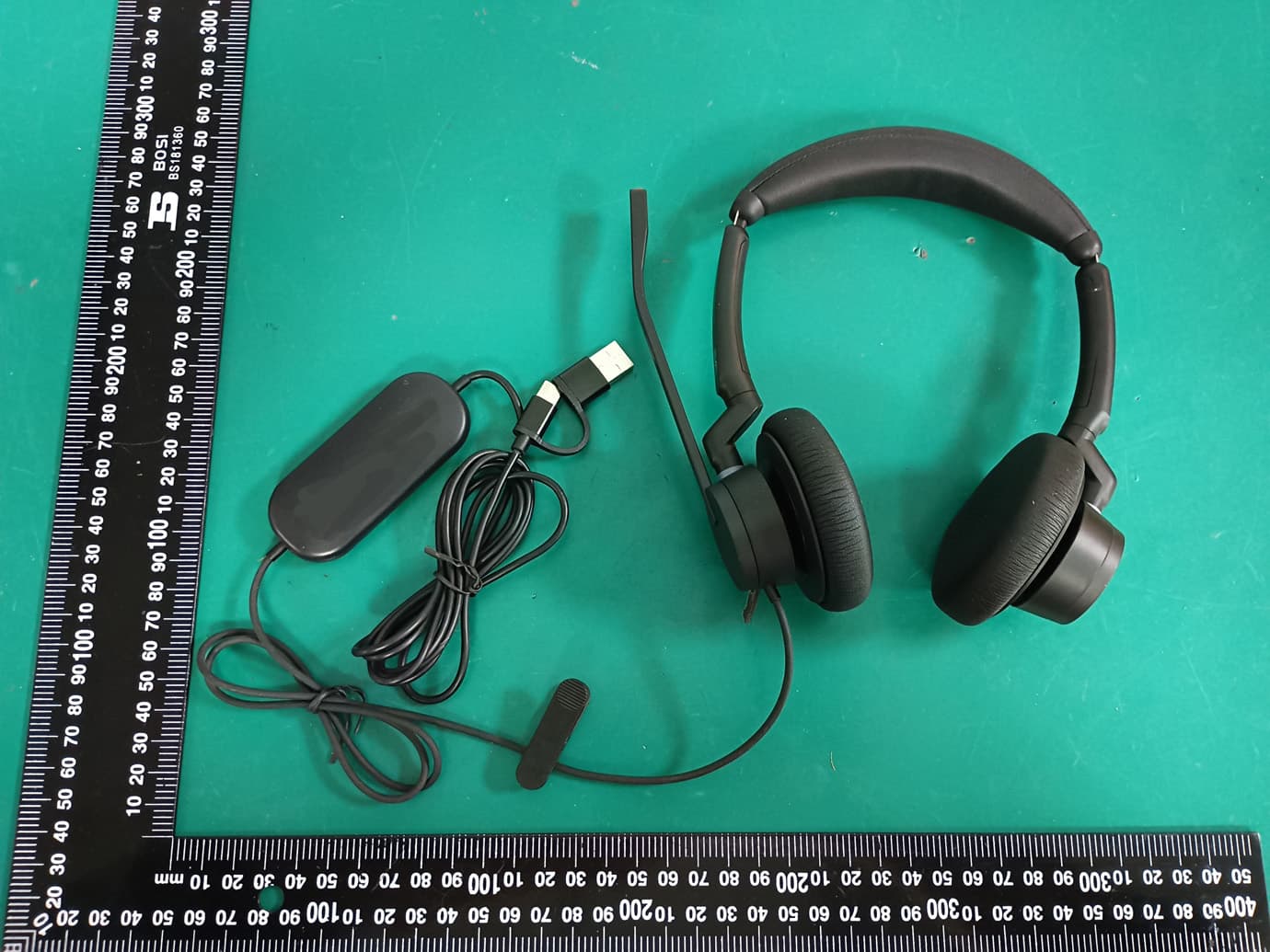
2AC67-HS034
Mar 31, 2026UC Headset
Equipment Class
JAB - Part 15 Class B Digital Device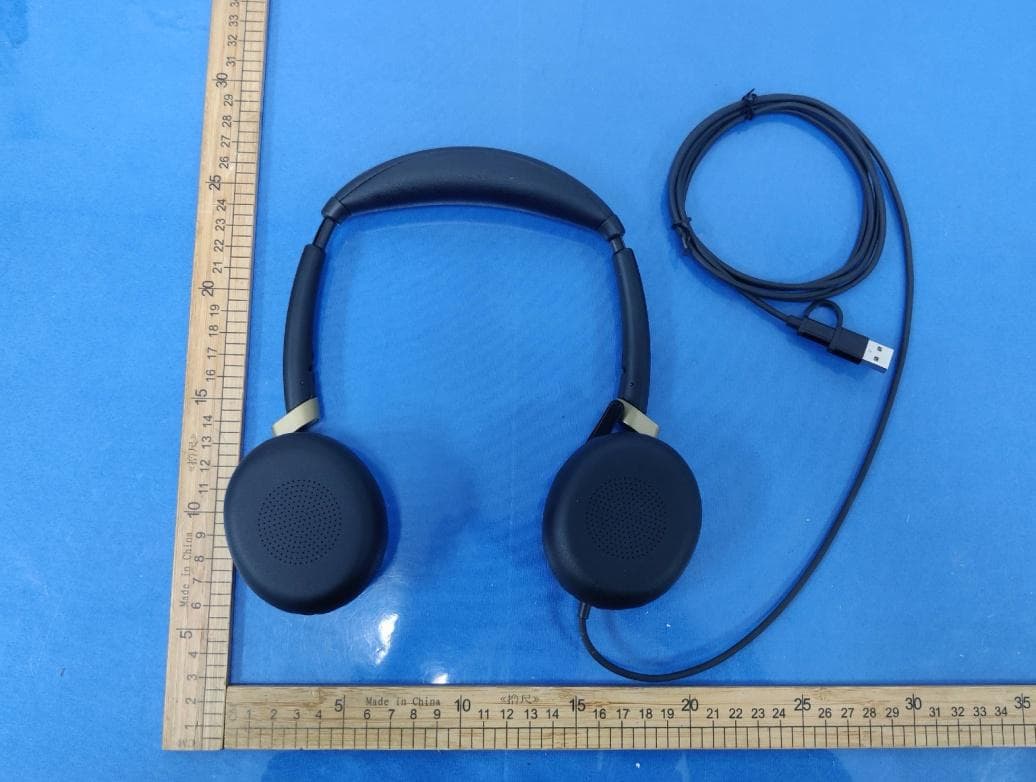
2AC67-HS065
Feb 03, 2026UC Headset
Equipment Class
DSS - Part 15 Spread Spectrum Transmitter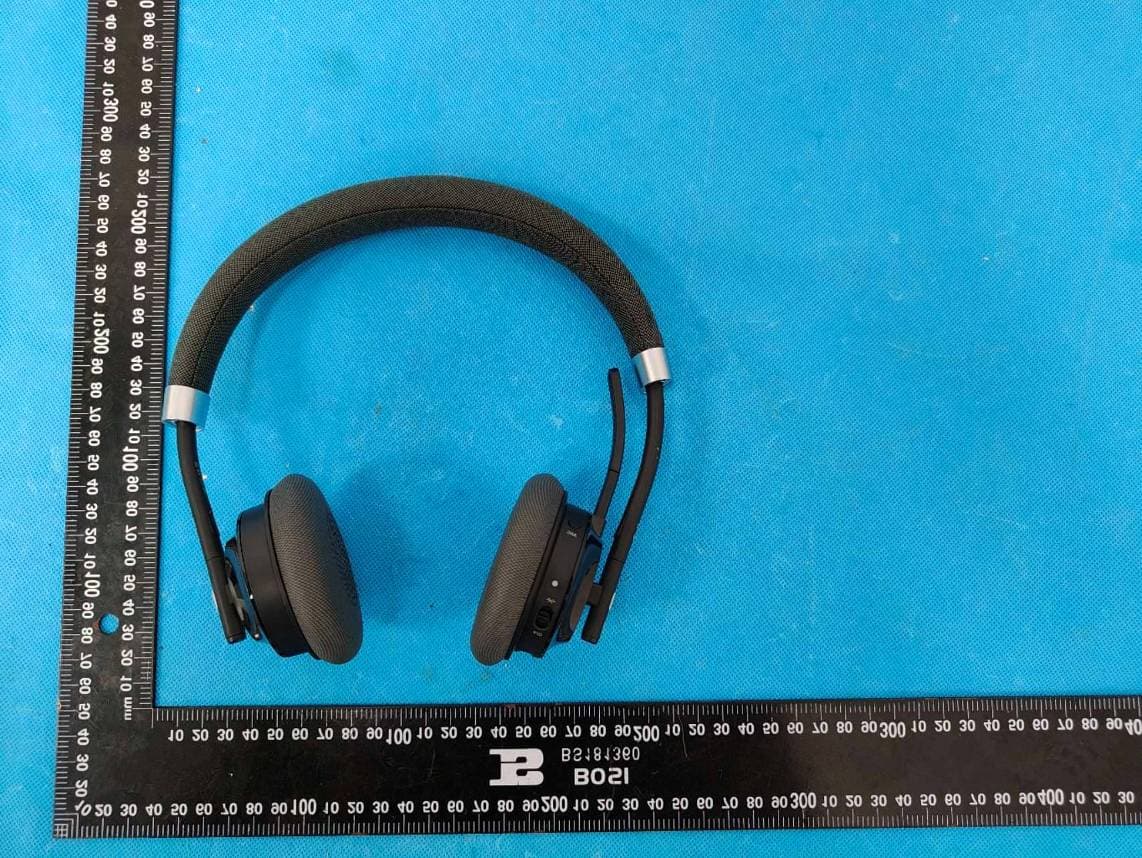
2AC67-B320BT
Sep 19, 2023Bluetooth Headset
Equipment Class
DSS - Part 15 Spread Spectrum Transmitter
2AC67-W320BS
Apr 16, 2023DECT Wireless Headset
Equipment Class
PUB - Part 15 Unlicensed PCS Base Station
2AC67-W320HS
Apr 16, 2023DECT Wireless Headset
Equipment Class
PUE - Part 15 Unlicensed PCS portable Tx held to ear