2AOPD-UT30PRugged Smart Tablet
Shenzhen UniStrong Science & Technology Co.,Ltd.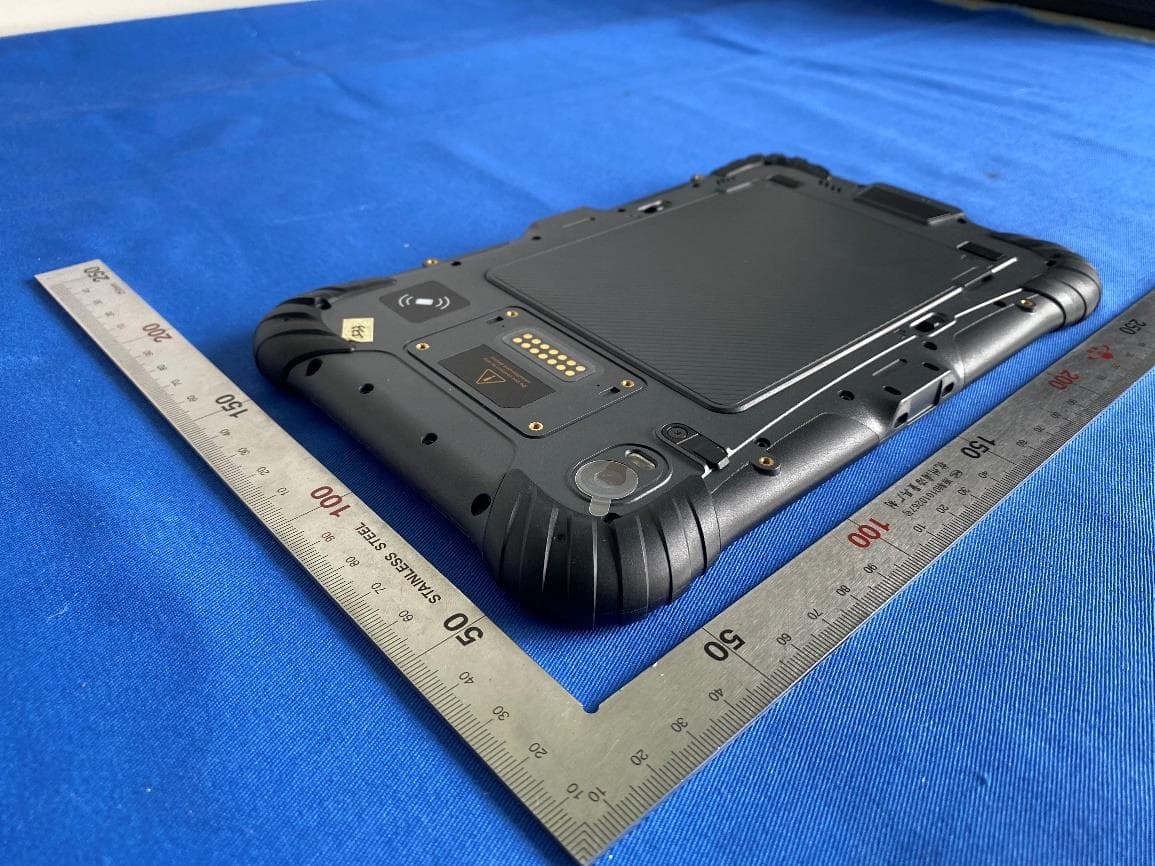
Click to zoom
Application Details
- Equipment Class
- DXX - Part 15 Low Power Communication Device Transmitter
- Date of Grant
- May 20, 2020
- Application Purpose
- Original Equipment
- Date of Application
- May 20, 2020
- Equipment Note
- Rugged Smart Tablet
- Frequency Range
- 13.56000000 - 13.56000000
- Country
- China
Documents & Files
Document Text
Text extracted from the exhibit documents filed with the FCC. Open a document above to read the original.
Users Manual
Quick Start Guide UT30P Menu button Microphone Extended function button 2 Extended function button 1 Increase volume Decrease volume Back button Power button Home screen button Front camera Ambient light sensor Charging Indicator light TYPE-C interface3.5mm Headset Rear camera External device docking station Battery cover lock A Battery cover lock BBattery cover lock B External antenna port NFC 1. Battery Charging • Charge with travel charger Insert the small plug end of the USB data cable into the TYPE-C port of the device, insert the large plug end of the USB data cable into the travel charger plug, and then insert the travel charger plug into a power outlet to charge. • Charge with USB data cable Connect the cable and the device with USB type-c interface, and plug in the other end with adapter. Note: During normal charging, the home screen status bar will display the charging icon when screen is on. When the charging is completed, the home screen status bar will display the full battery icon when screen is on. 2. Install SIM card, memory card, battery Power off the device before installing or removing the SIM card, MicroSD card or battery. Flip the device to its rear, follow the directions shown in Figure 1 and push the back cover lock to the open position, and remove the battery cover. Install the SIM card and MicroSD card according to the battery compartment label instructions, as shown in Figure 2. Figure 1 • Face the SIM card metal contacts downwards and push into the slot. Take note on the direc- tion of the notched corner. • Face the MicroSD card metal contacts downwards and push into the slot. Take note on the direction of the notched corner. • Align the contacts of the battery with the terminals of the battery compart ment and put in the battery gently. • After the battery is installed, replace the battery compartment cover and push the back cover lock to locked position to secure the battery compartment cover. Figure 2 3. Turning the device on and off To turn on the device, firmly press and hold the bottom rightPower Buttonuntil the boot screen appears. To turn off the device, firmly press and hold the Power Button to display the options menu. Select the Power off option to shutdown. With the device turned on, press the Power Buttonto turn off the screen and go into sleep mode; Press the Power Button again to wake the device, swipe upwards on the screen to unlock; If the device has been idle for a period of time, the screen will automatical- ly turn off and go into sleep mode. 4. Home screen operation From the home screen, you can view the device status and access the applications. The home screen can have multiple panels; Swipe left or right on the screen to view each panel. At the top of the home screen is the status bar, which contains the notification area, the status area and the display area; the shortcut panel is at the bottom. • Using the notification panel When new notification icons appear in the notification area of the status bar, hold the status bar and drag down to open the notification panel; To hide the panel, drag the bottom border of the panel upwards. • Customize the shortcut panel You can customize the shortcuts at the bottom of the home screen by adding or removing “Shortcut Icons”. To remove the “Shortcut icon”, press and hold the “Shortcut icon” and drag it to the “Delete icon”. To add a “Shortcut icon”, press and hold the icon on the home screen and drag it to the Shortcut panel. • Using applications Slide the screen left and right to see all the included applications.Touch the [Home button] below the screen to close it and return to the home screen. Figure 3 • Expanding the home screen Swipe your finger horizontally on the home screen to expand to the left or right of the home screen. - Adding an icon on the home screen Press and hold any application or widget icon and drag it to an empty area on the home screen. - Moving icons on the home screen Press and hold the icon on the home screen and drag the icon to the desired location on the screen. - Removing icons on the home screen Press and hold the home screen icon and drag the icon to the "Delete" icon until the icon turns red. • Create folder - On the home screen, folders are automatically formed when you drag an icon onto another icon. - Touch the new folder on the screen to open it. Click on the folder’s label to rename it. • Changing the home screen wallpaper Press and hold a blank area on the home screen or touch the [Menu button] → "Wallpaper" to change the home screen wallpaper by selecting options such as wallpaper, live wallpa- per, gallery, etc. 5. Connecting to a computer Use the USB data cable to connect the device to the computer, pull down the top status bar, and you can see the message "Connected as a media device" in the notification area. Clicking on that notification bar will bring up 3 options "Media device", "Camera" and "Charging mode", which can be selected according to your needs. Select "Media device" mode to transfer files between the device and the computer. If you need to remove the MicroSD card when the device is turned on, slide the screen to the left or right "→ Settings, or touch the [Menu button] → "System Settings", go into the Settings panel, scroll down the screen, and then select "Save"→"Uninstall SD Card". 6. Installation and management of applications Users can enter the applications store to download and install related application programs. Slide the screen left or right → "Settings", select "Apps", or touch the [Menu button] → "Manage apps" to view and manage application programs on your device. 7. Using Beidou/GPS positioning function Slide the screen left or right → "Settings", select "Location Information" to go into the location service panel, turn on the location information switch. In the "Satellite Positioning Mode" option, select GPS + BDS or GPS + GLONASS or BDS options as needed. The meaning of the following 2 options: (1) The NMEA switch turns on th…
Text truncated - open the document above for the full version.
Cover Letter(s)
SCS-F18: Project and Product Certification Representative Authorization Letter Page 1 of 3 Rev 6.0 775 Montague Expressway Milpitas, CA 95035 Tel: 408-526-1188 Fax: 408-526-1088 Email: [email protected] Project and Product Certification Representative Authorization Letter Reason for Amendment (current / obsolete) Revision History Approved Date From To Initial Release (obsolete) 1.0 1.0 Nov-14-2006 Revised wording (obsolete) 1.0 2.0 Sept–25-2007 Updated company template (obsolete) 2.0 3.0 Jan-31-2012 Updated letter information (obsolete) 3.0 4.0 May-23-2014 Added FCC ID field (obsolete) 4.0 5.0 Sep-16-2014 Updated company name & logo (current) 5.0 6.0 Jun-27-2018 SCS-F18: Project and Product Certification Representative Authorization Letter Page 2 of 3 Rev 6.0 Shenzhen UniStrong Science & Technology Co.,Ltd. (2020-5-7) To: BVCPS, INC. 775 Montague Expressway, Milpitas, CA 95035 USA Dear Sir/Madam, Re: Product Certification Representative Authorization Letter We, _____ Shenzhen UniStrong Science & Technology Co.,Ltd._____ hereby authorize Bureau Veritas Consumer Product Services, Inc. to act as a Certification Body for certifying for the following project(s): FCC ID: 2AOPD-UT30P Product Description: Rugged Smart Tablet Model: UT30P Sincerely, Name: LilyZheng Title: Compliance Manager Company Name: Shenzhen UniStrong Science & Technology Co.,Ltd. Address: B,4-4Factory, Zhengcheng Road, FuyongBaoan District, Shenzhen,China TEL: 021-54467182 FAX: 021-54467117 Email: [email protected]
Cover Letter(s)
SCS-F19: Confidentiality Request Letter Page 1 of 4 Rev 6.0 775 Montague Expressway Milpitas, CA 95035 Tel: 408-526-1188 Fax: 408-526-1088 Email: [email protected] Confidentiality Request Letter Reason for Amendment (current / obsolete) Revision History Approved Date From To Initial Release (obsolete) 1.0 1.0 Nov-14-2006 Adding CFR 2.459 (obsolete) 1.0 2.0 August – 11 - 2008 Updated company template & Added text box (obsolete) 2.0 3.0 Jan-31-2012 Added IC confidentiality letter form (obsolete) 3.0 4.0 March-26-2015 Corrections to STC form. Added reference to KDB (obsolete) 4.0 5.0 Nov-19-2015 Updated company logo (current) 5.0 6.0 Jun-26-2019 SCS-F19: Confidentiality Request Letter Page 2 of 4 Rev 6.0 Shenzhen UniStrong Science & Technology Co.,Ltd. (2020-5-7) To: Federal Communications Commission Authorization and Evaluation Division 7435 Oakland Mills Road Columbia, MD Subject: Permanent Confidentiality Request for FCC ID: 2AOPD-UT30P Pursuant to sections 0.457 and 0.459 of CFR 47, we respectfully request permanent confidential treatment of the following Exhibits accompanying this application as: - Block Diagram - Schematics - Operational Description - Tune up Procedure - Bom List - FCC Software Security Requirements for UNII device The above materials contain trade secrets and proprietary information not customarily released to the public. The public disclosure of these materials may be harmful to the applicant and provide unjustified benefits to its competitors. The applicant understands that disclosure of this application and all accompanying documentation will not be made before the date of the Grant for this application. Sincerely, Name: LilyZheng Title: Compliance Manager Company Name: Shenzhen UniStrong Science & Technology Co.,Ltd. Address: B,4-4Factory, Zhengcheng Road, FuyongBaoan District, Shenzhen,China TEL: 021-54467182 FAX: 021-54467117 Email: [email protected]
External Photos
Face Back Top Bottom Left Right Adapter USB Cable
Internal Photos
Internal 1 Wifi BT antenna GPS antenna NFC antenna 234G TX antenna Wifi BT module GPS module 234G chip Battery
Test Report
TEST REPORT Report No.: SHE19020010-03HE Date: 2020-5-7 Page 1 of 21 Applicant : Shenzhen UniStrong Science & Technology Co., Ltd. Address of Applicant : B,4-4Factory, Zhengcheng Road, FuyongBaoan District, Shenzhen, China Product Name : Rugged Smart Tablet Model No. : UT30P Sample No. : E19020010-05#01 FCC ID : 2AOPD-UT30P ISED Number : 11546A-UT30P Standards : FCC CFR47 Part 15, Subpart C RSS-Gen (Issue 5, March 2019) RSS-210 (Issue 10, December 2019) Date of Receipt : 2020-2-10 Date of Test : 2020-2-10 ~ 2020-5-7 Date of Issue : 2020-5-7 Remark: This report details the results of the testing carried out on one sample, the results contained in this report do not relate to other samples of the same product. The manufacturer should ensure that all products in series production are in conformity with the product sample detailed in this report. Prepared by: Reviewed by: Approved by: (Jennifer Zhou) (jesse huang) (Authorized signatory: Guoyou Chi) TEST REPORT Report No.: SHE19020010-03HE Date: 2020-5-7 Page 2 of 21 Revision Record Version Date Revisions Revised By 1.0 2019-12-12 Original -- TEST REPORT Report No.: SHE19020010-03HE Date: 2020-5-7 Page 3 of 21 Contents 1 GENERAL INFORMATION ................................................................................................................................................... 4 1.1 TESTING LABORATORY ............................................................................................................................................................... 4 1.2 DETAILS OF APPLICATION .......................................................................................................................................................... 4 1.3 DETAILS OF EUT ........................................................................................................................................................................ 4 1.4 TEST METHODOLOGY ................................................................................................................................................................. 4 1.5 TEST VERDICT ............................................................................................................................................................................ 5 2 TEST CONDITION .................................................................................................................................................................. 6 2.1 ENVIRONMENTAL CONDITIONS ................................................................................................................................................... 6 2.2 EQUIPMENT LIST ........................................................................................................................................................................ 6 2.3 MEASUREMENT UNCERTAINTY................................................................................................................................................... 6 3 TEST SET-UP AND OPERATION MODES ........................................................................................................................ 7 3.1 DETAILS OF TEST MODE ............................................................................................................................................................ 7 3.2 SPECIAL ACCESSORIES AND AUXILIARY EQUIPMENT ................................................................................................................ 7 3.3 SUPPORT SOFTWARE ................................................................................................................................................................. 7 3.4 TEST SETUP DIAGRAM ............................................................................................................................................................... 8 4 TEST RESULTS ...................................................................................................................................................................... 9 4.1 TRANSMITTER REQUIREMENT & TEST SUITES .......................................................................................................................... 9 4.1.1 Antenna Requirement ....................................................................................................................................................... 9 4.1.2 Frequency Tolerance ...................................................................................................................................................... 10 4.1.3 20dB Bandwidth and 99% Bandwidth ........................................................................................................................... 12 4.1.4 Radiated Emission ........................................................................................................................................................... 14 4.2 MAINS EMISSIONS .................................................................................................................................................................... 19 4.2.1 Conducted Emission on AC Mains ................................................................................................................................ 19 TEST REPORT Report No.: SHE19020010-03HE Date: 2020-5-7 Page 4 of 21 1 General Information 1.1 Testing Laboratory Company Name ICAS Testing Technology Services (Shanghai) Co., Ltd. Address 155 Pingbei Rd, Minhang District, Shanghai, China Telephone 0086 21-51682999 Fax 0086 21-54711112 Homepage www.icasiso.com 1.2 Details of Application Company Name Shenzhen UniStrong Science & Technology Co.,Ltd. Address B,4-4Factory, Zhengcheng Road, Fuyong Baoan District, Shenzhen, China Contact Person Lili Zheng Telephone +86-21-54467182 Email [email protected] 1.3 Details of EUT Product Name Rugged Smart Tablet Brand Name Unistrong Model No. UT30P FCC ID 2AOPD-UT30P Mode of Operation NFC …
Text truncated - open the document above for the full version.
Test Setup Photos
1.1 Set-up for Conducted RF test at Antenna Port 1.2 Set-up for Spurious Emissions below 1GHz NFC test setup 1.3 Set-up for Spurious Emissions above 1GHz 1.4 Set-up for Conducted Emission
Contact Information
Applicant
Lily Zheng(Compliance Manager)
Test Firm
ICAS Testing Technology Service (Shanghai) Co, LtdZhenyang Zhang
[email protected]086 021516829997864
Technical Specifications
| # | Rule Parts | Frequency Range | Power Output |
|---|---|---|---|
| 1 | 15C | 13.56 MHz - 13.56 MHz | - |
Other Applications from Shenzhen UniStrong Science & Technology Co.,Ltd.
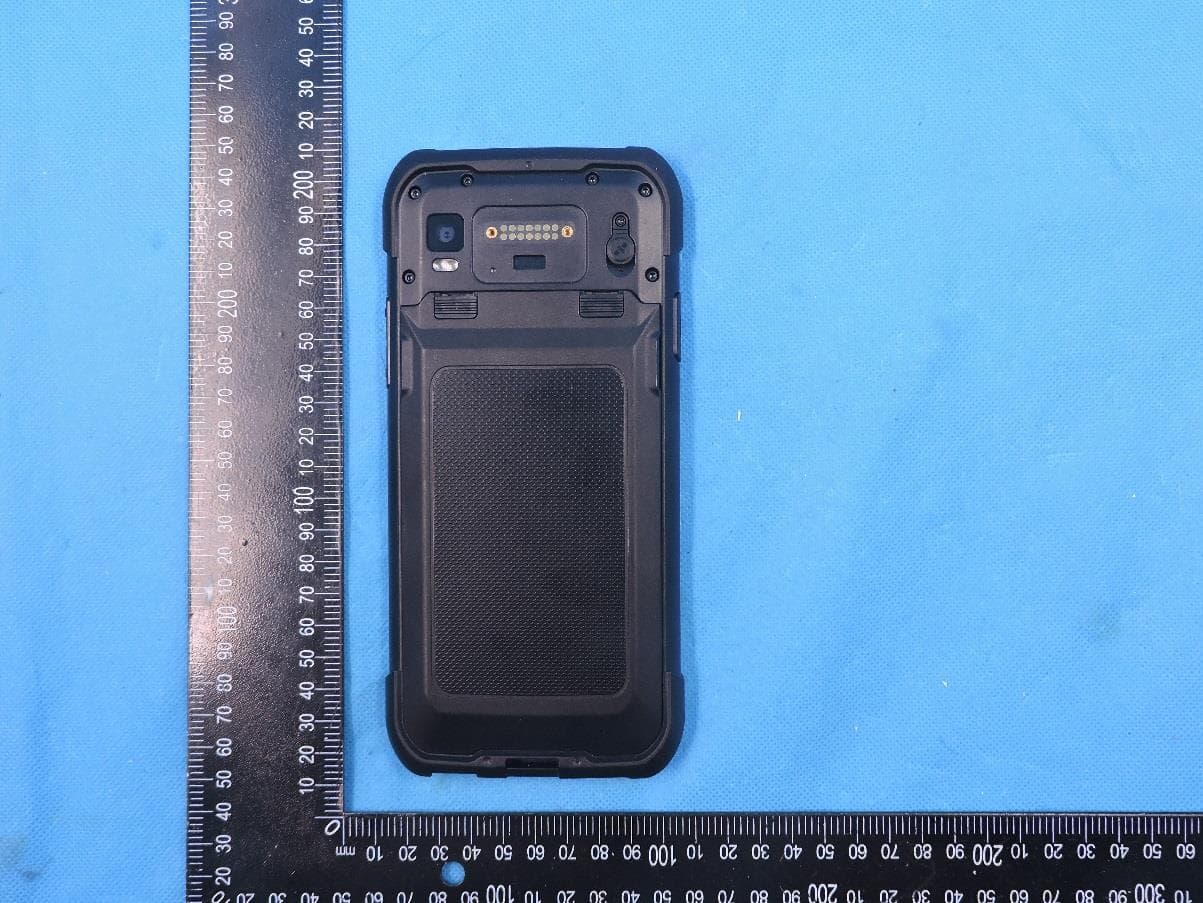
2AOPD-UT12P
Mar 16, 2021Rugged Smart Phone
Equipment Class
DXX - Part 15 Low Power Communication Device Transmitter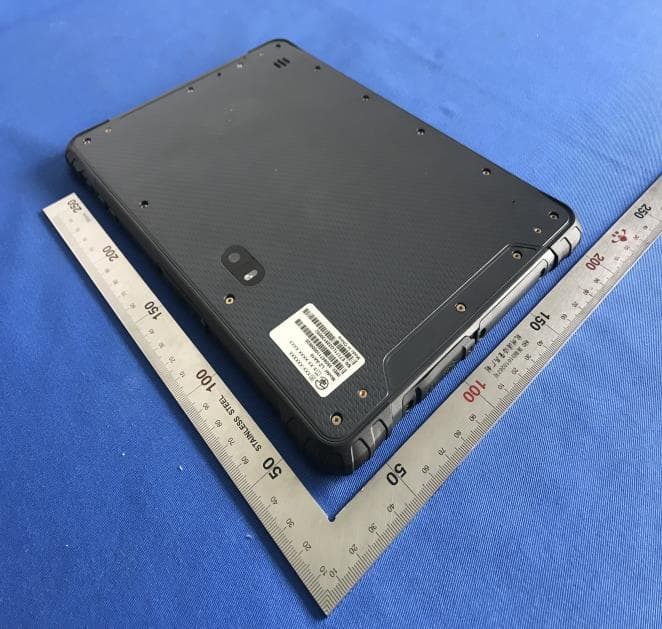
2AOPD-UT56
Aug 20, 2020Rugged Smart Tablet
Equipment Class
DTS - Digital Transmission System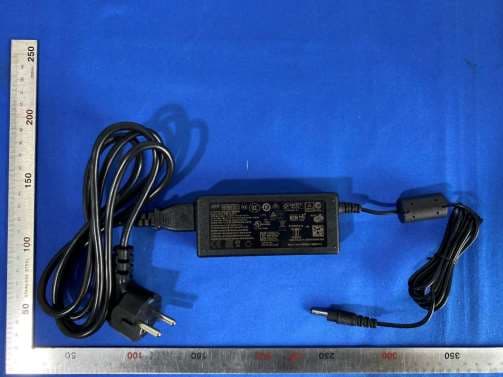
2AOPD-UT55
Aug 18, 2020Rugged windows Tablet
Equipment Class
DSS - Part 15 Spread Spectrum Transmitter