A3LCLP660NDColor Laser Printer
Samsung Electronics Co Ltd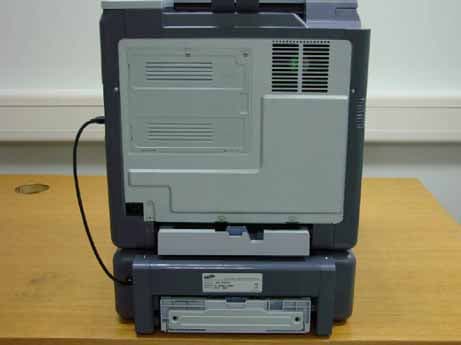
Click to zoom
Application Details
- Equipment Class
- JBP - Part 15 Class B Computing Device Peripheral
- Date of Grant
- Jul 10, 2007
- Application Purpose
- Original Equipment
- Date of Application
- Jul 10, 2007
- Equipment Note
- Color Laser Printer
- Company
- Samsung Electronics Co Ltd
- Country
- United States
Documents & Files
Document Text
Text extracted from the exhibit documents filed with the FCC. Open a document above to read the original.
Users Manual
© 2007 Samsung Electronics Co., Ltd. All rights reserved. This user’s guide is provided for information purposes only. All information included herein is subject to change without notice. Samsung Electronics is not responsible for any changes, direct or indirect damages, arising from or related to use of this user’s guide. • CLP-610ND, CLP-660N, and CLP-660ND are model names of Samsung Electronics Co., Ltd. • Samsung and Samsung logo are trademarks of Samsung Electronics Co., Ltd. • PCL and PCL 6 are trademarks of Hewlett-Packard company. • Microsoft, Windows, Windows NT and Windows Vista are either registered trademarks or trademarks of Microsoft Corporation. • PostScript 3 is a trademark of Adobe System, Inc. • UFST® and MicroType™ are registered trademarks of Monotype Imaging Inc. • TrueType, LaserWriter and Macintosh are trademarks of Apple Computer, Inc. • All other brand or product names are trademarks of their respective companies or organizations. CONTACT SAMSUNG WORLD WIDE If you have any comments or questions regarding Samsung products, contact the Samsung customer care center. CountryCustomer Care Center Web Site ARGENTINE0800-333-3733www.samsung.com/ar AUSTRALIA1300 362 603www.samsung.com/au BELGIUM02 201 2418www.samsung.com/be BRAZIL0800-124-421 4004-0000 www.samsung.com/br CANADA1-800-SAMSUNG (7267864)www.samsung.com/ca CHILE800-726-7864 (SAMSUNG)www.samsung.com/cl CHINA800-810-5858 010- 6475 1880 www.samsung.com.cn COLOMBIA01-8000-112-112www.samsung.com/co COSTA RICA0-800-507-7267www.samsung.com/latin CZECH REPUBLIC 844 000 844www.samsung.com/cz Distributor pro ýeskou republiku : Samsung Zrt., þeska organizaþní složka Vyskoþilova 4, 14000 Praha 4 DENMARK70 70 19 70www.samsung.com/dk ECUADOR1-800-10-7267www.samsung.com/latin EL SALVADOR800-6225www.samsung.com/latin ESTONIA800-7267www.samsung.ee KAZAHSTAN8-800-080-1188www.samsung.kz FINLAND030-6227 515www.samsung.com/fi FRANCE3260 SAMSUNG or 08 25 08 65 65 (€ 0,15/min) www.samsung.com/fr GERMANY01805 - 121213 (€ 0,14/min) www.samsung.de GUATEMALA1-800-299-0013www.samsung.com/latin HONG KONG3698 4698www.samsung.com/hk HUNGARY06-80-SAMSUNG (7267864)www.samsung.com/hu INDIA3030 8282 1800 110 011 www.samsung.com/in/ INDONESIA0800-112-8888www.samsung.com/id ITALIA800-SAMSUNG(7267864)www.samsung.com/it JAMAICA1-800-234-7267www.samsung.com/latin JAPAN0120-327-527www.samsung.com/jp LATVIA800-7267www.samsung.com/lv/ index.htm LITHUANIA8-800-77777www.samsung.com/lt LUXEMBURG0032 (0)2 201 24 18www.samsung.lu MALAYSIA1800-88-9999www.samsung.com/my MEXICO01-800-SAMSUNG (7267864) www.samsung.com/mx NETHERLANDS0900 20 200 88 (€ 0,10/min)www.samsung.com/nl NORWAY815-56 480www.samsung.com/no PANAMA800-7267www.samsung.com/latin PHILIPPINES1800-10-SAMSUNG (7267864) www.samsung.com/ph POLAND0 801 801 881www.samsung.com/pl PORTUGAL80 8 200 128www.samsung.com/pt PUERTO RICO1-800-682-3180www.samsung.com/latin REP. DOMINICA 1-800-751-2676www.samsung.com/latin Republic of Ireland 0818 717 100www.samsung.com/uk RUSSIA8-800-200-0400www.samsung.ru SINGAPORE1800-SAMSUNG (7267864)www.samsung.com/sg SLOVAKIA0800-SAMSUNG (726786)www.samsung.com/sk SOUTH AFRICA 0860 726 7864 (SAMSUNG)www.samsung.com/za SPAIN902 10 11 30www.samsung.com/es SWEDEN0771-400 200www.samsung.com/se Switzerland0800-7267864www.samsung.com/ch/ TAIWAN0800-329-999www.samsung.com/tw THAILAND1800-29-3232 02-689-3232 www.samsung.com/th TRINIDAD & TOBAGO 1-800-7267-864www.samsung.com/latin U.A.E800-SAMSUNG (7267864)www.samsung.com/mea U.K0870 SAMSUNG (7267864)www.samsung.com/uk U.S.A1-800-SAMSUNG (7267864)www.samsung.com UKRAINE8-800-502-0000www.samsung.com/ur UZBEKISTAN8-800-120-0400www.samsung.com.uz VENEZUELA0-800-100-5303www.samsung.com/latin VIETNAM1 800 588 889www.samsung.com/vn CountryCustomer Care Center Web Site CONTENTS About this user’s guide .................................................................................................................................................i Finding more information .............................................................................................................................................i Safety and Regulatory Information .............................................................................................................................. ii 1. Introduction Special features ...................................................................................................................................................... 1.1 Machine overview ................................................................................................................................................... 1.2 Front view ........................................................................................................................................................... 1.2 Rear view ............................................................................................................................................................ 1.3 Control panel overview ............................................................................................................................................ 1.4 Understanding the Status LED ................................................................................................................................ 1.5 Status LED with the print cartridge messages .................................................................................................... 1.5 Understanding the menu map ................................................................................................................................. 1.6 Accessing menus ................................................................................................................................................ 1.6 Menu overview .................................................................................................................................................... 1.6 Description on each menu ...…
Text truncated - open the document above for the full version.
Users Manual
7.12 <Troubleshooting> The machine does not print. (continued) The printer driver may be incorrectly installed. Repair the printer software. See Software section. The machine is malfunctioning. Check the display message on the control panel to see if the machine is indicating a system error. Contact a service representative. The black color of the print-out is not vivid black or fades. When the black print cartridge is empty, the machine makes the black color compounded from the rest three color print cartridges. This black-like color may not be exactly the same as the true black. Also, if the rest three color print cartridges are getting empty, the color may fade. The machine selects print materials from the wrong paper source. The paper option that was selected in the machine properties may be incorrect. For many software applications, the paper source selection is found under the Paper tab within the printer properties. Select the correct paper source. See the printer driver help screen. A print job is extremely slow. The job may be very complex. Reduce the complexity of the page or try adjusting the print quality settings such as adjusting the resolution. Half the page is blank. The page orientation setting may be incorrect. Change the page orientation in your application. See the printer driver help screen. The paper size and the paper size settings do not match. Ensure that the paper size in the printer driver settings matches the paper in the tray. Or, ensure that the paper size in the printer driver settings matches the paper selection in the software application settings you use. ConditionPossible causeSuggested solutions The machine prints, but the text is wrong, garbled, or incomplete. The printer cable is loose or defective. Disconnect the printer cable and reconnect. Try a print job that you have already printed successfully. If possible, attach the cable and the machine to another computer and try a print job that you know works. Finally, try a new printer cable. The wrong printer driver was selected. Check the application’s printer selection menu to ensure that your machine is selected. The software application is malfunctioning. Try printing a job from another application. The operating system is malfunctioning. Exit Windows and reboot the computer. Turn the machine off and then back on again. Pages print, but they are blank. The print cartridge is defective or out of toner. Redistribute the toner, if necessary. If necessary, replace the print cartridge. The file may have blank pages. Check the file to ensure that it does not contain blank pages. Some parts, such as the controller or the board, may be defective. Contact a service representative. PDF file does not print correctly- some parts are missing in the graphics, text or illustrations. Incompatibility between the PDF file and the Acrobat products. Printing the PDF file as an image may enable the file to print. Turn on Print As Image from the Acrobat printing options. Note: It will take longer to print when you print a PDF file as an image. The print quality of photos is not good. Images are not clear. The resolution is set toNormal. Change the resolution to Best in the machine properties window and then try printing again. The resolution of the photo is very low. Reduce the photo size. If you increase the photo size in the software application, the resolution will be reduced. ConditionPossible causeSuggested solutions 7.13 <Troubleshooting> Your machine has an odd smell during initial use. The oil used to protect the fuser is evaporating. After printing about 100 color pages, there will be no more smell. It is a temporary issue. ConditionPossible causeSuggested solutions Printing quality problems If the inside of the machine is dirty or paper has been loaded improperly, you may notice a reduction in print quality. See the table below to clear the problem. ConditionSuggested solutions Light or faded printIf a vertical white streak or faded area appears on the page: • The toner supply is low. You may be able to temporarily extend the print cartridge life. If this does not improve the print quality, install a new print cartridge. • The paper may not meet paper specifications; for example, the paper may be too moist or rough. (See "Specifications on print media" on page 4.2.) • If the entire page is light, the print resolution setting is too low or the toner save mode is on. Adjust the print resolution and turn the toner save mode off. See the help screen of the printer driver and refer to Software section, respectively. • A combination of faded or smeared defects may indicate that the print cartridge needs cleaning. Contact a service representative. • The surface of the LSU part inside the machine may be dirty. Clean the LSU, contact a service representative. Toner specks• The paper may not meet specifications; for example, the paper may be too moist or rough. (See "Specifications on print media" on page 4.2.) • The paper transfer belt may be dirty. Clean the inside of your machine. Contact a service representative. • The paper path may need cleaning. Contact a service representative. DropoutsIf faded areas, generally rounded, occur randomly on the page: • A single sheet of paper may be defective. Try reprinting the job. • The moisture content of the paper is uneven or the paper has moist spots on its surface. Try a different brand of paper. (See "Specifications on print media" on page 4.2.) • The paper lot is bad. The manufacturing processes can cause some areas to reject toner. Try a different kind or brand of paper. • If these steps do not correct the problem, contact a service representative. 7.14 <Troubleshooting> White Spots White spots appear on the page: • The paper is too rough and a lot of dirt from the paper falls to the inner devices within the machine, which means the transfer belt may be dirty. Clean the inside of your machine. Contact a service representative. • The paper path may need cleaning. Contact …
Text truncated - open the document above for the full version.
Block Diagram
-1/3 - DATA(0:15) DATA(0:15) ADDR(1:8) CLP-660N/ND MAIN Controller Block diagram CPU RM7065C (64bit,533Mhz) 3.3V1.3V DDR1 Module 128MB(32MBx4) DDR1 Module (Extend) 256MB(64MBx4) or 512MB(64MBx8) 64bit DC-DC 5V to 2.5V, 1.25V (DDR1) 2.5V, 1.25V Panel LCD module 5V(0.39A) sysAD(63:0) DQ(63:0) DA(13:0) DQ(63:0) DA(13:0) DQ(63:0) DA(13:0) UART Engine Controller LPEC3 3.3V1.8V I/O Engine 24V 5V 3.3V to System DC-DC 5V to 3.3V for System 3.3V USB_device ISP1582 3.3V(0.15A)2.5V(0.15A) ADDR(1:23) System + Video Controller SPGPXm (64bit,118.44MHz) @SYS_CLK=532Mhz DDR_CLK(5:0)LVDS E-PHY BCM5241 3.3V MII Modular Jack with LED, COMBO NOR Flash MX29LV128MT Flash (16MB,NOR) 3.3V EEPROM 24C64 3.3V SCL/SDA ADDR(1:23) DATA(0:7) ADDR(1:11) RESET XC61FN3112 3.3V nF_RESET nRESET DC-DC 5V to 1.2V/3.3V 3.3V/1.2V DC-DC 5V to 1.3V 1.3V DATA(0:15) sysCMD(8:0) nRST_LPEC3 -2/3- CLP-660N/ND Clock diagram CPU RM7065C (64bit,533Mhz) 3.3V1.3V DDR_CLK(5:0) LVDS 118.44MHz System + Video Controller SPGPXm (64bit, 118.44Mhz) @SYS_CLK=532Mhz CPU interface 3.3V,1.2V USB ISP1582 3.3V(0.15A)2.5V(0.15A) CRYSTAL 12 MHz 12MHz MCLK 11.844MHz 11.844MHz DDR1 Module (Extend) 256MB(64MBx4) or 512MB(64MBx8) 64bit DDR1 Base 128MB(32MBx4) E-PHY BCM5241 3.3V CRYSTAL 25 MHz 25MHz I/O LPEC3 3.3V, 1.8V CRYSTAL 12 MHz 12MHz CLK_LPEC3 VCLK_OUT sys_clk -3/3- CLP-660N/ND Engine Controller Block diagram
ID Label/Location Info
Test Report No. : LBE072033 -29/30- 4.3 Label and Label Location Picture 7. Label Test Report No. : LBE072033 -30/30- Picture 8. Label location
Operational Description
Test Report No. : LBE072033 -5/30- 1.2 Detail Information related product 1.2.1 Specification Item Specification and Description Processor RM7065C(533MHz) Standard System memory 128MB (option 128MB, 256MB, 512MB) Resolution 600x2400dpi class Paper Handling Paper Tray(standard) 250 Sheets 2nd Tray(optional) 500 Sheets Bypass Tray 100 Sheets Power Rating 110~127 VAC, 9A, 50/60 Hz Power Consumption Power save mode : 35Watts Stand by mode : 160Watts Printing simplex : 600Watts max : 1900Watts Printer Language SPL-C, PostScript 3, PCL6 Interfaces USB2.0, Ethernet 10/100 Tx Base OS compatibility Windows 2000/XP/2003/Vista Various Linux including Red Hat 8.0~9.0, Mandrake 9.2~10.1, SuSE 8.2~9.2 and Fedora Core 1~4 Mac OS 10.1 ~10.4 and Universal Mac Modes of Operation USB Printing, Network Printing, Duplex Printing Intended Class for Emissions Class B
Test Report
-1/30- EMC TEST REPORT Samsung Electronics Co., Ltd. 416 Maetan 3-Dong, Yeongtong-Gu, Suwon-Si,Gyeonggi-Do, 443-742 Korea (Tel: 82 31 277 7752, Fax: 82 31 277 7753) Project No. : LBE072033 Page (1)/(30) 1. Applicant ◦ Name of organization : Samsung Electronics Co., Ltd. ◦ Address : 416 Maetan 3-Dong, Yeongtong-Gu, Suwon-Si, Gyeonggi-Do, 443-742 Korea ◦ Date of application : 2007. 06. 22 2. Purpose for the report : Approval for EMC 3. Kind of product : Printer (Model name :CLP-660ND) 4. Date of test : 2007. 06. 22 ~ 2007. 06. 23 5. Applied standard : FCC Part 15, Subpart B 6. Test result : Complied The equipment under test has found to be compliant with the applied standards. (Refer to the attached test result for more detail.) Tested by Name : Young Hun, Cheong Reviewed by Name : No Cheon Park This report is the test result about the sphere accredited by KOLAS which signed the Mutual Recognition Arrangement of International Laboratory Accreditation Cooperation. 2007. 06. 23 Samsung Electornics Co., Ltd. Chief of CS Management Center Test Report No. : LBE072033 -2/30- TEST RESULT Test Report No. : LBE072033 Applicant / Address : Samsung Electronics Co., Ltd. 416 Maetan 3-Dong, Yeongtong-Gu,Suwon-Si,Gyeonggi-Do 443-742 Korea Manufacture / Address : Samsung Electronics Co.,Ltd. 259, Gongdan-Dong, Gumi-City, Gyeongsangbuk-Do, 730- 030 Korea EUT : 1. Product name : Printer 2. Model name : CLP-660ND 3. Brand name : SAMSUNG 4. Variant model : CLP-660N 5. FCC ID : A3LCLP660ND Test Method : ANSI C63.4-2003 Test Result : Complied The equipment under test has found to be compliant with the applied standards Test Lab. : CS Management Center, Samsung Electronics Co., Ltd. Tested by : Young Hun Cheong Reviewed by : No Cheon Park Date of Issue : 2007. 06. 23 Test Report No. : LBE072033 -3/30- Table of contents 1. General information 1.1 Basic information related product 1.2 Detail information related product 1.3 Operating mode and condition 1.4 Equipment modifications 1.5 Test procedure 1.6 Test configuration 1.7 Applied standard 1.8 Test facility 2. Summary of test results 3. Description of individual tests 3.1 Conducted emission 3.2 Radiated emission 4. Appendix 4.1 Test photography 4.2 EUT photography Test Report No. : LBE072033 -4/30- 1. General information 1.1 Basic information related product Applicant Samsung Electronics Co., Ltd. Model name CLP-660ND Applicant address 416 Maetan 3-Dong, Yeongtong-Gu,Suwon-Si,Gyeonggi-Do 443-742 Korea Contact person Sangsu ROH Kind of product Printer Variant model CLP-660N FCC ID A3LCLP660ND Manufacturer Samsung Electronics Co.,Ltd. 259, Gongdan-Dong, Gumi-City, Gyeongsangbuk-Do, 730-030 Korea Rated power AC 120 V, 60 Hz New / Alternative / Permissive change information New Test Report No. : LBE072033 -5/30- 1.2 Detail Information related product 1.2.1 Specification Item Specification and Description Processor RM7065C(533MHz) Standard System memory 128MB (option 128MB, 256MB, 512MB) Resolution 600x2400dpi class Paper Handling Paper Tray(standard) 250 Sheets 2nd Tray(optional) 500 Sheets Bypass Tray 100 Sheets Power Rating 110~127 VAC, 9A, 50/60 Hz Power Consumption Power save mode : 35Watts Stand by mode : 160Watts Printing simplex : 600Watts max : 1900Watts Printer Language SPL-C, PostScript 3, PCL6 Interfaces USB2.0, Ethernet 10/100 Tx Base OS compatibility Windows 2000/XP/2003/Vista Various Linux including Red Hat 8.0~9.0, Mandrake 9.2~10.1, SuSE 8.2~9.2 and Fedora Core 1~4 Mac OS 10.1 ~10.4 and Universal Mac Modes of Operation USB Printing, Network Printing, Duplex Printing Intended Class for Emissions Class B Test Report No. : LBE072033 -6/30- Operating Frequency Main Source Clock : 11.844MHz Video Clock : 29.4MHz CPU Internal Clock : 533MHz DDR Clock :118.44MHz USB Device Clock : 12MHz MAC : 25MHz OPE : 7.37MHz Test Report No. : LBE072033 -7/30- 1.3 Operating mode and condition The system was configured for testing in typical fashion use. Cable were attached to each of the availabl e I/O port. Where applicable, peripherals were attached to the I/O cables. This EUT is supporting the USB, Parallel and Network(LAN) printing. In each test mode, finally we found worst case emission that is above configuration with the Worst case components(in the above table). So, the data of the maximum EUT operation, Network printing(duplex mode) was reported. - Operating Mode - Network Printing Mode - USB Printing Mode (worst emission) - Standby Mode (worst emission) - Test Voltage : 120 V, 60 Hz 1.4 Equipment modifications No equipment modifications were required. Test Report No. : LBE072033 -8/30- 1.5 Test procedure 1.5.1 Conducted emission EUT was placed on a platform nominal size, 1 m by 1.5 m, raised 80 cm above the conducting ground plane. The rear of tabletop was located 40 cm to the vertical conducting ground plane. The rear of EUT, including peripherals was aligned and flush with rear of tabletop. All other surfaces of tabletop was at least 80 cm from any other grounded conducting surface. I/O cables and AC cables that were connected to the peripherals were bundled in center. They were folded back and forth forming a bindle 30 cm to 40 cm long and were handed at a 40 cm height to the ground plane. Each EUT current-carrying power lead, except the ground(safety) lead, were individually connected through a LISN to the input power source. All unused 50 ohm connectors of the LISN were resistively terminated in 50 ohm when not connected to the measuring equipment. Frequency Band [MHz] Instrument Detector Resolution Bandwidth Video Bandwidth Quasi-Peak 9 kHz - 0.15 to 30 EMI Receiver Average 9 kHz - Test Report No. : LBE072033 -9/30- 1.5.2 Radiated emission EUT was placed on a platform of nominal size, 1 m by 1.5 m, raised 80 cm above the conducting ground plane. The rear of EUT, including peripherals was aligned and flush with rear of tabletop. The I/O cables that were connected to the peripherals were bundle in center. They were folded back and forth forming a bundle 30 …
Text truncated - open the document above for the full version.
Test Setup Photos
Test Report No. : LBE072033 -26/30- 4. Appendix 4.1 Test photography Picture 1. Conducted Emission (Front) Picture 2. Conducted Emission (Rear) Test Report No. : LBE072033 -27/30- Picture 3. Radiated emission (Front) Picture 4. Radiated emission (Rear)
Contact Information
Applicant
Jenni Chun(General Manager)
Technical Contact
PCTEST Engineering Lab., Inc.Randy Ortanez
[email protected]410-290-6652
6660-B Dobbin Road · Columbia, Maryland · United States
Test Firm
Samsung Electronics Co., Ltd. Global CS CenterPark No cheon
Technical Specifications
| # | Rule Parts | Frequency Range | Power Output |
|---|---|---|---|
| 1 | 15B | - | - |
Other Applications from Samsung Electronics Co Ltd
A3LSMS741B
Aug 05, 2026Portable Handset
Equipment Class
6VL - 15E 6 GHZ Very Low Power DeviceA3LSMX940
Jul 31, 2026BT,BLE Tablet DTS,UNII a,b,g,n,ac,ax,be and digitizer
Equipment Class
DTS - Digital Transmission SystemA3LSMS741U
Jul 30, 2026Portable Handset
Equipment Class
6CD - 15E 6 GHz Low Power Dual ClientA3LSMX840
Jul 27, 2026BT,BLE Tablet DTS,UNII a,b,g,n,ac,ax and Digitizer
Equipment Class
DSS - Part 15 Spread Spectrum TransmitterA3LSMX848U
Jul 27, 2026WCDMA, LTE, 5G NR Tablet BT,BLE, DTS,UNII a b g n ac ax and Digitizer
Equipment Class
JBP - Part 15 Class B Computing Device Peripheral