A4C01003AGPS navigation
RM Acquisition LLC.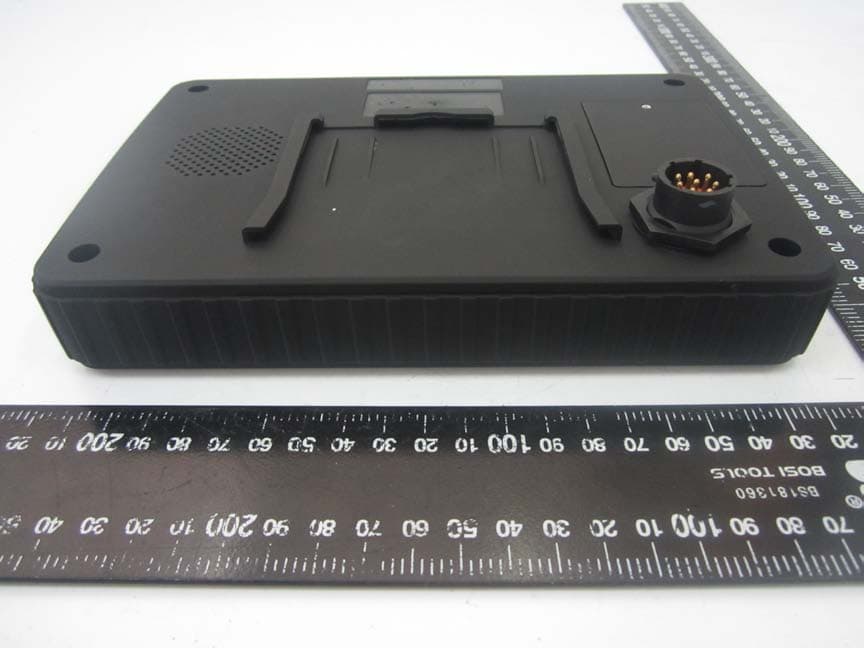
Click to zoom
Application Details
- Equipment Class
- DTS - Digital Transmission System
- Date of Grant
- Jul 15, 2015
- Application Purpose
- Original Equipment
- Date of Application
- Jul 15, 2015
- Equipment Note
- GPS navigation
- Frequency Range
- 2412.00000000 - 2462.00000000
- Company
- RM Acquisition LLC.
- Country
- United States
Documents & Files
Document Text
Text extracted from the exhibit documents filed with the FCC. Open a document above to read the original.
Users Manual
Fleet Edition TND ™ 765 User Manual Support This manual is organized to help you efficiently accomplish all your work-related tasks. However, if you have questions that are not addressed here, we invite you to contact us. Call us: 1-800-641-RAND (7263) Email us: [email protected] Write to us: Rand McNally Attn: TND ™ 765 Fleet Edition Customer Support 9855 Woods Drive Skokie, IL 60077 Safe Driving Practices Always use your best judgment. Exercise caution and common sense when the vehicle is in motion. Do not become distracted by the device while driving. Minimize the amount of time spent looking at the device while driving, and use voice prompts when possible. Do not input destinations, change settings, or access any functions requiring prolonged use of the device controls while driving. Pull over in a safe and legal manner before attempting such operations. FCC Compliance Statement This device complies with part 15 of the FCC Rules. Operation is subject to the following two conditions: 1. This device may not cause harmful interference, and 2. This device must accept any interference received, including interference that may cause undesired operation. FCC WARNING This equipment has been tested and found to comply with the limits for a Class B digital device, pursuant to Part 15 of the FCC Rules. These limits are designed to provide reasonable protection against harmful interference in a residential installation. This equipment generates, uses and can radiate radio frequency energy and, if not installed and used in accordance with the instructions, may cause harmful interference to radio communications. However, there is no guarantee that interference will not occur in a particular installation. If this equipment does cause harmful interference to radio or television reception, which can be determined by turning the equipment off and on, the user is encouraged to try to correct the interference by one or more of the following measures: • Reorient or relocate the receiving antenna. • Increase the separation between the equipment and the receiver. • Connect the equipment into an outlet different from that to which the receiver is connected. • Consult the dealer or an experienced radio/TV technician for help. Exposure to Radio Frequency Radiation. The TND ™ 765 device transmits and receives radio frequency (RF) energy through its internal antennas. The TND ™ 765 cellular antenna is located at the top of the left edge of the device. The Wi-Fi antenna is located near the center of the bottom edge of the device. TND ™ 765 is designed to operate with internal antennas and has no provisions for external antennas. The TND ™ 765 has been designed, tested and manufactured to comply with the limits for exposure to RF energy set by the FCC. The radiated output power of the TND ™ 765 device is below the FCC radio frequency exposure limits. The FCC has granted an Equipment Authorization for this model device with all reported SAR levels evaluated as in compliance with the FCC RF exposure guidelines. SAR information on this model device is on file with the FCC and can be found under the Display Grant section of http://www.fcc.gov/oet/fccid after searching on FCC ID: A4C01003A. FCC Caution Any changes or modifications not expressly approved by the party responsible for compliance could void the user’s authority to operate this equipment. IC Compliance Statement This device complies with Part 15 of the FCC Rules and Industry Canada license-exempt RSS standard(s). Operate is subject to the following two conditions: 1. This device may not cause interference, and 2. This device must accept any interference, including interference that may cause undesired operation of the device. IC CAUTION Intentional or unintentional changes or modifications to the equipment not expressly approved by Rand McNally could void the user’s authority to operate the equipment. IC ATTESTATION DE CONFORMITÉ Ce dispositif est conforme à la norme FCC Partie 15 et aux norme(s) RSS permis-exempte(s) d’Industrie Canada. L’opération est soumise aux deux conditions suivantes: 1. Ce dispositif ne peut pas provoquer d’interférence nocive et 2. Ce dispositif doit accepter toute interference reçue, y compris les interférences qui peuvent causer un mauvais fonctionnement du dispositif. ATTENTION Les changements ou modifications à l’équipement, que ce soient intentionnelles ou non, non expressément approuvés par Rand McNally pourraient annuler l’autorisation de l’utilisateur à utiliser cet équipement. IC: 10199A- A4C01003A
Users Manual
Table of Contents Device Overview......................................................................................2 Getting Started .......................................................................................3 Registration ..........................................................................................3 Log On ................................................................................................4 Warning Screen ....................................................................................5 On-screen Keyboard ..............................................................................6 Status Bar ............................................................................................7 Screen Calibration ................................................................................8 Home Menu ....................................................................................9 Home Menu Safe-driving Screen .........................................................10 Mail...............................................................................................11 Inbox ..................................................................................................12 Attachments and Destinations .............................................................13 Open Message ...................................................................................14 Outbox ...............................................................................................15 Send Messages ...................................................................................16 Options ..............................................................................................17 Mail Safe-driving Screen .....................................................................17 IntelliRoute® ................................................................................18 Main Menu ........................................................................................18 Truck Info ...........................................................................................19 Warnings ...........................................................................................19 General and Route Preferences ..........................................................20 Map Preferences ................................................................................21 Timers ................................................................................................22 Trails ............................................................................................23-24 Route to Destination ....................................................................25-26 POIs ...................................................................................................27 Hours of Service ...........................................................................28 Summary ......................................................................................29-31 Duty Status .........................................................................................32 HOS Safe-driving Screen .....................................................................33 Logs ...................................................................................................34 Options ..............................................................................................35 Company ............................................................................................36 Graph Sub-tab ....................................................................................37 List Sub-tab ........................................................................................38 Summary Sub-tab ...............................................................................39 Trip Info Sub-tab .................................................................................40 Anomalies Sub-tab .............................................................................41 HOS: A Day in the Life of a Driver ..................................................42-51 SysInfo ..........................................................................................52 Settings .............................................................................................53 Programs and Diagnostics ...................................................................54 SysInfo Safe-driving Screen .................................................................55 Stats .............................................................................................56 Driver Performance ............................................................................57 Fault Codes .......................................................................................58 Troubleshooting .....................................................................................59 Connect Web Portal ...............................................................................60 IntelliRoute® SysInfo Stats Hours of Service 2 TND ™ 765 Fleet Edition User Manual Device Overview Front Display Back of Device Power Button Type A 2.0 Mini USB* *The USB port is used for data transmission only. Home Button Press to return to Home Menu screen. LED Light Lights up when unit is powered on. Speaker Power and OBD Access Cable Ties Suction Cup Mount Optional Screw Mount with Backing Plate Locking Collar Kit 9-Pin Power Cable 3 TND ™ 765 Fleet Edition User Manual Getting Started Device Registration Instructions Once the unit has been activated and installed, please power the unit on. The Registration screen will display (this process may take a few minutes). Your Data # and Serial # will be pre-populated on the screen. At this time, you will be asked to enter a Truck #. This is the unique identifi cation number for the vehicle in which your TND TM 765 is installed, and it can be whatever number you want to assign. Once you…
Text truncated - open the document above for the full version.
Users Manual
29 TND ™ 765 Fleet Edition User Manual Hours of Service HOS timers displayed include: • 70hr: Time remaining until your 70-hour On-Duty limit is reached. • 11hr: Time remaining until your 11-hour Driving limit is reached. • 14hr: Time remaining until your 14-hour On-Duty limit is reached. • 8hr: Time remaining until your 8-hour On-Duty limit is reached before you must take a required 30-minute Off-Duty break. • 10hr Reset: Time remaining in the 10-hour Off-Duty and/or Sleeper Berth break period required after 14 hours of On-Duty status. • Split Reset: Time remaining in the break period for a split Sleeper Berth to complete. • 34hr Reset: Time remaining until your 34-hour reset is complete. - Tap ? next to 34-hr Reset to view when you are eligible to take advantage of the 34-hour reset rule, and what day and time the 34-hour reset will complete. • 30min Reset: Time remaining until your 30-minute Off-Duty break is complete. Service Cycle Hours of Service Feature Overview 30 TND ™ 765 Fleet Edition User Manual Hours of Service Tap More timers to view additional HOS timers: • Last 34 hour reset (start time): The time your last 34-hour reset started. • Last 34 hour reset (end time): The time your last 34-hour reset ended. • Can the 16hr rule be used? Indicates if you are eligible to use the 16hr rule, based on your current duty cycle. If you would like more information on whether your organization has enabled use of the 16hr rule, please contact your fl eet manager. - Tap ? to view more details about your 16-hour eligibility. • Remaining projected drive time: Your available remaining Driving time. - Tap Today’s log to view the graph version of each day in the current 8-day period. For more information, see the Graph Sub-tab on page 37. • Hours gained back from 70hr after 12 A.M.: Amount of Driving time available to you starting at 12 A.M. the next day, based on the amount of On-Duty and Driving hours you’ve completed in the current 8-day period. - To get back to the Summary Tab, hit the Back button. More Timers Pop-up Window Hours of Service Feature Overview 31 TND ™ 765 Fleet Edition User Manual Hours of Service Today’s Log The Today’s log button can be access on the Service Cycle tab. Six tabs display across the top of the Today’s log screen. Graph is the tab that opens when you select Today’s log. This screen has two buttons: Edit and Add. • Edit. This button allows you to edit any uncertified log from the last 8 days (select the arrow buttons and to view a previous day’s log.) • Add. This button on the Today’s Log Graph screen allows you to add a current duty status to the current day. Any changes to earlier statuses must be made using the Edit button. • Certify. This button is used to Certify the log you are currently viewing. Note: Driving status time cannot be edited once recorded. Today’s Log Main Screen - Graph Tab Hours of Service Feature Overview 32 TND ™ 765 Fleet Edition User Manual Hours of Service Service Cycle To update your current duty status: • Tap Off-duty for breaks or other required off-duty periods. • Tap S. Berth to enter sleeper berth mode. • Tap On-Duty to enter on-duty mode. The system automatically switches between On-Duty and Driving status while you progress through your day. Service Cycle Hours of Service Feature Overview 33 TND ™ 765 Fleet Edition User Manual Hours of Service HOS Safe-driving Screen If you select the HOS icon from the Home Menu while driving, the HOS safe-driving screen will display, displaying your effective remaining drive time in large type to help minimize driver distraction. This time is the same time that displays on the status bar. If the 16-hour rule is enabled and you are using the rule while driving, two timers will be visible to display your effective remaining drive time. HOS Safe-driving Screen Hours of Service Feature Overview 34 TND ™ 765 Fleet Edition User Manual Hours of Service Logs: 8-day Duty Status Totals The Logs tab displays your duty status totals and total miles driven for each day in the current 8-day period. • Tap on a log entry to view the graph version of the log. - Title lists driver name and current duty status. - indicates the currently selected day. - indicates a revision has been made to the log in the Rand McNally Connect web portal that requires the driver to review and certify. - indicates the log has been certifi ed. - Date indicates the date of 24-hour log period. - Miles indicates the # miles driven in 24-hour log period. - Off-duty indicates time in off-duty mode. - S.B. indicates time in sleeper berth mode. - Driving indicates time in driving mode. - On-duty indicates time in on-duty mode. If a log entry is highlighted in orange, this indicates that the log entry has not yet been uploaded to the Rand McNally Connect web portal. To upload your current HOS logs (up to the current minute) to the Rand McNally Connect web portal, tap Options, then click the Send Logs button. The orange highlight will disappear once the logs are sent. Logs Tab Hours of Service Feature Overview 35 TND ™ 765 Fleet Edition User Manual Hours of Service Options Tab The Options tab is where you can change modes for roadside inspections, personal conveyance, and more. • Tap Request HOS Logs to refresh your HOS logs if you have recently moved from truck to truck and your logs are not yet visible on the device. • Tap Send HOS Logs to upload your current HOS logs (up to the current minute) to the Rand McNally Connect web portal. Options Tab • Tap Change Trucks if you are going to be using a different truck with a different TND ™ 765 device installed in it. This will ensure that the next truck you use will display your most up-to-date log information. • Tap Fax/Email HOS Logs to send logs to Law Enforcement. NOTE: You must certify all logs except for the current day’s log, and enter Roadside Audit mode before faxing or emailing your logs. • Tap DVIR to enter a new DVIR or review a previous entry. • Tap Request Last DVIR if you have rece…
Text truncated - open the document above for the full version.
Users Manual
43 TND ™ 765 Fleet Edition User Manual Hours of Service If defects were recorded: Review the repairs and certify the repairs. • Review the repairs and select No Repairs Needed or Repairs Made. • Review the information on the Certify and Defects tabs to confi rm that it is correct. • Click Certify. Certify the Entire DVIR Entry • Review the vehicle is safe to operate and click Certify. - A pop-up will appear asking you to confi rm that all defects have been corrected, or if there are defects, that they do not affect your ability to operate the vehicle safely. - Click Yes if this is correct. DVIR Pop-up Window: Certify Repairs DVIR Pop-up Window: Final Certifi cation Tester Tester Tester 44 TND ™ 765 Fleet Edition User Manual Hours of Service Review and certify logs from the previous day Before you start driving, you should make sure all of the previous logs in your current 8-day cycle are certifi ed. NOTE: You must be in On-Duty status to certify your logs. • From the Logs tab, click the oldest log fi rst that does NOT have a check mark next to it. Review and certify this log fi rst. • Review the graph version of the log on the Graph Screen, then review the information on the List, Summary, Trip Info and Anomalies screens. Logs Tab Review and Certify Log from the Previous Day 45 TND ™ 765 Fleet Edition User Manual Hours of Service Certify log Once you confi rm that the log is correct, click Certify. If you have more than one log to certify, continue to certify all other logs, from oldest to newest. NOTE: Once you certify your log, you cannot make any changes to that day’s log on the in-cab device. Any changes that need to be made after certifi cation must be made in the Rand McNally Connect web portal, by your fl eet manager. Certify Pop-up Window Review and Certify Log from the Previous Day 46 TND ™ 765 Fleet Edition User Manual Hours of Service At the end of your work day, you can inspect your vehicle, enter a new DVIR entry, and go into Off-Duty mode. This will end your current 14-hour On-Duty cycle. The header of the screen may indicate critical compliance informa- tion, such as, “You need to review DVIR record,” or “Don’t forget to do a DVIR at the end of your work shift”. indicates the DVIR has been certifi ed indicates there is at least one outstanding defect that should be reviewed Add a post-trip DVIR • Press DVIR tab. • Press Add DVIR. - Enter Trailer #. - Select Yes if you found any defects during your inspection. - Select No if there are none. • If there is a defect, enter the Location (General Truck Condition, Truck Cab, etc.), the Defect and any Remarks about the defect. • Click Add. Ending Your Trip • A pop-up will appear asking if there are any more defects to report. - Select Yes if you found additional defects. - Select No if there are no more defects. • If there is a defect, enter the Location (General Truck Condition, Truck Cab, etc.), the Defect and any Remarks about the defect. • Repeat this process for any additional defects. 47 TND ™ 765 Fleet Edition User Manual Hours of Service Go Off-Duty • Click Off-Duty or Sleeper Berth. - Select Off-Duty. - Click Submit. NOTE: If you forget to complete a post-trip DVIR entry before clicking Off-Duty, the system will remind you to complete one before you end your day. If you plan on using another truck equipped with a different TND ™ 765 device in it, or if you are a team driving and another driver will be using the same device, you must log off to ensure your log data is accurate. • From the Home Menu, click the Logoff i c o n ( ). TND ™ 765 Home Menu Ending Your Trip 48 TND ™ 765 Fleet Edition User Manual Hours of Service Editing Incorrect Log Information If you realize that you have entered an incorrect duty status or Trip Info entry, you can still make edits to this information, but only if you have not certifi ed the log from that day. NOTE: You can make edits to logs that you have not yet certifi ed. Driving status cannot be edited. Edit Duty Status Pop-up Window Edit a duty status or Trip Info entry • Press Logs tab. • Click the day you would like to edit. • Press the List sub-tab. - Click the duty status you want to edit. - Make the change you want (Time, Location, Trailers, Remarks & HOS Status). - Press Submit. Add a duty status • Press Logs tab. • Click the day you would like to edit. • Press the Graph or List sub-tab. - Click Add. - Enter details such as Time, Location, Trailers, Remarks & HOS Status. - Press Submit. 49 TND ™ 765 Fleet Edition User Manual Hours of Service Using Personal Conveyance Change Mode Pop-up WindowGraph Sub-tab (Personal Conveyance Mode) Summary Tab (Personal Conveyance Mode) The Personal Conveyance option may be used to record the time spent driving for personal use. NOTE: Before you go in Personal Conveyance mode, you must be in Off-Duty status. Personal Conveyance mode may only be used when your tractor is empty (when your vehicle is unladen). Based on the HOS settings confi gured in the Rand McNally Connect web portal, the ability to use Personal Conveyance may be restricted. For more information on whether your organization has enabled Personal Conveyance, please contact your fl eet manager. To enter Personal Conveyance Mode: • Press the Options tab. • Click Change Mode. • Click Personal Conveyance. Personal Conveyance will be listed as Off-Duty status on the Summary tab. A blue highlight on the Off-Duty status line on the Graph sub-tab indicates Personal Conveyance usage. To discontinue Personal Conveyance Mode: • Press the Options tab. • Click Change Mode. • Click Normal. 50 TND ™ 765 Fleet Edition User Manual Hours of Service During an inspection, you have two options to provide your logs to law enforcement: • Directly on the TND ™ 765 screen • Fax or email your logs to the inspector Change Mode Pop-up Window Fax/Email Logs Pop-up Window Before the inspection Before being inspected, you should enter Roadside Audit mode. While you are in Roadside Audit mode, your log information will…
Text truncated - open the document above for the full version.
External Photos
External Photos 1. EUT front view 2. EUT rear view 3. EUT left side view 4. EUT right side view 5. EUT top view 6. EUT bottom view
ID Label/Location Info
Label & Label location 1.Label 2.Label Location
Internal Photos
Internal Photos 1. EUT uncover view 2. Mainboard front view 3. Mainboard rear view 4. CDMA chip view 5. CPU chip view 6. WIFI chip view 7. CDMA antenna view 8. WIFI antenna view 9. GPS antenna view
RF Exposure Info
MORLAB GROUP FL1-3, Building A, FeiYang Science Park, No.8 LongChang Road, Tel: 86-755-36698555 Fax: 86-755-36698525 Block67, BaoAn District, ShenZhen , GuangDong Province, P. R. ChinaHttp://www.morlab.com E-mail: [email protected] Page 2 0f 10 SZ15050021S01 DIRECTORY TEST REPORT DECLARATION ······················································································· 3 1. TECHNICAL INFORMATION ························································································ 4 1.1. IDENTIFICATION OF APPLICANT ······················································································ 4 1.2. IDENTIFICATION OF MANUFACTURER ··············································································· 4 1.3. EQUIPMENT UNDER TEST (EUT) ···················································································· 4 1.3.1. PHOTOGRAPHS OF THE EUT ······················································································· 5 1.3.2. IDENTIFICATION OF ALL USED EUT ················································································ 6 1.4. APPLIED REFERENCE DOCUMENTS ················································································· 6 2. DEVICE CATEGORY AND RF EXPOSURE LIMIT ···························································· 7 3. MEASUREMENT OF CONDUCTED PEAK OUTPUT POWER ············································ 8 4. RF EXPOSURE EVALUATION ······················································································ 9 ANNEX C GENERAL INFORMATION ··············································································· 10 Change History Issue Date Reason for change 1.0 2015-06-30 First edition MORLAB GROUP FL1-3, Building A, FeiYang Science Park, No.8 LongChang Road, Tel: 86-755-36698555 Fax: 86-755-36698525 Block67, BaoAn District, ShenZhen , GuangDong Province, P. R. ChinaHttp://www.morlab.com E-mail: [email protected] Page 4 0f 10 SZ15050021S01 1. TECHNICAL INFORMATION Note: the following data is based on the information by the applicant. 1.1. Identification of Applicant Company Name: RM Acquisition LLC Address: 9855 Woods Drive, Skokies IL 60077 1.2. Identification of Manufacturer Company Name: LONGHORN AUTO LIMITED Address: Gongyeyuan rd., Dalang street, Longhua , Shenzhen 1.3. Equipment Under Test (EUT) Model Name: TND 765 Trade Name: N/A Brand Name: Rand McNally Hardware Version: RM762_V3.0 Software Version: 762.01.01.010 Frequency Bands: CDMA/EVDO/EVDO Re.A BC 0: 824-849MHz; CDMA/EVDO/EVDO Re.A BC 1:1850-1910MHz; Wifi802.11b/g/n:2412-2462MHz; Modulation Mode: CDMA: CDMA Wifi802.11b: DSSS; Wifi802.11g/n: OFDM; Antenna type: Fixed Internal Antenna Development Stage: Identical prototype MORLAB GROUP FL1-3, Building A, FeiYang Science Park, No.8 LongChang Road, Tel: 86-755-36698555 Fax: 86-755-36698525 Block67, BaoAn District, ShenZhen , GuangDong Province, P. R. ChinaHttp://www.morlab.com E-mail: [email protected] Page 5 0f 10 SZ15050021S01 1.3.1. Photographs of the EUT 1. EUT front view 2. EUT rear view MORLAB GROUP FL1-3, Building A, FeiYang Science Park, No.8 LongChang Road, Tel: 86-755-36698555 Fax: 86-755-36698525 Block67, BaoAn District, ShenZhen , GuangDong Province, P. R. ChinaHttp://www.morlab.com E-mail: [email protected] Page 6 0f 10 SZ15050021S01 1.3.2. Identification of all used EUT The EUT identity consists of numerical and letter characters, the letter character indicates the test sample, and the following two numerical characters indicate the software version of the test sample. EUT Identity Hardware Version Software Version 1# RM762_V3.0 762.01.01.010 1.4. Applied Reference Documents Leading reference documents for testing: No. Identity Document Title 1 47 CFR§2.1091 Radiofrequency Radiation Exposure Evaluation: mobile devices 2 KDB 447498 D01v05r02 General RF Exposure Guidance MORLAB GROUP FL1-3, Building A, FeiYang Science Park, No.8 LongChang Road, Tel: 86-755-36698555 Fax: 86-755-36698525 Block67, BaoAn District, ShenZhen , GuangDong Province, P. R. ChinaHttp://www.morlab.com E-mail: [email protected] Page 7 0f 10 SZ15050021S01 2. DEVICE CATEGORY AND RF EXPOSURE LIMIT Per user manual, this device is a GPS navigation. Based on 47CFR 2.1091, this device belongs to mobile device category with General Population/Uncontrolled exposure. Mobile Devices: 47CFR 2.1091(b) For purposes of this section, a mobile device is defined as a transmitting device designed to be used in other than fixed locations and to generally be used in such a way that a separation distance of at least 20 centimeters is normally maintained between the transmitter's radiating structure(s) and the body of the user or nearby persons. In this context, the term “fixed location” means that the device is physically secured at one location and is not able to be easily moved to another location. Transmitting devices designed to be used by consumers or workers that can be easily re-located, such as wireless devices associated with a personal computer, are considered to be mobile devices if they meet the 20 centimeter separation requirement. GENERAL POPULATION / UNCONTROLLED EXPOSURE The general population/uncontrolled exposure limits are applicable to situations in which the general public may be exposed or in which persons who are exposed as a consequence of their employment may not be made fully aware of the potential for exposure or cannot exercise control over their exposure. Members of the general public would come under this category when exposure is not employment-related; for example, in the case of a wireless transmitter that exposes persons in its vicinity. Warning labels placed on low-power consumer devices such as cellular telephones are not considered sufficient to allow the device to be considered under the occupational/controlled category, and the general population/uncontrolled exposure limits apply to these devices. TABLE 1—LIMITS FOR MAXIMUM PERMISSIBLE EXPOSURE (MPE) Frequency range (MHz) Elec…
Text truncated - open the document above for the full version.
Test Report
MORLAB GROUP FL1-3, Building A, FeiYang Science Park, No.8 LongChang Road, Tel: 86-755-36698555 Fax: 86-755-36698525 Block67, BaoAn District, ShenZhen , GuangDong Province, P. R. ChinaHttp://www.morlab.com E-mail: [email protected] Page 2 0f 46 REPORT No.: SZ15050021W01 DIRECTORY TEST REPORT DECLARATION ∙∙∙∙∙∙∙∙∙∙∙∙∙∙∙∙∙∙∙∙∙∙∙∙∙∙∙∙∙∙∙∙∙∙∙∙∙∙∙∙∙∙∙∙∙∙∙∙∙∙∙∙∙∙∙∙∙∙∙∙∙∙∙∙∙∙∙∙∙∙∙∙∙∙∙∙∙∙∙∙∙∙∙∙∙∙∙∙∙∙∙∙∙∙∙∙∙∙∙∙∙∙∙∙∙∙∙∙∙∙∙∙∙∙∙∙∙∙∙∙∙ 4 1. TECHNICAL INFORMATION ∙∙∙∙∙∙∙∙∙∙∙∙∙∙∙∙∙∙∙∙∙∙∙∙∙∙∙∙∙∙∙∙∙∙∙∙∙∙∙∙∙∙∙∙∙∙∙∙∙∙∙∙∙∙∙∙∙∙∙∙∙∙∙∙∙∙∙∙∙∙∙∙∙∙∙∙∙∙∙∙∙∙∙∙∙∙∙∙∙∙∙∙∙∙∙∙∙∙∙∙∙∙∙∙∙∙∙∙∙∙∙∙∙∙∙∙ 5 1.1 APPLICANT INFORMATION ∙∙∙∙∙∙∙∙∙∙∙∙∙∙∙∙∙∙∙∙∙∙∙∙∙∙∙∙∙∙∙∙∙∙∙∙∙∙∙∙∙∙∙∙∙∙∙∙∙∙∙∙∙∙∙∙∙∙∙∙∙∙∙∙∙∙∙∙∙∙∙∙∙∙∙∙∙∙∙∙∙∙∙∙∙∙∙∙∙∙∙∙∙∙∙∙∙∙∙∙∙∙∙∙∙∙∙∙∙∙∙∙∙∙∙∙∙∙∙∙ 5 1.2 EQUIPMENT UNDER TEST (EUT) DESCRIPTION ∙∙∙∙∙∙∙∙∙∙∙∙∙∙∙∙∙∙∙∙∙∙∙∙∙∙∙∙∙∙∙∙∙∙∙∙∙∙∙∙∙∙∙∙∙∙∙∙∙∙∙∙∙∙∙∙∙∙∙∙∙∙∙∙∙∙∙∙∙∙∙∙∙∙∙∙∙∙∙∙∙∙∙∙∙∙∙∙∙∙∙∙∙∙ 5 1.2.1 IDENTIFICATION OF ALL USED EUTS ∙∙∙∙∙∙∙∙∙∙∙∙∙∙∙∙∙∙∙∙∙∙∙∙∙∙∙∙∙∙∙∙∙∙∙∙∙∙∙∙∙∙∙∙∙∙∙∙∙∙∙∙∙∙∙∙∙∙∙∙∙∙∙∙∙∙∙∙∙∙∙∙∙∙∙∙∙∙∙∙∙∙∙∙∙∙∙∙∙∙∙∙∙∙∙∙∙∙∙∙∙∙∙∙∙∙∙∙∙∙∙∙∙6 1.3 TEST STANDARDS AND RESULTS ∙∙∙∙∙∙∙∙∙∙∙∙∙∙∙∙∙∙∙∙∙…
Text truncated - open the document above for the full version.
Contact Information
Applicant
Kristalyn Wilkerson(CFO)
Technical Contact
Shenzhen Morlab Communications Technology Co.,LtdIvy Zhu
[email protected]86-755-36698618
FL.3, Building A, FeiYang Science Park · ShenZhen, GuangDong Province · China
Test Firm
Shenzhen Morlab Communications Technology Co., LtdIvy zhu
Technical Specifications
| # | Rule Parts | Frequency Range | Power Output |
|---|---|---|---|
| 1 | 15C | 2.41 GHz - 2.46 GHz | 264.00 mW |
Other Applications from RM Acquisition LLC.
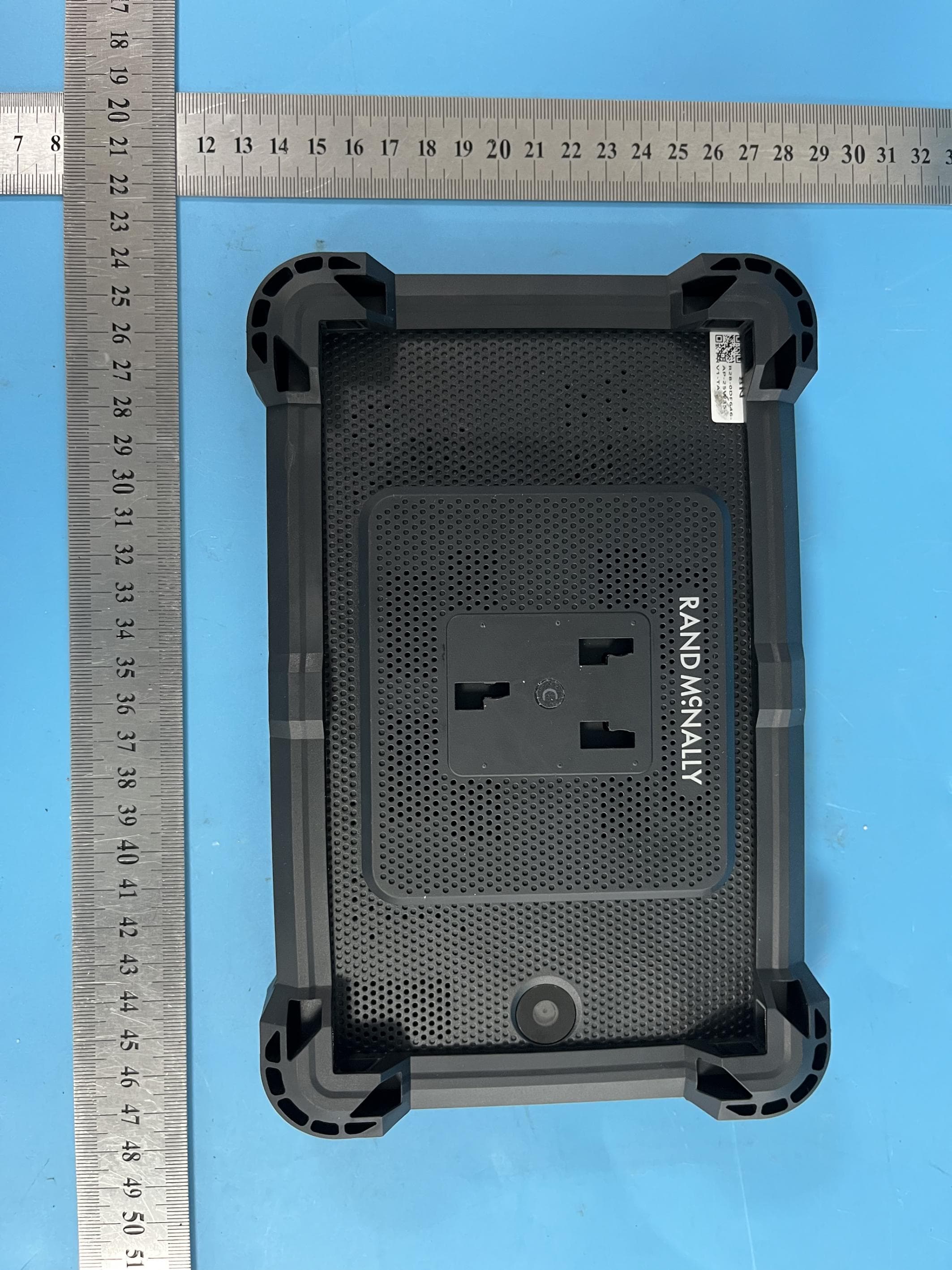
A4C-10019A
Dec 19, 2025GPS Device
Equipment Class
DSS - Part 15 Spread Spectrum Transmitter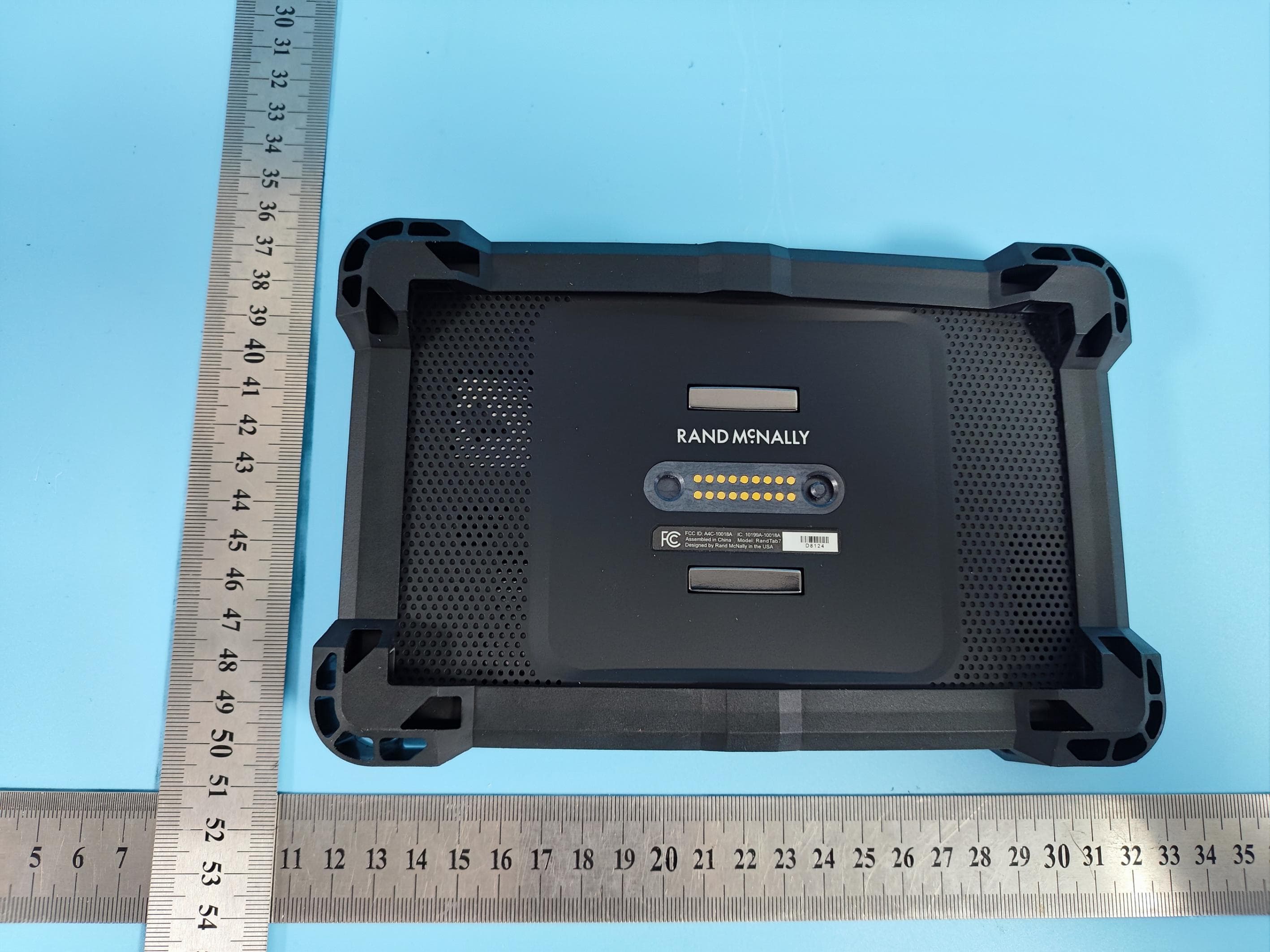
A4C-10018A
Dec 17, 2025GPS Device
Equipment Class
NII - Unlicensed National Information Infrastructure TX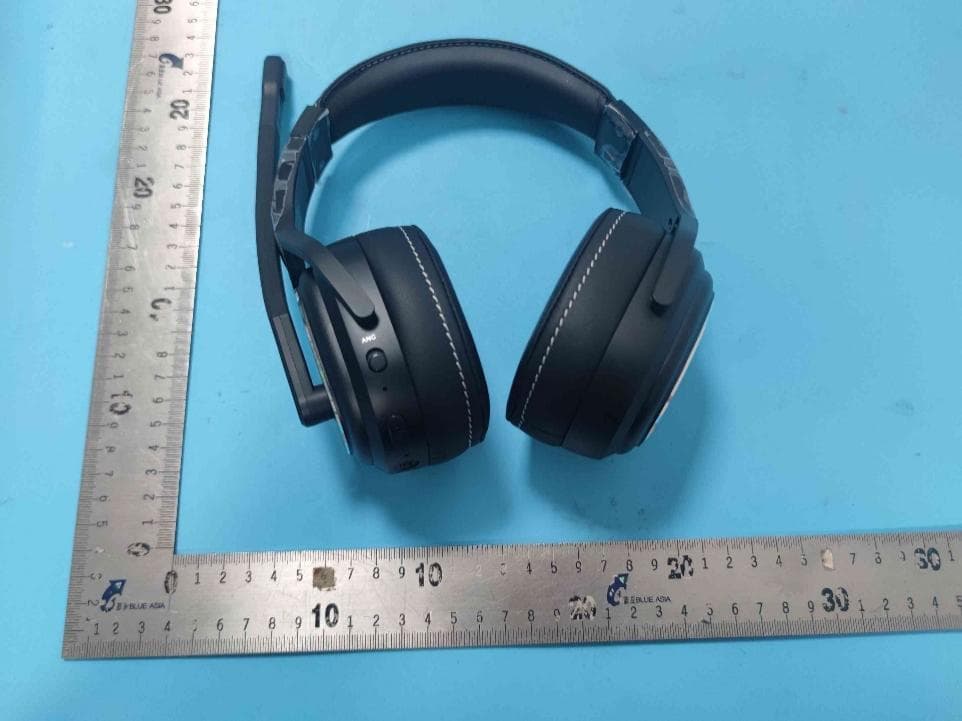
A4C91008B
Sep 26, 2024Bluetooth ANC Headset CD220S
Equipment Class
DSS - Part 15 Spread Spectrum Transmitter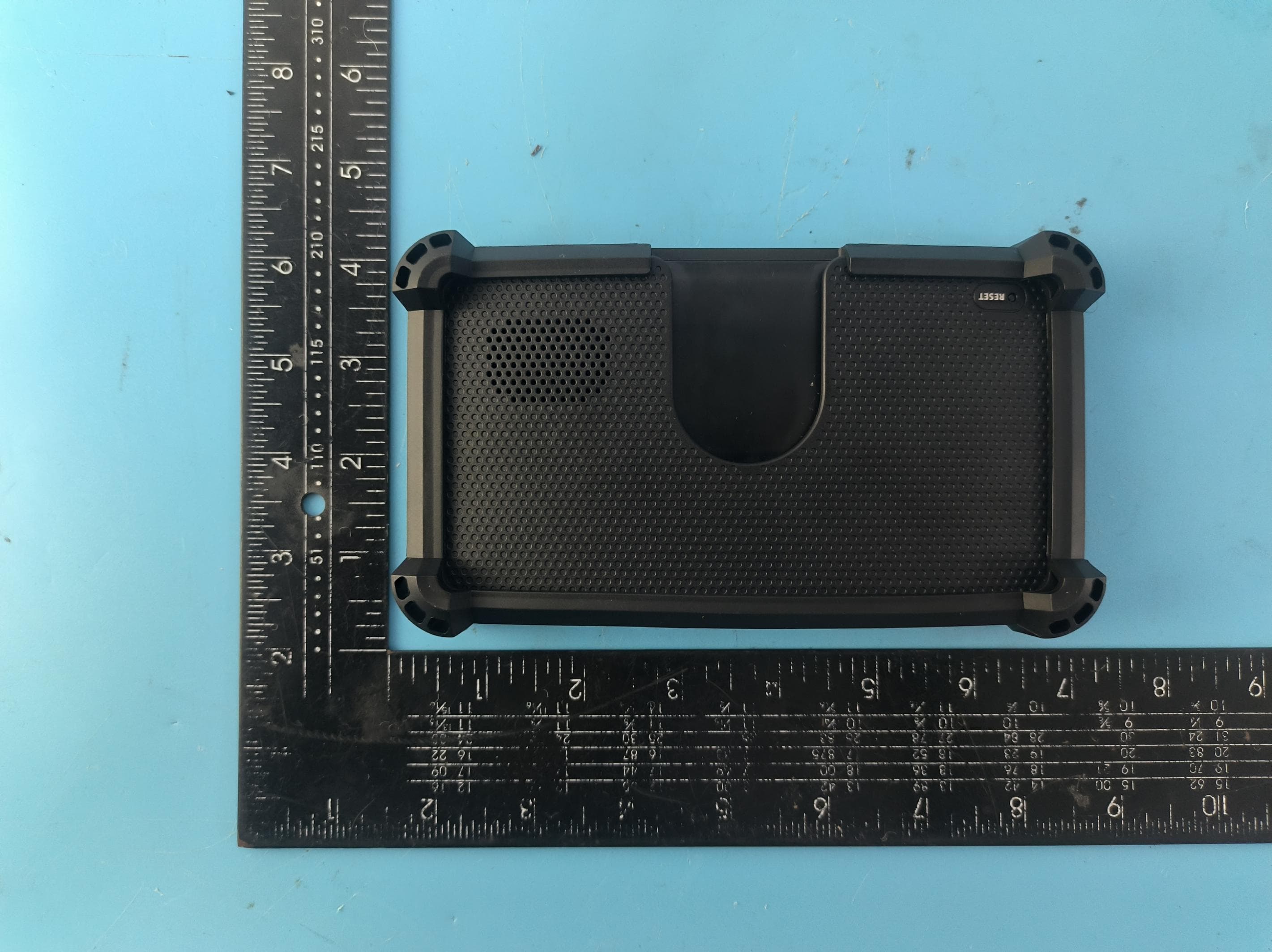
A4C-10017A
Aug 12, 2024GPS navigator
Equipment Class
NII - Unlicensed National Information Infrastructure TX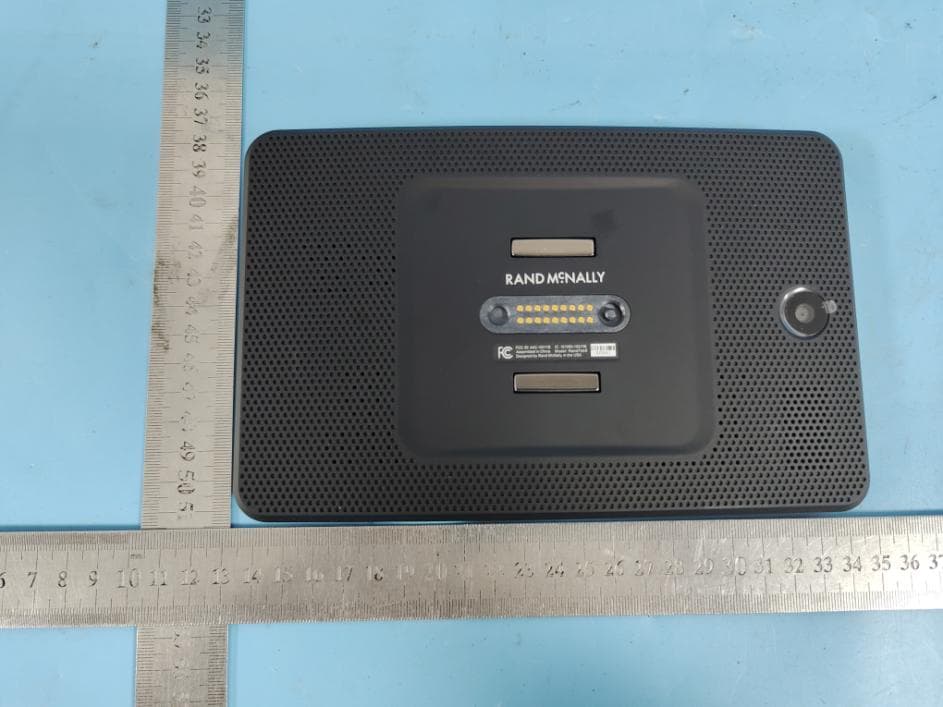
A4C-10011B
Sep 04, 2023GPS Device
Equipment Class
NII - Unlicensed National Information Infrastructure TX