A7JEZS128Wi-Fi SD Card
LZeal Information Technology Co., Ltd.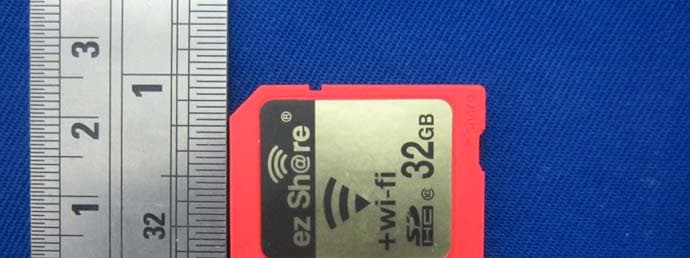
Click to zoom
Application Details
- Equipment Class
- JBP - Part 15 Class B Computing Device Peripheral
- Date of Grant
- Feb 19, 2013
- Application Purpose
- Original Equipment
- Date of Application
- Feb 19, 2013
- Equipment Note
- Wi-Fi SD Card
- Country
- China
Documents & Files
Document Text
Text extracted from the exhibit documents filed with the FCC. Open a document above to read the original.
Users Manual
Wh z z Cam Not e War 1. W 2. To Wi z W 1. 2. 3. 4. ez hat You N Digital Came Wi‐Fi Devi mera Ste 1. Tur e: To switch o rning: When switchin o plug/eject e ‐Fi Devic Browser Acc Wi‐Fi ON Wi‐Fi ON. Search hots p Open the we View or Dow z Sha Need era with SD S Digital Ca ices(Phone/ Smart P h eps n On Share S off the Share ng on/off the ez Share you ce Steps cess Mode Conne c pot named “e eb browser to wnload. re○ R D lot amera /PAD / Laptop or hone witch Mode you n e Share Mode must power o ct Open th ez Share”, inpu o input “ez” o DS100 or Di p) PAD 2. Plug ez Sh eed to turn o Switch you m off the came heweb brows ut Wi‐Fi pass or any letters 0 User igital Video C or Lap are ff the Share S must power o ra! ser View o sword “88888 on the addre r Guid Camera top 3. Power on Switch. off the camera r Download 8888”, Connec ess bar. de n DC ra! cting. Note setti z Do w inst 1.D o And 2.W i 3.Se 4.R u cam as w Def a “adm Q& Q1: fold e othe A: Fo been com Q2. A: 1 ) 2) 3) 4) Add Q3. suc c A : Bro w e: Please ena ing). App Access wnload and tall app ownload and roid apps pla i‐Fi ON earch for hots un the app, y era’s photos well as you c ault hotspot min”, and you &A Digital camer er", "The card er informatio or security, so n used in oth mputer , ready ez Share is on ) Make sure y ) Check you h ) Confirm the ) Make sure t ress”. How do I v cessfully acce wser Access M able web brow Mode W install ez Sha tform to dow spot named (S you can direct to Wi‐Fi dev can share the name (SSID) u can rename ras is plugged d is not form n. Why? ome digital ca her digital cam y for re‐use. n Share Mode your device’s have inputted e distance is c the IP setting iew photos ssing ez Sha r Mode: wser’s Java S Wi‐Fi ON are app (plea wnload). SSID) “ez Sha tly view phot vices , and ed ese pictures to is “ez Share e it yourself. d in ez Share atted", "Can n amera mode meras. You ca e, but my Wi‐ Wi‐Fi has be d the correct W close enough g of your Wi in my camer re? cript for ez S Conne c ase visit www are”, input Wi tos in the ca dit them by r o twitter/Fac e”, Wi‐Fi pass , but camera not recognize ls cannot pro an re‐format ‐Fi device ca n en turned on Wi‐Fi passwo between you ‐Fi device is ra through m hare’s norma ct Ru w.ezshare.com i‐Fi password mera , and/ o otating , crop cebook. sword is “8 display mess e the memor operly recogn the memory n’t access ez n. ord, the defau ur Wi‐Fi devic set to “Enab my Wi‐Fi dev al usage (refe n the app m.cn , or go to “88888888”, or automatica pping , collag 8888888”, ad sages such as y card", "Me ize the stora g card using Share succes ult is “888888 ce and digital le DHCP” or vice when m er to web bro o Apple Store ”, Connecting. ally download ging and filte dmin passwo s "Cannot cre mory card fu ge card whic your DC me n ssfully.Why? 888”. l camera. disable “Sta my Wi‐Fi devi owser e and . d the ring , ord is eate a ll" or h has nu or tic IP ice is 1) Confirm web browser is one of the followings: Safari\IE\Opera\Chrome. 2) Input “ez” or any letters on the browser address bar. App Access Mode: 1) Make sure you have installed the app for your Wi‐Fi Device (please visit www.ezshare.com.cn to download our latest applications for iPhone, iPad and Android platforms). 2) Confirm to run the App in the Wi‐Fi Device. Q4. How do I keep ez Share running for a long time? A: Please prevent the camera from entering power‐saving mode because it will shut down ez Share’s power . It is highly recommended to set the camera to non‐power‐saving mode when you wish to use the share function (See camera’s user manual). Q5. Can ez Share be used as a normal SD card when “Share” mode is turned off? A: Yes, it can be used as a normal SD card when you turn off the Share mode at the bottom of ez Share . This is beneficial to power‐saving for a digital camera. Q6.Does ez Share allow multi‐users to access ? A: Yes , ez Share simultaneously supports multi‐user access. Exceeding maximum number of users might result in network jam or abnormal display. Q7. How do I reset the SSID name and password? A: The default hotspot name (SSID) is “ez Share”, and the Wi‐Fi password is “88888888”, admin password is “admin”. You can change the SSID and password by yourself or reset them as following: 1. Insert the ez Share into SD slot of the computer (Use USB to SD converter if no slot in the computer). 2. Delete the file named “ezshare.cfg” in the root directory. 3. Eject the ez Share card using your computer’s safe mode. 4.” Hotspot name(SSID) ” , ” Wi‐Fi password ” and ” admin password” have been successfully reset to default ones. Q8. How do I avoid slow speed caused by multi‐channel conflict in an environment that has too many Wi‐Fi hot spots ? A: ez Share allows the user to configure the Wi‐Fi Channel manually, you can enter "Set" webpage to change the "Wi‐Fi Channel". FCC This device is to be used only for fixed and mobile applications. This device complies with part 15 of the FCC Rules. Operation is subject to the following two conditions: (1) This device may not cause harmful interference, and (2) this device must accept any interference received, including interference that may cause undesired operation. Any changes or modifications not expressly approved by the party responsible for compliance could void the user's authority to operate the equipment. Some electronic devices are susceptible to electromagnetic interference sent by this equipment if inadequately shielded. Please use this equipment at least 20cm or as far as you can from TV set, radio and other automated office equipment so as to avoid interference. This device is a radio transmitter and receiver. It is designed and manufactured not to exceed limits for exposure to radio frequency (RF) energy set by the Federal Communications Commission (FCC) of the U.S. Government. These limits are part of comprehensive guidelines and establish permitted levels of RF energy for the general population. The guidelines are based on standards that were developed by…
Text truncated - open the document above for the full version.
External Photos
EXHIBIT B - EUT EXTERNAL PHOTOGRAPHS Model: DS100-4G EUT –Top View EUT – Bottom View Model: DS100-8G EUT –Top View EUT – Bottom View Model: DS100-16G EUT –Top View EUT – Bottom View Model: DS100-32G EUT –Top View EUT – Bottom View
ID Label/Location Info
EXHIBIT A - FCC ID LABELING AND LOCATION FCC ID Label Proposed FCC ID Label Location The label shown shall be permanently affixed at a conspicuous location on the device and be readily visible to the user at the time purchase (Labeling requirements per 2.925) Label Here
Internal Photos
EXHIBIT B - EUT EXTERNAL PHOTOGRAPHS Model: DS100-4G EUT – Uncover View EUT – Cover Off View EUT –Main Board Top View EUT –Main Board Bottom View EUT –Antenna View Model: DS100-8G EUT – Uncover View EUT – Cover Off View EUT –Main Board Top View EUT –Main Board Bottom View EUT –Antenna View Model: DS100-16G EUT – Uncover View EUT – Cover Off View EUT –Main Board Top View EUT –Main Board Bottom View EUT –Antenna View Model: DS100-32G EUT – Uncover View EUT – Cover Off View EUT –Main Board Top View EUT –Main Board Bottom View EUT –Antenna View
Test Report
Note: This test report is prepared for the customer shown above and for the device described herein. It may not be duplicated or used in part without prior written consent from Bay Area Compliance Laboratories Corp. (Dongguan). FCC PART 15B, CLASS B TEST REPORT For LZeal Information Technology Co., Ltd. F18, Unit 2, 530 Building, No.100, Dicui Road, Liyuan Development Zone, Wuxi City, Jiangsu Province, China Report Type: Original Report Product Type: Wi-Fi SD Card Test Engineer: Leon Chen Report Number: R1SH121227050-00B Report Date: 2013-01-10 Reviewed By: Ivan Cao RF Leader Test Laboratory: Bay Area Compliance Laboratories Corp. (Dongguan) No.69 Pulongcun, Puxinhu Industrial Zone, Tangxia, Dongguan, Guangdong, China Tel: +86-769-86858888 Fax: +86-769-86858891 www.baclcorp.com.cn FCC ID: A7JEZS128 Bay Area Compliance Laboratories Corp. (Dongguan) Report No.: R1SH121227050-00B FCC Part15B, Class B Page 2 of 15 TABLE OF CONTENTS GENERAL INFORMATION ....................................................................................................................................... 3 PRODUCT DESCRIPTION FOR EQUIPMENT UNDER TEST (EUT) ..................................................................................... 3 OBJECTIVE ................................................................................................................................................................... 3 RELATED SUBMITTAL(S)/GRANT(S) ............................................................................................................................. 3 TEST FACILITY ............................................................................................................................................................. 3 SYSTEM TEST CONFIGURATION .......................................................................................................................... 4 JUSTIFICATION ............................................................................................................................................................. 4 EUT EXERCISE SOFTWARE .......................................................................................................................................... 4 EQUIPMENT MODIFICATIONS ....................................................................................................................................... 4 SUPPORT EQUIPMENT LIST AND DETAILS .................................................................................................................... 4 EXTERNAL CABLE ........................................................................................................................................................ 4 PRINTER ....................................................................................................................................................................... 4 KEYBOARD .................................................................................................................................................................. 4 BLOCK DIAGRAM OF TEST SETUP ................................................................................................................................ 5 SUMMARY OF TEST RESULTS ............................................................................................................................... 6 FCC §15.107 – AC LINE CONDUCTED EMISSIONS ............................................................................................. 7 MEASUREMENT UNCERTAINTY .................................................................................................................................... 7 EUT SETUP .................................................................................................................................................................. 7 EMI TEST RECEIVER SETUP ......................................................................................................................................... 7 TEST PROCEDURE ........................................................................................................................................................ 8 TEST EQUIPMENT LIST AND DETAILS ........................................................................................................................... 8 TEST RESULTS SUMMARY ............................................................................................................................................ 8 TEST DATA .................................................................................................................................................................. 8 FCC §15.109 - RADIATED EMISSIONS ................................................................................................................. 11 MEASUREMENT UNCERTAINTY .................................................................................................................................. 11 EUT SETUP ................................................................................................................................................................ 11 EMI TEST RECEIVER SETUP ....................................................................................................................................... 11 TEST PROCEDURE ...................................................................................................................................................... 12 CORRECTED AMPLITUDE & MARGIN CALCULATION ................................................................................................. 12 TEST EQUIPMENT LIST AND DETAILS ......................................................................................................................... 12 TEST RESULTS SUMMARY .......................................................................................................................................... 12 TEST DATA .........................…
Text truncated - open the document above for the full version.
Test Setup Photos
EXHIBIT D - TEST SETUP PHOTOGRAPHS Conducted Emission - Front View Conducted Emission - Side View Radiated Emissions –Front View (Below 1GHz) Radiated Emissions –Rear View (Below 1GHz)
Contact Information
Applicant
Jun An Wu(HW Director)
Test Firm
Bay Area Compliance Laboratories Corp. (Dongguan)John Chan
[email protected]86-769-86858888
Technical Specifications
| # | Rule Parts | Frequency Range | Power Output |
|---|---|---|---|
| 1 | 15B | - | - |
Other Applications from LZeal Information Technology Co., Ltd.
A7JEZS126
Feb 07, 20122.4GHz Wireless Memory Card
Equipment Class
JBP - Part 15 Class B Computing Device Peripheral