ACJ9TGCF-29BAPanasonic Toughbook w/ WLAN, CDMA & Bluetooth
Panasonic Corporation of North America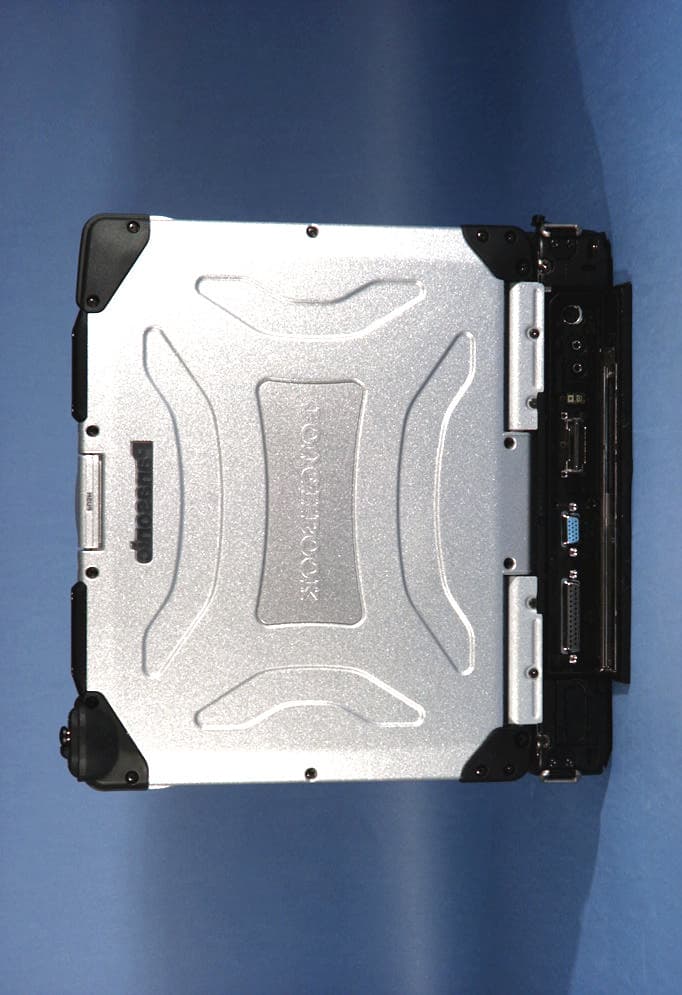
Click to zoom
Application Details
- Equipment Class
- PCB - PCS Licensed Transmitter
- Date of Grant
- Dec 21, 2004
- Application Purpose
- Original Equipment
- Date of Application
- Dec 21, 2004
- Equipment Note
- Panasonic Toughbook w/ WLAN, CDMA & Bluetooth
- Frequency Range
- 1851.25000000 - 1908.75000000
- Country
- United States
Documents & Files
Document Text
Text extracted from the exhibit documents filed with the FCC. Open a document above to read the original.
Users Manual
KYL-SUM02252004 User Manual for Toughbook with integrated SB555 CDMA modem KYL-SUM02252004 Important Notice Due to the nature of wireless communications, transmission and reception of data can never be guaranteed. Data may be delayed, corrupted (i.e., have errors) or be totally lost. Although significant delays or losses of data are rare when wireless devices are used in a normal manner with a well-constructed network, the Panasonic Toughbook computer with integrated Sierra Wireless SB555 OEM CDMA modem should not be used in situations where failure to transmit or receive data could result in damage of any kind to the user or any other party, including but not limited to personal injury, death, or loss of property. Matsushita Electric Industrial Co., Ltd. accepts no responsibility for damages of any kind resulting from delays or errors in data transmitted or received using the Panasonic Toughbook computer, or for failure of the Panasonic Toughbook computer to transmit or receive such data. Safety and Hazards Do not operate the integrated Sierra Wireless SB555 CDMA modem in areas where blasting is in progress, where explosive atmospheres may be present, near medical equipment, near life support equipment, or any equipment which may be susceptible to any form of radio interference. In such areas, the integrated CDMA modem MUST BE POWERED OFF. The integrated CDMA modem can transmit signals that could interfere with this equipment. Do not operate the integrated CDMA modem in any aircraft, whether the aircraft is on the ground or in flight. In aircraft, the integrated Sierra Wireless SB555 CDMA modem MUST BE POWERED OFF. Note: Some airlines may permit the use of cellular phones while the aircraft is on the ground and the door is open. Sierra Wireless modems may be used at this time. Disclaimers No part of this manual may be reproduced in any form without the prior written permission of Matsushita Electric Industrial Co., Ltd.. No patent liability is assumed with respect to the use of the information contained herein. Some of the illustrations included with the text may differ slightly in shape from the actual items in order to make the explanation easier to understand. Computers, computer devices, and manuals are subject to change without notice. Matsushita Electric Industrial Co., Ltd. assumes no liability for damage incurred directly or indirectly from errors, omissions, or discrepancies between the computer and the manuals. Trademarks - Panasonic is registered trademark of Matsushita Electric Industrial Co., Ltd.. - Sierra Wireless, the Sierra Wireless logo, and Watcher are trademarks of Sierra Wireless, Inc. - Windows® is a registered trademark of Microsoft Corporation. - Qualcomm® is a registered trademark of Qualcomm Incorporated. - InstallShield® is a registered trademark and service mark of InstallShield Corporation. - Other trademarks are the property of the respective owners. Copyright ©2004 Matsushita Electric Industrial Co., Ltd.. All rights reserved. i KYL-SUM02252004 Table of Contents Introduction ................................................................................... 1 Getting Started ................................................................................... 2 Installation ................................................................................... 3 Activation ................................................................................... 5 Using Watcher TM ................................................................................... 6 LED Indicators and Modem Specifications ................................................... 8 ii KYL-SUM02252004 1: Introduction The Sierra Wireless SB555 OEM CDMA modem is an embedded wireless modem for cellular and North American PCS networks. It enhances the functionality of your Toughbook by adding high speed wireless data service. The SB555 modem functions as a wireless network card. It allows you to connect to the Internet, send and receive e-mail, and connect to a corporate network, without the need of a network cable or phone line. The SB555 modem is designed to provide a wide range of capabilities using CDMA network technology. Implementation of these features will depend on the particular service provider and account features you have chosen. Some features described in this manual may not be supported by your service provider or may not be available with your network account. Contact your service provider for details of the services and accounts available. CDMA2000 1X services The Sierra Wireless SB555 modem operates over a type of wireless network called CDMA (Code Division Multiple Access). CDMA technology provides a variety of connectivity features, depending on your service provider and account: • Express Network SM high-speed packet data, sometimes known as 1xRTT, this supports Internet connections with data rates up to 153.6 kbps (downlink) and 76.8 kbps (uplink). Actual speed will depend on the network. • Circuit switched (dial-up) data, using the earlier CDMA IS-95 specification, supports data connections to any dial-in service at rates up to 14.4 kbps. • Quick 2 Net SM , provides a simplified way to dial into an Internet connection (using circuit switched data) where Express Network (1X) packet service is not available. (available with Verizon Wireless) • SMS (Short Message Service), allows you to send and receive short text messages using the SB555 modem. A CDMA service provider account Companies that operate CDMA networks and provide access to these networks are called service providers. You must have an account with a CDMA service provider to use the SB555 modem. Each SB555 has been provisioned at the factory for use with a particular service provider. This sets the SB555modem to use particular radio channels and enable services specific for that provider. The process of setting up your account is called activation. Activation involves action by the service provider and configuration of…
Text truncated - open the document above for the full version.
Users Manual
Personal Computer Appendix LIMITED USE LICENSE AGREEMENT ..........35 Hard Disk Backup Function .............................37 Hard Disk Data Erase Utility ............................41 Specifications ...................................................42 LIMITED WARRANTY .....................................44 Troubleshooting List of Error Codes ........................................25 Dealing with Problems (Summary) .......................26 Reinstalling Software ....................................33 Operation Starting Up/Shutting Down ............................16 Touch Pad (Basic Operation) ........................19 Reference Manual .........................................20 Useful Information .........................................21 Getting Started Read Me First .................................................3 Names and Functions of Parts ........................9 First-time Operation ......................................11 Contents [Additional Manual] Reference Manual This manual can be accessed on your computer. Refer to page 20 on how to access the Reference Manual. Reference Manual •Read Me First •Key Combinations Reference Manual •Touch Pad •Touchscreen* 1 •Panasonic Hand Writing •Standby/Hibernation Functions •Security Measures •Computing on the Road •Battery Power •Multimedia Pocket •PC Cards •RAM Module •Port Replicator •External Display •Printer •USB Devices •Modem •LAN •Wireless LAN* 2 •Hard Disk Drive •Setup Utility •Icon Enlarger •Loupe Utility Reference Manual •Technical Information •DMI Viewer •List of Error Codes •Dealing with Problems (Advanced) Appendix Getting Started Operation Troubleshooting Model No.CF-29 Series Please read these instructions carefully before using this product and save this manual for future use. XP •LED Indicators * 1 Only for models with touchscreen* 2 Only for models with wireless LAN OPERATING INSTRUCTIONS 2 Getting Started Introduction Thank you for purchasing the Panasonic computer. Read the operating instructions thoroughly for proper operation of your new computer. Illustrations and Terminology in this Manual Copyright This manual is copyrighted by Matsushita Electric Industrial Co., Ltd. with all rights reserved. No part of this manual may be reproduced in any form without the prior written permission of Matsushita Electric Industrial Co., Ltd. No patent liability is assumed with respect to the use of the information contained herein. © 2004 Matsushita Electric Industrial Co., Ltd. All Rights Reserved. Disclaimer Computer specifications and manuals are subject to change without notice. Matsushita Electric Industrial Co., Ltd. assumes no liability for damage incurred directly or indirectly from errors, omissions or discrepancies between the computer and the manuals. Trademarks Microsoft, Windows and the Windows logo are registered trademarks of Microsoft Corporation of the United States and/or other countries. Intel, Pentium and PROSet are either registered trademarks or trademarks of Intel Corporation. Adobe, the Adobe logo and Adobe Reader are either registered trademarks or trademarks of Adobe Systems Incorporated in the United States and/or other countries. Panasonic is a registered trademark of Matsushita Electric Industrial Co., Ltd. Names of products, brands, etc., appearing in this manual are trademarks or registered trademarks of their respective owner companies. * For the Model No., insert the 12 digit number (for example, CF-29HTLGZBM) located on the bottom of the computer. NOTE:NOTE provides a useful fact or helpful information. CAUTION:CAUTION indicates a condition that may result in minor or moderate injury. Enter :This illustration means to press the [Enter] key. Fn + F5 :This illustration means to press and hold the [Fn] key, then press the [F5] key. [start] - [Run]:This illustration means to click [start], then to click [Run]. For some applications, you may need to double- click. :Where to go for referred information. :This illustration means to refer to the Reference Manual, which is available on your computer. Refer to page 20 on how to access this manual. Some of the illustrations in this manual may differ slightly in shape from the actual items in order to make the explanation easier to understand. The “CD/DVD drive” is a description about drives, such as DVD-ROM, CD-ROM, CD-R/RW, and DVD-ROM & CD-R/ RW drives. This manual covers two types of models, as distinguished by the type of LCD screen (models with touchscreen and models without touchscreen). If the user has logged on without the administrator authority, some functions may not be executable, and some screens may be not displayed as shown in this manual. If this happens, log on with the administrator authority to enable these functions. Confirm the latest information on optional products in catalogs, etc. In this manual, “Microsoft ® Windows ® XP Professional Service Pack 2 with Advanced Security Technologies” is indicated as “Windows” or “Windows XP”. Customer's Record Serial No. or Date of Purchase Model No.* Code No. Dealer's Name Dealer's Address 3 Getting Started Read Me First Federal Communications Commission Radio Frequency Interference Statement Note: This equipment has been tested and found to comply with the limits for a Class B digital device, pursuant to Part 15 of the FCC Rules. These limits are designed to provide reasonable protection against harmful interference in a residential installation. This equipment generates, uses and can radiate radio frequency energy and, if not installed and used in accordance with the instructions, may cause harmful interference to radio communications. However, there is no guarantee that interference will not occur in a particular installation. If this equipment does cause harmful interference to radio or television reception, which can be determined by turning the equipment off and on, the user is encouraged to try to correct the interference by one or more of the following measures: Reorient or relo…
Text truncated - open the document above for the full version.
Users Manual
25 Troubleshooting List of Error Codes When turning on the computer, if one of the following error codes or messages is displayed, follow the instructions shown below. If the problem persists, or if the error code or message displayed is not shown here, contact Panasonic Technical Support. Error Code/Message 0211: Keyboard error 0251: System CMOS checksum bad - Default configuration used 0271: Check date and time set- tings 0280: Previous boot incomplete - Default configuration used 02B0: Diskette drive A error 0613: Serial Port* 1 configura- tion changed 0614: Serial Port* 1 config. error - device disabled * 1 The port name, such as A or B, is displayed, indicating the conflict- ing ports. Press <F2> to Setup Operating System not found Extended RAM Module Failed Action If an external keyboard or mouse is connected, disconnect these devices. An error has occurred in the memory that stores the Setup Utility settings. This error occurs when the memory content is changed through some inadvertent operation by a program or other function. Run the Setup Utility and load the default values, then change the settings to the appropri- ate values as needed. If the problem persists, the internal clock battery may need to be replaced. Contact Pana- sonic Technical Support. The data and time setting are incorrect. Run the Setup Utility and set the date and time correctly. If the problem persists, the internal clock battery may need to be replaced. Contact Pana- sonic Technical Support. ( page 44) Startup has failed repeatedly, so the Setup Utility settings have been returned to their default values, and the computer has been restarted. Run the Setup Utility and load the default values, then change the settings to the appropri- ate values as needed. Disconnect the floppy disk drive and reconnect it. Make sure the drive is secured cor- rectly. I/O address and IRQ settings are in conflict. Run the Setup Utility and change the settings in [Advanced] menu so there is no port conflicts. Write down the error details and press F2 to run the Setup Utility. Confirm the settings, and change the settings to the appropriate values as needed. The OS is not properly installed on the floppy disk or the hard disk that you are trying to boot from. If the computer cannot be booted from the floppy disk, check the floppy disk drive to ensure that the disk is in fact bootable, and change it to another if not. If the computer cannot be booted from the hard disk, confirm whether the hard disk is properly recognized in [Information] menu of the Setup Utility. • If the hard disk is recognized, perform the reinstallation procedure. • If not, contact Panasonic Technical Support. If a device is connected to the USB port, disconnect the device, or run the Setup Utility and set [Legacy USB Support] in [Advanced] menu to [Disable]. If the extended RAM module has not been inserted properly, or if an extended RAM module other than one matching the specifications has been inserted, a beep will sound and the message “Extended RAM Module Failed” will be displayed when turning the power on. In this case, turn the power off, confirm that the extended RAM module meets the specifications, and reinsert it. To run the Setup Utility 1 Restart the computer. 2Press F2 while [Panasonic] boot screen is displayed soon after the computer begins the startup procedure. Troubleshooting 26 The power indicator or bat- tery indicator is not lit The computer does not op- erate when a USB device is connected [Enter Password] is dis- played POST Startup Error(s) is displayed Windows startup, or an op- eration is extremely slow The date and time are incor- rect When resuming from the standby or hibernation mode, [Enter Password] does not appear even if a password has been set in the Setup Utility When the administrator password is forgotten When “Remove disks or other media. Press any key to restart” (or a similar mes- sage) is displayed [Executing Battery Recalibration] screen is dis- played When a problem occurs, refer to this page. The “Reference Manual” also contains detailed information. If a problem appears to be related to a software application, read the software related manual. If you still cannot troubleshoot the problem, contact Panasonic Technical Support. You can use the PC Information Viewer to check the computer’s usage status. ( “Dealing with Problems (Advanced)”) Dealing with Problems (Summary) Starting Up Check the cable connection for the AC adaptor. Check to see if a fully charged battery is properly installed. Remove the battery pack and disconnect the AC adaptor, then connect them again. The computer may not operate when certain USB devices are connected. Disconnect the USB device, or set [Legacy USB Support] to [Disable] in [Advanced] menu of the Setup Utility. Input your Supervisor Password or User Password. If you have forgotten it, contact Pana- sonic Technical Support. ( page 44) page 25 Press F9 in the Setup Utility ( “Setup Utility”). This will restore the Setup Utility’s settings to their default values (except the password settings). Then, the Setup Utility must be run once again for you to input the appropriate operating environment settings. (The processing speed depends on the application software used, so this opera- tion may not cause the processing speed to increase.) If you install resident software after purchasing this computer, disable the resident software. You can set the date and time using the following menu. [start] - [Control Panel] - [Date, Time, Language, and Regional Options] - [Date and Time] If you continue to experience problems, the internal battery maintaining the clock may need to be replaced. Contact Panasonic Technical Support. When the computer is connected to a LAN, confirm the date and time of the server. This computer will not correctly recognize the date and time starting from the year 2100 A.D. Even when a password has been set in the Setup Utility, [Enter Password] does not appear when the comput…
Text truncated - open the document above for the full version.
Attestation Statements
April 14, 2003 Federal Communications Commission Authorization and Standards Division 7435 Oakland Mills Rd. Columbia, M.D. 21046 Dear sir/madam: Re: Request for Confidentiality We hereby request that the documentation listed below, submitted with the application for certification, be withheld from public disclosure. This request is made under the provisions of Section 0.457(d) of the Commission’s Rules, and Section 552(b)(4) of the Freedom of Information Act. We cite trade secrets as the reason and purpose of the request. 1. SB555 Modem Schematics SB555SCH_S_3C.PDF 2. SB555 Bill of Materials SB555BOM_S_3C.PDF. 3. SB555 Detailed Circuit Description SB555DCD_S_3C.PDF 4. SB555 Block Diagram SB555BLK_S_3C.PDF 5. SB555 Tune Up Procedure.pdf Sincerely, Dattesh Kumar Senior Hardware Designer Sierra Wireless, Inc.
External Photos
PANASONIC FCC ID: ACJ9TGCF-29BA EUT Photographs © 2004 PCTEST Lab. Toughbook w/ Bluetooth, CDMA and WLAN Model: CF-29 PANASONIC FCC ID: ACJ9TGCF-29BA EUT Photographs © 2004 PCTEST Lab. Toughbook w/ Bluetooth, CDMA and WLAN Model: CF-29 PANASONIC FCC ID: ACJ9TGCF-29BA EUT Photographs © 2004 PCTEST Lab. Toughbook w/ Bluetooth, CDMA and WLAN Model: CF-29 PANASONIC FCC ID: ACJ9TGCF-29BA EUT Photographs © 2004 PCTEST Lab. Toughbook w/ Bluetooth, CDMA and WLAN Model: CF-29 PANASONIC FCC ID: ACJ9TGCF-29BA EUT Photographs © 2004 PCTEST Lab. Toughbook w/ Bluetooth, CDMA and WLAN Model: CF-29 PANASONIC FCC ID: ACJ9TGCF-29BA EUT Photographs © 2004 PCTEST Lab. Toughbook w/ Bluetooth, CDMA and WLAN Model: CF-29 PANASONIC FCC ID: ACJ9TGCF-29BA EUT Photographs © 2004 PCTEST Lab. Toughbook w/ Bluetooth, CDMA and WLAN Model: CF-29 PANASONIC FCC ID: ACJ9TGCF-29BA EUT Photographs © 2004 PCTEST Lab. Toughbook w/ Bluetooth, CDMA and WLAN Model: CF-29
ID Label/Location Info
Digital Transmission System (DTS), 15.247 PCTEST LAB TEST REPORT 15.247 FCC Measurement Report Reviewed by: Quality Manager Filename: 15.241126670.ACJ Test Dates: Nov. 26-27, 2004 EUT Type: Notebook PC w/ WLAN, CDMA and Bluetooth FCC ID: ACJ9TGCF-29BA Page 44 of 51 © 2004 PCTEST Engineering Laboratory, Inc. CONFIDENTIAL PROPERTY OF PCTEST EXHIBIT B – Labeling Requirements Sample Label & Location New Labeling Requirements Per 2.1074 & 15.19; Docket 95-19 The sample label shown below shall be permanently affixed at a conspicuous location on the device; instruction manual or pamphlet supplied to the user and be readily visible to the purchaser at the time of purchase. However, when the device is so small wherein placement of the label with specified statement is not practical, only the trade name, FCC ID, and the FCC logo must be displayed on the device per Section 15.19 (b)(2). Digital Transmission System (DTS), 15.247 PCTEST LAB TEST REPORT 15.247 FCC Measurement Report Reviewed by: Quality Manager Filename: 15.241126670.ACJ Test Dates: Nov. 26-27, 2004 EUT Type: Notebook PC w/ WLAN, CDMA and Bluetooth FCC ID: ACJ9TGCF-29BA Page 45 of 51 © 2004 PCTEST Engineering Laboratory, Inc. CONFIDENTIAL PROPERTY OF PCTEST EXHIBIT B – Labeling Requirements (Cont.) Sample Label & Location FCC ID Label
Internal Photos
PANASONIC FCC ID: ACJ9TGCF-29BA EUT Photographs © 2004 PCTEST Lab. Toughbook w/ Bluetooth, CDMA and WLAN Model: CF-29 PANASONIC FCC ID: ACJ9TGCF-29BA EUT Photographs © 2004 PCTEST Lab. Toughbook w/ Bluetooth, CDMA and WLAN Model: CF-29 PANASONIC FCC ID: ACJ9TGCF-29BA EUT Photographs © 2004 PCTEST Lab. Toughbook w/ Bluetooth, CDMA and WLAN Model: CF-29 PANASONIC FCC ID: ACJ9TGCF-29BA EUT Photographs © 2004 PCTEST Lab. Toughbook w/ Bluetooth, CDMA and WLAN Model: CF-29 PANASONIC FCC ID: ACJ9TGCF-29BA EUT Photographs © 2004 PCTEST Lab. Toughbook w/ Bluetooth, CDMA and WLAN Model: CF-29 PANASONIC FCC ID: ACJ9TGCF-29BA EUT Photographs © 2004 PCTEST Lab. Toughbook w/ Bluetooth, CDMA and WLAN Model: CF-29 PANASONIC FCC ID: ACJ9TGCF-29BA EUT Photographs © 2004 PCTEST Lab. Toughbook w/ Bluetooth, CDMA and WLAN Model: CF-29
RF Exposure Info
PCTEST MPE REPORT FCC CERTIFICATION REPORT REVIEWED BY: QUALITY MANAGER TEST REPORT S/N: 15. 241126674.ACJ TEST DATES: Nov. 26-27, 2004 EUT TYPE: Notebook PC w/ CDMA FCC ID: ACJ9TGCF-29BA PAGE 1 OF 3 © 2004 PCTEST Engineering Laboratory, Inc. RF Exposure Evaluation - Maximum Permissible Exposure (MPE) 1. Introduction This document attempts to prove the safety of radiation generated by RF devices to the human body. The limit for Maximum Permissible Exposure (MPE), specified in FCC 1.1210, is listed below. The power generated by this product is measured by a power meter. Through use of the Friis transmission formula and the maximum gain of the antenna, the distance from the product at which compliance with the MPE limit is achieved may be calculated. Alternatively, near field measurements may be performed to demonstrate compliance at a specific measurement distance. Near field probe: Wandel & Goltermann EMR-20. 2. RF Exposure Limit According to FCC 1.1310: the criteria listed in the following table shall be used to evaluate the environmental impact of human exposure to radio-frequency (RF) radiation as specified in 1.1307(b). LIMITS FOR MAXIMUM PERMISSIBLE EXPOSURE (MPE) Frequency Range (MHz) Electric Field Strength (V/m) Magnetic Field Strength (A/m) Power Density (mW/cm 2 ) Average Time (Minutes) (A) Limits For Occupational / Control Exposures 30-300 61.4 .163 1.0 6 300-1500 ... ... F/300 6 1500-100,000 ... ... 5 6 (B) Limits For General Population / Uncontrolled Exposure 30-300 27.5 .073 .2 30 300-1500 ... ... F/1500 30 1500-100,000 ... ... 1.0 30 F = Frequency in MHz 3. Friis Formula Friis transmission formula: Pd = (P out *G) / (4pr 2 ) Where: Pd = power density in mW/cm 2 (MPE limit) P out = output power to antenna in mW G = gain of antenna in linear scale p = 3.1416 r = distance between observation point and center of the radiator in cm Ref.: David K. Cheng, Field and Wave Electromagnetics, Second Edition, Page 640, Eq. (11.133) PCTEST MPE REPORT FCC CERTIFICATION REPORT REVIEWED BY: QUALITY MANAGER TEST REPORT S/N: 15. 241126674.ACJ TEST DATES: Nov. 26-27, 2004 EUT TYPE: Notebook PC w/ CDMA FCC ID: ACJ9TGCF-29BA PAGE 2 OF 3 © 2004 PCTEST Engineering Laboratory, Inc. 4. EUT Operating Condition Software provided by the client enabled the EUT to transmit and receive data at lowest, middle, and highest channels individually. 5. Climate Condition The temperature and relative humidity: 22°C and 78% RH 6. Measurement Results Frequency (MHz) Level (dBm) Measurement Distance Front MPE reading mW/cm 2 Rear MPE reading mW/cm 2 Right MPE reading mW/cm 2 Left MPE reading mW/cm 2 Limit 824.70 25.50 20cm .126 .114 .080 .089 .537 2412 23.35 2402 12.6 Frequency (MHz) Level (dBm) Measurement Distance Front MPE reading mW/cm 2 Rear MPE reading mW/cm 2 Right MPE reading mW/cm 2 Left MPE reading mW/cm 2 Limit 835.89 25.5 20cm .128 .113 .079 .090 .543 2437 23.67 2441 12.1 Frequency (MHz) Level (dBm) Measurement Distance Front MPE reading mW/cm 2 Rear MPE reading mW/cm 2 Right MPE reading mW/cm 2 Left MPE reading mW/cm 2 Limit 848.31 25.5 20cm .124 .121 .080 .092 .547 2462 23.65 2480 11.65 PCTEST MPE REPORT FCC CERTIFICATION REPORT REVIEWED BY: QUALITY MANAGER TEST REPORT S/N: 15. 241126674.ACJ TEST DATES: Nov. 26-27, 2004 EUT TYPE: Notebook PC w/ CDMA FCC ID: ACJ9TGCF-29BA PAGE 3 OF 3 © 2004 PCTEST Engineering Laboratory, Inc. Frequency (MHz) Level (dBm) Measurement Distance Front MPE reading mW/cm 2 Rear MPE reading mW/cm 2 Right MPE reading mW/cm 2 Left MPE reading mW/cm 2 Limit 1851.25 23.5 20cm .100 .092 .070 .060 1.00 2412 23.32 2402 12.60 Frequency (MHz) Level (dBm) Measurement Distance Front MPE reading mW/cm 2 Rear MPE reading mW/cm 2 Right MPE reading mW/cm 2 Left MPE reading mW/cm 2 Limit 1880 23.5 20cm .102 .093 .076 .060 1.00 2437 23.67 2441 12.10 Frequency (MHz) Level (dBm) Measurement Distance Front MPE reading mW/cm 2 Rear MPE reading mW/cm 2 Right MPE reading mW/cm 2 Left MPE reading mW/cm 2 Limit 1908.75 23.5 20cm .108 .094 .074 .063 1.00 2462 23.65 2480 11.65 1. Data taken with all transmitters operating simultaneously 7. Conclusion The device meets the mobile 20cm separation distance as specified in Section 2.1091 of the FCC Rules. An appropriate RF exposure compliance statement will be placed in the user’s manual. * All data was taken with WLAN Channel 6 with 1 Mbps transmitting at full power.
Test Report
PCTEST PT. 22/24 REPORT FCC MEASUREMENT REPORT Reviewed By: Quality Manager Test Report S/N: 22/24.241126673.ACJ Test Dates: NOV. 26-27, 2004 EUT Type: Panasonic Toughbook w/ Sierra CDMA OEM Radio, WLAN & Alps Bluetooth FCC ID: ACJ9TGCF-29BA Page 1 of 33 © 2004 PCTEST ENGINEERING LABORATORY, INC. PCTEST Engineering Laboratory, Inc. 6660-B Dobbin Road • Columbia, MD 21045 • U.S.A. TEL (410) 290-6652 • FAX (410) 290-6654 http://www.pctestlab.com CERTIFICATE OF COMPLIANCE FCC Part 24 & 22 Certification Matsushita Electric Industrial Co., Ltd. Dates of Tests: November 26-27, 2004 1006 Oaza Kadoma, Kadoma Test Report S/N: 22/24.241126673.ACJ Osaka, 571 JAPAN Test Site: PCTEST Lab, Columbia MD Project No.: ITPD-04-F131A FCC ID ACJ9TGCF-29BA APPLICANT Matsushita Electric Industrial Co., Ltd. Classification: Licensed Portable Transmitter Worn on Body (PCT) FCC Rule Part(s): §24(E), §22H; §2 EUT Type: Panasonic Toughbook w/ Intel WLAN Module, Alps Bluetooth Kit and Sierra Wireless CDMA OEM Radio using Car Mounter Model: CF-WEB291 Model: CF-29mk2 Tx Frequency Range: 824.70 – 848.31MHz (CDMA) / 1851.25MHz – 1908.75MHz (PCS CDMA) Rx Frequency Range: 869.70 – 893.31MHz (CDMA) / 1931.25MHz – 1988.75MHz (PCS CDMA) Max. RF Output Power: 0.319 W ERP CDMA (25.033 dBm) / 0.221 W EIRP PCS CDMA (23.451 dBm) w/ External Antenna: 0.353 W ERP CDMA (25.484 dBm) / 0.225 W EIRP PCS CDMA (23.521 dBm) Emission Designator(s): 1M25F9W (CDMA) Test Device Serial No. Identical Prototype [S/N: 4DKSA00060] Installed Options: WLAN Alps Bluetooth CDMA Radio Module Other This equipment has been shown to be capable of compliance with the applicable technical standards as indicated in the measurement report and was tested in accordance with the measurement procedures specified in §2.947. This device is approved as a mobile device with respect o RF Exposure compliance (see antenna height photo). If the EUT contains any additional embedded transmitters, then those transmitters were active during all tests. The Sierra Wireless CDMA OEM Radio Module is electrically identical to previously authorized FCC ID: N7NSB555. RF conducted data is shown in that test report, included in this application I attest to the accuracy of data. All measurements reported herein were performed by me or were made under my supervision and are correct to the best of my knowledge and belief. I assume full responsibility for the completeness of these measurements and vouch for the qualifications of all persons taking them. PCTEST certifies that no party to this application has been denied the FCC benefits pursuant to Section 5301 of the Anti-Drug Abuse Act of 1988, 21 U.S.C. 862. PCTEST PT. 22/24 REPORT FCC MEASUREMENT REPORT Reviewed By: Quality Manager Test Report S/N: 22/24.241126673.ACJ Test Dates: NOV. 26-27, 2004 EUT Type: Panasonic Toughbook w/ Sierra CDMA OEM Radio, WLAN & Alps Bluetooth FCC ID: ACJ9TGCF-29BA Page 2 of 33 © 2004 PCTEST ENGINEERING LABORATORY, INC. TABLE OF CONTENTS ATTACHMENT A: COVER LETTER(S) ATTACHMENT B: ATTESTATION STATEMENT(S) ATTACHMENT C: TEST REPORT 1.1 SCOPE 3 2.1 INTRODUCTION 4 3.1 INSERTS 5 4.1 DESCRIPTION OF TESTS 6-9 5.1 EFFECTIVE RADIATED POWER OUTPUT 10 6.1 EQUIVALENT ISOTROPIC RADIATED POWER 11 7.1 RADIATED MEASUREMENTS 12-17 8.1 FREQUENCY STABILITY 18-21 9.1 EFFECTIVE RADIATED POWER OUTPUT 22 10.1 EQUIVALENT ISOTROPIC RADIATED POWER 23 11.1 RADIATED MEASUREMENTS 24-29 12.1 PLOTS OF EMISSIONS 30 13.1 LIST OF TEST EQUIPMENT 31 14.1 SAMPLE CALCULATIONS 32 15.1 CONCLUSION 33 ATTACHMENT D: SIERRA WIRELESS & C.C.S. TEST REPORT FCC ID: N7NSB555 ATTACHMENT E: FCC ID LABEL / LOCATION ATTACHMENT F: TEST SETUP PHOTOGRAPHS ATTACHMENT G: EXTERNAL PHOTOGRAPHS ATTACHMENT H: INTERNAL PHOTOGRAPHS ATTAC…
Text truncated - open the document above for the full version.
Contact Information
Applicant
Ben Botros(Manager - Regulatory & Compliance)
Technical Contact
PCTEST Engineering Lab., Inc.Randy Ortanez
[email protected]410-290-6652
6660-B Dobbin Road · Columbia, Maryland · United States
Test Firm
PCTEST Engineering Laboratory, Inc.Randy Ortanez
Technical Specifications
| # | Rule Parts | Frequency Range | Power Output | Emission | Tolerance |
|---|---|---|---|---|---|
| 2 | 24E | 1.85 GHz - 1.91 GHz | 225.00 mW | 1M25F9W | 2.5 ppm |
Other Applications from Panasonic Corporation of North America
ACJ-EAH-A1000
Aug 19, 2026Digital Wireless Stereo Headphones
Equipment Class
DSS - Part 15 Spread Spectrum TransmitterACJ9TGFZVNF3G1
Jun 16, 2026Contactless Smart Card Reader
Equipment Class
DXX - Part 15 Low Power Communication Device Transmitter
ACJ932AM2301
Jan 29, 2025Car AV Control Unit for CDC
Equipment Class
DTS - Digital Transmission SystemACJ96NKX-TGEA60B
Aug 13, 2024DECT Handset
Equipment Class
PUE - Part 15 Unlicensed PCS portable Tx held to earACJ96NKX-TGE630B
Aug 12, 2024DECT Base Unit
Equipment Class
PUB - Part 15 Unlicensed PCS Base Station