APYNAR0057Tri-Band Mobile Cellular Phone
Sharp Corporation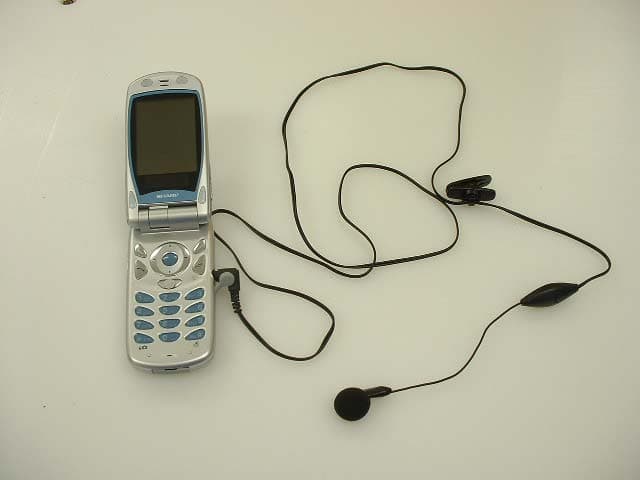
Click to zoom
Application Details
- Equipment Class
- PCE - PCS Licensed Transmitter held to ear
- Date of Grant
- Jun 08, 2004
- Application Purpose
- Original Equipment
- Date of Application
- Jun 08, 2004
- Equipment Note
- Tri-Band Mobile Cellular Phone
- Frequency Range
- 1850.20000000 - 1909.80000000
- Company
- Sharp Corporation
- Country
- Japan
Documents & Files
Document Text
Text extracted from the exhibit documents filed with the FCC. Open a document above to read the original.
Users Manual
3-12 Quick Setup Quick Setup Quick Setup gives you the basic information you need to start u s ing your handset by simpl y following the steps. St e p 1: Unpa c k i ng Check that you have the following items; The handsetRe c hargeable Li-ion battery AC chargerHands free EARphone & MICOperation Manual Some other brochures or supplements may also be c ontained. St e p 2: Ins er t in g the SIM C a r d and th e BatteryIn order to acces s the ser v i c es available, do not forget to in s ert a SIM card and a batter y . The SIM c ard c arrie s the userí s identity for accessing the network and also store s personal information such as the handset directory and received Text messages, etc. Only use a 3V SIM card with y our hand s et. 1 Press ( ) and flip the cover in the direction of the arrow ( ). 2 Remove the battery cover. 2 1 3-13 Quick Setup 3 flip the SIM card into the SIM holder as illu s trated. Do not touch the metal par t of the SIM terminal. 4 Position the battery with the printed side up. Insert its top end as illustrated into slot and insert the other end into position . 5 Align the battery cover with the battery compartment as illustrated and flip it in the direction of the arrow until it click s . Removing the SIM CardIn step 3, press the back of the card, flip it in the opposite direction and remove it from the SIM holder. 2 1 3-14 Quick Setup St e p 3: Cha rg ing th e B a tt er y The battery i s not full y charged when you purchase the handset. Charge the batter y for at lea s t 2 hours before using the handset. Using the Charger1 Insert the charger plug into an AC outlet. 2 Open the external connector cap and insert the charger (label facing up) into the USB/Charger connector. The Indicator LED lights red. 3 When charging is complete, the Indicator LED turns off.In standby mode, the Indicator LED blinks. Removing the chargerDi s connect the charger plug from the AC outlet and unplug the charger from the handset. To charge using the cigarette lighter chargerThe optional cigarette lighter charger (CE-CL30) supplies power for charging from the cigarette lighter soc k et of a c ar . The standard charging time i s appro x imately 2 hours.Charging time may var y depending on the state of the battery and other conditions. For information on the battery, refer to ìBatter y î on page 1-5. 3-15 Quick Setup Battery StatusChe ck the batter y indi c ator di s pla y ed in the upper left of the display to estimate remaining battery power. When the batter y i s empty, ì î appears on the display and an alarm sounds. The battery may onl y last for another 5 minute s . If you are u s ing y our hand s et, c harge the batter y immediately. St e p 4: T u r n i n g Y o ur Ha nds et On Pre ss F and hold for approximately 2 seconds. The standby screen appears. Turning Your Handset OffPre ss F and hold for approximately 2 seconds. St e p 5: Setting the Date and TimeSet the date and time before u s ing the handset. If date and time are left unset, you cannot operate some time-based functions correctly.1 Flip open the handset. 2 Pr e ss B . The main menu appears. Battery Indicat o rs Charge Le v el Sufficiently chargedPartially c h arged C h argin g recommended C h argin g required Empty For information on key operations, refer to ìParts and Control s î on page 4-18. When turning on the hand s et, you will be asked to enter a PIN (Personal Identification Number) code. Enter it and press B . For more information, refer to ìIf You Upgrade Your Handsetî on page 3-16. 3-16 Quick Setup 3 Press a , b , c or d to highlight ìSettingsî and press B . 4 Press a or b to highlight ìDate & Timeî and press B . 5 Press a or b to highlight ìSet date/timeî and press B . 6 Enter the day, month, year and time using the digit keys and press B . If you enter the time in the 12-hour format, press P . Pre s s P to switch between am and pm. If You Upgr ad e Your H andset If you have a mobile phone before purchasing thi s handset, you may u s e your previou s SIM card with the new handset. In this case, you should keep in mind two thing s for the setup. Entering the PIN CodeIf you insert a SIM card you have used for your previous mobile phone, you may be requested to enter a PIN code when you turn on your handset. For more information on the PIN code, refer to ìSetting Securityî on page 15-140.1 Enter your PIN code that you used for your old mobile phone. 2 Press B . For more information on how to set date and time, refer to ìSetting the Date and Timeî on page 15-139. If your PIN code is entered incorrectly three t i me s i n a ro w , the S IM card is l o ck ed. To relea s e the lock, try entering the PUK (Personal Unblocking Key) code (8 digits) provided by your ser v i c e pro v ider. For more information on the code, contact your servi c e provider. 3-17 Quick Setup Copying the Contacts List from the SIM cardThe fir s t time y ou insert a SIM card y ou ha v e u s ed for y our previou s mobile phone, you are asked whether you wi s h to copy the information such a s the ìContacts li s tî entries. Fo ll o w the on-s c reen i n s tru c t i on s , or y ou can do i t l ater using the ìContacts li s tî menu a s follows. 1 Pre s s B . The main menu appears. 2 Pre s s a , b , c , or d to highlight ìContact s î and press B . 3 Pre s s a or b to highlight ìContacts listî and press B . 4 Pre s s C [Options]. The ìOptionsî menu appears. 5 Pre s s a or b to highlight ìAdvancedî and press B . 6 Pre s s a or b to highlight ìCopy all from SIMî and press B . 7 Pre s s C [Yes]. Copying start s . To cancel, press A [No].
Users Manual
6-27 Basic Handset Operations Basic Handset Operations Thi s section describe s basic phone call fun c tions. Confirm that the handset is on. Ma k i ng a C all 1 Flip open the hand s et and enter a phone number with the k e y pad. When entering a number, start with the area code. 2 Confirm the number and pre s s D . Start tal k ing when the connection is establi s hed. If you enter a wrong numberPre s s A [Clear] to delete one digit. Press A [Clear] and hold for approximately 2 seconds to delete all digits and return to standby mode. Ending a CallPre s s F to end the call. The e s timated total time for the call appears. Ans w ering a C a ll 1 The hand s et ring s and the Indi c ator LED flashe s for an incoming c all. 2 Pre ss D , B or C [An s wer]. The call i s connected and ì î appears. When the Any Key Answer Function is ActivatedTo answer a call, press any key except F or A . For information on ìAny Key Answer,î refer to ìSetting Any Key Answerî on page 15-126. When the hands free EARphone & MIC is connectedTo answer a call, press and hold the button of the hands free EARphone & MIC for approximatel y 2 seconds. Flipping close the handset also end s a call. 6-28 Basic Handset Operations Rejecting an Incoming CallYou can reject a call you do not wi s h to answer. 1 Pre ss F while the handset i s ringing. Red ialli n g The handset keeps a record of the phone numbers of the 10 most recent call s dialled, missed, or recei v ed. You can retrieve the s e phone numbers to make call s . 1 Pre s s D while the hand s et is in s tandby mode. 2 Pre s s c or d to highlight a c ategor y between ìDialled number s ,î ìRe c ei v ed c alls,î and ìNew calls.î 3 Pre s s a or b to highlight the number y ou wi s h to call. 4 Pre s s D to redial the call. Setting Automatic RediallingThi s fun c tion makes the handset redial automati c all y when the first redial attempt is unsuc c essful. For information on ìAuto redial,î refer to ìActi v ating Auto Redialî on page 15-130. When the Hands free EARphone & MIC i s connected to the handset and the ìAny Key Answerî function is set to ìOnî you can, answer calls b y pressing the V or W key. When the handset is connected to Hands free car kit, and ìAutomatic answerî is set to ìOnî, the handset automatically connects the call after the specified time and you can talk to the caller. For information on ìAutomatic answerî, refer to ìSetting the Automatic Answerî on page 15-127.If your subscription includes the Ca lling Line Identification (CLI) service, the callerís number appears on the screen. If the callerís name and number are stored in the ìContacts list,î the callerís name and phone number appear on the screen.If the number i s a restricted number, ìwithheldî appears.When receiving a call from a person whose picture is registered in the ìContacts list,î the receiving display and the picture appear alternately. For more information on the ìContacts listî refer to ìUsing the Contacts Listî on page 9-48. You can also reject an incoming call b y flipping closed the handset. 6-29 Basic Handset Operations Useful F u nctions Speed DiallingUp to 9 phone numbers from the ìContacts li s tî memor y (Handset and SIM) can be assigned to speed dials. You c an c all the number s u s ing the digit k e ys . For information on the ìSpeed dial list,î refer to ìSetting the Speed Dial Listî on page 9-60. 1 To dial a number u s ing the speed dial, pre ss and hold for appro x imatel y 2 s e c ond s any of the digit key s . ( H to O and Q . G cannot be used as the s peed dial be c au s e it i s alread y a ss igned to the ìVoi c e mail.î) The phone number stored in the ìSpeed dial li s tî i s dialled. Call WaitingThi s ser v i c e enable s you to tal k to a third party while you are in the middle of another call. After activating thi s ser v ice, a beep tone notifie s you of the second call. To a c ti v a t e t hi s s ervi c e, re f er to ìA c ti v ating t he Call Waiting Ser v i c eî on page 15-128. 1 During a c all, pres s C [Options]. The ìOptionsî menu appears. 2 Pre ss a or b to highlight ìHold & An s werî and pre ss B . The second party i s put on hold and you can talk to the third party. 3 Pre ss C [Option s ]. The ìOptionsî menu appears. 4 Pre ss a or b to highlight ìSwap c all s î and pre ss B . You can switch between the two call s . 5 Pre ss C [Option s ]. The ìOptionsî menu appears. 6 Pre ss a or b to highlight ìRelease c allî and pre ss B . You are ending the current call to return to the held call. The call waiting ser v ice may not be a v ailable on all networks. Contact your ser v i c e pro v ider for more information.If you do not wish to answer the second call, press A [Reject], or press C [Options] and press a or b to highlight ìBusyî or ìReject,î then press B in step 2. If ìRejectî is selected, the c a ll l og of the s e c ond c a ll is s aved a s a missed call. 6-30 Basic Handset Operations Accessing the Text message Menu During a Call1 During a c all, pre ss C [Option s ]. The ìOptionsî screen appears. 2 Pre ss a or b to highlight ìTe x t me ss ageî and pre ss B . 3 Pre ss a or b to highlight one of following option s . When selecting ìCreate Messageî:allows you to make a Text message.When selecting ìInbox,î ìSent,î or ìDraftsî:allows you to access th ese folders. For more information on Text message, refer to ìUsing the Message Ser v i c eî on page 11-65. Conference CallThi s ser v i c e enables you to call more than 2 people at the same t i me. You can ta l k wi th 5 part i c i pants at most wi th this ser v ice. To make a conference call, you must have one a c tive call and one held call. 1 With one a c ti v e c all and one held c all, pre ss C [Option s ]. The ìOptionsî menu appears. 2 Pre ss a or b to highlight ìMultipartyî and pre ss B . 3 Pre s s a or b to highlight ìConferen c e allî and pres s B to initiate the conference call. You can talk with all the people on the line. 4 Pre s s F to end the conferen c e c all. The c onferen c e c all end s . To add n…
Text truncated - open the document above for the full version.
Users Manual
1-1 Introduction Introduction Thank you for purchasing thi s SHARP mobile handset. Before and while using the handset, please read thi s manual throughly and retain it for future reference. This handset i s your partner. Handle it carefull y at all times to ensure its long-term performance. About t h is Operat i on Manu a l Instruction schemeInstructions in this manual are carefully designed to help you operate the handset smoothly and easil y . At the beginning of ea c h s e c tion, the s tep s that ha v e to be followed to reach the function you wi s h to utili s e are shown (Example 1). The steps for all subsequent sub s ections are simplified (Example 2). Make sure to press B to enter your selection. Example 1:(E xc erpt from ìU s ing the Cameraî) 1 Pre ss B . The main menu appear s . 2 Pre ss a , b , c , or d to highlight ìCameraî pre ss B . 3 Pre ss a or b to highlight ìCreate pictureî and pre ss B . The each step to reach camera mode i s shown. Example 2:(Excerpt f rom ìCap t uring S t ill I magesî) 1 At the main menu, select in the following order: ìCameraî ìCreate pi c ture.î 2 Pre ss C []. The ìOptionsî menu appears. The steps to rea c h camera mode are simplified as shown above (step 1). Symbols B , a , b , c , d , and C [Options] indicate the operation keys in thi s manual. For information on the keys and handset operation s , refer to ìParts and Control s î on page 4-18. Thi s indicates u s eful extra information for operating the handset.Th i s i ndicates i mportant background i nformat i on or items that need to be recogni s ed when operating the handset.Thi s indicates operations that require e x treme caution before performing on the handset. 1-2 Introduction N OT IC E We strongly recommend that you keep separate permanent written records of all important data. Data may be lost or altered in virtuall y any ele c troni c memor y product under certain circumstances. Therefore, w e assume no respon si b ili ty for data l ost or otherwi s e rendered unusable, whether a s a result of improper use, repair s , defects, battery replacement, use after the specified batter y life has expired or any other cause.We assume no respons i b ili ty, direct l y or i ndirect l y, for finan c ial losses or claim s from third parties resulting from the u s e of thi s product and any of its functions, such as stolen credit card numbers, the loss or alteration of s tored data, etc. All company and/or product names are trademarks and/or registered trademarks of their respective holder s . Screen layouts illustrated in this operation manual may differ from those on the handset.The information described in thi s operation manual i s subje c t to change without notice. All the fun c tions described in thi s operation manual ma y not be s upported b y all networ ks . We assume no respon s ibility for contents, information, etc. downloaded from the network. The CGS-LCD i s a world advan c ed technology product, giving you fine picture quality. Occasionall y , a few black or bright pixel s may appear on the screen. P lea s e no t e t hat t hi s will no t ha v e an y impa ct on an y of the features or performance. Cop yrig h t According to copyright law s , the reproduction, alteration and use of material whi c h i s prote c ted by cop y right (mu s i c , picture s , et c .) i s onl y permitted for personal or pri v ate u s e. If the u s er i s not in possession of more e x ten s i v e copyrights or has not recei v ed the explicit permission from the copyright owner to reproduce, alter or u s e a cop y which has been made or modified in thi s way, thi s i s considered to be a violation of the copyright law s and gives the cop y right owner the right to claim for damage s. For t hi s rea s on , a v oid t he illegal u s e of ma t erial whi c h i s protected by copyright. Windows i s a registered trademark of Microsoft Corporation in the United States and/or other countries. 1-3 Introduction Powered by JBlend ô , Copyrigh t 1997-2004 Aplix Corpora t ion . A ll righ ts re s er v ed . Java and all Java-based t rademarks and logos are t rademar ks or regis t ered t rademar ks o f S un Mi c ro syst em s, I nc . in t he U . S . and o t her coun t ries . JBlend and all JBlend-based t rademarks and logos are t rademar ks or regi st ered t rademar ks o f A pli x Corpora t ion in Japan and o t her coun t ries . I n t his produc t, JBlend ô i s in c orpora t ed . JBlend ô is a Java e x ecu t ion environmen t t ha t Aplix developed f or implemen t ing advanced per f ormance and f as t opera t ion on s mall-memor y syst em s. JB lend and JBlend logo are t rademark s or regis t ered t rademar ks o f A pli x Corpora t ion in J apan and o t her coun t ries . Licensed b y I n t er Digital Technology Corpora t ion under one or more o f t he f ollowing Uni t ed Sta t es Pa t ents and / or t heir domes t ic or f oreign coun t erparts and o t her pa t ents pending , including U . S . Pa t ents : 4 , 675 , 863 : 4 , 779 , 262 : 4,785,450 & 4,811,420. Licensed under U.S. Patent 4,558,302 and foreign c oun t erpar ts. T 9 Tex t I npu t is licensed under one or more o f t he f ollowing : U . S . Pa t. Nos . 5 , 818 , 437 , 5 , 953 , 541 , 5 , 187 , 480 , 5 , 945 , 928 , and 6 , 011,554 ; Aus t ralian Pa t. No . 727539 ; Canadian Pa t. No . 1 , 331 , 057 ; Uni t ed Kingdom Pa t. No . 2238414B ; Hong Kong Standard Pa t. No . HK0940329 ; Republic o f Singapore Pa t. No . 51383 ; Euro . Pa t. No . 0 842 463 (96927260 . 8) DE / D K, FI, F R , I T , NL , PT .ES,SE,GB; Republi c o f K orea P a t. Nos. KR201211B1 and KR226206B1; and additional patents are pending worldwide. 1-4 Introduction D ecl a rati on of Co nf o r m i ty Safety Precaution s and C o nd itio ns of Us e Your handset conform s to international regulations insofar as it i s u s ed under normal conditions and in a c cordance wi th the fo ll o wi ng i nstruction s . Electromagnetic waves Do not switch on your handset aboard an aircraft (as your handset may interfere with…
Text truncated - open the document above for the full version.
Cover Letter(s)
American Telecommunications Certification Body Inc. 6731 Whittier Ave, McLean, VA 22101 June 7, 2004 RE: FCC ID: APYNAR0057_ATCB001405 Attention: Yukari Ito I have a few comments on this Application. Please note that further comments may arise in response to answers provided to the questions below. 1. Please note that as this is a licensed device the operational description needs to be more complete than a technical specification. Please note that operational descriptions need to explain just how the device functions. Please provide an operational description that addresses the requirements of 2.1033(c)(10). 2. Please note that on pages 7 and 8 of the report you state ERP power. Please note that part 24 devices must be measured for EIRP. Please explain. 3. FYI – no action needed. Please note that only the upper most and lower most band edges need to be plotted to show compliance. 4. Please note that in the radiated spurious emissions table on pages 28, 29 and 30 of the report you state that a dipole was used below 1GHz. However, at the lower end you state dBi gain factors of - 26, -14 and -8dBi. As a dipole tuned to the proper frequency has a 2.14dBi gain, please explain these numbers. 5. Please note that the SAR photos show that during body worn configurations the phone was in the flip open position. Can this device operate in a body worn configuration in the closed condition? If the device can operate in a body worn configuration in the closed condition, please provide SAR data in that position. Alternately, please explain the steps taken to verify that the flip open condition is worse case. Dennis Ward mailto:[email protected] The items indicated above must be submitted before processing can continue on the above referenced application. Failure to provide the requested information may result in application termination. Correspondence should be considered part of the permanent submission and may be viewed from the Internet after a Grant of Equipment Authorization is issued. Please do not respond to this correspondence using the email reply button. In order for your response to be processed expeditiously, you must submit your documents through the AmericanTCB.com website. Also, please note that partial responses increase processing time and should not be submitted. Any questions about the content of this correspondence should be directed to the sender.
External Photos
Sharp Corporation FCC ID: APYNAR0057 External Photo Front Rear Sharp Corporation FCC ID: APYNAR0057 Top Bottom Sharp Corporation FCC ID: APYNAR0057 Right Left Sharp Corporation FCC ID: APYNAR0057 Opened – Exterior Opened – Interior Sharp Corporation FCC ID: APYNAR0057 With Earphone
Internal Photos
TM150 Internal Photos 1/5 Sub LCD side Sub LCD TM150 Internal Photos 2/5 Main LCD side Main LCD TM150 Internal Photos 3/5 Battery side Key side TM150 Internal Photos 4/5 Under SIM slot SIM TM150 Internal Photos 5/5 RF Camera
RF Exposure Info
Test report No. : 24JE0153-HO-2 Page : 2 of 73 Issued date : June 04, 2004 Revised date : June 10, 2004 FCC ID : APYNAR0057 UL Apex Co., Ltd. Head Office EMC Lab. 4383-326 Asama-cho, Ise-shi, Mie-ken 516-0021 JAPAN Telephone: +81 596 24 8116 Facsimile: +81 596 24 8124 CONTENTS PAGE SECTION 1 : Client information ..................................................................................................................3 SECTION 2 : Equipment under test (E.U.T.)..............................................................................................4 SECTION 3 : Requirements for compliance testing defined by the FCC .................................................5 SECTION 4 : Dosimetry assessment setup ..................................................................................................5 SECTION 5 : Test system specifications ......................................................................................................9 SECTION 6 : Test setup of EUT .................................................................................................................10 SECTION 7 : Measurement uncertainty....................................................................................................13 SECTION 8 : Simulated tissue liquid parameter ......................................................................................14 SECTION 9 : System validation data .........................................................................................................16 SECTION 10 : Evaluation procedure.........................................................................................................17 SECTION 11 : Exposure limit.....................................................................................................................18 SECTION 12 : SAR Measurement results .................................................................................................19 SECTION 13 : Equipment & calibration information .............................................................................21 SECTION 14 : References ...........................................................................................................................22 APPENDIX 1 : Photographs of test setup ............................................................................................... 23 APPENDIX 2 : SAR Measurement data ................................................................................................. 32 APPENDIX 3 : Validation Measurement data .......................................................................................48 APPENDIX 4 : System Validation Dipole (D1800V2,S/N: 2d040) ........................................................ 51 APPENDIX 5 : Dosimetric E-Field Probe Calibration (ET3DV6,S/N: 1685) ...................................... 61 Test report No. : 24JE0153-HO-2 Page : 3 of 73 Issued date : June 04, 2004 Revised date : June 10, 2004 FCC ID : APYNAR0057 UL Apex Co., Ltd. Head Office EMC Lab. 4383-326 Asama-cho, Ise-shi, Mie-ken 516-0021 JAPAN Telephone: +81 596 24 8116 Facsimile: +81 596 24 8124 SECTION 1 : Client information Company Name : SHARP CORPORATION Brand Name : SHARP Address : 2-13-1 Iida Hachihonmatsu Higashihiroshima-city Hirosima, 739-0192 , Japan Telephone Number : +81-824-20-1863 Facsimile Number : +81-824-20-1864 Contact Person : Hiroyuki Uwatoko / Tamotsu Iwasa Test report No. : 24JE0153-HO-2 Page : 4 of 73 Issued date : June 04, 2004 Revised date : June 10, 2004 FCC ID : APYNAR0057 UL Apex Co., Ltd. Head Office EMC Lab. 4383-326 Asama-cho, Ise-shi, Mie-ken 516-0021 JAPAN Telephone: +81 596 24 8116 Facsimile: +81 596 24 8124 SECTION 2 : Equipment under test (E.U.T.) 2.1 Identification of E.U.T. Applicant : SHARP CORPORATION Type of Equipment : Tri-Band Mobile Cellular Phone Model No. : TM150 Serial No. : CS-268 Country of Manufacture : JAPAN Receipt Date of Sample : May 26, 2004 Condition of EUT : Production prototype (Not for Sale: This sample is equivalent to mass-produced items.) Battery option : Only one model with EUT ( M/N:XN-IBT30, 3.7V (3.3 ~ 4.2V)/ 780mA.h.) Accessories : Earphone Category Identified : Portable device 2.2 Product Description Tx Frequency : 1850.2 - 1909.8 MHz for PCS1900 Modulation : GSMK Rating : DC 2.7-3.0V Max.Output Power Tested : 28.89 dBm Peak Conducted Antenna Type : Fixed antenna Size of EUT : 47*175*13 (W*L*H) Position of Antenna : See photograph of following Antenna (This antenna cannot be extended and retracted.) Test report No. : 24JE0153-HO-2 Page : 5 of 73 Issued date : June 04, 2004 Revised date : June 10, 2004 FCC ID : APYNAR0057 UL Apex Co., Ltd. Head Office EMC Lab. 4383-326 Asama-cho, Ise-shi, Mie-ken 516-0021 JAPAN Telephone: +81 596 24 8116 Facsimile: +81 596 24 8124 SECTION 3 : Requirements for compliance testing defined by the FCC The US Federal Communications Commission has released the report and order “Guidelines for Evaluating the Environmental Effects of RF Radiation", ET Docket No. 93-62 in August 1996. The order requires routine SAR evaluation prior to equipment authorization of portable transmitter devices, including portable telephones. For consumer products, the applicable limit is 1.6 mW/g for an uncontrolled environment and 8.0 mW/g for an occupational/controlled environment as recommended by the ANSI/IEEE standard C95.1-1992. According to the Supplement C of OET Bulletin 65 “Evaluating Compliance with FCC Guide-lines for Human Exposure to Radio frequency Electromagnetic Fields", released on Jun 29, 2001 by the FCC, the device should be evaluated at maximum output power (radiated from the antenna) under “worst-case” conditions for normal or intended use, incorporating normal antenna operating positions, device peak performance frequencies and positions for maximum RF energy coupling. 1 Specific Absorption Rate (SAR) is a measure of the rate of energy absorption due to exposure to an RF transmitting source (wireless portable dev…
Text truncated - open the document above for the full version.
RF Exposure Info
Test report No. : 24JE0153-HO-2 Page : 51 of 73 Issued date : June 04, 2004 FCC ID : APYNAR0057 UL Apex Co., Ltd. Head Office EMC Lab. 4383-326 Asama-cho, Ise-shi, Mie-ken 516-0021 JAPAN Telephone: +81 596 24 8116 Facsimile: +81 596 24 8124 APPENDIX 4 : System Validation Dipole (D1800V2,S/N: 2d040) Test report No. : 24JE0153-HO-2 Page : 52 of 73 Issued date : June 04, 2004 FCC ID : APYNAR0057 UL Apex Co., Ltd. Head Office EMC Lab. 4383-326 Asama-cho, Ise-shi, Mie-ken 516-0021 JAPAN Telephone: +81 596 24 8116 Facsimile: +81 596 24 8124 Test report No. : 24JE0153-HO-2 Page : 53 of 73 Issued date : June 04, 2004 FCC ID : APYNAR0057 UL Apex Co., Ltd. Head Office EMC Lab. 4383-326 Asama-cho, Ise-shi, Mie-ken 516-0021 JAPAN Telephone: +81 596 24 8116 Facsimile: +81 596 24 8124 Test report No. : 24JE0153-HO-2 Page : 54 of 73 Issued date : June 04, 2004 FCC ID : APYNAR0057 UL Apex Co., Ltd. Head Office EMC Lab. 4383-326 Asama-cho, Ise-shi, Mie-ken 516-0021 JAPAN Telephone: +81 596 24 8116 Facsimile: +81 596 24 8124 Test report No. : 24JE0153-HO-2 Page : 55 of 73 Issued date : June 04, 2004 FCC ID : APYNAR0057 UL Apex Co., Ltd. Head Office EMC Lab. 4383-326 Asama-cho, Ise-shi, Mie-ken 516-0021 JAPAN Telephone: +81 596 24 8116 Facsimile: +81 596 24 8124 Test report No. : 24JE0153-HO-2 Page : 56 of 73 Issued date : June 04, 2004 FCC ID : APYNAR0057 UL Apex Co., Ltd. Head Office EMC Lab. 4383-326 Asama-cho, Ise-shi, Mie-ken 516-0021 JAPAN Telephone: +81 596 24 8116 Facsimile: +81 596 24 8124 Test report No. : 24JE0153-HO-2 Page : 57 of 73 Issued date : June 04, 2004 FCC ID : APYNAR0057 UL Apex Co., Ltd. Head Office EMC Lab. 4383-326 Asama-cho, Ise-shi, Mie-ken 516-0021 JAPAN Telephone: +81 596 24 8116 Facsimile: +81 596 24 8124 Test report No. : 24JE0153-HO-2 Page : 58 of 73 Issued date : June 04, 2004 FCC ID : APYNAR0057 UL Apex Co., Ltd. Head Office EMC Lab. 4383-326 Asama-cho, Ise-shi, Mie-ken 516-0021 JAPAN Telephone: +81 596 24 8116 Facsimile: +81 596 24 8124 Test report No. : 24JE0153-HO-2 Page : 59 of 73 Issued date : June 04, 2004 FCC ID : APYNAR0057 UL Apex Co., Ltd. Head Office EMC Lab. 4383-326 Asama-cho, Ise-shi, Mie-ken 516-0021 JAPAN Telephone: +81 596 24 8116 Facsimile: +81 596 24 8124 Test report No. : 24JE0153-HO-2 Page : 60 of 73 Issued date : June 04, 2004 FCC ID : APYNAR0057 UL Apex Co., Ltd. Head Office EMC Lab. 4383-326 Asama-cho, Ise-shi, Mie-ken 516-0021 JAPAN Telephone: +81 596 24 8116 Facsimile: +81 596 24 8124 Test report No. : 24JE0153-HO-2 Page : 61 of 73 Issued date : June 04, 2004 FCC ID : APYNAR0057 UL Apex Co., Ltd. Head Office EMC Lab. 4383-326 Asama-cho, Ise-shi, Mie-ken 516-0021 JAPAN Telephone: +81 596 24 8116 Facsimile: +81 596 24 8124 APPENDIX 5 : Dosimetric E-Field Probe Calibration (ET3DV6,S/N: 1685) Test report No. : 24JE0153-HO-2 Page : 62 of 73 Issued date : June 04, 2004 FCC ID : APYNAR0057 UL Apex Co., Ltd. Head Office EMC Lab. 4383-326 Asama-cho, Ise-shi, Mie-ken 516-0021 JAPAN Telephone: +81 596 24 8116 Facsimile: +81 596 24 8124 Test report No. : 24JE0153-HO-2 Page : 63 of 73 Issued date : June 04, 2004 FCC ID : APYNAR0057 UL Apex Co., Ltd. Head Office EMC Lab. 4383-326 Asama-cho, Ise-shi, Mie-ken 516-0021 JAPAN Telephone: +81 596 24 8116 Facsimile: +81 596 24 8124 Test report No. : 24JE0153-HO-2 Page : 64 of 73 Issued date : June 04, 2004 FCC ID : APYNAR0057 UL Apex Co., Ltd. Head Office EMC Lab. 4383-326 Asama-cho, Ise-shi, Mie-ken 516-0021 JAPAN Telephone: +81 596 24 8116 Facsimile: +81 596 24 8124 Test report No. : 24JE0153-…
Text truncated - open the document above for the full version.
Contact Information
Applicant
Taihei Ohtsuka(Deputy Division Manager, ESG & Q promotion unit)
Technical Contact
UL Apex Co., LtdHiroka Umeyama
[email protected]81-596-24-8116
4383-326 Asama-cho · Ise-shi, Mie-ken · Japan
Technical Specifications
| # | Rule Parts | Frequency Range | Power Output | Emission | Tolerance |
|---|---|---|---|---|---|
| 1 | 24E | 1.85 GHz - 1.91 GHz | 661.00 mW | 300KGXW | 0.1000000000 ppm |
Other Applications from Sharp Corporation
APYHRO00343
Aug 17, 2026Smartphone
Equipment Class
DTS - Digital Transmission SystemAPYHRO00342
Jul 29, 2026Smart phone
Equipment Class
DXX - Part 15 Low Power Communication Device TransmitterAPYHRO00341
May 28, 2026Smart phone
Equipment Class
DTS - Digital Transmission SystemAPYHRO00340
Dec 01, 2025BT remote control
Equipment Class
DTS - Digital Transmission SystemAPYHRO00339
Sep 17, 2025Smart phone
Equipment Class
NII - Unlicensed National Information Infrastructure TX