B3Q8CAA19Spread Spectrum Transmitter
Brother Industries, Ltd.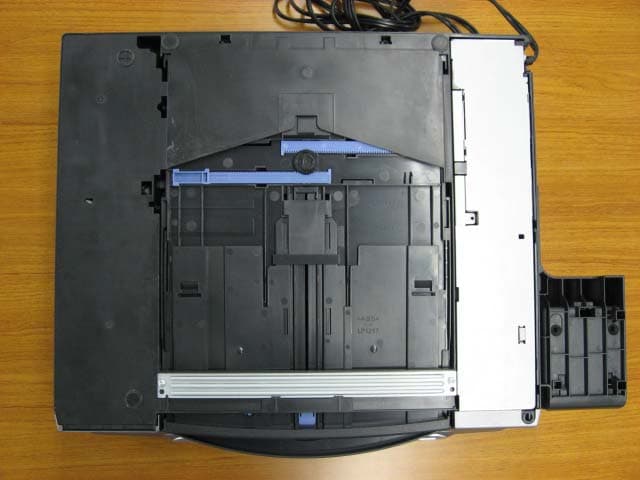
Click to zoom
Application Details
- Equipment Class
- DSS - Part 15 Spread Spectrum Transmitter
- Date of Grant
- Aug 11, 2006
- Application Purpose
- Original Equipment
- Date of Application
- Aug 10, 2006
- Equipment Note
- Spread Spectrum Transmitter
- Frequency Range
- 5725.00000000 - 5849.00000000
- Company
- Brother Industries, Ltd.
- Country
- Japan
Documents & Files
Document Text
Text extracted from the exhibit documents filed with the FCC. Open a document above to read the original.
Users Manual
MFC-665CWMFC-845CW Color : Black MFC-440CN These machines are made for use in the USA and Canada only. We cannot recommend usingthem overseas because it may violate the Telecommunications Regulations of that country andthe power requirements of your multi-function center may not be compatible with the poweravailable in foreign countries. Using USA or Canada models overseas is at your own risk and may void your warranty . LP5196001 EQUIPMENT ATTACHMENT LIMITATIONS (Canada only) NOTICEThis product meets the applicable Industry Canada technical specifications. NOTICEThe Ringer Equivalence Number is an indication of the maximum number of devices allowed to be connected to a telephone interface. The termination on an interface may consist of any combination of devices subject only to the requirement that the sum of the RENs of all the devices does not exceed five. If you need to call Customer Service Please complete the following information for future reference:Model Number: MFC-440CN, MFC-665CW and MFC-845CW (Circle your model number)Serial Number: 1 Date of Purchase: Place of Purchase: 1 The serial number is on the back of the unit. Retain this User's Guide with your sales receipt as a permanent record of your purchase, in the event of theft, fire or warranty service. Register your product on-line at http://www.brother.com/registration/ By registering your product with Brother, you will be recorded as the original owner of the product. Your registration with Brother: may serve as confirmation of the purchase date of your product should you lose your receipt;may support an insurance claim by you in the event of product loss covered by insurance; and,will help us notify you of enhancements to your product and special offers. The most convenient and efficient way to register your new product is on- line at http://www.brother.com/registration/ © 2006 Brother Industries, Ltd. Color : Black
Users Manual
i Brother numbers IMPORTANT For technical help, you must call the country where you bought the machine. Calls must be madefrom within that country. Register your product By registering your product with Brother International Corporation, you will be recorded as the original owner of the product. Your registration with Brother: may serve as confirmation of the purchase date of your product should you lose your receipt; may support an insurance claim by you in the event of product loss covered by insurance; and, will help us notify you of enhancements to your product and special offers. Please complete and fax the Brother Warranty Registration And Test Sheet or, for your convenience and most efficient way to register your new product, register on-line at http://www.brother.com/registration/ FAQs (frequently asked questions) The Brother Solutions Center is our one-stop resource for all your Fax Machine/Multi-Function Center needs. You can download the latest software documents and utilities, read FAQs and troubleshooting tips, and learn how to get the most from your Brother product. http://solutions.brother.com Note • You can check here for Brother driver updates. • To keep your machine performance up to date, check here for the latest firmware upgrade (for Windows ® only). For Customer Service In USA:1-800-284-4329 (voice) 1-901-379-1215 (fax) 1-800-284-3238 (TTY service for the hearing-impaired) In Canada:1-877-BROTHER (voice) (514) 685-4898 (fax) MFC-440CN_UG_US.book Page i Thursday, August 10, 2006 6:59 PM Color:Black ii Service Center Locator (USA only) For the location of a Brother authorized service center, call 1-800-284-4357. Service Center Locations (Canada only) For the location of a Brother authorized service center, call 1-877-BROTHER. Brother fax back system (USA only) Brother has installed an easy-to-use fax back system, so you can get instant answers to common technical questions and product information for all Brother products. This system is available 24 hours a day, 7 days a week. You can use the system to receive faxed instructions and an Index of fax back subjects. In USA only:1-800-521-2846 MFC-440CN_UG_US.book Page ii Thursday, August 10, 2006 6:59 PM Color:Black iii Ordering accessories and supplies For best quality results use only genuine Brother accessories, which are available at most Brother retailers. If you cannot find the accessory you need and you have a Visa, MasterCard, Discover, or American Express credit card, you can order accessories directly from Brother. (In the USA, you can visit us online for a complete selection of the Brother accessories and supplies that are available for purchase.) 1 Available in the USA and from November 2006 in Canada. In USA:1-888-879-3232 (voice) 1-800-947-1445 (fax) http://www.brothermall.com In Canada:1-877-BROTHER (voice) DescriptionItem Ink Cartridge Standard <black>LC51BK (Prints approx. 500 pages) Ink Cartridge <cyan> (blue)LC51C (Prints approx. 400 pages) Ink Cartridge <magenta> (red)LC51M (Prints approx. 400 pages) Ink Cartridge <yellow>LC51Y (Prints approx. 400 pages) Premium Glossy Photo Paper (Letter size / 20 sheets) (4"×6" size / 20 sheets) BP61GLL 1 BP61GLP 1 Matte Inkjet Paper (Letter size / 25 sheets) BP60ML (USA only) Inkjet Plain Paper (Letter size / 250 sheets) BP60PL (USA only) Telephone Line CordLG3077001 (USA only) Telephone Handset (MFC-665CW only) LE5803016 (USA only) Handset Curled Cord (MFC-665CW only) UL8019005 (USA only) Cordless Handset (MFC-845CW only) BCL-D10 Battery (MFC-845CW only) BCL-BT10 User's GuideLP5196001 (English for USA and Canada) LP3290002 (French for Canada) MFC-440CN_UG_US.book Page iii Thursday, August 10, 2006 6:59 PM Color:Black iv Notice - Disclaimer of Warranties (USA and Canada) BROTHER'S LICENSOR(S), AND THEIR DIRECTORS, OFFICERS, EMPLOYEES OR AGENTS (COLLECTIVELY BROTHER'S LICENSOR) MAKE NO WARRANTIES, EXPRESS OR IMPLIED, INCLUDING WITHOUT LIMITATION THE IMPLIED WARRANTIES OF MERCHANTABILITY AND FITNESS FOR A PARTICULAR PURPOSE, REGARDING THE SOFTWARE. BROTHER'S LICENSOR(S) DOES NOT WARRANT, GUARANTEE OR MAKE ANY REPRESENTATIONS REGARDING THE USE OR THE RESULTS OF THE USE OF THE SOFTWARE IN TERMS OF ITS CORRECTNESS, ACCURACY, RELIABILITY, CURRENTNESS OR OTHERWISE. THE ENTIRE RISK AS TO THE RESULTS AND PERFORMANCE OF THE SOFTWARE IS ASSUMED BY YOU. THE EXCLUSION OF IMPLIED WARRANTIES IS NOT PERMITTED BY SOME STATES IN THE USA AND SOME PROVINCES IN CANADA. THE ABOVE EXCLUSION MAY NOT APPLY TO YOU. IN NO EVENT WILL BROTHER'S LICENSOR(S) BE LIABLE TO YOU FOR ANY CONSEQUENTIAL, INCIDENTAL OR INDIRECT DAMAGES (INCLUDING DAMAGES FOR LOSS OF BUSINESS PROFITS, BUSINESS INTERRUPTION, LOSS OF BUSINESS INFORMATION, AND THE LIKE) ARISING OUT OF THE USE OR INABILITY TO USE THE SOFTWARE EVEN IF BROTHER'S LICENSOR HAS BEEN ADVISED OF THE POSSIBILITY OF SUCH DAMAGES. BECAUSE SOME STATES IN THE USA AND SOME PROVINCES IN CANADA DO NOT ALLOW THE EXCLUSION OR LIMITATION OF LIABILITY FOR CONSEQUENTIAL OR INCIDENTAL DAMAGES, THE ABOVE LIMITATIONS MAY NOT APPLY TO YOU. IN ANY EVENT BROTHER'S LICENSOR'S LIABILITY TO YOU FOR ACTUAL DAMAGES FROM ANY CAUSE WHATSOEVER, AND REGARDLESS OF THE FORM OF THE ACTION (WHETHER IN CONTRACT, TORT (INCLUDING NEGLIGENCE), PRODUCT LIABILITY OR OTHERWISE), WILL BE LIMITED TO $50. Compilation and Publication Notice Under the supervision of Brother Industries Ltd., this manual has been compiled and published, covering the latest product descriptions and specifications. The contents of this manual and the specifications of this product are subject to change without notice. Brother reserves the right to make changes without notice in the specifications and materials contained herein and shall not be responsible for any damages (including consequential) caused by reliance on the materials presented, including but not limited to typographical and other errors relating to the publication. MFC-440CN_UG_US.book Page iv Thursday, August 10, 2006 6:59 PM Color:Black v Bro…
Text truncated - open the document above for the full version.
Users Manual
Section II FaxII Sending a fax38 Receiving a Fax46 Telephone Services and External devices52 Dialing and storing numbers63 Message Center (MFC-665CW and MFC-845CW only) 71 Advanced fax operations (Black & White only)76 Printing Reports87 Polling89 MFC-440CN_UG_US.book Page 37 Thursday, August 10, 2006 6:59 PM Color:Black 38 5 Entering Fax mode5 When the machine is idle, the time appears on the LCD. When you want to send a fax, or change fax send or receive settings, press the (Fax) key to illuminate it in green. The LCD shows: Pressa or b to scroll through the Fax key options. Some functions are only available when sending black & white faxes. Fax Resolution (See page 41.) Contrast (See page 41.) Speed-Dial (See page 63.) Outgoing Call (See page 64.) Caller ID hist. (See page 65.) Broadcasting (See page 40.) Delayed Fax (See page 43.) Batch TX (See page 43.) Real Time TX (See page 42.) Polled TX (See page 90.) Polling RX (See page 89.) Overseas Mode (See page 43.) Scan Size (See page 39.) Set New Default (See page 44.) Factory Reset (See page 44.) When the option you want is highlighted, pressOK. Faxing from the ADF 5 aPress (Fax). bPut the document face down in the ADF. cEnter the fax number using the dial pad, Speed-Dial or Search. dPressBlack Start or Color Start. The machine starts scanning the document. Note • To cancel, press Stop/Exit. • If the memory is full, the fax will be sent in real time. Sending a fax5 09012345689 FAX Fax Start Press Fax ResolutionStandard Contrast Auto Speed-Dial Outgoing Call MFC-440CN_UG_US.book Page 38 Thursday, August 10, 2006 6:59 PM Color:Black Sending a fax 39 5 Faxing from the scanner glass5 You can use the scanner glass to fax pages of a book one at a time. The documents can be up to letter or A4 size. You cannot send multiple pages for color faxes. Note Since you can only scan one page at a time, it is easier to use the ADF if you are sending a multiple page document. aPress (Fax). bLoad your document face down on the scanner glass. cEnter the fax number using the dial pad, Speed-Dial or Search. dPressBlack Start or Color Start. If you press Black Start, the machine starts scanning the first page. Go to stepe. If you press Color Start, the machine starts sending the document. eDo one of the following: To send a single page, press 2 to chooseNo (or press Black Start again). The machine starts sending the document. To send more than one page, press 1 to choose Yes and go to stepf. fPut the next page on the scanner glass. PressOK. The machine starts scanning the page. (Repeat stepse and f for each additional page.) Note If the memory is full and you are faxing a single page, it will be sent in real time. Faxing A4 size documents from the scanner glass5 When documents are A4 size, you need to set Scan Size to A4. If you do not, the bottom portion of the faxes will be missing. aPress (Fax). bPressa or b to choose Scan Size. PressOK. cPressa or b to choose A4. PressOK. Note You can save the setting you use most often by setting it as default. (See page 44.) Color fax transmission 5 Your machine can send a color fax to machines that support this feature. Color faxes cannot be stored in the memory. When you send a color fax, the machine will send it in real time (even if Real Time TX is set to Off). Canceling a fax in progress5 If you want to cancel a fax while the machine is scanning, dialing or sending, press Stop/Exit. MFC-440CN_UG_US.book Page 39 Thursday, August 10, 2006 6:59 PM Color:Black Chapter 5 40 Broadcasting (Black & White only) 5 Broadcasting is when the same fax message is automatically sent to more than one fax number. You can include Groups, Speed-Dial numbers and up to 50 manually dialed numbers in the same broadcast. After the broadcast is finished, a Broadcast Report will be printed. aPress (Fax). bLoad your document. cPressa or b to choose Broadcasting. PressOK. dPressa or b to choose Add Number. PressOK. eEnter a number using Speed-Dial, a Group, or the dial pad. PressOK. fAfter you have entered all the fax numbers by repeating steps d and e, pressa or b to choose Complete. PressOK. gPressBlack Start. Note • If you did not use up any of the numbers for Groups or access codes or credit card numbers, you can ‘broadcast’ faxes to as many as 210 (MFC-440CN and MFC-665CW) or 250 (MFC-845CW) different numbers. • The available memory will vary depending on the types of jobs in the memory and the number of locations used for broadcasting. If you broadcast to the maximum numbers available, you will not be able to use dual access and delayed fax. • Enter the long dialing sequence numbers as you would normally, but remember that each Speed-Dial number counts as one number, so the number of locations you can store becomes limited. (See Dialing Access codes and credit card numberson page 69.) • If the memory is full, press Stop/Exit to stop the job. If more than one page has been scanned, press Black Start to send the portion that is in the memory. Canceling a Broadcast in progress5 aPressMenu. bPressa or b to choose Fax. PressOK. cPressa or b to choose Remaining Jobs. PressOK. The LCD will show the fax number being dialed and the Broadcast job number. dPressOK. The LCD will ask you the following message: Cancel Job? YesiPress1 NoiPress2 ePress1 to clear the number being dialed. The LCD will then show the Broadcast job number. fPressOK. The LCD will ask you the following message: Cancel Job? YesiPress1 NoiPress2 gPress1 to cancel the Broadcast. hPressStop/Exit. MFC-440CN_UG_US.book Page 40 Thursday, August 10, 2006 6:59 PM Color:Black Sending a fax 41 5 Additional sending operations 5 Sending faxes using multiple settings5 When you send a fax you can choose any combination of these settings: resolution, contrast, overseas mode, delayed fax timer, polling transmission and real time transmission. aPress (Fax). The LCD shows: bPressa or b to choose any settings you want to change. PressOK. cAfter each setting is accepted, you can…
Text truncated - open the document above for the full version.
Users Manual
87 11 11 Fax reports11 You need to set up the Transmission Verification Report and Journal Period using theMenu keys. Transmission Verification Report11 You can use the Transmission Verification Report as proof that you sent a fax. This report lists the time and date of transmission and whether the transmission was successful (OK). If you choose On or On+Image, the report will print for every fax you send. If you send a lot of faxes to the same place, you may need more than the job numbers to know which faxes you must send again. ChoosingOn+Image or Off+Image will print a section of the fax's first page on the report to help you remember. When the Transmission Verification Report is turnedOff or Off+Image, the Report will only print if there is a transmission error, with NG in the RESULT column. aPressMenu. bPressa or b to choose Fax. PressOK. cPressa or b to choose Report Setting. PressOK. dPressa or b to choose Transmission. PressOK. ePressa or b to choose On,On+Image, Off or Off+Image. PressOK. fPressStop/Exit. Fax Journal (activity report)11 You can set the machine to print a journal at specific intervals (every 50 faxes, 6, 12 or 24 hours, 2 or 7 days). If you set the interval to Off, you can still print the report by following the steps on How to print a report on page 88. The factory setting is Every 50 Faxes. aPressMenu. bPressa or b to choose Fax. PressOK. c Pressa or b to choose Report Setting. PressOK. dPressa or b to choose Journal Period. PressOK. ePressa or b to choose an interval. PressOK. (If you choose 7 days, the LCD will ask you to choose the first day for the 7-day countdown.) 6, 12, 24 hours, 2 or 7 days The machine will print the report at the chosen time and then erase all jobs from its memory. If the machine's memory becomes full with 200 jobs before the time you chose has passed, the machine will print the Journal early and then erase all jobs from the memory. If you want an extra report before it is due to print, you can print it without erasing the jobs from the memory. Every 50 Faxes The machine will print the Journal when the machine has stored 50 jobs. Printing Reports11 MFC-440CN_UG_US.book Page 87 Thursday, August 10, 2006 6:59 PM Color:Black Chapter 11 88 fEnter the time to start printing in 24-hour format. PressOK. (For example: enter 19:45 for 7:45 PM.) gPressStop/Exit. Reports11 The following reports are available: Transmission Prints a Transmission Verification Report for your last transmission. Help List A help list about how to quickly program your machine. Quick-Dial Lists names and numbers stored in the Speed-Dial memory, in alphabetical or numerical order. Fax Journal Lists information about the last incoming and outgoing faxes. (TX: Transmit.) (RX: Receive.) User Settings Lists your settings. Network Config Lists your Network settings. How to print a report11 aPressMenu. bPressa or b to choose Print Reports. PressOK. cPressa or b to choose the report you want. PressOK. dPressBlack Start. MFC-440CN_UG_US.book Page 88 Thursday, August 10, 2006 6:59 PM Color:Black 89 12 12 Polling overview12 Polling lets you set up your machine so other people can receive faxes from you, but they pay for the call. It also lets you call somebody else’s fax machine and receive a fax from it, so you pay for the call. The polling feature needs to be set up on both machines for this to work. Not all fax machines support polling. Polling receive12 Polling receive lets you call another fax machine to receive a fax. Setup to receive polling12 aPress (Fax). bPressa or b to choose Polling RX. PressOK. cPressa or b to choose On (or Off). PressOK. dEnter the fax number you are polling. ePressBlack Start or Color Start. The LCD shows Dialing. Sequential polling (Black & White only)12 Sequential polling lets you request documents from several fax machines in one operation. Afterwards, a Sequential Polling Report will be printed. aPress (Fax). bPressa or b to choose Polling RX. PressOK. c Pressa or b to choose On (or Off). PressOK. dPressa or b to choose Broadcasting. PressOK. ePressa or b to choose Add Number. PressOK. fEnter a number using Speed-Dial, a Group, or the dial pad. PressOK. gRepeat stepse andf for all the fax numbers you want to poll, and then pressa or b to choose Complete. PressOK. hPressBlack Start. The machine polls each number or Group number in turn for a document. PressStop/Exit while the machine is dialing to cancel the polling process. To cancel all sequential polling receive jobs, seeChecking and canceling waiting jobson page 43. Polling12 MFC-440CN_UG_US.book Page 89 Thursday, August 10, 2006 6:59 PM Color:Black Chapter 12 90 Polled transmit (Black & White only) 12 Polled transmit lets you set up your machine to wait with a document so another fax machine can call and retrieve it. The document will be stored and can be retrieved by any other fax machine until you delete it from the memory. (See Checking and canceling waiting jobson page 43.) Set up for polled transmit12 aPress (Fax). bLoad your document. cPressa or b to choose Polled TX. PressOK. dPressa or b to choose On (or Off). PressOK. ePressa or b to choose any settings you want to change. PressOK. After each setting is accepted, you can continue to change more settings. fPressBlack Start. MFC-440CN_UG_US.book Page 90 Thursday, August 10, 2006 6:59 PM Color:Black Section III CopyIII Making copies92 MFC-440CN_UG_US.book Page 91 Thursday, August 10, 2006 6:59 PM Color:Black 92 13 How to copy13 Entering Copy mode13 When you want to make a copy, press (Copy) to illuminate it in green. The LCD shows: 1 No of Copies You can enter the number of copies you want by using the dial pad. Pressa or b to scroll through the Copy key options. Quality (See page 93.) Enlarge/Reduce (See page 94.) Paper Type (See page 97.) Paper Size (See page 97.) Brightness (See page 96.) Contrast (See page 96.) Color Adjust (See page 96.) Stack/Sort (See page 95.) Page Layout (See page 94.) Set New Default (See pa…
Text truncated - open the document above for the full version.
Users Manual
136 Error messagesB As with any sophisticated office product, errors may occur. If this happens, your machine identifies the error and shows an error message. The most common error messages are shown below. You can correct most errors by yourself. If you need more help, the Brother Solutions Center offers the latest FAQs and troubleshooting tips. Visit us at http://solutions.brother.com. Error MessageCauseAction Comm.ErrorPoor phone line quality caused a communication error. Send the fax again or connect the machine to another telephone line. If the problem continues, call the telephone company and ask them to check your phone line. Connection FailYou tried to poll a fax machine that is not in Polled Waiting mode. Check the other fax machine's polling setup. Cover is OpenThe scanner cover is not closed completely. Lift the scanner cover and then close it again. The ink cartridge cover is not completely closed. Firmly close the ink cartridge cover until it clicks. Data RemainingPrint data is left in the machine's memory. Re-start printing from your computer. Print data is left in the machine's memory. The USB cable was unplugged while the computer was sending the data to the machine. Press Stop/Exit. The machine will cancel the job and clear it from the memory. Try to print again. DisconnectedThe other person or other person's fax machine stopped the call. Try to send or receive again. Document JamThe document was not inserted or fed properly, or the document scanned from the ADF was too long. SeeUsing the ADF on page 11. SeeDocument jam on page 140. DR Mode in UseThe machine is set to Distinctive Ring mode. You cannot change the Receive Mode from Manual to another mode. Set Distinctive Ring to off. (See Turning off Distinctive Ring on page 55.) High TemperatureThe print head is too warm.Allow the machine to cool down. Ink EmptyOne or more of the ink cartridges is empty. The machine will stop all print operations. While memory is available, black and white faxes will be stored in the memory. If a sending machine has a color fax, the machine's ‘handshake’ will ask that the fax be sent as black and white. If the sending machine has the ability to convert it, the color fax will be stored in the memory as a black and white fax. Replace the ink cartridges. (See Replacing the ink cartridges on page 143.) MFC-440CN_UG_US.book Page 136 Thursday, August 10, 2006 6:59 PM Color:Black Troubleshooting and Routine Maintenance 137 Low TemperatureThe print head is too cold.Allow the machine to warm up. Media ErrorThe media card is either corrupted, improperly formatted, or there is a problem with the media card. Put the card firmly into the slot again to make sure it is in the correct position. If the error remains, check the media drive by putting in another media card that you know is working. Near EmptyOne or more of the ink cartridges are running out of ink. If a sending machine has a color fax, the machine's ‘handshake’ will ask that the fax be sent as black and white. If the sending machine has the ability to convert it, the color fax will be received into memory as a black and white fax. Order a new ink cartridge. (See Ordering accessories and supplieson page iii.) No Caller IDThere is no incoming call history. You did not receive calls or you have not subscribed to the Caller ID service from your telephone company. If you want to use the Caller ID feature call your telephone company. (See Caller ID on page 56.) No CartridgeAn ink cartridge is not installed properly. Reinstall the ink cartridge. (See Replacing the ink cartridges on page 143.) No FileThe media card in the media drive does not contain a .JPG file. Put the correct media card into the slot again. No Paper FedThe machine is out of paper or paper is not properly loaded in the paper tray. Do one of the following: Refill the paper in the paper tray, and then press Black Start or Color Start. Remove the paper and load it again and then press Black Start or Color Start. The paper is jammed in the machine. SeePrinter jam or paper jam on page 141. No Response/BusyThe number you dialed does not answer or is busy. Verify the number and try again. Not Registered You tried to access a Speed Dial number that is not programmed. Set up the Speed Dial number. (See Storing Speed-Dial numbers on page 65.) Error MessageCauseAction MFC-440CN_UG_US.book Page 137 Thursday, August 10, 2006 6:59 PM Color:Black 138 Out of MemoryThe machine's memory is full.Fax sending or copy operation in progress Do one of the following: PressStop/Exit and wait until the other operations in progress finish and then try again. Clear the data in the memory. To gain extra memory, you can turn off Advanced Fax Operation. (See Turning off Advanced Fax Operations on page 81.) Print the faxes that are in the memory. (SeePrinting a fax from the memory on page 51.) Printing operation in progress Reduce print resolution. (For details, see Printing for Windows ® or Printing and Faxing for Macintosh ® in the Software User’s Guide on the CD -ROM.) Paper JamPaper is jammed in the machine.Open the Jam Clear Cover (at the back of the machine) and remove the jammed paper. (See Printer jam or paper jam on page 141.) Unable to Change XX Unable to Clean XX Unable to Init.XX Unable to Print XX Unable to Scan XX Unable to use Phone XX The machine has a mechanical problem. —OR— A foreign objects such as a clip or ripped paper is in the machine. Open the scanner cover and remove any foreign objects inside the machine. If the error message continues, do one of the following: (MFC-440CN only) SeeTransferring your faxes or Fax Journal report on page 139 before disconnecting the machine so you will not lose any important messages. Then, disconnect the machine from the power for several minutes and then reconnect it. (MFC -665CW and MFC-845CW only) Disconnect the machine from the power for several minutes, then reconnect it. (The machine can be turned off for approximately 24 hours without losing…
Text truncated - open the document above for the full version.
External Photos
External Photo BROTHER INDUSTRIES,LTD. Facsimile Machine (Model: MFC-845CW) FCC ID: B3Q8CAA19 Top Bottom External Photo BROTHER INDUSTRIES,LTD. Facsimile Machine (Model: MFC-845CW) FCC ID: B3Q8CAA19 Front Back External Photo BROTHER INDUSTRIES,LTD. Facsimile Machine (Model: MFC-845CW) FCC ID: B3Q8CAA19 Side 1 Side 2
Internal Photos
Internal Photo BROTHER INDUSTRIES,LTD. Facsimile Machine (Model: MFC-845CW) FCC ID: B3Q8CAA19 Over View 1/4λdipole antenna Internal Photo BROTHER INDUSTRIES,LTD. Facsimile Machine (Model: MFC-845CW) FCC ID: B3Q8CAA19 Wire antenna RF Module Top (with cover) Internal Photo BROTHER INDUSTRIES,LTD. Facsimile Machine (Model: MFC-845CW) FCC ID: B3Q8CAA19 RF Module Bottom RF Module (cover off) 1 Internal Photo BROTHER INDUSTRIES,LTD. Facsimile Machine (Model: MFC-845CW) FCC ID: B3Q8CAA19 RF Module (cover off) 2
RF Exposure Info
UL Apex Co., Ltd. Head Office EMC Lab. 4383-326 Asama-cho, Ise-shi, Mie-ken 516-0021 JAPAN Telephone : +81 596 24 8116 Facsimile : +81 596 24 8124 Applicant: BROTHER INDUSTRIES LTD. Type of Equipment : Fascimille Machine Model No. : MFS-845CW FCC ID: B3Q8CAA19 BROTHER INDUSTRIES LTD. declares that Model : MFS-845CW ⇒ complies with FCC radiation exposure requirement specified in the FCC Rules 2.1093(for portable)/2.1091 (for mobile). RF Exposure Calculations: ← The following information provides the minimum separation distance for the highest gain antenna provided with the “MFS-845CW“ as calculate d from FCC OET Bulletin 65 Appendix A, Table (B) Limits for General Population / Uncontrolled Exposure. This calculation is based on the highest EIRP possible from the system, considering maximum power and antenna gain, and considering a 1.0mW/cm^2 uncontrolled exposure limit. The Friis formula used was: S = (P * G) / (4* π * r 2 ) Where P = 77.80 mW (Maximum peak output power) G = 1.05 Numerical Antenna gain; equal 0.20 dBi r =20.0 cm For: MFS-845CWS = 0.01621 mW/cm 2 No. : 26KE0022-HO-D RF Exposure / SAR Statement
Test Report
Test report No. : 26KE0022-HO-D Page : 1 of 41 Issued date : August 10, 2006 FCC ID : B3Q8CAA19 UL Apex Co., Ltd. Head Office EMC Lab. 4383-326 Asama-cho, Ise-shi, Mie-ken 516-0021 JAPAN Telephone : +81 596 24 8116 Facsimile : +81 596 24 8124 MF060b(14.06.06) RADIO TEST REPORT Test Report No. : 26KE0022-HO-D Applicant : BROTHER INDUSTRIES, LTD. Type of Equipment : Facsimile Machine Model No. : MFC-845CW FCC ID : B3Q8CAA19 Test standard : FCC Part 15 Subpart C Section 15.207, Section 15.247: 2006 Test Result : Complied 1. This test report shall not be reproduced in full or partial, without the written approval of UL Apex Co., Ltd. 2. The results in this report apply only to the sample tested. 3. This equipment is in compliance with the above regulation. 4. The test results in this report are traceable to the national or international standards. Date of test: _____________________________ Tested by: _____________________________ Takumi Shimada Engineer of EMC Services Approved by : _____________________________ Hironobu Shimoji Group Leader of EMC Services NVLAP LAB CODE: 200572-0 This laboratory is accredited by the NVLAP LAB CODE 200572-0, U.S.A. The tests reported herein have been performed in accordance with its terms of accreditation. *As for the range of Accreditation in NVLAP, you may refer to the WEB address, http://ulapex.jp/emc/nvlap.htm July 21 to August 8, 2006 Test report No. : 26KE0022-HO-D Page : 2 of 41 Issued date : August 10, 2006 FCC ID : B3Q8CAA19 UL Apex Co., Ltd. Head Office EMC Lab. 4383-326 Asama-cho, Ise-shi, Mie-ken 516-0021 JAPAN Telephone : +81 596 24 8116 Facsimile : +81 596 24 8124 MF060b(14.06.06) CONTENTS PAGE SECTION 1: Client information ............................................................................................................ 3 SECTION 2: Equipment under test (E.U.T.)........................................................................................ 3 SECTION 3: Test specification, procedures & results......................................................................... 4 SECTION 4: Operation of E.U.T. during testing .....................…
Text truncated - open the document above for the full version.
Contact Information
Applicant
Masahiko Kimura
Technical Contact
Test Firm
UL Japan, Inc. Yokowa EMC Lab.Masamichi Ishii
Technical Specifications
| # | Rule Parts | Frequency Range | Power Output |
|---|---|---|---|
| 1 | 15C | 5.72 GHz - 5.85 GHz | 78.00 mW |
Other Applications from Brother Industries, Ltd.
B3Q8VD101001
Oct 26, 2021Color Label Printer
Equipment Class
DTS - Digital Transmission System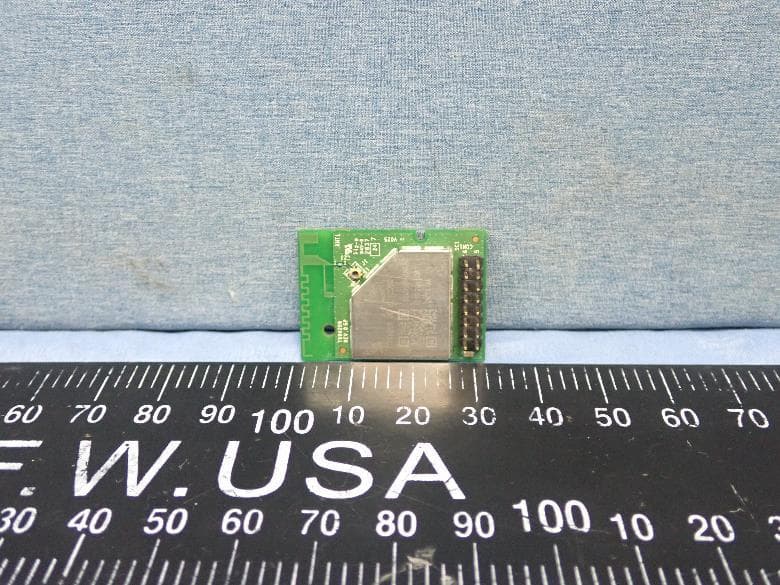
B3QT99H209
Mar 14, 2021IEEE802.11a/b/g/n/ac (1x1)+ BT 5.0 Combo Module
Equipment Class
DTS - Digital Transmission System
B3Q8V9313
Jul 09, 2015Mobile Printer
Equipment Class
DTS - Digital Transmission System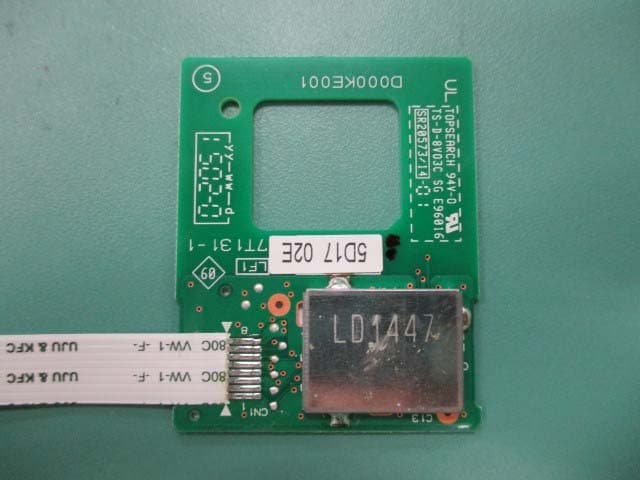
B3QBRNF13M002
Jul 06, 2015NFC Module
Equipment Class
DXX - Part 15 Low Power Communication Device Transmitter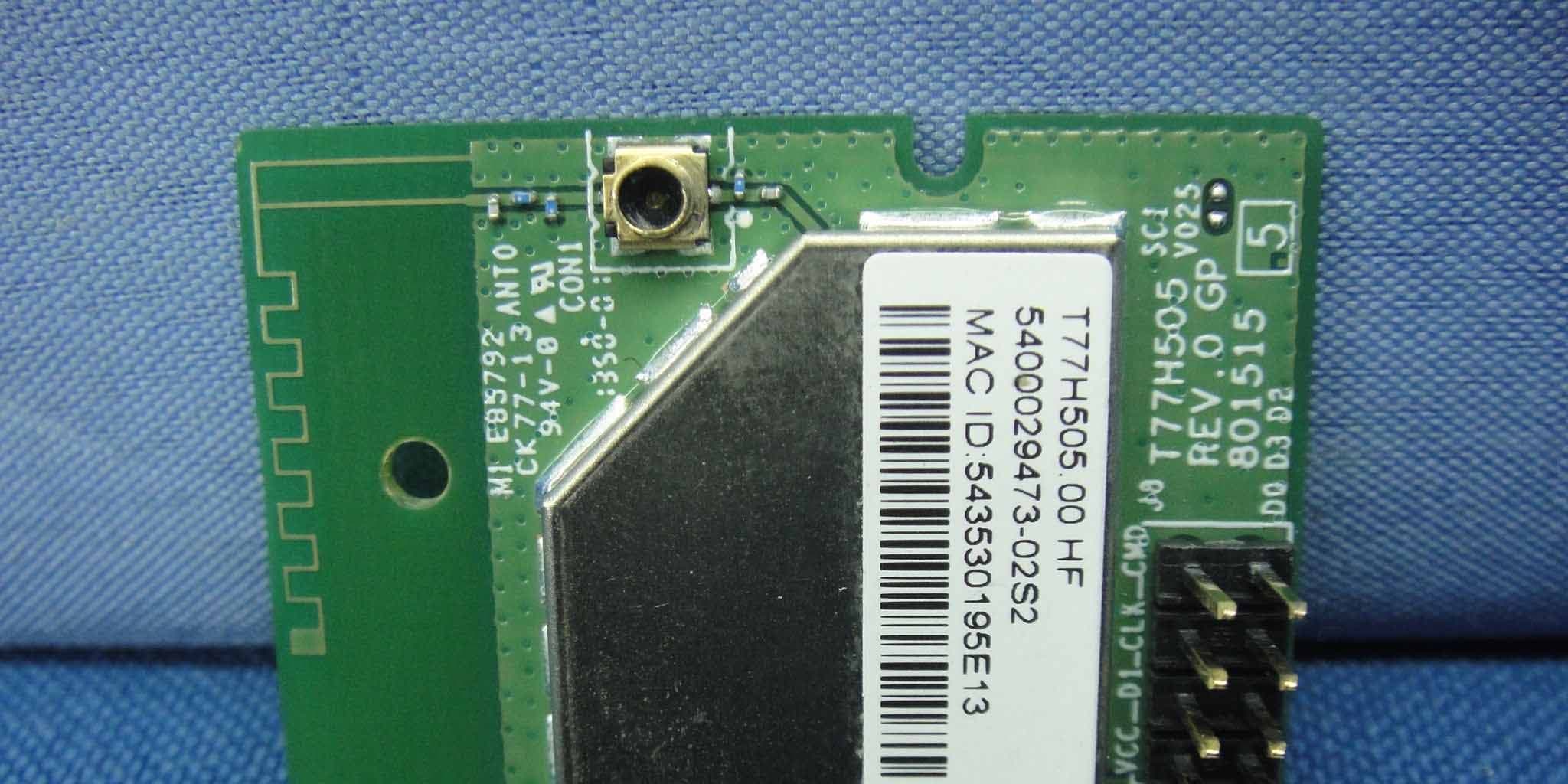
B3QT77H505
May 07, 2014IEEE802.11b/g/n Wi-Fi module
Equipment Class
DTS - Digital Transmission System