BCG-E8147ASMARTPHONE
Apple Inc.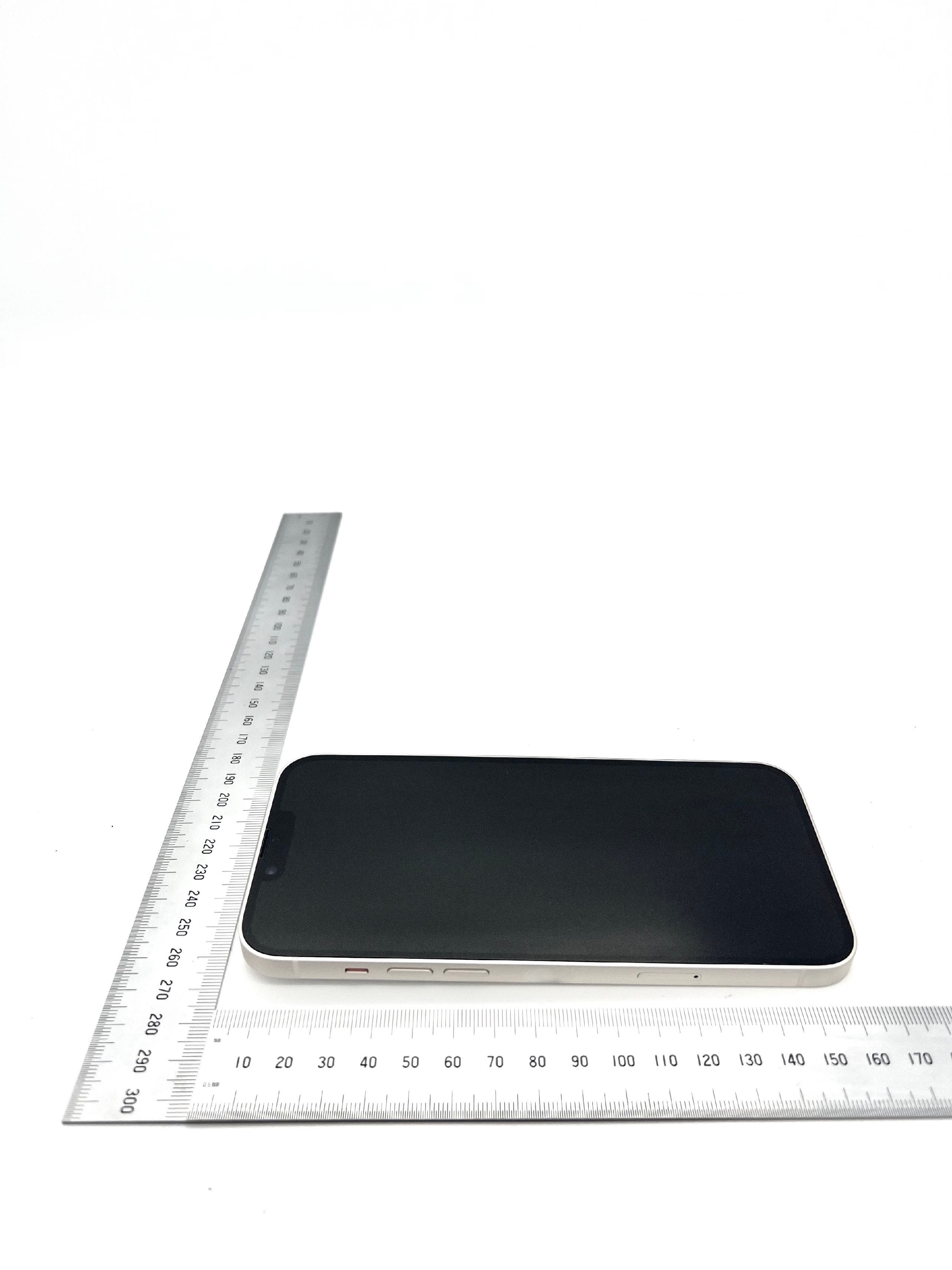
Click to zoom
Application Details
- Equipment Class
- DXX - Part 15 Low Power Communication Device Transmitter
- Date of Grant
- Sep 21, 2022
- Application Purpose
- Original Equipment
- Date of Application
- Sep 05, 2022
- Equipment Note
- SMARTPHONE
- Frequency Range
- 13.56000000 - 13.56000000
- Company
- Apple Inc.
- Country
- United States
Documents & Files
Document Text
Text extracted from the exhibit documents filed with the FCC. Open a document above to read the original.
Users Manual
iPhone User Guide Page 1 of 1,118 Everything you need to know about iPhone iPhone User Guide Get started Set up a few basic features before you start using your new iPhone. Setup basics Draft . iPhone User Guide Page 2 of 1,118 Add a personal touch Your iPhone can reflec t your personal style and preferences. Showcase your favorite photos on the Lock Screen, add widgets to the Home Screen, adjust text size, ringtones, and more. Ta ke y o u r b e s t s h o t Use your iPhone to capture the moment, wherever you are. Learn how to take photos and videos on the fly, and use other camera features on your iPhone. Make your iPhone your own Ta k e g r e a t p h o t o s a n d v i d e o s Draft . iPhone User Guide Page 3 of 1,118 Stay connected iPhone makes it easy to reach the people important to you. Add them to your address book so you have their information everywhere you need it—then catch up with text messages, phone calls, or FaceTime. All in the family You and your family members can use Family Sharing to share app purchases, your location, and even health data. You can also set up parental controls to manage how children spend time on their devices. Keep in touch with friends and family Share features with your family Draft . iPhone User Guide Page 4 of 1,118 Simplify your day Learn how to use the apps on your iPhone to direct you to the places you go most often, pay for your morning coffee, remind you of important tasks, and even lock your front door automatically when you leave home. To e x p l o r e t h e i P h o n e U s e r G u i d e , c l i c k Ta b l e o f C o n t e n t s a t t h e t o p o f the page, or enter a word or phrase in the search field. You can also from Apple Books (where available). Use iPhone for your daily routines download the guide Welcome Introduction to iPhone Your iPhone What’s new in iOS 16 Set up and get started Basics Personalize your iPhone Apps Siri iPhone safety features Family Sharing Screen Time Draft . iPhone User Guide Page 5 of 1,118 Accessories Use iPhone with iPad, iPod touch, Mac, and PC CarPlay Accessibility Security and privacy Restart, update, reset, and restore Safety, handling, and support Copyright Draft . iPhone User Guide Page 6 of 1,118 Setup basics Transfer your apps and info onto your new iPhone When you first turn on your iPhone and begin the setup process, you can wirelessly transfer many of your apps, settings, and content from your previous iPhone directly to your new iPhone—just bring the two devices close together, then follow the onscreen instructions. If you have an Android device, tap Move Data from Android on your iPhone during the setup process, then open the Move to iOS app on your Android device. Introduction to iPhone Draft . iPhone User Guide Page 7 of 1,118 Set up cellular service and connect to Wi-Fi Install a physical SIM card or use an eSIM from your carrier to connect to your cellular network. To check if your iPhone is connected to your cellular plan, go to Settings > Cellular. To co n n e c t yo u r i P h o n e t o yo u r h o m e W i - F i n e t wo r k , g o t o S e t t i n g s > Wi-Fi, turn on Wi-Fi, then choose your network. iPhone automatically connects to your Wi-Fi network whenever you’re home. Sign in with your Apple ID Your Apple ID is the account you use to access Apple ser vices such as Apple Music, FaceTime, iCloud, and iMessage. If you don’t have an Apple ID, you can create one. Draft . iPhone User Guide Page 8 of 1,118 To s i g n i n w i t h yo u r A p p l e I D, g o t o S e t t i n g s > Sign in to your iPhone. To verify that you’re signed in, go to Settings > [your name]; your Apple ID appears below your name. Set up Face ID or Touch ID You can use Face ID (face recognition) or Touch ID (your finger print) to securely unlock your iPhone, sign in to many apps, and make purchases. For your security, Face ID and To u c h I D d a t a d o e s n ’ t l e ave yo u r d e v i c e a n d i s n ’ t s ave d a ny w h e re e l s e . Depending on your iPhone model, do one of the following: Set up Face ID: Go to Settings > Face ID & Passcode > tap Set up Face ID, then follow the onscreen instructions. Set up Touch ID: Go to Settings > Touch ID & Passcode > tap Add a Fingerprint, then follow the onscreen instructions. Draft . iPhone User Guide Page 9 of 1,118 Turn on Find My iPhone You can locate your iPhone if it ’s ever lost or stolen. Go to Settings > [your name] > Find My, tap Find My iPhone, then turn on Find My iPhone. You can see the location of your devices in the Find My app . If you lose your iPhone and don’t have access to the Find My app, you can locate your device using Find iPhone on . Draft . iPhone User Guide Page 10 of 1,118 Back up your data with iCloud iCloud helps you keep your important info safe and in sync across your devices. If you replace or lose your iPhone, or it’s damaged or stolen, your photos, videos, and more remain secure in iCloud. To t u r n o n o r c h a n g e t h e fe a t u re s yo u wa n t t o u s e w i t h i C l o u d , g o t o S e t t i n g s > [your name] > iCloud. Want to learn more? Check out , , , , and . Not all features are available for all iPhone models. Turn on and set up iPhoneSet up cellular service Connect iPhone to the internetLocate a device in Find MyUse iCloud on iPhone Draft . iPhone User Guide Page 11 of 1,118 Make your iPhone your own Keep your favorite features handy Some iPhone features—like the flashlight, timer, or calculator—are just a swipe away in Control Center. To quickly open Control Center on an iPhone with Face ID, swipe down from the top-right edge; on an iPhone with a Home button, swipe up from the bottom of the screen. You can add more features—like the alar m or magnifier—to Control Center in Settings > Control Center. Draft . iPhone User Guide Page 12 of 1,118 Personalize your Lock Screen You can showcase a favorite photo, add filters, widgets, and even change the font of the date and time. To g e t s t a r t e d , t o u c h a n d h o l d t h e Lo c…
Text truncated - open the document above for the full version.
Users Manual
8/12/22, 2:02 PMiPhone User Guide Page 463 of 1,118 Maps View maps on iPhone In the Maps app , you can find your location on a map and zoom in and out to see the detail you need. On supported models and in select cities, Maps provides enhanced detail for elevation, roads, trees, buildings, landmarks, and more. (For availability, see Detailed City Experience on the .) WARNING: For important information about navigation and avoiding distractions that could lead to dangerous situations, see . iOS and iPadOS Feature Availability website Important safety information for iPhone Draft 8/12/22, 2:02 PMiPhone User Guide Page 464 of 1,118 Allow Maps to use your precise location To f i n d yo u r l o c a t i o n a n d p rov i d e a c c u r a t e d i re c t i o n s , i P h o n e m u s t b e c o n n e c t e d t o t h e internet, and Precise Location must be on. If Maps displays a message that Location Services is off: Ta p t h e m e s s a g e , t a p Tu r n On in Settings, then turn on Location Services. If Maps displays a message that Precise Location is off: Ta p t h e m e s s a g e , t a p Tu r n O n in Settings, tap Location, then turn on Precise Location. Cellular data rates may apply (see ). Note: To o b t a i n u s e f u l l o c a t i o n - re l a t e d i n fo r m a t i o n i n M a p s , l e ave S i g n i f i c a n t Lo c a t i o n s turned on in Settings > Privacy & Security > Location Services > System Services. Show your current location Ta p . Your position is marked in the middle of the map. The top of the map is nor th. To show your heading instead of north at the top, tap . To re s u m e s h ow i n g n o r t h , t a p or . Choose the right map The button at the top right of a map indicates if the current map is for exploring , driving , riding transit , or viewing from a satellite . To c h o o s e a d i f fe re n t m a p , do the following: 1 . Ta p t h e b u t t o n a t t h e t o p r i g h t . 2. Choose another map type, then tap . View a 3D map On a 2D map, do one of the following: Drag two fingers up. On the Satellite map, tap 3D near the top right. On supported models and in select cities, tap 3D near the top right. (See Detailed City Experience on the .) On a 3D map, you can do the following: Adjust the angle: Drag two fingers up or down. View or change cellular data settings on iPhone iOS and iPadOS Feature Availability website Draft 8/12/22, 2:02 PMiPhone User Guide Page 465 of 1,118 See buildings and other small features in 3D: Zoom in. Return to a 2D map: Tap 2D near the top right. Draft 8/12/22, 2:02 PMiPhone User Guide Page 466 of 1,118 Move, zoom, or rotate a map or 3D globe Move around in a map: Drag the map. Zoom in or out: Double-tap (leaving your finger on the screen after the second tap), then drag up to zoom in or drag down to zoom out. Or, pinch open or closed on the map. On a 2D map, a scale appears in the upper left while you zoom. To change the unit of distance, go to Settings > Maps, then select In Miles or In Kilometers. Rotate the map: Touch and hold the map with two fingers, then rotate your fingers. To s h ow n o r t h a t t h e t o p o f t h e s c re e n a f t e r yo u ro t a t e t h e m a p , t a p . View the earth with an interactive 3D globe: Zoom out until the map changes to a globe. Drag the globe to rotate it, or zoom in or out to explore details for mountain ranges, deserts, oceans, and more (supported models). Draft 8/12/22, 2:02 PMiPhone User Guide Page 467 of 1,118 Add a name to Maps, or report an issue with Maps 1. Ta p yo u r p i c t u r e o r i n i t i a l s n ex t t o t h e s e a r c h f i e l d , t h e n t a p R e p o r t s . If ne ither your picture nor initials appears, tap Cancel next to the search field, or tap the search field, then tap Cancel. 2. Choose one of the options, then provide your information. Apple is committed to keeping personal information about your location safe and private. To l e a r n m o re , g o t o S e t t i n g s > Maps, then tap About Apple Maps and Privacy. Draft 8/12/22, 2:02 PMiPhone User Guide Page 468 of 1,118 Find places Search for places in Maps on iPhone You can use the Maps app to search for addresses, landmarks, services, and more. Search for a place Siri: Say something like: “Show me the Golden Gate Bridge.” . Or you can tap the search field (at the top of the search card), then begin typing. You can search in different ways. For example: Intersection (“8th and Market”) Area (“Greenwich Village”) Learn how to use Siri Draft 8/12/22, 2:02 PMiPhone User Guide Page 469 of 1,118 Landmark (“Guggenheim”) Zip code (“60622”) Business (“movies,” “restaurants San Francisco CA,” “Apple Inc New York”) If you get a list of results, scroll the list to see more. To learn about a place or get directions to it, tap a search result. Display, lengthen, or shorten the search card If you see a different kind of card instead of the search card, tap at the top right of the card. To s h ow m o re o r l e s s i n fo r m a t i o n o n t h e s e a rc h c a rd , d r a g t h e b o t t o m o f t h e s e a rc h c a rd down or up. Quickly find or delete recent searches To g e t a l i s t o f re c e n t s e a rc h re s u l t s , s c ro l l d ow n i n t h e s e a rc h c a rd t o Re c e n t s . To d e l e t e a n i t e m f ro m t h e l i s t , sw i p e t h e i t e m l e f t . O r t a p M o re d i re c t l y a b ove t h e l i s t , then do one of the following: Delete a group: Tap Clear above the group. Delete a single item: Swipe the item left. See , , , and . Find nearby attractions, restaurants, and services in Maps on iPhone You can use the Maps app to find nearby attractions, services, and more. Find a nearby attraction, restaurant, or other service Siri: Say something like: “Find a gas station” or “Find coffee near me.” . Ta p a c a t e g o r y l i ke G r o c e r y S t o r e s o r R e s t a u r a n t s i n t h e F i n d N e a r by s e c t i o n o f t h e search card. Delete recent directions in Maps on iPhoneDelete significant locati…
Text truncated - open the document above for the full version.
Users Manual
8/12/22, 2:02 PMiPhone User Guide Page 702 of 1,118 After content is moved to the Shared Library, it’s no longer in your Personal Library and is visible to all of the Shared Library participants. To move content from the Shared Library back to your Personal Library, follow the steps above, but tap Move to Personal Library instead of Move to Shared Library. Add photos and videos to the Shared Library directly from Camera When you open Camera, a Shared Library button appears at the top of the screen to let you switch between saving the photos and videos you take directly to your Personal Library or to the Shared Library. By default, Camera saves to your Personal Library. To switch, tap to save to the Shared Library; tap to switch back to your Personal Library. Draft 8/12/22, 2:02 PMiPhone User Guide Page 703 of 1,118 To t u r n t h e fe a t u re o n o r o f f a f t e r yo u c o m p l e t e t h e s e t u p p ro c e s s , g o t o S e t t i n g s > Photos > Shared Library > Sharing from Camera, then turn Sharing from Camera on or off (gr een is on). Add photos and videos when Shared Library participants are nearby When you set up or join a Shared Library, you can choose an option to automatically turn on the Shared Library button in Camera when other Shared Library participants are nearby, so you can always add the photos and videos you take together directly to the Shared Library. To d e t e c t w h e n p a r t i c i p a n t s o f yo u r S h a re d L i b r a r y a re n e a r by, e ve r yo n e n e e d s t o b e signed into their device with their Apple ID and have Bluetooth turned on in Settings > Bluetooth. Draft 8/12/22, 2:02 PMiPhone User Guide Page 704 of 1,118 To t u r n t h e fe a t u re o n o r o f f a f t e r yo u c o m p l e t e t h e s e t u p p ro c e s s , g o t o Settings > Photos > Shared Library > Sharing from Camera, then tap Share Automatically or Share Manually. Automatically add photos and videos taken at home When you set up or join a Shared Library, you can choose an option to automatically add photos and videos you take take at home to the Shared Library, go to Settings > Photos > Shared Library > Sharing from Camera, then turn on Share When At Home (green is on). Add photo and videos with sharing suggestions Sharing suggestions recommends photos you might want to add to your Shared Library such as photos you took with participants of the Shared Library, photos you took when participants were nearby, or photos of people you indicated interest in during the setup process. iPhone sends a notification to review sharing suggestions. Or, follow these steps: 1 . Open Photos, then tap For You. 2. Scroll down to For Your Shared Library, then tap See All. 3. Ta p M ove A l l o r t a p S e l e c t t o c h o o s e t h e p h o t o s yo u w a n t t o a d d t o t h e S h a r e d Library. Yo u can add additional people you’re interested in receiving sharing suggestions for the Shared Library. Go to Settings > Photos > Shared Library > Shared Library Suggestions, tap Add Other People, tap a person, then tap Add. The person doesn’t have to be a member of the Shared Library. See . To t u r n o f f s h a r i n g s u g g e s t i o n s , g o t o S e t t i n g s > P h o t o s > S h a re d L i b r a r y S u g g e s t i o n s , then turn off Shared Library Suggestions. For more information about accessing content in a Shared Library, see the Apple Support article, . Find and identify people in Photos on iPhone If you are missing photos after joining an iCloud Shared Photo Library Draft 8/12/22, 2:02 PMiPhone User Guide Page 705 of 1,118 Use iCloud Shared Photo Library on iPhone Use an iCloud Shared Photo Library in the Photos app to share photos and videos with friends and family. You and up to five participants can add photos and videos to the library, and any edits, comments, or favorites made to them is seen by everyone in real time. Content in a Shared Library is also added to everyone’s memories, featured photos, and in the Photos widgets so everyone can experience more complete memories. Photos and videos added to the Shared Library are separate from your Personal Library. You can easily switch between viewing the Shared Librar y, your Personal Librar y, or both in Photos. Switch Library views After you , you can switch between viewing your Personal Library, the Shared Library, or both libraries in the Photos app. 1 . Open Photos, then tap at the top right of the sc reen. 2. Ta p o n e o f t h e fo l l ow i n g v i e w o p t i o n s : View your Photos content and iCloud Shared Photo Library content: Both Libraries . View only your personal Photos content: Personal Library . View only iCloud Shared Photo Library content: Shared Library . 3. The library button in the top-right corner changes depending on which library you’re viewing; tap it w hen you want to switch between Share, Personal, or both libraries. Content that is part of the Shared Library displays a in the top-right corner of the photo or video thumbnail when you select the All Photos option at the bottom of the screen to browse your library. Make edits and changes to content in the Shared Library When you make the following changes to photos and videos in the Shared Library, they are kept up to date for everyone: Edits; see . Favorites, captions, keywords, or date and time adjustments; see . set up an iCloud Shared Photo Library Edit photos and videos on iPhone See photo and video information Draft 8/12/22, 2:02 PMiPhone User Guide Page 706 of 1,118 Deletes; see . Note: You receive notifications if content you added to the Shared Librar y is deleted. To t u r n o f f n o t i f i c a t i o n s , g o t o S e t t i n g s > Photos > Shared Library, then turn off Delete Notifications. If content you added is deleted, you can move it from the Recently Deleted album back to your Personal Library within 30 days. Search for Shared Library content You can find photos and video shared by specific par ticipants of the Shared Librar y. 1. T…
Text truncated - open the document above for the full version.
Users Manual
8/12/22, 2:02 PMiPhone User Guide Page 1,059 of 1,118 For more information about best practices, see the Apple Support article . To s e t u p o r m a n a g e yo u r A p p l e I D, g o t o t h e . If you forgot your Apple ID or password, see the . Security and your Apple ID Apple ID website Recover your Apple ID website Draft 8/12/22, 2:02 PMiPhone User Guide Page 1,060 of 1,118 Make sign-ins safer and easier Sign in with passkeys on iPhone Passkeys give you a simple and secure way to sign in without passwords by relying on Face ID (supported models) or Touch ID (supported models) to identify you when you sign in to supporting websites and apps. Intro to passkeys Based on industry standards for account authentication, passkeys are easier to use than passwords and far more secure. A passkey is a cryptographic entity that’s not visible to you, and it’s used in place of a password. A passkey consists of a key pair, which—compared to a password—profoundly improves security. One key is public, registered with the website or app you’re using. The other key is private, held only by your devices. Through the use of powerful, industry- standard cryptography techniques, this key pair helps ensure a strong, private relationship between your devices and the website or app. A passkey has these additional characteristics and conveniences: It’s always strong and never guessable by a hacker. It’s linked only with the website or app it was created for, thereby protecting you from getting tricked into using a passkey to sign in to a fraudulent website or app. Your iPhone stores the passkey in iCloud Keychain, so it ’s available on other devices where you’re signed in with your Apple ID (iOS 16 or tvOS 16 required). It’s end-to-end encrypted in iCloud Keychain, so no one—not even Apple—can read it. The private key never leaves your devices, so it can’t be leaked from websites or apps. There’s nothing about it that you have to create, guard, or remember. You can use AirDrop to with someone else. You can use a passkey on your iPhone to sign in to an account on non-Apple devices. securely share a passkey Draft 8/12/22, 2:02 PMiPhone User Guide Page 1,061 of 1,118 Passkeys on iPhone require that you . If you don’t have iCloud Keychain turned on when you try to save a passkey, you’ll be asked to turn it on. Passkeys also require that two-factor authentication is enabled for your Apple ID. Note: Passkeys are an industry-wide security standard, and many websites and apps are quickly adding passkey support. Save a passkey for an account Depending on the website, browser, or app, saving a passkey to your iPhone and iCloud Keychain usually consists of steps similar to these. 1 . On your iPhone, do one of the following: For a new account: On the account sign-up screen, enter an account name. For an existing account: Sign in with your password, then go to the account management screen. 2. When you see the option to save a passkey for the account, tap Continue. Your passkey is saved. use iCloud Keychain Draft 8/12/22, 2:02 PMiPhone User Guide Page 1,062 of 1,118 Note: If you want to save your credential to an external security key or to a different device not associated with your Apple ID, you may be able to select Other Options, Save on Another Device, or similar (instead of Continue). Then tap Continue and follow onscreen instructions. Save a passkey to your iPhone while using a computer or device that’s not your own While using a device that’s not associated with your Apple ID (such as a computer at a public library, internet café, or friend’s house), you can save a passkey to your iPhone (and iCloud Keychain) instead of to the other device. Saving a passkey to your iPhone usually consists of the following steps: 1 . On the other device, do one of the following: For a new account: On the account sign-up screen, enter an account name. For an existing account: Sign in with your password, then go to the account management screen. Draft 8/12/22, 2:02 PMiPhone User Guide Page 1,063 of 1,118 2. When you see the option to save a passkey for the account, select Other Options, Save on Another Device, or similar (instead of Continue). 3. Ta p “ S ave a p a s s ke y o n a d e v i c e w i t h a c a m e r a ” o r s i m i l a r, t h e n fo l l ow t h e o n s c r e e n instructions t o display a QR code on the screen. 4. Use your iPhone camera to . Sign in to an account on your iPhone with a passkey Depending on the website, browser, or app, signing in with your passkey usually consists of steps similar to these. 1 . On the sign-in screen for the website or app, tap the account name field. 2. Ta p t h e a c c o u n t s u g g e s t e d a t t h e b o t t o m o f t h e s c r e e n o r n e a r t h e t o p o f t h e ke yb oard. 3. If your iPhone has Touch ID, follow the onscreen instructions to verify your identity. Otherwise, F ace ID verifies your identity. Note: If you want to sign in on your iPhone using a passkey that’s stored on a different device that’s not associated with your Apple ID, you may be able to select Other Options (or similar) instead of Continue. Then follow the onscreen instructions. Sign in on a different device with the passkey stored on your iPhone iPhone stores your passkeys in iCloud Keychain, so they’re automatically used when you’re signed in with your Apple ID on another device (iOS 16 or tvOS 16 required). However, if you use a device that’s not associated with your Apple ID, you can still sign in to an account by using the passkey stored on your iPhone. Signing in usually consists of the following steps: 1 . Use the other device to go to your account sign-in screen. 2. On the sign-in screen, tap the account name field. 3. Ta p “O t h e r o p t i o n s ,” “ Pa s s ke y f r o m n e a r by d e v i c e ,” o r s i m i l a r, t h e n fo l l ow t h e onscr een instructions to display a QR code on the screen. 4. Use your iPhone camera to . scan the QR code scan the QR code Draft 8/12/22, 2:02 PMiPhone User Guide …
Text truncated - open the document above for the full version.
Cover Letter(s)
v1.0 Apple Inc. One Apple Park Way Cupertino, CA www.apple.com Date: May 10 th , 2022 Federal Communications Commission Equipment Authorization Branch 7435 Oakland Mills Rd. Columbia MD 21046 Attn: Equipment Authorization Branch Ref: FCC ID numbers Model(s) FCC ID A2649 BCG – E8138A A2881 BCG – E8142A A2882 BCG – E8143A A2883, A2884 BCG – E8144A A2632 BCG – E8139A A2885 BCG – E8146A A2886 BCG – E8147A A2887, A2888 BCG – E8148A A2650 BCG – E8140A A2889 BCG – E8150A A2890 BCG – E8151A A2891, A2892 BCG – E8152A A2651 BCG – E8141A A2893 BCG – E8154A A2894 BCG – E8155A A2895, A2896 BCG – E8156A v1.0 Apple Inc. One Apple Park Way Cupertino, CA www.apple.com To whom it may concern: I, the undersigned, hereby authorize UL to act on our behalf in all manners relating to application for equipment authorization, including signing of all documents relating to these matters. Any and all acts carried out by UL on our behalf shall have the same effect as acts of our own. I, the undersigned, hereby certify that we are not subject to a denial of federal benefits, that includes FCC benefits, pursuant to Section 5301 of the Anti-Drug Abuse Act of 1988, 21 U.S.C. 853(a). In authorizing UL as our representative, we still recognize that we are responsible to: a) comply with the relevant provisions of the certification program; b) make all necessary arrangements for the conduct of the evaluation, including provision for examining documentation and access to all areas, records (including internal audit reports) and personnel for the purposes of evaluation (e.g. testing, inspection, assessment, surveillance, reassessment) and resolution of complaints; c) make claims regarding certification only in respect of the scope for which certification has been granted; d) do not use our product certification in such a manner as to bring the Certification Division into disrepute and not make any statement regarding our product certification which the Certification Division may consider misleading or unauthorized; e) upon suspension or cancellation of certification, discontinue use of all advertising matter that contains any reference thereto and return any certification documents as required by the Certification Division; f) use certification only to indicate the products are certified as being in conformity with specified standards; g) endeavor to ensure that no certificate or report nor any part thereof is used in a misleading manner; h) ensure that any reference to our product certification in communication media such as documents, brochures or advertising, complies with the requirements of the Certification Division; v1.0 Apple Inc. One Apple Park Way Cupertino, CA www.apple.com i) keep a record of all complaints made known to the us relating to the product’s compliance with requirements of the relevant standard and to make these records available to the when requested; j) take appropriate action with respect to such complaints and any deficiencies found in products or services that affect compliance with the requirements for certification; k) document the actions taken. This authorization is valid until further written notice from the applicant. Sincerely, ____________________ Abhishek Rala Apple Inc. Global Certification Manager [email protected]
Cover Letter(s)
Apple Inc. One Apple Park Way Cupertino, CA v1.0 www.apple.com Date: May 10 th , 2022 Federal Communications Commission Office of Engineering and Technology Laboratory Division 7435 Oakland Mills Rd. Columbia MD 21046 Subject: Request for Confidentiality Ref: FCC ID numbers Model(s) FCC ID A2649 BCG – E8138A A2881 BCG – E8142A A2882 BCG – E8143A A2883, A2884 BCG – E8144A A2632 BCG – E8139A A2885 BCG – E8146A A2886 BCG – E8147A A2887, A2888 BCG – E8148A A2650 BCG – E8140A A2889 BCG – E8150A A2890 BCG – E8151A A2891, A2892 BCG – E8152A A2651 BCG – E8141A A2893 BCG – E8154A A2894 BCG – E8155A A2895, A2896 BCG – E8156A Apple Inc. One Apple Park Way Cupertino, CA v1.0 www.apple.com To whom it may concern: Pursuant to the provisions of Sections 0.457 and 0.459 of the Commission’s rules (47 CFR §§ 0.457, 0.459), Apple Inc. hereby requests confidential treatment for documents filed with the Commission in connection with the application for equipment authorization referenced above. Permanent Confidentiality Apple Inc. requests that the Commission withholds the following documents from public viewing indefinitely: • Block Diagrams • Electrical Schematic Diagrams • Technical Descriptions, Product Specifications • Tune-up Procedure • Software Security Description These documents reveal detailed technical and design information that is protected by Apple Inc. as confidential and proprietary trade secrets. This information has been disclosed to those required to maintain its confidentiality and is not customarily disclosed to the public even after commercial release of a device. As a result, disclosure of this information by the Commission would harm Apple Inc. by giving competitors an unfair advantage even after commercial release of the device. Short Term Confidentiality In addition to the above mentioned documents, pursuant to Public Notice DA 04-1705 of the Commission’s policy, in order to comply with the marketing regulations in 47 CFR §2.803 and the importation rules in 47 CFR §2.1204, while ensuring that business sensitive information remains confidential until the actual marketing of newly authorized devices, Apple Inc. requests that the Commission withholds the following documents from public viewing for one hundred eighty days after the date the grant of equipment authorization is issued: • External Photographs • Internal Photographs • Test Setup Photographs • User Manual Apple Inc. One Apple Park Way Cupertino, CA v1.0 www.apple.com These documents reveal technical and design information that has not been publicly disclosed in marketing materials and is protected by Apple Inc. as confidential and proprietary trade secrets. This information has been disclosed to those r…
Text truncated - open the document above for the full version.
Contact Information
Applicant
Abhishek Rala(Regulatory Compliance Manager)
Technical Contact
UL Verification Services Inc.Mona Hua
[email protected]510-319-4000
47173 Benicia St · Fremont · United States
Test Firm
UL Verification Services Inc.Jay Kogoma
[email protected]510 319 4135
Technical Specifications
| # | Rule Parts | Frequency Range | Power Output |
|---|---|---|---|
| 1 | 15C | 13.56 MHz - 13.56 MHz | - |
Other Applications from Apple Inc.
BCG-E9204A
Sep 09, 2026Smartphone
Equipment Class
6VL - 15E 6 GHZ Very Low Power DeviceBCGA3277
Sep 09, 2026Magnetic Charging Cable
Equipment Class
DCD - Part 15 Low Power Transmitter Below 1705 kHzBCGA3641
Sep 09, 2026Magnetic Charger
Equipment Class
DCD - Part 15 Low Power Transmitter Below 1705 kHzBCGA3669
Sep 09, 2026Magnetic Charger
Equipment Class
DCD - Part 15 Low Power Transmitter Below 1705 kHzBCG-E9193A
Sep 09, 2026Smartphone
Equipment Class
PCE - PCS Licensed Transmitter held to ear