BCGA1409802.11 a/b/g/n 3x3 Access Point
Apple Inc.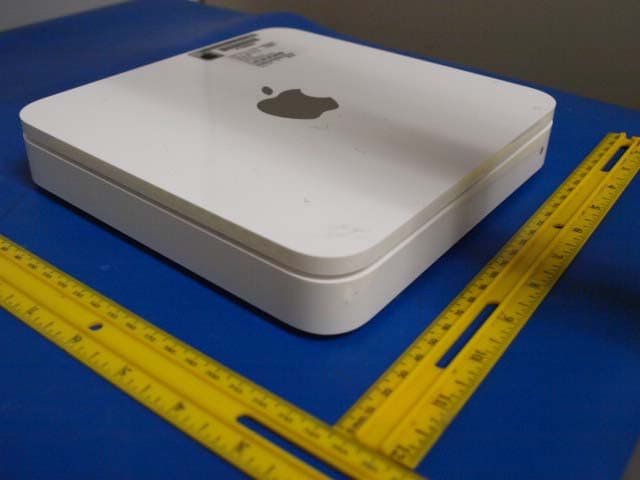
Click to zoom
Application Details
- Equipment Class
- DTS - Digital Transmission System
- Date of Grant
- Jun 20, 2011
- Application Purpose
- Original Equipment
- Date of Application
- Jun 20, 2011
- Equipment Note
- 802.11 a/b/g/n 3x3 Access Point
- Frequency Range
- 5755.00000000 - 5795.00000000
- Company
- Apple Inc.
- Country
- United States
Documents & Files
Document Text
Text extracted from the exhibit documents filed with the FCC. Open a document above to read the original.
Users Manual
Time Capsule Setup Guide 3 Contents 5 Getting Started 8 About Your Time Capsule 9 About the AirPort Software 10 What You Need to Get Started 12 The Time Capsule Status Light 14 Setting Up Your Time Capsule 15 Using Your Time Capsule to Create Your Wireless Network 18 Using AirPort Utility 20 Creating a New Wireless Network 20 Configuring and Sharing Internet Access 22 Setting Advanced Options 23 Allowing Wireless Clients to Access Your Network Without Entering a Password 24 Using Time Machine with Your Time Capsule 26 Tips and Troubleshooting 26 If You Can’t Connect to the Internet 26 If You Forgot Your Network Password or Time Capsule Password 28 If Your Time Capsule Isn’t Responding 29 If Your Time Capsule Status Light Flashes Amber 4 30 If Your Printer Isn’t Responding 31 Updating AirPort Software 31 Time Capsule Placement Considerations 32 Items That Can Cause Interference with AirPort 33 Learning More, Service, and Support 35 Time Capsule Specifications and Safety Guidelines 38 Regulatory Compliance Information 1 5 Getting Started Congratulations on purchasing your Time Capsule. Read this guide to get started. Time Capsule offers you the simplicity of fully automated backup for your Wi-Fi network. Using the Time Machine application in Mac OS X v10.5.7 Leopard or later, it’s easy and automatic to back up all the computers on your network to a single Time Capsule. The Time Capsule is also a fully featured AirPort Extreme Base Station that provides simultaneous dual-band wireless networking. When you set up your Time Capsule, it creates two high-speed Wi-Fi networks: ÂA 2.4 gigahertz (GHz) network for 802.11b, 802.11g, and 802.11n devices, such as iPhone, iPod touch, and older computers ÂA 5 GHz network for 802.11n and 802.11a devices, such as newer computers, iPad, and Apple TV Wireless devices join the network that provides them the best performance and compatibility, and the Time Capsule shares your broadband Internet connection with computers and devices on your network. 6 Chapter 1 Getting Started With your Time Capsule, you can: ÂUse the Time Machine application in Mac OS X v10.5.7 (or later) to back up all the computers on your wireless network, as well as computers connected to your Time Capsule using Ethernet. Note: Your first backup with Time Capsule and Time Machine could take overnight or longer, depending on how much data you’re backing up. To speed up the initial backup, use an Ethernet cable to connect your computer to the LAN port on your Time Capsule. For more information about using Time Machine, see “Using Time Machine with Your Time Capsule” on page 24. ÂCreate a password-protected wireless home network, and then connect to the Internet and share the connection with other computers and Wi-Fi devices, such as iPad, iPhone, iPod touch, and Apple TV. You can also share files among computers connected to the network. ÂCreate a guest network, with or without password protection to provide Internet-only access to wireless devices, such as computers, iPad, iPhone, iPod touch, and Apple TV. ÂConnect your Time Capsule to your Ethernet network. Wireless-equipped Mac, Windows XP, Windows Vista, or Windows 7 computers can then have access to an entire network without being connected by a cable. ÂConnect a supported USB printer to your Time Capsule. Compatible computers on the AirPort network, both wireless and wired, can print to it. ÂConnect an additional USB hard drive to your Time Capsule. Compatible computers on the AirPort network, both wireless and wired, can access information on the hard disk. 7Chapter 1 Getting Started ÂConnect a USB hub to your Time Capsule, and then connect multiple USB devices, such as printers or hard disks. All computers on the network have access to those devices. Important: Use AirPort Utility to set up your Time Capsule. Previous versions of AirPort Setup Assistant and AirPort Admin Utility are not compatible with this Time Capsule. AirPort Utility is installed in the Utilities folder in the Applications folder on a computer using Mac OS X, and in Start > All Programs > AirPort on a computer using Windows. If AirPort Utility isn’t installed on your computer, you can download it from www.apple.com/support/airport. Apple periodically updates AirPort software. It’s recommended that you update your software to keep your Time Capsule up to date. Note: To download a copy of this setup guide in your language, open AirPort Utility and choose Help > AirPort Service and Support, and click Manuals. 8 Chapter 1 Getting Started About Your Time Capsule Your Time Capsule has five ports on the back: ÂOne 10/100/1000Base-T Gigabit Ethernet Wide Area Network (WAN) port for connecting a DSL or cable modem, or for connecting to an existing Ethernet network ÂThree 10/100/1000Base-T Gigabit Ethernet Local Area Network (LAN) ports for connecting Ethernet devices, such as printers or computers, or for connecting to an existing Ethernet network ÂOne USB port for connecting a compatible USB printer, hard drive, or hub for connecting several devices Status lightInternet WAN port Power port Power cord Reset buttonUSB port Ethernet ports Security slot Ethernet activity light The reset button next to the ports is used for troubleshooting your Time Capsule. The status light on the front shows the current status. 9Chapter 1 Getting Started About the AirPort Software Your Time Capsule works with AirPort Utility, installed in the Utilities folder in the Applications folder on a computer using Mac OS X, and in Start > All Programs > AirPort on a computer using Windows. If AirPort Utility isn’t installed on your computer, you can download it from www.apple.com/support/airport. Use AirPort Utility and follow the instructions on the following pages to set up your Time Capsule and your AirPort wireless network. Note: You must use AirPort Utility v5.5.3 (or later) to set up your Time Capsule. This Time Capsule is not compatible with previous versions of AirPort software. AirPort Util…
Text truncated - open the document above for the full version.
Cover Letter(s)
Federal Communications Commission 7435 Oakland Mills Road Columbia MD 21046 Subject: Request for Confidentiality FCC ID: BCGA1409 To Whom It May Concern: Pursuant to the provisions of Sections 0.457 and 0.459 of the Commission’s rules (47 CFR §§ 0.457, 0.459), we are requesting the Commission to withhold the following attachments as confidential document from public disclosure indefinitely. Schematic Diagram Block Diagram Theory of Operation Antenna Specification Above mentioned document contains detailed system and equipment description are considered as proprietary information in operation of the equipment. The public disclosure of above documents might be harmful to our company and would give competitor an unfair advantage in the market. In additional to above mentioned documents, pursuant to Public Notice DA 04-1705 of the Commis- sion’s policy, in order to comply with the marketing regulations in 47 CFR §2.803 and the importa- tion rules in 47 CFR §2.1204, while ensuring that business sensitive information remains confidential until the actual marketing of newly authorized devices. We are requesting the commission to grant short-term confidentiality request on the following attachments for 180 days. External Photos Internal Photos Test Setup Photos User Manual It is our understanding that all measurement test reports, FCC ID label format and correspondent during certification review process cannot be granted as confidential documents and those informa- tion will be available for public review once the grant of equipment authorization is issued. Marc Douat EMC Engineer April 28, 2011 Apple 1 Infinite Loop, MS 301-3VG Cupertino, CA 95014 T 408 996-1010 F 408 996-0275 www.apple.com
Cover Letter(s)
Compliance Certification Services Certification Division 47173 Benicia Street Fremont, CA 94538, USA To whom it may concern: I, the undersigned, hereby authorize Ms. Claire Hoque/Application Examiner of Compliance Engineering Services, Inc., d.b.a. Compliance Certification Services and hereafter referred to as CCS, to act on our behalf in all manners relating to application for equipment authorization, including signing of all documents relating to these matters. Any and all acts carried out by Ms. Claire Hoque of CCS on our behalf shall have the same effect as acts of our own. I, the undersigned, hereby certify that we are not subject to a denial of federal benefits, that includes FCC benefits, pursuant to Section 5301 of the Anti-Drug Abuse Act of 1988, 21 U.S.C. 853(a). In authorizing CCS as our agent, we still recognize that we are responsible to: a) comply with the relevant provisions of the certification program; b) make all necessary arrangements for the conduct of the evaluation, including provision for examining documentation and access to all areas, records (including internal audit reports) and personnel for the purposes of evaluation (e.g. testing, inspection, assessment, surveillance, reassessment) and resolution of complaints; c) make claims regarding certification only in respect of the scope for which certification has been granted; d) do not use our product certification in such a manner as to bring the Certification Division into disrepute and not make any statement regarding our product certification which the Certification Division may consider misleading or unauthorized; e) upon suspension or cancellation of certification, discontinue use of all advertising matter that contains any reference thereto and return any certification documents as required by the Certification Division; f ) use certification only to indicate the products are certified as being in conformity with specified standards; g) endeavor to ensure that no certificate or report nor any part thereof is used in a misleading manner; h)ensure that any reference to our product certification in communication media such as documents, brochures or advertising, complies with the requirements of the Certification Division; Apple 1 Infinite Loop, MS 301-3VG Cupertino, CA 95014 T 408 996-1010 F 408 996-0275 www.apple.com i)keep a record of all complaints made known to the us relating to the product’s compliance with requirements of the relevant standard and to make these records available to the Certification Division when requested; j)take appropriate action with respect to such complaints and any deficiencies found in products or services that affect compliance with the requirements for certification; k)document the actions taken. This authorization is valid until further written notice from the applicant. Marc Douat EMC Engineer April 28, 2011
Internal Photos
! ! ! ! ! ! ! ! ! ! ! ! ! ! ! ! ! ! ! ! ! ! ! ! ! ! ! ! !
Test Report
FCC CFR47 PART 15 SUBPART C INDUSTRY CANADA RSS-210 ISSUE 8 CERTIFICATION TEST REPORT FOR 802.11 a/b/g/n 3X3 ACCESS POINT MODEL NUMBER: A1409 FCC ID: BCGA1409 IC: 579C-A1409 REPORT NUMBER: 11U13703-16, Revision B ISSUE DATE: MAY 31, 2011 Prepared for APPLE, INC. 1 INFINITE LOOP CUPERTINO, CA, 95014, U.S.A. Prepared by COMPLIANCE CERTIFICATION SERVICES (UL CCS) 47173 BENICIA STREET FREMONT, CA 94538, U.S.A. TEL: (510) 771-1000 FAX: (510) 661-0888 REPORT NO: 11U13703-16B DATE: MAY 31, 2011 FCC ID: BCGA1409 IC: 579C-A1409 Page 2 of 256 COMPLIANCE CERTIFICATION SERVICES FORM NO: CCSUP4701C 47173 BENICIA STREET, FREMONT, CA 94538, USA TEL: (510) 771-1000 FAX: (510) 661-0888 This report shall not be reproduced except in full, without the written approval of CCS. Revision History Rev. Issue Date Revisions Revised By -- 05/02/11 Initial Issue F. Ibrahim A 05/13/11 Revised all conducted spurious sections F. Ibrahim B 05/31/11 Revised section 1, section 2, section 6, and section 8.2.4. F. Ibrahim REPORT NO: 11U13703-16B DATE: MAY 31, 2011 FCC ID: BCGA1409 IC: 579C-A1409 Page 3 of 256 COMPLIANCE CERTIFICATION SERVICES FORM NO: CCSUP4701C 47173 BENICIA STREET, FREMONT, CA 94538, USA TEL: (510) 771-1000 FAX: (510) 661-0888 This report shall not be reproduced except in full, without the written approval of CCS. TABLE OF CONTENTS 1. ATTESTATION OF TEST RESULTS.................................................................................... 5 2. TEST METHODOLOGY ........................................................................................................ 6 3. FACILITIES AND ACCREDITATION.................................................................................... 6 4. CALIBRATION AND UNCERTAINTY .................................................................................. 6 4.1. MEASURING INSTRUMENT CALIBRATION ............................................................... 6 4.2. SAMPLE CALCULATION.............................................................................................. 6 4.3. MEASUREMENT UNCERTAINTY................................................................................ 6 5. EQUIPMENT UNDER TEST ................................................................................................. 7 5.1. DESCRIPTION OF EUT................................................................................................ 7 5.2. MAXIMUM OUTPUT POWER....................................................................................... 7 5.3. DESCRIPTION OF AVAILABLE ANTENNAS............................................................... 8 5.4. SOFTWARE AND FIRMWARE..................................................................................... 8 5.5. WORST-CASE CONFIGURATION AND MODE .......................................................... 9 5.6. DESCRIPTION OF TEST SETUP............................................................................... 10 6. TEST AND MEASUREMENT EQUIPMENT ....................................................................... 12 7. ANTENNA PORT TEST RESULTS .................................................................................... 13 7.1. 802.11b THREE CHAINS LEGACY MODE IN THE 2.4 GHz BAND .......................... 13 7.1.1. 6 dB BANDWIDTH ................................................................................................ 13 7.1.2. 99% BANDWIDTH ................................................................................................ 19 7.1.3. OUTPUT POWER ................................................................................................. 25 7.1.4. POWER SPECTRAL DENSITY ............................................................................ 35 7.1.5. CONDUCTED SPURIOUS EMISSIONS............................................................... 41 7.2. 802.11g THREE CHAINS LEGACY MODE IN THE 2.4 GHz BAND .......................... 51 7.2.1. 6 dB BANDWIDTH ................................................................................................ 51 7.2.2. 99% BANDWIDTH ................................................................................................ 57 7.2.3. OUTPUT POWER ................................................................................................. 63 7.2.4. POWER SPECTRAL DENSITY ............................................................................ 73 7.2.5. CONDUCTED SPURIOUS EMISSIONS............................................................... 79 7.3. 802.11n THREE CHAINS HT20 MODE IN THE 2.4 GHz BAND ................................ 89 7.3.1. 6 dB BANDWIDTH ................................................................................................ 89 7.3.2. 99% BANDWIDTH ................................................................................................ 95 7.3.3. OUTPUT POWER ............................................................................................... 101 7.3.4. POWER SPECTRAL DENSITY .......................................................................... 111 7.3.5. CONDUCTED SPURIOUS EMISSIONS............................................................. 117 7.4. 802.11a THREE CHAINS MODE IN THE 5.8 GHz BAND ........................................ 127 7.4.1. 6 dB BANDWIDTH .............................................................................................. 127 7.4.2. 99% BANDWIDTH .............................................................................................. 133 7.4.3. OUTPUT POWER ............................................................................................... 139 REPORT NO: 11U13703-16B DATE: MAY 31, 2011 FCC ID: BCGA1409 IC: 579C-A1409 Page 4 of 256 COMPLIANCE CERTIFICATION SERVICES FORM NO: CCSUP4701C 47173 BENICIA STREET, FREMONT, CA 94538, USA TEL: (510) 771-1000 FAX: (510) 661-0888 This report shall not be reproduced except in full, without the written approval of CCS. 7.4.4. POWER SPECTRAL DENSITY ...................................…
Text truncated - open the document above for the full version.
Test Setup Photos
REPORT NO: 11U13703-16B DATE: MAY 31, 2011 FCC ID: BCGA1409 IC: 579C-A1409 Page 254 of 256 COMPLIANCE CERTIFICATION SERVICES FORM NO: CCSUP4701C 47173 BENICIA STREET, FREMONT, CA 94538, USA TEL: (510) 771-1000 FAX: (510) 661-0888 This report shall not be reproduced except in full, without the written approval of CCS. 11. SETUP PHOTOS ANTENNA PORT CONDUCTED RF MEASUREMENT SETUP ANTENNA PORT CONDUCTED PHOTO REPORT NO: 11U13703-16B DATE: MAY 31, 2011 FCC ID: BCGA1409 IC: 579C-A1409 Page 255 of 256 COMPLIANCE CERTIFICATION SERVICES FORM NO: CCSUP4701C 47173 BENICIA STREET, FREMONT, CA 94538, USA TEL: (510) 771-1000 FAX: (510) 661-0888 This report shall not be reproduced except in full, without the written approval of CCS. RADIATED RF MEASUREMENT SETUP RADIATED FRONT PHOTO RADIATED BACK PHOTO REPORT NO: 11U13703-16B DATE: MAY 31, 2011 FCC ID: BCGA1409 IC: 579C-A1409 Page 256 of 256 COMPLIANCE CERTIFICATION SERVICES FORM NO: CCSUP4701C 47173 BENICIA STREET, FREMONT, CA 94538, USA TEL: (510) 771-1000 FAX: (510) 661-0888 This report shall not be reproduced except in full, without the written approval of CCS. POWERLINE CONDUCTED EMISSIONS MEASUREMENT SETUP END OF REPORT LINE CONDUCTED FRONT PHOTO LINE CONDUCTED BACK PHOTO
Contact Information
Applicant
Abhishek Rala(Regulatory Compliance Manager)
Test Firm
Compliance Certification Services (UL CCS)Barbara Judge
Technical Specifications
| # | Rule Parts | Frequency Range | Power Output |
|---|---|---|---|
| 5 | 15C | 5.75 GHz - 5.79 GHz | 393.00 mW |
Other Applications from Apple Inc.
BCG-E9204A
Sep 09, 2026Smartphone
Equipment Class
6VL - 15E 6 GHZ Very Low Power DeviceBCGA3277
Sep 09, 2026Magnetic Charging Cable
Equipment Class
DCD - Part 15 Low Power Transmitter Below 1705 kHzBCGA3641
Sep 09, 2026Magnetic Charger
Equipment Class
DCD - Part 15 Low Power Transmitter Below 1705 kHzBCGA3669
Sep 09, 2026Magnetic Charger
Equipment Class
DCD - Part 15 Low Power Transmitter Below 1705 kHzBCG-E9193A
Sep 09, 2026Smartphone
Equipment Class
PCE - PCS Licensed Transmitter held to ear