BCGA1574iPOD TOUCH
Apple Inc.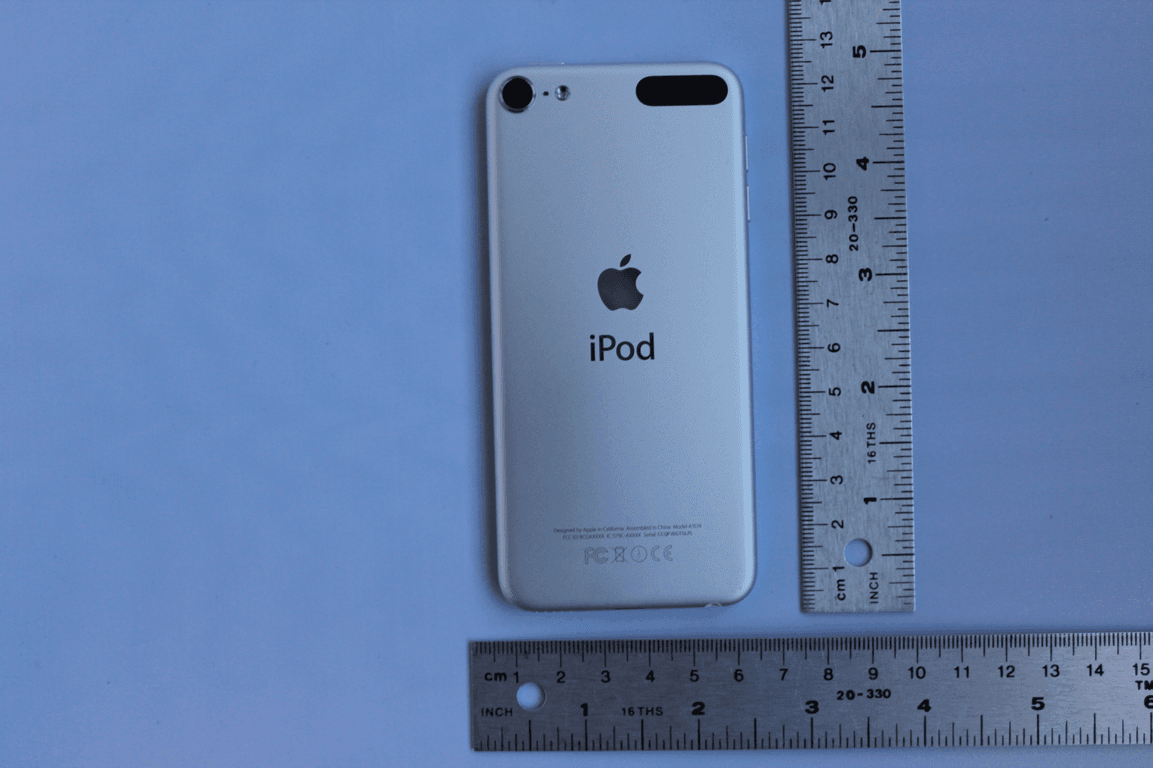
Click to zoom
Application Details
- Equipment Class
- DSS - Part 15 Spread Spectrum Transmitter
- Date of Grant
- Jul 14, 2015
- Application Purpose
- Original Equipment
- Date of Application
- Jul 05, 2015
- Equipment Note
- iPOD TOUCH
- Frequency Range
- 2402.00000000 - 2480.00000000
- Company
- Apple Inc.
- Country
- United States
Documents & Files
Document Text
Text extracted from the exhibit documents filed with the FCC. Open a document above to read the original.
Users Manual
iPod touch Info iPod touch User Guide Review the user guide before using iPod touch. Go to help.apple.com/ipod-touch. To view the user guide on iPod touch, use the Safari bookmark. Or download the user guide from the iBooks Store (where available). Retain documentation for future reference. Safety and Handling See “Safety, handling, and support” in the iPod touch User Guide. Exposure to Radio Frequency Energy On iPod touch, go to Settings > General > About > Legal > RF Exposure. Or go to www.apple.com/legal/rfexposure. Battery The lithium-ion battery in iPod touch should be replaced only by Apple or an authorized service provider, and must be recycled or disposed of separately from household waste. For information about battery service and recycling, go to www.apple.com/batteries/service-and-recycling. Avoiding Hearing Damage To prevent possible hearing damage, do not listen at high volume levels for long periods. More information about sound and hearing is available online at www.apple.com/sound and in “Important safety information” in the iPod touch User Guide. Apple One-Year Limited Warranty Summary Apple warrants the included hardware product and accessories against defects in materials and workmanship for one year from the date of original retail purchase. Apple does not warrant against normal wear and tear, nor damage caused by accident or abuse. To obtain service, call Apple or visit an Apple Retail Store or an Apple Authorized Service Provider—available service options are dependent on the country in which service is requested and may be restricted to the original country of sale. Call charges and international shipping charges may apply depending on location. Subject to the full terms and detailed information on obtaining service available at www.apple.com/legal/warranty and www.apple.com/support, if you submit a valid claim under this warranty, Apple will either repair, replace, or refund your iPod touch at its own discretion. Warranty benefits are in addition to rights provided under local consumer laws. You may be required to furnish proof of purchase details when making a claim under this warranty. For Australian Consumers: Our goods come with guarantees that cannot be excluded under the Australian Consumer Law. You are entitled to a replacement or refund for a major failure and for compensation for any other reasonably foreseeable loss or damage. You are also entitled to have the goods repaired or replaced if the goods fail to be of acceptable quality and the failure does not amount to a major failure. Apple Pty Ltd, PO Box A2629, Sydney South, NSW 1235. Tel: 133-622. For Brazilian Consumers: Warranty benefits are in addition to rights provided under local consumer laws, except for the 1-year warranty that already comprises the full term of legal warranty provided by the Brazilian consumer defense code/regulations. Regulatory Regulatory information, certification, and compliance marks specific to iPod touch are available on iPod touch. Go to Settings > General > About > Legal > Regulatory. Additional regulatory information is in “Safety, handling, and support” in the iPod touch User Guide. IC and FCC Compliance Statement This device complies with Industry Canada license- exempt RSS standard(s). This device complies with part 15 of the FCC rules. Operation is subject to the following two conditions: (1) this device may not cause harmful interference, and (2) this device must accept any interference received, including interference that may cause undesired operation. Industry Canada ICES-003 Compliance Label CAN ICES-3 (B)/NMB-3(B) Important: This product has demonstrated EMC compliance under conditions that included the use of compliant peripheral devices and shielded cables between system components. It is important that you use compliant peripheral devices and shielded cables between system components to reduce the possibility of causing interference to radios, televisions, and other electronic devices. EU Compliance Statement Apple Inc. hereby declares that this wireless device is in compliance with the essential requirements and other relevant provisions of the R&TTE Directive. A copy of the EU Declaration of Conformity is available online at www.apple.com/euro/compliance. Apple’s EU representative is Apple Distribution International, Hollyhill Industrial Estate, Cork, Ireland. Use Restriction This device is restricted to indoor use when operating in the 5150 to 5350 MHz frequency range. © 2015 Apple Inc. All rights reserved. Apple, the Apple logo, iPod touch, and Safari are trademarks of Apple Inc., registered in the U.S. and other countries. Apple Store is a service mark of Apple Inc., registered in the U.S. and other countries. iBooks Store is a service mark of Apple Inc. Printed in XXXX. 034-00635-A
Users Manual
iPod touch User Guide For iOS 8.3 Software Apple Confidential Contents 8 Chapter 1: iPod touch at a glance 8 iPod touch overview 8 Accessories 9 Multi-Touch screen 9 Buttons 11 Status icons 13 Chapter 2: Get started 13 Set up iPod touch 13 Connect to Wi-Fi 14 Connect to the Inter net 14 Apple ID 14 iCloud 16 Set up other mail, contacts , and calendar accounts 16 Manage content on y our iOS devices 16 Sync with iTunes 17 Connect iPod touch to your comput er 18 Date and time 18 International settings 18 Your iPod touch name 18 View this user guide on iPod touch 18 Tips for using iOS 8 19 Chapter 3: Basics 19 Use apps 22 Continuity 23 Customize iPod touch 24 Type text 27 Dictate 28 Voice Control 29 Search 30 Control Cent er 30 Alerts and Notification Center 31 Sounds and silence 31 Do Not Disturb 32 Sharing 34 iCloud Drive 35 Transfer files 35 AirPlay 35 AirPrint 36 Bluetooth device s 36 Restrictions 2 Apple Confidential 36 Privacy 37 Security 39 Charge and monitor the battery 40 Travel with iPod touch 41 Chapter 4: Siri 41 Make requests 42 Siri and apps 42 Tell Siri about yourself 42 Make corrections 42 Siri settings 43 Chapter 5: Messages 43 iMessage service 43 Send and receive messages 45 Manage conversations 45 Share photos, videos, your location, and more 46 Messages settings 47 Chapter 6: Mail 47 Write messages 48 Get a sneak peek 48 Finish a message later 49 See important messages 49 Attachments 50 Work with multiple messages 50 See and save addresses 50 Print messages 51 Mail settings 52 Chapter 7: Safari 52 Safari at a glance 53 Search the web 53 Browse the web 54 Keep bookmarks 55 Save a reading list for later 55 Shared links and subscriptions 56 Fill in forms 56 Avoid clutter with Reader 56 Privacy and securit y 57 Safari settings 58 Chapter 8: Music 58 Get music 58 iTunes Radio 60 Browse and play 61 Siri and Voice Control 61 iCloud and iTunes Match 62 Album Wall 62 Audiobooks 63 Playlists Contents3 Apple Confidential 63 Genius—made for you 64 Home Sharing 64 Music settings 65 Chapter 9: FaceTime 65 FaceTime at a glance 65 Make and answer calls 66 Manage calls 66 Settings 67 Chapter 10: Calendar 67 Calendar at a glance 68 Invitations 68 Use multiple calendars 69 Share iCloud calendars 69 Calendar settings 70 Chapter 11: Photos 70 View photos and videos 71 Organize photos and videos 72 My Photo Stream 73 iCloud Photo Library 73 iCloud Photo Sharing 75 Other ways to share photos and videos 75 Edit photos and trim videos 76 Print photos 76 Photos settings 77 Chapter 12: Camera 77 Camera at a glance 78 Take photos and videos 79 HDR 80 View, share, and print 80 Camera settings 81 Chapter 13: Weather 83 Chapter 14: Clock 83 Clock at a glance 84 Alarms and timers 85 Chapter 15: Maps 85 Find places 86 Get more info 86 Get directions 87 3D and Flyover 87 Maps settings 88 Chapter 16: Videos 88 Videos at a glance 89 Add videos to your library 89 Control playback Contents4 Apple Confidential 90 Videos settings 91 Chapter 17: Notes 91 Notes at a glance 92 Use notes in multiple accounts 93 Chapter 18: Reminders 93 Reminders at a glance 94 Scheduled reminders 94 Reminders settings 95 Chapter 19: Stocks 97 Chapter 20: Game Center 97 Game Center at a glance 98 Play games with friends 98 Game Center settings 99 Chapter 21: Newsstand 100 Chapter 22: iTunes Store 100 iTunes Store at a glance 100 Browse or search 101 Purchase, rent, or redeem 102 iTunes Store settings 103 Chapter 23: App Store 103 App Store at a glance 103 Find apps 104 Purchase, redeem, and download 105 App Store settings 106 Chapter 24: iBooks 106 Get books 106 Read a book 108 Organize books 108 Read PDFs 108 iBooks settings 11 0 Chapter 25: Health 11 0 Your health at a glance 11 0 Collect health and fitness data 111 Share health and fitness data 112 Chapter 26: Passbook 112 Passbook at a glance 112 Passbook on the go 113 Passbook settings Contents5 Apple Confidential 11 4 Chapter 27: Calculator 115 Chapter 28: Podcasts 115 Podcasts at a glance 115 Get podcasts and episodes 117 Control playback 11 8 Organize your favorites into stations 11 8 Podcasts settings 119 Chapter 29: Voice Memos 119 Voice Memos at a glance 119 Record 120 Play it back 120 Move recordings to your computer 121 Chapter 30: Contacts 121 Contacts at a glance 12 2 Add contacts 12 2 Unify contacts 12 2 Contacts settings 124 Appendix A: Accessibility 124 Accessibility features 125 Accessibility Shortcut 125 VoiceOver 13 6 Zoom 13 7 Invert Colors and Grayscale 13 7 Speak Selection 13 7 Speak Screen 13 8 Speak Auto-text 13 8 Large, bold, and high-contrast text 13 8 Button Shapes 138 Reduce screen motion 13 8 On/off switch labels 13 8 Assignable tones 13 9 Video Descriptions 13 9 Hearing aids 140 Mono audio and balance 140 Subtitles and closed captions 140 Siri 140 Widescreen keyboar ds 140 Guided Access 141 Switch Control 1 45 AssistiveTouch 146 Voice Control 1 46 Accessibility in OS X 147 Appendix B: International keyboards 147 Use international keyboards 148 Special input methods Contents6 Apple Confidential 150 Appendix C: Safety, handling, and support 150 Important safety information 152 Important handling information 153 iPod touch Support site 154 Restart or reset iPod touch 154 Reset iPod touch settings 154 Get information about your iPod touch 155 Usage information 155 Disabled iPod touch 155 VPN settings 155 Profiles settings 15 6 Back up iPod touch 157 Update and restore iPod touch software 157 Sell or give away iPod touch 157 Learn more, service, and support 15 8 FCC compliance statement 15 8 Canadian regulatory statement 15 9 Disposal and recycling information 161 Apple and the environment Contents7 Apple Confidential 1 8 iPod touch overview This guide describes the features of iOS 8 and iPod touch 5th generation. iPod touch 5th generation Microphone Microphone iSight camera iSight camera LED flash LED flash iPod touch loop (some models) iPod touch loop (some models) Sleep/Wake button Sleep/Wake button Volume buttons Volume buttons Headphones port Headphon…
Text truncated - open the document above for the full version.
Users Manual
Chapter 5 Messages 44 Start a conversation. Tap , then enter a phone number or email address, or tap , then choose a contact. You can also start a conversation by tapping a phone number in Contacts, Calendar, or Safari, or from a recent contact in the multitasking screen. Note: An alert appears if a message can’t be sent. Tap the alert in a conversation to try sending the message again. Use Siri. Say something like: • “Send a message to Emily saying how about tomorrow” • “Read my new messages” • “Reply that’s great news” Resume a conversation. Tap the conversation in the Messages list. Use picture characters. Go to Settings > General > Keyboard > Keyboards > Add New Keyboard, then tap Emoji to make that keyboard available. When you type a message, tap to change to the Emoji keyboard. See Special input methods on page 148. Tap to Talk. Touch and hold to record a message, then swipe up to send it. To delete it, swipe left. To save space, Tap to Talk audio messages that you receive are deleted automatically two minutes after you listen to them, unless you tap Keep. To keep them automatically, go to Settings > Messages > Expire (under Audio Messages), then tap Never. See what time a message was sent or received. Drag any bubble to the left. See a person’s contact info. In a conversation, tap Details, then tap . Tap the info items to perform actions, such as making a FaceTime call. Send messages to a group. Tap , then enter multiple recipients. Give a group a name. While viewing the conversation, tap Details, drag down, then enter the name in the Subject line. Add someone to a group. Tap the To field, then tap Add Contact. Leave a group. Tap Details, then tap Leave this Conversation. Keep it quiet. Tap Details, then turn on Do Not Disturb to mute notifications for the conversation. Block unwanted messages. On a contact card, tap Block this Caller. You can see someone’s contact card while viewing a message by tapping Details, then tapping . You can also block callers in Settings > Messages > Blocked. You will not receive FaceTime calls or text messages from blocked callers. For more information about blocking calls, see support.apple.com/kb/HT5845. Apple Confidential Chapter 5 Messages 45 Manage conversations Conversations are saved in the Messages list. A blue dot indicates unread messages. Tap a conversation to view or continue it. View the Messages list. From a conversation, tap Messages or swipe to the right. Forward a message or attachment. Touch and hold a message or attachment, tap More, select additional items if desired, then tap . Delete a message or attachment. Touch and hold a message or attachment, tap More, select additional items if desired, then tap . Delete a conversation. In the Messages list, swipe the conversation to the left, then tap Delete. Search conversations. In the Messages list, tap the top of the screen to display the search field, then enter the text you’re looking for. You can also search conversations from the Home screen. See Spotlight Search on page 29. Share photos, videos, your location, and more You can send photos, videos, locations, contact info, and voice memos. The size limit of attachments is determined by your service provider—iPod touch may compress photo and video attachments when necessary. Quickly take and send a photo or video. Touch and hold . Then slide to or to take a photo or video. Photos are sent immediately. Tap to preview your video. To send your Video Message, tap . To save space, Video Messages that you receive are deleted automatically two minutes after you view them, unless you tap Keep. To keep them automatically, go to Settings > Messages > Expire (under Video M essages), then tap Never. Apple Confidential Chapter 5 Messages 46 Send photos and videos from your Photos library. Tap . Recent shots are right there; tap Photo Library for older ones. Select the items you want to send. View attachments. While viewing a conversation, tap Details. Attachments are shown in reverse chronological order at the bottom of the screen. Tap an attachment to see it in full screen. In full- screen mode, tap to view the attachments as a list. Send your current location. Tap Details, then tap Send My Current Location to send a map that shows where you are. Share your location. Tap Details, then tap Share My Location and specify the length of time. The person you’re texting can see your location by tapping Details. To turn Share My Location on or off, or to select the device that determines your location, go to Settings > iCloud > Share My Location (under Advanced). Send items from another app. In the other app, tap Share or , then tap Message. Share, save, or print an attachment. Tap the attachment, then tap . Copy a photo or video. Touch and hold the attachment, then tap Copy. Messages settings Go to Settings > Messages, where you can: • Turn iMessage on or off • Notify others when you’ve read their messages • Specify phone numbers, Apple IDs, and email addresses to use with Messages • Show the Subject field • Block unwanted messages • Set how long to keep messages • Manage the expiration of audio messages and video messages created within Messages (audio or video attachments created outside of Messages are kept until you delete them manually) Manage notifications for messages. See Do Not Disturb on page 31. Set the alert sound for incoming text messages. See Sounds and silence on page 31. Apple Confidential 6 47 Write messages Mail lets you access all of your email accounts, on the go. WARNING: For importan t information about avoiding distractions that could lead to dangerous situations, see Important safety information on page 150. Change mailboxes or accounts. Change mailboxes or accounts. Search for messages. Search for messages. Compose a message. Compose a message. Delete, move, or mark multiple messages. Delete, move, or mark multiple messages. Insert a photo or video. Tap the insertion point. Tap the arrows to see more choices. Also see Edit te…
Text truncated - open the document above for the full version.
Users Manual
Chapter 10 Calendar 69 Move an event to another calendar. Tap the event, tap Edit, tap Calendars, then select a calendar to move it to. Share iCloud calendars With Family Sharing, a calendar shared with all the members of your family is created automatically. See Family Sharing on page 32. You can share an iCloud calendar with other iCloud users. When you share a calendar, others can see it, and you can let them add or change events. You can also share a read-only version that anyone can view. Create an iCloud calendar. Tap Calendars, tap Edit, then tap Add Calendar in the iCloud section. Share an iCloud calendar. Tap Calendars, tap Edit, then tap the iCloud calendar you want to share. Tap Add Person, then enter a name, or tap to browse your Contacts. Those you invite receive an email invitation to join the calendar, but they need an iCloud account in order to accept. Change a person’s access to a shared calendar. Tap Calendars, tap Edit, tap the shared calendar, then tap the person. You can turn off his or her’s ability to edit the calendar, resend the invitation to join the calendar, or stop sharing the calendar with that person. Turn off notifications for shared calendars. When someone modifies a shared calendar, you’re notified of the change. To turn off notifications for shared calendars, go to Settings > Mail, Contacts, Calendars > Shared Calendar Changes. Share a read-only calendar with anyone. Tap Calendars, tap Edit, then tap the iCloud calendar you want to share. Turn on Public Calendar, then tap Share Link to copy or send the URL for your calendar. Anyone can use the URL to subscribe to the calendar using a compatible app, such as Calendar for OS X. Calendar settings Several settings in Settings > Mail, Contacts, Calendars affect Calendar and your calendar accounts. These include: • Syncing of past events (future events are always synced) • Alert tone played for new meeting invitations • Default calendar for new events • Default time for alerts • Time zone support, to show dates and times using a different time zone • Which day starts the week • Display of Chinese, Hebrew, or Islamic dates Apple Confidential 11 70 View photos and videos The Photos app lets you view the photos and videos: • Taken with Camera on iPod touch • Stored in iCloud (see iCloud Photo Library on page 73) • Shared from others (see iCloud Photo Sharing on page 73) • Synced from your computer (see Sync with iTunes on page 16) • Saved from an email, text message, webpage, or screenshot Tap to view full screen. Tap to view full screen. The Photos app includes tabs for Photos, Shared, and Albums. • Tap Photos to see all your photos and videos, organized by Years, Collections, and Moments. To quickly browse the photos in a collection or year, touch and hold for a moment, then drag. • Tap Shared to see photos and videos you shared with others or that others shared with you. See My Photo Stream on page 72 and iCloud Photo Sharing on page 73. • Tap Albums to see how photos and videos are organized into albums on your iPod touch. See Organize photos and videos, next. View all your photos and videos. By default, Photos displays a representative subset of your photos when you view by year or by collection. To see all your photos and videos, go to Settings > Photos & Camera, then turn off Summarize Photos. Photos Apple Confidential Chapter 11 Photos 71 View by location. While viewing by year or by collection, tap . Photos and videos that include location information appear on a map, showing where they were taken. While viewing a photo or video, tap to show and hide the controls. Swipe left or right to go forward or backward. Search photos. From Albums or Photos, tap to search by date (month and year), or place (city and state). Search also keeps your Recent Searches on hand and gives you a list of suggested searches. Zoom in or out. Double-tap, or pinch a photo. When you zoom in, you can drag to see other parts of the photo. Play a video. Tap . To toggle between full screen and fit-to-screen, double-tap the screen. Play a slideshow. While viewing a photo, tap , then tap Slideshow. Select options, then tap Start Slideshow. To stop the slideshow, tap the screen. To set other slideshow options, go to Settings > Photos & Camera. To stream a slideshow or video to a TV, see AirPlay on page 35. Organize photos and videos The Album tab includes albums you create and several default albums, depending on which Photos features you use. Videos are automatically added to the Videos album, for example. You see a My Photo Stream album if you use that feature (see My Photo Stream, next). If you use iCloud Photo Library, you have an All Photos album, which includes all your photos and videos in iCloud (see iCloud Photo Library on page 73); if you don’t use iCloud Photo Library, the Camera Roll album includes photos and videos you took with iPod touch or saved to iPod touch from other sources. Note: If you use iCloud Photo Library, albums are stored in iCloud and are up to date and accessible on any iOS 8.1 device using the same Apple ID. See iCloud Photo Library on page 73. Create a new album. Tap Albums, tap , enter a name, then tap Save. Select photos and videos to add to the album, then tap Done. Add items to an existing album. While viewing thumbnails, tap Select, select items, tap Add To, then select the album. Manage albums. While viewing your album list, tap Edit. • Rename an album: Select the album, then enter a new name. • Rearrange albums: Drag . • Delete an album: Tap . With iCloud Photo Library, you can manage all your albums from any iOS 8.1 device set up with iCloud Photo Library. Mark your favorites. While viewing a photo or video, tap to automatically add it to the Favorites album. A photo or video can be part of another album as well as Favorites. Hide photos you want to keep but not show. Touch and hold a photo, then choose Hide. The photo is moved to the Hidden album. Touch and hold a hidden photo to Unhide it. Remo…
Text truncated - open the document above for the full version.
Users Manual
Chapter 20 Game Center 98 Play games with friends Invite friends to a multiplayer game. Tap Friends, choose a friend, choose a game, then tap in the upper right. If the game allows or requires more players, choose the players, then tap Next. Send your invitation, then wait for the others to accept. When everyone’s ready, start the game. If a friend isn’t available or doesn’t respond, you can tap Auto-Match to have Game Center find another player for you, or tap Invite Friend to invite someone else. Send a friend request. Tap Friends, tap , then enter your friend’s email address or Game Center nickname. To browse your contacts, tap . (To add several friends in one request, type Return after each address.) Or tap any player you see anywhere in Game Center. Challenge someone to outdo you. Tap one of your scores or achievements, then tap Challenge Friends. What are your friends playing and how are they doing? Tap Friends, tap your friend’s name, then tap the Games or Points bubble. Want to purchase a game your friend has? Tap Friends, then tap his or her name. Tap the Games bubble, tap the game in the list, then tap in the upper right. Make new friends. To see a list of your friend’s friends, tap Friends, tap your friend’s name, then tap his or her Friends bubble. Unfriend a friend. Tap Friends, tap the friend’s name, then tap in the upper right. Keep your email address private. Turn off Public Profile in your Game Center account settings. See Game Center settings, below. Turn off multiplayer activity or friend requests. Go to Settings > General > Restrictions. If the switches are dimmed, first tap Enable Restrictions at the top. Keep it friendly. To report offensive or inappropriate behavior, tap Friends, tap the person’s name, tap in the upper right, then tap Report a Problem. Game Center settings Go to Settings > Game Center, where you can: • Sign out (tap your Apple ID) • Allow invites • Let nearby players find you • Edit your Game Center profile (tap your nickname) • Get friend recommendations from Contacts or Facebook Specify which notifications you want for Game Center. Go to Settings > Notifications > Game Center. If Game Center doesn’t appear, turn on Notifications. Change restrictions for Game Center. Go to Settings > General > Restrictions. Apple Confidential 21 99 Newsstand organizes your magazine and newspaper apps, and automatically updates them when iPod touch is connected to Wi-Fi. Touch and hold a publication to rearrange. Touch and hold a publication to rearrange. Find Newsstand apps. Find Newsstand apps. Note: You need an Internet connection and an Apple ID to download Newsstand apps, but you can read downloaded content without an Internet connection. Newsstand is not available in all areas. Find Newsstand apps. Tap Newsstand to reveal the shelf, then tap Store. When you purchase a Newsstand app, it’s added to the shelf. After the app is downloaded, open it to view its issues and subscription options. Subscriptions are In-App purchases, billed to your Apple ID account. Turn off automatic updates. Apps update automatically over Wi-Fi, unless you turn off the option in Settings > General > Background App Refresh. Newsstand Apple Confidential 22 10 0 iTunes Store at a glance Use the iTunes Store to add music, movies, TV shows, and more to iPod touch. See purchases, tones, audiobooks, and more. See purchases, tones, audiobooks, and more. View your lists. View your lists. Browse Browse Note: You need an Internet connection and an Apple ID to use the iTunes Store. The iTunes Store is not available in all areas. Browse or search Browse by category or genre. Tap one of the categories (Music, Movies, or TV Shows). Tap Genres to refine the list. If you kno w what you’re looking for, tap Search. You can tap a search term that’s trending among other iTunes users, or enter info in the search field, then tap Search again. Access family memb ers’ purchases. With Family Sharing turned on, you can view and download songs, TV shows, and movies purchased by other family members. Tap Purchased, tap your name or My Purchases, then select a family member from the menu. Find it with Siri. Siri can search for items and make purchases in the iTunes Store . For example, you can say “Get a new ringtone” or “Purchase song name by band name.” You can ask Siri to download a podcast or redeem a gift card. For best results, say “purchase” instead of “buy” at the beginning of a Siri command. iTunes Store Apple Confidential Chapter 22 iTunes Store 101 Ask Siri to tag it. When you hear music playing around you, ask Siri “What song is playing?” Siri tells you what the song is and gives you an easy way to purchase it. It also saves it to the Siri tab in the iTunes Store so you can buy it later. Tap Music, tap , then tap the Siri tab to see a list of tagged songs available for preview or purchase. Tap to see your Wish List and recommendations. Tap to see your Wish List and recommendations. Discover great new music on iTunes Radio. When you listen to iTunes Radio, songs you play appear in the Radio tab in the iTunes Store so you can preview or purchase them. Tap Music, tap , then tap Radio. Preview a song or video. Tap it. Add to your Wish List. When you hear something you hope to buy from the iTunes Store, tap , then tap Add to Wish List. To view your Wish List in the iTunes Store, tap Music, Movies, or TV Shows, tap , then tap Wish List. Tired of tapping More? To rearrange the buttons, tap More, then tap Edit. To replace a button, drag another icon over the one you want to replace. Then tap Done. Purchase, rent, or redeem Tap an item’s price (or tap Free), then tap again to buy it. If you see instead of a price, you’ve already purchased the item and you can download it again without a charge. Approve purchases with Family Sharing. With Family Sharing set up, the family organizer can review and approve purchases made by family members under the age of 18. For example, if Parent/Guardian > Ask to Buy is set for…
Text truncated - open the document above for the full version.
Cover Letter(s)
Apple Inc. 1 Infinite Loop Cupertino, CA www.apple.com Date: May 14, 2015 Federal Communications Commission Equipment Authorization Branch 7435 Oakland Mills Rd. Columbia MD 21046 Attn: Equipment Authorization Branch Ref: FCC ID: BCGA1574, Model: A1574 To whom it may concern: I, the undersigned, hereby authorize UL Verification Services Inc. to act on our behalf in all manners relating to application for equipment authorization, including signing of all documents relating to these matters. Any and all acts carried out by UL Verification Services Inc. on our behalf shall have the same effect as acts of our own. I, the undersigned, hereby certify that we are not subject to a denial of federal benefits, that includes FCC benefits, pursuant to Section 5301 of the Anti-Drug Abuse Act of 1988, 21 U.S.C. 853(a). In authorizing UL Verification Services Inc. as our representative, we still recognize that we are responsible to: a) comply with the relevant provisions of the certification program; b) make all necessary arrangements for the conduct of the evaluation, including provision for examining documentation and access to all areas, records (including internal audit reports) an…
Text truncated - open the document above for the full version.
Contact Information
Applicant
Abhishek Rala(Regulatory Compliance Manager)
Test Firm
UL Verification Services Inc. (formerly UL CCS)Jay Kogoma
Technical Specifications
| # | Rule Parts | Frequency Range | Power Output |
|---|---|---|---|
| 1 | 15C | 2.40 GHz - 2.48 GHz | 17.00 mW |
Other Applications from Apple Inc.
BCG-E9204A
Sep 09, 2026Smartphone
Equipment Class
6VL - 15E 6 GHZ Very Low Power DeviceBCGA3277
Sep 09, 2026Magnetic Charging Cable
Equipment Class
DCD - Part 15 Low Power Transmitter Below 1705 kHzBCGA3641
Sep 09, 2026Magnetic Charger
Equipment Class
DCD - Part 15 Low Power Transmitter Below 1705 kHzBCGA3669
Sep 09, 2026Magnetic Charger
Equipment Class
DCD - Part 15 Low Power Transmitter Below 1705 kHzBCG-E9193A
Sep 09, 2026Smartphone
Equipment Class
PCE - PCS Licensed Transmitter held to ear