BEJNT-14T90PNotebook Computers
LG Electronics USA, Inc.
Click to zoom
Application Details
- Equipment Class
- DSS - Part 15 Spread Spectrum Transmitter
- Date of Grant
- Dec 30, 2020
- Application Purpose
- Original Equipment
- Date of Application
- Dec 29, 2020
- Equipment Note
- Notebook Computers
- Frequency Range
- 2402.00000000 - 2480.00000000
- Company
- LG Electronics USA, Inc.
- Country
- United States
Documents & Files
Document Text
Text extracted from the exhibit documents filed with the FCC. Open a document above to read the original.
Users Manual
LG EASY GUIDE NOTEBOOK 14T90P Series www.lg.com Copyright © 2020 LG Electronics Inc. All rights reserved. 2 Introduction / Important Safety Precautions Introduction / Important Safety Precautions UsingLG Easy Guide, LG TroubleShooting LG Electronics Inc. providesLG Easy Guide(User's Guide) andLG TroubleShooting(TroubleShooting Guide) to users for their easy and convenient use of the product. •Press [], select[LG Software], and run[LG Easy Guide]or[LG TroubleShooting]. ENGLISH Introduction / Important Safety Precautions 3 Information/Precautions Before Using Before readingLG Easy Guide, first check the following information. •ThisLG Easy Guidehas been written for the Windows 10 operating system. •The screen and menu configurations may differ from this manual depending on the status of the Windows and software update. •Representative images are used inLG Easy Guide. Product purchased may differ in appearance and color. •LG Easy Guideincludes instruction about optional products.There may be information about products you did not purchase. •The contents ofLG Easy Guideare subject to change without prior notice. •Use, duplication, or reproduction of any part ofLG Easy Guidewithout prior permission from LG Electronics Inc. is strictly prohibited. •LG Electronics Inc. does not provide warranty for data loss. In order to minimize damage from data loss, please make backup copies of important data. •The optical disk drive (DVD, CD-ROM, etc.) is optional and may not be provided upon purchasing the product. •Manufacturers and installers cannot provide services related to human safety as this wireless device may cause radio interference. Safety Precaution Notations The below symbols are to inform you of dangers and safety concerns that you must be aware of. Read the symbol-indicated instructions with caution to avoid any possible mishap. WARNING Appears in the case of noncompliance with the instruction that may cause serious physical damage or fatal injuries. CAUTION Appears in the case of noncompliance with the instruction that may cause minor damage to the body or the machine. Text Notations The symbols below are used to display information required to use the product. Familiarize yourself with the instructions marked by the symbols to ensure proper operation of the product. ENGLISH 4 Introduction / Important Safety Precautions TIP Indicates that the following information is added to help the user utilize the machine more conveniently. OPTION The Option symbol indicates that the concerned device is not included in the product package and thus has to be purchased separately, or the device may not be applied to the user's machine depending on model type. Manufacturer and Copyright Microsoft™, MS™, WinPE™, and Windows ® are the registered trademarks of Microsoft Corporation™. USB Type-C™and USB-C™are the trademarks of USB Implementers Forum. Thunderbolt™is a trademark of Intel Corporation or its subsidiaries in the U.S. and/or other countries. NVMe™is a trademark of NVM Express, Inc The Bluetooth ® word mark and logos are registered trademarks owned by the Bluetooth SIG, Inc. and any use of such marks by LG Electronics is under license. Other trademarks and trade names are those of their respective owners. Amazon, Alexa and all related logos are trademarks of Amazon.com, Inc. or its affiliates. Google, Android, Google Play, Google Play logo, and other marks are the trademarks of Google LLC. iPhone is the trademark of Apple Inc. registered in U.S.A. and other countries. App Store is the service mark of Apple Inc. Manufacturer and Copyright represent the logo and trademark of the manufacturer, and bear no relationship to the functions supported by the product. LG logo is a registered trademark of LG Electronics Inc. Micro SD Logo is a trademark of SD-3C, LLC The UFS Logo is a trademark of the Universal Flash Storage Association (UFSA). For DTS patents, see http://patents.dts.com. Manufactured under license from DTS Licensing Limited. DTS, the Symbol, & DTS and the Symbol together, DTS:X, the DTS:X logo, and DTS:X Ultra are registered trademarks or trademarks of DTS, Inc. in the United States and/or other countries. © DTS, Inc. All Rights Reserved. ENGLISH Introduction / Important Safety Precautions 5 The terms HDMI, HDMI High-Definition Multimedia Interface, and the HDMI Logo are trademarks or registered trademarks of HDMI Licensing Administrator, Inc. The SuperSpeed USB Trident logo is a registered trademark of USB Implementers Forum, Inc. LG Easy Guidemay contain undetectable errors despite our dedicated efforts to provide users with reliable information. We ask for your understanding. The illustrated figures inLG Easy Guidemay differ in appearance with the actual products. Unauthorized reproduction or duplication of any part ofLG Easy Guideis strictly prohibited. LG Electronics Inc. reserves the right to modify any part of this manual for quality purposes, without prior notice. Copyright (C) 2020 LG Electronics Inc. Digitalmate Co., LTD Country of OriginChina ManufacturerLG Electronics Inc. Open Source Software Notice Information To obtain the source code under GPL, LGPL, MPL, and other open source licenses, that is contained in this product, please visit http://opensource.lge.com. In addition to the source code, all referred license terms, warranty disclaimers and copyright notices are available for download. LG Electronics will also provide open source code to you on CD-ROM for a charge covering the cost of performing such distribution (such as the cost of media, shipping, and handling) upon email request to [email protected]. This offer is valid for a period of three years after our last shipment of this product.This offer is valid to anyone in receipt of this information. System Protection Feature If the system becomes too hot, the system protection feature automatically stops recharging and switches the power mode to Hibernate or Off. The PC system has to cool down before it can be reactivated.…
Text truncated - open the document above for the full version.
Users Manual
Using Windows 10 81 2Select a running app displayed in the preview on the split screen. 3Drag and drop the app again to a different location to return to its original size. ENGLISH 82 Using Windows 10 Screen Split into Four 1Drag and drop an app to the left corner to reduce the app to 1/4 size of the screen. TIP The screen is split according to the guideline. ENGLISH Using Windows 10 83 2You can use this method to place up to four apps on the screen. 3Drag and drop the app again to a different location to return to its original size. ENGLISH 84 Using Windows 10 Using the Store You can purchase apps or get free apps from Windows Store. TIP If a local account is being used, a window to switch to aMicrosoftaccount appears while using Windows Store. Follow the instructions on the screen to switch the local account to a Microsoftaccount. You can also do so by selecting [Start menu] > [Account] > [Change Account Settings]. If you switch to aMicrosoftaccount, your PC settings (background, user settings, etc.) may be changed to the previous settings. 1Press the [] button to move to the Start menu and select the[Microsoft Store]tile. TIP Press the [ ] key or [Ctrl] + [Esc] to display the Start menu. ENGLISH Using Windows 10 85 2Select the app or use the search function on the store screen to install the desired app. ENGLISH 86 Using Windows 10 Switching toTablet Mode If you are using Windows on a tablet PC, you can easily switch to the tablet mode. 1Press the Action Center [] icon on the right side of the taskbar. ENGLISH Using Windows 10 87 2Select[Tablet Mode]to switch Windows to tablet mode. 3Select[Tablet Mode]again to deactivate the mode. ENGLISH 88 Using Windows 10 Unlocking the Screen If the PC is not used for an extended period, it goes into a locked state. When the PC is used again, a lock screen appears for security purposes and may be unlocked by using the following method. 1From the lock screen, press any key on the keyboard or drag up while you click and hold the mouse button. 2When the login window appears, enter the password and click [Enter]. (If no password is set, press the login button to immediately unlock the screen.) ENGLISH Using Windows 10 89 Setting the PC Windows 10 supports various functions so that the user can change the PC setting easily and quickly. Using Action Center You can use the Action Center to easily change the settings for tablet mode, display, media connection and network settings. The functions supported by the Action Center may differ depending on the model. 1Press the Action Center [] icon on the right side of the taskbar. ENGLISH 90 Using Windows 10 2Change the PC settings as needed. TIP If the tile does not appear, press the [Expand] menu. [Rotation lock]tile is activated when in the tablet PC mode. CAUTION Using theReader Modeand theNight lightat the same time can cause color distortion. If color distortion occurs, deactivate theReader Modeor theNight light. ENGLISH Using Windows 10 91 3To change the detailed settings of the PC, press the[All Settings]tile. ENGLISH 92 Using Windows 10 Using the Start Menu 1Press the [] button and select the[Settings]menu. 2When the screen for PC's detailed settings appears, select and change the settings as needed. ENGLISH Using Windows 10 93 Windows Shutdown Option In Windows 10, you can use the Windows shutdown option by following these steps: 1Click the [] button and select the[Power]menu. TIP Press the [ ] key or [Ctrl] + [Esc] to display the Start menu. 2Select a Windows shutdown option. TIP On the Desktop screen, press [Alt] + [F4] to use the Windows shutdown option. (Pressing [Alt] + [F4] on a running app may end the app.) ENGLISH 94 Using the PC Using the PC Charging the Product / Using theTablet PC Mode Connect the AC adapter to power and charge the product. TIP The power cable and the AC adapter type may differ per model type and country and there is no difference in functionality. This product has a built-in battery pack. The internal battery should not be arbitrarily disassembled or replaced. Arbitrarily disassembling the product may void the warranty. If you need to disassemble or replace the battery, please visit the designated LG Electronics Service Center. We charge a fee for removing or replacing the battery. Using an AC Adapter The AC Adapter can be used from 100 V to 240 V. 1Connect the AC adapter to a power outlet. 2Connect the AC adapter jack to the PC USB-C™port. 3Adjust the LCD to the most comfortable angle. 4Press the PC's power button to turn on the system. TIP •If you want to use the Intel Type-C fast-charging function, please purchase and use a USB-C™AC adapter with a USB PD certification of 80 W or higher through the e- commerce site. CAUTION Do not leave a liquid container on the PC. •The system may be short-circuited and damaged. ENGLISH Using the PC 95 WARNING Please use an AC adapter certified by LG Electronics Inc. •Uncertified batteries may explode. •It may cause a problem in battery charging or system operation. When you use an AC adapter, follow the below directions. •60 °C or more high-humidity spaces, for example, inside cars or saunas, should be avoided when you use or store it. •Do not disassemble or modify the AC adapter. •Do not twist the AC adapter plug. •When you connect the AC adapter, do not forcefully push the plug. Using Tablet PC Mode 1Open the notebook screen and turn it all the way to the rear to switch to the tablet PC mode. ENGLISH 96 Using the PC 2When the‘Switching to tablet mode’message appears on the Windows screen, press [Yes] to switch to tablet mode. CAUTION •When packing or moving the product, close the LCD panel to protect it. •Be careful not to pinch your fingers between the PC main body and the LCD panel. •Do not rotate the LCD panel with excessive force.This may damage the hinge connecting the PC body and the LCD panel. •In tablet PC mode, the keyboard faces the bottom of the product. Clean around the product to prevent the keyboard and PC body from bei…
Text truncated - open the document above for the full version.
Users Manual
FAQ 265 3HDMI port transfers both video and audio simultaneously. Hence, there is no need for a separate audio connection. 4On the PC, press [Fn] + [F7] to display monitor (projector) toggling screen. Select the desired screen output. TIP •Everytime [] + [P] keys are pressed, the screen output option changes. Release the keys to display the selected screen output. CAUTION •If you do not set Speaker as the default value after disconnecting the HDMI cable, the system may not produce any sound. •If a program was running already, you must exit and restart the program to produce sound. ENGLISH 266 FAQ Using a Wired/Wireless Router A wireless / regular router connects several PCs and mobile devices to one internet line and enables the use of internet and the network. A wireless / regular router has to be bought separately. Refer to the manual provided by the manufacturer for instructions. Connecting a Wireless or Regular Router If one internet line is used with a wired / wireless router and several devices are connected, this may result in a slower connection. In case of a wireless LAN, it is recommended to change the network name and security settings for a more secure connection. Network speed can differ according to operation environment and specifications. 1Connect the internet cable of the modem that was provided by your internet provider to the router's WAN port. 2Connect all devices (PC, IPTV, internet phone, etc.) with a LAN cable to LAN ports 1 to 4 of the router. The number of LAN ports can vary for each router model. 3Please refer to the manual provided by the router manufacturer for setup of the network and internet. ENGLISH FAQ 267 Wireless LAN The wireless network (Wireless LAN) is the network environment that connects a PC with the internet provider or company network through an Access Point (wireless or regular router). OPTION Wireless LAN is optional. Hence, it may not be installed in some models. Turning On/OffAirplane Mode Prior to using the wireless LAN, press [Fn] + [F6] to turn offAirplane Mode. Pressing [Fn] + [F6] keys will turn on or off theAirplane Mode. If you are not going to use the product for a while, keep theAirplane Modeturned on to reduce the battery power consumption. Using the Wireless LAN If an Access Point (wired or wireless router) is in the vicinity of the PC, the wireless LAN can easily be accessed. During the search for a wireless network (Wireless LAN), various Access Points may be found according to the location where the PC is used. In case there are no accessible wireless networks (Wireless LAN) near the PC, no Access Points may be found. A password protected Access Point cannot be accessed without the correct password. ENGLISH 268 FAQ 1Press the Action Center [] icon on the right side of the taskbar. ENGLISH FAQ 269 2Press the[Network]tile to search for a nearby Access Point. TIP IfWi-Fiis turned off, press the[Wi-Fi]tile. ENGLISH 270 FAQ 3Select the Access Point you want to connect to and press [Connect]. ENGLISH FAQ 271 4If a connection is established, [Connected] appears below the Access Point name. 5Click the Web Browser icon to check whether the Internet is operating normally. ENGLISH 272 FAQ Wired LAN LAN is the network environment that users can connect to by using a cable to connect to their internet providers or the company's network. Using Wired LAN LAN is installed with an automatic IP (DHCP) as default value. Please refer to the following instructions for details on setting up an automatic IP (DHCP) or manual IP. 1Connect the LAN adapter to the USB-C™port on the PC. TIP The recommended network cable for the optimal network environment is CAT5 or higher. The network (LAN) cable may be connected when the LAN adapter is used. ENGLISH FAQ 273 2Connect the wired LAN cable to the LAN port. ENGLISH 274 FAQ 3Press the [] button and select the[Settings]menu. TIP Press the [ ] key or [Ctrl] + [Esc] to display the Start menu. ENGLISH FAQ 275 4Select[Network & Internet]>[Status]>[Change adapter options]. ENGLISH 276 FAQ 5Right-click[Ethernet]and select the[Properties]menu. ENGLISH FAQ 277 6Select[Internet Protocol Version 4 (TCP/IPv4)]and then click[Properties]. ENGLISH 278 FAQ 7To use an automatic IP(DHCP), select[Obtain an IP address automatically]. If you wish to use a static IP, select[Use the following IP address]to enter the address. Contact the network service provider or administrator to use a static IP. 8Press[OK]to complete the network setup. 9Click the Web Browser icon to check whether the Internet is operating normally. ENGLISH
Cover Letter(s)
[在此鍵入] Date: November 17, 2020 Federal Communications Commission Authorization and Evaluation Division Confidentiality Request Pursuant to FCC 47 CFR 0.457(d) and 0.459, Section 9.4, the applicant requests that a part of the subject FCC application is held confidentially. Type of Confidentiality Requested Exhibit ☒ Permanent Block Diagrams ☐ Short Term External Photos ☐ Short Term Internal Photos ☒ Permanent Operation Description/Theory of Operation ☐ Permanent Parts List & Placement/BOM ☐ Permanent Tune-Up Procedure ☒ Permanent Schematics ☐ Short Term Test Setup Photos ☐ Short Term User’s Manual The above materials contain trade secrets and proprietary information not customarily released to the public. The public disclosure of these matters might be harmful to the applicant and provide unjustified benefits to its competitors. Pursuant to FCC 47 CFR 0.457, the applicant understands that documentation is non-disclosure before the date of the grant for application. Permanent Confidentiality: The applicant requests the exhibits listed above as permanently confidential be permanently withheld from public review due to materials that contain trade secrets and proprietary information not customarily released to the public Short-Term Confidentiality: The applicant requests the exhibits selected above as short term confidential be withheld from public view for a period of 180 days from the date of the Grant of Equipment Authorization and prior to marketing. This is to avoid premature release of sensitive information prior to marketing or release of the product to the public. Sincerely, ------------------------------------------------------ Dae Woong Kim LG Electronics USA, Inc.
Cover Letter(s)
[在此鍵入] Declaration of Authorization We Name: LG Electronics USA, Inc. Address: 111 Sylvan Avenue North Building Englewood Cliffs New Jersey United States City: Englewood Cliffs Country: United States Declare that: Name Representative of agent: Vincent Lin Agent Company name: DEKRA Testing and Certification Co., Ltd. Address: No.5-22, Ruishukeng, Linkou Dist., City: New Taipei City 24451, Country: Taiwan, R.O.C. is authorized to apply for Certification of the following product(s): Product Name: Notebook PC Model: 14T90P FCC ID: BEJNT-14T90P Trademark: LG on our behalf. This is valid until November 17, 2021, or until FCC and IC certification are completed, whichever comes sooner. Date: November 17, 2020 City: Englewood Cliffs Name: Dae Woong Kim Function: Director Signature:
External Photos
Report No.: 20B0091R-E3032110130 Page: 1 of 47 Attachment 2 : EUT Detailed Photographs (1) EUT Photo (2) EUT Photo Report No.: 20B0091R-E3032110130 Page: 2 of 47 (3) EUT Photo (4) EUT Photo Report No.: 20B0091R-E3032110130 Page: 3 of 47 (5) EUT Photo (6) EUT Photo Report No.: 20B0091R-E3032110130 Page: 4 of 47 (7) EUT Photo
ID Label/Location Info
LG Electronics USA FCC ID.: BEJNT-14T90P 111 Sylvan Avenue North Bulding Englewood Cliffs New Jerssy United States Tel : 201-266-2215 FCC ID Label
ID Label/Location Info
LG Electronics USA FCC ID.: BEJNT-14T90P 111 Sylvan Avenue North Bulding Englewood Cliffs New Jerssy United States Tel : 201-266-2215 The FCC ID will be placed on the equipment as shown in the photograph below.
Internal Photos
Report No.: 20B0091R-E3032110130 Page: 5 of 47 (8) EUT Photo (9) EUT Photo Report No.: 20B0091R-E3032110130 Page: 6 of 47 (10) EUT Photo (11) EUT Photo Report No.: 20B0091R-E3032110130 Page: 7 of 47 (12) EUT Photo (13) EUT Photo Report No.: 20B0091R-E3032110130 Page: 8 of 47 (14) EUT Photo (15) EUT Photo Report No.: 20B0091R-E3032110130 Page: 9 of 47 (16) EUT Photo (17) EUT Photo Report No.: 20B0091R-E3032110130 Page: 10 of 47 (18) EUT Photo (19) EUT Photo Report No.: 20B0091R-E3032110130 Page: 11 of 47 (20) EUT Photo (21) EUT Photo Report No.: 20B0091R-E3032110130 Page: 12 of 47 (22) EUT Photo (23) EUT Photo Report No.: 20B0091R-E3032110130 Page: 13 of 47 (24) EUT Photo (25) EUT Photo Report No.: 20B0091R-E3032110130 Page: 14 of 47 (26) EUT Photo (27) EUT Photo Report No.: 20B0091R-E3032110130 Page: 15 of 47 (28) EUT Photo (29) EUT Photo Report No.: 20B0091R-E3032110130 Page: 16 of 47 (30) EUT Photo (31) EUT Photo Report No.: 20B0091R-E3032110130 Page: 17 of 47 (32) EUT Photo (33) EUT Photo Report No.: 20B0091R-E3032110130 Page: 18 of 47 (34) EUT Photo (35) EUT Photo Report No.: 20B0091R-E3032110130 Page: 19 of 47 (36) EUT Photo (37) EUT Photo Report No.: 20B0091R-E3032110130 Page: 20 of 47 (38) EUT Photo (39) EUT Photo Report No.: 20B0091R-E3032110130 Page: 21 of 47 (40) EUT Photo (41) EUT Photo Report No.: 20B0091R-E3032110130 Page: 22 of 47 (42) EUT Photo (43) EUT Photo Report No.: 20B0091R-E3032110130 Page: 23 of 47 (44) EUT Photo (45) EUT Photo Report No.: 20B0091R-E3032110130 Page: 24 of 47 (46) EUT Photo (47) EUT Photo Report No.: 20B0091R-E3032110130 Page: 25 of 47 (48) EUT Photo (49) EUT Photo
Internal Photos
Report No.: 20B0091R-E3032110130 Page: 26 of 47 (50) EUT Photo (51) EUT Photo Report No.: 20B0091R-E3032110130 Page: 27 of 47 (52) EUT Photo (53) EUT Photo Report No.: 20B0091R-E3032110130 Page: 28 of 47 (54) EUT Photo (55) EUT Photo Report No.: 20B0091R-E3032110130 Page: 29 of 47 (56) EUT Photo (57) EUT Photo Report No.: 20B0091R-E3032110130 Page: 30 of 47 (58) EUT Photo (59) EUT Photo Report No.: 20B0091R-E3032110130 Page: 31 of 47 (60) EUT Photo (61) EUT Photo Report No.: 20B0091R-E3032110130 Page: 32 of 47 (62) EUT Photo (63) EUT Photo Report No.: 20B0091R-E3032110130 Page: 33 of 47 (64) EUT Photo (65) EUT Photo Report No.: 20B0091R-E3032110130 Page: 34 of 47 (66) EUT Photo (67) EUT Photo Report No.: 20B0091R-E3032110130 Page: 35 of 47 (68) EUT Photo (69) EUT Photo Report No.: 20B0091R-E3032110130 Page: 36 of 47 (70) EUT Photo (71) EUT Photo Report No.: 20B0091R-E3032110130 Page: 37 of 47 (72) EUT Photo (73) EUT Photo Report No.: 20B0091R-E3032110130 Page: 38 of 47 (74) EUT Photo (75) EUT Photo Report No.: 20B0091R-E3032110130 Page: 39 of 47 (76) EUT Photo (77) EUT Photo Report No.: 20B0091R-E3032110130 Page: 40 of 47 (78) EUT Photo (79) EUT Photo Report No.: 20B0091R-E3032110130 Page: 41 of 47 (80) EUT Photo (81) EUT Photo Report No.: 20B0091R-E3032110130 Page: 42 of 47 (82) EUT Photo (83) EUT Photo Report No.: 20B0091R-E3032110130 Page: 43 of 47 (84) EUT Photo (85) EUT Photo Report No.: 20B0091R-E3032110130 Page: 44 of 47 (86) EUT Photo (87) EUT Photo Report No.: 20B0091R-E3032110130 Page: 45 of 47 (88) EUT Photo (89) EUT Photo Report No.: 20B0091R-E3032110130 Page: 46 of 47 (90) EUT Photo (91) EUT Photo Report No.: 20B0091R-E3032110130 Page: 47 of 47 (92) EUT Photo (93) EUT Photo
RF Exposure Info
Report No.:20B0091R-E3082130003 Page: 1 of 40 FCC SAR Test Report Product Name : Notebook Computers Model No. : 14T90P,14TD90P,14TG90P,14TB90P Applicant : LG Electronics USA Address : 111 Sylvan Avenue North Bulding Englewood Cliffs New Jerssy United States Date of Receipt : 2020/11/03 Issued Date : 2020/11/30 Report No. : 20B0091R-E3082130003 Report Version : V1.0 The test results relate only to the samples tested. The test results shown in the test report are traceable to the national/international standard through the calibration report of the equipment and evaluated measurement uncertainty herein. This report must not be used to claim product endorsement by TAF or any agency of the government. The test report shall not be reproduced without the written approval of DEKRA Testing and Certification Co., Ltd. Measurement uncertainties evaluated for each testing system and associated connections are given here to provide the system information for reference. Compliance determinations do not take into account measurement uncertainties for each testing system, but are based on the results of the compliance measurement. Report No.:20B0091R-E3082130003 Page: 2 of 40 Te s t R e p o r t Issued Date: 2020/11/30 Report No.: 20B0091R-E3082130003 Product Name : Notebook Computers Applicant : LG Electronics USA Address : 111 Sylvan Avenue North Bulding Englewood Cliffs New Jerssy United States Manufacturer : LG Electronics Inc. Model No. : 14T90P,14TD90P,14TG90P,14TB90P Trade Name : LG FCC ID : BEJNT-14T90P Applicable Standard : IEEE 1528-2013 KDB 447498 D01 v06 KDB 865664 D01 v01r04 Measurement procedures : 47CFR § 2.1093 KDB 248227 D01 v02r02 KDB 616217 D04 v01r02 Test Result : Max. SAR Measurement (1g) Band Body SAR (1g) - Yageo Body SAR (1g) – Hong-Bo 2.4 GHz 1.167 W/kg 0.911 W/kg 5 GHz 1.076 W/kg 1.141 W/kg Application Type : Certification The above equipment has been tested by DEKRA, and found compliance with the requirement of the above standards. The test record, data evaluation & Equipment Under Test (EUT) configurations represented herein are true and accurate accounts of the measurements of the sample's SAR characteristics under the conditions specified in this report. Documented By : ( Adm. Assistant / Peggy Tu ) Tested By : ( Senior Engineer / Vorana Chen ) Approved By : ( Director / Vincent Lin ) Report No.:20B0091R-E3082130003 Page: 3 of 40 TA B L E O F C O N T E N T S Description Page 1. General Information .................................................................................... 5 1.1 EUT Description ......................................................................................................... 5 1.2 Antenna List ............................................................................................................... 6 1.3 SAR Test Exclusion Calculation ................................................................................. 7 1.4 Test Environment ...................................................................................................... 11 2. SAR Measurement System ...................................................................... 12 2.1 DASY5 System Description ...................................................................................... 12 2.1.1 Applications ........................................................................................................... 13 2.1.2 Area Scans ............................................................................................................ 13 2.1.3 Zoom Scan (Cube Scan Averaging) ...................................................................... 13 2.1.4 Uncertainty of Inter-/Extrapolation and Averaging ................................................. 13 2.2 DASY5 E-Field Probe ............................................................................................... 14 2.2.1 Isotropic E-Field Probe Specification ..................................................................... 14 2.3 Boundary Detection Unit and Probe Mounting Device ............................................. 15 2.4 DATA Acquisition Electronics (DAE) and Measurement Server ............................... 15 2.5 Robot ........................................................................................................................ 16 2.6 Light Beam Unit ........................................................................................................ 16 2.7 Device Holder ........................................................................................................... 17 2.8 SAM Twin Phantom .................................................................................................. 17 3. Tissue Simulating Liquid ......................................................................... 18 3.1 The composition of the tissue simulating liquid ........................................................ 18 3.2 Tissue Calibration Result .......................................................................................... 18 3.3 Tissue Dielectric Parameters for Head and Body Phantoms .................................... 20 4. SAR Measurement Procedure ................................................................. 21 4.1 SAR System Check .................................................................................................. 21 4.1.1 Dipoles .................................................................................................................. 21 4.1.2 System Check Result ............................................................................................ 21 4.2 SAR Measurement Procedure ................................................................................. 23 5. SAR Exposure Limits ............................................................................... 24 6. Test Equipment List .................................................................................. 25 7. Measurement Uncertainty ...........................…
Text truncated - open the document above for the full version.
RF Exposure Info
Appendix E. Dipole Calibration Instrument Manufacturer Model No. Serial No. Reference Dipole 450MHz Speag D450V3 1108 Reference Dipole 750MHz Speag D750V3 1031 Reference Dipole 835Mhz Speag ALS-D-835 QTK-315 Reference Dipole 900MHz Speag D900V2 1d176 Reference Dipole 1450MHz Speag D1450V2 1056 Reference Dipole 1640MHz Speag D1640V2 329 Reference Dipole 1750MHz Speag D1750V2 1113 Reference Dipole 1800MHz Speag D1800V2 2d221 Reference Dipole 1900MHz Speag D1900V2 5d184 Reference Dipole 1950MHz Speag D1950V3 1213 Reference Dipole 2300MHz Speag D2300V2 1045 X Reference Dipole 2450MHz Speag D2450V2 930 Reference Dipole 2600MHz Speag ALS-D-2600 QTK-225 Reference Dipole 3500MHz Speag ALS-D-3500 QTK-228 Reference Dipole 3700MHz Speag D3700V2 1056 X Reference Dipole 5GHz Speag D5GHzV2 1041 Note: The test dipole antenna marked with “X” are used to measure the final test results.
Test Report
Report No.: 20B0091R-E3032110108 Page: 1 of 90 …
Text truncated - open the document above for the full version.
Contact Information
Applicant
David Kim(Team leader, LGEUS NA Policy & Regulatory Affairs)
Technical Contact
DEKRA Testing and Certification Co., LtdFrank Yen
[email protected]886-2-8601-3788
No.5-22, Ruishukeng, Linkou Dist., · New Taipei City · Taiwan
Test Firm
DEKRA TESTING AND CERTIFICATION CO., LTD. LinKouMirenda Liao
Technical Specifications
| # | Rule Parts | Frequency Range | Power Output |
|---|---|---|---|
| 1 | 15C | 2.40 GHz - 2.48 GHz | 8.00 mW |
Other Applications from LG Electronics USA, Inc.
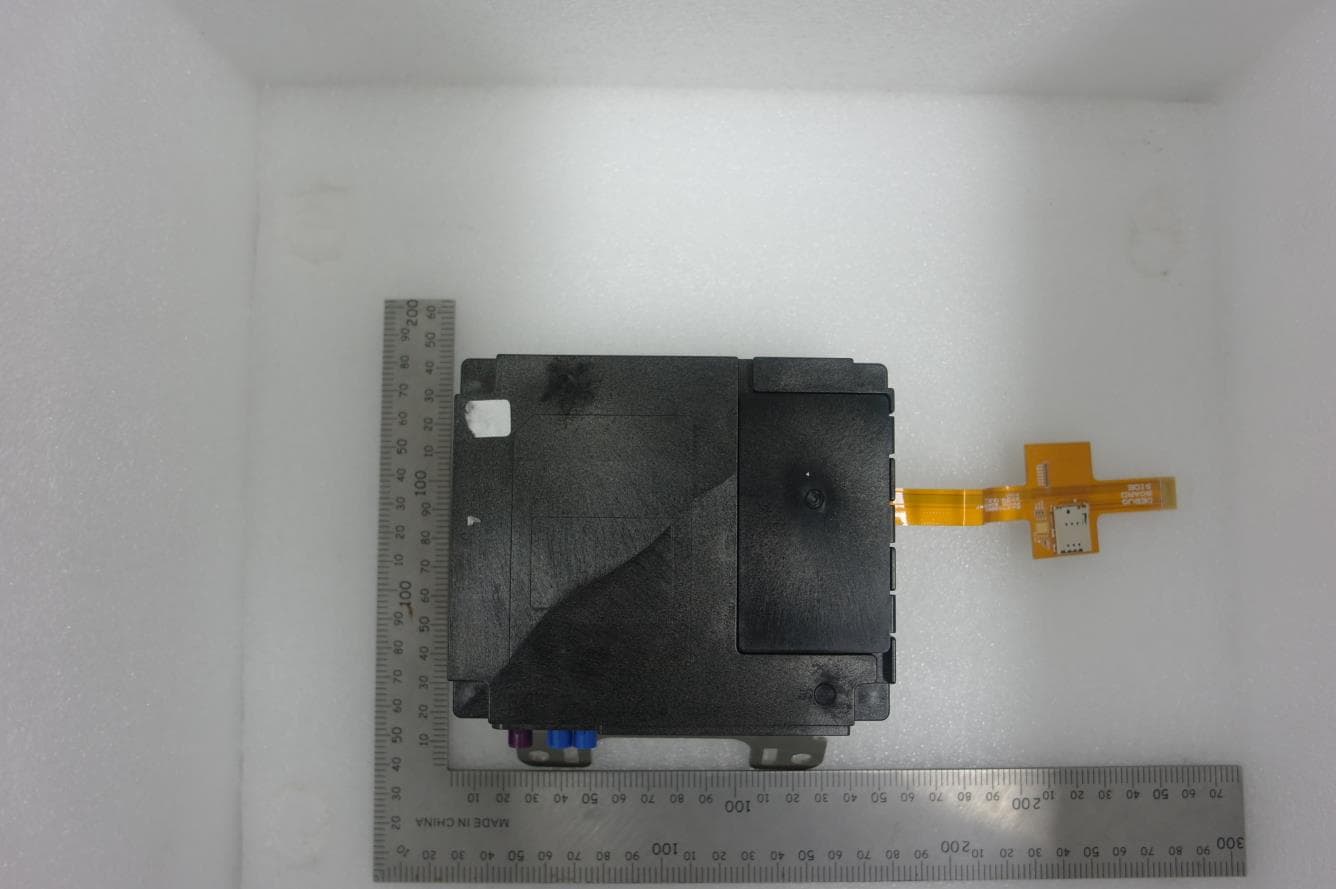
BEJTFHOBINI1F1
Jan 08, 2025Telematics
Equipment Class
DTS - Digital Transmission SystemBEJNT-16Z90TS
Oct 02, 2024Notebook Computer
Equipment Class
DSS - Part 15 Spread Spectrum TransmitterBEJSP-PEW8
Sep 26, 2024Stylus Pen
Equipment Class
DCD - Part 15 Low Power Transmitter Below 1705 kHzBEJ-RSMV2
Sep 24, 2024RF Module
Equipment Class
FDS - Part 15 Field Disturbance SensorBEJTFBMEIBN3EU
Sep 24, 2024Telematics
Equipment Class
NII - Unlicensed National Information Infrastructure TX