HD5950006Hand Held Computer with a 802.11b and Bluetooth
Honeywell International Inc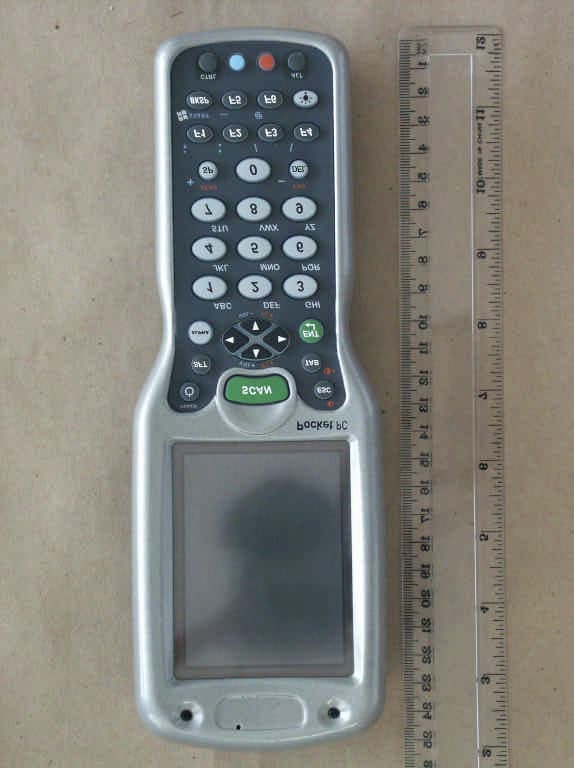
Click to zoom
Application Details
- Equipment Class
- DTS - Digital Transmission System
- Date of Grant
- Sep 11, 2003
- Application Purpose
- Original Equipment
- Date of Application
- Sep 11, 2003
- Equipment Note
- Hand Held Computer with a 802.11b and Bluetooth
- Frequency Range
- 2402.00000000 - 2480.00000000
- Company
- Honeywell International Inc
- Country
- United States
Documents & Files
Document Text
Text extracted from the exhibit documents filed with the FCC. Open a document above to read the original.
Users Manual
Dolphin® 9500/9550 Mobile Computer User’s Guide4 - 11 Input Panel Options The following graphics are the tab windows where you can customize the input panel to your preferences. Input Method tab Word Completion tab Options tab 4 - 12Dolphin® 9500/9550 Mobile Computer User’s Guide Writing on the Screen In any program that accepts writing, such as the Notes program, and in the Notes tab in Calendar, Contacts, and Tasks, you can use your stylus to write directly on the screen as you would on paper. You can edit and format what you’ve written and convert the information to text at a later time. To write on the screen, tap the Pen button to switch to writing mode. This action displays lines on the screen to help you write. Note:Some programs that accept writing may not have the Pen button. See the documentation for that program to find out how to switch to writing mode. To select writing If you want to edit or format writing, you must select it first. 1Tap and hold the stylus next to the text you want to select until the insertion point appears. 2Without lifting, drag the stylus across the text you want to select. If you accidentally write on the screen, tap Tools, then Undo and try again. You can also select text by tapping the Pen button to deselect it and then dragging the stylus across the screen. You can cut, copy, and paste written text in the same way you work with typed text: tap and hold the selected words and then tap an editing command on the pop-up menu, or tap the command on the Edit menu. Tap the Pen button and use your stylus like a pen. Dolphin® 9500/9550 Mobile Computer User’s Guide4 - 13 Convert Writing to Text To convert writing to text, tap Tools and then Recognize. If you want to convert only certain words, select them before tapping Recognize on the Tools menu (or tap and hold the selected words and then tap Recognize on the pop-up menu). If a word is not recognized, it is left as writing. Select the text you want to convert and tap Recognize on the pop-up menu. The writing is turned into text. 4 - 14Dolphin® 9500/9550 Mobile Computer User’s Guide Alternate words If the conversion is incorrect, you can select different words from a list of alternates or return to the original writing. To do so, tap and hold the incorrect word (tap one word at a time). On the pop-up menu, tap Alternates. A menu with a list of alternate words appears. Tap the word you want to use, or tap the writing at the top of the menu to return to the original writing. Tips for Getting Good Recognition • Write neatly. • Write on the lines and draw descenders below the line. Write the cross of the “t” and apostrophes below the top line so that they are not confused with the word above. Write periods and commas above the line. • For better recognition, try increasing the zoom level to 300% using the Tools menu. • Write the letters of a word closely and leave big gaps between words so that the device can easily tell where words begin and end. • Hyphenated words, foreign words that use special characters such as accents, and some punctuation cannot be converted. • If you add writing to a word to change it (such as changing a “3” to an “8”) after you attempt to recognize the word, the writing you add will not be included if you attempt to recognize the writing again. Or, tap the word you want to use. Tap to return to your original writing. Dolphin® 9500/9550 Mobile Computer User’s Guide4 - 15 Drawing on the Screen Drawing on the screen is similar to writing on the screen. The difference between writing and drawing on the screen is how you select items and how they can be edited. To create a drawing, cross three ruled lines on your first stroke. A drawing box appears. Subsequent strokes in or touching the drawing box become part of the drawing. Drawings that do not cross three ruled lines will be treated as writing. For example, selected drawings can be resized, while writing cannot. Note:You may want to change the zoom level so that you can more easily work on or view your drawing. Tap Tools and then a zoom level. Selecting a Drawing To edit or format a drawing, tap and hold the stylus on the drawing until the selection handle appears. To select multiple drawings, deselect the Pen button and then drag to select the drawings you want. You can cut, copy, and paste selected drawings by tapping and holding the selected drawing and then tapping an editing command on the pop-up menu, or by tapping the command on the Edit menu. To resize a drawing, make sure the Pen button is not selected, and drag a selection handle. The drawing box indicates the boundaries of the drawing. Pen button. 4 - 16Dolphin® 9500/9550 Mobile Computer User’s Guide Using My Text When using Inbox or MSN Messenger, use My Text to quickly insert preset or frequently used messages into the text entry area. To insert a message, tap My Text and tap a message. Note: You can add text after inserting a My Text message before sending it. To edit a My Text message, in the Tools menu, tap Edit and then tap My Text Messages. Select the message you wish to edit and make desired changes. Tap to select a prewritten message. Using My Text Dolphin® 9500/9550 Mobile Computer User’s Guide4 - 17 Today Screen When you turn on your device for the first time each day (or after 4 hours of inactivity), you’ll see the Today screen. You can also display it by tapping Start and then Today. On the Today screen, you can see at a glance important information for the day. Your day at a glance. Tap to create a new item. Tap to switch to a program. Tap to view notification messages. Tap to view connection status. Tap to change date and time. Tap to open an item. Tap to change volume or mute all sounds. Today Screen 4 - 18Dolphin® 9500/9550 Mobile Computer User’s Guide Status Icons Note: If more notification icons need to be displayed than there is room to display them, the Notification icon, , will display. Tap the icon to view all notification icons. Status IconMeaning Turn…
Text truncated - open the document above for the full version.
Users Manual
5 - 42Dolphin® 9500/9550 Mobile Computer User’s Guide 6Uncheck Wait for dial tone before dialing. Tap Finish. 7Now you are ready to start the connection. In the Connections screen, under Internet Settings, tap Connect. In Network Log On, verify the dialing settings. Tap OK. 8 ONLY FOR MOTOROLA TIMEPORT 270C OR NOKIA 3650/6310/7650/8910/8910i: a) After you tap Connect for the first time, the phone will display a message asking if you want to bond. On Motorola, enter GRANT; on Nokia, enter ACCEPT. b) Make up a 4-16 digit passkey, enter it on the phone, then enter it on the Dolphin 9500/9550. Note:The Bluetooth icon on the Today screen will blink to indicate a connection. c) After successfully bonding, you can set up the phone to automatically connect to your Dolphin 9500/9550 without requiring a passkey. Automatic Connections for Motorola Timeport 270C: • On the phone, press MENU. • Scroll to Settings, then press SELECT. • Scroll to Connection, then press ON. • On Bluetooth Link, press SELECT. • Scroll to Devices, then press SELECT. • Choose your mobile computer, then press EDIT. • Scroll to Access:Ask, then press CHANGE. • Scroll to Automatic, then press SELECT. Press DONE. Dolphin® 9500/9550 Mobile Computer User’s Guide5 - 43 Automatic Connections for Nokia 3650/7650: • On the phone, press MENU. • Scroll to Connectivity, then press Options. • The Open option should be highlighted. Press Select. • The Bluetooth option should be highlighted. Press Options. • The Open option should be highlighted. Press Select. • Scroll to the right tab to access the Paired devices list. Highlight your mobile computer, then press Options. • Scroll to Set as authorized, then press Select. • In the confirmation screen, press Yes. Automatic Connections for Nokia 6310/8910/8910i: • On the phone, press MENU. • Scroll to 10 Bluetooth, then press SELECT. • Scroll to 4 View Paired Devices, then press SELECT. • Highlight the Dolphin 9500/9550, then press OPTIONS. • Scroll to 3 Request Connection Authorization, then press NO. To use a different Bluetooth phone for dial-up networking, you can use the same connection setup, but you must make the new phone your favorite. Just run the Get Connected! Wizard again, select the new phone, and make it your new Favorite when prompted. Alternatively, you can use the Bluetooth Devices folder to change your favorite phone. Refer to Using the Dolphin 9500/9550 Mobile Computer beginning on page 4-1 for instructions. 5 - 44Dolphin® 9500/9550 Mobile Computer User’s Guide Dolphin® 9500/9550 Mobile Computer User’s Guide6 - 1 6 Customizing Your Dolphin 9500/9550 You can customize your Dolphin 9500/9550 by • adjusting device settings and • installing additional software. Adjusting Device Settings You can adjust device settings to suit the way you work. To see available options, tap Start > Settings > Personal or System tab located at the bottom of the screen. You might want to adjust the following: Clockto change the time or to set alarms Menusto customize what appears on the Start menu, and to enable a pop-up menu from the New button Owner Informationto enter your contact information Passwordto limit access to your device Powerto maximize battery life Todayto customize the look and the information that is displayed on the Today screen 6 - 2Dolphin® 9500/9550 Mobile Computer User’s Guide Installing additional software There are programs autoinstalled on your device when it is first booted up. For more information, see Autoinstall on page 2-10. You can install any program created for your device, as long as your device has enough memory to store it and the program has an *.exe, *.cab, or *.dll extension. The most popular place to find software for your device is on the Pocket PC Web site (http:// www.microsoft.com/mobile/pocketpc). To add programs using ActiveSync (v3.7 or higher) You install the appropriate software for your device on your desktop computer before installing it on your device. 1Determine your device and processor type so that you know which version of the software to install. Tap Start > Settings > System tab > About. The Version tab appears displaying the current information. 2On the Version tab, make a note of the information in the Processor section. 3Download the program to your desktop computer (or insert the CD or disk that contains the program into your desktop computer). You may see a single *.exe or setup.exe file, a *.cab file, or *.dll. There may also be several versions of files for different device types and processors. Be sure to select the program designed for the Pocket PC and your device processor type. 4Read any installation instructions, Read Me files, or documentation that comes with the program. Many programs provide special installation instructions. 5Connect your device and desktop computer. 6Double-click the *.exe file. If the file is an installer, the installation wizard will begin. Follow the directions on the screen. Once the software has been installed on your desktop computer, the installer will automatically transfer the software to your device. If the file is not an installer, you will see an error message stating that the program is valid but it is designed for a different type of computer. You will need to move this file to your device. If you cannot find any installation instructions for the program in the Read Me file or documentation, use ActiveSync Explore to copy the program file to the Program Files folder on your device. For more information on copying files using ActiveSync, see ActiveSync Help. Once installation is complete, tap Start > Programs, and then the program icon to switch to it. To add a program directly from the Internet Your device must have an internet connection. 1Determine your device and processor type so that you know which version of the software to install. Tap Start and then Settings. On the System tab, tap About. In the Version tab, make a note of the information in Processor. 2Download the program to your dev…
Text truncated - open the document above for the full version.
Users Manual
A - 4Dolphin® 9500/9550 Mobile Computer User’s Guide 43-Key Alpha/Numeric Keyboard Blue Key Functions and Characters Key CombinationFunction/Special Character Blue key + D- (minus) Blue key + H_ (underscore) Blue key + L= Blue key + P+ Blue key + Q; Blue key + R: Blue key + S* Blue key + T/ Blue key + U@ Blue key + X\ Blue key + Y START Dolphin® 9500/9550 Mobile Computer User’s GuideA - 5 Red Key Functions and Characters * Exit the mouse utility prior to adjusting the contrast. Key Combinations Use the key combinations listed below to access certain keyboard functions or to use special characters that are not defined on the 43-key version of the Dolphin 9500/9550 keyboard. Key CombinationFunction/Special Character Red key + ESCLightens Contrast* Red key + TABDarkens Contrast* Red key + SFTToggles on Caps Lock Red key + QF1 Red key + RF2 Red key + SF3 Red key + TF4 Red key + UF5 Red key + VF6 Red key + WF7 Red key + XF8 Red key + ZINS (insert) Red key + SPBKSP (backspace) Red key + BACKLIGHT KEYDEL (delete) Key/Key CombinationFunction/Special Character NUM + SFT + A! NUM + SFT + B@ NUM + SFT + C# NUM + SFT + E$ NUM + SFT + F% NUM + SFT + G^ NUM + SFT + I& NUM + SFT + J* NUM + SFT + K( NUM + SFT + M> NUM + SFT + N) NUM + SFT + O< A - 6Dolphin® 9500/9550 Mobile Computer User’s Guide Key combinations using Blue + SFT keys Miscellaneous key combinations Key/Key CombinationsFunction/Special Characters SFT + Blue + T? SFT + Blue + X| Key/Key CombinationsFunction/Special Characters NUM + ALT + 3 + 9*‘ NUM + ALT + 3 + 4* *Hold the ALT key down as you type in the numbers. “ Dolphin® 9500/9550 Mobile Computer User’s GuideA - 7 35 Key Numeric/Alpha Keyboard Blue Key Functions and Characters Key CombinationFunction/Special Character Blue key + .+ Blue key + ,- Blue key + F1; Blue key + F2: Blue key + F3/ Blue key + F4\ Blue key + SP+ Blue key + DEL- A - 8Dolphin® 9500/9550 Mobile Computer User’s Guide Key Combinations Use the key combinations listed below to access certain keyboard functions or to use special characters that are not defined on the 35-key version of the Dolphin keyboard. Key combinations using ALPHA + SFT Keys Miscellaneous Key Combinations Key/Key CombinationFunction/Special Character ALPHA + SFT + 1! ALPHA + SFT + 2@ ALPHA + SFT + 3# ALPHA + SFT + 4$ ALPHA + SFT + 5% ALPHA + SFT + 6^ ALPHA + SFT + 7& ALPHA + SFT + 8* ALPHA + SFT + 9( ALPHA + SFT + 0) Key/Key CombinationsFunction/Special Characters ALT + 3 + 9*‘ ALT + 3 + 4* *Hold the ALT key down as you type in the numbers. “ Dolphin® 9500/9550 Mobile Computer User’s GuideA - 9 56 Key Full Alpha Numeric Blue Key Functions and Characters Red Key Functions and Characters Key CombinationFunction/Special Character Blue key + .+ Blue key + ,- Blue key + A; Blue key + B@ Blue key + E_ Blue key + F: Key CombinationFunction/Special Character Red key + ESCLightens Contrast* Red key + TABDarkens Contrast* Red key + SFTToggles on Caps Lock Red key + AF1 Red key + BF2 Red key + CF3 Red key + DF4 A - 10Dolphin® 9500/9550 Mobile Computer User’s Guide * Exit the mouse utility prior to adjusting the contrast. Key Combinations Use the key combinations listed below to access certain keyboard functions or to use special characters that are not defined on the 56-key version of the Dolphin keyboard. Red key + EF5 Red key + FF6 Red key + GF7 Red key + HF8 Red key + IF9 Red key + JF10 Red key + KF11 Red key + LF12 Red key + MF13 Red key + NF14 Red key + OF15 Red key + PF16 Red key + QF17 Red key + RF18 Red key + SF19 Red key + TF20 Red key + UF21 Red key + VF22 Red key + WF23 Red key + XF24 Red key + YZ Key CombinationFunction/Special Character Dolphin® 9500/9550 Mobile Computer User’s GuideA - 11 Key Combinations Using SFT & Number Keys Miscellaneous Key Combinations Key/Key CombinationFunction/Special Character SFT + 1! SFT + 2@ SFT + 3# SFT + 4$ SFT + 5% SFT + 6^ SFT + 7& SFT + 8* SFT + 9( SFT + 0) SFT + . (period)> SFT + , (comma)< Key/Key CombinationsFunction/Special Characters ALT + 3 + 9*‘ ALT + 3 + 4* *Hold the ALT key down as you type in the numbers. “ A - 12Dolphin® 9500/9550 Mobile Computer User’s Guide Com Port Assignment Table Com Port Assignment Com Port 1Serial port. This is the 17-pin connector on the bottom panel of Dolphin 9500/9550 terminals. Com Port 2Bluetooth Module If there is no Bluetooth hardware installed on the terminal, this com port is unassigned. Com Port 3Raw Infrared Com Port 4GSM Module Com Port 5USB virtual serial port Com Port 6IrDA, if IrDA is enabled. If IrDA is disabled, this com port becomes available. Com Ports 7-9Unassigned. These are available for selection only when connecting to devices that use virtual com ports such as Bluetooth. ™ 95/9550/UG Rev A
External Photos
Registrationnumber : Registrationnumber : U9M20307-4896-T-47 ELECTRONIC TECHNOLOGY SYSTEMS DR. GENZ GMBH STORKOWER STR.38c, D-15526 REICHENWALDE B. BERLIN page 1 of 19 ELECTRONIC TECHNOLOGY SYSTEMS DR.GENZ GMBH Annex D Picture external Registrationnumber : Registrationnumber : U9M20307-4896-T-47 ELECTRONIC TECHNOLOGY SYSTEMS DR. GENZ GMBH STORKOWER STR.38c, D-15526 REICHENWALDE B. BERLIN page 2 of 19 ELECTRONIC TECHNOLOGY SYSTEMS DR.GENZ GMBH Registrationnumber : Registrationnumber : U9M20307-4896-T-47 ELECTRONIC TECHNOLOGY SYSTEMS DR. GENZ GMBH STORKOWER STR.38c, D-15526 REICHENWALDE B. BERLIN page 3 of 19 ELECTRONIC TECHNOLOGY SYSTEMS DR.GENZ GMBH Registrationnumber : Registrationnumber : U9M20307-4896-T-47 ELECTRONIC TECHNOLOGY SYSTEMS DR. GENZ GMBH STORKOWER STR.38c, D-15526 REICHENWALDE B. BERLIN page 4 of 19 ELECTRONIC TECHNOLOGY SYSTEMS DR.GENZ GMBH Registrationnumber : Registrationnumber : U9M20307-4896-T-47 ELECTRONIC TECHNOLOGY SYSTEMS DR. GENZ GMBH STORKOWER STR.38c, D-15526 REICHENWALDE B. BERLIN page 5 of 19 ELECTRONIC TECHNOLOGY SYSTEMS DR.GENZ GMBH Registrationnumber : Registrationnumber : U9M20307-4896-T-47 ELECTRONIC TECHNOLOGY SYSTEMS DR. GENZ GMBH STORKOWER STR.38c, D-15526 REICHENWALDE B. BERLIN page 6 of 19 ELECTRONIC TECHNOLOGY SYSTEMS DR.GENZ GMBH
ID Label/Location Info
I <0 ~ <C T- M 0 io ~ I~ I ! e ~~ tl~1 I~~I si~ 1ga~ 11;1 ;I~~ ~ili I~!.~ !i~11 I~ 8 w ro il ... ffi 2; I~ ~ (J w~ I~m i~~ i~ I~'; ~7.;.j ~ ~ ~- ~~ ~ ~ t? f'!O "-.. ~~ ~ .~.~ ~ 1 i * cn-I ; OU : m:I " ~Q. ~~ ": J:~ " ... a: Ow OJ: WO : ::>-1>- : -I~W . moC(a: .. .. ~ ~WW , Ut:::> ;'; :5J:-I ~ m~m ~cncnQ. 'cncnJ: ~WWJ: UU .. 000 a:a:Z Q.Q.::> ..wwO cnZZa: ..~f2f2~ U)-IZZU .!O««« OuQ.Q.m Z : ..0 a I r-- ~ ~ 0- Q.. « >cn Wz (l:0 ~~ ou 0- OLL Il)- mU a..W ~a.. zcn --I :s:~ ~ffi O'< w~ I 0° (l:Z a..« w"- u:) zU WW (l:- wO LL(l: WO (l:LL N .: , ~ I .- 1 « w :I: ~ ..J II.. ~d I ~ - ~ !~ ~ ~ ~ 8 w ::> -.oJ ~.a 8::: 10 . o-~ ~CX) -.oJ W-g ..50 i ~ ~ r0- C") i8 I~ ~Q.. ~ - i~ -- I; i ~ 2 i ~ ~ .. 8 .. I
RF Exposure Info
ELECTRONIC TECHNOLOGY SYSTEMS DR. GENZ GMBH TEST - REPORT SAR Compliance Test Report Test report no.: U9M20307-4896-S-1 SAR ELECTRONIC TECHNOLOGY SYSTEMSSTORKOWER STRASSE 38C, D-15526 REICHENWALDE B. BERLIN DR. GENZ GMBHPHONE +49-33631-888 00 FAX +49-33631-888 660 ETS Dr. Genz GmbH, GermanyRegistration number: U9M20307-4896-S-1Page 1 of 22 ELECTRONIC TECHNOLOGY SYSTEMS DR.GENZ GMBH TABLE OF CONTENTS 1General information 1.1Notes 1.2Testing laboratory 1.3Details of approval holder 1.4 Manufacturer 1.5Application details 1.6Test item 1.7Test results 1.8Test standards 2Technical test 2.1Summary of test results 2.2Test environment 2.3Test equipment utilized 2.4Definitions 2.5Measurement system description 2.6Test system specification 2.7Measurement procedure 2.8Reference points 2.9Test positions 2.10Measurement uncertainty 3Tissue and system verification 3.1Tissue verification 3.2System verification 4Test Results 5References 6Appendix ETS Dr. Genz GmbH, GermanyRegistration number: U9M20307-4896-S-1Page 3 of 22 ELECTRONIC TECHNOLOGY SYSTEMS DR.GENZ GMBH 1.2 Testing laboratory 1.2.1Location ELECTRONIC TECHNOLOGY SYSTEM DR. GENZ GMBH (ETS) Storkower Straße 38c D-15526 Reichenwalde b. Berlin Germany Telephone : +49 33631 888 00 Fax: +49 33631 888 660 1.2.2Details of accreditation status ACCREDITED TESTING LABORATORY DAR-REGISTRATION NUMBER: TTI-P-G 126/96 FCC FILED TEST LABORATORY REG. NO. 96970 BLUETOOTH QUALIFICATION TEST FACILITY (BQTF) ACCREDITED BY BLUETOOTH QUALIFICATION REVIEW BOARD INDUSTRY CANADA FILED TEST LABORATORY REG. NO. IC 3470 A2LA ACCREDITED Certificate Number 1983-01 1.3Details of approval holder Name: Hand Held Products, Inc. Street: 700 Visions Drive, PO Box 208 NY 13153-0208 Town: Skaneateles Falls, NY 13153-0208 Country: U.S.A. Telephone: +315 685 2931 Fax: +315 685 1210 Contact: Mr. Naveen Velagapudi Telephone: +315 685 2931 1.4Manufacturer: (if applicable) Name: Street: Town: Country: ETS Dr. Genz GmbH, GermanyRegistration number: U9M20307-4896-S-1Page 4 of 22 ELECTRONIC TECHNOLOGY SYSTEMS DR.GENZ GMBH 1.5Application details Date of receipt of application: 03.07.2003 Date of receipt of test item: 03.07.2003 Date of test: 04.08.2003 1.6Test item FCC ID: HD5950006 Description of test item: Hand Held Computer with 802.11b and BT radios Type identification: D9500-06 Brand Name: Hand Held Computer with 802.11b and BT radios Serial number: without;Identical prototype Device category: DTS (Digital Tranmission System) Technical data TX / RX Frequency range: 2400.0 - 2483.5 MHz Tested Frequency W-LAN: Ch.1 2412.0 MHz : Ch.6 2437.0 MHz : Ch.11 2462.0 MHz Tested Frequency Bluetooth: Ch.1 2402.0 MHz : Ch.6 2441.0 MHz : Ch.11 2478.0 MHz Max. Radiated RF output power: 16,75 dBm(47,3 mW) Power supply : 7,4 V DC rechargeable battery Antenna Tx: integral Antenna RX: integral Additional information: Tx and Rx. antenna are the same. The device is equipped with two transmitters (W-LAN and Bluetooth) therefore it was necessary to switch them both on for the SAR test in order to obtain the maximum SAR value. The measurements are carried out on three frequencies (low, middle and high) so that in this case both transmitter are adjusted to the appropriate frequency and are measured together. 1.7Test Results Max. SAR Measurement: 0.31 W/kg (averaged over 1 gram) This EUT has been shown to be capable of compliance for localized specific absorption rate (SAR) for uncontrolled environment/general population exposure limits specified in ANSI/IEEE Std. C95.1-1992 and had been tested in accordance with the measurement procedures specified in FCC/OET Bulletin 65 Supplement C (2001) and IEEE Std. 1528-200X (Draft 6.5, January 2002). ETS Dr. Genz GmbH, GermanyRegistration number: U9M20307-4896-S-1Page 5 of 22 ELECTRONIC TECHNOLOGY SYSTEMS DR.GENZ GMBH 1.8Test standards Standards: - IEEE Std. 1528-200X (Draft 6.5, January 2002) FCC Rule Part(s): - FCC OET Bulletin 65, Supplement C, Edition 01-01 2Technical test 2.1Summary of test results Applicable Configuration Handset (Head) Handset (Body) Headset (Head) Body Worn EquipmentX EUT complies with the RF radiation exposure limits of the FCC as shown by the SAR measurement results. These measurements are taken to simulate the RF effects exposure under worst-case conditions. The EUT complies with the requirements in respect to all parameters subject to the test. The test results and statements relate only to the item(s) tested. Please note that the absorption and distribution of electromagnetic energy in the body are very complex phenomena that depend on the mass, shape, and size of the body, the orientation of the body with respect to the field vectors, and the electrical properties of both the body and the environment. Other variables that may play a substantial role in possible biological effects are those that characterize the environment (e.g. ambient temperature, air velocity, relative humidity, and body insulation) and those that characterize the individual (e.g. age, gender, activity level, debilitation, or disease). Because innumerable factors may interact to determine the specific biological outcome of an exposure to electromagnetic fields, any protection guide shall consider maximal amplification of biological effects as a result of field-body interactions, environmental conditions, and physiological variables. [1] 2.2Test environment Room temperature: 21,8 -22,4 o C Liquid Temperature: :22,0-22,3 ° C Relative humidity content: 20 ...75 % Air pressure: 86 ...103 k P a Details of power supply: 7,4 V DC ETS Dr. Genz GmbH, GermanyRegistration number: U9M20307-4896-S-1Page 6 of 22 ELECTRONIC TECHNOLOGY SYSTEMS DR.GENZ GMBH 2.3Test equipment utilized No.Measurement device:Type:Manufacturer: ETS 0253Spectrum analyzerFSIQ 26Rohde & Schwarz ETS 0449Stäubli RobotRX90B LStäubli ETS 0450Stäubli Robot ControllerCS/MBs&pStäubli ETS 0451DASY 4 Measurement ServerSchmid & Partner ETS 0452Control PendantStäubli ETS 0453Compaq ComputerPentium IV, 2 GHz,Schmid & Partne…
Text truncated - open the document above for the full version.
Test Report
ELECTRONIC TECHNOLOGY SYSTEMS DR. GENZ GMBH COMPETENT BODY DAR-REGISTRATION NUMBER: BPT-ZE-026/96-00 ACCREDITED TESTING LABORATORY DAR-REGISTRATION NUMBER: TTI-P-G 126/96-30 TEST - REPORT FCC 15.247 Test report no.: U9M20307-4896-T-47 ELECTRONIC TECHNOLOGY SYSTEMS STORKOWER STR.38c D-15526 REICHENWALDE B. BERLIN DR. GENZ GMBH PHONE +49-33631-888-0 FAX +49-33631-888-660 Registrationnumber : U9M20307-4896-T-47 ELECTRONIC TECHNOLOGY SYSTEMS DR. GENZ GMBH STORKOWER STR.38c, D-15526 REICHENWALDE B. BERLIN page 2 of 29 ELECTRONIC TECHNOLOGY SYSTEMS DR.GENZ GMBH Table of Contents 1.0 GENERAL INFORMATION..........................................................................................................................................3 1.1. NOTES..................................................................................................................................................................................3 1.2. TESTING LABORATORY.....................................................................................................................................................4 1.2.1. Location.....................................................................................................................................................................4 1.2.2. Details of accreditation status................................................................................................................................4 2.0 SUMMARY OF TESTS....................................................................................................................................................5 3.0 GENERAL DESCRIPTION............................................................................................................................................6 3.1. PRODUCT DESCRIPTION....................................................................................................................................................6 3.2. RELATED SUBMITTAL(S) GRANTS..................................................................................................................................7 3.3. TEST METHODOLOGY.......................................................................................................................................................7 3.4. TEST FACILITY...................................................................................................................................................................7 4.0 SYSTEM TEST CONFIGURATION...........................................................................................................................8 4.1. SUPPORT EQUIPMENT AND DESCRIPTION.......................................................................................................................8 4.2. BLOCK DIAGRAM OF TEST SETUP...................................................................................................................................8 4.3. JUSTIFICATION...................................................................................................................................................................8 4.4. SOFTWARE EXERCISE PROGRAM.....................................................................................................................................9 4.5. MODE OF OPERATION DURING TEST..............................................................................................................................9 4.6. MODIFICATIONS.................................................................................................................................................................9 4.7. ADDITIONS, DEVIATIONS AND EXCLUSIONS FROM STANDARDS...............................................................................9 4.8. TEST ENVIRONMENT..........................................................................................................................................................9 4.9. TEST EQUIPMENT UTILIZED............................................................................................................................................10 5.0 MEASUREMENT RESULTS.......................................................................................................................................12 5.1. DSSS / FHSS SYSTEMS.................................................................................................................................................12 5.1.1. Maximum Peak Output Power (DSSS and FHSS)..........................................................................................12 5.1.2. Minimum 6 dB Bandwidth (DSSS)....................................................................................................................14 5.1.3. Maximum 20 dB Bandwidth (FHSS).................................................................................................................15 5.1.4. Carrier Frequency Separation (FHSS)...............................................................................................................16 5.1.5. Number of Hopping Frequencies (DSSS).........................................................................................................16 5.1.6. Dwell Time (FHSS).........................................…
Text truncated - open the document above for the full version.
Contact Information
Applicant
Cindy Jiang(Global Regulatory Compliance Manager)
Technical Contact
Hand Held Products, Inc.Andrew Okraski
[email protected]7049983893
7520 Independence Blvd · Charlotte, North Carolina · United States
Non-Technical Contact
Hand Held Products, Inc.Naveen Velagapudi
[email protected]315 685 2931
Test Firm
Eurofins Product Service GmbHRobert Kschiwan-Kaspar
Technical Specifications
| # | Rule Parts | Frequency Range | Power Output | Emission |
|---|---|---|---|---|
| 2 | 15C | 2.40 GHz - 2.48 GHz | 90.00 µW | 914KG7D |
Other Applications from Honeywell International Inc
HD5-CT47HFUHF
Aug 04, 2026A rugged accessory for the Honeywell CT47 mobile computer which enables HF and UHF reading. Reader is supplied from mobile computer CT47.
Equipment Class
DXX - Part 15 Low Power Communication Device TransmitterHD5CT47HFUHF
Aug 04, 2026A rugged accessory for the Honeywell CT47 mobile computer which enables HF and UHF reading. Reader is supplied from mobile computer CT47.
Equipment Class
DTS - Digital Transmission SystemHD5-8680IC
Jun 17, 2026Barcode Scanner
Equipment Class
DSS - Part 15 Spread Spectrum TransmitterHD5-CT70X1
Jan 26, 2026Mobile Computer
Equipment Class
CBE - Citizens Band End User DevicesHD5-1972
Dec 25, 2025Barcode Scanner
Equipment Class
DSS - Part 15 Spread Spectrum Transmitter