HV4CTH670Pen Tablet, Pen & Touch Tablet
Wacom Co Ltd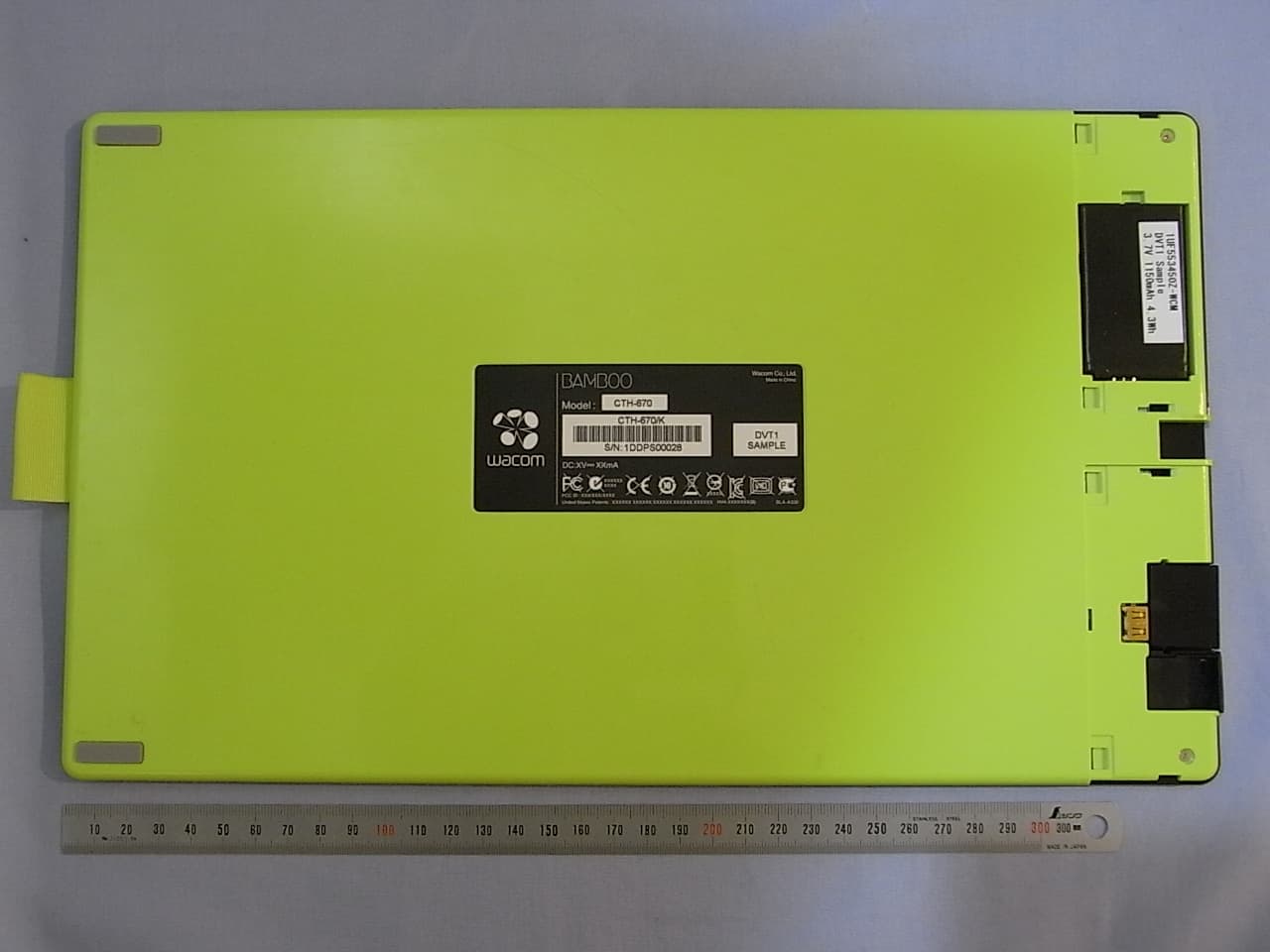
Click to zoom
Application Details
- Equipment Class
- DCD - Part 15 Low Power Transmitter Below 1705 kHz
- Date of Grant
- Jun 25, 2011
- Application Purpose
- Original Equipment
- Date of Application
- Jun 25, 2011
- Equipment Note
- Pen Tablet, Pen & Touch Tablet
- Frequency Range
- 0.66700000 - 0.66700000
- Company
- Wacom Co Ltd
- Country
- Japan
Documents & Files
Document Text
Text extracted from the exhibit documents filed with the FCC. Open a document above to read the original.
Users Manual
User’s manual Bamboo (CTH-470, CTH-670) Bamboo Pen (CTL-470) Setting up Navigating with touch Customizing touch Using the ExpressKeys Using a pen Customizing a pen Going Wireless Troubleshooting ContentsIndex Contents 1 Index 1 ContentsIndex Contents 2 Index 2 Bamboo TM User’s Manual Version 1.0, Rev F2011 Copyright © Wacom Co., Ltd., 2011 All rights reserved. No part of this manual may be reproduced except for your express personal use. Wacom reserves the right to revise this publication without obligation to provide notification of such changes. Wacom does its best to provide current and accurate information in this manual. However, Wacom reserves the right to change any specifications and product configurations at its discretion, without prior notice and without obligation to include such changes in this manual. The above year indicates when this manual was prepared. However, the date of release to the users of the “manual” is simultaneous with the introduction into the market of the applicable Wacom product. Bamboo is a trademark and Wacom is a registered trademark of Wacom Co., Ltd. Adobe and Photoshop are either registered trademarks or trademarks of Adobe Systems Incorporated in the United States and/or other countries. Microsoft, Windows, and Vista are either registered trademarks or trademarks of Microsoft Corporation in the United States and/or other countries. Apple, the Apple logo, and Mac are trademarks of Apple, Inc., registered in the U.S. and other countries. Any additional company and product names mentioned in this documentation may be trademarked and/or registered as trademarks. Mention of third-party products is for information purposes only and constitutes neither an endorsement nor a recommendation. Wacom assumes no responsibility with regard to the performance or use of these products. ExpressKey is a registered trademark of Ginsan Industries, Inc., and is used with permission. ContentsIndex Contents 3 Index 3 TABLE OF CONTENTS About the manual 5 YOUR BAMBOO 6 Identify your tablet model 6 Bamboo tablet 7 Bamboo Pen tablet 8 Pen 9 Pen holder 9 SETTING UP YOUR BAMBOO 10 Ergonomics 10 Configuring the tablet orientation 12 Understanding the tablet active area 13 Working with multiple monitors 15 Control panel basics 15 USING YOUR BAMBOO 16 The touch experience with Bamboo 16 Navigating with touch 17 Customizing touch 25 The pen experience with Bamboo 26 Holding the pen 26 Using the pen on the tablet 27 Positioning 27 Clicking 29 Dragging 29 Using the pen buttons 30 Writing and drawing with pressure sensitivity 31 Erasing 32 Eye-hand coordination exercise 33 Customizing pen input 33 Tablet controls 33 ExpressKey basics 34 Customizing the ExpressKeys 34 CUSTOMIZING YOUR BAMBOO 35 Opening the control panel 35 Control panel overview 36 Customize your touch experience 37 Setting the touch options 37 Setting the touch functions 38 Disabling touch 39 Customize your pen experience 40 Setting the tip and eraser feel, and double-click distance 41 Setting the pen button functions 42 Setting the tablet mapping 43 Portion of screen area 45 Portion of tablet area 45 Setting the pen speed in mouse mode 46 Customizing tablet and ExpressKey functions 47 Customizing the Pop-up Menu 48 Working with Display Toggle 49 Button functions 50 GOING WIRELESS WITH YOUR BAMBOO 55 Wireless accessory components 55 Wireless setup 56 Establishing a wireless connection 57 Optimizing the wireless connection 59 Battery and power management 60 Charging the battery 60 Battery and wireless connection status 61 Power saving features 62 Battery life information 63 Replacing the battery 64 Wireless module removal 65 Wireless receiver storage 65 ContentsIndex Contents 4 Index 4 PROBLEMS WITH YOUR BAMBOO? 66 Testing your tablet 67 Testing a pen 69 Troubleshooting tables 70 General problems 70 Touch input problems 71 Pen input problems 72 Wireless connection problems 74 Windows-specific problems 76 Mac-specific problems 77 Technical support options 79 Obtaining driver downloads 80 APPENDIX 81 Caring for Bamboo 81 Replacing the pen nib 82 Bamboo Dock 83 Uninstalling Bamboo 83 Managing preferences 84 Pen and digital ink capabilities in Windows 85 Product information 86 Ordering parts and accessories 87 Available parts and accessories 87 GLOSSARY 88 INDEX 91 ContentsIndex Contents 5 Index 5 ABOUT THE MANUAL This manual provides quick access to information about Bamboo. The information is common to Windows and Mac computers and Windows screen captures are shown, unless otherwise noted. •Go directly to table of contents or index topics by clicking on them. •Use the navigation controls to move through the manual. •You can use your .pdf viewer zoom-in tool to increase the size of the manual on your display screen. Most .pdf viewers include additional tools for using and printing the manual. See the viewer application help for more information. •S MALL CAPITAL LETTERS are used to identify the names of keyboard keys, dialog boxes, and control panel options. •Be sure to see also the Important Product Information guide for Bamboo, located on the Bamboo Installation CD. The guide includes product safety precautions, specifications, and your license agreement. •The following information is not included with this product: information about your specific computer hardware or operating system, or information about your application software. Your best source for this information is the set of manuals and discs that came with your hardware, operating system, or application. •Pen-equipped models: In addition to the built-in inking support found within Microsoft Windows 7 and Vista, many graphics applications also support pressure sensitivity and the pen eraser (when equipped). You can find a listing of applications that support these features on Wacom’s web site (see product information ). •For information on how best to use Bamboo features within a specific application, see the instructions in that application’s manuals. Note: Thi…
Text truncated - open the document above for the full version.
Users Manual
Important Product Information (CTH-470, CTH-670, CTL-470) Contents Contents 1 1 Precautions Product Specifications Disposal and Recycling information Regulatory Statement License and Warranty Contents Contents 2 2 Bamboo ® (CTH-470, CTH-670, CTL-470) Important Product Information Version 1.0 F0711 Copyright © Wacom Co., Ltd., 2011 All rights reserved. No part of this manual may be reproduced except for your express personal use. Wacom reserves the right to revise this publication without obligation to provide notification of such changes. Wacom does its best to provide current and accurate information in this manual. However, Wacom reserves the right to change any specifications and product configurations at its discretion, without prior notice and without obligation to include such changes in this manual. The above year indicates when this manual was prepared. However, the date of release to the users of the "manual" is simultaneous with the introduction into the market of the applicable Wacom product. Wacom and Bamboo are registered trademarks of Wacom Co., Ltd. Contents Contents 3 3 CONTENTS Precautions 4 Warning 4 Caution 5 Product Specifications 6 General Specifications 6 BAMBOO PEN TABLET CTL-470 6 BAMBOO Tablet CTH-470 7 BAMBOO Tablet CTH-670 7 PEN, FOR BAMBOO PEN TABLET MODEL LP-170 7 PEN, FOR BAMBOO TABLET MODEL LP-170E 7 Disposal and Recycling information 8 EU RoHS 8 TURKEY ROHS 8 WEEE 8 Regulatory Statement 9 FCC Notice 9 Industry Canada (Canada only) 9 CE Decralation 10 License and Warranty 11 Tablet Driver Software End User License Agreement 11 Tablet Driver Software End User License Agreement 16 Limited Warranty (U.S.A and Canada) 21 Limited Warranty (Central America, South America and the Caribbean) 23 Limited Warranty (Europe, Africa and Middle East) 25 Contents Contents 4 4 PRECAUTIONS WARNING If your product is used improperly there is a potential for accident or human injury. Prevent children from swallowing the pen nib or button part. The pen nib, button part, or other movable parts may accidentally be pulled out if children are biting on them. Small parts, such as the pen nib or nib refills, or pen button part can be removed and accidentally swallowed by children. Do not use the tablet in a facility control system that requires extremely high reliability. It may cause other electronic devices to malfunction, or other devices may cause the tablet to malfunction. Power off your tablet in locations where/when electronic devices are not allowed. Because the tablet may cause other electronic devices to malfunction in some locations where/when the use of electronic devices is not allowed, such as within an airplane, be sure to turn off the tablet by unplugging the USB connector of this product from your computer. Do not disassemble the tablet or pen (when equipped). Do not disassemble or otherwise modify the tablet or pen. Such action may cause heat generation, ignition, electrical shock, or other damage, including human injury. Disassembly of the product will void your warranty. Take note of damaged cabling. If you notice that your tablet cabling is torn or otherwise damaged, there is a potential for product malfunction, electrical shock, or fire. Stop using the product and contact your local distributor or the Wacom customer support center for your region. Do not expose this product to water or other liquids. Take care to never spill liquids onto the tablet or pen (when equipped). Exposing this product to water or other liquids may cause product malfunction or electrical shock. If the product is exposed to water or other liquids, unplug the USB connector. If your product is equipped with a power cord, unplug the cord from the wall outlet. Power down your computer. Then disconnect any other cables that may remain between the tablet and your computer. Stop using the product and contact your local distributor or the Wacom customer support center for your region. Do not insert foreign material into the USB plug end or any other opening of this product. If a metal object or foreign material is inserted into the USB plug or other opening of this product, it may cause the product to malfunction or burn out, or cause electrical shock. Contents Contents 5 5 Do not use any organic solvent (e.g. alcohol) or even mild detergent to clean the product and the pen. Use of these cleaners can damage the product. Damage of this kind is not covered by the manufacturer's warranty. Do not use or store this product where: •Temperature changes are severe or exceed specifications (e.g. outdoors or inside a vehicle). •Do not use the product in a dusty area. Do not place heavy articles on the cabling, repeatedly bend the cables sharply, or apply heavy stress to the cable connectors; this may damage the unit or cabling. Refrain from using this product during thunder or electrical storms. Using this product during thunder or electrical storms may cause product malfunction, fire, or electrical shock. CAUTION Do not place or use this product on an unstable surface or workspace. Do not place this product on a shaky, inclined, or vibrating surface. It may drop or fall off, causing damage to the product or human injury. When cleaning your tablet, power off the unit by unplugging the USB connector from between the tablet and your computer. Electrical shock may occur if you attempt to clean this product when it is connected to your computer. Further precautions regarding your tablet: •If equipped with a pen, do not apply heavy stress to the pen tip, eraser, or button part. It may shorten pen tip life or may cause the pen to malfunction. •If equipped with a pen and a distorted or bent pen nib is used, the pen tool may operate improperly. Therefore, do not apply excessive force when using the pen. •If equipped with a pen, using a pen nib other than one specifically designed by Wacom for your pen input tool may cause product malfunction. •When using the pen holder and to avoid damaging the pen (if equipped), …
Text truncated - open the document above for the full version.
External Photos
Wacom Co., Ltd. FCC ID: HV4CTH670 IC: 6888A-CTH670 Page 1 of 10 [CTL-470] Wacom Co., Ltd. FCC ID: HV4CTH670 IC: 6888A-CTH670 Page 2 of 10 Wacom Co., Ltd. FCC ID: HV4CTH670 IC: 6888A-CTH670 Page 3 of 10 [CTH-470] Wacom Co., Ltd. FCC ID: HV4CTH670 IC: 6888A-CTH670 Page 4 of 10 Note1: INF-A068 (Wireless Module, FCC ID: HV4INFA068) of Wireless Accessory Kit is connected with here. When the wireless is not used, the wireless module spacer is done. Note2: INF-A069 (Wireless Receiver, FCC ID: HV4INFA069) of Wireless Accessory Kit is stored with here. It doesn't connect with Pen Tablet electrically though it is stored here when not connected with PC. Note1 Note2 Wacom Co., Ltd. FCC ID: HV4CTH670 IC: 6888A-CTH670 Page 5 of 10 [CTH-670] Wacom Co., Ltd. FCC ID: HV4CTH670 IC: 6888A-CTH670 Page 6 of 10 Wacom Co., Ltd. FCC ID: HV4CTH670 IC: 6888A-CTH670 Page 7 of 10 [USB cable] *Accessory Note1: INF-A068 (Wireless Module, FCC ID: HV4INFA068) of Wireless Accessory Kit is connected with here. When the wireless is not used, the wireless module spacer is done. Note2: INF-A069 (Wireless Receiver, FCC ID: HV4INFA069) of Wireless Accessory Kit is stored with here. It doesn't connect with Pen Tablet electrically though it is stored here when not connected with PC. Note1 Note2 Wacom Co., Ltd. FCC ID: HV4CTH670 IC: 6888A-CTH670 Page 8 of 10 [LP-170] Wacom Co., Ltd. FCC ID: HV4CTH670 IC: 6888A-CTH670 Page 9 of 10 [LP-170E] Wacom Co., Ltd. FCC ID: HV4CTH670 IC: 6888A-CTH670 Page 10 of 10 [Li-ion Battery] *Option
ID Label/Location Info
Label Location Label Bottom side Label Location Label Bottom side Label Location Label Bottom side
Internal Photos
Wacom Co., Ltd. FCC ID: HV4CTH670 IC: 6888A-CTH670 Page 1 of 29 [CTL-470] Wacom Co., Ltd. FCC ID: HV4CTH670 IC: 6888A-CTH670 Page 2 of 29 Wacom Co., Ltd. FCC ID: HV4CTH670 IC: 6888A-CTH670 Page 3 of 29 Wacom Co., Ltd. FCC ID: HV4CTH670 IC: 6888A-CTH670 Page 4 of 29 Wacom Co., Ltd. FCC ID: HV4CTH670 IC: 6888A-CTH670 Page 5 of 29 Wacom Co., Ltd. FCC ID: HV4CTH670 IC: 6888A-CTH670 Page 6 of 29 Wacom Co., Ltd. FCC ID: HV4CTH670 IC: 6888A-CTH670 Page 7 of 29 [CTH-470] Wacom Co., Ltd. FCC ID: HV4CTH670 IC: 6888A-CTH670 Page 8 of 29 Wacom Co., Ltd. FCC ID: HV4CTH670 IC: 6888A-CTH670 Page 9 of 29 Wacom Co., Ltd. FCC ID: HV4CTH670 IC: 6888A-CTH670 Page 10 of 29 Wacom Co., Ltd. FCC ID: HV4CTH670 IC: 6888A-CTH670 Page 11 of 29 Wacom Co., Ltd. FCC ID: HV4CTH670 IC: 6888A-CTH670 Page 12 of 29 Wacom Co., Ltd. FCC ID: HV4CTH670 IC: 6888A-CTH670 Page 13 of 29 Wacom Co., Ltd. FCC ID: HV4CTH670 IC: 6888A-CTH670 Page 14 of 29 Wacom Co., Ltd. FCC ID: HV4CTH670 IC: 6888A-CTH670 Page 15 of 29 Wacom Co., Ltd. FCC ID: HV4CTH670 IC: 6888A-CTH670 Page 16 of 29
Internal Photos
Wacom Co., Ltd. FCC ID: HV4CTH670 IC: 6888A-CTH670 Page 17 of 29 [CTH-670] Wacom Co., Ltd. FCC ID: HV4CTH670 IC: 6888A-CTH670 Page 18 of 29 Wacom Co., Ltd. FCC ID: HV4CTH670 IC: 6888A-CTH670 Page 19 of 29 Wacom Co., Ltd. FCC ID: HV4CTH670 IC: 6888A-CTH670 Page 20 of 29 Wacom Co., Ltd. FCC ID: HV4CTH670 IC: 6888A-CTH670 Page 21 of 29 Wacom Co., Ltd. FCC ID: HV4CTH670 IC: 6888A-CTH670 Page 22 of 29 Wacom Co., Ltd. FCC ID: HV4CTH670 IC: 6888A-CTH670 Page 23 of 29 Wacom Co., Ltd. FCC ID: HV4CTH670 IC: 6888A-CTH670 Page 24 of 29 Wacom Co., Ltd. FCC ID: HV4CTH670 IC: 6888A-CTH670 Page 25 of 29 Wacom Co., Ltd. FCC ID: HV4CTH670 IC: 6888A-CTH670 Page 26 of 29 Wacom Co., Ltd. FCC ID: HV4CTH670 IC: 6888A-CTH670 Page 27 of 29 Wacom Co., Ltd. FCC ID: HV4CTH670 IC: 6888A-CTH670 Page 28 of 29 Wacom Co., Ltd. FCC ID: HV4CTH670 IC: 6888A-CTH670 Page 29 of 29
Test Report
Report number: Z071C-11041 Page 2 of 36 ZACTA Technology Corp. FCC ID: HV4CTH670 FCC 15C Rev.4.0 IC Certification Number: 6888A-CTH670 Table of contents Page 1. Summary of Test .................................................................................................................................................................. 4 1.1 Purpose of test .......................................................................................................................................................................... 4 1.2 Standards .................................................................................................................................................................................. 4 1.3 Summary of test results ........................................................................................................................................................... 4 1.4 Deviation from the standard .................................................................................................................................................... 4 1.5 Modification to the EUT by laboratory .................................................................................................................................. 4 2. Equipment description ......................................................................................................................................................... 5 2.1 General Description of equipment .......................................................................................................................................... 5 2.2 EUT information ...................................................................................................................................................................... 5 2.3 Operating mode ....................................................................................................................................................................... 5 3. Configuration information................................................................................................................................................... 6 3.1 EUT and Peripheral(s) used .................................................................................................................................................... 6 3.2 Cable(s) information ................................................................................................................................................................ 6 3.3 System configuration ............................................................................................................................................................... 7 4. Test Type and Results .......................................................................................................................................................... 8 4.1 99% Occupied Bandwidth ...................................................................................................................................................... 8 4.1.1 Test Procedure [ IC RSS-Gen 4.6.1 ] ............................................................................................................................. 8 4.1.2 Measurement Setup ........................................................................................................................................................... 8 4.1.3 Limit of Bandwidth at 99% Occupied Bandwidth ........................................................................................................... 8 4.1.4 Measurement Result .......................................................................................................................................................... 9 4.1.5 Trace Data ........................................................................................................................................................................ 10 4.2 Radiated Emissions (9kHz to 30MHz) ................................................................................................................................ 13 4.2.1 Test Procedure [ FCC 15.209, IC RSS-210 A2.2, RSS-Gen 4.9, 4.10, 4.11 ] ............................................................. 13 4.2.2 Measurement Setup ......................................................................................................................................................... 13 4.2.3 Limit of Spurious Emission Measurement ..................................................................................................................... 14 4.2.4 Calculation Method ......................................................................................................................................................... 14 4.2.5 Measurement Results ...................................................................................................................................................... 14 4.3 Radiated Emissions (30MHz to 1000MHz) ........................................................................................................................ 17 4.3.1 Test Procedure [ FCC 15.209, IC RSS-210 A2.2, RSS-Gen 4.9, 4.10, 4.11 ] ............................................................. 17 4.3.2 Measurement Setup ......................................................................................................................................................... 17 4.3.3 Limit of Spurious Emission Measurement ..................................................................................................................... 18 4.3.4 Calculation Method ......................................................................................................................................................... 18 4.3.5 Measurement Results .........................................................................................................................…
Text truncated - open the document above for the full version.
Test Setup Photos
Wacom Co., Ltd. FCC ID: HV4CTH670 IC: 6888A-CTH670 1 / 18 CTL-470 Pen: LP-170 Radiated Emission below 30MHz The photographs show maximized emission configuration. Wacom Co., Ltd. FCC ID: HV4CTH670 IC: 6888A-CTH670 2 / 18 Radiated Emission above 30MHz The photographs show maximized emission configuration. Wacom Co., Ltd. FCC ID: HV4CTH670 IC: 6888A-CTH670 3 / 18 Conducted Emission at mains port The photographs show maximized emission configuration. Wacom Co., Ltd. FCC ID: HV4CTH670 IC: 6888A-CTH670 4 / 18 CTL-470 Pen: LP-170E Radiated Emission below 30MHz The photographs show maximized emission configuration. Wacom Co., Ltd. FCC ID: HV4CTH670 IC: 6888A-CTH670 5 / 18 Radiated Emission above 30MHz The photographs show maximized emission configuration. Wacom Co., Ltd. FCC ID: HV4CTH670 IC: 6888A-CTH670 6 / 18 Conducted Emission at mains port The photographs show maximized emission configuration. Wacom Co., Ltd. FCC ID: HV4CTH670 IC: 6888A-CTH670 7 / 18 CTH-470 Pen: LP-170 Radiated Emission below 30MHz The photographs show maximized emission configuration. Wacom Co., Ltd. FCC ID: HV4CTH670 IC: 6888A-CTH670 8 / 18 Radiated Emission above 30MHz The photographs show maximized emission configuration. Wacom Co., Ltd. FCC ID: HV4CTH670 IC: 6888A-CTH670 9 / 18 Conducted Emission at mains port The photographs show maximized emission configuration. Wacom Co., Ltd. FCC ID: HV4CTH670 IC: 6888A-CTH670 10 / 18 CTH-470 Pen: LP-170E Radiated Emission below 30MHz The photographs show maximized emission configuration. Wacom Co., Ltd. FCC ID: HV4CTH670 IC: 6888A-CTH670 11 / 18 Radiated Emission above 30MHz The photographs show maximized emission configuration. Wacom Co., Ltd. FCC ID: HV4CTH670 IC: 6888A-CTH670 12 / 18 Conducted Emission at mains port The photographs show maximized emission configuration. Wacom Co., Ltd. FCC ID: HV4CTH670 IC: 6888A-CTH670 13 / 18 CTH-670 Pen: LP-170 Radiated Emission below 30MHz The photographs show maximized emission configuration. Wacom Co., Ltd. FCC ID: HV4CTH670 IC: 6888A-CTH670 14 / 18 Radiated Emission above 30MHz The photographs show maximized emission configuration. Wacom Co., Ltd. FCC ID: HV4CTH670 IC: 6888A-CTH670 15 / 18 Conducted Emission at mains port The photographs show maximized emission configuration. Wacom Co., Ltd. FCC ID: HV4CTH670 IC: 6888A-CTH670 16 / 18 CTH-670 Pen: LP-170E Radiated Emission below 30MHz The photographs show maximized emission configuration. Wacom Co., Ltd. FCC ID: HV4CTH670 IC: 6888A-CTH670 17 / 18 Radiated Emission above 30MHz The photographs show maximized emission configuration. Wacom Co., Ltd. FCC ID: HV4CTH670 IC: 6888A-CTH670 18 / 18 Conducted Emission at mains port The photographs show maximized emission configuration.
Contact Information
Applicant
Koichi Yokoyama(Senior Director, Quality Assurance)
Test Firm
TUV SUD Zacta Ltd.Katsumi Sumiyoshi
Technical Specifications
| # | Rule Parts | Frequency Range | Power Output |
|---|---|---|---|
| 1 | 15C | 0.667 MHz - 0.667 MHz | - |
Other Applications from Wacom Co Ltd
HV4CTK6120
Aug 19, 2026Pen Tablet
Equipment Class
DCD - Part 15 Low Power Transmitter Below 1705 kHzHV4STU540A
May 12, 2026LCD SIGNATURE PAD
Equipment Class
DCD - Part 15 Low Power Transmitter Below 1705 kHzHV4DTHA140
Sep 16, 2025Portable Pad
Equipment Class
DTS - Digital Transmission SystemHV4PTK470
Oct 10, 2024Creative Pen Tablet
Equipment Class
DTS - Digital Transmission SystemHV4PTK870
Oct 10, 2024Creative Pen Tablet
Equipment Class
DCD - Part 15 Low Power Transmitter Below 1705 kHz