HV4DTK1300LCD TABLET
Wacom Co Ltd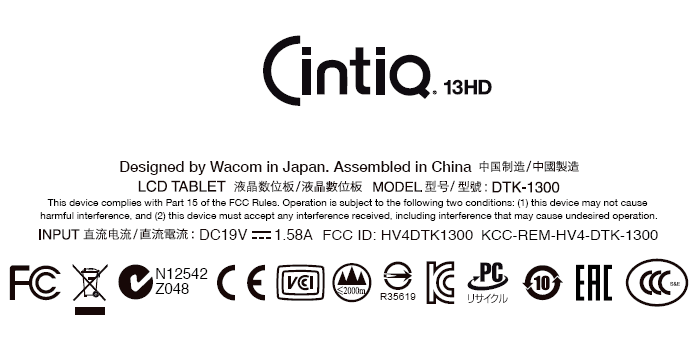
Click to zoom
Application Details
- Equipment Class
- DCD - Part 15 Low Power Transmitter Below 1705 kHz
- Date of Grant
- Mar 03, 2013
- Application Purpose
- Original Equipment
- Date of Application
- Mar 03, 2013
- Equipment Note
- LCD TABLET
- Frequency Range
- 0.66700000 - 0.66700000
- Company
- Wacom Co Ltd
- Country
- Japan
Documents & Files
Document Text
Text extracted from the exhibit documents filed with the FCC. Open a document above to read the original.
Users Manual
1 1 Important Product Information (DTK-1300) Precautions Wacom Cintiq 13HD Specifications Disposal and Recycling Information Regulatory Statement License and Warranties PRECAUTIONS PRECAUTIONS ON USE AND HANDLING To ensure the safe operation of the product, be sure to follow all instructions, cautions, and warnings found within this guide. Failure to do so could cause damage to the product , damage to your computer, or loss of data. Failure to do so could also void your warranty, in which case Wacom shall have no responsibility to repair or replace the product. PHYSICAL LOCATION WARNING The product is solely for normal office environments but may be used also as center consoles in climate controlled environments. The product was tested by Wacom for the usage in a normal office environment only and there was no particular inspection with regards to its compatibility in medical and military application areas. In addition, the interactive product is neither waterproofed nor explosion resistant. It serves and can be used solely as a passive display and input device. In all applications that are not designated for its sole usage, no information on the functionality and possible malfunctions of the interactive product can be supplied due to inadequate execution of tests. The adoption of the interactive product in other application areas than normal office environments is at the user’s risk. CAUTION Temperature and humidity •Operating temperature and humidity: 5°C to 40°C, 30% to 80% RH •Storage temperature and humidity: -20°C to 60°C, 30% to 90% RH Do not use or store the product where: •Temperature changes are severe or exceed specifications (e.g. outdoors or inside a vehicle). •The product, the pen, and the product stand are exposed to direct sunlight or heat from an appliance, or are exposed to water or any other kind of liquid. Do not use the product in a dusty environment; this may damage it. USAGE WARNING Only use a power adapter specified for use with the product. If a different type of power adapter is used, the product will not work properly or may be damaged. Using a different type of power adapter also has the potential to result in fire. Use of a different power adapter will void your warranty. Regularly remove dust build-up from the power plug. The addition of moisture, etc., to accumulated dust may create a fire hazard. Do not damage, forcibly bend, or bundle the power cord. Do not place heavy objects on the cord or expose it to excessive heat. Ignoring this warning may result in fire, electrical shock, or product failure. Do not connect or disconnect the power adapter with wet hands. Ignoring this warning may result in electrical shock or product malfunction. Do not insert foreign material into the USB port, video connector ports, or any other opening of the product. If a metal object or foreign material is inserted into a port or other opening of the product, it may cause product malfunction, fire, or electrical shock. CAUTION Do not connect or disconnect the cable or power cables while the product or your computer is turned on; this may damage the display or computer video card. In this case, Wacom shall have no responsibility to repair or replace the product. The product is for use with HDMI. Using an inappropriate HDMI cable may damage the product. Set up the AC adaptor and the product in a well-ventilated place. If used in a poorly ventilated place it may overheat and cause it to malfunction, decreasing the product life cycle. When not using the product for long periods of time, unplug the power adapter from the AC outlet. Take care of the following points to protect the health of your eyes when using the product: •When using the product, only use it in a well lit room and view the display from a suitable distance. •Take regular breaks when using the product for extended periods of time. 2 2 Take care of the following points in regards to the LCD display. Do not push down forcibly with the pen on the LCD display. Pushing down forcibly on the display may cause ripple like striped patterns to temporarily appear on the display (the ripples disappear when you stop pushing down with the pen). The following conditions are characteristics of LCD displays and do not indicate damage or malfunction to the product. •Depending on the displayed contents, uneven brightness may be produced. •Depending on the displayed contents, a small portion of lit and unlit red or blue dots may be visible. •When displaying objects with delicate patterns, flicker or striped patterns may be produced. •After displaying the same still image for an extended period of time, a residual image may be produced. (Residual images will gradually disappear over time.) •Changes to the condition of the back light over the period of using the display will gradually affect the condition of the display. •Depending on the angle that from which the display is viewed, the colors and hues may appear changed. HANDLING WARNING High Voltage. Do not open or disassemble the product. There is a risk of electrical shock when the casing is open. This will also void your warranty and Wacom shall have no responsibility to repair or replace the product. Ensure that cabling or other objects do not get entangled in the moving parts of the stand. Do not place the product on any wet surface or table. The product may slip, allowing the product to fall from the surface. When moving the product, ensure all cables are fully disconnected from the power outlet, computer, and other areas. Appropriately bundle the cables to ensure they do not hang free and create a hazard. Tripping over loose cables can cause physical damage or personal injury. Do not place the product on any unsteady surface or table. Do not place it on slanted areas, unstable areas, or areas where vibration is present.Physical damage or personal injury may result if the product falls from an unsuitable surface. Do not sit on, or hang from, the table or other surface where the pr…
Text truncated - open the document above for the full version.
Users Manual
User’s manual ContentsIndex Contents 1 Index 1 Setting up your Cintiq Calibrating the Cintiq Working with multiple monitors Customizing the pen Using the ExpressKeys, Rocker ring and Home button Using and customizing the Radial Menu Application-specific settings Care and maintenance Troubleshooting Technical support options ContentsIndex Contents 2 Index 2 Contents 2 Index Cintiq 13HD User’s Manual Version 1.0, Rev C0413 Copyright © Wacom Co., Ltd., 2013 All rights reserved. No part of this manual may be reproduced except for your express personal use. Wacom reserves the right to revise this publication without obligation to provide notification of such changes. Wacom does its best to provide current and accurate information in this manual. However, Wacom reserves the right to change any specifications and product configurations at its discretion, without prior notice and without obligation to include such changes in this manual. The above year indicates when this manual was prepared. However, the date of release to the users of the “manual” is simultaneous with the introduction into the market of the applicable Wacom product. Cintiq and Wacom are registered trademarks of Wacom Co., Ltd. Adobe and Photoshop are either registered trademarks or trademarks of Adobe Systems Incorporated in the United States and/or other countries. Microsoft and Windows are either registered trademarks or trademarks of Microsoft Corporation in the United States and/or other countries. Apple, the Apple logo, and Mac are trademarks of Apple, Inc., registered in the U.S. and other countries. Any additional company and product names mentioned in this documentation may be trademarked and/or registered as trademarks. Mention of third-party products is for informational purposes only and constitutes neither an endorsement nor a recommendation. Wacom assumes no responsibility with regard to the performance or use of these products. ExpressKey is a registered trademark of Ginsan Industries, Inc., and is used with permission. Front cover image courtesy of www.daniellieske.com ContentsIndex Contents 3 Index 3 Contents 3 Index ABOUT THE MANUAL This manual provides quick access to information about your Cintiq. The information is common to Windows and Mac computers. Windows screen captures are shown unless otherwise noted. •Go directly to table of contents or index topics by clicking on them. •Use the navigation controls to move through the manual. •Use your .pdf viewer zoom-in tool to increase the size of the manual on your screen. See the viewer application help for information on any additional tools that help you use and print the manual. •S MALL CAPITAL LETTERS are used to identify the names of keyboard keys, dialog boxes, and control panel options. •Be sure to see also the Important Product Information (IPI) guide for Cintiq, located on the Installation CD. The guide includes product safety precautions, specifications, and your license agreement. •The following information is not included with this product: information about your specific computer hardware or operating system, or information about your application software. Your best source for this information is the set of manuals and discs that came with your hardware, operating system, or application. Wacom’s philosophy is to continually improve all of its products. As a result, engineering changes and improvements are made from time to time. Therefore, some changes, modifications, and improvements may not be covered in this manual. Go to front page. Go to table of contents.Page back, or page forward. Go to index.Go back to previous view. Contents Index ContentsIndex 4 Contents 4 Index SETTING UP YOUR CINTIQ Your Cintiq 13HD interactive pen display can be used while lying flat on your desk or lap, or it can be placed in one of three different inclined positions to accommodate your work preferences. The Cintiq and supplied accessories are shown below. Carefully unpack and place all items on a level, stable surface. Save the packing materials and package box for use when shipping or storing Cintiq. •Remove any packing materials from the back of the Cintiq and the cabling. •After unpacking, inventory the items and ensure the box contents are complete. Note: Some configurations may include additional CDs or DVDs containing application software. To install, see the instructions for those CDs or DVDs. Before installing, take some time to learn about your Cintiq. See Getting to know your Cintiq. Cintiq13HD interactive pen display Pen, with personalization rings To personalize, unscrew the tip cone and replace the ring with a preferred color. Quick Start Guide Warranty card included with some configurations. Installation CD Includes the software driver and Important Product Information guide. AC power adapter and cable Pen case, replacement nibs and nib extraction tool Note: Some configurations do not include all shown items. Check the product listing. Plug for AC power adapter Pen stand 3-in-1 cable ContentsIndex Contents 5 Index 5 CINTIQ LOCATION Select a location on your desktop or other work surface that is level and stable. Make sure the surface is flat, clean, and dry. Note: If you place the Cintiq face-down for any reason, use a soft, clean cloth or pad under the front of the display to make sure it will not be damaged through contact with another surface. ADJUSTING THE DISPLAY INCLINE You can adjust the Cintiq’s height and incline to best meet your needs. You can use the Cintiq flat on the desk in front of you, or in one of three different inclined positions. To set the display incline or viewing angle: •Place the Cintiq on a desk, table, or other stable surface. •Locate the stands for the three available inclined positions and the slot for the stand on the back of your Cintiq. •Decide which of the inclined positions you want to use. Refer to Setting up your Cintiq , or the Quick Start Guide you received with your Cintiq, to see the inclined positions. •Hold the…
Text truncated - open the document above for the full version.
External Photos
APPENDIX I - Page 1 of 23 Audix Technology (Wujiang) Co., Ltd. EMC Dept. Report No.: ACWE-F1301003 Figure 1 General Appearance (Front View) Figure 2 General Appearance (Back View) APPENDIX I - Page 2 of 23 Audix Technology (Wujiang) Co., Ltd. EMC Dept. Report No.: ACWE-F1301003 Figure 3 Label (For FCC ID) Figure 4 Label (For FCC IC ID) APPENDIX I - Page 3 of 23 Audix Technology (Wujiang) Co., Ltd. EMC Dept. Report No.: ACWE-F1301003 Figure 5 General Appearance (I/O Ports)
ID Label/Location Info
ratio: 1:1 scale Designed by Wacom in Japan. Assembled in China This device complies with Part 15 of the FCC Rules. Operation is subject to the following two conditions: (1) this device may not cause harmful interference, and (2) this device must accept any interference received, including interference that may cause undesired operation. DC19V1.58A FCC ID: HV4DTK1300KCC-REM-HV4-DTK-1300 R35619 N12542 Z048
Internal Photos
APPENDIX I - Page 4 of 25 Audix Technology (Wujiang) Co., Ltd. EMC Dept. Report No.: ACWE-F1301003 Figure 6 Cover Remove & EMI solution Figure 7 Internal View APPENDIX I - Page 5 of 25 Audix Technology (Wujiang) Co., Ltd. EMC Dept. Report No.: ACWE-F1301003 Figure 8 Conduction Cloth Figure 9 Conduction Cloth APPENDIX I - Page 6 of 25 Audix Technology (Wujiang) Co., Ltd. EMC Dept. Report No.: ACWE-F1301003 Figure 10 Conduction Cloth Figure 11 Conduction Cloth APPENDIX I - Page 7 of 25 Audix Technology (Wujiang) Co., Ltd. EMC Dept. Report No.: ACWE-F1301003 Figure 12 Conduction Cloth Figure 13 Gasket APPENDIX I - Page 8 of 25 Audix Technology (Wujiang) Co., Ltd. EMC Dept. Report No.: ACWE-F1301003 Figure 14 Gasket Figure 15 Gasket APPENDIX I - Page 9 of 25 Audix Technology (Wujiang) Co., Ltd. EMC Dept. Report No.: ACWE-F1301003 Figure 16 Conduction Cloth Figure 17 Conduction Cloth APPENDIX I - Page 10 of 25 Audix Technology (Wujiang) Co., Ltd. EMC Dept. Report No.: ACWE-F1301003 Figure 18 Conduction Cloth Figure 19 Conduction Cloth APPENDIX I - Page 11 of 25 Audix Technology (Wujiang) Co., Ltd. EMC Dept. Report No.: ACWE-F1301003 Figure 20 I/O Board#1 (Wacom/ PWB-B779, Component Side) Figure 21 I/O Board#1 (Wacom/ PWB-B779, Solder Side) APPENDIX I - Page 12 of 25 Audix Technology (Wujiang) Co., Ltd. EMC Dept. Report No.: ACWE-F1301003 Figure 22 I/O Board#1 (Wacom/ PWB-B779, Crystal oscillator) Figure 23 I/O Board#1 (Wacom/ PWB-B779, Crystal oscillator) APPENDIX I - Page 13 of 25 Audix Technology (Wujiang) Co., Ltd. EMC Dept. Report No.: ACWE-F1301003 Figure 24 I/O Board#2 (Wacom/K2_SWB, Component Side) Figure 25 I/O Board#2 (Wacom/K2_SWB, Solder Side) APPENDIX I - Page 14 of 25 Audix Technology (Wujiang) Co., Ltd. EMC Dept. Report No.: ACWE-F1301003 Figure 26 Main Board (Component Side) Figure 27 Main Board (Solder Side) APPENDIX I - Page 15 of 25 Audix Technology (Wujiang) Co., Ltd. EMC Dept. Report No.: ACWE-F1301003 Figure 28 Gasket Figure 29 Gasket APPENDIX I - Page 16 of 25 Audix Technology (Wujiang) Co., Ltd. EMC Dept. Report No.: ACWE-F1301003 Figure 30 I/O Ports Figure 31 Crystal oscillator APPENDIX I - Page 17 of 25 Audix Technology (Wujiang) Co., Ltd. EMC Dept. Report No.: ACWE-F1301003 Figure 32 Crystal oscillator Figure 33 Crystal oscillator APPENDIX I - Page 18 of 25 Audix Technology (Wujiang) Co., Ltd. EMC Dept. Report No.: ACWE-F1301003 Figure 34 Internal View Figure 35 LCD Panel (Frame Removed) APPENDIX I - Page 19 of 25 Audix Technology (Wujiang) Co., Ltd. EMC Dept. Report No.: ACWE-F1301003 Figure 36 LCD Panel Figure 37 EMR Sensor (Front View) APPENDIX I - Page 20 of 25 Audix Technology (Wujiang) Co., Ltd. EMC Dept. Report No.: ACWE-F1301003 Figure 38 EMR Sensor (Back View) Figure 39 LCD Panel (Label) APPENDIX I - Page 21 of 25 Audix Technology (Wujiang) Co., Ltd. EMC Dept. Report No.: ACWE-F1301003 Figure 40 Touch Pen(Front View) Figure 41 Touch Pen(Side View) APPENDIX I - Page 22 of 25 Audix Technology (Wujiang) Co., Ltd. EMC Dept. Report No.: ACWE-F1301003 Figure 42 Touch Pen(Internal View)
Test Report
Page 1 of 23 Audix Technology (Wujiang )Co., Ltd. EMC Dept. Report No.: F1301003 APPLICATION FOR CERTIFICATION On Behalf of Wacom Co., Ltd. LCD Tablet Model No. : DTK-1300 Brand : Wacom FCC ID : HV4DTK1300 IC Certification Number : 6888A-DTK1300 Prepared for Wacom Co., Ltd. 2-510-1, Toyonodai, kazo-shi, Saitama, 349-1148 Japan Prepared by Audix Technology (Wujiang) Co., Ltd. EMC Dept. No. 1289 Jiangxing East Road, the Part of Wujiang Economic Development Zone Jiangsu China 215200 Tel : +86-512-63403993 Fax :+86-512-63403339 Report Number : ACWE-F1301003 Date of Test : Dec. 29, 2012 ~Jan.21, 2013 Date of Report : Feb.01, 2013 Page 2 of 23 Audix Technology (Wujiang )Co., Ltd. EMC Dept. Report No.: F1301003 TABLE OF CONTENTS Description Page TEST REPORT CERTIFICATION .......................................................................................................4 1. SUMMARY OF STANDARDS AND RESULTS .......................................................................4 1.1. Description of Standards and Results ..................................................................................................... 4 2. GENERAL INFORMATION.......................................................................................................5 2.1. Description of Device (EUT).................................................................................................................. 5 2.2. EUT’s Configuration .............................................................................................................................. 5 2.3. Operating Condition of EUT .................................................................................................................. 6 2.4. Tested Supporting System Details .......................................................................................................... 6 2.5. Description of Test Facility .................................................................................................................... 7 2.6. Measurement Uncertainty....................................................................................................................... 7 3. CONDUCTED EMISSION MEASUREMET ............................................................................8 3.1. Test Equipment ....................................................................................................................................... 8 3.2. Block Diagram of Test Setup.................................................................................................................. 8 3.3. Power line Conducted Emission Limit (RSS 210 Issue 8/FCC Part15) ................................................. 9 3.4. Test Procedure ........................................................................................................................................ 9 3.5. Conducted Emission Measurement Results............................................................................................ 9 4. RADIATED EMISSION MEASUREMENT ............................................................................12 4.1. Test Equipment ..................................................................................................................................... 12 4.2. Block Diagram of Test Setup................................................................................................................ 12 4.3. Radiated Emission Limits (FCC Part15 Subpart section 15.209,CISPR22; For 9kHz~30MHz) ......... 14 4.4. Radiated Emission Limits (FCC Part15 Subpart section 15.209,CISPR22; For 30MHz~1000MHz) . 14 4.5. Test Method .......................................................................................................................................... 14 4.6. Measurement Results ............................................................................................................................ 15 5. 99% BANDWIDTH MEASUREMENT....................................................................................19 5.1. Test Equipment ..................................................................................................................................... 19 5.2. Block Diagram of Test Setup................................................................................................................ 19 5.3. Limit of Bandwidth at 99% Occupied Bandwidth................................................................................ 19 5.4. Test Procedure ...................................................................................................................................... 19 5.5. Test Results........................................................................................................................................... 19 6. DEVIATION TO TEST SPECIFICATIONS ...........................................................................21 7. PHOTOGRAPHS OF MEASUREMENT.................................................................................22 7.1. Photos of conducted emissions test ...................................................................................................... 22 7.2. Photos of radiated emissions below 30MHz......................................................................................... 22 7.3. Photos of radiated emissions 30MHz-1000MHz .................................................................................. 23 7.4. Photos of 99% bandwidth measurement............................................................................................... 23 APPENDIX I Photos of EUT APPENDIX II Conducted Emission Pre-Scanned Data at Conducted Shielding Enclosure APPENDIX III Radiated Emission Pre-Scanned Data at 10m Semi-Anechoic Chamber Page 4 of 23 Audix Technology (Wujiang )Co., Ltd. EMC Dept. Report No.: F1301003 1. SUMMARY OF STANDARDS AND RESULTS 1.1. Description of Standards and Results The EUT have been tested according to the applicable standards as refere…
Text truncated - open the document above for the full version.
Test Setup Photos
Page 21 of 22 Audix Technology (Wujiang) Co., Ltd. EMC Dept. Report No.: F1301003 7. PHOTOGRAPHS OF MEASUREMENT 7.1. Photos of conducted emissions test 7.2. Photos of radiated emissions below 30MHz Page 22 of 22 Audix Technology (Wujiang) Co., Ltd. EMC Dept. Report No.: F1301003 7.3. Photos of radiated emissions 30MHz-1000MHz 7.4. Photos of 99% bandwidth measurement
Contact Information
Applicant
Koichi Yokoyama(Senior Director, Quality Assurance)
Technical Contact
Audix Techology (Wujiang)Co.,Ltdjingo lin
[email protected]86-512-63403993
No.1289,JiangXing East Road, The Eastem part · Wujiang · China
Non-Technical Contact
Audix Techology (Wujiang)Co.,LtdAllen Wang
[email protected]86-512-63403993
Test Firm
Audix Technology(WuJiang)Co.,LtdAllen Wang
Technical Specifications
| # | Rule Parts | Frequency Range | Power Output |
|---|---|---|---|
| 1 | 15C | 0.667 MHz - 0.667 MHz | - |
Other Applications from Wacom Co Ltd
HV4CTK6120
Aug 19, 2026Pen Tablet
Equipment Class
DCD - Part 15 Low Power Transmitter Below 1705 kHzHV4STU540A
May 12, 2026LCD SIGNATURE PAD
Equipment Class
DCD - Part 15 Low Power Transmitter Below 1705 kHzHV4DTHA140
Sep 16, 2025Portable Pad
Equipment Class
DTS - Digital Transmission SystemHV4PTK470
Oct 10, 2024Creative Pen Tablet
Equipment Class
DTS - Digital Transmission SystemHV4PTK870
Oct 10, 2024Creative Pen Tablet
Equipment Class
DCD - Part 15 Low Power Transmitter Below 1705 kHz