HV4PTH650Pen Tablet, Pen & Touch Tablet
Wacom Co Ltd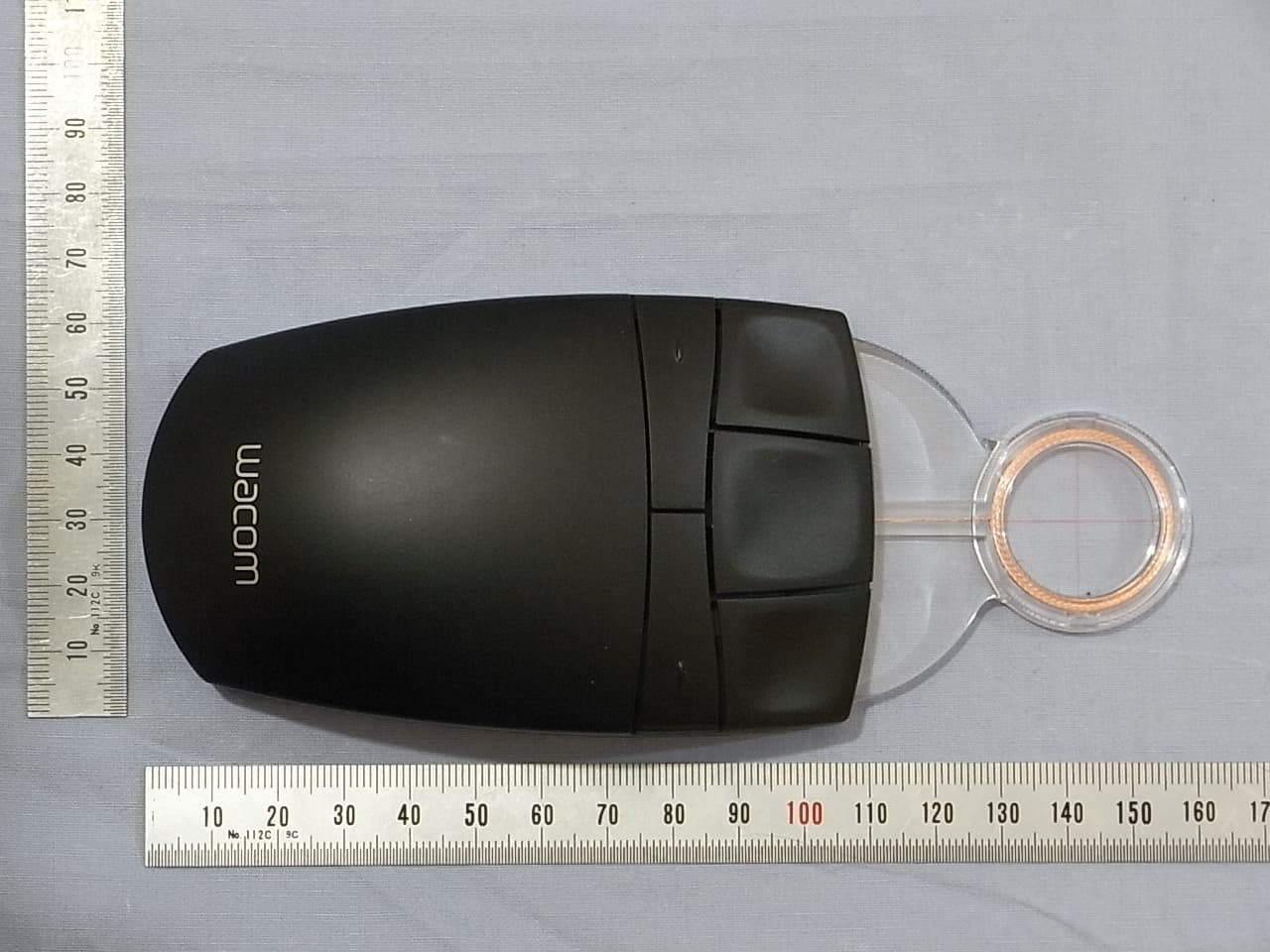
Click to zoom
Application Details
- Equipment Class
- DCD - Part 15 Low Power Transmitter Below 1705 kHz
- Date of Grant
- Dec 08, 2011
- Application Purpose
- Original Equipment
- Date of Application
- Dec 08, 2011
- Equipment Note
- Pen Tablet, Pen & Touch Tablet
- Frequency Range
- 0.66600000 - 0.66600000
- Company
- Wacom Co Ltd
- Country
- Japan
Documents & Files
Document Text
Text extracted from the exhibit documents filed with the FCC. Open a document above to read the original.
Users Manual
User’s manual 1 IndexContents 1 IndexContents Intuos Pen & Touch Intuos Pen Setting up Using a pen Customizing a pen Using the tablet Customizing the tablet Navigating with touch Customizing touch Using the Radial Menu Application-specific settings Going Wireless Troubleshooting PTH-450, PTH-650, PTH-850, PTK-450, PTK-650 2 IndexContents 2 IndexContents Intuos5 User’s Manual Version 1.0, Rev I0911 Copyright © Wacom Co., Ltd., 2011 All rights reserved. No part of this manual may be reproduced except for your express personal use. Wacom reserves the right to revise this publication without obligation to provide notification of such changes. Wacom does its best to provide current and accurate information in this manual. However, Wacom reserves the right to change any specifications and product configurations at its discretion, without prior notice and without obligation to include such changes in this manual. The above year indicates when this manual was prepared. However, the date of release to the users of the “manual” is simultaneous with the introduction into the market of the applicable Wacom product. Intuos and Wacom are registered trademarks of Wacom Co., Ltd. Adobe and Photoshop are either registered trademarks or trademarks of Adobe Systems Incorporated in the United States and/or other countries. Microsoft, Windows, and Vista are either registered trademarks or trademarks of Microsoft Corporation in the United States and/or other countries. Apple, the Apple logo, and Mac are registered trademarks of Apple, Inc., registered in the U.S. and other countries. Any additional company and product names mentioned in this documentation may be trademarked and/or registered as trademarks. Mention of third-party products is for information purposes only and constitutes neither an endorsement nor a recommendation. Wacom assumes no responsibility with regard to the performance or use of these products. ExpressKey is a registered trademark of Ginsan Industries, Inc., and is used with permission. 3 IndexContents 3 IndexContents TABLE OF CONTENTS About the manual 5 YOUR INTUOS TABLET 6 Identify your tablet model 6 Intuos Pen & Touch tablet 7 Intuos Pen tablet 9 Intuos pen 11 SETTING UP INTUOS 12 Ergonomics 12 Configuring the tablet orientation 14 USB cable installation 15 Understanding the tablet active area 16 Working with multiple monitors 18 Control panel basics 18 USING INTUOS 19 Using the Grip Pen 19 Holding the pen 20 Positioning 21 Clicking 22 Dragging 22 Using the side switch 23 Drawing with pressure sensitivity 24 Drawing with tilt 24 Erasing 25 Eye-hand coordination exercise 25 Tablet controls 26 Using the ExpressKeys 27 Using the Touch Ring 29 THE TOUCH EXPERIENCE WITH INTUOS 30 Navigating with touch 31 Customizing touch 39 Setting the touch options 40 Choosing standard touch functions 41 Choosing custom touch functions 41 Disabling touch 42 Testing touch 43 CUSTOMIZING INTUOS 44 Manage your control panel settings 45 Control panel overview 46 Customizing the pen 48 Adjusting tip feel and double-click 49 Adjusting eraser feel 50 Advanced tip and eraser pressure settings 50 Customizing tool buttons 51 Customizing tilt sensitivity 52 Customizing the tablet functions 52 Customizing the ExpressKeys 53 Customizing the Touch Ring 54 Tablet to screen mapping 55 Portion of screen area 57 Portion of tablet area 58 Button functions 59 Using and customizing the Radial Menu 66 Working with Display Toggle 67 Application-specific settings 69 Creating an application-specific setting 70 Changing application-specific settings 71 Removing application-specific settings 71 Working with multiple tools 72 Changing the tablet mode 73 Advanced options 74 GOING WIRELESS WITH INTUOS 75 Wireless accessory components 75 Wireless setup 76 Establishing a wireless connection 77 Optimizing the wireless connection 79 Battery and power management 80 Charging the battery 80 Battery and wireless connection status 81 Power saving features 82 Battery life information 83 Battery replacement 84 Wireless module removal 85 4 IndexContents 4 IndexContents Wireless receiver storage 86 Testing the wireless connection 87 TRO U B L E S H O O T I N G 8 8 Testing your tablet 89 Testing controls and input tools 91 Testing the ExpressKeys 92 Testing the Touch Ring 92 Te s t i n g a p e n 9 3 Troubleshooting tables 94 General problems 94 Pen problems 95 Touch problems 98 Wireless connection problems 99 Windows-specific problems 101 Mac-specific problems 102 Technical support options 104 Obtaining driver downloads 105 APPENDIX 106 Caring for Intuos 106 Replacing the pen nib 107 Uninstalling Intuos 108 Using the Express View display 109 Managing preferences 110 Installing multiple tablets 111 Using applications integrated for tablet control 112 Importing expert settings 113 Using the optional Airbrush and Art Pen 114 Using the optional Intuos Mouse 115 Customizing the mouse 116 Testing the mouse 117 Pen and digital ink capabilities in Windows 118 Product information 119 Ordering parts and accessories 120 Available parts and accessories 120 GLOSSARY 121 INDEX 124 5 IndexContents 5 IndexContents ABOUT THE MANUAL This manual provides quick access to information about Intuos. The information is common to Windows and Mac computers and Windows screen captures are shown, unless otherwise noted. •Go directly to table of contents or index topics by clicking on them. •Use the navigation controls to move through the manual. •You can use your .pdf viewer zoom-in tool to increase the size of the manual on your display screen. Most .pdf viewers include additional tools for using and printing the manual. See the viewer application help for more information. •S MALL CAPITAL LETTERS are used to identify the names of keyboard keys, dialog boxes, and control panel options. •Be sure to see also the Important Product Information guide for Intuos, located on the Intuos installation CD. The guide includes product safety precautions, specifications, and your licen…
Text truncated - open the document above for the full version.
Users Manual
88 88 IndexContents IndexContents TROUBLESHOOTING If you are having trouble, Wacom recommends you do the following: 1. If the tablet driver failed to load properly, first perform the recommended action in any error message that may appear on your screen. If that does not solve the problem, review the troubleshooting procedures in this chapter. 2. Look in the troubleshooting tables . Your problem may be described there and you can try the solution offered. 3. Open the Wacom tablet Read Me file and look for any information updates. 4. Visit www.wacom.com and choose the Wacom web site for your region where you can check the product FAQs (Frequently Asked Questions). 5. If you are having a compatibility conflict between Intuos and a new hardware or software product, see obtaining driver downloads for information on downloading an updated software driver. Wacom periodically updates the software driver to maintain compatibility with new products. 6. Test your tablet and input tools. See te s t i n g y o u r t a b l e t and testing controls and input tools. 7. If you have tried the suggestions in this manual and still cannot resolve the problem, then contact Wacom for Technical Support. See technical support options and the Read Me file for information on where to obtain support for your region. Testing your tablet Testing controls and input tools Troubleshooting tables Technical support options Obtaining driver downloads 89 IndexContents 89 IndexContents TESTING YOUR TABLET 1. Turn on your computer and wait until the system has fully loaded. 2. Check the USB connection. A tablet status LED should glow whenever the tablet is properly connected and your computer has registered it as a USB device. If not: •Make sure the tablet USB cable is securely connected to an active USB port on your computer. •Check the tablet USB cable for damage. •If you are connecting the tablet to a USB hub (or hub device such as a keyboard with USB ports), be sure the USB hub is properly connected to your computer and is active. •If a status LED does not illuminate after your computer is on and has finished booting up, your USB port may be disabled. Verify that you have connected the tablet to an active USB port. •Connect the tablet to a different USB port or try connecting to the USB port on another computer. •For best results when troubleshooting no power to the tablet (a status LED does not light), plug the tablet directly into the system USB port located on your computer. Temporarily eliminate any external hubs in use until you determine that the system recognizes the tablet and that it is functional. When the tablet is working properly, it is usually okay to then move the tablet to a USB hub. 3. For wireless operation , check the tablet connection. A tablet status LED should glow whenever the tablet is properly connected and your computer has registered it as a USB device. If not: •Verify that the wireless module is on. See battery and wireless connection status . •Verify that the wireless module and receiver are properly installed. See wireless setup . •Check the battery power. See battery and wireless connection status . If the battery charge is low, connect the USB cable and charge the battery. See charging the battery . •Switch the wireless module off, and then back on. •Move the tablet closer to the computer. Make sure there are no metal or other high density obstructions in the line of sight between the tablet and computer. 90 IndexContents 90 IndexContents 4. Check pen input. If the tablet driver does not load properly, pen input will not be available. (You will be able to use the pen tip to move the screen cursor and click, but there will be no other pen functionality.) Install the tablet driver software. •Move your pen across the tablet active area. The screen cursor should move in the corresponding direction on your monitor or display screen. •Press the pen tip against the surface of the tablet. A status LED should brighten. •Next, without applying pressure to the pen tip, hold the pen tip within approximately 10 mm (0.4 inch) of the tablet surface and press the side switch. The LED should again brighten. •Turn the pen over and press the eraser against the surface of the tablet. The LED should brighten. See also testing controls and input tools and te s t i n g a p e n. 5. Check touch input . Attempt to move the screen cursor by tracking your finger across the tablet surface. Then tap to select an item. The status LED should brighten when you touch the active area of the tablet. See also te s t i n g t o u c h . If the tablet driver does not load properly, basic touch movement will be recognized but other actions and gestures will not. If gestures are not recognized, install the tablet driver software. 6. Check the ExpressKeys. See testing controls and input tools and testing the ExpressKeys. 7. Check the Touch Ring. See testing controls and input tools and testing the Touch Ring. 8. Check any other tool(s), such as the optional Intuos Mouse. See testing controls and input tools . If any of these tests fail, you may have defective hardware. See technical support options . After testing, use the Wacom Tablet control panel to reconfigure your tablet and tools for any custom settings you may originally have been using. 91 IndexContents 91 IndexContents TESTING CONTROLS AND INPUT TOOLS If your input tools or tablet controls do not work as you expect, it is a good idea to first check the assigned functions or reset them to their default conditions. You will also want to do this if you have a touch- sensitive tablet model and encounter problems with touch. A quick way to return a tool to its default condition is to remove it from the control panel T OOL list. Do this by selecting the tool and clicking on the T OOL list [ – ] button. After the tool has been removed, place it back onto the tablet surface. The tool will be added back to the T OOL list with its default settings. •Open the Wacom Tablet control panel…
Text truncated - open the document above for the full version.
Users Manual
1 1 Important Product Information (PTK-450, PTK-650, PTH-450, PTH-650, PTH-850) Precautions Product Specifications Disposal and Recycling Information Regulatory Statement License and Warranties PRECAUTIONS WARNING Improperly setting up, using, or caring for this product can increase the risk of an accident or human injury. Keep small parts away from children and pets. They could remove and accidentally swallow parts such as the pen nibs, nib refills, or pen buttons. Do not use the tablet in a facility control system that requires extremely high reliability. It may cause other electronic devices to malfunction, or other devices may cause the tablet to malfunction. Turn off your tablet in locations where electronic devices are not allowed. For example, turn it off during flights by unplugging it from your computer. Do not disassemble or otherwise modify the tablet or pen. Such actions may cause heat generation, ignition, electrical shock, or other damage, including human injury. Disassembly of the product will void your warranty. Avoid damaging the cables. Do not place heavy objects on them, repeatedly bend them sharply, or apply heavy stress to the cable connectors. Torn or otherwise damaged cables may increase the risk of product malfunction, electrical shock, or fire. If they are damaged, stop using the product and contact your local distributor or the Wacom customer support center for your region. Do not expose this product to water or other liquids. Do not spill on the tablet or pen. It may cause product malfunction or electrical shock. If the product is exposed to water or other liquids: unplug the tablet USB cable from the computer, turn off your computer and unplug the power cord from the wall outlet. Stop using the product and contact your local distributor or the Wacom customer support center for your region. Do not insert foreign material into the USB plug end or any other opening of this product. If a metal object or foreign material is inserted into the USB plug or other opening of this product, it may cause the product to malfunction or burn out, or cause electrical shock. Do not use any organic solvent (e.g. alcohol) or even mild detergent to clean the product and the pen. Use of these cleaners can damage the product. Damage of this kind is not covered by the manufacturer's warranty. Do not use or store this product under the following conditions: •Places where temperature changes are severe or exceed specifications (e.g. outdoors or inside a vehicle). •Dusty areas. Refrain from using this product during thunder or electrical storms. Such use may cause product malfunction, fire, or electrical shock. CAUTION Do not place or use this product on an unstable surface or workspace, for example, a shaky, inclined or vibrating surface. When cleaning your tablet, turn it off by unplugging the tablet USB cable from the computer. Electrical shock may occur if you attempt to clean this product when it is connected to your computer. Other precautions: •Do not place metal objects on the tablet when it is in use. They may cause interference, improper operation, or product malfunction. •Avoid damaging your tablet. Replace your pen nib when it becomes worn or sharp. •Do not use a distorted or bent pen nib with the pen; a pen in this condition may cause the pen to operate improperly and scratch your tablet. Therefore, avoid pressing too hard when using the pen and bending or distorting the nib. •Do not push hard on the pen tip, eraser, or buttons. This may shorten the pen tip life or cause the pen to malfunction. •Use pen nibs designed by Wacom. Using a pen nib from another manufacturer may cause the pen to malfunction. •Do not use excessive force when inserting or removing the pen from the pen stand. •Do not store the pen so that the pen tip, buttons, or eraser are continually depressed. •Move the pen stand periodically to another place on your work surface to avoid permanently discoloring or altering the appearance of the surface. 2 2 PRODUCT SPECIFICATIONS GENERAL SPECIFICATIONS GENERAL SPECIFICATIONS, PEN PART GENERAL SPECIFICATIONS, MULTI-FINGER TOUCH PART INTUOS5 S TABLET (PTK-450) INTUOS5 TOUCH S TABLET (PTH-450) Communication interfaceUSB ConnectorUSB Type A (PC) to mini B (Tablet) Cable length2.0 m (6.6 ft) Power requirementsDC 5V from USB Port with 500 mA capacity. (Self-powered USB hub or PC USB port) Operating temperature5 to 40 degrees C (41 to 104 degrees F) Storage temperature-20 to + 60 degrees C (-4 to 140 degrees F) Operating relative humidity30% to 80% non-condensing Storage relative humidity30% to 90% non-condensing Pen TechnologyElectro-magnetic resonance technology Pen Active Area Aspect Ratio16:10 Coordinate Resolution200 lines per mm (5080 lines per inch) Coordinate AccuracyGrip Pen (KP-501E): +/-0.25 mm (0.010 in) Mouse (KC-100, Option HW): +/-0.50 mm (0.020 in) Lens Cursor (KC-210, Option HW for PTH-850) : +/-0.15 mm (0.006 in) Tilt range (all pens)+/-60 degrees (+/-50 degrees on Intuos 5 Small, PTK-450 & Intuos 5 Touch Small, PTH- 450) Readable Height10 mm (0.39 in) Maximum Number of Fingers Detected10 fingers Gesture Support2 to 5 finger gestures Touch TechnologyWacom Multi-finger TouchNot Supported ExpressKeys6 customizable capacitive keys Multi-function Touch RingSupported Wacom wireless kit supportSupported. RF technology Physical size (W x D x H)320.1 x 207.8 x 11.5 mm (12.6 x 8.18 x 0.45 in) Weight640 g Pen Active Area (W x D)157.48 x 98.43 mm (6.2 x 3.9 in) Power Consumption (With wireless kit)Normal use: 77 mA Stand by: 65 mA Sleep: 1.8 mA Charging: 394 mA Multi-finger TouchSupported ExpressKeys6 customizable capacitive keys Multi-function Touch RingSupported Wacom wireless kit supportSupported. RF technology Physical size (W x D x H)320.1 x 207.8 x 11.5 mm (12.6 x 8.18 x 0.45 in) Weight660 g Pen Active Area (W x D)157.48 x 98.43 mm (6.2 x 3.9 in) Touch Active Area (W x D)157.48 x 98.43 mm (6.2 x 3.9 in) Power Consumption (With wireless kit)Normal use: 137 m…
Text truncated - open the document above for the full version.
Users Manual
1 1 Informations importantes sur le produit (Intuos5 PTK-450 et PTK-650; Intuos5 Touch PTH-450, PTH-650, PTH-850) Précautions Caractéristiques du produit Informations sur la mise au rebut et le recyclage Déclarations de conformité Licence et garanties PRÉCAUTIONS AVERTISSEMENT Une mauvaise mise en place, utilisation ou entretien de ce produit peut augmenter le risque d'accident ou de blessure physique. Gardez les petites pièces hors de portée des enfants et des animaux. Ils pourraient détacher et accidentellement avaler des pièces telles que les pointes de stylet, les recharges de pointes ou les boutons du stylet. Ne pas utiliser la tablette dans un système de contrôle des installations qui exige une fiabilité extrêmement élevée. Cela peut causer le dysfonctionnement d'autres appareils électroniques, ou d'autres appareils peuvent causer un dysfonctionnement de la tablette. Eteignez votre tablette dans les endroits où les appareils électroniques ne sont pas autorisés. Par exemple, éteignez-la pendant les vols en la débranchant de votre ordinateur. Ne pas démonter ou modifier la tablette ou le stylet. Ces actions peuvent provoquer une génération de chaleur, un incendie, un choc électrique, ou d'autres dommages, y compris des blessures physiques. Le démontage du produit annule votre garantie. Evitez d'endommager les câbles. Ne pas placer d'objets lourds sur les câbles, ne pas les plier fortement à plusieurs reprises ou appliquer des contraintes aux connecteurs des câbles. Les câbles déchirés ou détériorés peuvent augmenter le risque de dysfonctionnement du produit, de choc électrique ou d'incendie. S'ils sont endommagés, arrêtez d'utiliser le produit et contactez votre distributeur local ou le centre de service client Wacom de votre région. Ne pas exposer ce produit à l'eau ou à d'autres liquides. Ne rien renverser sur la tablette ou le stylet. Cela peut causer un dysfonctionnement ou un choc électrique. Si le produit est exposé à l'eau ou d'autres liquides : débranchez le connecteur USB entre la tablette et l'ordinateur, éteignez votre ordinateur et débranchez le cordon d'alimentation de la prise murale. Cessez d'utiliser le produit et contactez votre distributeur local ou le centre de service client Wacom de votre région. N'insérez pas de corps étranger dans le port USB ou toute autre ouverture de ce produit. Si un objet métallique ou un corps étranger est inséré dans le port USB ou une autre ouverture de ce produit, il peut provoquer un dysfonctionnement du produit, un incendie ou un choc électrique. N'utilisez pas de dissolvant organique (à base d'alcool), ni même de détergent doux, pour nettoyer le produit et le stylet. L'emploi de ces produits risque d'endommager le produit. Ce type de dommage n'est pas pris en charge par la garantie du fabricant. N'utilisez pas et ne stockez pas le produit dans les conditions suivantes : • En cas de variations de température importantes ou hors des limites spécifiées (par exemple à l'extérieur ou à l'intérieur d'un véhicule). •N'utilisez pas le produit dans un endroit poussiéreux. Ne pas utiliser ce produit pendant les orages ou les tempêtes électromagnétiques. Un tel usage peut entraîner un dysfonctionnement du produit, un incendie ou un choc électrique. ATTENTION Ne pas placer ou utiliser ce produit sur une surface instable ou un espace de travail, par exemple une surface instable, inclinée ou vibrante. Lors du nettoyage de votre tablette, éteignez-la en débranchant le connecteur USB entre la tablette et votre ordinateur. Un choc électrique peut se produire si vous essayez de nettoyer ce produit lorsqu'il est connecté à votre ordinateur. Autres précautions : •Ne pas placer d'objets métalliques sur la tablette quand elle est en usage. Ils peuvent provoquer des interférences, un mauvais fonctionnement un ou dysfonctionnement du produit. •Evitez d'endommager votre tablette. Remplacez la pointe de votre stylet quand elle est usée ou tranchante. •Ne pas utiliser une pointe de stylet déformée ou courbée ; cela pourrait entraîner un dysfonctionnement et rayer votre tablette. Par conséquent, évitez d'appuyer trop fort lorsque vous utilisez le stylet pour ne pas tordre ou déformer la pointe. •Ne pas pousser fort sur la pointe du stylet, la gomme ou les boutons. Cela peut raccourcir la durée de vie de la pointe du stylet ou causer un dysfonctionnement du stylet. •Utilisez les pointes de stylet conçues par Wacom. L'utilisation d'une pointe de stylet d'un autre fabricant peut provoquer un dysfonctionnement du stylet. •Ne pas utiliser une force excessive lors de l'insertion ou du retrait du stylet de son support. •Ne rangez pas le stylet dans une position où la pointe du stylet, les boutons ou la gomme sont continuellement enfoncés. •Déplacez périodiquement le porte-stylet à un autre endroit sur votre surface de travail pour éviter la décoloration permanente ou l'altération de l'apparence de la surface. 2 2 CARACTÉRISTIQUES DU PRODUIT CARACTÉRISTIQUES TECHNIQUES GÉNÉRALES CARACTÉRISTIQUES TECHNIQUES GÉNÉRALES, SAISIE AU STYLET CARACTÉRISTIQUES TECHNIQUES GÉNÉRALES, SAISIE TACTILE TABLETTE INTUOS5 S (PTK-450) TABLETTE INTUOS5 TOUCH S (PTH-450) Interface de communicationUSB InterfaceUSB type A (ordinateur) vers USB mini-B (tablette) Longueur du câble2 m AlimentationCC 5V du port USB, capacité 500 mA. (hub USB à alimentation autonome ou port USB de l'ordinateur) Température de fonctionnement5 °C à 40 °C Température de stockage-20 °C à +60 °C Humidité relative (fonctionnement)30 % à 80 % (sans condensation) Humidité relative (stockage)30 % à 90 % (sans condensation) Technologie du styletTechnologie de résonance électromagnétique Rapport largeur/hauteur de la surface active (saisie au stylet) 16:10 Résolution des coordonnées200 lignes par mm Précision des coordonnéesGrip Pen (KP-501E) : +/-0,25 mm Souris (KC-100, option HW) : +/-0,50 mm Curseur de précision (KC-210, option HW pour PTH-850) : +/-0,15 mm Angle d'inclinaison (pour tous les stylets)+/-60 degrés (+/-50 d…
Text truncated - open the document above for the full version.
External Photos
Wacom Co., Ltd. FCC ID: HV4PTH650 IC: 6888A-PTH650 Page 1 of 16 [PTK-650] Wacom Co., Ltd. FCC ID: HV4PTH650 IC: 6888A-PTH650 Page 2 of 16 Note1: INF-A068 (Wireless Module, FCC ID: HV4INFA068) of Wireless Accessory Kit is connected w ith here. When the wireless is not used, the wireless module spacer is done. Note2: INF-A069 (Wireless Receiver, FCC ID: HV4INFA069) of Wireless Accessory Kit is stored with here. It doesn't connect with Pen Tablet electrically though it is stored here when not connected with PC. Note1 Note2 Wacom Co., Ltd. FCC ID: HV4PTH650 IC: 6888A-PTH650 Page 3 of 16 [PTH-650] Wacom Co., Ltd. FCC ID: HV4PTH650 IC: 6888A-PTH650 Page 4 of 16 Note1: INF-A068 (Wireless Module, FCC ID: HV4INFA068) of Wireless Accessory Kit is connected w ith here. When the wireless is not used, the wireless module spacer is done. Note2: INF-A069 (Wireless Receiver, FCC ID: HV4INFA069) of Wireless Accessory Kit is stored with here. It doesn't connect with Pen Tablet electrically though it is stored here when not connected with PC. Note1 Note2 Wacom Co., Ltd. FCC ID: HV4PTH650 IC: 6888A-PTH650 Page 5 of 16 [USB cable] *Accessory Wacom Co., Ltd. FCC ID: HV4PTH650 IC: 6888A-PTH650 Page 6 of 16 [KP-501E] *Accessory Wacom Co., Ltd. FCC ID: HV4PTH650 IC: 6888A-PTH650 Page 7 of 16 [KP-300E] *Option Wacom Co., Ltd. FCC ID: HV4PTH650 IC: 6888A-PTH650 Page 8 of 16 [KP-400E] *Option
External Photos
Wacom Co., Ltd. FCC ID: HV4PTH650 IC: 6888A-PTH650 Page 9 of 16 [KP-701E] *Option Wacom Co., Ltd. FCC ID: HV4PTH650 IC: 6888A-PTH650 Page 10 of 16 [KP-130] *Option Wacom Co., Ltd. FCC ID: HV4PTH650 IC: 6888A-PTH650 Page 11 of 16 [KC-100] *Option Wacom Co., Ltd. FCC ID: HV4PTH650 IC: 6888A-PTH650 Page 12 of 16 Wacom Co., Ltd. FCC ID: HV4PTH650 IC: 6888A-PTH650 Page 13 of 16 [KC-210] *Option Wacom Co., Ltd. FCC ID: HV4PTH650 IC: 6888A-PTH650 Page 14 of 16 Wacom Co., Ltd. FCC ID: HV4PTH650 IC: 6888A-PTH650 Page 15 of 16 [Li-ion Battery] *Option Wacom Co., Ltd. FCC ID: HV4PTH650 IC: 6888A-PTH650 Page 16 of 16
ID Label/Location Info
Label Location Label Bottom side
Internal Photos
Wacom Co., Ltd. FCC ID: HV4PTH650 IC: 6888A-PTH650 Page 1 of 22 [PTK-650] Wacom Co., Ltd. FCC ID: HV4PTH650 IC: 6888A-PTH650 Page 2 of 22 Wacom Co., Ltd. FCC ID: HV4PTH650 IC: 6888A-PTH650 Page 3 of 22 Wacom Co., Ltd. FCC ID: HV4PTH650 IC: 6888A-PTH650 Page 4 of 22 Wacom Co., Ltd. FCC ID: HV4PTH650 IC: 6888A-PTH650 Page 5 of 22 Wacom Co., Ltd. FCC ID: HV4PTH650 IC: 6888A-PTH650 Page 6 of 22 Wacom Co., Ltd. FCC ID: HV4PTH650 IC: 6888A-PTH650 Page 7 of 22
Internal Photos
Wacom Co., Ltd. FCC ID: HV4PTH650 IC: 6888A-PTH650 Page 8 of 22 Wacom Co., Ltd. FCC ID: HV4PTH650 IC: 6888A-PTH650 Page 9 of 22 Wacom Co., Ltd. FCC ID: HV4PTH650 IC: 6888A-PTH650 Page 10 of 22 Wacom Co., Ltd. FCC ID: HV4PTH650 IC: 6888A-PTH650 Page 11 of 22 [PTH-650] Wacom Co., Ltd. FCC ID: HV4PTH650 IC: 6888A-PTH650 Page 12 of 22 Wacom Co., Ltd. FCC ID: HV4PTH650 IC: 6888A-PTH650 Page 13 of 22 Wacom Co., Ltd. FCC ID: HV4PTH650 IC: 6888A-PTH650 Page 14 of 22
Internal Photos
Wacom Co., Ltd. FCC ID: HV4PTH650 IC: 6888A-PTH650 Page 15 of 22 Wacom Co., Ltd. FCC ID: HV4PTH650 IC: 6888A-PTH650 Page 16 of 22 Wacom Co., Ltd. FCC ID: HV4PTH650 IC: 6888A-PTH650 Page 17 of 22 Wacom Co., Ltd. FCC ID: HV4PTH650 IC: 6888A-PTH650 Page 18 of 22 Wacom Co., Ltd. FCC ID: HV4PTH650 IC: 6888A-PTH650 Page 19 of 22 Wacom Co., Ltd. FCC ID: HV4PTH650 IC: 6888A-PTH650 Page 20 of 22 Wacom Co., Ltd. FCC ID: HV4PTH650 IC: 6888A-PTH650 Page 21 of 22 Wacom Co., Ltd. FCC ID: HV4PTH650 IC: 6888A-PTH650 Page 22 of 22
Test Report
Report number: Z071C-11200 Page 2 of 28 ZACTA Technology Corp. FCC ID: HV4PTH650 FCC 15C Rev.4.0 IC Certification Number: 6888A-PTH650 Table of contents Page 1. Summary of Test .................................................................................................................................................................. 3 1.1 Purpose of test .......................................................................................................................................................................... 3 1.2 Standards .................................................................................................................................................................................. 3 1.3 Summary of test results ........................................................................................................................................................... 3 1.4 Deviation from the standard .................................................................................................................................................... 3 1.5 Modification to the EUT by laboratory .................................................................................................................................. 3 2. Equipment description ......................................................................................................................................................... 4 2.1 General Description of equipment .......................................................................................................................................... 4 2.2 EUT information ...................................................................................................................................................................... 4 2.3 Operating mode ....................................................................................................................................................................... 4 3. Configuration information................................................................................................................................................... 5 3.1 EUT and Peripheral(s) used .................................................................................................................................................... 5 3.2 Cable(s) information .......................................................................................................................................…
Text truncated - open the document above for the full version.
Contact Information
Applicant
Koichi Yokoyama(Senior Director, Quality Assurance)
Test Firm
TUV SUD Zacta Ltd.Katsumi Sumiyoshi
Technical Specifications
| # | Rule Parts | Frequency Range | Power Output |
|---|---|---|---|
| 1 | 15C | 0.666 MHz - 0.666 MHz | - |
Other Applications from Wacom Co Ltd
HV4CTK6120
Aug 19, 2026Pen Tablet
Equipment Class
DCD - Part 15 Low Power Transmitter Below 1705 kHzHV4STU540A
May 12, 2026LCD SIGNATURE PAD
Equipment Class
DCD - Part 15 Low Power Transmitter Below 1705 kHzHV4DTHA140
Sep 16, 2025Portable Pad
Equipment Class
DTS - Digital Transmission SystemHV4PTK470
Oct 10, 2024Creative Pen Tablet
Equipment Class
DTS - Digital Transmission SystemHV4PTK870
Oct 10, 2024Creative Pen Tablet
Equipment Class
DCD - Part 15 Low Power Transmitter Below 1705 kHz