HV4PTU600PTU-600U, Input Device For a Computer
Wacom Co Ltd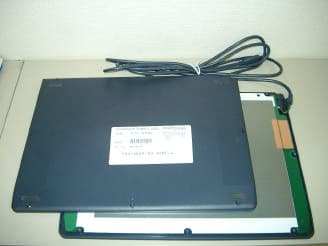
Click to zoom
Application Details
- Equipment Class
- DCD - Part 15 Low Power Transmitter Below 1705 kHz
- Date of Grant
- May 29, 2003
- Application Purpose
- Original Equipment
- Date of Application
- May 29, 2003
- Equipment Note
- PTU-600U, Input Device For a Computer
- Frequency Range
- 0.53125000 - 0.59375000
- Company
- Wacom Co Ltd
- Country
- Japan
Documents & Files
Document Text
Text extracted from the exhibit documents filed with the FCC. Open a document above to read the original.
Users Manual
INSTALLATION GUIDE & USER’S MANUAL PRELIMINARY version This manual is created for apllication of the FCC compliance. WACOM CintiqPartner Installation Guide & User’s Manual, March 11, 2003 English V1.0 for Windows and Macintosh Copyright Wacom Company, Limited, 2003 All rights reserved. No part of this manual may be reproduced except for your express personal use. Wacom reserves the right to revise this publication without obligation to provide notification of such changes. Wacom does its best to provide current and accurate information in this manual. However, Wacom reserves the right to change any specifications and product configurations at its discretion, without prior notice and without obligation to include such changes in this manual. Cintiq and Wacom are registered trademarks of Wacom Company, Limited. Adobe, Acrobat, and Acrobat Reader are either registered trademarks or trademarks of Adobe Systems Incorporated in the United States and/or other countries. Apple, the Apple logo, and Macintosh are registered trademarks of Apple Computer, Inc., registered in the U.S. and other countries. Microsoft and Windows are either registered trademarks or trademarks of Microsoft Corporation in the United States and/or other countries. Any additional company and product names mentioned in this documentation may be trademarked and/or registered as trademarks. Mention of third-party products is for informational purposes only and constitutes neither an endorsement nor a recommendation. Wacom assumes no responsibility with regard to the performance or use of these products. INTRODUCTION AND OVERVIEW Page 1 CONTENTS Introduction and Overview . . . . . . . . . . . . . . . . . . . . . . . . . . . . . . . . . . . . . 1 CintiqPartner Tablet Features . . . . . . . . . . . . . . . . . . . . . . . . . . . . . . . . . . . 2 Installation . . . . . . . . . . . . . . . . . . . . . . . . . . . . . . . . . . . . . . . . . . . . . . . . . 3 Working with CintiqPartner. . . . . . . . . . . . . . . . . . . . . . . . . . . . . . . . . . . . . 4 Troubleshooting . . . . . . . . . . . . . . . . . . . . . . . . . . . . . . . . . . . . . . . . . . . . . 5 Appendices . . . . . . . . . . . . . . . . . . . . . . . . . . . . . . . . . . . . . . . . . . . . . . . . 7 INTRODUCTION AND OVERVIEW CintiqPartner is a tablet accessory that works with the Wacom® Cintiq® Interactive Pen Display on Personal Computers (PCs) or Macintosh® computers. CintiqPartner can be used as an alternative navigation or pen tablet and can be mapped to any or all monitors on your system, including the Cintiq Interactive Pen Display. The same pen that came with Cintiq is used as your tablet input tool. This manual describes how to install CintiqPartner. It also describes how to use CintiqPartner with your Cintiq Interactive Pen Display. The process for installing CintiqPartner occurs in two stages: 1. First, complete the installation of the Cintiq Interactive Pen Display. If you previously installed Cintiq, use the enclosed Wacom Tablet CD to upgrade your Wacom driver to v4.76 or later. (The CD is included only when CintiqPartner is purchased separately from the Cintiq Interactive Pen Display.) 2. Then connect CintiqPartner and configure the Wacom Tablet control panel settings. After installing the tablet, use the Cintiq pen on CintiqPartner to navigate and work with all of your monitors. For detailed information on using the Wacom Tablet control panel for customizing your tablet and pen settings, refer to the online Help located under the H ELP menu in the Wacom Tablet control panel. You can also access Help by clicking on the control panel’s H ELP ... button (Windows) or the ? button (Macintosh). The following are not included with this product: information about your specific computer hardware or operating system, information about application software, and information about other Wacom tablets. Your best source for this information is the set of manuals and disks that came with your hardware, operating system, applications, or other Wacom tablets. Please follow all instructions carefully. Unless otherwise specified, all screen shots were taken on a Windows® operating system. CINTIQPARTNER TABLET FEATURES Page 2 CINTIQPARTNER TABLET FEATURES The CintiqPartner tablet is an accessory to the Cintiq Interactive Pen Display. The tablet can be used as a navigation or pen tablet and can be mapped to any or all monitors on your system, including the Cintiq Interactive Pen Display. The pen that came with your Cintiq Interactive Pen Display is used as a pointer on the tablet. Important: Do not use other Wacom pens or pens from other tablet manufacturers. The Cintiq pen tip is specifically designed for use with the Cintiq Interactive Pen Display – the tips on other pens could damage the protective coating on the Cintiq display screen. Active Area Status LED Tablet Overlay. To trace an image, lift the tablet overlay and slide the image beneath it. The thickness of the item to be traced or digitized should be 1 mm or less. Cable Box contents include the CintiqPartner tablet, this manual, and a Wacom Tablet CD. (The CD is included only when CintiqPartner is purchased separately from the Cintiq Interactive Pen Display.) INSTALLATION Page 3 INSTALLATION SYSTEM REQUIREMENTS Before installing CintiqPartner, make sure your computer meets the following system requirements: • PC. Windows XP, 98, Me, or 2000. Available USB port and CD-ROM drive. • Macintosh. OS X, v10.1.5 or greater, or OS 9. Available USB port and CD-ROM drive. STEP 1: FIRST, INSTALL THE CINTIQ INTERACTIVE PEN DISPLAY Referring to the directions provided in your Cintiq Installation Guide and User’s Manual , fully install your Cintiq Interactive Pen Display. Be sure to follow all instructions carefully. Failure to do so may cause damage to Cintiq or to the video card in your computer. Note : If you previously installed Cintiq, use the enclosed Wacom Tablet CD to upgrade your Wacom driver to v4.76 or lat…
Text truncated - open the document above for the full version.
ID Label/Location Info
Tablet Label This is a sample of label printing. Serial number (S/N) X X X X X X X X X 1 2 3 4 5 1: Last digit of manufacturing year 2: Month of manufacturing (A:Jan., B:Feb., C:Mar., .., K:Nov., L:Dec.) 3: Place of manufacturing (J:Japan) 4: Production stage (P:Pre-production, 0:Mass production) 5: Serial Number(5 digits)
Test Report
EMC TEST REPORT for WACOM Co., Ltd. 2-510-1 Toyonodai, Otone-machi, Kitasaitama-gun, Saitama 349-1148, Japan Equipment Under Test: PEN TABLET Model Name : PTU-600U FCC ID : HV4PTU600 Category: FCC Part 15 Sub.part B Class B Digital Device FCC Part 15 Sub.part C Tokin Report No.: T6J034111 Date of Issue: April 28, 2003 Approved by . -- ATTENTION -- The test results in this report relate only to the following EUTs, and this report shall not be reproduced except in full, without the written approval of the laboratory. This test report must not be used by the client to claim product endorsement by NVLAP or any agency of the U.S. Government. NVLAP Lab. Code: 200221-0 FCC 15B Class B/ FCC 15C T6J034111 Contents Page 1 DESCRIPTION OF DEVICE ...................................................................... 1 2 TEST FACILITY .............................................................................................. 2 3 SUMMARY OF RESULTS 3.1 Electromagnetic Emission ......................................................................... 2 3.2 Modification to The EUT............................................................................ 2 4 TESTED SYSTEM DETAILS 4.1 Peripherals and Others .............................................................................. 3 4.2 Type of Used Cables ................................................................................. 3 Figure 4-1 System Configuration Diagram....................................................... 4 5 TECHNICAL COUNTERMEASURE ................................................................ 4 6 TEST RESULTS 6.1 RFI Voltage Measurement 6.1.1 Measurement Instrumentation Used .................................................... 5 6.1.2 Measurement Procedure....................................................................... 5 6.1.3 Deviation from the specification .......................................................... 5 6.1.4 Measurement Uncertainty .................................................................... 5 6.1.5 Test Data .............................................................................................. 6 ∼ 7 6.2 RFI Field Strength Measurement 6.2.1 Measurement Instrumentation Used .................................................... 8 6.2.2 Measurement Procedure....................................................................... 9 6.2.3 Deviation from the specification .......................................................... 9 6.2.4 Measurement Uncertainty .................................................................... 9 6.2.5 Test Data .............................................................................................. 10 ∼ 13 6.3 Minimum Margin ........................................................................................ 14 6.4 Sample Calculation ..................................................................................... 14 FCC 15B Class B/ FCC 15C T6J034111 7 MEASUREMENT PHOTOS Photo 7.1 Setup with the Maximized RFI Voltage Emission Level................. 15 Photo 7.2 Setup with the Maximized RFI Field Strength Emission Level ...... 16 Page 1 of 16 FCC 15B Class B/ FCC 15C T6J034111 Report processed by Tested by Hiroko Nakamura Toshihiro Nomura, Engineer 28/Apr./2003 1 DESCRIPTION OF DEVICE A) Kind of Equipment : PEN TABLET B) FCC ID : HV4PTU600 C) Model Name : PTU-600U D) Serial No. : 3CJS00028 E) Type of Sample Tested : Pre-production F) High Frequency Used : 6MHz ( USB Clock ) 8MHz ( CPU Clock ) The frequency that is using intentionally Power Output: <1pW 531.25/562.50/593.75kHz ( PEN TABLET operating signal frequency) G) Rating Power Supply : DC5.0V, 0.1A H) Tested Power Supply : 1phase AC120V, 60Hz I) Date of Manufacture : March 2003 J) Manufacturer : WACOM Co., Ltd. 2-510-1 Toyonodai, Otone-machi, Kitasaitama-gun, Saitama 349-1148, Japan K) Description of Operating : X and Y Coordinates Data Sending Mode L) Date of Sample Received : April 7, 2003 M) Tested Engineer : Toshihiro Nomura Page 2 of 16 FCC 15B Class B/ FCC 15C T6J034111 Report processed by Tested by Hiroko Nakamura Toshihiro Nomura, Engineer 28/Apr./2003 2 TEST FACILITY The open field test site and conducted measurement facility are used for these testing, where are located following address. This site was fully described in a report dated Mar 20,2001, that was submitted to the FCC. And we had accepted in a letter dated Mar.26,2001 (31040/SIT). This laboratory is accredited by NVLAP for NVLAP Lab. Code : 200221-0. Tokin EMC Engineering Co., Ltd. Tsukuba Testing Laboratory, Open Field Test Site No.6 and Shielded Room No.2 Address ; 28-1, Kitahara-aza, Hanashimashinden-ohaza, Tsukuba-city, Ibaragi 305-0875, Japan 3 SUMMARY OF RESULTS 3.1 Electromagnetic Emission RFI Voltage Measurement ..........................PASS RFI Field Strength Measurement ................ PASS Although the measured emissions indicate that the EUT complies with the required limits, some measurements are close to these limits. When the uncertainty of measurement is considered, there is some possibility that the EUT may not be compliant. Test results are traceable to JQA and NML/CISRO. 3.2 Modifications to The EUT : None Page 3 of 16 FCC 15B Class B/ FCC 15C T6J034111 Report processed by Tested by Hiroko Nakamura Toshihiro Nomura, Engineer 28/Apr./2003 4 TESTED SYSTEM DETAILS 4.1 Peripherals and Others : DescriptionModel Name Serial No.ManufacturerFCC ID Personal Computer GP7JP3YR/FDKER01480592 Gateway DoC Monitor EV500A 15017F019434 Gateway BEJCB575B Keyboard JAPAN 235212-119B2080G39F40A13 Compaq AQ6-MTN4C15 Mouse M-S34 B04AB0H5BFG1 PTE Compaq DZL211029 Printer XR-1000 430091101326 STAR MICRONICS AMERICA, INC. B6D8MFJ250 4.2 Type of Used Cables : Description Length Type of shield Model name Manufacturer AC Cable (PC) 1.8m Non-shielded None --- VGA cable (PC ∼ Monitor) 1.8m Shielded None Gateway AC cable (Monitor) 2.2m Non-shielded None --- Centro cable (PC ∼ Printer) 2.0m Shielded None STAR MICRONICS AME…
Text truncated - open the document above for the full version.
Test Setup Photos
Page 16 of 17 FCC 15B Class B/ FCC 15C T6J034111 7 MEASUREMENT PHOTOS Photo 7.1 Setup with the Maximized RFI Voltage Emission Level Page 17 of 17 FCC 15B Class B/ FCC 15C T6J034111 Photo 7.2 Setup with the Maximized RFI Field Strength Emission Level
Contact Information
Applicant
Koichi Yokoyama(Senior Director, Quality Assurance)
Technical Contact
Tokin EMC Engineering Co. LtdMickey Fukuda
[email protected]81-29-837-2400
28-1, Kitahara..aza, Hanashimashinden..ohaza · Tsukuba (Ibaraki) · Japan
Test Firm
Tokin EMC Engineering Co., Ltd.Shida Hiro
Technical Specifications
| # | Rule Parts | Frequency Range | Power Output |
|---|---|---|---|
| 1 | 15C | 0.53125 MHz - 0.59375 MHz | - |
Other Applications from Wacom Co Ltd
HV4CTK6120
Aug 19, 2026Pen Tablet
Equipment Class
DCD - Part 15 Low Power Transmitter Below 1705 kHzHV4STU540A
May 12, 2026LCD SIGNATURE PAD
Equipment Class
DCD - Part 15 Low Power Transmitter Below 1705 kHzHV4DTHA140
Sep 16, 2025Portable Pad
Equipment Class
DTS - Digital Transmission SystemHV4PTK470
Oct 10, 2024Creative Pen Tablet
Equipment Class
DTS - Digital Transmission SystemHV4PTK870
Oct 10, 2024Creative Pen Tablet
Equipment Class
DCD - Part 15 Low Power Transmitter Below 1705 kHz