HV4PTZDIGITIZER
Wacom Co Ltd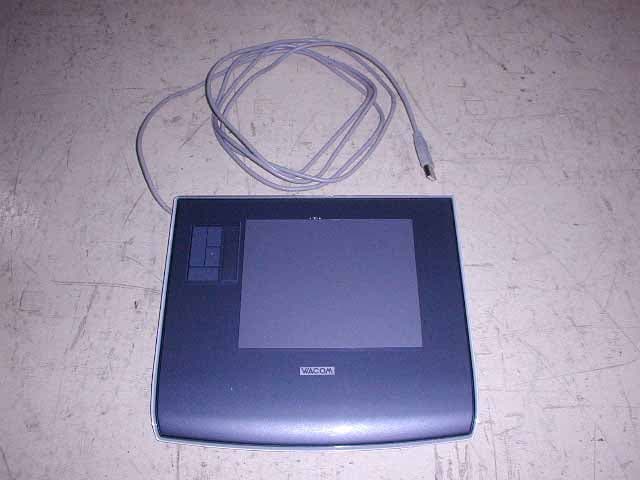
Click to zoom
Application Details
- Equipment Class
- DCD - Part 15 Low Power Transmitter Below 1705 kHz
- Date of Grant
- Aug 08, 2004
- Application Purpose
- Original Equipment
- Date of Application
- Aug 08, 2004
- Equipment Note
- DIGITIZER
- Frequency Range
- 0.65000000 - 0.70000000
- Company
- Wacom Co Ltd
- Country
- Japan
Documents & Files
Document Text
Text extracted from the exhibit documents filed with the FCC. Open a document above to read the original.
Users Manual
T R OUBLESHOOTING C U STOMIZING P E N T A BLET P O P - U P M E NU M O USE U S ING T A BLET M O USE P E N A P PLICATION - S P ECIFIC S E TTINGS I N DEX C O NTENTS I N DEX C O NTENTS 1 1 User’s Manual for Windows & Macintosh ®® I N DEX C O NTENTS I N DEX C O NTENTS 2 2 Wacom Intuos ® 3 User’s Manual for Windows ® & Macintosh ® English version 1.0, April 03, 2004 Copyright WACOM Company, Limited, 2004 All rights reserved. No part of this manual may be reproduced except for your express personal use. Wacom reserves the right to revise this publication without obligation to provide notification of such changes. Wacom does its best to provide current and accurate information in this manual. However, Wacom reserves the right to change any specifications and product configurations at its discretion, without prior notice and without obligation to include such changes in this manual. Penabled, Tool ID, QuickPoint, and DuoSwitch are trademarks, and Intuos and Wacom are registered trademarks of WACOM Company, Limited. Adobe, Acrobat, Reader, and Photoshop are either registered trademarks or trademarks of Adobe Systems Incorporated in the United States and/or other countries. Microsoft and Windows are either registered trademarks or trademarks of Microsoft Corporation in the United States and/or other countries. Apple, the Apple logo, and Macintosh are registered trademarks of Apple Computer, Inc., registered in the U.S. and other countries. Any additional company and product names mentioned in this documentation may be trademarked and/or registered as trademarks. Mention of third-party products is for information purposes only and constitutes neither an endorsement nor a recommendation. Wacom assumes no responsibility with regard to the performance or use of these products. Watch for the Penabled logo to ensure you are getting the natural feel and superior performance of Wacom’s patented cordless and battery-free pen technology. I N DEX C O NTENTS I N DEX C O NTENTS 3 3 CONTENTS About the man ual5 Navigating the manual6 W ORKING WITH INTUOS37 Intuos3 tablet features8 Intuos3 input tools9 Intuos3 optional tools10 Setting up your work area11 Using the Grip Pen12 Holding the Pen12 P ointing13 Clicking14 Dr agging14 Using the side switch15 Drawing with pressure-sensitivity16 Drawing with tilt16 Erasing17 Eye-hand coordination exercise18 Using the Mouse19 Using the Airbrush20 Working with the tablet21 Using the Tablet Keys22 Using the Touch Strips23 CUSTOMIZING 24 Opening the control panel24 Control panel overview25 Control panel settings26 Customizing the Pen27 Adjusting tip feel and double-click28 Adjusting er aser feel29 Advanced tip and eraser pressure settings30 Customizing tool buttons31 Button functions32 Customizing tilt sensitivity35 Customizing the Mouse 36 Customizing Mouse buttons36 Customizing the Mouse fingerwheel37 Tablet to screen mapping38 Pen mode38 Mouse mode39 Orientation39 Screen area40 Force proportions41 T ablet area42 Mapping to multiple monitors43 Customizing the tab let functions44 Customizing Tablet Keys45 Customizing tablet Touch Strips46 Advanced Touch Strip settings49 Customizing the Pop-up Menu50 Working with multiple tools51 Working with application-specific settings52 Creating an application-specific setting53 Changing settings for a specific tool and application54 Removing application-specific settings54 T ROUBLESHOOTING55 Testing your tablet56 Testing your tools57 Testing the Tablet Keys58 Testing the tablet Touch Strips58 Testing a Pen59 Testing a Mouse60 T roubleshooting tables61 General problems61 Windows-specific problems64 Macintosh-specific problems65 C ONTENTS I N DEX C O NTENTS I N DEX C O NTENTS 4 4 T echnical support options67 Obtaining driver downloads68 APPENDICES 69 Caring for your tablet and tools69 Replacing the Pen tip70 Uninstalling the softw are70 Changing the tab let mode71 Installing multiple tablets71 Product specifications72 General specifications for all Intuos3 tablets72 Intuos3 4x5/A6 tablet (model PTZ-430)72 Intuos3 6x8/A5 tab let (model PTZ-630)72 Intuos3 9x12/A4-regular tablet (model PTZ-930)72 Intuos3 Grip Pen (model ZP-501E)73 Intuos3 Mouse (model ZC-100)73 Intuos3 Airbrush (model ZP-400E)73 Intuos3 Ink P en (model ZP-130)73 Product information74 Ordering parts and accessories74 Tablets75 Tools75 Other parts and accessories76 Radio and tele vision interference77 FCC notice77 CE declaration77 License and Warranties (Worldwide, Except for Europe, Africa and Middle East)78 Software License78 Limited Warranty (Worldwide, Except Europe, Africa and Middle East)78 Warranty Service in the U.S. and Canada80 Warranty on Sales Outside of U.S. and Canada (Except Europe, Africa and Middle East)80 License and Warranty (Europe, Africa and Middle East)81 Software License Agreement81 Entitlement to Use the Software81 Limited Warranty81 GLOSSAR Y83 INDE X85 I N DEX C O NTENTS I N DEX C O NTENTS 5 5 About the manual This combined interactive User’s Manual for Windows and Macintosh provides quick access to information about Intuos3. Just click on a navigation button or highlighted word to move through the document. The information is common to both platforms and Windows screen captures are shown, unless otherwise noted. •In the contents you can go directly to a topic by clicking on it. •Working with Intuos3 is the learning chapter, and introduces you to the many capabilities of your Intuos3 tablet. It describes the various tablet models, the features and functions of each Intuos3 tool, and includes exercises for new users. •Customizing describes how you can change the control panel settings to optimize your Intuos3 tablet and tools for the way you like to work. •Want to test your tablet and tools? Need troubleshooting guidelines? T roubleshooting is where you will find the answers to most common questions. •The appendices include a variety of information: tips on caring for your tablet and tools, a how-to on uninstalling the software, your license and warran…
Text truncated - open the document above for the full version.
Users Manual
Photo 1 Cover Open(Model:PTZ-430) Photo 2 Inside cover off (Model:PTZ-430) Photo 3 Front of PWB-A584 (Model:PTZ-430) Photo 4 Rear of PWB-A584 (Model:PTZ-430) Photo 5 Rear of PWB-A584 / Cover off (Model:PTZ-430) Photo 6 Cover open (Model:PTZ-630) Photo 7 Inside Cover off (Model:PTZ-630) Photo 8 Front of PWB-A583 (Model:PTZ-630) Photo 9 Rear of PWB-A583 (Model:PTZ-630) Photo 10 Rear of PWB-A583 / Cover off (Model:PTZ-630) Photo 11 Cover Open (Model:PTZ-930) Photo 12 Inside cover off (Model:PTZ-930) Photo 13 Front of PWB-A582 (Model:PTZ-930) Photo 14 Rear of PWB-A582 (Model:PTZ-930) Photo 15 Rear of PWB-A582 / Cover off (Model:PTZ-930) Photo 16 Rear of board for Touch pad (PZT-430, PTZ-630 and PTZ-930.) Photo 17 Front of board for Touch pad (PZT-430, PTZ-630 and PTZ-930.)
Block Diagram
CIRCUIT BLOCK DIAGRAM - PTZ-430 - PTZ-630 - PTZ-930 5V 10V Digitizer DC power supply to every parts USB Cable to PC USBA-Plug DC-DC converter CPU 12MHz CONNECTOR Gate array 16MHz Analog circuit & I/F Radiated frequency 667kHz Sensor coil Touch Pad 8MHz PTZ-430 x1 PTZ-630 x2 PTZ-930 x2 Pen or Mouse tool CIRCUIT BLOCK DIAGRAM - ZP-130-00 - ZP-400E-00 - ZP-501E-00 - ZC-100-00 Micro computer Detection circuit Power 667KHz Resonance circuit 667KHz 667KHz - Switch - Pressure sensor - Wheel senser (only ZP-400E-00) Control signal Electromagnetic signal (From Digitizer) 2.0 – 3.5V To supply of every circuits
External Photos
External photo for PTZ-430 External photo for PTZ-630 External photo for PTZ-930
ID Label/Location Info
Intuos 3 Graphics Tablet WACOM Co., Ltd. MODEL: PTZ-430 SERIAL NO: DC: 5V 0.14A Patented under one or more of the following U.S. patents, 4999461 4988837 5028745 5059749 5466896 5530210 5576502 5657011 4878553 Other patents pending. This device complies with Part 15 of FCC Rules. Operation is subject to the following two conditions: (1) this device may not cause harmful interference, and (2) this device must accept any interference received, including interference that may cause undesired operation. T33023 N12542 Z048 R A001-01 PTZ-430/G Made in Taiwan 4GJS00026 Intuos 3 Graphics Tablet WACOM Co., Ltd. MODEL: PTZ-630 SERIAL NO: DC: 5V 0.14A Patented under one or more of the following U.S. patents, 4999461 4988837 5028745 5059749 5466896 5530210 5576502 5657011 4878553 Other patents pending. This device complies with Part 15 of FCC Rules. Operation is subject to the following two conditions: (1) this device may not cause harmful interference, and (2) this device must accept any interference received, including interference that may cause undesired operation. T33023 N12542 Z048 R A002-01 PTZ-630/G Made in Taiwan 4GJS00026 Intuos 3 Graphics Tablet WACOM Co., Ltd. MODEL: PTZ-930 SERIAL NO: DC: 5V 0.14A Patented under one or more of the following U.S. patents, 4999461 4988837 5028745 5059749 5466896 5530210 5576502 5657011 4878553 Other patents pending. This device complies with Part 15 of FCC Rules. Operation is subject to the following two conditions: (1) this device may not cause harmful interference, and (2) this device must accept any interference received, including interference that may cause undesired operation. T33023 N12542 Z048 R A003-01 PTZ-930/G Made in Taiwan 4GJS00026 FCC ID : HV4PTZ FCC ID : HV4PTZ FCC ID : HV4PTZ
ID Label/Location Info
FCC ID Label location information for PTZ-430 FCC ID Label FCC ID Label location information for PTZ-630 FCC ID Label FCC ID Label location information for PTZ-930 FCC ID Label
Internal Photos
Photo 1 Cover Open(Model:PTZ-430) Photo 2 Inside cover off (Model:PTZ-430) Photo 3 Front of PWB-A584 (Model:PTZ-430) Photo 4 Rear of PWB-A584 (Model:PTZ-430) Photo 5 Rear of PWB-A584 / Cover off (Model:PTZ-430) Photo 6 Cover open (Model:PTZ-630) Photo 7 Inside Cover off (Model:PTZ-630) Photo 8 Front of PWB-A583 (Model:PTZ-630) Photo 9 Rear of PWB-A583 (Model:PTZ-630) Photo 10 Rear of PWB-A583 / Cover off (Model:PTZ-630) Photo 11 Cover Open (Model:PTZ-930) Photo 12 Inside cover off (Model:PTZ-930) Photo 13 Front of PWB-A582 (Model:PTZ-930) Photo 14 Rear of PWB-A582 (Model:PTZ-930) Photo 15 Rear of PWB-A582 / Cover off (Model:PTZ-930) Photo 16 Rear of board for Touch pad (PZT-430, PTZ-630 and PTZ-930.) Photo 17 Front of board for Touch pad (PZT-430, PTZ-630 and PTZ-930.)
Operational Description
Operational description for Digitizer Model PZT-430/PZT-630/PZT-930 The intentionally radiated frequencies are 667kHz. All the other frequencies are unintentionally radiated. A. Antenna The tablet has three groups of multiple loop coils there are X(horizontal)-coordinates receiving coil, Y(vertical)-coordinates receiving coil and Transmitting coil. Radio frequency energy is radiated by the Transmitting coil among these. X-coil and Y-coil is approximately 26mm wide and as long as the height, for the X-axis, and width, for the Y-axis, of the effective area of the tablet. X-coil and Y-coil consists of 2 turn(loops) wired on the sensor board. Especially the width of a transmitting coil is not decided but covers the whole effective area of a tablet with three to six coils. transmitting coil consists of 8 turn(loops) wired on the sensor board. B. Original oscillation frequency and intentionally radiated frequency We make the 666.7kHz intentionally radiated frequencies from the original oscillation frequency of 16.0MHz by G/A(Gate Array W4027F). C.Operation The tablet looks for a pointing device, such as a stylus, by feeding electrical current of above-mentioned frequencies through the transmitting coil. The coil prepared in the pointing device is excited with a transmitting coil, produces an induced current, and operates as a pointing device. the tablet is able to detect the position of a pointing device because of the induction caused between the coil of the pointing device and two coils, one from X-axis and the other Y-axis, of the sensor board. D. Comment on pointing device The pointing device operates with no battery or active oscillator.
Test Setup Photos
Setup with the Maximized RFI Voltage Emission Level (PTZ-430 + Grip Pen) Setup with the Maximized RFI Voltage Emission Level (PTZ-630 + Ink Pen) Setup with the Maximized RFI Voltage Emission Level (PTZ-930 + Airbrush) Setup with the Maximized RFI Voltage Emission Level (PTZ-930 + 2D Mouse) Setup with the Maximized RFI Field Strength Emission Level (PTZ-430 + Grip Pen) Setup with the Maximized RFI Field Strength Emission Level (PTZ-630 + Ink Pen) Setup with the Maximized RFI Field Strength Emission Level (PTZ-930 + Airbrush) Setup with the Maximized RFI Field Strength Emission Level (PTZ-930 + 2D Mouse)
Contact Information
Applicant
Koichi Yokoyama(Senior Director, Quality Assurance)
Test Firm
Tokin EMC Engineering Co., Ltd.Shida Hiro
Technical Specifications
| # | Rule Parts | Frequency Range | Power Output |
|---|---|---|---|
| 1 | 15C | 0.65 MHz - 0.7 MHz | - |
Other Applications from Wacom Co Ltd
HV4CTK6120
Aug 19, 2026Pen Tablet
Equipment Class
DCD - Part 15 Low Power Transmitter Below 1705 kHzHV4STU540A
May 12, 2026LCD SIGNATURE PAD
Equipment Class
DCD - Part 15 Low Power Transmitter Below 1705 kHzHV4DTHA140
Sep 16, 2025Portable Pad
Equipment Class
DTS - Digital Transmission SystemHV4PTK470
Oct 10, 2024Creative Pen Tablet
Equipment Class
DTS - Digital Transmission SystemHV4PTK870
Oct 10, 2024Creative Pen Tablet
Equipment Class
DCD - Part 15 Low Power Transmitter Below 1705 kHz