I88MAX200M1WiMAX IEEE802.16e Indoor Basic CPE-2.5GHz
ZyXEL Communications Corporation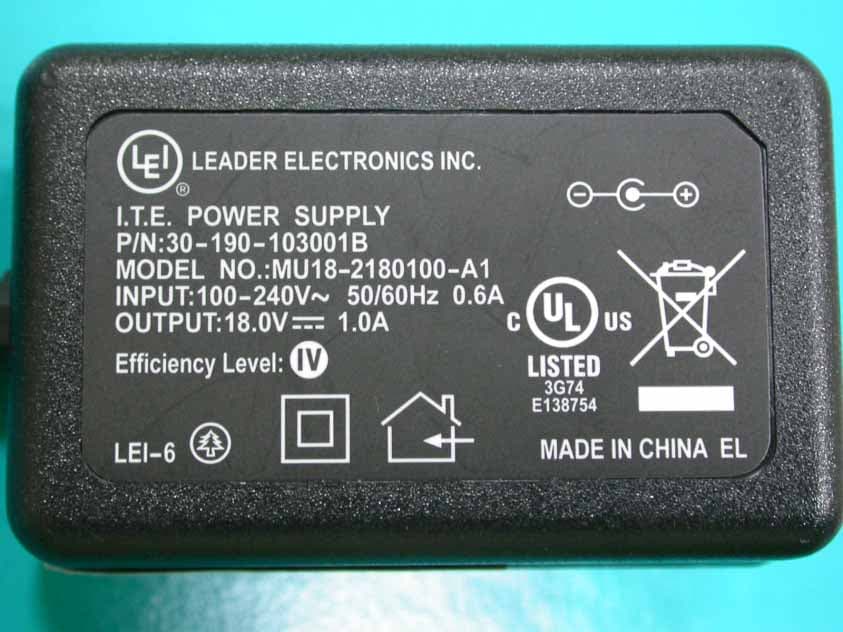
Click to zoom
Application Details
- Equipment Class
- TNB - Licensed Non-Broadcast Station Transmitter
- Date of Grant
- Feb 19, 2008
- Application Purpose
- Original Equipment
- Date of Application
- Feb 17, 2008
- Equipment Note
- WiMAX IEEE802.16e Indoor Basic CPE-2.5GHz
- Frequency Range
- 2505.00000000 - 2685.00000000
- Country
- Taiwan
Documents & Files
Document Text
Text extracted from the exhibit documents filed with the FCC. Open a document above to read the original.
Users Manual
MAX-200M1 Series IEEE 802.16e Simple Indoor CPE User’s Guide Version 3.60 04/2007 Edition 1 ZyXEL MAX-200M1 Series User’s Guide Copyright3 Copyright Copyright © 2007 by ZyXEL Communications Corporation. The contents of this publication may not be reproduced in any part or as a whole, transcribed, stored in a retrieval system, translated into any language, or transmitted in any form or by any means, electronic, mechanical, magnetic, optical, chemical, photocopying, manual, or otherwise, without the prior written permission of ZyXEL Communications Corporation. Published by ZyXEL Communications Corporation. All rights reserved. Disclaimer ZyXEL does not assume any liability arising out of the application or use of any products, or software described herein. Neither does it convey any license under its patent rights nor the patent rights of others. ZyXEL further reserves the right to make changes in any products described herein without notice. This publication is subject to change without notice. Trademarks ZyNOS (ZyXEL Network Operating System) is a registered trademark of ZyXEL Communications, Inc. Other trademarks mentioned in this publication are used for identification purposes only and may be properties of their respective owners. ZyXEL MAX-200M1 Series User’s Guide 4Certifications Certifications Federal Communications Commission (FCC) Interference Statement The device complies with Part 15 of FCC rules. Operation is subject to the following two conditions: • This device may not cause harmful interference. • This device must accept any interference received, including interference that may cause undesired operations. This device has been tested and found to comply with the limits for a Class B digital device pursuant to Part 15 of the FCC Rules. These limits are designed to provide reasonable protection against harmful interference in a residential installation. This device generates, uses, and can radiate radio frequency energy, and if not installed and used in accordance with the instructions, may cause harmful interference to radio communications. However, there is no guarantee that interference will not occur in a particular installation. If this device does cause harmful interference to radio/television reception, which can be determined by turning the device off and on, the user is encouraged to try to correct the interference by one or more of the following measures: 1Reorient or relocate the receiving antenna. 2Increase the separation between the equipment and the receiver. 3Connect the equipment into an outlet on a circuit different from that to which the receiver is connected. 4Consult the dealer or an experienced radio/TV technician for help. FCC Radiation Exposure Statement • The device complies with FCC RF radiation exposure limits set forth for an uncontrolled environment, under 47 CFR 2.1093 paragraph (d)(2). End users must follow the specific operating instructions for satisfying RF exposure compliance. To maintain compliance with FCC RF exposure compliance requirements, please follow operation instruction as documented in this manual. • This transmitter must not be co-located or operating in conjunction with any other antenna or transmitter. • To comply with FCC RF exposure compliance requirements, a separation distance of at least 20 cm must be maintained between the antenna of this device and all persons. 注意 ! 依據 低功率電波輻射性電機管理辦法 第十二條 經型式認證合格之低功率射頻電機,非經許可,公司、商號或使用 者均不得擅自變更頻率、加大功率或變更原設計之特性及功能。 ZyXEL MAX-200M1 Series User’s Guide Certifications5 第十四條 低功率射頻電機之使用不得影響飛航安全及干擾合法通信;經發現 有干擾現象時,應立即停用,並改善至無干擾時方得繼續使用。 前項合法通信,指依電信規定作業之無線電信。低功率射頻電機須忍 受合法通信或工業、科學及醫療用電波輻射性電機設備之干擾。 本機限在不干擾合法電臺與不受被干擾保障條件下於室內使用。 減少電磁波影響,請妥適使用。 Notices Changes or modifications not expressly approved by the party responsible for compliance could void the user's authority to operate the equipment. Viewing Certifications 1Go to http://www.zyxel.com. 2Select your product from the drop-down list box on the ZyXEL home page to go to that product's page. 3Select the certification you wish to view from this page. ZyXEL MAX-200M1 Series User’s Guide 6Safety Warnings Safety Warnings For your safety, be sure to read and follow all warning notices and instructions. • Do NOT use this product near water, for example, in a wet basement or near a swimming pool. • Do NOT expose your device to dampness, dust or corrosive liquids. • Do NOT store things on the device. • Do NOT install, use, or service this device during a thunderstorm. There is a remote risk of electric shock from lightning. • Connect ONLY suitable accessories to the device. • ONLY qualified service personnel should service or disassemble this device. • Make sure to connect the cables to the correct ports. • Place connecting cables carefully so that no one will step on them or stumble over them. • Always disconnect all cables from this device before servicing or disassembling. • Use ONLY an appropriate power adaptor or cord for your device. • Connect the power adaptor or cord to the right supply voltage (for example, 110V AC in North America or 230V AC in Europe). • Do NOT allow anything to rest on the power adaptor or cord and do NOT place the product where anyone can walk on the power adaptor or cord. • Do NOT use the device if the power adaptor or cord is damaged as it might cause electrocution. • If the power adaptor or cord is damaged, remove it from the power outlet. • Do NOT attempt to repair the power adaptor or cord. Contact your local vendor to order a new one. • Do not use the device outside, and make sure all the connections are indoors. There is a remote risk of electric shock from lightning. • Do NOT obstruct the device ventilation slots, as insufficient airflow may harm your device. • Use only No. 26 AWG (American Wire Gauge) or larger telecommunication line cord. • Antenna Warning! This device meets ETSI and FCC certification requirements when using the included antenna(s). Only use the included antenna(s). ZyXEL MAX-200M1 Series User’s Guide…
Text truncated - open the document above for the full version.
Users Manual
ZyXEL MAX-200M1 Series User’s Guide Chapter 7 WAN Setup71 CHAPTER7 WAN Setup This chapter describes how to configure WAN settings. 7.1 WAN Overview A WAN (Wide Area Network) is an outside connection to another network or the Internet. Your ZyXEL Device uses the IEEE 802.16e WiMAX standard to connect wirelessly to a WiMAX base station (see Section 1.1 on page 29). 7.2 WiMAX WiMAX (Worldwide Interoperability for Microwave Access) is the IEEE 802.16 wireless networking standard, which provides high-bandwidth, wide-range wireless service across wireless Metropolitan Area Networks (MANs). ZyXEL is a member of the WiMAX Forum, the industry group dedicated to promoting and certifying interoperability of wireless broadband products. In a wireless MAN, a wireless-equipped computer is known either as a mobile station (MS) or a subscriber station (SS). Mobile stations use the IEEE 802.16e standard and are able to maintain connectivity while switching their connection from one base station to another base station (handover) while subscriber stations use other standards that do not have this capability (IEEE 802.16-2004, for example). The following figure shows an MS-equipped notebook computer MS1 moving from base station BS1’s coverage area and connecting to BS2. Figure 37 WiMax: Mobile Station WiMAX technology uses radio signals (around 2 to 10 GHz) to connect subscriber stations and mobile stations to local base stations. Numerous subscriber stations and mobile stations connect to the network through a single base station (BS), as in the following figure. ZyXEL MAX-200M1 Series User’s Guide 72Chapter 7 WAN Setup Figure 38 WiMAX: Multiple Mobile Stations A base station's coverage area can extend over many hundreds of meters, even under poor conditions. A base station provides network access to subscriber stations and mobile stations, and communicates with other base stations. 7.2.1 Authentication When authenticating a user, the base station uses a third-party RADIUS or Diameter server known as an AAA (Authentication, Authorization and Accounting) server to authenticate the mobile or subscriber stations. The following figure shows a base station using an AAA server to authenticate mobile station MS, allowing it to access the Internet. Figure 39 Using an AAA Server In this figure, the dashed arrow shows the PKM (Privacy Key Management) secured connection between the mobile station and the base station, and the solid arrow shows the EAP secured connection between the mobile station, the base station and the AAA server. See the WiMAX security appendix for more details. 7.3 Internet Access Setup To change your ZyXEL Device’s Internet access settings, click Network > WAN. The Internet Connection screen displays. ZyXEL MAX-200M1 Series User’s Guide Chapter 7 WAN Setup73 Figure 40 Network > WAN > Internet Connection The following table describes the labels in this screen. Table 13 Network > WAN > Internet Connection LABELDESCRIPTION ISP Parameters for Internet Access UserUse this field to enter the username associated with your Internet access account. You can enter up to 61 printable ASCII characters. PasswordUse this field to enter the password associated with your Internet access account. You can enter up to 47 printable ASCII characters. PKMThis field displays the Privacy Key Management version number. PKM provides security between the ZyXEL Device and the base station. At the time of writing, the ZyXEL Device supports PKMv2 only. See the WiMAX security appendix for more information. AuthenticationThis field displays the user authentication method. Authentication is the process of confirming the identity of a mobile station (by means of a username and password, for example). At the time of writing, the ZyXEL Device supports EAP-TTLS only. EAP-TTLS allows a mobile station and a base station to establish a secure link with an AAA (Authentication, Authorization and Accounting) server in order to exchange authentication information. See the WiMAX security appendix for more details. ZyXEL MAX-200M1 Series User’s Guide 74Chapter 7 WAN Setup 7.4 Frequency Settings In a WiMAX network, a mobile or subscriber station must use a radio frequency supported by the base station to communicate. When the ZyXEL Device looks for a connection to a base station, it can search a range of frequencies. TTLS Inner EAPThis field displays the type of secondary authentication method. Once a secure EAP-TTLS connection is established, the inner EAP is the protocol used to exchange security information between the mobile station, the base station and the AAA server to authenticate the mobile station. At the time of writing, the ZyXEL Device supports only CHAP (Challenge Handshake Authentication Protocol). See the WiMAX security appendix for more details. WAN IP Address Assignment Get automatically from ISP (Default) Select this if you have a dynamic IP address. A dynamic IP address is not fixed; the ISP assigns you a different one each time you connect to the Internet. Use Fixed IP AddressA static IP address is a fixed IP that your ISP gives you. Type your ISP assigned IP address in the IP Address field below. IP Subnet MaskEnter a subnet mask in dotted decimal notation. Refer to the appendices to calculate a subnet mask If you are implementing subnetting. Gateway IP AddressSpecify a gateway IP address (supplied by your ISP). WAN MAC Address Spoof WAN MAC AddressYou can use the factory-assigned default MAC Address, or clone the MAC address of a computer or other network device on your LAN. To clone a MAC address, select the check box next to Spoof WAN MAC Address and enter the IP address of the computer on the LAN whose MAC you are cloning. Once it is successfully configured, the address will be copied to the rom file (ZyNOS configuration file). It will not change unless you change the setting or upload a different ROM file. Otherwise, configure nothing to have the ZyXEL Device use the factory-assigned default MAC address. Clone the…
Text truncated - open the document above for the full version.
Users Manual
ZyXEL MAX-200M1 Series User’s Guide Chapter 15 Static Route151 Figure 84 Management > Static Route > IP Static Route > Edit Each field is described in the following table. Table 49 Management > Static Route > IP Static Route > Edit LABELDESCRIPTION Route NameEnter the name of the static route. Active Select this if you want the static route to be used. Clear this if you do not want the static route to be used. Private Select this if you do not want the ZyXEL Device to tell other routers about this static route. For example, you might select this if the static route is in your LAN. Clear this if you want the ZyXEL Device to tell other routers about this static route. Destination IP Address Enter one of the destination IP addresses that this static route affects. IP Subnet Mask Enter the subnet mask that defines the range of destination IP addresses that this static route affects. If this static route affects only one IP address, enter 255.255.255.255. Gateway IP Address Enter the IP address of the gateway to which the ZyXEL Device should send packets for the specified Destination. The gateway is a router or a switch on the same network segment as the device's LAN or WAN port. The gateway helps forward packets to their destinations. Metric Usually, you should keep the default value. This field is related to RIP. See Chapter 8 on page 83 for more information. The metric represents the "cost of transmission". A router determines the best route for transmission by choosing a path with the lowest "cost". The smaller the metric, the lower the "cost". RIP uses hop count as the measurement of cost, where 1 is for a directly-connected network. The metric must be 1-15; if you use a value higher than 15, the routers assume the link is down. Apply Click this to save your changes and to apply them to the ZyXEL Device. Cancel Click this to return to the previous screen without saving your changes. ZyXEL MAX-200M1 Series User’s Guide 152Chapter 15 Static Route ZyXEL MAX-200M1 Series User’s Guide Chapter 16 Remote MGMT153 CHAPTER16 Remote MGMT Use these screens to control which computers can use which services to access the ZyXEL Device on each interface. 16.1 Remote Management Overview Remote management allows you to determine which services/protocols can access which ZyXEL Device interface (if any) from which computers. You may manage your ZyXEL Device from a remote location via: To disable remote management of a service, select Disable in the corresponding Server Access field. You may only have one remote management session running at a time. The ZyXEL Device automatically disconnects a remote management session of lower priority when another remote management session of higher priority starts. The priorities for the different types of remote management sessions are as follows. 1Telnet 2HTTP 16.1.1 Remote Management Limitations Remote management over LAN or WAN will not work when: 1A filter in SMT menu 3.1 (LAN) or in menu 11.5 (WAN) is applied to block a Telnet, FTP or Web service. 2You have disabled that service in one of the remote management screens. 3The IP address in the Secured Client IP field does not match the client IP address. If it does not match, the ZyXEL Device will disconnect the session immediately. 4There is already another remote management session with an equal or higher priority running. You may only have one remote management session running at one time. •Internet (WAN only)•ALL (LAN and WAN) •LAN only•Neither (Disable). ZyXEL MAX-200M1 Series User’s Guide 154Chapter 16 Remote MGMT 16.1.2 Remote Management and NAT When NAT is enabled: • Use the ZyXEL Device’s WAN IP address when configuring from the WAN. • Use the ZyXEL Device’s LAN IP address when configuring from the LAN. 16.1.3 System Timeout There is a default system management idle timeout of five minutes (three hundred seconds). The ZyXEL Device automatically logs you out if the management session remains idle for longer than this timeout period. The management session does not time out when a statistics screen is polling. You can change the timeout period in the Maintenance > System > General screen. 16.2 Remote Management Screens 16.2.1 WWW Screen Use this screen to control HTTP access to your ZyXEL Device. To access this screen, click Management > Remote MGMT > WWW. Figure 85 Management > Remote MGMT > WWW Each field is described in the following table. Table 50 Management > Remote MGMT > WWW LABELDESCRIPTION Server PortEnter the port number this service can use to access the ZyXEL Device. The computer must use the same port number. Server AccessSelect the interface(s) through which a computer may access the ZyXEL Device using this service. Secured Client IP Address Select All to allow any computer to access the ZyXEL Device using this service. Select Selected to only allow the computer with the IP address that you specify to access the ZyXEL Device using this service. ZyXEL MAX-200M1 Series User’s Guide Chapter 16 Remote MGMT155 16.2.2 Telnet Screen Use this screen to control Telnet access to your ZyXEL Device. To access this screen, click Management > Remote MGMT > Telnet. Figure 86 Management > Remote MGMT > Telnet Each field is described in the following table. 16.2.3 FTP Screen Use this screen to control FTP access to your ZyXEL Device. To access this screen, click Management > Remote MGMT > FTP. ApplyClick this to save your changes. ResetClick this to set every field in this screen to its default value. Table 50 Management > Remote MGMT > WWW LABELDESCRIPTION Table 51 Management > Remote MGMT > Telnet LABELDESCRIPTION Server PortEnter the port number this service can use to access the ZyXEL Device. The computer must use the same port number. Server AccessSelect the interface(s) through which a computer may access the ZyXEL Device using this service. Secured Client IP Address Select All to allow any computer to access the ZyXEL Device using this service. Select Selected to only allow the computer with the IP address…
Text truncated - open the document above for the full version.
Users Manual
ZyXEL MAX-200M1 Series User’s Guide 221 In order to ensure network security, the access point and the RADIUS server use a shared secret key, which is a password they both know. The key is not sent over the network. In addition to the shared key, password information exchanged is also encrypted to protect the network from unauthorized access. Diameter Diameter (RFC 3588) is a type of AAA server that provides several improvements over RADIUS in efficiency, security, and support for roaming. Security Association The set of information about user authentication and data encryption between two computers is known as a security association (SA). In a WiMAX network, the process of security association has three stages. • Authorization request and reply The MS/SS presents its public certificate to the base station. The base station verifies the certificate and sends an authentication key (AK) to the MS/SS. • Key request and reply The MS/SS requests a transport encryption key (TEK) which the base station generates and encrypts using the authentication key. • Encrypted traffic The MS/SS decrypts the TEK (using the authentication key). Both stations can now securely encrypt and decrypt the data flow. CCMP All traffic in a WiMAX network is encrypted using CCMP (Counter Mode with Cipher Block Chaining Message Authentication Protocol). CCMP is based on the 128-bit Advanced Encryption Standard (AES) algorithm. ‘Counter mode’ refers to the encryption of each block of plain text with an arbitrary number, known as the counter. This number changes each time a block of plain text is encrypted. Counter mode avoids the security weakness of repeated identical blocks of encrypted text that makes encrypted data vulnerable to pattern-spotting. ‘Cipher Block Chaining Message Authentication’ (also known as CBC-MAC) ensures message integrity by encrypting each block of plain text in such a way that its encryption is dependent on the block before it. This series of ‘chained’ blocks creates a message authentication code (MAC or CMAC) that ensures the encrypted data has not been tampered with. ZyXEL MAX-200M1 Series User’s Guide 222 Authentication The ZyXEL Device supports EAP-TTLS authentication. EAP-TTLS (Tunneled Transport Layer Service) EAP-TTLS is an extension of the EAP-TLS authentication that uses certificates for only the server-side authentications to establish a secure connection (with EAP-TLS digital certifications are needed by both the server and the wireless clients for mutual authentication). Client authentication is then done by sending username and password through the secure connection, thus client identity is protected. For client authentication, EAP-TTLS supports EAP methods and legacy authentication methods such as PAP, CHAP, MS-CHAP and MS- CHAP v2. ZyXEL MAX-200M1 Series User’s Guide Appendix C223 APPENDIXC Setting up Your Computer’s IP Address All computers must have a 10M or 100M Ethernet adapter card and TCP/IP installed. Windows 95/98/Me/NT/2000/XP, Macintosh OS 7 and later operating systems and all versions of UNIX/LINUX include the software components you need to install and use TCP/IP on your computer. Windows 3.1 requires the purchase of a third-party TCP/IP application package. TCP/IP should already be installed on computers using Windows NT/2000/XP, Macintosh OS 7 and later operating systems. After the appropriate TCP/IP components are installed, configure the TCP/IP settings in order to “communicate” with your network. Windows 95/98/Me Click Start, Settings, Control Panel and double-click the Network icon to open the Network window. ZyXEL MAX-200M1 Series User’s Guide 224Appendix C Figure 130 WIndows 95/98/Me: Network: Configuration Installing Components The Network window Configuration tab displays a list of installed components. You need a network adapter, the TCP/IP protocol and Client for Microsoft Networks. If you need the adapter: 1In the Network window, click Add. 2Select Adapter and then click Add. 3Select the manufacturer and model of your network adapter and then click OK. If you need TCP/IP: 1In the Network window, click Add. 2Select Protocol and then click Add. 3Select Microsoft from the list of manufacturers. 4Select TCP/IP from the list of network protocols and then click OK. If you need Client for Microsoft Networks: 1Click Add. 2Select Client and then click Add. ZyXEL MAX-200M1 Series User’s Guide Appendix C225 3Select Microsoft from the list of manufacturers. 4Select Client for Microsoft Networks from the list of network clients and then click OK. 5Restart your computer so the changes you made take effect. Configuring 1In the Network window Configuration tab, select your network adapter's TCP/IP entry and click Properties 2Click the IP Address tab. •If your IP address is dynamic, select Obtain an IP address automatically. •If you have a static IP address, select Specify an IP address and type your information into the IP Address and Subnet Mask fields. Figure 131 Windows 95/98/Me: TCP/IP Properties: IP Address 3Click the DNS Configuration tab. •If you do not know your DNS information, select Disable DNS. •If you know your DNS information, select Enable DNS and type the information in the fields below (you may not need to fill them all in). ZyXEL MAX-200M1 Series User’s Guide 226Appendix C Figure 132 Windows 95/98/Me: TCP/IP Properties: DNS Configuration 4Click the Gateway tab. •If you do not know your gateway’s IP address, remove previously installed gateways. •If you have a gateway IP address, type it in the New gateway field and click Add. 5Click OK to save and close the TCP/IP Properties window. 6Click OK to close the Network window. Insert the Windows CD if prompted. 7Restart your computer when prompted. Verifying Settings 1Click Start and then Run. 2In the Run window, type "winipcfg" and then click OK to open the IP Configuration window. 3Select your network adapter. You should see your computer's IP address, subnet mask and default gateway. Windows 2000/NT/XP The …
Text truncated - open the document above for the full version.
Cover Letter(s)
Confidentility Letter (Permanent) Attention: Application Examiner Re: Request for confidentiality Applicant: ZyXEL Communications Corporation FCC ID: I88MAX200M1 To whom it may concern, Request is hereby submitted by ZyXEL Communications Corporation to withhold permanently from public review certain portions of the application for equipment certification for the referenced FCC identifiers. This request for confidentiality is made pursuant to 47 CFR 0.457(d) of the FCC Rules. In particular, the following sections of the application are to be kept permanently confidential: • Schematics • Detailed Block diagrams • Detailed Operational/Functional Description • Tune up procedure Rationale for request for confidentiality: ZyXEL Communications Corporation has invested considerable time and materials in research and development to produce the referenced product. Disclosure of the permanently confidential portions of this application to competitors would not only give them significant competitive advantages in developing similar products, but would also disclose successful implementation of unpublished, leading edge technology developed by us. If you have questions or need further information, please contact the undersigned. Sincerely, Section Manager ZyXEL Communications Corporation
Cover Letter(s)
APPENDIX A Lettery of Agency "I, an officer of ZyXEL Communications Corporation do hereby authorize Intertek Testing Services to act on our behalf in front of the Federal Communications Commission with respect to all matters relating to certification of equipment under Part 15 and Part 18 of the FCC Rules until further notice." I further certify that no party (as defined in §1.2002(b) of CFR 47, 1992) to this application, including myself, is subject to a denial of federal benefits, that includes FCC benefits, pursuant to Section 5301 of the Anti-Drug Abuse Act of 1988, 21 U.S.C.,853(a). By Wang Yi Signature Printed Title Section Manager
Cover Letter(s)
American Telecommunications Certification Body Inc. 6731 Whittier Ave, McLean, VA 22101 November 30, 2007 RE: ZyXEL Communications Corp FCC ID: I88MAX200M1 I have a few comments on this Application. Depending on your responses, kindly understand there may be additional comments. 1.) Please refer to Part 27.53. Does the manufacturer declare this device as a ‘Fixed’, ‘Temporary Fixed’ or ‘Mobile’ digital station? 2.) Please review the Test Setup photographs. Why is a standard loop-start phone present in the AC Conducted test, but not used in the Radiated Test? 3.) Please review the Manual, page 4. You appear to be using the wrong 15.19 statement. 4.) The quality of the Internal Photographs is poor. Please provide better, larger and clearer photos. 5.) This is a radio transmitter designed for the Licensed radio services. Therefore we will need a Parts List. 6.) The Confidentiality Request letter makes no mention of either the Parts or Tune Up documents. Please confirm if it is satisfactory for these Exhibits to be viewed on the FCC website. 7.) A measurement of broadband power is admittedly tricky. Please provide a manufacturers specification sheet for the sensor head used with this power meter. 8.) Please describe in detail the testing profiles used with this WiMax device. 9.) Was a broadband or narrowband RF generator used in making substitution measurements? If narrowband, please describe how you were able to correlate or correct the narrowband substitution emission to broadband. William H. Graff President mailto: [email protected] The items indicated above must be submitted before processing can continue on the above referenced application. Failure to provide the requested information may result in application termination. Correspondence should be considered part of the permanent submission and may be viewed from the Internet after a Grant of Equipment Authorization is issued. Please do not respond to this correspondence using the email reply button. In order for your response to be processed expeditiously, you must submit your documents through the AmericanTCB.com website. Also, please note that partial responses increase processing time and should not be submitted. Any questions about the content of this correspondence should be directed to the sender.
External Photos
Photo 1: External photo of EUT Photo 2: External photo of EUT MAX-200M1 MAX-200M1 Photo 3: External photo of EUT Photo 4: External photo of EUT MAX-200M1 MAX-200M1 Photo 5: Antenna photo of EUT Photo 6: Adapter photo of EUT MAX-200M1 Photo 7: Adapter photo of EUT
ID Label/Location Info
FCC ID Label Location
Internal Photos
Photo 1: Internal photo of EUT Photo 2: Internal photo of EUT MAX-200M1 MAX-200M1 Photo 3: Internal photo of EUT Photo 4: Internal photo of EUT MAX-200M1 MAX-200M1 Photo 5: Internal photo of EUT Photo 6: Internal photo of EUT MAX-200M1 MAX-200M1 Photo 7: Internal photo of EUT Photo 8: Internal photo of EUT MAX-200M1 MAX-200M1 Photo 9: Internal photo of EUT MAX-200M1
RF Exposure Info
FCC ID. : I88MAX200M1 Report No.: EME-071149 Page 1 of 9 Maximum Permissible Exposure (MPE) Evaluation Report Report No. : EME-071149 Model No. : MAX-200M1 Issued Date : Nov. 06, 2007 Applicant : ZyXEL Communications Corporation 6, Innovation Rd II, Science-Based Industrial Park, Hsin-Chu, Taiwan Test By : Intertek Testing Services Taiwan Ltd. No. 11, Lane 275, Ko-Nan 1 Street, Chia-Tung Li, Shiang-Shan District, Hsinchu City, Taiwan This test report consists of 9 pages in total. It may be duplicated completely for legal use with the allowance of the applicant. It shall not be reproduced except in full, without the written approval of Intertek Laboratory. The test result(s) in this report only applies to the tested sample(s). Jimmie Liu Project Engineer Reviewed By Kevin Chen FCC ID. : I88MAX200M1 Report No.: EME-071149 Page 2 of 9 Table of Contents Summary of Tests ............................................................................................................. 3 1. Introduction ....................................................................................................…
Text truncated - open the document above for the full version.
Contact Information
Applicant
Emma Bao(Section Manager)
Technical Contact
Intertek Testing Services Taiean Ltd.Kevin Chen
[email protected]+886-3-519-1411
NO. 11, Ko-Tze-Nan Chia-Tung Li, Shiang-Shan · Hsinchu · Taiwan
Non-Technical Contact
Intertek Testing Services Taiean Ltd.Kevin Chen
[email protected]+886-3-519-1411
Test Firm
Intertek Testing Services Taiwan Ltd.Alpha Liu
Technical Specifications
| # | Rule Parts | Frequency Range | Power Output | Emission | Tolerance |
|---|---|---|---|---|---|
| 2 | 27 | 2.50 GHz - 2.69 GHz | 1.858 W | 10M0G9W | 13.6 ppm |
Other Applications from ZyXEL Communications Corporation
I88EE6601-00
Jul 18, 2024Tri-Band Wireless BE19000 10G Ethernet VoIP Gateway with SFP+ / Tri-Band Wireless BE19000 10G Ethernet VoIP Gateway / Tri-Band Wireless BE19000 10G Ethernet Gateway with SFP+ / Tri-Band Wireless BE19000 10G Ethernet Gateway
Equipment Class
6ID - 15E 6 GHz Low Power Indoor Access Point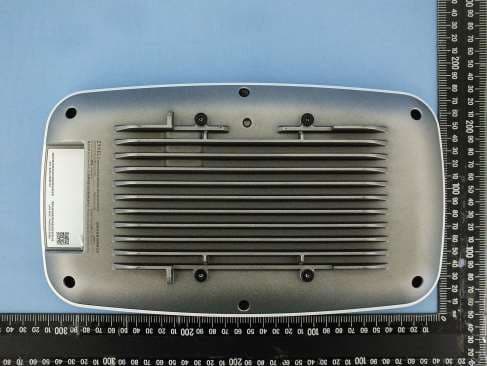
I8803935
Oct 17, 2023802.11be (WiFi 7) Triple-Radio Unified Pro Access Point
Equipment Class
DTS - Digital Transmission System
I8803973
Aug 01, 2023802.11ax (WiFi 6) Dual-Radio Wall-Plate Unified Access Point
Equipment Class
NII - Unlicensed National Information Infrastructure TX
I88WX5610-B0
Apr 25, 2023AX7800 WiFi 6E Tri-Band Gigabit Wireless Extender
Equipment Class
DTS - Digital Transmission System
I88EX7710-B0
Apr 16, 2023AX11000 WiFi 6E 10G Ethernet Gateway
Equipment Class
NII - Unlicensed National Information Infrastructure TX