I88NBG334SH1Wireless Router
ZyXEL Communications Corporation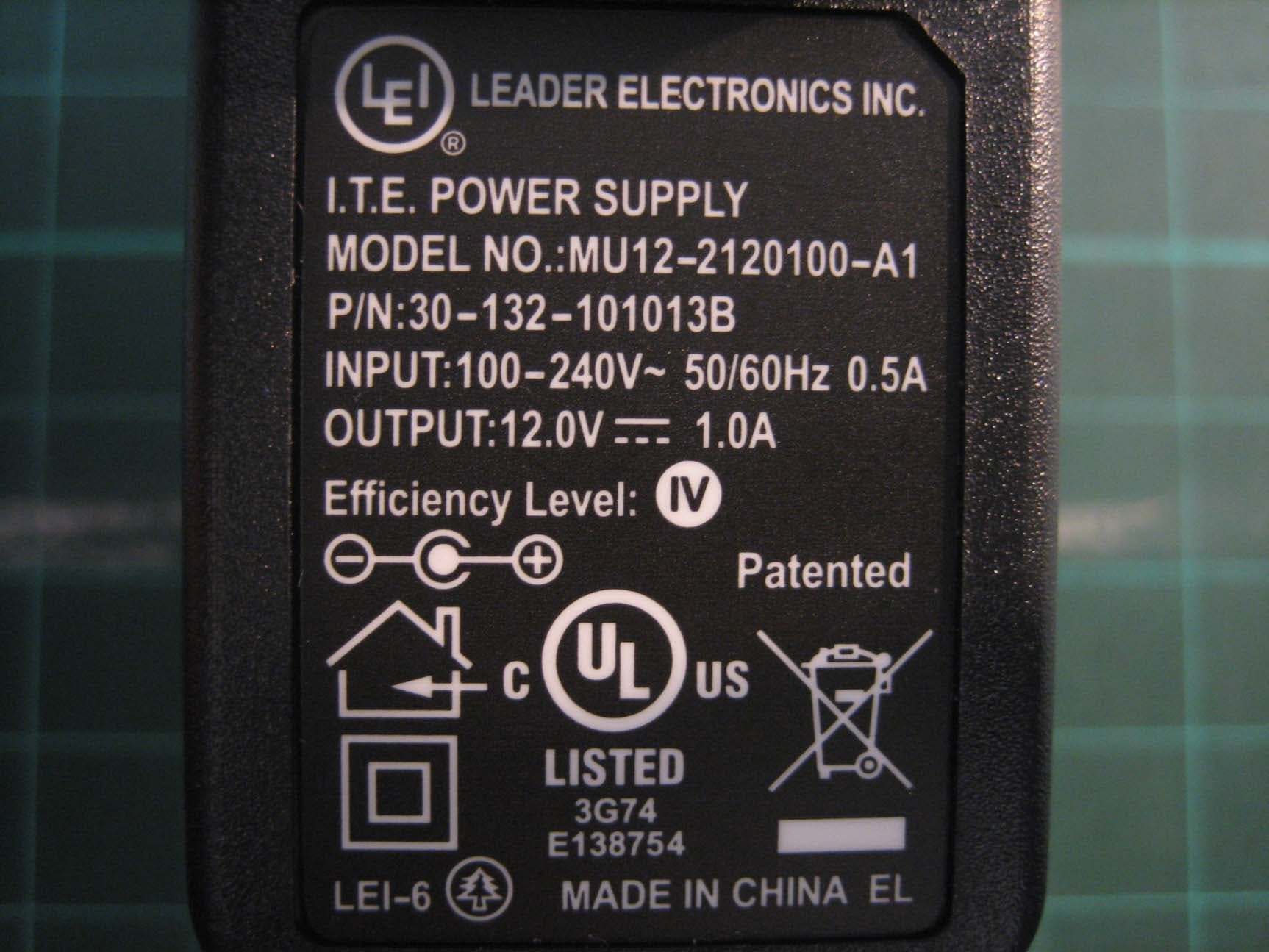
Click to zoom
Application Details
- Equipment Class
- DTS - Digital Transmission System
- Date of Grant
- Jul 04, 2007
- Application Purpose
- Original Equipment
- Date of Application
- Jul 02, 2007
- Equipment Note
- Wireless Router
- Frequency Range
- 2412.00000000 - 2462.00000000
- Country
- Taiwan
Documents & Files
Document Text
Text extracted from the exhibit documents filed with the FCC. Open a document above to read the original.
Users Manual
www.zyxel.com NBG-334SH 802.11g Super G High Power Wireless Router User’s Guide Version 3.60 01/2007 Edition 1 About This User's Guide ZyXEL NBG-334SH User’s Guide 3 About This User's Guide Intended Audience This manual is intended for people who want to configure the ZyXEL Device using the web configurator. You should have at least a basic knowledge of TCP/IP networking concepts and topology. Related Documentation • Quick Start Guide The Quick Start Guide is designed to help you get up and running right away. It contains information on setting up your network and configuring for Internet access. • Web Configurator Online Help Embedded web help for descriptions of individual screens and supplementary information. "It is recommended you use the web configurator to configure the ZyXEL Device. • Supporting Disk Refer to the included CD for support documents. • ZyXEL Web Site Please refer to www.zyxel.com for additional support documentation and product certifications. User Guide Feedback Help us help you. Send all User Guide-related comments, questions or suggestions for improvement to the following address, or use e-mail instead. Thank you! The Technical Writing Team, ZyXEL Communications Corp., 6 Innovation Road II, Science-Based Industrial Park, Hsinchu, 300, Taiwan. E-mail: [email protected] Document Conventions ZyXEL NBG-334SH User’s Guide 4 Document Conventions Warnings and Notes These are how warnings and notes are shown in this User’s Guide. 1Warnings tell you about things that could harm you or your device. "Notes tell you other important information (for example, other things you may need to configure or helpful tips) or recommendations. Syntax Conventions • The NBG-334SH may be referred to as the “ZyXEL Device”, the “device”, the “product” or the “system” in this User’s Guide. • Product labels, screen names, field labels and field choices are all in bold font. • A key stroke is denoted by square brackets and uppercase text, for example, [ENTER] means the “enter” or “return” key on your keyboard. • “Enter” means for you to type one or more characters and then press the [ENTER] key. “Select” or “choose” means for you to use one of the predefined choices. • A right angle bracket ( > ) within a screen name denotes a mouse click. For example, Maintenance > Log > Log Setting means you first click Maintenance in the navigation panel, then the Log sub menu and finally the Log Setting tab to get to that screen. • Units of measurement may denote the “metric” value or the “scientific” value. For example, “k” for kilo may denote “1000” or “1024”, “M” for mega may denote “1000000” or “1048576” and so on. • “e.g.,” is a shorthand for “for instance”, and “i.e.,” means “that is” or “in other words”. Document Conventions ZyXEL NBG-334SH User’s Guide 5 Icons Used in Figures Figures in this User’s Guide may use the following generic icons. The ZyXEL Device icon is not an exact representation of your device. ZyXEL DeviceComputerNotebook computer ServerDSLAMFirewall TelephoneSwitchRouter Modem Safety Warnings ZyXEL NBG-334SH User’s Guide 6 Safety Warnings 1For your safety, be sure to read and follow all warning notices and instructions. • Do NOT use this product near water, for example, in a wet basement or near a swimming pool. • Do NOT expose your device to dampness, dust or corrosive liquids. • Do NOT store things on the device. • Do NOT install, use, or service this device during a thunderstorm. There is a remote risk of electric shock from lightning. • Connect ONLY suitable accessories to the device. • Do NOT open the device or unit. Opening or removing covers can expose you to dangerous high voltage points or other risks. ONLY qualified service personnel should service or disassemble this device. Please contact your vendor for further information. • Make sure to connect the cables to the correct ports. • Place connecting cables carefully so that no one will step on them or stumble over them. • Always disconnect all cables from this device before servicing or disassembling. • Use ONLY an appropriate power adaptor or cord for your device. • Connect the power adaptor or cord to the right supply voltage (for example, 110V AC in North America or 230V AC in Europe). • Do NOT allow anything to rest on the power adaptor or cord and do NOT place the product where anyone can walk on the power adaptor or cord. • Do NOT use the device if the power adaptor or cord is damaged as it might cause electrocution. • If the power adaptor or cord is damaged, remove it from the power outlet. • Do NOT attempt to repair the power adaptor or cord. Contact your local vendor to order a new one. • Do not use the device outside, and make sure all the connections are indoors. There is a remote risk of electric shock from lightning. • Do NOT obstruct the device ventilation slots, as insufficient airflow may harm your device. • Antenna Warning! This device meets ETSI and FCC certification requirements when using the included antenna(s). Only use the included antenna(s). • If you wall mount your device, make sure that no electrical lines, gas or water pipes will be damaged. This product is recyclable. Dispose of it properly. Safety Warnings ZyXEL NBG-334SH User’s Guide 7 Safety Warnings ZyXEL NBG-334SH User’s Guide 8 Contents Overview ZyXEL NBG-334SH User’s Guide 9 Contents Overview Introduction ............................................................................................................................ 27 Getting to Know Your ZyXEL Device ......................................................................................... 29 Wireless Tutorial ........................................................................................................................ 33 Introducing the Web Configurator ..............................................................................................41 Wizard .......................................................................................................…
Text truncated - open the document above for the full version.
Users Manual
Chapter 7 LAN ZyXEL NBG-334SH User’s Guide 101 Figure 55 Any IP Example The Any IP feature does not apply to a computer using either a dynamic IP address or a static IP address that is in the same subnet as the ZyXEL Device’s IP address. "You must enable NAT to use the Any IP feature on the ZyXEL Device. Address Resolution Protocol (ARP) is a protocol for mapping an Internet Protocol address (IP address) to a physical machine address, also known as a Media Access Control or MAC address, on the local area network. IP routing table is defined on IP Ethernet devices (the ZyXEL Device) to decide which hop to use, to help forward data along to its specified destination. The following lists out the steps taken, when a computer tries to access the Internet for the first time through the ZyXEL Device. 1When a computer (which is in a different subnet) first attempts to access the Internet, it sends packets to its default gateway (which is not the ZyXEL Device) by looking at the MAC address in its ARP table. 2When the computer cannot locate the default gateway, an ARP request is broadcast on the LAN. 3The ZyXEL Device receives the ARP request and replies to the computer with its own MAC address. 4The computer updates the MAC address for the default gateway to the ARP table. Once the ARP table is updated, the computer is able to access the Internet through the ZyXEL Device. 5When the ZyXEL Device receives packets from the computer, it creates an entry in the IP routing table so it can properly forward packets intended for the computer. After all the routing information is updated, the computer can access the ZyXEL Device and the Internet as if it is in the same subnet as the ZyXEL Device. Chapter 7 LAN ZyXEL NBG-334SH User’s Guide 102 7.3 LAN IP Screen Use this screen to change your basic LAN settings. Click Network > LAN. Figure 56 LAN IP The following table describes the labels in this screen. 7.4 LAN IP Alias IP alias allows you to partition a physical network into different logical networks over the same Ethernet interface. The ZyXEL Device supports three logical LAN interfaces via its single physical Ethernet interface with the ZyXEL Device itself as the gateway for each LAN network. To change your ZyXEL Device’s IP alias settings, click Network > LAN > IP Alias. The screen appears as shown. Table 36 LAN IP LABELDESCRIPTION LAN TCP/IP IP AddressType the IP address of your ZyXEL Device in dotted decimal notation 192.168.1.1 (factory default). IP Subnet MaskThe subnet mask specifies the network number portion of an IP address. Your ZyXEL Device will automatically calculate the subnet mask based on the IP address that you assign. Unless you are implementing subnetting, use the subnet mask computed by the ZyXEL Device. ApplyClick Apply to save your changes back to the ZyXEL Device. ResetClick Reset to begin configuring this screen afresh. Chapter 7 LAN ZyXEL NBG-334SH User’s Guide 103 Figure 57 LAN IP Alias The following table describes the labels in this screen. 7.5 Advanced LAN Screen To change your ZyXEL Device’s advanced IP settings, click Network > LAN > Advanced. The screen appears as shown. Table 37 LAN IP Alias LABELDESCRIPTION IP Alias 1,2Select the check box to configure another LAN network for the ZyXEL Device. IP AddressEnter the IP address of your ZyXEL Device in dotted decimal notation. IP Subnet MaskYour ZyXEL Device will automatically calculate the subnet mask based on the IP address that you assign. Unless you are implementing subnetting, use the subnet mask computed by the ZyXEL Device. ApplyClick Apply to save your changes back to the ZyXEL Device. ResetClick Reset to begin configuring this screen afresh. Chapter 7 LAN ZyXEL NBG-334SH User’s Guide 104 Figure 58 Advanced LAN The following table describes the labels in this screen. Table 38 Advanced LAN LABELDESCRIPTION MulticastSelect IGMP V-1 or IGMP V-2 or None. IGMP (Internet Group Multicast Protocol) is a network-layer protocol used to establish membership in a Multicast group - it is not used to carry user data. IGMP version 2 (RFC 2236) is an improvement over version 1 (RFC 1112) but IGMP version 1 is still in wide use. If you would like to read more detailed information about interoperability between IGMP version 2 and version 1, please see sections 4 and 5 of RFC 2236. ActiveSelect this if you want to let computers on different subnets use the ZyXEL Device. Windows Networking (NetBIOS over TCP/IP): NetBIOS (Network Basic Input/Output System) are TCP or UDP broadcast packets that enable a computer to connect to and communicate with a LAN. For some dial-up services such as PPPoE or PPTP, NetBIOS packets cause unwanted calls. However it may sometimes be necessary to allow NetBIOS packets to pass through to the WAN in order to find a computer on the WAN. Allow between LAN and WAN Select this check box to forward NetBIOS packets from the LAN to the WAN and from the WAN to the LAN. If your firewall is enabled with the default policy set to block WAN to LAN traffic, you also need to enable the default WAN to LAN firewall rule that forwards NetBIOS traffic. Clear this check box to block all NetBIOS packets going from the LAN to the WAN and from the WAN to the LAN. ApplyClick Apply to save your changes back to the ZyXEL Device. ResetClick Reset to begin configuring this screen afresh. ZyXEL NBG-334SH User’s Guide 105 CHAPTER 8 DHCP Server 8.1 DHCP DHCP (Dynamic Host Configuration Protocol, RFC 2131 and RFC 2132) allows individual clients to obtain TCP/IP configuration at start-up from a server. You can configure the ZyXEL Device as a DHCP server or disable it. When configured as a server, the ZyXEL Device provides the TCP/IP configuration for the clients. If DHCP service is disabled, you must have another DHCP server on your LAN, or else the computer must be manually configured. 8.2 DHCP Server General Screen Click Network > DHCP Server. The following screen displays. Figure 59 DHCP Server General The following table describes the…
Text truncated - open the document above for the full version.
Users Manual
Chapter 16 Universal Plug-and-Play (UPnP) ZyXEL NBG-334SH User’s Guide 161 Figure 95 Internet Connection Properties 4You may edit or delete the port mappings or click Add to manually add port mappings. Chapter 16 Universal Plug-and-Play (UPnP) ZyXEL NBG-334SH User’s Guide 162 Figure 96 Internet Connection Properties: Advanced Settings Figure 97 Internet Connection Properties: Advanced Settings: Add 5When the UPnP-enabled device is disconnected from your computer, all port mappings will be deleted automatically. 6Select Show icon in notification area when connected option and click OK. An icon displays in the system tray. Chapter 16 Universal Plug-and-Play (UPnP) ZyXEL NBG-334SH User’s Guide 163 Figure 98 System Tray Icon 7Double-click on the icon to display your current Internet connection status. Figure 99 Internet Connection Status Web Configurator Easy Access With UPnP, you can access the web-based configurator on the ZyXEL Device without finding out the IP address of the ZyXEL Device first. This comes helpful if you do not know the IP address of the ZyXEL Device. Follow the steps below to access the web configurator. 1Click Start and then Control Panel. 2Double-click Network Connections. 3Select My Network Places under Other Places. Chapter 16 Universal Plug-and-Play (UPnP) ZyXEL NBG-334SH User’s Guide 164 Figure 100 Network Connections 4An icon with the description for each UPnP-enabled device displays under Local Network. 5Right-click on the icon for your ZyXEL Device and select Invoke. The web configurator login screen displays. Chapter 16 Universal Plug-and-Play (UPnP) ZyXEL NBG-334SH User’s Guide 165 Figure 101 Network Connections: My Network Places 6Right-click on the icon for your ZyXEL Device and select Properties. A properties window displays with basic information about the ZyXEL Device. Figure 102 Network Connections: My Network Places: Properties: Example Chapter 16 Universal Plug-and-Play (UPnP) ZyXEL NBG-334SH User’s Guide 166 167 PART IV Maintenance and Troubleshooting System (169) Logs (173) Tools (187) Configuration Mode (193) Troubleshooting (195) 168 ZyXEL NBG-334SH User’s Guide 169 CHAPTER 17 System This chapter provides information on the System screens. 17.1 System Overview See the chapter about wizard setup for more information on the next few screens. 17.2 System General Screen Click Maintenance > System. The following screen displays. Figure 103 System General Chapter 17 System ZyXEL NBG-334SH User’s Guide 170 The following table describes the labels in this screen. 17.3 Time Setting Screen To change your ZyXEL Device’s time and date, click Maintenance > System > Time Setting. The screen appears as shown. Use this screen to configure the ZyXEL Device’s time based on your local time zone. Table 67 System General LABELDESCRIPTION System NameSystem Name is a unique name to identify the ZyXEL Device in an Ethernet network. It is recommended you enter your computer’s “Computer name” in this field (see the chapter about wizard setup for how to find your computer’s name). This name can be up to 30 alphanumeric characters long. Spaces are not allowed, but dashes “-” and underscores "_" are accepted. Domain NameEnter the domain name (if you know it) here. If you leave this field blank, the ISP may assign a domain name via DHCP. The domain name entered by you is given priority over the ISP assigned domain name. Administrator Inactivity Timer Type how many minutes a management session can be left idle before the session times out. The default is 5 minutes. After it times out you have to log in with your password again. Very long idle timeouts may have security risks. A value of "0" means a management session never times out, no matter how long it has been left idle (not recommended). Password SetupChange your ZyXEL Device’s password (recommended) using the fields as shown. Old PasswordType the default password or the existing password you use to access the system in this field. New PasswordType your new system password (up to 30 characters). Note that as you type a password, the screen displays an asterisk (*) for each character you type. Retype to ConfirmType the new password again in this field. ApplyClick Apply to save your changes back to the ZyXEL Device. ResetClick Reset to begin configuring this screen afresh. Chapter 17 System ZyXEL NBG-334SH User’s Guide 171 Figure 104 Time Setting The following table describes the labels in this screen. Table 68 Time Setting LABELDESCRIPTION Current Time and Date Current Time This field displays the time of your ZyXEL Device. Each time you reload this page, the ZyXEL Device synchronizes the time with the time server. Current Date This field displays the date of your ZyXEL Device. Each time you reload this page, the ZyXEL Device synchronizes the date with the time server. Time and Date Setup ManualSelect this radio button to enter the time and date manually. If you configure a new time and date, Time Zone and Daylight Saving at the same time, the new time and date you entered has priority and the Time Zone and Daylight Saving settings do not affect it. New Time (hh:mm:ss) This field displays the last updated time from the time server or the last time configured manually. When you set Time and Date Setup to Manual, enter the new time in this field and then click Apply. New Date (yyyy/mm/dd) This field displays the last updated date from the time server or the last date configured manually. When you set Time and Date Setup to Manual, enter the new date in this field and then click Apply. Chapter 17 System ZyXEL NBG-334SH User’s Guide 172 Get from Time Server Select this radio button to have the ZyXEL Device get the time and date from the time server you specified below. AutoSelect Auto to have the ZyXEL Device automatically search for an available time server and synchronize the date and time with the time server after you click Apply. User Defined Time Server Address Select User Defined Time Server Address and enter the IP addre…
Text truncated - open the document above for the full version.
Users Manual
201 PART V Appendices and Index Product Specifications (203) Pop-up Windows, JavaScripts and Java Permissions (207) IP Addresses and Subnetting (213) Wall-mounting Instructions (221) Setting up Your Computer’s IP Address (223) Wireless LANs (239) Command Interpreter (251) NetBIOS Filter Commands (255) Services (257) Internal SPTGEN (261) Legal Information (277) Customer Support (281) Index (285) 202 ZyXEL NBG-334SH User’s Guide 203 APPENDIX A Product Specifications The following tables summarize the ZyXEL Device’s hardware and firmware features. Table 91 Hardware Features Dimensions (W x D x H) 190 x 128 x 33 mm Power Specification12 V AC 1 A Ethernet portsAuto-negotiating: This auto-negotiation feature allows the ZyXEL Device to detect the speed of incoming transmissions and adjust appropriately without manual intervention. It allows data transfer of either 10 Mbps or 100 Mbps in either half-duplex or full-duplex mode depending on your Ethernet network. Auto-crossover: Use either crossover or straight-through Ethernet cables. 4-Port SwitchA combination of switch and router makes your ZyXEL Device a cost- effective and viable network solution. You can add up to four computers to the ZyXEL Device without the cost of a hub. Add more than four computers to your LAN by using a hub. Reset ButtonThe reset button is built into the rear panel. Use this button to restore the ZyXEL Device to its factory default settings. AntennaThe ZyXEL Device is equipped with a 2dBi fixed antenna to provide clear radio transmission and reception on the wireless network. Operation Temperature0º C ~ 50º C Storage Temperature-20º C ~ 60º C Operation Humidity20% ~ 95% RH Storage Humidity10% ~ 90% RH Distance between the centers of the holes on the device’s back. 125 mm Screw size for wall- mounting M 3*10 Table 92 Firmware Features FEATUREDESCRIPTION Default IP Address192.168.1.1 Default Subnet Mask255.255.255.0 (24 bits) Default Password1234 DHCP Pool192.168.1.33 to 192.168.1.64 Device ManagementUse the web configurator to easily configure the rich range of features on the ZyXEL Device. Appendix A Product Specifications ZyXEL NBG-334SH User’s Guide 204 Wireless FunctionalityAllows IEEE 802.11b and/or IEEE 802.11g wireless clients to connect to the ZyXEL Device wirelessly. IEEE 802.11g clients can connect using the super G function. Enable wireless security (WEP, WPA(2), WPA(2)- PSK) and/or MAC filtering to protect your wireless network. Note: The ZyXEL Device may be prone to RF (Radio Frequency) interference from other 2.4 GHz devices such as microwave ovens, wireless phones, Bluetooth enabled devices, and other wireless LANs. Firmware UpgradeDownload new firmware (when available) from the ZyXEL web site and use the web configurator, an FTP or a TFTP tool to put it on the ZyXEL Device. Note: Only upload firmware for your specific model! Configuration Backup & Restoration Make a copy of the ZyXEL Device’s configuration and put it back on the ZyXEL Device later if you decide you want to revert back to an earlier configuration. Network Address Translation (NAT) Each computer on your network must have its own unique IP address. Use NAT to convert a single public IP address to multiple private IP addresses for the computers on your network. FirewallYou can configure firewall on the ZyXEL Device for secure Internet access. When the firewall is on, by default, all incoming traffic from the Internet to your network is blocked unless it is initiated from your network. This means that probes from the outside to your network are not allowed, but you can safely browse the Internet and download files for example. Content FilterThe ZyXEL Device blocks or allows access to web sites that you specify and blocks access to web sites with URLs that contain keywords that you specify. You can define time periods and days during which content filtering is enabled. You can also include or exclude particular computers on your network from content filtering. You can also subscribe to category-based content filtering that allows your ZyXEL Device to check web sites against an external database. Bandwidth Management You can efficiently manage traffic on your network by reserving bandwidth and giving priority to certain types of traffic and/or to particular computers. Time and DateGet the current time and date from an external server when you turn on your ZyXEL Device. You can also set the time manually. These dates and times are then used in logs. Port ForwardingIf you have a server (mail or web server for example) on your network, then use this feature to let people access it from the Internet. DHCP (Dynamic Host Configuration Protocol) Use this feature to have the ZyXEL Device assign IP addresses, an IP default gateway and DNS servers to computers on your network. Dynamic DNS SupportWith Dynamic DNS (Domain Name System) support, you can use a fixed URL, www.zyxel.com for example, with a dynamic IP address. You must register for this service with a Dynamic DNS service provider. IP MulticastIP Multicast is used to send traffic to a specific group of computers. The ZyXEL Device supports versions 1 and 2 of IGMP (Internet Group Management Protocol) used to join multicast groups (see RFC 2236). IP AliasIP Alias allows you to subdivide a physical network into logical networks over the same Ethernet interface with the ZyXEL Device itself as the gateway for each subnet. Table 92 Firmware Features FEATUREDESCRIPTION Appendix A Product Specifications ZyXEL NBG-334SH User’s Guide 205 Logging and TracingUse packet tracing and logs for troubleshooting. You can send logs from the ZyXEL Device to an external UNIX syslog server. PPPoEPPPoE mimics a dial-up over Ethernet Internet access connection. PPTP EncapsulationPoint-to-Point Tunneling Protocol (PPTP) enables secure transfer of data through a Virtual Private Network (VPN). The ZyXEL Device supports one PPTP connection at a time. Universal Plug and Play (UPnP) The ZyXEL Device can communicate with other…
Text truncated - open the document above for the full version.
External Photos
Photo 1: External photo of EUT NBG-334SH Photo 2: External photo of EUT NBG-334SH Photo 3: External photo of Adapter Photo 4: External photo of Adapter Photo 5: External photo of Adapter Photo 6: External photo of Adapter Photo 7: External photo of Antenna NBG-334SH Photo 8: External photo of Antenna NBG-334SH
ID Label/Location Info
FCC ID Label Location 1
Internal Photos
Photo 1: Internal photo of EUT NBG-334SH Photo 2: Internal photo of EUT NBG-334SH Photo 3: Internal photo of EUT NBG-334SH Photo 4: Internal photo of EUT NBG-334SH
RF Exposure Info
FCC ID. : I88NBG334SH1 Report No.: EME-070437 Page 1 of 6 Maximum Permissible Exposure (MPE) Evaluation Report Report No. : EME-070437 Model No. : NBG-334SH Issued Date : May 22, 2007 Applicant : ZyXEL Communications Corporation No. 6, Innovation Rd II, Science-Based Industrial Park, Hsin-Chu, Taiwan Test By : Intertek Testing Services Taiwan Ltd. No. 11, Lane 275, Ko-Nan 1 Street, Chia-Tung Li, Shiang-Shan District, Hsinchu City, Taiwan This test report consists of 6 pages in total. It may be duplicated completely for legal use with the allowance of the applicant. It shall not be reproduced except in full, without the written approval of Intertek Laboratory. The test result(s) in this report only applies to the tested sample(s). Rico Deng Project Engineer Reviewed By Jerry Liu FCC ID. : I88NBG334SH1 Report No.: EME-070437 Page 2 of 6 Table of Contents Summary of Tests ............................................................................................................. 3 1. Introduction .................................................................................................................. 4 2. RF Exposure Limit ....................................................................................................... 4 3. RF Exposure calculations ............................................................................................. 5 4. Test results .................................................................................................................... 5 FCC ID. : I88NBG334SH1 Report No.: EME-070437 Page 3 of 6 Summary of Tests MPE Evaluation meet FCC OET No. 65: 1997/ IEEE C95.1-1999 802.11g Wireless Firewall Router -Model: NBG-334SH FCC ID: I88NBG334SH1 Test Reference Results MPE Evaluation FCC Guidelines for Human Exposure IEEE C95.1 Pass FCC ID. : I88NBG334SH1 Report No.: EME-070437 Page 4 of 6 1. Introduction The EUT operates in the 2.4GHz ISM band. Due to the EUT (include antenna) at its normal operation distance is at least 20 cm from the human body, the EUT was defined as a Mobile Device. The EUT operates in the 2.4GHz ISM band. The EUT (antenna included) is compliant with modular approval and the normal operation distance (after installing in other device, such as router or access point), 20cm from the human body; therefore, the EUT is defined as a Mobile Device. The reason to do the MPE Evaluation is to avoid the RF hazard to human body. The maximum output power and gain of the antenna were used to calculate the limited Power density (S) at 20cm distance away from the product. The limit for Maximum Permissible Exposure (MPE) specified in FCC 1.1310 is followed. 2. RF Exposure Limit According to FCC 1.1310: The criteria listed in the following table shall be used to evaluate the environmental impact of human exposure to radio-frequency (RF) radiation as specified in 1.1307(b). Limits for Maximum Permissible Exposure (MPE) Frequency Range (MHz) Electric Field Strength (V/m) Magnetic Field Strength (A/m) Power Density (mW/cm 2 ) Average Time (minutes) (A) Limits for Occupational / Control Exposures 30-300 61.4 0.163 1.0 6 300-1500 - - F/300 6 1500-100,000 - - 5 6 (B) Limits for General Population / Uncontrolled Exposure 30-300 27.5 0.073 0.2 30 300-1500 - - F/1500 30 1500-100,000 - - 1.0 30 F= Frequency in MHz FCC ID. : I88NBG334SH1 Report No.: EME-070437 Page 5 of 6 3. RF Exposure calculations From FCC 1.1310 table 1, the maximum permissible RF exposure for an uncontrolled environment is 1mW/(cm 2 ) Power density (S) is calculated by the following formula: S = (P * G)/4πR 2 where, S = Power density (mW/cm 2 ) P = Output power to antenna (mW) R = Distance between radiating structure and observation point (cm) G = Gain of antenna in numeric π = 3.1416 Example: Assume a mobile device operates at 2412MHz and its maximum output power is 50mW, and the maximum gain of antenna is 1 (numeric) /0dBi. then the power density (S) = (50 * 1)/4*π*20 2 = 0.00995 (mW/cm 2 ) 4. Test results Test Mode: 802.11b mode Channel Channel Frequency (MHz) Maximum antenna gain (numeric) Output power to antenna (mW) Power density (mW/cm 2 ) Limit of power density (mW/cm 2 ) 1 2412 3.16 103.04 0.064823152 1.0 6 2437 3.16 110.92 0.069779868 1.0 11 2462 3.16 100.46 0.063201901 1.0 Test Mode: 802.11g mode Channel Channel Frequency (MHz) Maximum antenna gain (numeric) Output power to antenna (mW) Power density (mW/cm 2 ) Limit of power density (mW/cm 2 ) 1 2412 3.16 269.77 0.169718875 1.0 6 2437 3.16 732.82 0.461031017 1.0 11 2462 3.16 259.42 0.163203754 1.0 Test Mode: 802.11g turbo mode Channel Channel Frequency (MHz) Maximum antenna gain (numeric) Output power to antenna (mW) Power density (mW/cm 2 ) Limit of power density (mW/cm 2 ) 6 2437 3.16 341.97 0.215144449 1.0 FCC ID. : I88NBG334SH1 Report No.: EME-070437 Page 6 of 6 The Notice in Installation Manual has been stated as below: While installing and operating this transmitter, the radio frequency exposure limit of 1mW/(cm*cm) may be exceeded at distances close to the transmitter. therefore, the user must maintain a minimum distance of 20 cm from the device at all time.
Test Report
FCC ID. :I88NBG334SH1 Report No.: EME-070437 Page 1 of 71 EMC TEST REPORT Report No. : EME-070437 Model No. : NBG-334SH Issued Date : May 22, 2007 Applicant : ZyXEL Communications Corporation 6, Innovation Rd. II, Science-Based Industrial Park, Hsin-Chu, Taiwan Test By : Intertek Testing Services Taiwan Ltd. No. 11, Lane 275, Ko-Nan 1 Street, Chia-Tung Li, Shiang-Shan Dist…
Text truncated - open the document above for the full version.
Contact Information
Applicant
Emma Bao(Section Manager)
Technical Contact
Intertek Testing Services Taiwan Ltd.Jerry Liu
[email protected]+886-3-519-1411
No. 11, Ko-Tze-Nan Chia-Tung Li, · Hsinchu · Taiwan
Test Firm
Intertek Testing Services Taiwan Ltd.Alpha Liu
Technical Specifications
| # | Rule Parts | Frequency Range | Power Output |
|---|---|---|---|
| 1 | 15C | 2.41 GHz - 2.46 GHz | 733.00 mW |
Other Applications from ZyXEL Communications Corporation
I88EE6601-00
Jul 18, 2024Tri-Band Wireless BE19000 10G Ethernet VoIP Gateway with SFP+ / Tri-Band Wireless BE19000 10G Ethernet VoIP Gateway / Tri-Band Wireless BE19000 10G Ethernet Gateway with SFP+ / Tri-Band Wireless BE19000 10G Ethernet Gateway
Equipment Class
6ID - 15E 6 GHz Low Power Indoor Access Point
I8803935
Oct 17, 2023802.11be (WiFi 7) Triple-Radio Unified Pro Access Point
Equipment Class
DTS - Digital Transmission System
I8803973
Aug 01, 2023802.11ax (WiFi 6) Dual-Radio Wall-Plate Unified Access Point
Equipment Class
NII - Unlicensed National Information Infrastructure TX
I88WX5610-B0
Apr 25, 2023AX7800 WiFi 6E Tri-Band Gigabit Wireless Extender
Equipment Class
DTS - Digital Transmission System
I88EX7710-B0
Apr 16, 2023AX11000 WiFi 6E 10G Ethernet Gateway
Equipment Class
NII - Unlicensed National Information Infrastructure TX