I88NBG4615Wireless N Gigabit NetUSB Router
ZyXEL Communications Corporation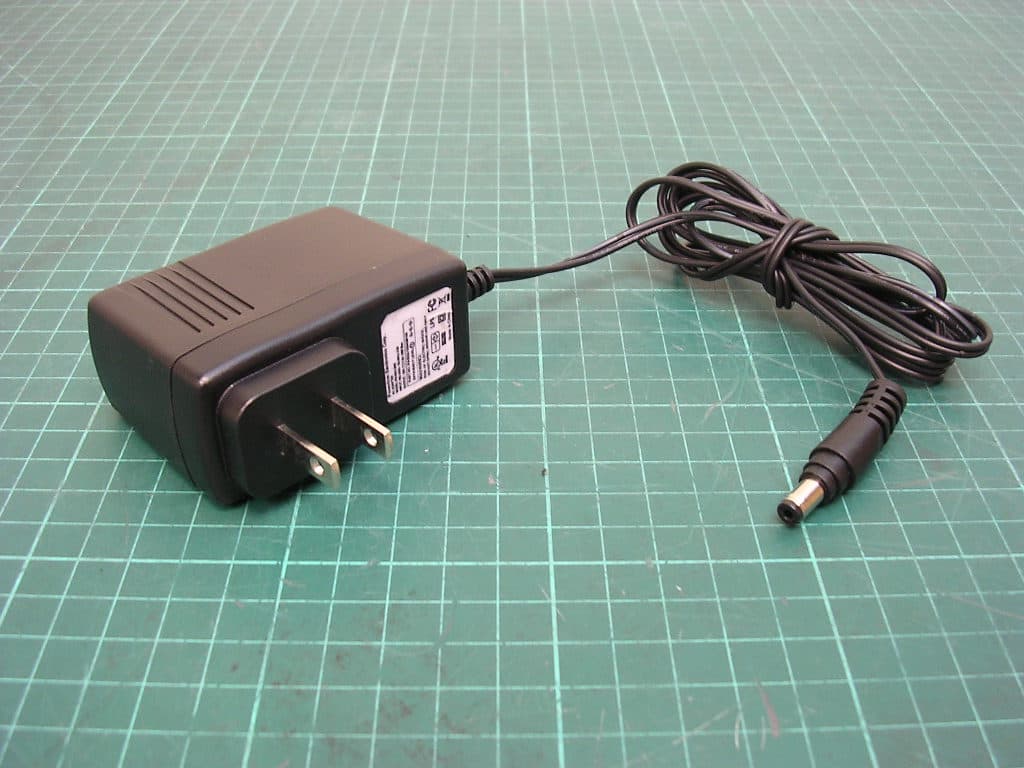
Click to zoom
Application Details
- Equipment Class
- DTS - Digital Transmission System
- Date of Grant
- Jan 18, 2011
- Application Purpose
- Original Equipment
- Date of Application
- Jan 18, 2011
- Equipment Note
- Wireless N Gigabit NetUSB Router
- Frequency Range
- 2422.00000000 - 2452.00000000
- Country
- Taiwan
Documents & Files
Document Text
Text extracted from the exhibit documents filed with the FCC. Open a document above to read the original.
Users Manual
www.zyxel.com www.zyxel.com NBG4615 Wireless N Gigabit NetUSB Router Copyright © 2011 ZyXEL Communications Corporation Firmware Version 1.0 Edition 1, 12/2010 Default Login Details IP Addresshttp://192.168.1.1 Password1234 About This User's Guide NBG4615 User’s Guide 3 About This User's Guide Intended Audience This manual is intended for people who want to configure the NBG4615 using the Web Configurator. You should have at least a basic knowledge of TCP/IP networking concepts and topology. Tips for Reading User’s Guides On-Screen When reading a ZyXEL User’s Guide On-Screen, keep the following in mind: • If you don’t already have the latest version of Adobe Reader, you can download it from http://www.adobe.com. • Use the PDF’s bookmarks to quickly navigate to the areas that interest you. Adobe Reader’s bookmarks pane opens by default in all ZyXEL User’s Guide PDFs. • If you know the page number or know vaguely which page-range you want to view, you can enter a number in the toolbar in Reader, then press [ENTER] to jump directly to that page. • Type [CTRL]+[F] to open the Adobe Reader search utility and enter a word or phrase. This can help you quickly pinpoint the information you require. You can also enter text directly into the toolbar in Reader. • To quickly move around within a page, press the [SPACE] bar. This turns your cursor into a “hand” with which you can grab the page and move it around freely on your screen. • Embedded hyperlinks are actually cross-references to related text. Click them to jump to the corresponding section of the User’s Guide PDF. Related Documentation •Quick Start Guide The Quick Start Guide is designed to help you get your NBG4615 up and running right away. It contains information on setting up your network and configuring for Internet access. • Supporting Disc The embedded Web Help contains descriptions of individual screens and supplementary information. • Support Disc Refer to the included CD for support documents. About This User's Guide NBG4615 User’s Guide 4 Documentation Feedback Send your comments, questions or suggestions to: [email protected] Thank you! The Technical Writing Team, ZyXEL Communications Corp., 6 Innovation Road II, Science-Based Industrial Park, Hsinchu, 30099, Taiwan. Need More Help? More help is available at www.zyxel.com. • Download Library Search for the latest product updates and documentation from this link. Read the Tech Doc Overview to find out how to efficiently use the User Guide, Quick Start Guide and Command Line Interface Reference Guide in order to better understand how to use your product. • Knowledge Base If you have a specific question about your product, the answer may be here. This is a collection of answers to previously asked questions about ZyXEL products. •Forum This contains discussions on ZyXEL products. Learn from others who use ZyXEL products and share your experiences as well. About This User's Guide NBG4615 User’s Guide 5 Customer Support Should problems arise that cannot be solved by the methods listed above, you should contact your vendor. If you cannot contact your vendor, then contact a ZyXEL office for the region in which you bought the device. See http://www.zyxel.com/web/contact_us.php for contact information. Please have the following information ready when you contact an office. • Product model and serial number. •Warranty Information. • Date that you received your device. Document Conventions NBG4615 User’s Guide 6 Document Conventions Warnings and Notes These are how warnings and notes are shown in this User’s Guide. Warnings tell you about things that could harm you or your device. Note: Notes tell you other important information (for example, other things you may need to configure or helpful tips) or recommendations. Syntax Conventions • The NBG4615 may be referred to as the “NBG4615”, the “device”, the “product” or the “system” in this User’s Guide. • Product labels, screen names, field labels and field choices are all in bold font. • A key stroke is denoted by square brackets and uppercase text, for example, [ENTER] means the “enter” or “return” key on your keyboard. • “Enter” means for you to type one or more characters and then press the [ENTER] key. “Select” or “choose” means for you to use one of the predefined choices. • A right angle bracket ( > ) within a screen name denotes a mouse click. For example, Maintenance > Log > Log Setting means you first click Maintenance in the navigation panel, then the Log sub menu and finally the Log Setting tab to get to that screen. • Units of measurement may denote the “metric” value or the “scientific” value. For example, “k” for kilo may denote “1000” or “1024”, “M” for mega may denote “1000000” or “1048576” and so on. • “e.g.,” is a shorthand for “for instance”, and “i.e.,” means “that is” or “in other words”. Document Conventions NBG4615 User’s Guide 7 Icons Used in Figures Figures in this User’s Guide may use the following generic icons. The NBG4615 icon is not an exact representation of your device. NBG4615ComputerNotebook computer ServerDSLAMFirewall Te l e p h o n eSwitchRouter Modem Safety Warnings NBG4615 User’s Guide 8 Safety Warnings • Do NOT use this product near water, for example, in a wet basement or near a swimming pool. • Do NOT expose your device to dampness, dust or corrosive liquids. • Do NOT store things on the device. • Do NOT install, use, or service this device during a thunderstorm. There is a remote risk of electric shock from lightning. • Connect ONLY suitable accessories to the device. • Do NOT open the device or unit. Opening or removing covers can expose you to dangerous high voltage points or other risks. ONLY qualified service personnel should service or disassemble this device. Please contact your vendor for further information. • Make sure to connect the cables to the correct ports. • Place connecting cables carefully so that no one will step on them or stumble over them. • Always disconnect all cables fro…
Text truncated - open the document above for the full version.
Users Manual
NBG4615 User’s Guide 129 CHAPTER 14 Wireless LAN 14.1 Overview This chapter discusses how to configure the wireless network settings in your NBG4615. See the appendices for more detailed information about wireless networks. The following figure provides an example of a wireless network. Figure 74 Example of a Wireless Network The wireless network is the part in the blue circle. In this wireless network, devices A and B are called wireless clients. The wireless clients use the access point (AP) to interact with other devices (such as the printer) or with the Internet. Your NBG4615 is the AP. Chapter 14 Wireless LAN NBG4615 User’s Guide 130 14.1.1 What You Can Do •Use the General screen to enter the SSID, enable intra-BSS traffic and select the channel. (Section 14.2 on page 133). •Use the Security screen to configure wireless security between the NBG4615 and the wireless clients. •Use the MAC Filter screen to allow or deny wireless stations based on their MAC addresses from connecting to the NBG4615 (Section 14.4 on page 139). •Use the Advanced screen to allow intra-BSS networking and set the RTS/CTS Threshold (Section 14.5 on page 140). •Use the QoS screen to ensure Quality of Service (QoS) in your wireless network (Section 14.6 on page 141). •Use the WPS screen to quickly set up a wireless network with strong security, without having to configure security settings manually (Section 14.7 on page 142). •Use the WPS Station screen to add a wireless station using WPS (Section 14.8 on page 143). •Use the Scheduling screen to set the times your wireless LAN is turned on and off (Section 14.9 on page 144). •Use the WDS screen to configure Wireless Distribution System on your NBG4615 (Section 14.10 on page 146). 14.1.2 What You Should Know Every wireless network must follow these basic guidelines. • Every wireless client in the same wireless network must use the same SSID. The SSID is the name of the wireless network. It stands for Service Set IDentity. • If two wireless networks overlap, they should use different channels. Like radio stations or television channels, each wireless network uses a specific channel, or frequency, to send and receive information. • Every wireless client in the same wireless network must use security compatible with the AP. Security stops unauthorized devices from using the wireless network. It can also protect the information that is sent in the wireless network. Wireless Security Overview The following sections introduce different types of wireless security you can set up in the wireless network. Chapter 14 Wireless LAN NBG4615 User’s Guide 131 SSID Normally, the AP acts like a beacon and regularly broadcasts the SSID in the area. You can hide the SSID instead, in which case the AP does not broadcast the SSID. In addition, you should change the default SSID to something that is difficult to guess. This type of security is fairly weak, however, because there are ways for unauthorized devices to get the SSID. In addition, unauthorized devices can still see the information that is sent in the wireless network. MAC Address Filter Every wireless client has a unique identification number, called a MAC address. 1 A MAC address is usually written using twelve hexadecimal characters 2 ; for example, 00A0C5000002 or 00:A0:C5:00:00:02. To get the MAC address for each wireless client, see the appropriate User’s Guide or other documentation. You can use the MAC address filter to tell the AP which wireless clients are allowed or not allowed to use the wireless network. If a wireless client is allowed to use the wireless network, it still has to have the correct settings (SSID, channel, and security). If a wireless client is not allowed to use the wireless network, it does not matter if it has the correct settings. This type of security does not protect the information that is sent in the wireless network. Furthermore, there are ways for unauthorized devices to get the MAC address of an authorized wireless client. Then, they can use that MAC address to use the wireless network. User Authentication You can make every user log in to the wireless network before they can use it. This is called user authentication. However, every wireless client in the wireless network has to support IEEE 802.1x to do this. For wireless networks, there are two typical places to store the user names and passwords for each user. • In the AP: this feature is called a local user database or a local database. • In a RADIUS server: this is a server used in businesses more than in homes. If your AP does not provide a local user database and if you do not have a RADIUS server, you cannot set up user names and passwords for your users. 1.Some wireless devices, such as scanners, can detect wireless networks but cannot use wireless networks. These kinds of wireless devices might not have MAC addresses. 2.Hexadecimal characters are 0, 1, 2, 3, 4, 5, 6, 7, 8, 9, A, B, C, D, E, and F. Chapter 14 Wireless LAN NBG4615 User’s Guide 132 Unauthorized devices can still see the information that is sent in the wireless network, even if they cannot use the wireless network. Furthermore, there are ways for unauthorized wireless users to get a valid user name and password. Then, they can use that user name and password to use the wireless network. Local user databases also have an additional limitation that is explained in the next section. Encryption Wireless networks can use encryption to protect the information that is sent in the wireless network. Encryption is like a secret code. If you do not know the secret code, you cannot understand the message. The types of encryption you can choose depend on the type of user authentication. (See page 131 for information about this.) For example, if the wireless network has a RADIUS server, you can choose WPA or WPA2. If users do not log in to the wireless network, you can choose no encryption, Static WEP, WPA-PSK, or WPA2-PSK. Usually, you should set up the strongest encryption th…
Text truncated - open the document above for the full version.
Users Manual
NBG4615 User’s Guide 253 APPENDIX B Pop-up Windows, JavaScript and Java Permissions In order to use the web configurator you need to allow: • Web browser pop-up windows from your device. • JavaScript (enabled by default). • Java permissions (enabled by default). Note: The screens used below belong to Internet Explorer version 6, 7 and 8. Screens for other Internet Explorer versions may vary. Internet Explorer Pop-up Blockers You may have to disable pop-up blocking to log into your device. Either disable pop-up blocking (enabled by default in Windows XP SP (Service Pack) 2) or allow pop-up blocking and create an exception for your device’s IP address. Disable Pop-up Blockers 1In Internet Explorer, select Tools, Pop-up Blocker and then select Turn Off Pop-up Blocker. Figure 147 Pop-up Blocker You can also check if pop-up blocking is disabled in the Pop-up Blocker section in the Privacy tab. Appendix B Pop-up Windows, JavaScript and Java Permissions NBG4615 User’s Guide 254 1In Internet Explorer, select Tools, Internet Options, Privacy. 2Clear the Block pop-ups check box in the Pop-up Blocker section of the screen. This disables any web pop-up blockers you may have enabled. Figure 148 Internet Options: Privacy 3Click Apply to save this setting. Enable Pop-up Blockers with Exceptions Alternatively, if you only want to allow pop-up windows from your device, see the following steps. 1In Internet Explorer, select Tools, Internet Options and then the Privacy tab. Appendix B Pop-up Windows, JavaScript and Java Permissions NBG4615 User’s Guide 255 2Select Settings...to open the Pop-up Blocker Settings screen. Figure 149 Internet Options: Privacy 3Type the IP address of your device (the web page that you do not want to have blocked) with the prefix “http://”. For example, http://192.168.167.1. Appendix B Pop-up Windows, JavaScript and Java Permissions NBG4615 User’s Guide 256 4Click Add to move the IP address to the list of Allowed sites. Figure 150 Pop-up Blocker Settings 5Click Close to return to the Privacy screen. 6Click Apply to save this setting. JavaScript If pages of the web configurator do not display properly in Internet Explorer, check that JavaScript are allowed. Appendix B Pop-up Windows, JavaScript and Java Permissions NBG4615 User’s Guide 257 1In Internet Explorer, click Tools, Internet Options and then the Security tab. Figure 151 Internet Options: Security 2Click the Custom Level... button. 3Scroll down to Scripting. 4Under Active scripting make sure that Enable is selected (the default). 5Under Scripting of Java applets make sure that Enable is selected (the default). Appendix B Pop-up Windows, JavaScript and Java Permissions NBG4615 User’s Guide 258 6Click OK to close the window. Figure 152 Security Settings - Java Scripting Java Permissions 1From Internet Explorer, click Tools, Internet Options and then the Security tab. 2Click the Custom Level... button. 3Scroll down to Microsoft VM. 4Under Java permissions make sure that a safety level is selected. Appendix B Pop-up Windows, JavaScript and Java Permissions NBG4615 User’s Guide 259 5Click OK to close the window. Figure 153 Security Settings - Java JAVA (Sun) 1From Internet Explorer, click Tools, Internet Options and then the Advanced tab. 2Make sure that Use Java 2 for <applet> under Java (Sun) is selected. Appendix B Pop-up Windows, JavaScript and Java Permissions NBG4615 User’s Guide 260 3Click OK to close the window. Figure 154 Java (Sun) Mozilla Firefox Mozilla Firefox 2.0 screens are used here. Screens for other versions may vary slightly. The steps below apply to Mozilla Firefox 3.0 as well. You can enable Java, Javascript and pop-ups in one screen. Click Tools, then click Options in the screen that appears. Figure 155 Mozilla Firefox: TOOLS > Options Appendix B Pop-up Windows, JavaScript and Java Permissions NBG4615 User’s Guide 261 Click Content to show the screen below. Select the check boxes as shown in the following screen. Figure 156 Mozilla Firefox Content Security Opera Opera 10 screens are used here. Screens for other versions may vary slightly. Appendix B Pop-up Windows, JavaScript and Java Permissions NBG4615 User’s Guide 262 Allowing Pop-Ups From Opera, click Tools, then Preferences. In the General tab, go to Choose how you prefer to handle pop-ups and select Open all pop-ups. Figure 157 Opera: Allowing Pop-Ups Appendix B Pop-up Windows, JavaScript and Java Permissions NBG4615 User’s Guide 263 Enabling Java From Opera, click Tools, then Preferences. In the Advanced tab, select Content from the left-side menu. Select the check boxes as shown in the following screen. Figure 158 Opera: Enabling Java To customize JavaScript behavior in the Opera browser, click JavaScript Options. Figure 159 Opera: JavaScript Options Select the items you want Opera’s JavaScript to apply. Appendix B Pop-up Windows, JavaScript and Java Permissions NBG4615 User’s Guide 264 NBG4615 User’s Guide 265 APPENDIX C IP Addresses and Subnetting This appendix introduces IP addresses and subnet masks. IP addresses identify individual devices on a network. Every networking device (including computers, servers, routers, printers, etc.) needs an IP address to communicate across the network. These networking devices are also known as hosts. Subnet masks determine the maximum number of possible hosts on a network. You can also use subnet masks to divide one network into multiple sub-networks. Introduction to IP Addresses One part of the IP address is the network number, and the other part is the host ID. In the same way that houses on a street share a common street name, the hosts on a network share a common network number. Similarly, as each house has its own house number, each host on the network has its own unique identifying number - the host ID. Routers use the network number to send packets to the correct network, while the host ID determines to which host on the network the packets are delivered. Structure An IP address is made up of four part…
Text truncated - open the document above for the full version.
Cover Letter(s)
Confidentility Letter (Permanent) Attention: Application Examiner Re: Request for confidentiality Applicant: ZyXEL Communications Corporation FCC ID: I88NBG4615 To whom it may concern, Request is hereby submitted by ZyXEL Communications Corporation to withhold permanently from public review certain portions of the application for equipment certification for the referenced FCC identifiers. This request for confidentiality is made pursuant to 47 CFR 0.457(d) of the FCC Rules. In particular, the following sections of the application are to be kept permanently confidential: • Schematics • Detailed Block diagrams • Detailed Operational/Functional Description Rationale for request for confidentiality: ZyXEL Communications Corporation has invested considerable time and materials in research and development to produce the referenced product. Disclosure of the permanently confidential portions of this application to competitors would not only give them significant competitive advantages in developing similar products, but would also disclose successful implementation of unpublished, leading edge technology developed by us. If you have questions or need further information, please contact the undersigned. Sincerely, Section Manager ZyXEL Communications Corporation 2010/12/16
Cover Letter(s)
Attestation for FCC Declaration of Conformity FCC ID: I88NBG4615 Data: 2010/12/16 Please be notified that we, the undersigned, ZyXEL Communications Corporation declares that the product which bears the above FCC ID is also compliant with the FCC requirements for DoC. The test report number supporting the DoC is TS10090040-EME. Testing in regards to this report was done by Intertek Testing Service Taiwan Ltd., located at No. 11, Lane 275, Ko Nan 1st Street, Shiang-Shan District, Hsinchu Taiwan, which has been accredited in accordance to all of the requirements of 47CFR 2.948 (d) and (e) of the FCC rules and KDB349827. Sincerely, Printed name: Wang Yi Position: Section Manager ZyXEL Communications Corporation Tel: +886-3-5783942 Fax: +886-3-5782439 Email: [email protected]
Cover Letter(s)
Lettery of Agency "I, an officer of ZyXEL Communications Corporation do hereby authorize Rex Liao, who is Engineer in Intertek Testing Services Taiwan Ltd. to act on our behalf in front of the Federal Communications Commission with respect to all matters relating to certification of equipment under Part 15 and Part 18 of the FCC Rules until further notice." I further certify that no party (as defined in §1.2002(b) of CFR 47, 1992) to this application, including myself, is subject to a denial of federal benefits, that includes FCC benefits, pursuant to Section 5301 of the Anti-Drug Abuse Act of 1988, 21 U.S.C.,853(a). By: Wang Yi Signature Printed Title: Section Manager Date: 2010/December/16
External Photos
External photo of EUT Antenna 0 Antenna 1 External photo of EUT Antenna Gain: 5 dBi Antenna Gain: 5 dBi External photo of EUT Antenna Gain: 2 dBi Antenna Gain: 2 dBi External photo of EUT External photo of EUT External photo of EUT External photo of EUT
ID Label/Location Info
FCC ID Label Location 84.40 mm 49.40 mm
Internal Photos
Internal photo of EUT Internal photo of EUT Internal photo of EUT
Test Report
FCC ID.: I88NBG4615 Report No.: TS10080165-EME Page 1 of 102 EMC TEST REPORT Report No. : TS10080165-EME Model No. : NBG4615 Issued Date : JAN. 13. 2011 Applicant: ZyXEL Communications Corporation 6, Innovation Rd II, Science-Based Industrial Park, Hsin-Chu, Taiwan Test Method/ Standard: 47 CFR FCC Part 15.247 & ANSI C63.4 2003 Test By: Intertek Testing Services Taiwan Ltd. No. 11, Lane 275, Ko-Nan 1 Street, Chia-Tung Li, Shiang-Shan District, Hsinchu City, Taiwan It may be duplicated completely for legal use with the allowance of the applicant. It shall not be reproduced except in full, without the written approval of Intertek Laboratory. The test result(s) in this report only applies to the tested sample(s). The test report was prepared by: Sign on File Julie Wang / Assistant These measurements were taken by: Sign on File Leon Cheng/ Engineer The test report was reviewed by: Name Rex Liao Title Engineer FCC ID.: I88NBG4615 Report No.: TS10080165-EME Page 2 of 102 Table of Contents 1. Summary of Test Data................................................................................................................. 3 2. General Information.................................................................................................................... 4 3. Maximum 6 dB Bandwidth......................................................................................................... 8 4. Maximum Output Power........................................................................................................... 21 5. Power Spectral Density............................................................................................................. 23 6. RF Antenna conducted Spurious...............................................................................................36 7. Radiated Spurious Emission ..................................................................................................... 69 8. Emission on Band Edge ............................................................................................................ 80 Appendix A: Test Equipment List............................................................................................... 102 FCC ID.: I88NBG4615 Report No.: TS10080165-EME Page 3 of 102 1. Summary of Test Data Test/Requirement Description Applicable Rule Result Minimum 6dB Bandwidth 15.247(a)(2) Pass Maximum Output Power 15.247(b) Pass Power Spectral Density 15.247(e) Pass RF Antenna Conducted Spurious 15.247(d) Pass Radiated Spurious Emission 15.247(d), 15.205, 15.209 Pass Emission on the Band Edge 15.247(d) Pass AC Power Line Conducted Emission 15.207 Pass FCC ID.: I88NBG4615 Report No.: TS10080165-EME Page 4 of 102 2. General Information Identification of the EUT Product: Wireless N Gigabit NetUSB Router Model No.: NBG4615 FCC ID.: I88NBG4615 Frequency Range: 2412 MHz to 2462 MHz for 802.11b, 802.11g, 802.11n HT20 2422 MHz to 2452 MHz for 802.11n HT40 Channel Number: 11 channels for 802.11b, 802.11g, 802.11n HT20 7 channels for 802.11n HT40 Rated Power: DC 12 V from Adapter Power Cord: N/A Sample Received: Aug. 24, 2010 Test Date(s): Sep. 17, 2010 ~ Dec. 01, 2010 Note 1: This report is for the exclusive use of Intertek's Client and is provided pursuant to the agreement between Intertek and its Client. Intertek's responsibility and liability are limited to the terms and conditions of the agreement. Intertek assumes no liability to any party, other than to the Client in accordance with the agreement, for any loss, expense or damage occasioned by the use of this report. Only the Client is authorized to permit copying or distribution of this report and then only in its entirety. Any use of the Intertek name or one of its marks for the sale or advertisement of the tested material, product or service must first be approved in writing by Intertek. The observations and test results in this report are relevant only to the sample tested. This report by itself does not imply that the material, product, or service is or has ever been under an Intertek certification program. Note 2: When determining the test conclusion, the Measurement Uncertainty of test has been considered. FCC ID.: I88NBG4615 Report No.: TS10080165-EME Page 5 of 102 Description of EUT The EUT is a Wireless N Gigabit NetUSB Router, it’s a 2Tx2Rx device. There are two types of antenna for the device, one is 2 dBi dipole antenna, and another is 5 dBi dipole antenna. For more detail features, please refer to User's manual as file name “Installation guide.pdf” Antenna description Antenna 0 The antenna is affixed to the EUT using a unique connector, which allows for replacement of a broken antenna, but DOES NOT use a standard antenna jack or electrical connector. Antenna type 1 Antenna type 2 Antenna Gain : 2 dBi max : 5 dBi max Antenna Type : Diople antenna : Diople antenna Connector Type : SMA Reverse : SMA Reverse Antenna 1 The antenna is affixed to the EUT using a unique connector, which allows for replacement of a broken antenna, but DOES NOT use a standard antenna jack or electrical connector. Antenna type 1 Antenna type 2 Antenna Gain : 2 dBi max : 5 dBi max Antenna Type : Diople antenna : Diople antenna Connector Type : SMA Reverse : SMA Reverse FCC ID.: I88NBG4615 Report No.: TS10080165-EME Page 6 of 102 Adapter information The EUT will be supplied with a power supply from below list: No. Brand Model no. Specification Adapter 1 DVE DSA-20CA-12 120150 I/P: 100-240 Vac, 50/60 Hz, 0.8A O/P: 12 Vdc, 1.5 A Adapter 2 DVE DSA-20PFE-12 FUS 120150 I/P: 100-240 Vac, 50/60 Hz, 0.7 A O/P: 12 Vdc, 1.5 A Adapter 3 Powertron PA1024-2HU I/P: 100-240 Vac, 50-60 Hz, 0.6A O/P: 12 Vdc, 1.5 A FCC ID.: I88NBG4615 Report No.: TS10080165-EME Page 7 of 102 Operation mode The EUT was supplied DC 12 V from adapter (Test voltage: 120Vac, 60Hz) and it was run in TX mode that was controlled by “QA” program. The EUT was transmitted continuously during the test. All the antennas were verified, the worst ca…
Text truncated - open the document above for the full version.
Test Report
FCC ID.: I88NBG4615 Report No.: TS10080165-EME Page 69 of 102 7. Radiated Spurious Emission Name of Test Radiated Spurious Emission Base Standard FCC 15.247(d), 15.209, 15.205 Test Result: Complies Measurement Data: See Tables below Method of Measurement: Reference FCC document: KDB558074, ANSI C63.4 The frequency range from 30 MHz to 1000 MHz using Bilog Antenna. The frequency range over 1 GHz using Horn Antenna. Radiated emissions were invested cover the frequency range from 30 MHz to 1000 MHz using a receiver RBW of 120 kHz record QP reading, and the frequency over 1 GHz using a spectrum analyzer RBW of 1 MHz and 10 Hz VBW record Average reading. (15.209 paragraph), the Peak reading (1 MHz RBW/VBW) recorded also on the report. The EUT for testing is arranged on a wooden turntable. If some peripherals apply to the EUT, the peripherals will be connected to EUT and the whole system. During the test, all cables were arranged to produce worst-case emissions. The signal is maximized through rotation. The height of antenna and polarization is changing constantly for exploring for maximum signal level. The height of antenna can be up to 4 meters and down to 1 meter. The measurement for radiated emission will be done at the distance of three meters unless the signal level is too low to measure at that distance. In the case of the reading under noise floor, a pre-amplifier is used and/or the test is conducted at a closer distance. And then all readings are extrapolated back to the equivalent 3 meters reading using inverse scaling with distance. The EUT configuration please refer to the “Spurious set-up photo.pdf”. FCC ID.: I88NBG4615 Report No.: TS10080165-EME Page 70 of 102 Test Diagram: Emission Limit: The spurious Emission shall test through the 10th harmonic. In addition, radiated emissions which fall in the restricted bands, as defined in §15.205(a), must also comply with the radiated emission limits specified in §15.209(a). Frequency (MHz) Limits (dBμV/m@ 3 meter) 30-88 40 88-216 43.5 216-960 46 Above 960 54 Remark: 1. In the above table, the tighter limit applies at the band edges. 2. Distance refers to the distance in meters between the measuring instrument antenna and the closed point of any part of the device or system Horn or Bilog Antenna RF Test Receiver Ground Plane Antenna To w e r □ 3 meter 1-4 meter 0.8 m EUT Peripheral HPF and Pre-Amp. FCC ID.: I88NBG4615 Report No.: TS10080165-EME Page 71 of 102 Measurement results: frequencies equal to or less than 1 GHz The test was performed on EUT under 802.11b, 802.11g and 802.11n continuously transmitting mode. Channel 1, 6, 11 were verified. The worst case occurred at 802.11b Tx channel 1. EUT : NBG4615 Worst Case : 802.11b Tx at channel 1 Polarization Frequency DetectorCorr. Reading CalculatedLimit Margin (circle) (MHz) Factor (dBuV) dBuV/m (dBuV/m) (dB) (dB/m) Vertical 7…
Text truncated - open the document above for the full version.
Contact Information
Applicant
Emma Bao(Section Manager)
Technical Contact
Intertek Testing Services Taiwan Ltd.Rex Liao
[email protected](+886)-3-519-1411
11, Ln. 275, Ko Nan 1st Street · Hsinchu · Taiwan
Non-Technical Contact
Intertek Testing Services Taiwan Ltd.Rex Liao
[email protected](+886)-3-519-1411
Test Firm
Intertek Testing Services Taiwan Ltd.Alpha Liu
Technical Specifications
| # | Rule Parts | Frequency Range | Power Output |
|---|---|---|---|
| 2 | 15C | 2.42 GHz - 2.45 GHz | 359.00 mW |
Other Applications from ZyXEL Communications Corporation
I88EE6601-00
Jul 18, 2024Tri-Band Wireless BE19000 10G Ethernet VoIP Gateway with SFP+ / Tri-Band Wireless BE19000 10G Ethernet VoIP Gateway / Tri-Band Wireless BE19000 10G Ethernet Gateway with SFP+ / Tri-Band Wireless BE19000 10G Ethernet Gateway
Equipment Class
6ID - 15E 6 GHz Low Power Indoor Access Point
I8803935
Oct 17, 2023802.11be (WiFi 7) Triple-Radio Unified Pro Access Point
Equipment Class
DTS - Digital Transmission System
I8803973
Aug 01, 2023802.11ax (WiFi 6) Dual-Radio Wall-Plate Unified Access Point
Equipment Class
NII - Unlicensed National Information Infrastructure TX
I88WX5610-B0
Apr 25, 2023AX7800 WiFi 6E Tri-Band Gigabit Wireless Extender
Equipment Class
DTS - Digital Transmission System
I88EX7710-B0
Apr 16, 2023AX11000 WiFi 6E 10G Ethernet Gateway
Equipment Class
NII - Unlicensed National Information Infrastructure TX