I88P660HNUF1Wireless N ADSL2+ 4-port USB Gateway
ZyXEL Communications Corporation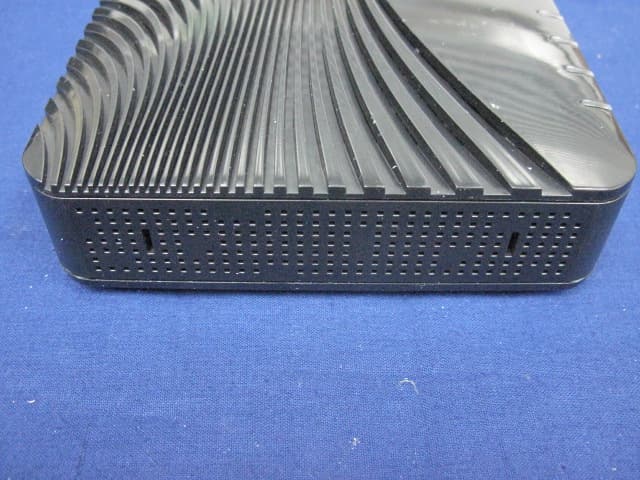
Click to zoom
Application Details
- Equipment Class
- DTS - Digital Transmission System
- Date of Grant
- Nov 07, 2011
- Application Purpose
- Original Equipment
- Date of Application
- Oct 27, 2011
- Equipment Note
- Wireless N ADSL2+ 4-port USB Gateway
- Frequency Range
- 2422.00000000 - 2452.00000000
- Country
- Taiwan
Documents & Files
Document Text
Text extracted from the exhibit documents filed with the FCC. Open a document above to read the original.
Users Manual
www.zyxel.com Wireless N ADSL2+ 4-port USB Gateway Firmware Version 3.10 Edition 1, 07/2011 P-660HNU-F1 DEFAULT LOGIN DETAILS IP Address:http://192.168.1.1 Admin Login:User Name: admin Password: 1234 User Login:User Name: user Password: 1234 CONTENTS ENGLISH 3 DEUTSCH13 FRANÇAIS25 ITALIANO37 Copyright 2011 ZyXEL Communications Corporation 2 Device Panels WLAN/WPS ON/OFF POWER LED DSL INTERNET LED WLAN/WPS LED ETHERNET LED USB LED ON/OFF RESET POWER ETHERNET PORTS DSL PORT USB PORT CONNECTOR SWITCH 3 ENGLISH Requirements Make sure you have the following things before you start. • INTERNET ACCESS: You need an Internet account with an ISP (Internet Service Provider) and information such as user name, password, and so on. • 3G ACCOUNT: You need this if you want to use a 3G connection to access the Internet. The P-660HNU-F1 can also use this 3G connection as a backup if the DSL connection fails. • WEB BROWSER: Internet Explorer 6.0 and later versions, with JavaScript enabled, or Mozilla Firefox 3 and later versions or Safari 2.0 and later versions. The browser will be used to access the Internet and/or access the P-660HNU-F1’s Web Configurator. ENGLISH 4 Hardware Connections Remove the P-660HNU-F1’s plastic wrapping before using it. 1. DSL: Use a telephone wire to connect this port to the telephone wall jack. If you are using a splitter, use a telephone wire to connect this port to the DSL/MODEM jack on the splitter. Use another telephone wire to connect the PHONE jack in the splitter to the telephone wall jack. 2. ETHERNET: If you want a wired connection to the P-660HNU-F1, use an Ethernet cable to connect a computer to one of these ports for initial configuration and/or Internet access. 5 ENGLISH 3. USB 2.0: You only need to use this port if you are connecting a USB storage device, USB printer or a 3G adapter to the P-660HNU-F1. 4. POWER: Use the power adaptor provided with your P-660HNU-F1 to connect this socket to an appropriate power source. 5. Push the power button to the on position and look at the LEDs (lights) on the top panel of the P-660HNU-F1. • The POWER light blinks during start-up and stays on once the P- 660HNU-F1 is ready. • The ETHERNET light turns on if the corresponding ETHERNET port is properly connected. If you do not connect a computer correctly to this port, the ETHERNET light will not turn on. • The WLAN/WPS stays on when the wireless LAN is ready. The light will not turn on if the Wireless Connection is not activated. The ETHERNET and WLAN/WPS lights blink when the P-660HNU-F1 is sending or receiving data. If the POWER light does not turn on during start up, try turning the P-660HNU-F1 off, check the connections, wait a few seconds and then turn it back on. If the problem persists, you may have a hardware problem and you need to contact your vendor. 6 Internet Access Setup The DSL and INTERNET lights are on if you have internet access. Open your web browser and browse to www.zyxel.com. You may be prompted to enter your username and password. If one or both of these lights are not on, try turning the P-660HNU-F1 off, check the connections, wait a few seconds and then turn it back on. If the DSL light is not on, contact your service provider. If the DSL light is on but the INTERNET light is not, you need to enter your Internet access configuration using the Web Configurator - see page 10. Setting Up a Wireless Connection If you want to set up a wireless connection using the P-660HNU-F1, use one of the following methods: 1. Use the wireless SSID (network name) and WPA-PSK encryption key if the device does not have the WPS logo - see page 7. 2. Use the WPS/WLAN Button if your wireless device has a Wi-Fi Protected Setup (WPS) logo - see page 9 7 ENGLISH Setting Up a Wireless Connection using the Information on the Label The wireless function on your P-660HNU-F1 is enabled by default. Press the WLAN/WPS button on the P-660HNU-F1’s top panel for 1 second to turn this function on or off. To add a wireless client to the network, use the settings found in the rear panel of the P-660HNU-F1, such as the following: 1. Right-click the wireless adapter icon which appears in the bottom right of your computer monitor. Click View Available Wireless Networks. SSID: Zy_private_R9XP9P WPA2-PSK: 7WC3R7TVKWK3R 8 2. Select the P-660HNU-F1’s SSID name and click Connect (A). The SSID “SecureWirelessNetwork” is given here as an example. 3. You are prompted to enter a password. Enter the WPA-PSK encryption key found in the rear panel of the P-660HNU-F1 and click Connect. 4. You may have to wait several minutes while your computer connects to the wireless network. 5. You should now be securely connected wirelessly to the P-660HNU- F1. A 9 ENGLISH # If you cannot connect wirelessly to the P-660HNU-F1, check that you have selected the correct SSID and entered the correct security key. If that does not work, ensure that the WLAN/WPS LED on the front panel is turned on. Setting Up a Wireless Connection using WPS Follow these steps to add a WPS-enabled device to the wireless network using the WLAN/WPS button. You must use WPS one device at a time with the P-660HNU-F1. Place the devices you want to connect near one another. Press the WLAN/WPS button on top of the P-660HNU-F1 for more than 5 seconds to turn the WPS function on or off. The WLAN/WPS light blinks. Press the WPS button on a compatible device within 2 minutes of pressing the button on the P-660HNU-F1. The WLAN/WPS light on the P- 660HNU-F1 shines steadily when connected. 1 2 3 10 The Web Configurator The Web Configurator is a web browser tool that allows you to configure the P-660HNU-F1. The computer and the P-660HNU-F1 need to be in the same IP address range to use this tool. 1. Open your browser and enter http://192.168.1.1 (the P-660HNU-F1's default IP address) as the address. 2. For administrator login, enter username admin and password 1234 (default). For user login, enter user as the username and 1234 as the password. Click Login. # I…
Text truncated - open the document above for the full version.
External Photos
1. EUT Photograph (1) EUT Photo (2) EUT Photo Report No.: 11AS010R-RF-US-P06V01 Page: 2 of 5 (3) EUT Photo (4) EUT Photo Report No.: 11AS010R-RF-US-P06V01 Page: 3 of 5 (5) EUT Photo (6) EUT Photo Report No.: 11AS010R-RF-US-P06V01 Page: 4 of 5 (7) EUT Photo (8) EUT Photo Report No.: 11AS010R-RF-US-P06V01 Page: 5 of 5 (9) EUT Photo
Internal Photos
(1) EUT Photo (2) EUT Photo (3) EUT Photo (4) EUT Photo (5) EUT Photo
RF Exposure Info
RF Exposure Evaluation Declaration Product Name : Wireless N ADSL2+ 4-port USB Gateway Model No. : P-660HNU-F1, DSL-100HNU-L1 FCC ID : I88P660HNUF1 IC : 2468C-P660HNUF1 Applicant : ZyXEL Communications Corporation Address : NO.6, Innovation Rd II, Science-Based Industrial Park, Hsin-Chu, Taiwan Hsin-Chu, Taiwan Date of Receipt : 10/10/2011 Issued Date : 20/10/2011 Report No. : 11AS010R-RF-US Report Version : V1.0 The test results relate only to the samples tested. The test results shown in the test report are traceable to the national/international standard through the calibration of the equipment and evaluated measurement uncertainty herein. This report must not be used to claim product endorsement by TAF, NVLAP, NIST or any agency of the Government. The test report shall not be reproduced except in full without the written approval of QuieTek Corporation. Report No.: 11AS010R-RF-US Page: 2 of 5 Te s t R e p o r t C e r t i f i c a t i o n Issued Date : 20/10/2011 Report No. : 11AS010R-RF-US Product Name : Wireless N ADSL2+ 4-port USB Gateway Applicant : ZyXEL Communications Corporation Address : NO.6, Innovation Rd II, Science-Based Industrial Park, Hsin-Chu, Taiwan Hsin-Chu, Taiwan Manufacturer : 1. ZyXEL Communications Corporation 2. Wuxi MitraStar Technology Co. Ltd Address : 1. NO.6, Innovation Rd. SIIcience Based Industrial Park Hsin-Chu, Taiwan 2. Wuxi New District Minshan road 60#-E Jiangsu PRC Model No. : P-660HNU-F1, DSL-100HNU-L1 FCC ID : I88P660HNUF1 IC : 2468C-P660HNUF1 EUT Voltage : 12V 1A Trade Name : ZyXEL Applicable Standard : FCC OET 65 Test Result : Complied Performed Location : Suzhou EMC Laboratory No.99 Hongye Rd., Suzhou Industrial Park Loufeng Hi-Tech Development Zone., Suzhou, China TEL: +86-512-6251-5088 / FAX: +86-512-6251-5098 FCC Registration Number: 800392; IC Lab Code: 4075B Documented By : (Engineering ADM: Alice Ni) Reviewed By : (Senior Engineer: Jame Yuan) Approved By : (Engineering Supervisor: Marlin Chen) Report No.: 11AS010R-RF-US Page: 3 of 5 Laboratory Information We, QuieTek Corporation, are an independent EMC and safety consultancy that was established the whole facility in our laboratories. The test facility has been accredited/accepted(audited or listed) by the following related bodies in compliance with ISO 17025, EN 45001 and specified testing scope: The related certificate for our laboratories about the test site and management system can be downloaded from QuieTek Corporation’s Web Site : http://www.quietek.com/tw/ctg/cts/accreditations.htm The address and introduction of QuieTek Corporation’s laboratories can be founded in our Web site : http://www.quietek.com/ If you have any comments, Please don’t hesitate to contact us. Our contact information is as below: HsinChu Testing Laboratory : No.75-2, 3rd Lin, Wangye Keng, Yonghxing Tsuen, Qionglin Shiang, Hsinchu County 307, Taiwan, R.O.C. TEL:+886-3-592-8858 / FAX:+886-3-592-8859 E-Mail : [email protected] LinKou Testing Laboratory : No. 5-22, Ruei-Shu Valley, Ruei-Ping Tsuen, Lin-Kou Shiang, Taipei, Taiwan, R.O.C. TEL : 886-2-8601-3788 / FAX : 886-2-8601-3789 E-Mail : [email protected] Suzhou (China) Testing Laboratory : No. 99 Hongye Rd., Suzhou Industrial Park Loufeng Hi-Tech Development Zone., Suzhou,China. TEL : +86-512-6251-5088 / FAX : +86-512-6251-5098 E-Mail : [email protected] Taiwan R.O.C. : BSMI, NCC, TAF Germany : TUV Rheinland Norway : Nemko, DNV USA : FCC, NVLAP Japan : VCCI Report No.: 11AS010R-RF-US Page: 4 of 5 1. RF Exposure Evaluation 1.1. Limits According to FCC 1.1310: The criteria listed in the following table shall be used to evaluate the environment impact of human exposure to radio frequency (RF) radiation as specified in 1.1307(b) LIMITS FOR MAXIMUM PERMISSIBLE EXPOSURE (MPE) Frequency Range (MHz) Electric Field Strength (V/m) Magnetic Field Strength (A/m) Power Density (mW/cm2) Average Time (Minutes) (A) Limits for Occupational/ Control Exposures 300-1500 -- -- F/300 6 1500-100,000 -- -- 5 6 (B) Limits for General Population/ Uncontrolled Exposures 300-1500 -- -- F/1500 6 1500-100,000 -- -- 1 30 F= Frequency in MHz Friis Formula Friis transmission formula: Pd = (Pout*G)/(4*pi*r2) Where Pd = power density in mW/cm2 Pout = output power to antenna in mW G = gain of antenna in linear scale Pi = 3.1416 R = distance between observation point and center of the radiator in cm Pd id the limit of MPE, 1 mW/cm2 . If we know the maximum gain of the antenna and the total power input to the antenna, through the calculation, we will know the distance r where the MPE limit is reached. Report No.: 11AS010R-RF-US Page: 5 of 5 1.2. Test Procedure Software provided by client enabled the EUT to transmit and receive data at lowest, middle and highest channel individually. The temperature and related humidity: 18°Cand 78% RH. 1.3. Test Result of RF Exposure Evaluation Product : Wireless N ADSL2+ 4-port USB Gateway Test Item : RF Exposure Evaluation Test Site : AC-6 Antenna Gain: Antenna Gain: The maximum Gain measured in fully anechoic chamber is 3dBi in logarithm scale. Output Power into Antenna & RF Exposure Evaluation Distance: Test Mode Frequency Band (MHz) Maximum Output Power to Antenna (dBm) Maximum Output Power to Antenna (mW) Power Density at R = 20 cm (mW/cm2) 802.11b (Chain 0) 2412 ~ 2472 20.94 124.2 0.049 802.11g (Chain 0) 2412 ~ 2472 18.94 78.3 0.031 802.11n(20MHz) (Chain 0 + Chain 1) 2412 ~ 2472 20.76 119.1 0.047 802.11n(40MHz) (Chain 0 + Chain 1) 2422 ~ 2452 20.51 113.2 0.045
Test Report
Test Report Industry Canada RSS-Gen Issue 3/RSS-210 Issue 8 FCC Part15 Subpart C Product Name : Wireless N ADSL2+ 4-port USB Gateway Model No. : P-660HUN-FI, DSL-100HNU-L1 FCC ID : I88P660HNUF1 IC : 2468C-P660HNUF1 Applicant : ZyXEL Communications Corporation Address : NO.6, Innovation Rd II, Science-Based Industrial Park, Hsin-Chu, Taiwan Hsin-Chu, Taiwan Date of Receipt : 10/10/2011 Test Date : 11/10/2011~19/10/2011 Issued Date : 20/10/2011 Report No. : 11AS010R-RF-US-P06V01 Report Version : V1.0 The test results relate only to the samples tested. The test results shown in the test report are traceable to the national/international standard through the calibration of the equipment and evaluated measurement uncertainty herein. This report must not be used to claim product endorsement by TAF, NVLAP or any agency of the Government. The test report shall not be reproduced except in full without the written approval of QuieTek Corporation. Report No.: 11AS010R-RF-US-P06V01 Page: 2 of 214 Test Report Certification Issued Date : 20/10/2011 Report No. : 11AS010R-RF-US-P06V01 Product Name : Wireless N ADSL2+ 4-port USB Gateway Applicant : ZyXEL Communications Corporation Address : NO.6, Innovation Rd II, Science-Based Industrial Park, Hsin-Chu, Taiwan Hsin-Chu, Taiwan Manufacturer : 1. ZyXEL Communications Corporation 2. Wuxi MitraStar Technology Co. Ltd Address : 1. NO.6, Innovation Rd. SIIcience Based Industrial Park Hsin-Chu, Taiwan 2. Wuxi New District Minshan road 60#-E Jiangsu PRC Model No. : P-660HNU-F1, DSL-100HNU-L1 FCC ID : I88P660HNUF1 IC : 2468C-P660HNUF1 EUT Voltage : 12V 1A Brand Name : ZyXEL Applicable Standard : FCC CFR Title 47 Part 15 Subpart C: 2008 ANSI C63.4: 2009; ANSI C63.10: 2009 Industry Canada RSS-Gen Issue 3/RSS-210 Issue 8 Test Result : Complied Performed Location : Suzhou EMC Laboratory No.99 Hongye Rd., Suzhou Industrial Park Loufeng Hi-Tech Development Zone., Suzhou, China TEL: +86-512-6251-5088 / FAX: +86-512-6251-5098 FCC Registration Number: 800392; IC Lab Code: 4075B Documented By : (Engineering ADM: Alice Ni) Reviewed By : (Senior Engineer: Jame Yuan) Approved By : (Engineering Supervisor: Marlin Chen) Report No.: 11AS010R-RF-US-P06V01 Page: 3 of 214 Laboratory Information We, QuieTek Corporation, are an independent EMC and safety consultancy that was established the whole facility in our laboratories. The test facility has been accredited/accepted(audited or listed) by the following related bodies in compliance with ISO 17025, EN 45001 and specified testing scope: The related certificate for our laboratories about the test site and management system can be downloaded from QuieTek Corporation’s Web Site : http://www.quietek.com/tw/ctg/cts/accreditations.htm The address and introduction of QuieTek Corporation’s laboratories can be founded in our Web site : http://www.quietek.com/ If you have any comments, Please don’t hesitate to contact us. Our contact information is as below: HsinChu Testing Laboratory : No.75-2, 3rd Lin, Wangye Keng, Yonghxing Tsuen, Qionglin Shiang, Hsinchu County 307, Taiwan, R.O.C. TEL:+886-3-592-8858 / FAX:+886-3-592-8859 E-Mail : [email protected] LinKou Testing Laboratory : No. 5-22, Ruei-Shu Valley, Ruei-Ping Tsuen, Lin-Kou Shiang, Taipei, Taiwan, R.O.C. TEL : 886-2-8601-3788 / FAX : 886-2-8601-3789 E-Mail : [email protected] Suzhou (China) Testing Laboratory : No. 99 Hongye Rd., Suzhou Industrial Park Loufeng Hi-Tech Development Zone., Suzhou,China. TEL : +86-512-6251-5088 / FAX : +86-512-6251-5098 E-Mail : [email protected] Taiwan R.O.C. :BSMI, NCC, TAF Germany :TUV Rheinland Norway :Nemko, DNV USA :FCC, NVLAP Japan :VCCI Report No.: 11AS010R-RF-US-P06V01 Page: 4 of 214 TABLE OF CONTENTS Description Page 1. General Information .................................................................................................6 1.1. EUT Description ......................................................................................................6 1.2. Mode of Operation...................................................................................................8 1.3. Tested System Details .............................................................................................9 1.4. Configuration of Tested System .............................................................................10 1.5. EUT Exercise Software.......................................................................................... 11 2. Technical Test ........................................................................................................12 2.1. Summary of Test Result.........................................................................................12 2.2. Test Environment...................................................................................................14 3. Conducted Emission..............................................................................................15 3.1. Test Equipment......................................................................................................15 3.2. Test Setup..............................................................................................................15 3.3. Limit.......................................................................................................................16 3.4. Test Procedure......................................................................................................16 3.5. Uncertainty ............................................................................................................16 3.6. Test Result.............................................................................................................17 4. Radiated Emission.................................................................................................19 4.1. Test Equipment......................................................................................................19 4.2. Test Setup.............................…
Text truncated - open the document above for the full version.
Test Setup Photos
(1) EUT Photo (2) EUT Photo (3) EUT Photo (4) EUT Photo (5) EUT Photo
Contact Information
Applicant
Emma Bao(Section Manager)
Technical Contact
Non-Technical Contact
Quietek CorporationStella Lu
Test Firm
DEKRA TESTING AND CERTIFICATION CO., LTD. LinKouMirenda Liao
Technical Specifications
| # | Rule Parts | Frequency Range | Power Output |
|---|---|---|---|
| 2 | 15C | 2.42 GHz - 2.45 GHz | 110.00 mW |
Other Applications from ZyXEL Communications Corporation
I88EE6601-00
Jul 18, 2024Tri-Band Wireless BE19000 10G Ethernet VoIP Gateway with SFP+ / Tri-Band Wireless BE19000 10G Ethernet VoIP Gateway / Tri-Band Wireless BE19000 10G Ethernet Gateway with SFP+ / Tri-Band Wireless BE19000 10G Ethernet Gateway
Equipment Class
6ID - 15E 6 GHz Low Power Indoor Access Point
I8803935
Oct 17, 2023802.11be (WiFi 7) Triple-Radio Unified Pro Access Point
Equipment Class
DTS - Digital Transmission System
I8803973
Aug 01, 2023802.11ax (WiFi 6) Dual-Radio Wall-Plate Unified Access Point
Equipment Class
NII - Unlicensed National Information Infrastructure TX
I88WX5610-B0
Apr 25, 2023AX7800 WiFi 6E Tri-Band Gigabit Wireless Extender
Equipment Class
DTS - Digital Transmission System
I88EX7710-B0
Apr 16, 2023AX11000 WiFi 6E 10G Ethernet Gateway
Equipment Class
NII - Unlicensed National Information Infrastructure TX