I88P660HWD1V2802.11g WIRELESS ADSL2+ 4-PORT GATEWAY
ZyXEL Communications Corporation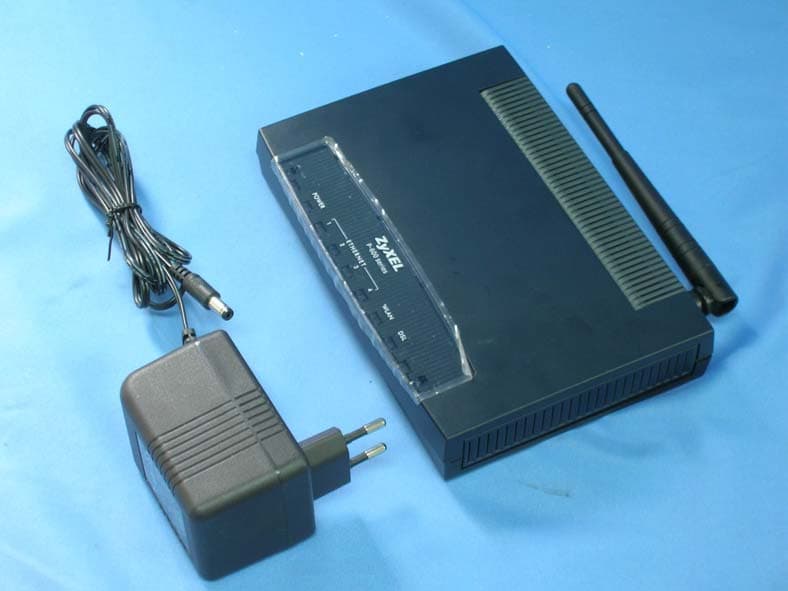
Click to zoom
Application Details
- Equipment Class
- DTS - Digital Transmission System
- Date of Grant
- Oct 18, 2006
- Application Purpose
- Original Equipment
- Date of Application
- Oct 18, 2006
- Equipment Note
- 802.11g WIRELESS ADSL2+ 4-PORT GATEWAY
- Frequency Range
- 2412.00000000 - 2462.00000000
- Country
- Taiwan
Documents & Files
Document Text
Text extracted from the exhibit documents filed with the FCC. Open a document above to read the original.
Users Manual
P-660H/HW-D Series ADSL2+ 4-port Gateway User’s Guide Version 3.40 Edition 1 7/2006 P-660H/HW-D Series User’s Guide Copyright2 Copyright Copyright © 2006 by ZyXEL Communications Corporation. The contents of this publication may not be reproduced in any part or as a whole, transcribed, stored in a retrieval system, translated into any language, or transmitted in any form or by any means, electronic, mechanical, magnetic, optical, chemical, photocopying, manual, or otherwise, without the prior written permission of ZyXEL Communications Corporation. Published by ZyXEL Communications Corporation. All rights reserved. Disclaimer ZyXEL does not assume any liability arising out of the application or use of any products, or software described herein. Neither does it convey any license under its patent rights nor the patent rights of others. ZyXEL further reserves the right to make changes in any products described herein without notice. This publication is subject to change without notice. Trademarks ZyNOS (ZyXEL Network Operating System) is a registered trademark of ZyXEL Communications, Inc. Other trademarks mentioned in this publication are used for identification purposes only and may be properties of their respective owners. P-660H/HW-D Series User’s Guide 3Certifications Certifications Federal Communications Commission (FCC) Interference Statement The device complies with Part 15 of FCC rules. Operation is subject to the following two conditions: • This device may not cause harmful interference. • This device must accept any interference received, including interference that may cause undesired operations. This device has been tested and found to comply with the limits for a Class B digital device pursuant to Part 15 of the FCC Rules. These limits are designed to provide reasonable protection against harmful interference in a commercial environment. This device generates, uses, and can radiate radio frequency energy, and if not installed and used in accordance with the instructions, may cause harmful interference to radio communications. If this device does cause harmful interference to radio/television reception, which can be determined by turning the device off and on, the user is encouraged to try to correct the interference by one or more of the following measures: 1Reorient or relocate the receiving antenna. 2Increase the separation between the equipment and the receiver. 3Connect the equipment into an outlet on a circuit different from that to which the receiver is connected. 4Consult the dealer or an experienced radio/TV technician for help. FCC Radiation Exposure Statement • The device complies with FCC RF radiation exposure limits set forth for an uncontrolled environment, under 47 CFR 2.1093 paragraph (d)(2). End users must follow the specific operating instructions for satisfying RF exposure compliance. • This transmitter must not be co-located or operating in conjunction with any other antenna or transmitter. • To comply with FCC RF exposure compliance requirements, a separation distance of at least 20 cm must be maintained between the antenna of this device and all persons. 注意 ! 依據 低功率電波輻射性電機管理辦法 第十二條 經型式認證合格之低功率射頻電機,非經許可,公司、商號或使用 者均不得擅自變更頻率、加大功率或變更原設計之特性及功能。 第十四條 低功率射頻電機之使用不得影響飛航安全及干擾合法通信;經發現 有干擾現象時,應立即停用,並改善至無干擾時方得繼續使用。 前項合法通信,指依電信規定作業之無線電信。低功率射頻電機須忍 P-660H/HW-D Series User’s Guide Certifications4 受合法通信或工業、科學及醫療用電波輻射性電機設備之干擾。 Notices Changes or modifications not expressly approved by the party responsible for compliance could void the user's authority to operate the equipment. This Class B digital apparatus complies with Canadian ICES-003. Cet appareil numérique de la classe B est conforme à la norme NMB-003 du Canada. Viewing Certifications 1Go to http://www.zyxel.com. 2Select your product from the drop-down list box on the ZyXEL home page to go to that product's page. 3Select the certification you wish to view from this page. P-660H/HW-D Series User’s Guide 5Safety Warnings Safety Warnings For your safety, be sure to read and follow all warning notices and instructions. • Do NOT use this product near water, for example, in a wet basement or near a swimming pool. • Do NOT expose your device to dampness, dust or corrosive liquids. • Do NOT store things on the device. • Do NOT install, use, or service this device during a thunderstorm. There is a remote risk of electric shock from lightning. • Connect ONLY suitable accessories to the device. • Do NOT open the device or unit. Opening or removing covers can expose you to dangerous high voltage points or other risks. ONLY qualified service personnel should service or disassemble this device. Please contact your vendor for further information. • ONLY qualified service personnel should service or disassemble this device. • Make sure to connect the cables to the correct ports. • Place connecting cables carefully so that no one will step on them or stumble over them. • Always disconnect all cables from this device before servicing or disassembling. • Use ONLY an appropriate power adaptor or cord for your device. • Connect the power adaptor or cord to the right supply voltage (for example, 110V AC in North America or 230V AC in Europe). • Do NOT allow anything to rest on the power adaptor or cord and do NOT place the product where anyone can walk on the power adaptor or cord. • Do NOT use the device if the power adaptor or cord is damaged as it might cause electrocution. • If the power adaptor or cord is damaged, remove it from the power outlet. • Do NOT attempt to repair the power adaptor or cord. Contact your local vendor to order a new one. • Do not use the device outside, and make sure all the connections are indoors. There is a remote risk of electric shock from lightning. • Use only No. 26 AWG (American Wire Gauge) or larger telephone wire. • Antenna Warning! This device meets ETSI and FCC certification requirements when using the included antenna(s). Only use the included antenna(s). • If you wall mount your device, make sure …
Text truncated - open the document above for the full version.
Users Manual
P-660H/HW-D Series User’s Guide 79Chapter 5 WAN Setup 5.1.5.3 IP Assignment with ENET ENCAP Encapsulation In this case you can have either a static or dynamic IP. For a static IP you must fill in all the IP Address and ENET ENCAP Gateway fields as supplied by your ISP. However for a dynamic IP, the ZyXEL Device acts as a DHCP client on the WAN port and so the IP Address and ENET ENCAP Gateway fields are not applicable (N/A) as the DHCP server assigns them to the ZyXEL Device. 5.1.6 Nailed-Up Connection (PPP) A nailed-up connection is a dial-up line where the connection is always up regardless of traffic demand. The ZyXEL Device does two things when you specify a nailed-up connection. The first is that idle timeout is disabled. The second is that the ZyXEL Device will try to bring up the connection when turned on and whenever the connection is down. A nailed-up connection can be very expensive for obvious reasons. Do not specify a nailed-up connection unless your telephone company offers flat-rate service or you need a constant connection and the cost is of no concern 5.1.7 NAT NAT (Network Address Translation - NAT, RFC 1631) is the translation of the IP address of a host in a packet, for example, the source address of an outgoing packet, used within one network to a different IP address known within another network. 5.2 Metric The metric represents the "cost of transmission". A router determines the best route for transmission by choosing a path with the lowest "cost". RIP routing uses hop count as the measurement of cost, with a minimum of "1" for directly connected networks. The number must be between "1" and "15"; a number greater than "15" means the link is down. The smaller the number, the lower the "cost". The metric sets the priority for the ZyXEL Device’s routes to the Internet. If any two of the default routes have the same metric, the ZyXEL Device uses the following pre-defined priorities: • Normal route: designated by the ISP (see Section 5.5 on page 82) • Traffic-redirect route (see Section 5.7 on page 90) • WAN-backup route, also called dial-backup (see Section 5.8 on page 91) For example, if the normal route has a metric of "1" and the traffic-redirect route has a metric of "2" and dial-backup route has a metric of "3", then the normal route acts as the primary default route. If the normal route fails to connect to the Internet, the ZyXEL Device tries the traffic-redirect route next. In the same manner, the ZyXEL Device uses the dial-backup route if the traffic-redirect route also fails. P-660H/HW-D Series User’s Guide Chapter 5 WAN Setup80 If you want the dial-backup route to take first priority over the traffic-redirect route or even the normal route, all you need to do is set the dial-backup route’s metric to "1" and the others to "2" (or greater). IP Policy Routing overrides the default routing behavior and takes priority over all of the routes mentioned above. 5.3 Traffic Shaping Traffic Shaping is an agreement between the carrier and the subscriber to regulate the average rate and fluctuations of data transmission over an ATM network. This agreement helps eliminate congestion, which is important for transmission of real time data such as audio and video connections. Peak Cell Rate (PCR) is the maximum rate at which the sender can send cells. This parameter may be lower (but not higher) than the maximum line speed. 1 ATM cell is 53 bytes (424 bits), so a maximum speed of 832Kbps gives a maximum PCR of 1962 cells/sec. This rate is not guaranteed because it is dependent on the line speed. Sustained Cell Rate (SCR) is the mean cell rate of each bursty traffic source. It specifies the maximum average rate at which cells can be sent over the virtual connection. SCR may not be greater than the PCR. Maximum Burst Size (MBS) is the maximum number of cells that can be sent at the PCR. After MBS is reached, cell rates fall below SCR until cell rate averages to the SCR again. At this time, more cells (up to the MBS) can be sent at the PCR again. If the PCR, SCR or MBS is set to the default of "0", the system will assign a maximum value that correlates to your upstream line rate. The following figure illustrates the relationship between PCR, SCR and MBS. Figure 39 Example of Traffic Shaping P-660H/HW-D Series User’s Guide 81Chapter 5 WAN Setup 5.3.1 ATM Traffic Classes These are the basic ATM traffic classes defined by the ATM Forum Traffic Management 4.0 Specification. 5.3.1.1 Constant Bit Rate (CBR) Constant Bit Rate (CBR) provides fixed bandwidth that is always available even if no data is being sent. CBR traffic is generally time-sensitive (doesn't tolerate delay). CBR is used for connections that continuously require a specific amount of bandwidth. A PCR is specified and if traffic exceeds this rate, cells may be dropped. Examples of connections that need CBR would be high-resolution video and voice. 5.3.1.2 Variable Bit Rate (VBR) The Variable Bit Rate (VBR) ATM traffic class is used with bursty connections. Connections that use the Variable Bit Rate (VBR) traffic class can be grouped into real time (VBR-RT) or non-real time (VBR-nRT) connections. The VBR-RT (real-time Variable Bit Rate) type is used with bursty connections that require closely controlled delay and delay variation. It also provides a fixed amount of bandwidth (a PCR is specified) but is only available when data is being sent. An example of an VBR-RT connection would be video conferencing. Video conferencing requires real-time data transfers and the bandwidth requirement varies in proportion to the video image's changing dynamics. The VBR-nRT (non real-time Variable Bit Rate) type is used with bursty connections that do not require closely controlled delay and delay variation. It is commonly used for "bursty" traffic typical on LANs. PCR and MBS define the burst levels, SCR defines the minimum level. An example of an VBR-nRT connection would be non-time sensitive data file transfers. 5.3.1.3 Unspecified Bit …
Text truncated - open the document above for the full version.
Users Manual
P-660H/HW-D Series User’s Guide Chapter 7 Wireless LAN114 7.4.2 WEP Encryption WEP encryption scrambles the data transmitted between the wireless clients and the access points to keep network communications private. It encrypts unicast and multicast communications in a network. Both the wireless clients and the access points must use the same WEP key. Your ZyXEL Device allows you to configure up to four 64-bit, 128-bit or 256-bit WEP keys but only one key can be enabled at any one time. In order to configure and enable WEP encryption; click Network > Wireless LAN to display the General screen. Select Static WEP from the Security Mode list. Figure 59 Wireless: Static WEP Encryption The following table describes the wireless LAN security labels in this screen. Table 34 Wireless: Static WEP Encryption LABELDESCRIPTION Security ModeChoose Static WEP from the drop-down list box. PassphraseEnter a Passphrase (up to 32 printable characters) and clicking Generate. The ZyXEL Device automatically generates a WEP key. P-660H/HW-D Series User’s Guide 115Chapter 7 Wireless LAN 7.4.3 WPA-PSK/WPA2-PSK In order to configure and enable WPA(2)-PSK authentication; click Network > Wireless LAN to display the General screen. Select WPA-PSK or WPA2-PSK from the Security Mode list. Figure 60 Wireless: WPA-PSK/WPA2-PSK WEP KeyThe WEP keys are used to encrypt data. Both the ZyXEL Device and the wireless clients must use the same WEP key for data transmission. If you want to manually set the WEP key, enter any 5, 13 or 29 characters (ASCII string) or 10, 26 or 58 hexadecimal characters ("0-9", "A-F") for a 64-bit, 128-bit or 256-bit WEP key respectively. ApplyClick Apply to save your changes back to the ZyXEL Device. CancelClick Cancel to reload the previous configuration for this screen. Advanced Setup Click Advanced Setup to display the Wireless Advanced Setup screen and edit more details of your WLAN setup. Table 34 Wireless: Static WEP Encryption LABELDESCRIPTION P-660H/HW-D Series User’s Guide Chapter 7 Wireless LAN116 The following table describes the wireless LAN security labels in this screen. 7.4.4 WPA/WPA2 In order to configure and enable WPA/WPA2; click the Wireless LAN link under Network to display the General screen. Select WPA or WPA2 from the Security Mode list. Table 35 Wireless: WPA-PSK/WPA2-PSK LABELDESCRIPTION Security ModeChoose WPA-PSK or WPA2-PSK from the drop-down list box. WPA CompatibleThis check box is available only when you select WPA2-PSK or WPA2 in the Security Mode field. Select the check box to have both WPA2 and WPA wireless clients be able to communicate with the ZyXEL Device even when the ZyXEL Device is using WPA2-PSK or WPA2. Pre-Shared Key The encryption mechanisms used for WPA/WPA2 and WPA-PSK/WPA2-PSK are the same. The only difference between the two is that WPA-PSK/WPA2-PSK uses a simple common password, instead of user-specific credentials. Type a pre-shared key from 8 to 63 case-sensitive ASCII characters (including spaces and symbols). ReAuthentication Timer (In Seconds) Specify how often wireless clients have to resend usernames and passwords in order to stay connected. Enter a time interval between 10 and 9999 seconds. The default time interval is 1800 seconds (30 minutes). Note: If wireless client authentication is done using a RADIUS server, the reauthentication timer on the RADIUS server has priority. Idle Timeout (In Seconds) The ZyXEL Device automatically disconnects a wireless station from the wireless network after a period of inactivity. The wireless station needs to send the username and password again before it can use the wireless network again. Some wireless clients may prompt users for a username and password; other clients may use saved login credentials. In either case, there is usually a short delay while the wireless client logs in to the wireless network again. This value is usually smaller when the wireless network is keeping track of how much time each wireless station is connected to the wireless network (for example, using an authentication server). If the wireless network is not keeping track of this information, you can usually set this value higher to reduce the number of delays caused by logging in again. Group Key Update Timer (In Seconds) The Group Key Update Timer is the rate at which the AP (if using WPA-PSK/ WPA2-PSK key management) or RADIUS server (if using WPA(2) key management) sends a new group key out to all clients. The re-keying process is the WPA(2) equivalent of automatically changing the WEP key for an AP and all stations in a WLAN on a periodic basis. Setting of the Group Key Update Timer is also supported in WPA-PSK/WPA2-PSK mode. The default is 1800 seconds (30 minutes). ApplyClick Apply to save your changes back to the ZyXEL Device. CancelClick Cancel to reload the previous configuration for this screen. Advanced SetupClick Advanced Setup to display the Wireless Advanced Setup screen and edit more details of your WLAN setup. P-660H/HW-D Series User’s Guide 117Chapter 7 Wireless LAN Figure 61 Wireless: WPA/WPA2 The following table describes the wireless LAN security labels in this screen. Table 36 Wireless: WPA/WPA2 LABELDESCRIPTION WPA CompatibleThis check box is available only when you select WPA2-PSK or WPA2 in the Security Mode field. Select the check box to have both WPA2 and WPA wireless clients be able to communicate with the ZyXEL Device even when the ZyXEL Device is using WPA2-PSK or WPA2. ReAuthentication Timer (In Seconds) Specify how often wireless clients have to resend usernames and passwords in order to stay connected. Enter a time interval between 10 and 9999 seconds. The default time interval is 1800 seconds (30 minutes). Note: If wireless client authentication is done using a RADIUS server, the reauthentication timer on the RADIUS server has priority. P-660H/HW-D Series User’s Guide Chapter 7 Wireless LAN118 Idle Timeout (In Seconds) The ZyXEL Device automatically disconnects a wireless station from the wi…
Text truncated - open the document above for the full version.
Users Manual
P-660H/HW-D Series User’s Guide Chapter 10 Firewall Configuration158 4Does a rule that allows Internet users access to resources on the LAN create a security vulnerability? For example, if FTP ports (TCP 20, 21) are allowed from the Internet to the LAN, Internet users may be able to connect to computers with running FTP servers. 5Does this rule conflict with any existing rules? 6Once these questions have been answered, adding rules is simply a matter of plugging the information into the correct fields in the web configurator screens. 10.3.3 Key Fields For Configuring Rules 10.3.3.1 Action Should the action be to Drop, Reject or Permit? Note: “Drop” means the firewall silently discards the packet. “Reject” means the firewall discards packets and sends an ICMP destination-unreachable message to the sender. 10.3.3.2 Service Select the service from the Service scrolling list box. If the service is not listed, it is necessary to first define it. See Section 10.8 on page 170 for more information on predefined services. 10.3.3.3 Source Address What is the connection’s source address; is it on the LAN or WAN? Is it a single IP, a range of IPs or a subnet? 10.3.3.4 Destination Address What is the connection’s destination address; is it on the LAN or WAN? Is it a single IP, a range of IPs or a subnet? 10.4 Connection Direction This section describes examples for firewall rules for connections going from LAN to WAN and from WAN to LAN. LAN to LAN/ Router and WAN to WAN/ Router rules apply to packets coming in on the associated interface (LAN or WAN respectively). LAN to LAN/ Router means policies for LAN-to-ZyXEL Device (the policies for managing the ZyXEL Device through the LAN interface) and policies for LAN-to-LAN (the policies that control routing between two subnets on the LAN). Similarly, WAN to WAN/ Router polices apply in the same way to the WAN port. P-660H/HW-D Series User’s Guide 159Chapter 10 Firewall Configuration 10.4.1 LAN to WAN Rules The default rule for LAN to WAN traffic is that all users on the LAN are allowed non- restricted access to the WAN. When you configure a LAN to WAN rule, you in essence want to limit some or all users from accessing certain services on the WAN. WAN to LAN Rules The default rule for WAN to LAN traffic blocks all incoming connections (WAN to LAN). If you wish to allow certain WAN users to have access to your LAN, you will need to create custom rules to allow it. 10.4.2 Alerts Alerts are reports on events, such as attacks, that you may want to know about right away. You can choose to generate an alert when a rule is matched in the Edit Rule screen (see Figure 88 on page 163). When an event generates an alert, a message can be immediately sent to an e- mail account that you specify in the Log Settings screen. Refer to the chapter on logs for details 10.5 General Firewall Policy Click Security > Firewall to display the following screen. Activate the firewall by selecting the Active Firewall check box as seen in the following screen. Refer to Section 9.1 on page 144 for more information. Figure 86 Firewall: General P-660H/HW-D Series User’s Guide Chapter 10 Firewall Configuration160 The following table describes the labels in this screen. 10.6 Firewall Rules Summary Note: The ordering of your rules is very important as rules are applied in turn. Refer to Section 9.1 on page 144 for more information. Click Security > Firewall > Rules to bring up the following screen. This screen displays a list of the configured firewall rules. Note the order in which the rules are listed. Table 56 Firewall: General LABELDESCRIPTION Active FirewallSelect this check box to activate the firewall. The ZyXEL Device performs access control and protects against Denial of Service (DoS) attacks when the firewall is activated. Bypass Triangle Route Select this check box to have the ZyXEL Device firewall permit the use of triangle route topology on the network. See the appendix for more on triangle route topology. Note: Allowing asymmetrical routes may let traffic from the WAN go directly to a LAN computer without passing through the router. See Appendix N on page 350 for more on triangle route topology and how to deal with this problem. Packet DirectionThis is the direction of travel of packets (LAN to LAN / Router, LAN to WAN, WAN to WAN / Router, WAN to LAN). Firewall rules are grouped based on the direction of travel of packets to which they apply. For example, LAN to LAN / Router means packets traveling from a computer/subnet on the LAN to either another computer/subnet on the LAN interface of the ZyXEL Device or the ZyXEL Device itself. Default ActionUse the drop-down list boxes to select the default action that the firewall is take on packets that are traveling in the selected direction and do not match any of the firewall rules. Select Drop to silently discard the packets without sending a TCP reset packet or an ICMP destination-unreachable message to the sender. Select Reject to deny the packets and send a TCP reset packet (for a TCP packet) or an ICMP destination-unreachable message (for a UDP packet) to the sender. Select Permit to allow the passage of the packets. LogSelect the check box to create a log (when the above action is taken) for packets that are traveling in the selected direction and do not match any of your customized rules. Expand...Click this button to display more information. Basic...Click this button to display less information. ApplyClick Apply to save your changes back to the ZyXEL Device. CancelClick Cancel to begin configuring this screen afresh. P-660H/HW-D Series User’s Guide 161Chapter 10 Firewall Configuration Figure 87 Firewall Rules The following table describes the labels in this screen. Table 57 Firewall Rules LABELDESCRIPTION Firewall Rules Storage Space in Use This read-only bar shows how much of the ZyXEL Device's memory for recording firewall rules it is currently using. When you are using 80% or less of the storage space, the bar is green.…
Text truncated - open the document above for the full version.
Users Manual
P-660H/HW-D Series User’s Guide 197Chapter 13 Bandwidth Management P-660H/HW-D Series User’s Guide Chapter 14 Dynamic DNS Setup198 CHAPTER14 Dynamic DNS Setup This chapter discusses how to configure your ZyXEL Device to use Dynamic DNS. 14.1 Dynamic DNS Overview Dynamic DNS allows you to update your current dynamic IP address with one or many dynamic DNS services so that anyone can contact you (in NetMeeting, CU-SeeMe, etc.). You can also access your FTP server or Web site on your own computer using a domain name (for instance myhost.dhs.org, where myhost is a name of your choice) that will never change instead of using an IP address that changes each time you reconnect. Your friends or relatives will always be able to call you even if they don't know your IP address. First of all, you need to have registered a dynamic DNS account with www.dyndns.org. This is for people with a dynamic IP from their ISP or DHCP server that would still like to have a domain name. The Dynamic DNS service provider will give you a password or key. 14.1.1 DYNDNS Wildcard Enabling the wildcard feature for your host causes *.yourhost.dyndns.org to be aliased to the same IP address as yourhost.dyndns.org. This feature is useful if you want to be able to use, for example, www.yourhost.dyndns.org and still reach your hostname. If you have a private WAN IP address, then you cannot use Dynamic DNS. See Section 14.2 on page 198 for configuration instruction. 14.2 Configuring Dynamic DNS To change your ZyXEL Device’s DDNS, click Advanced > Dynamic DNS. The screen appears as shown. See Section 14.1 on page 198 for more information. P-660H/HW-D Series User’s Guide 199Chapter 14 Dynamic DNS Setup Figure 109 Dynamic DNS The following table describes the fields in this screen. Table 79 Dynamic DNS LABELDESCRIPTION Dynamic DNS Setup Active Dynamic DNS Select this check box to use dynamic DNS. Service ProviderThis is the name of your Dynamic DNS service provider. Dynamic DNS Type Select the type of service that you are registered for from your Dynamic DNS service provider. Host NameType the domain name assigned to your ZyXEL Device by your Dynamic DNS provider. You can specify up to two host names in the field separated by a comma (","). User NameType your user name. PasswordType the password assigned to you. Enable Wildcard Option Select the check box to enable DynDNS Wildcard. Enable off line option This option is available when Custom DNS is selected in the DDNS Type field. Check with your Dynamic DNS service provider to have traffic redirected to a URL (that you can specify) while you are off line. IP Address Update Policy Use WAN IP Address Select this option to update the IP address of the host name(s) to the WAN IP address. P-660H/HW-D Series User’s Guide Chapter 14 Dynamic DNS Setup200 Dynamic DNS server auto detect IP Address Select this option only when there are one or more NAT routers between the ZyXEL Device and the DDNS server. This feature has the DDNS server automatically detect and use the IP address of the NAT router that has a public IP address. Note: The DDNS server may not be able to detect the proper IP address if there is an HTTP proxy server between the ZyXEL Device and the DDNS server. Use specified IP Address Type the IP address of the host name(s). Use this if you have a static IP address. ApplyClick Apply to save your changes back to the ZyXEL Device. CancelClick Cancel to begin configuring this screen afresh. Table 79 Dynamic DNS (continued) LABELDESCRIPTION P-660H/HW-D Series User’s Guide 201Chapter 14 Dynamic DNS Setup P-660H/HW-D Series User’s Guide Chapter 15 Remote Management Configuration202 CHAPTER15 Remote Management Configuration This chapter provides information on configuring remote management. 15.1 Remote Management Overview Remote management allows you to determine which services/protocols can access which ZyXEL Device interface (if any) from which computers. Note: When you configure remote management to allow management from the WAN, you still need to configure a firewall rule to allow access. You may manage your ZyXEL Device from a remote location via: • Internet (WAN only) • ALL (LAN and WAN) • LAN only, • Neither (Disable). Note: When you choose WAN only or LAN & WAN, you still need to configure a firewall rule to allow access. To disable remote management of a service, select Disable in the corresponding Access Status field. You may only have one remote management session running at a time. The ZyXEL Device automatically disconnects a remote management session of lower priority when another remote management session of higher priority starts. The priorities for the different types of remote management sessions are as follows. 1Telnet 2HTTP 15.1.1 Remote Management Limitations Remote management over LAN or WAN will not work when: • You have disabled that service in one of the remote management screens. P-660H/HW-D Series User’s Guide 203Chapter 15 Remote Management Configuration • The IP address in the Secured Client IP field does not match the client IP address. If it does not match, the ZyXEL Device will disconnect the session immediately. • There is already another remote management session with an equal or higher priority running. You may only have one remote management session running at one time. • There is a firewall rule that blocks it. 15.1.2 Remote Management and NAT When NAT is enabled: • Use the ZyXEL Device’s WAN IP address when configuring from the WAN. • Use the ZyXEL Device’s LAN IP address when configuring from the LAN. 15.1.3 System Timeout There is a default system management idle timeout of five minutes (three hundred seconds). The ZyXEL Device automatically logs you out if the management session remains idle for longer than this timeout period. The management session does not time out when a statistics screen is polling. 15.2 WWW To change your ZyXEL Device’s World Wide Web settings, click Advanced > Remote MGMT to display the WWW screen. Figure 110 Remote Man…
Text truncated - open the document above for the full version.
Contact Information
Applicant
Emma Bao(Section Manager)
Test Firm
DEKRA Testing and Certification Co., Ltd.Sky Hsu
Technical Specifications
| # | Rule Parts | Frequency Range | Power Output |
|---|---|---|---|
| 1 | 15C | 2.41 GHz - 2.46 GHz | 800.00 mW |
Other Applications from ZyXEL Communications Corporation
I88EE6601-00
Jul 18, 2024Tri-Band Wireless BE19000 10G Ethernet VoIP Gateway with SFP+ / Tri-Band Wireless BE19000 10G Ethernet VoIP Gateway / Tri-Band Wireless BE19000 10G Ethernet Gateway with SFP+ / Tri-Band Wireless BE19000 10G Ethernet Gateway
Equipment Class
6ID - 15E 6 GHz Low Power Indoor Access Point
I8803935
Oct 17, 2023802.11be (WiFi 7) Triple-Radio Unified Pro Access Point
Equipment Class
DTS - Digital Transmission System
I8803973
Aug 01, 2023802.11ax (WiFi 6) Dual-Radio Wall-Plate Unified Access Point
Equipment Class
NII - Unlicensed National Information Infrastructure TX
I88WX5610-B0
Apr 25, 2023AX7800 WiFi 6E Tri-Band Gigabit Wireless Extender
Equipment Class
DTS - Digital Transmission System
I88EX7710-B0
Apr 16, 2023AX11000 WiFi 6E 10G Ethernet Gateway
Equipment Class
NII - Unlicensed National Information Infrastructure TX