JCK28713AIREK17Slim Wireless Touchpad Keyboard
GIGA-BYTE TECHNOLOGY CO., LTD.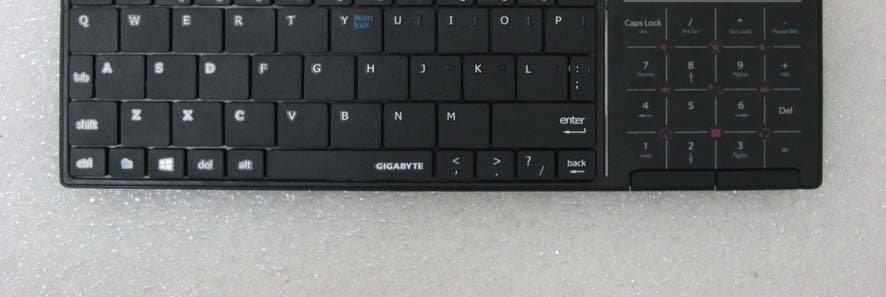
Click to zoom
Application Details
- Equipment Class
- DXX - Part 15 Low Power Communication Device Transmitter
- Date of Grant
- Mar 16, 2014
- Application Purpose
- Original Equipment
- Date of Application
- Mar 06, 2014
- Equipment Note
- Slim Wireless Touchpad Keyboard
- Frequency Range
- 2408.00000000 - 2474.00000000
- Country
- Taiwan
Documents & Files
Document Text
Text extracted from the exhibit documents filed with the FCC. Open a document above to read the original.
Users Manual
AIRE K17 Slim Wireless Touchpad Keyboard User’s Manual Product Information GIGABYTE Model No.: GK-AIRE K17 Model Name:Slim Wireless Touchpad Keyboard Receiver Model No.: AIREK17RX Model Name: Wireless Receiver All other brands and trademarks are the properties of their respective owners. The product specifications are subject to change without notice. How to Start Your Keyboard 1. Turn on your keyboard and mobile device. 2. Pull out the dongle from the back of the keyboard inside the lid. 3. Plug your dongle into the USB port of your device. 4. Make sure to turn ON the keyboard. 5. The blue LED would shine if the keyboard turns on. Use Your Keyboard 1. Just type normally as the original keyboard you are using. 2. Functions printed BLUE on the keyboard is to be activated when pressing FN key at the same time. 3. Before using figures printed BLUE on the keyboard, please make sure numberlock function is ON. 4. Note: The unit offers a strong power saving management. When you put it away for more than 30 seconds, the indication light will turn off. Once the keyboard accesses sleeping mode, to clip any key on the keyboard is compulsory to wake it up. 5. There is a power on/off switch designed to save the batteries power while non-usage of a longer period. Multi-Media Control Touchpad & Indication Light Control your TV-connected laptop and easily turn up/down the volume, open default browser or media player by the keyboard without leaving your coach! 1. Power On: The blue light will shine for 5 seconds, then fade out. 2. Touchpad (icon) Press this icon, and the blue light shines. Use the touchpad the same way as your notebook. *The actual left/right keys serve function regardless of the mode. 3. Calculator (icon) Press this icon, and the white light shines. Press the white icons just like using number pad. *Please make sure numberlock function is ON before using. 4. Function (icon) Press this icon, and the azure light shines. Press the azure functions keys to make it work. 5. Media (icon) Press this icon, and the dark-pink light shines. Press the dark-pink media keys to activate functions. Charge the batteries 1. There is a micro-USB nano-receiver. Use the micro-USB line in the box to charge the batteries by plugging the other side into the USB port. The BLUE indicator light will start to blink to show that the battery is charging. 2. Charge your keyboard until the indication light stops blinking. 3. The red LED light indicates that batteries inside needs to be re-charged. Rechargeable battery notice Danger Do not attempt to disassemble or modify the battery pack. Attempting to do so can cause an explosion, or liquid leakage from the battery pack. A battery pack other than the one specified, or a dissembled or modified battery pack is not covered by the warranty. Built-in rechargeable battery notice Danger Do not attempt to replace the internal rechargeable lithium batteries. Please contact support for replacement. Troubleshooting and Tips: 1. Make sure you have connected the receiver correctly on the PC’s USB port 2. For the best performance, we suggest you to locate the receiver with a distance from other electric devices, such as the computer monitor or external storage devices 3. Make sure you have set the communications between the receiver and the keyboard. Refer to the communication section. 4. Some system devices might conflict with the keyboard. Confirm the IRQ/address settings of these devices for conflicts, and change the settings as required. 5. When the battery is low, the RED indication light will start blinking. Please charge the batteries. 6. When your keyboard is inactive, it will enter standby mode. The keyboard lights will turn off. Your keyboard is not broken or powered off. Press any key and wait for three seconds, and the keyboard will revert to its normal state. 7. To prolong keyboard life, we suggest switching off the power after each use. 8. Some multi-function keys (eg. W indows, capslock. print, home, play, next, previous, mute, and scroll-lock, etc.) may not be effective or activate certain programs on mobile devices. Attention 1. Keep away from sharp objects. 2. Do not put objects on the keyboard. 3. Do not force or distort the keyboard. 4. Avoid contact with liquid or food. 5. Do not drop keyboard. 6. Keys may be wiped gently with damp cloth only. Do not soak the keys in water. Only clean the keyboard when it’s powered off. FCC Statement This equipment has been tested and found to comply with the limits for a class B digital device, pursuant to Part 15 of the FCC Rules. These limits are designed to provide reasonable protection against harmful interference in a residential installation. This equipment generates uses and can radiate radio frequency energy and, if not installed and used in accordance with the instructions, may cause harmful interference to radio communications. However, there is no guarantee that interference will not occur in a particular installation if this equipment does cause harmful interference to radio or television reception, which can be determined by turning the equipment off and on, the user is encouraged to try to correct the interference by one of the following measures: 1. Reorient or relocate the receiving antenna. 2. Increase the separation between the equipment and receiver. 3. Connect the equipment into an outlet on a circuit different from that to which the receiver is connected. To assure continued compliance, any changes or modifications not expressly approved by the party responsible for compliance could void the user's authority to operate this equipment. (Example-use only shielded interface cables when connecting to computer or peripheral devices). This device complies with Part 15 of the FCC Rules. Operation is subject to the following two conditions: (1) This device may not cause harmful interference. and (2) This device must accept any interference received, including interference that may cause undesired operation. This s…
Text truncated - open the document above for the full version.
External Photos
FCC ID: JCK28713AIREK17 International Standards Laboratory Report Number: ISL-13LR278FC APPENDIX 2 PHOTOGRAPHS OF EUT FCC ID: JCK28713AIREK17 International Standards Laboratory Report Number: ISL-13LR278FC EUT 1 EUT 2 FCC ID: JCK28713AIREK17 International Standards Laboratory Report Number: ISL-13LR278FC EUT 3 EUT 4 FCC ID: JCK28713AIREK17 International Standards Laboratory Report Number: ISL-13LR278FC EUT 5 EUT 6
ID Label/Location Info
FCC ID LABEL FORMAT AND LOCATION Applicant: GIGA-BYTE Technology Co., Ltd. FCC ID: JCK28713AIREK17
Internal Photos
FCC ID: JCK28713AIREK17 International Standards Laboratory Report Number: ISL-13LR278FC APPENDIX 3 PHOTOGRAPHS OF EUT FCC ID: JCK28713AIREK17 International Standards Laboratory Report Number: ISL-13LR278FC EUT 1 EUT 2 EUT 3 FCC ID: JCK28713AIREK17 International Standards Laboratory Report Number: ISL-13LR278FC EUT 4 EUT 5 RF Antenna FCC ID: JCK28713AIREK17 International Standards Laboratory Report Number: ISL-13LR278FC EUT 6
Test Report
Page: 1 of 40 TEST REPORT of FCC Part 15 Subpart C New Application; Class I PC; Class II PC Product : Slim Wireless Touchpad Keyboard Brand: GIGABYTE Model: GK-AIRE K17 Model Difference: N/A FCC ID: JCK28713AIREK17 FCC Rule Part: §15.249 Applicant: GIGA-BYTE Technology Co., Ltd. Address: No.6, Bao Chiang Road, Hsin-Tien Dist., New Taipei City 231, Taiwan Test Performed by: International Standards Laboratory <Lung-Tan LAB> *Site Registration No. BSMI: SL2-IN-E-0013; MRA TW1036; TAF: 0997; IC: IC4067B-3; *Address: No. 120, Lane 180, San Ho Tsuen, Hsin Ho Rd. Lung-Tan Hsiang, Tao Yuan County 325, Taiwan *Tel : 886-3-407-1718; Fax: 886-3-407-1738 Report No.: ISL-13LR278FC Issue Date : 2014/01/17 Test results given in this report apply only to the specific sample(s) tested and are traceable to national or international standard through calibration of the equipment and evaluating measurement uncertainty herein. This report MUST not be used to claim product endorsement by TAF, NVLAP or any agency of the Government. This test report shall not be reproduced except in full, without the written approval of International Standards Laboratory. -2 of 28- FCC ID: JCK28713AIREK17 International Standards Laboratory Report Number: ISL-13LR278FC VERIFICATION OF COMPLIANCE Applicant: GIGA-BYTE Technology Co., Ltd. Product Description: Slim Wireless Touchpad Keyboard Brand Name: GIGABYTE Model No.: GK-AIRE K17 Model Difference: N/A FCC ID: JCK28713AIREK17 FCC Rule Part: §15.249 Date of test: 2013/12/24 ~ 2014/01/16 Date of EUT Received: 2013/12/24 We hereby certify that: All the tests in this report have been performed and recorded in accordance with the standards described above and performed by an independent electromagnetic compatibility consultant, International Standards Laboratory. The test results contained in this report accurately represent the measurements of the characteristics and the energy generated by sample equipment under test at the time of the test. The sample equipment tested as described in this report is in compliance with the limits of above standards. Test By: Date: 2014/01/17 Dion Chang / Engineer Prepared By: Date: 2014/01/17 Gigi Yeh / Specialist Approved By: Date: 2014/01/17 Vincent Su / Technical Manager -3 of 28- FCC ID: JCK28713AIREK17 International Standards Laboratory Report Number: ISL-13LR278FC Version Version No. Date Description 00 2014/01/17 Initial creation of document -4 of 28- FCC ID: JCK28713AIREK17 International Standards Laboratory Report Number: ISL-13LR278FC Table of Contents 1 GENERAL INFORMATION ........................................................................................... 5 1.1 PRODUCT DESCRIPTION .................................................................................................................... 5 1.2 RELATED SUBMITTAL(S) / GRANT (S) ............................................................................................... 6 1.3 TEST METHODOLOGY ........................................................................................................................ 6 1.4 TEST FACILITY .................................................................................................................................. 6 1.5 SPECIAL ACCESSORIES ...................................................................................................................... 6 1.6 EQUIPMENT MODIFICATIONS ............................................................................................................ 6 2 SYSTEM TEST CONFIGURATION .............................................................................. 7 2.1 EUT CONFIGURATION ....................................................................................................................... 7 2.2 EUT EXERCISE .................................................................................................................................. 7 2.3 TEST PROCEDURE .............................................................................................................................. 7 2.4 MEASUREMENT EQUIPMENT USED: .................................................................................................. 8 2.5 LIMITATION ....................................................................................................................................... 9 2.6 CONFIGURATION OF TESTED SYSTEM ............................................................................................. 11 3 SUMMARY OF TEST RESULTS ................................................................................. 12 4 DESCRIPTION OF TEST MODES .............................................................................. 12 5 CONDUCTED EMISSIONS TEST ............................................................................... 13 5.1 MEASUREMENT PROCEDURE: ......................................................................................................... 13 5.2 TEST SET-UP (BLOCK DIAGRAM OF CONFIGURATION) ................................................................. 13 5.3 MEASUREMENT EQUIPMENT USED: ................................................................................................ 13 5.4 MEASUREMENT RESULT: ................................................................................................................ 14 6 RADIATED EMISSION TEST ...................................................................................... 16 6.1 MEASUREMENT PROCEDURE........................................................................................................... 16 6.2 TEST SET-UP (BLOCK DIAGRAM OF CONFIGURATION) ................................................................. 16 6.3 MEASUREMENT EQUIPMENT USED: ................................................................................................ 17 6.4 FIELD STRENGTH CALCULATION .................................................................................................... 17 6.5 MEASUREMENT RES…
Text truncated - open the document above for the full version.
Test Setup Photos
FCC ID: JCK28713AIREK17 International Standards Laboratory Report Number: ISL-13LR278FC APPENDIX 1 PHOTOGRAPHS OF SETUP FCC ID: JCK28713AIREK17 International Standards Laboratory Report Number: ISL-13LR278FC Conducted Emission Setup Photos FCC ID: JCK28713AIREK17 International Standards Laboratory Report Number: ISL-13LR278FC FCC ID: JCK28713AIREK17 International Standards Laboratory Report Number: ISL-13LR278FC Radiated Emission Setup Photos
Contact Information
Applicant
Alain Sam-Lai
Technical Contact
International Stantards LaboratoryVincent Su
[email protected]886-2-66123337
No. 120, Lane 180, San Ho Tsuen, Hsin Ho · Taiwan
Non-Technical Contact
International Stantards LaboratoryVincent Su
[email protected]886-2-66123337
Test Firm
International Standards Laboratory Corp.Benson Chen
Technical Specifications
| # | Rule Parts | Frequency Range | Power Output |
|---|---|---|---|
| 1 | 15C | 2.41 GHz - 2.47 GHz | - |
Other Applications from GIGA-BYTE TECHNOLOGY CO., LTD.
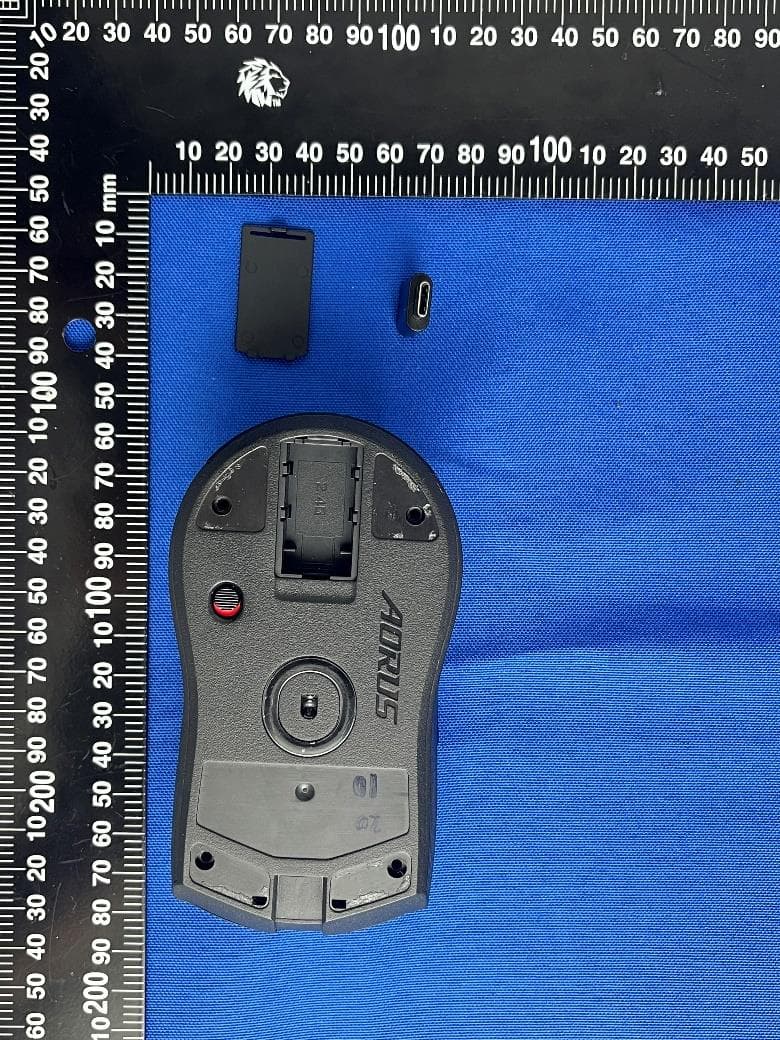
JCKGM-AORUSM6
Jun 26, 2023Mouse
Equipment Class
DTS - Digital Transmission System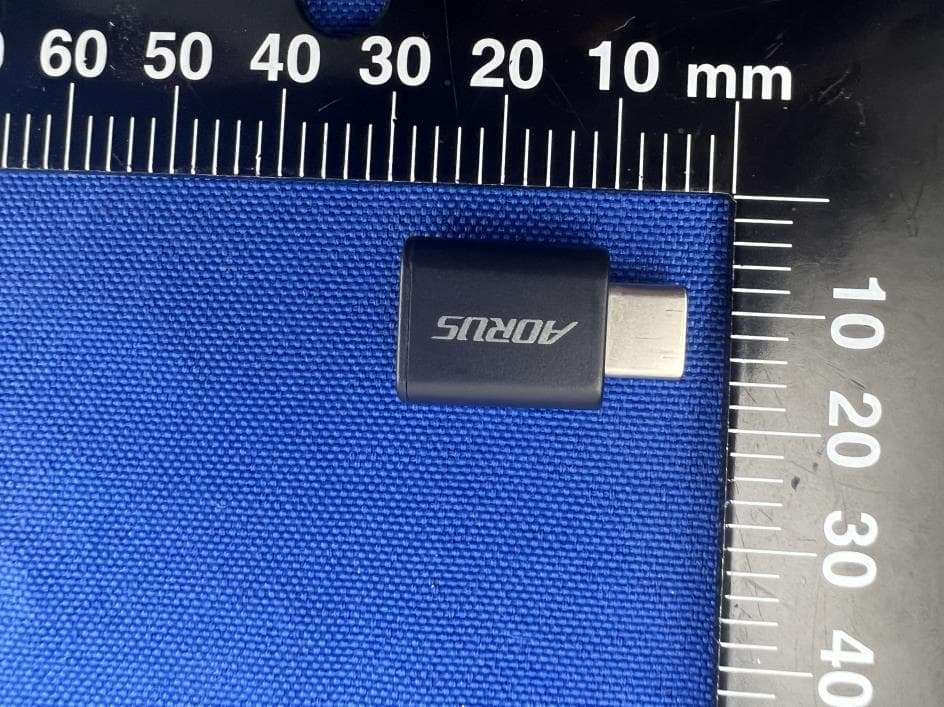
JCKS3
Jun 26, 2023Mouse Dongle
Equipment Class
DTS - Digital Transmission System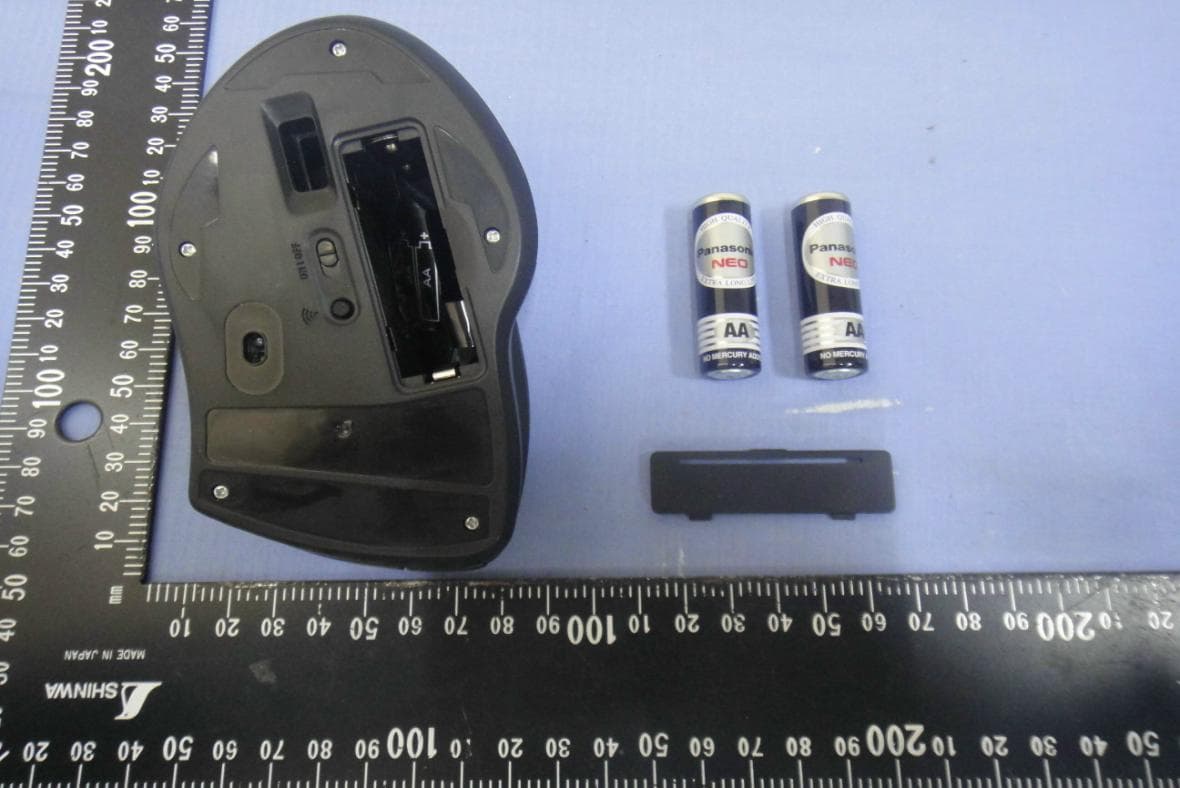
JCK28713AIREM60
Jul 30, 2015Sapphire Blue Optical Mouse
Equipment Class
DXX - Part 15 Low Power Communication Device Transmitter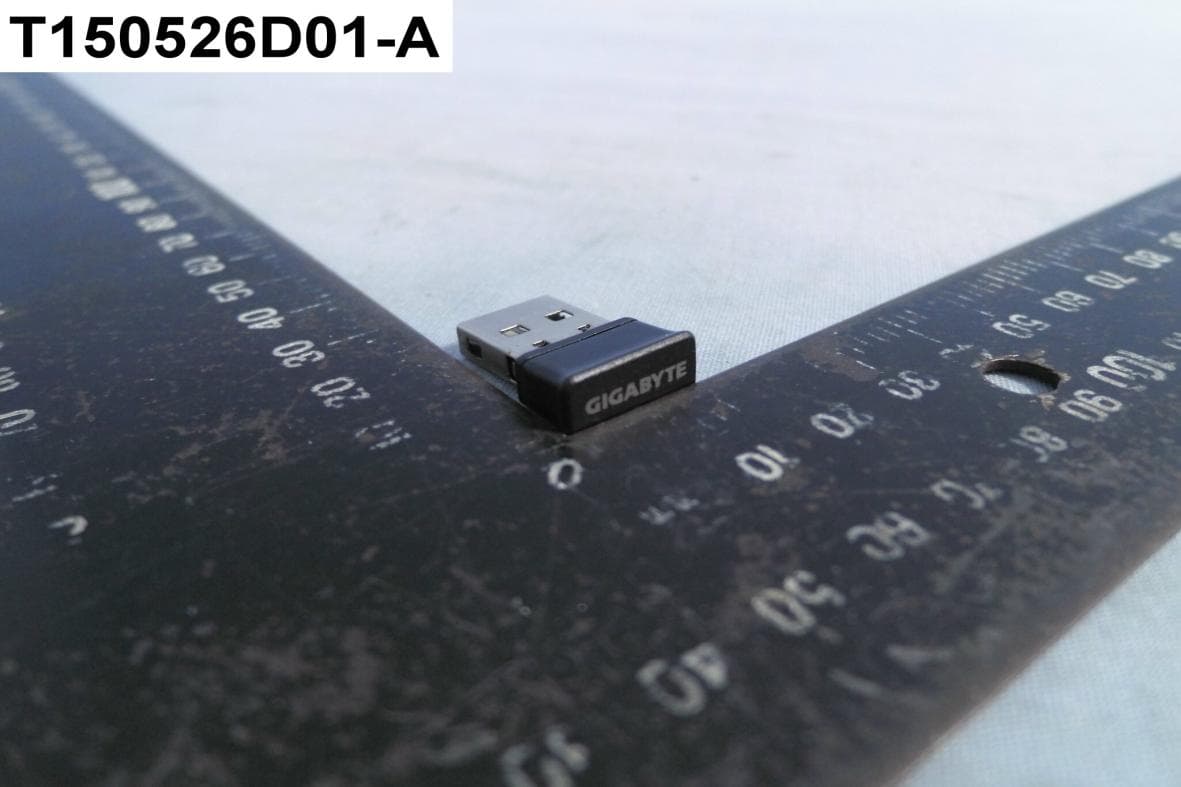
JCK287137580RX
Jul 30, 2015Wireless Receiver
Equipment Class
DXX - Part 15 Low Power Communication Device Transmitter
JCK-MSN09C01
Feb 10, 2015NFC Controller Module with Integrated Antenna
Equipment Class
DXX - Part 15 Low Power Communication Device Transmitter