JYCBLADEDual-Band CDMA Phone with Bluetooth
Pantech Co Ltd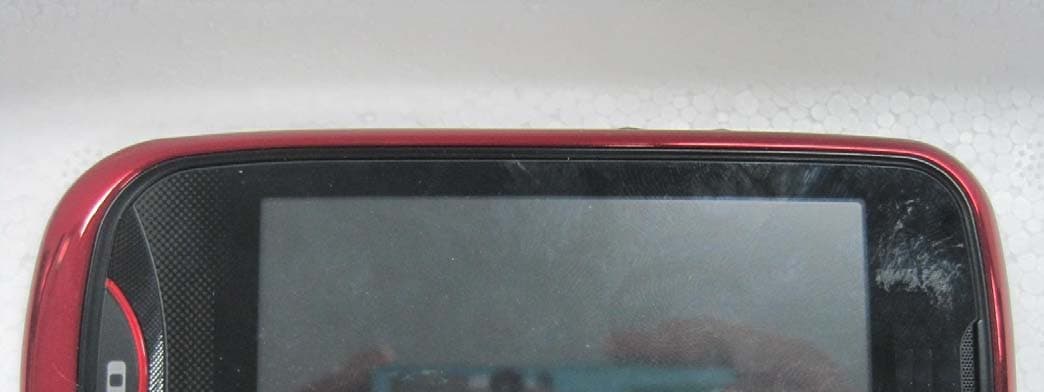
Click to zoom
Application Details
- Equipment Class
- DSS - Part 15 Spread Spectrum Transmitter
- Date of Grant
- May 25, 2011
- Application Purpose
- Original Equipment
- Date of Application
- May 25, 2011
- Equipment Note
- Dual-Band CDMA Phone with Bluetooth
- Frequency Range
- 2402.00000000 - 2480.00000000
- Company
- Pantech Co Ltd
- Country
- South Korea
Documents & Files
Document Text
Text extracted from the exhibit documents filed with the FCC. Open a document above to read the original.
Users Manual
User Guide CDM8992 2 3 CHAPTER 1. BEFORE USING BEFORE USING ...............................................................................................7 INSIDE THE PACKAGE ................................................................................................8 HANDSET DESCRIPTIONS .........................................................................................9 KEY DESCRIPTIONS ................................................................................................11 DISPLAY INDICATORS ............................................................................................12 INSTALLING THE BATTERY .....................................................................................17 REMOVING THE BATTERY ......................................................................................18 CHARGING THE BATTERY.......................................................................................18 BATTERY HANDLING INFORMATION .....................................................................20 CHAPTER 2. BASIC OPERATION BASIC OPERATION ........................................................................................21 TURNING THE PHONE ON AND OFF.......................................................................22 USING THE TOUCH SCREEN ....................................................................................22 USING THE HOME SCREEN ....................................................................................24 LOCKING OR UNLOCKING THE TOUCH SCREEN AND KEYS ....................................26 USING THE TASK MANAGER ..................................................................................26 MENU SUMMARY .................................................................................................27 MAKING A CALL.....................................................................................................31 ANSWERING A CALL..............................................................................................31 MISSED CALL NOTIFICATION .................................................................................31 WAIT/PAUSE FEATURE ..........................................................................................32 MAKING AN INTERNATIONAL CALL ......................................................................33 3-WAY CALLING ....................................................................................................33 CALL WAITING FUNCTION .....................................................................................33 CALLING A NUMBER FROM CONTACTS .................................................................34 ADJUSTING THE MASTER VOLUME .......................................................................34 SPEAKERPHONE MODE .........................................................................................34 AVAILABLE OPTIONS DURING A CALL ...................................................................35 MAKING AN EMERGENCY CALL ............................................................................35 USING THE DIRECTORY SERVICE ............................................................................36 CHAPTER 3. MEMORY FUNCTION MEMORY FUNCTION .....................................................................................37 ENTERING TEXT .....................................................................................................38 STORING A PHONE NUMBER .................................................................................40 EDITING CONTACT ENTRIES ...................................................................................42 DEFAULT NUMBERS ...............................................................................................44 BACKUP ASSISTANT TM ..........................................................................................44 SENDING A NAME CARD .......................................................................................44 SPEED DIALING ......................................................................................................45 CHAPTER 4. MENU FUNCTION MENU FUNCTION..........................................................................................47 RECENT CALLS .......................................................................................................48 MY VERIZON ..........................................................................................................50 VOICE COMMANDS................................................................................................50 CALCULATOR ..........................................................................................................53 TIP CALCULATOR ....................................................................................................54 4 5 CALENDAR .............................................................................................................54 ALARM CLOCK .......................................................................................................56 STOP WATCH ..........................................................................................................57 WORLD CLOCK .......................................................................................................57 UNIT CONVERTER ..................................................................................................58 NOTEPAD ...............................................................................................................58 USB MASS STORAGE .............................................................................................59 AIRPLANE MODE ...................................................................................................59 MUSIC ONLY MODE ...............................................................................................59 BLUETOOTH .......................................................................…
Text truncated - open the document above for the full version.
Users Manual
CDM8992 CHAPTER 2. BASIC OPERATION 20 2 This chapter addresses and explains the basic features for CDM8992 including: BASIC OPERATION BATTERY HANDLING INFORMATION DO’S • Only use the battery and charger approved for use with the CDM8992. • Only use the battery for the system for which it is specified. • Only use or replace the battery with a charging system or another battery that has been qualified with the system per this standard, IEEE-Std-1725-2006. Use of an unqualified battery or charger may present a risk of fire, explosion, leakage, or other hazard. • Only use the battery for its original purpose. As an improper battery use may result in a fire, explosion or other hazard. • Try to keep batteries in a temperature between 41°F (5°C) and 95°F (35°C). If the battery is stored in temperatures above or below the recommended range, give it time to warm up or cool down before using. • Store the discharged battery in a cool, dark, and dry place. • Purchase a new battery when its operating time gradually decreases after fully charging. • Properly and promptly dispose of the battery according to local laws. • Battery usage by children should be supervised. DON’TS • Don’t attempt to disassemble or open the battery – it is a sealed unit with no serviceable parts. • Don’t crush, bend or deform, puncture or shred the battery. • Don’t drop the phone or battery. If the phone or battery is dropped, especially on a hard surface, and the user suspects damage, take it to a service center for inspection. • Don’t leave the battery in extremely hot or cold temperatures. Otherwise, it could significantly reduce the capacity and lifetime of the battery. • Don’t modify or remanufacture, attempt to insert foreign objects into the battery, immerse or expose to water or other liquids, expose to fire, explosion or other hazard. • Don’t accidentally short-circuit the battery by carrying it in your pocket or purse with other metallic objects such as coins, clips and pens. This may critically damage the battery. • Don’t short-circuit a battery or allow metallic conductive objects to contact battery terminals. • Don’t dispose of the battery by placing into a fire. BASIC OPERATION TURNING THE PHONE ON AND OFF USING THE TOUCH SCREEN USING THE HOME SCREEN LOCKING OR UNLOCKING THE TOUCH SCREEN AND KEYS USING THE TASK MANAGER MENU SUMMARY MAKING A CALL ANSWERING A CALL MISSED CALL NOTIFICATION WAIT/PAUSE FEATURE MAKING AN INTERNATIONAL CALL 3-WAY CALLING CALL WAITING FUNCTION CALLING A NUMBER FROM CONTACTS ADJUSTING THE MASTER VOLUME SPEAKERPHONE MODE AVAILABLE OPTIONS DURING A CALL MAKING AN EMERGENCY CALL USING THE DIRECTORY SERVICE 22 02 03 01 04 05 06 07 08 23 TURNING THE PHONE ON AND OFF TURNING THE PHONE ON 1. Press and hold the Power Key until the touch screen turns on. 2. Enter your 4-digit lock code if the phone is locked. The default lock code is the last 4 digits of your phone number. TURNING THE PHONE OFF 1. Press and hold the Power Key . 2. Tab Yes. • Immediately change or recharge the battery when “BATTERY LOW” appears on the display. Memory may possibly be damaged if the phone turns off due to the battery completely draining. • Turn the phone off before removing or replacing the battery. If the phone is on, unsaved data may be lost. USING THE TOUCH SCREEN The touch screen of your phone allows you to select items and perform functions. The following finger actions help you easily understand how to use the touch screen. CAUTION: • Do not use sharp tools to avoid scratching the touch screen. • Do not allow the touch screen to come in contact with water or chemicals. The touch screen may malfunction in humid conditions or in chemicals. • Do not sit on your phone to prevent from damaging the touch screen. Tap: Tap once to select or access a menu or an option. Tap and hold: Tap an item and hold it for more than 2 seconds to perform functions. Scroll: Tap and drag your finger up, down, left, or right to scroll through items on lists. Drag: Tap and hold your finger on an item and move your finger without losing contact with the screen to move the item. Drag and drop: Tap and drag your finger on an item to select and move it, then lift your finger to drop the item into place. Swipe: Tap and drag your finger repeatedly to quickly move to a list or screen. 24 02 03 01 04 05 06 07 08 25 USING THE HOME SCREEN Your phone’s home screen has three different screens which allow you to access main menus, multimedia shortcuts and favorite contacts. To access the home screen unlock the screen and tap the Home Key. To access another screen, tap the desired screen. ACCESSING MENUS 1. To access Menu mode from the idle screen, unlock the screen. The Menu mode screen automatically appears. 2. Tap the menu you want. 3. Tap Back to move back one level. Tap the Home Key to return to the Menu mode screen. USING FAVORITE CONTACTS With widgets, you can conveniently use web services, such as social network and messenger services. 1. Unlock the screen. 2. From the Menu mode screen, swipe the screen left to move to the widget screen. 3. Drag your finger up or down to view more widgets. 4. Tap the widget icon you want to access. 5. When the phone is connected to the corresponding website, follow the on-screen prompts. For service availability, contact your service provider. USING MULTIMEDIA SHORTCUTS Multimedia shortcuts allow you to quickly access your favorite items such as music, pictures, and videos. ACCESSING A SHORTCUT ITEM 1. Unlock the screen. 2. From the Menu mode screen, swipe the screen right to move to the multimedia shortcut screen. 3. Tap the item you want to access. ADDING AN ITEM 1. From the multimedia shortcut screen, tap . 2. Tap Add and then tap either My Music, My Picture, My Video or Shortcuts. 3. Select an item and tap Add. The selected item is shown on the screen. 4. Tap Done. 26 02 03 01 04 05 06 07 08 27 DELETING AN ITEM 1. From the multimedia shortcut screen, tap . 2. Tap Remove. 3. Tap the item to delete and then…
Text truncated - open the document above for the full version.
Users Manual
50 51 02 03 01 04 05 06 07 08 MY VERIZON My Verizon allows you to check your account information and get available Verizon services. 1. Unlock the screen and tap My Verizon. 2. When the phone is connected to the My Verizon page, follow the on-screen prompts. VOICE COMMANDS Your phone is equipped with an Advanced Voice Commands (AVC) feature. This feature allows you to make calls or use the phone’s functions by simply using your voice. All you have to do is to talk into the phone and then the phone will recognize your voice and perform tasks by itself. 1. Unlock the screen, tap Tools and then tap Voice Commands. Shortcut : Slide the phone up and press the Voice Commands Key . 2. The phone displays the Voice Commands menu and prompts you to say the name of the command you want to use. To complete your task, simply follow the voice prompts. You can speak the name of the command after you hear a beep. 3. Say or select one of the following commands; Call <Name or #> / Send <Message Type> / Go To <Menu> / Check <Item> / Contact <Name> / Search / Redial / Play <All songs Playlist name> / My Verizon / Help To view information about each option, tap Info. Tap Settings to access voice commands settings. Please refer to page 68 for more details on Voice Commands Settings. 4. When it recognizes one of these commands, the phone launches the associated application. If the phone does not hear a command within a specified time, AVC mode will turn itself off. CALL <NAME OR #> Use the Call command to voice dial a name from your Contacts or a phone number. When dialing a number, pronounce each digit, but do not pause noticeably between the digits. 1. You will hear “Please say a command“ and the Voice Commands menu will be displayed. 2. If calling a contact from your Contact List, say “Call <Name>.” Your phone will ask you to confirm the name you said. Say “Yes“ if it was repeated correctly. That phone number will be dialed. If there is more than one number saved for that contact, you will be asked to confirm which number to dial. Examples: Call John Work SEND <MESSAGE TYPE> Use the Send command to send a text or other type of message to a specified name or number. 1. You will hear “Please say a command“ and the Voice Commands menu will be displayed. 2. Say “Send“ followed immediately by one of the following items: Text / Picture / Video / Voice 3. Say the desired contact or group name, or the number of the message recipient. GO TO <MENU> Use the Go To command to open an application on your phone. You can say “Go To” by itself and be prompted to say the application name, or you can skip the prompt by saying ”Go To” followed by the application name. 1. You will hear “Please say a command“ and the Voice Commands menu will be displayed. 2. Say “Go To” followed immediately by one of the menus in the list. Examples: “Go To Calendar”. If no menu option is stated, a list of options will be provided. 52 53 02 03 01 04 05 06 07 08 CHECK <ITEM> The Check command lets you check status information for your phone. You can say “Check” or “Check Status” to see and hear all status information. 1. You will hear “Please say a command“ and the Voice Commands menu will be displayed. 2. Say “Check” followed immediately by one of the following items: Status / Voicemail / Messages / Missed Calls / Time / Signal Strength / Battery Level / Volume / Balance / Minutes / Payment / My Number CONTACT <NAME> Use the Contact command to retrieve and display information for any name stored in your Contact List. 1. You will hear “Please say a command“ and the Voice Commands menu will be displayed. 2. Say “Contact <Name>” to retrieve and display the contact information: Call / Readout / Create New / Modify / Erase Examples: Contact Bob Smith and follow the voice prompts. SEARCH Use the Search command to search for information over the Internet. 1. You will hear “Please say a command“ and the Voice Commands menu will be displayed. 2. Say “Search.” Your phone will make a web connection. REDIAL Use the Redial command to make a call to the last number you dialed. 1. You will hear “Please say a command“ and the Voice Commands menu will be displayed. 2. Say “Redial.” Your phone will make a call to the last number you dialed. PLAY <ALL SONGS PLAYLIST NAME> Say “Play” followed by a playlist title and then your phone will play back the recognized playlist for you. 1. You will hear “Please say a command“ and the Voice Commands menu will be displayed. 2. Say “Play <All songs Playlist name>” to play back individual playlist or say “Play All Songs” to play back all songs saved in your phone. MY VERIZON Use the My Verizon command to access information about your Verizon account. 1. You will hear “Please say a command“ and the Voice Commands menu will be displayed. 2. Say “My Verizon.” Your phone will make a web connection. HELP Use the Help command to view how to use the Voice Commands. 1. You will hear “Please say a command“ and the Voice Commands menu will be displayed. 2. Say “Help.” The Help guide will be displayed on your phone. CALCULATOR The Calculator allows you to perform simple mathematical calculations. To access the calculator: 1. Unlock the screen, tap Tools and then tap Calculator. 2. Use the virtual keys that correspond to the calculator display to perform basic mathematical operations. 3. To reset the calculator, tap Clear All. 54 55 02 03 01 04 05 06 07 08 TIP CALCULATOR Allows you to calculate the tip and determine how much each person should pay for the bill. 1. Unlock the screen, tap Tools and then tap Tip Calculator. 2. Enter the amount in the Total Bill field by using the number keypad. 3. Scroll to the percentage of tip in the % Tip field. The amount of a tip will be displayed in the Tip ($) field. 4. Scroll to the number of attendees in the People field. The tip amount per each person is shown in the Each field. 5. To reset the tip calculator, tap Reset. CALENDAR The Calendar tool provides easy and convenient access to your schedule…
Text truncated - open the document above for the full version.
Users Manual
90 91 02 03 01 04 05 06 07 08 USING A microSD TM CARD A microSD TM card stores sounds, videos, images, photos, music, and other files. A 1GB microSD TM card is pre-installed in your phone. INSTALLING A microSD TM CARD To install your microSD TM card: 1. Remove the battery cover and the battery. 2. Press the microSD TM card into the slot with the gold contacts facing down. 3. Replace the battery and the battery cover. To prevent possible damages, please keep the microSD TM card slot closed at all times regardless of whether a microSD TM card is inserted or not. REMOVING A microSD TM CARD To remove the microSD TM card: 1. Remove the battery cover and the battery. 2. Gently pull the exposed edge of the microSD TM card in with your fingertip to release it from the slot. 3. Remove the microSD TM card. 4. Replace the battery and the battery cover. • To ensure the proper function of removable memory, please use a microSD TM card. SEARCH With the BING search engine, you can search for information or pages on the BING website. Accessing the web may incur additional charges. 1. Unlock the screen and tap Search. 2. Enter a keyword in the search field and find information. MUSIC & TONES Music & Tones allows you to manage ringtones, music and sounds files. It also allows you to get new ringtones. MY RINGTONES To play downloaded tunes or tones: 1. Unlock the screen, tap Media Center and then tap Music & Tones. 2. Tap My Ringtones. 3. Scroll to the tune or tone you want to play and tap . 4. To stop, tap . To delete downloaded tunes or tones: 1. Unlock the screen, tap Media Center and then tap Music & Tones. 2. Tap My Ringtones. 3. Tap More and then tap Erase All. 4. Tap Yes to confirm. To assign downloaded tunes or tones: 1. Unlock the screen, tap Media Center and then tap Music & Tones. 2. Tap My Ringtones. 3. Tap the tune or tone you want. 4. Tap one of the following options to select: • Set As Ringtone: Sets the tune or tone as the call ringtone. • Set As Contact ID: Sets the tune or tone as a caller ID ringtone. 92 93 02 03 01 04 05 06 07 08 • Set As Alert Sound: Sets the tune or tone as one of All Messages / Text Messages / Multimedia Messages / Voicemail. • Rename: Renames the sound. • Lock / Unlock: Locks or unlocks the sound. • Erase: Deletes the sound. • File Info: Allows you to view the properties of the sound. MY MUSIC The My Music menu allows you to play back and manage music files stored on a memory card. 1. Unlock the screen and tap My Music. You can also press and hold . 2. Tap one of the following options to select: • Play All Songs: Allows you to play all songs. • All Songs: Allows you to view or play all songs. • Playlists: Allows you to create or view playlists. Once you have created playlists, you can play songs by playlist. • Artists: Allows you to view or play your songs by artist. • Genres: Allows you to view or play your songs by genre. • Albums: Allows you to view or play your songs by album. • Manage My Music: Allows you to manage your music files. • Sync Music: Synchronizes music files with a PC. • Airplane Mode: Activates Airplane mode. Refer to page 59. • Music Only Mode: Activates Music Only mode. Refer to page 59. PLAYING MUSIC 1. Unlock the screen and tap My Music. You can also press and hold . 2. Tap a music category. 3. Tap a music file from the category. During playback, rotate the phone counter-clockwise and scroll left or right to an album. Tap the desired album to view the music file list or to play a music file. 4. Control playback with the following keys: 4 5 2 3 1 Number Function 1Skips backward. Scans backward in a file (tap and hold). 2Changes the repeat mode (Repeat Off, Repeat All, Repeat Track). 3 Pauses playback. Tap to resume playback. 4Skips forward. Scans forward in a file (tap and hold). 5Turns Shuffle mode on or off. Tap More and adjust the following options during playback: • Song Info: Displays the information about the currently playing music file. • Sound Effect: Changes the sound effects (SRS WOW HD / Normal / SRS CS Headphone). • Airplane Mode: Activates Airplane mode (ON / OFF). Refer to page 59. • Music Only Mode: Activates Music Only mode (ON / OFF). Refer to page 59. 94 95 02 03 01 04 05 06 07 08 CREATING A PLAYLIST 1. Unlock the screen and tap My Music. You can also press and hold . 2. Scroll down and tap Playlists. 3. Tap Yes to create a new playlist. If there are saved playlists, tap Create New. 4. Enter a title for your playlist and tap Done. 5. Tap the music files you want to include and tap Done. MY SOUNDS To select a desired sound: 1. Unlock the screen, tap Media Center and then tap Music & Tones. 2. Tap My Sounds. 3. Tap next to the sound you want to play. To stop, tap . 4. Tap a sound file. The following options are available: • Send: Allows you to send the sound as a picture message. • To Online Album: Allows you to upload the selected tone to the online server. • Rename: Renames the sound. • Move To Card / Move To Phone: Allows you to move the selected sound to the memory card or to the phone memory. • Lock / Unlock: Locks or unlocks the sound. • Erase: Deletes the sound. • File Info: Allows you to view the properties of the sound. The preloaded sounds cannot be renamed, locked, or deleted. RECORDING NEW SOUNDS 1. Unlock the screen, tap Media Center and then tap Music & Tones. 2. Tap My Sounds. 3. Tap More and then tap Record New. 4. Tap Record to begin recording. 5. Tap Stop to finish recording. The recording is automatically saved to the My Sounds menu. SYNC MUSIC Allows you to synchronize your music files from PC to your phone. In order to use this option, you must insert a microSD TM card and plug in the USB cable (included inbox) to your phone and connect it to a USB port on your PC. 1. Unlock the screen, tap Media Center and then tap Music & Tones. 2. Tap Sync Music. 3. Drag and drop the song(s) you want to sync from your PC to corresponding folders. Once synchronization is complete, tap Cancel or the Home Key, and disconnec…
Text truncated - open the document above for the full version.
Users Manual
114 01 02 03 04 05 06 07 08 115 PACEMAKERS The Health Industry Manufacturers Association recommends that a minimum separation of six (6”) inches be maintained between a handheld wireless phone and a pacemaker to avoid potential interference with the pacemaker. These recommendations are consistent with the independent research by and recommendations of Wireless Technology Research. Persons with pacemakers: • ALWAYS keep the phone more than six inches from your pacemaker when the phone is turned on. • Do not carry the phone in a breast pocket. • Use the ear opposite the pacemaker to minimize the potential for interference. • If you have any reason to suspect that interference is taking place, turn your phone OFF immediately. HEARING AIDS Some digital wireless phones may interfere with some hearing aids. In the event of such interference, you may want to consult your service provider (or call the customer service line to discuss alternatives). OTHER MEDICAL DEVICES If you use any other personal medical device, consult the manufacturer of your device to determine if they are adequately shielded from external RF energy. Your physician may be able to assist you in obtaining this information. Turn your phone OFF in healthcare facilities when any regulations posted in these areas instruct you to do so. Hospitals or healthcare facilities may be using equipment that could be sensitive to external RF energy. VEHICLES RF signals may affect improperly installed or inadequately shielded electronic systems in motor vehicles. Check with the manufacturer or its representative regarding your vehicle. You should also consult the manufacturer of any equipment that has been added to your vehicle. POSTED FACILITIES Turn your phone OFF where posted notices so require. OTHER SAFETY GUIDELINES AIRCRAFT FCC regulations prohibit using your phone while in the air. Turn your phone OFF before boarding an aircraft. Always request and obtain prior consent and approval of an authorized airline representative before using your phone aboard an aircraft. Always follow the instructions of the airline representative whenever using your phone aboard an aircraft, to prevent any possible interference with airborne electronic equipment. BLASTING AREAS To avoid interfering with blasting operations, turn your phone OFF when in a “blasting area” or in areas posted: “Turn off two-way radio.” Obey all signs and instructions. POTENTIALLY EXPLOSIVE ATMOSPHERES Turn your phone OFF when in any area with a potentially explosive atmosphere and obey all signs and instructions. Sparks in such areas could cause an explosion or fire resulting in bodily injury or even death. 116 01 02 03 04 05 06 07 08 117 Areas with a potentially explosive atmosphere are often, but not always, clearly marked. They include fueling areas such as gas stations; below deck on boats; fuel or chemical transfer or storage facilities; vehicles using liquefied petroleum gas (such as propane or butane); areas where the air contains chemicals or particles, such as grain, dust, or metal powders; and any other area where you would normally be advised to turn off your vehicle’s engine. PRECAUTIONS Your Handheld Portable Telephone is a high quality piece of equipment. Before operating, read all instructions and cautionary markings on (1) USB AC Adapter (2) Battery and (3) Product Using Battery. Failure to follow the directions below could result in serious bodily injury and/or property damage due to battery liquid leakage, fire or rupture. • DO NOT use this equipment in an extreme environment where high temperature or high humidity exists. • DO NOT abuse the equipment. Avoid striking, shaking or shocking. When not using, lay down the unit to avoid possible damage due to instability. • DO NOT expose this equipment to rain or spilled beverages. • DO NOT use unauthorized accessories. • DO NOT disassemble the phone or its accessories. If service or repair is required, return unit to an authorized PCD cellular service center. If unit is disassembled, the risk of electric shock or fire may result. • DO NOT short-circuit the battery terminals with metal items etc. SAFETY INFORMATION FOR FCC RF EXPOSURE WARNING! READ THIS INFORMATION BEFORE USING CAUTIONS In August 1996 the Federal Communications Commission (FCC) of the United States with its action in Report and Order FCC 96-326 adopted an updated safety standard for human exposure to radio frequency electromagnetic energy emitted by FCC regulated transmitters. Those guidelines are consistent with the safety standard previously set by both U.S. and international standards bodies. The design of this phone complies with the FCC guidelines and these international standards. BODY-WORN OPERATION This device was tested for typical body-worn operations with the back of the phone kept 2 cm. from the body. To maintain compliance requirements, use only belt-clips, holsters or similar accessories that maintain a 2.0 cm separation distance between the user’s Body and the back of the phone, including the antenna. The use of belt-clips, holsters and similar accessories should not contain metallic components in its assembly. The use of accessories that do not satisfy these requirements may not comply with FCC RF exposure requirements, and should be avoided. For more information about RF exposure, please visit the FCC website at http://www.fcc.gov 120 01 02 03 04 05 06 07 08 121 HEARING AID COMPATIBILITY (HAC) FOR WIRELESS TELECOMMUNICATIONS DEVICES PCD’S COMMITMENT PCD believes that all of our customers should be able to enjoy the benefits of digital wireless technologies. We are committed to providing a selection of compatible devices for our customers who wear hearing aids. THIS PHONE HAS A HAC RATING OF M4 WHAT IS HEARING AID COMPATIBILITY? The Federal Communications Commission has implemented rules and a rating system designed to enable people who wear hearing aids to more effectively use these wireless telecommunications devices. The standard…
Text truncated - open the document above for the full version.
Contact Information
Applicant
Bum-Young Lee(Vice President)
Test Firm
HCT Co., LTDSang Lee
Technical Specifications
| # | Rule Parts | Frequency Range | Power Output |
|---|---|---|---|
| 1 | 15C | 2.40 GHz - 2.48 GHz | 1.70 mW |
Other Applications from Pantech Co Ltd
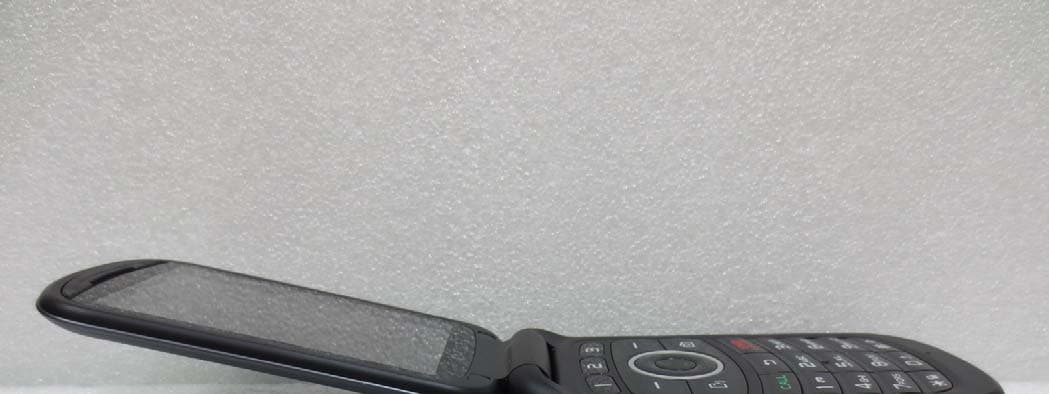
JYCP2050
Aug 04, 2013GSM/WCDMA Phone with Bluetooth
Equipment Class
PCE - PCS Licensed Transmitter held to ear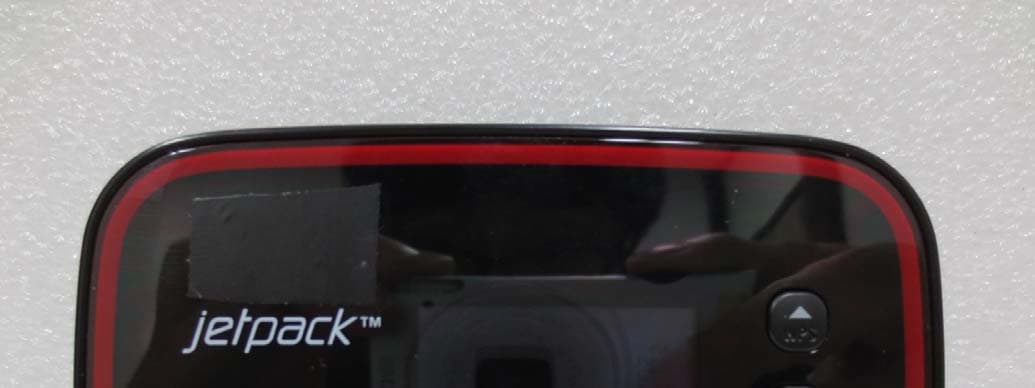
JYCORBIT
Feb 19, 2013CDMA/PCS,GSM,WCDMA,LTE Portable Router with WLAN
Equipment Class
PCB - PCS Licensed Transmitter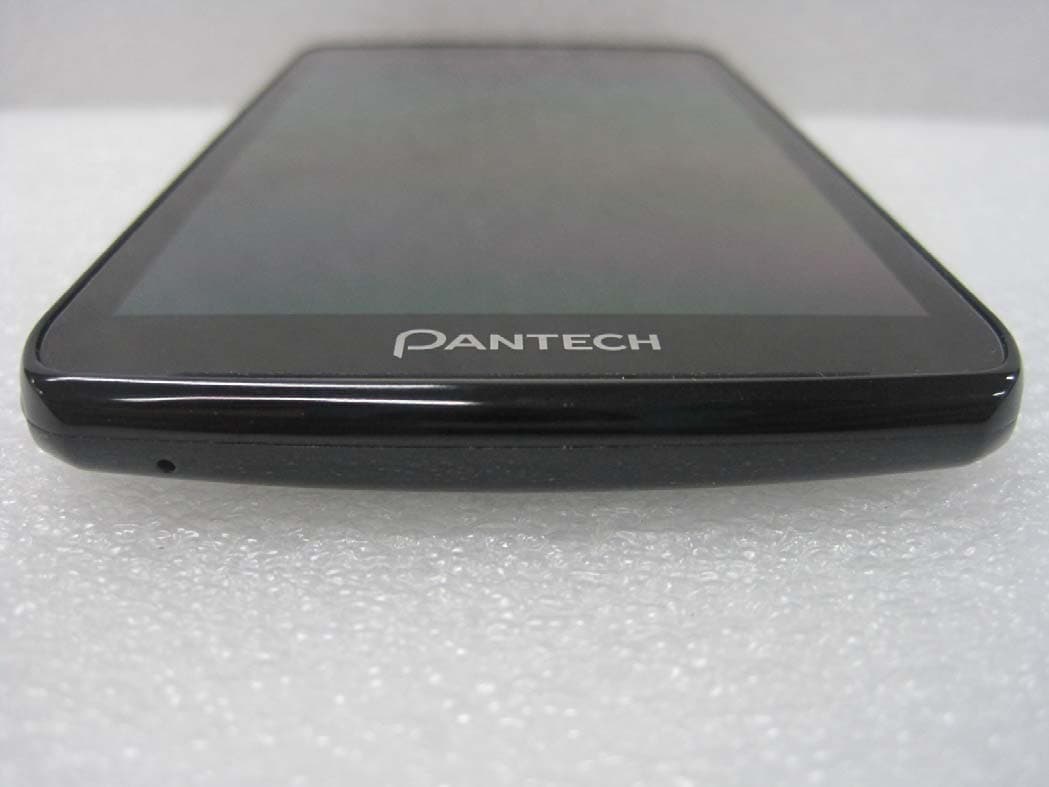
JYCPREMIAV
Sep 06, 2012CDMA/GSM/LTE Phone with BT/WLAN/NFC
Equipment Class
DTS - Digital Transmission System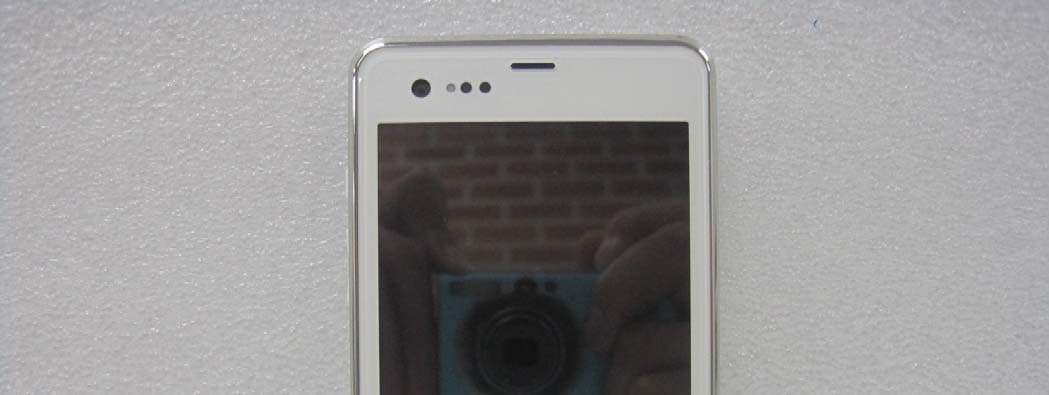
JYCCDMAPTL21
Aug 29, 2012GSM/WCDMA/CDMA Phone with Bluetooth/WLAN/NFC
Equipment Class
DSS - Part 15 Spread Spectrum Transmitter
JYCSPARKLE
Aug 21, 2012CDMA/GSM/EDGE/WCDMA/LTE USB Data Dongle
Equipment Class
PCB - PCS Licensed Transmitter