LXH-P0005-U
Pacific Image Electronics Co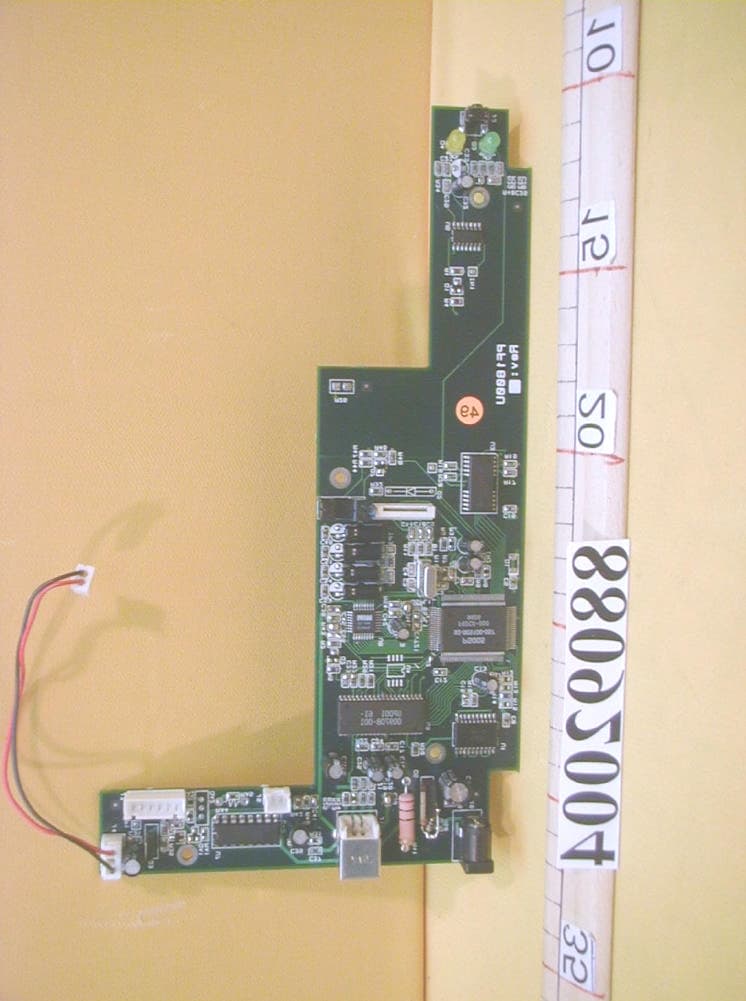
Click to zoom
Application Details
- Equipment Class
- JBP - Part 15 Class B Computing Device Peripheral
- Date of Grant
- Dec 22, 1999
- Application Purpose
- Original Equipment
- Date of Application
- Nov 04, 1999
- Company
- Pacific Image Electronics Co
- Country
- Taiwan
Documents & Files
Document Text
Text extracted from the exhibit documents filed with the FCC. Open a document above to read the original.
Users Manual
Pacific Image Prime Film 1800 User’s Guide Guide de I’utilisateur Bedienungsanleitung Manual de Instrucciones Guida utente Guia do usuário Användarhandbok CONTENTS GETTING STARTED............................................................................2 Package Contents............................................................................................................2 Quick Installation............................................................................................................2 WINDOWS 95/98 USERS....................................................................4 Installing the Software Applications............................................................................4 Scanning with PageManager.........................................................................................5 Using ImageFolio..............................................................................................................7 Using Mr. Photo................................................................................................................8 Using PhotoAlbum...........................................................................................................9 MAC USERS.....................................................................................11 Installing the Software Applications..........................................................................11 Scanning with PageManager.......................................................................................12 Using Mr. Photo..............................................................................................................14 Using PhotoAlbum.........................................................................................................15 TECHNICAL SUPPORT.....................................................................17 WARRANTY & RGISTRATION...........................................................18 E N G L I S H 2 GETTING STARTED Congratulations on your purchase of Pacific Image Prime Film 1800 slide scanner. This section includes package contents and installation. Important! Save the original box and all packing material for future shipping needs. Package Contents Your Prime Film 1800 slide scanner package includes the following: • Prime Film 1800 slide scanner • Power adapter – 12V 1A power adapter. Warning! Using any other power adapter may damage the scanner severely. • USB cable • User’s guide • Prime Film CD ROM Quick Installation PC and Mac Users: 1. Turn off and unplug the power from your computer. 2. Connect the scanner to your computer with the USB cable supplied with the scanner. 3. Plug the power adapter into the scanner and turn on the scanner. 4. Turn on your computer. PC Users: See your PC user's guide for instructions. In most computers, this function can be set in the BIOS menu. When starting your computer, check the screen for instructions about how to get into the BIOS menu (for most computers, you can press the <DEL>, <ESC>, <F1> or <F2> key to enter into the BIOS). E N G L I S H 3 Once your are in the BIOS, go to the proper menu (“PNP and PCI” or “Intergrated Peripheral”) and make sure that “USB function/USB IRQ” is enabled. If you do not know how to change your USB setting, please contact your PC manufacturer for more information. Windows 98: • Windows will notify “detect new device”, then “searching new driver”. Click “Next step”. • Select “search the proper driver (recommended)” and click “Next step” • Select “Location”, and “Browse” for driver location. Select the “\USBDRV98” folder in the PIE’s CD and click “Next step”. • Windows will find “Pacific Image Electronics USB Scanner”. Click “Next step”. • Windows will show “Windows had installed the driver for this device”. Click “Finish”. Windows 95: • From Windows Start menu, click “Run...”, and type in “D:\USBDRV95\USBSUPP.exe”. (Assuming your CD ROM driver is D:) • After installing USBSUPP.exe, restart your PC. E N G L I S H 4 WINDOWS 95/98 USERS Several powerful software applications are bundled with the Scanner to help you get the most out of your Scanner, they are: PageManager - PageManager is a powerful tool that lets you easily scan documents and images into your computer, maintain them electronically, and drag-and-drop them into other applications. ImageFolio - A comprehensive image processing program that enables you to process scanned images. With this sophisticated set of image editing tools, your imagination is your only limit! PhotoAlbum - You can organise all your digital photos in an electronic photo album - electronic photos will never bend, fade or tear. Mr. Photo - The easist way to create, edit, and share photo masterpieces. Mr. Photo has made many operations as easy as 1-2-3 with it's drag-and-drop operation and ready-made templates to get your creativity started. CyberView - Pacific Image’s TWAIN compliant scanning interface software for the Scanner. CyberView gives you complete control over the resolution, color, and all other aspects of your scans. Note: Readme files and on-line documentation for each of the applications are installed on your hard drive in the same folder as the application files. The default directory for CyberView manual is \ElecMenu. Installing the Software Applications 1. Place the CD-ROM in the drive. E N G L I S H 5 2. The set-up program will appear automatically on the screen. 3. Click "Install" 4. The dialog box that appears on the screen lets you choose which programs you want to install on your system. The default setting installs all of them. 5. Click "Next" and the installation of the first application will begin. 6. The Location Dialog Box shows you the default directory where the application will be installed. Click on "Next" to accept the default, or enter the directory where you would like the application installed. 7. The "Setup Complete" dialog box appears. Click "OK" to begin installation of the next application. Note: During t…
Text truncated - open the document above for the full version.
Cover Letter(s)
Federal Communications CommissionDate: Nov. 3, 1999 Authorization and Evaluation Division 7435 Oakland Mills Rd. Columbia, MD. 21046 Attention: Authorization and Evaluation Division Subject: Application for Certification on SCANNER (EUT) with FCC ID: LXH-P0005-U Dear Sir: We would like to apply for FCC certification of the EUT. Enclosed please find all required documents of the EUT listed below: 1. Exhibit 1 : The Authorization Letter signed by the applicant 2. Exhibit 2 : The FCC Label of EUT 3. Exhibit 3 : The modification List Letter signed by the applicant 4. Exhibit 4 : The RFI/EMI Test Report issued by ADT Corp. 5. Exhibit 5 : The photographs of EUT 6. Exhibit 6 : The Block Diagram & Schematic Diagram of EUT 7. Exhibit 7 : The User’s Manual of EUT Please review the information we submitted and issue us a grant for the EUT. If you have any questions or comments, please do not hesitate to contact Mr. Mike Su of ADT Lab. at fax no.: 886-2-2602-2943 or e-mail: [email protected] Sincerely yours, Cc. Mr. Harris W. Lai / Advance Data Technology Corporation
ID Label/Location Info
Fccid.jpg (2544x3498x2 pcx)
Internal Photos
(Photo 1) FCC ID: LXH-P0005-U (Photo 2) FCC ID: LXH-P0005-U (Photo 3) FCC ID: LXH-P0005-U (Photo 4) FCC ID: LXH-P0005-U (Photo 5) FCC ID: LXH-P0005-U
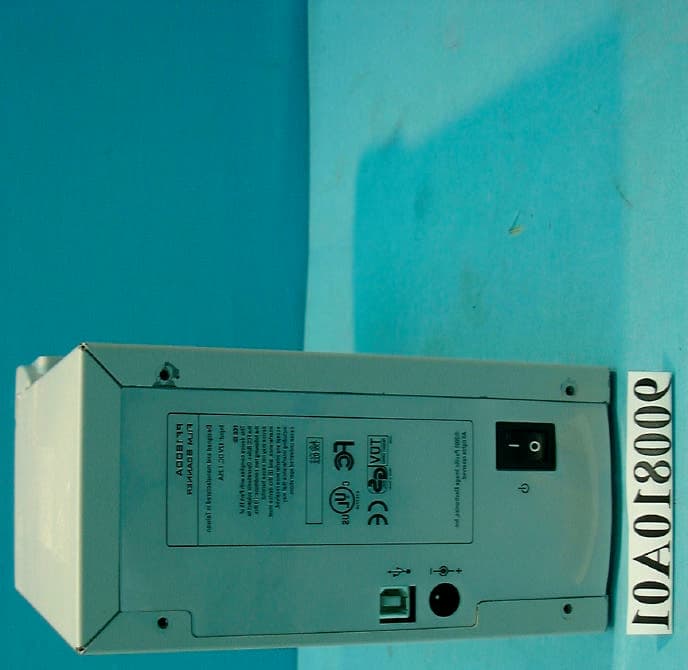
Internal Photos
(Photo 6) FCC ID: LXH-P0005-U (Photo 7) FCC ID: LXH-P0005-U (Photo 8) FCC ID: LXH-P0005-U 1 1 (Photo 9) FCC ID: LXH-P0005-U (Photo 10) FCC ID: LXH-P0005-U
Internal Photos
(Photo 11) FCC ID: LXH-P0005-U (Photo 12) FCC ID: LXH-P0005-U (Photo 13) FCC ID: LXH-P0005-U (Photo 14) FCC ID: LXH-P0005-U (Photo 15) FCC ID: LXH-P0005-U
Contact Information
Applicant
Yang Chen(Project manager)
Technical Contact
Advance Data Technology Corp.Mike Su
[email protected]886-2-26032180
No. 47, 14 Ling, Chia Pau Tsuen · Taipei Hsien · Taiwan
Non-Technical Contact
Advance Data Technology Corp.Mike Su
[email protected]886-2-26032180
Test Firm
Bureau Veritas CPS (H.K.) Ltd. Taoyuan BranchRichard Chen
Technical Specifications
| # | Rule Parts | Frequency Range | Power Output |
|---|---|---|---|
| 1 | 15B | - | - |
Other Applications from Pacific Image Electronics Co
LXH-P0006-U
Dec 16, 2001Film Scanner
Equipment Class
JBP - Part 15 Class B Computing Device Peripheral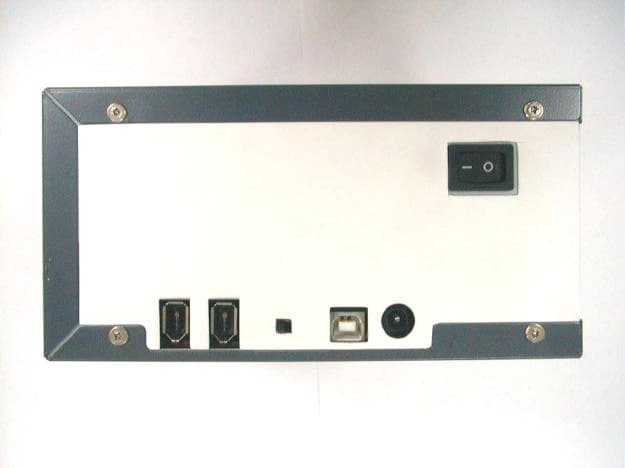
LXH-P0007-C
Dec 04, 2001File Scanner
Equipment Class
JBP - Part 15 Class B Computing Device Peripheral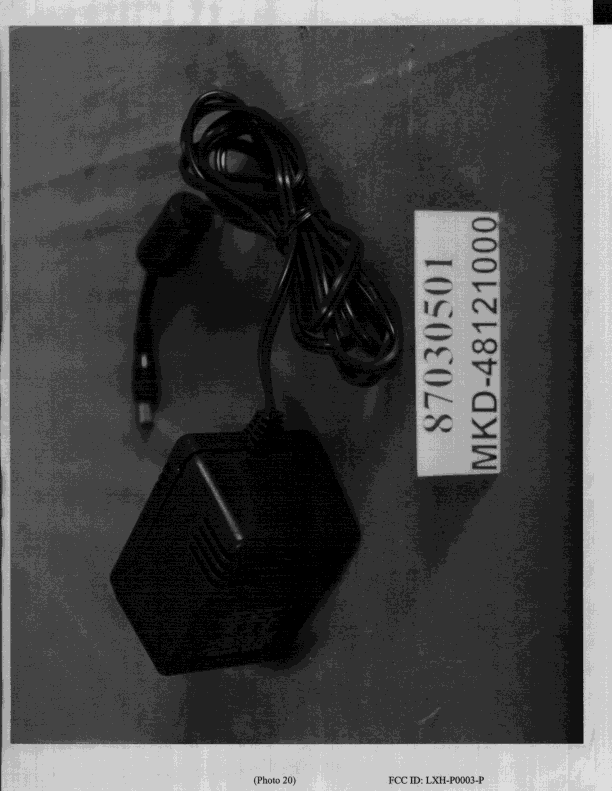
LXH-P0003-P
Aug 02, 1998JBP - Part 15 Class B Computing Device Peripheral
Equipment Class
JBP - Part 15 Class B Computing Device PeripheralLXH-P0001-S
Feb 26, 1998JBP - Part 15 Class B Computing Device Peripheral
Equipment Class
JBP - Part 15 Class B Computing Device PeripheralLXH-P0002-S
Feb 24, 1998JBP - Part 15 Class B Computing Device Peripheral
Equipment Class
JBP - Part 15 Class B Computing Device Peripheral