LXH-P0007-CFile Scanner
Pacific Image Electronics Co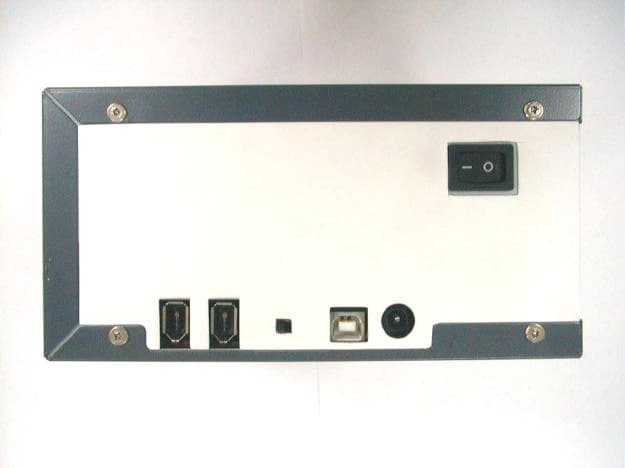
Click to zoom
Application Details
- Equipment Class
- JBP - Part 15 Class B Computing Device Peripheral
- Date of Grant
- Dec 04, 2001
- Application Purpose
- Original Equipment
- Date of Application
- Dec 04, 2001
- Equipment Note
- File Scanner
- Company
- Pacific Image Electronics Co
- Country
- Taiwan
Documents & Files
Document Text
Text extracted from the exhibit documents filed with the FCC. Open a document above to read the original.
Users Manual
EXHIBIT C User Manual 1 ßGetting Start ßQuick Installation Guide ßUser’s Guide ßRegistration Card E N G L I S H 2 TABLE OF CONTENTS 1. Getting Start................................................................3 Package contents .................................. ....................... 3 2. Quick Installation Guide .................................................. 4 3. Film Scanner User’s Guide ............................................... 8 General Screen Layout ................................................. 9 Acquire Scanner in Photoshop Elements ........................... 11 Scan Image ..............................................................12 Prescanthe Full Filmstrip ............................................ 13 Fine-tune Color (Color Balance and Level & Curve Tab) ...... 14 4. Technical Support ....................................................... 16 5. Warranty & Registration .............................................. 17 CAUTION: TO REDUCE THE RISK OF ELECTRIC SHOCK, DO NOT REMOVE COVER. NO USER-SERVICEABLE PARTS INSIDE. REFER SERVICING TO QUALIFIED SERVICE PERSONNEL. RISK OF ELECTRIC SHOCK. DO NOT OPEN. CAUTION vPlease refer to full version of user’s manual (pdf format) which is located in the Driver CD for troubleshooting and complete scanner operation. 3 GETTING STARTED Following is the package contents for your reference. For quick installation please refer to our Quick Installation Guide (QIG).Important! Save the original box, sales receipt, and all packing material for future shipping needs. Package Contents •Film Scanner. •Power Adapter. Warning! Using any other power adapter may severely damage the scanner and will void the product warranty. •USB Cable For PF1800 AFL and PF3600 Pro. IEEE1394 Cable For PF1800Lab and PF3600 Pro. •Driver -CyberView35 in CD. •Application Software -Adobe Photoshop Elements in CD. •User’s Manual (including Quick Installation Guide and Warranty Card). •Slide Mount x 2 Optional Accessory: •IEEE1394 Interface Card (Not Included). Operating Ambient Temperature Range 50ºto 104ºF (10ºto 40ºC) Note: Do not turn on the scanner unless it is within this range.If the scanner has been stored or transported outside of this range, allow it to return to within this range before turning it on. Operating Ambient Humidity Range 15% to 76% relative humidity (non-condensing) Note: If the Scanner is stored or transported in cold temperature, and then brought into a warm, humid environment, condensation may occur. 4 QUICK INSTALLATION GUIDE INSTALL SCANNER SOFTWARE... CONNECT THE SCANNER... ...to a power source Scanner driver Installation: •Place the scanner CD into the CD-ROM. •The setup program will appear automatically on the screen. •Click “Install CyberViewTWAIN data source”to initiate the installation. •Click “Next”to continue driver setup. •Click “Install”to start the installation and follow the instruction on the screen. •Make sure the scanner power is OFF. •Plug the DC jack with the scanner. (AC ‡DC) •Plug the AC adapter with power source. vBe sure to install Adobe Photoshop Element before install scanner driver vYou may install the scanner driver directly if you have already installed Twain compliant application software or Mac plug-in in your computer. v(Install the CyberView 35 driver first before you connect the film scanner to the host computer!) 5 If the scanner comes with USB port... 1.Attach the appropriate USB cable end to the computer. 2.Attach the other end to the scanner. If the scanner comes with IEEE 1394 port... 1. Attach the appropriate IEEE1394 cable end to the computer 2. Attach the other end to the scanner. 6 1.Set the switch to point at USB symbol on your scanner, before power-on 2.Attach the appropriate USB cable end to the computer. 3.Attach the other end to the scanner. ...to a USB port ...to a IEEE1394 port 1.Set the switch to point at on your scanner, before power-on 2.Attach the appropriate IEEE1394 Cable end to the computer 3.Attach the other end to the scanner. If the scanner come with both USB and IEEE 1394 ports... vPlease do not attach USB and IEEE1394 cables to the scanner at the same time. 7 1.Please use single mounted 35mm slides. 2.Push the front sliding door down until it locks into the position. 3.Hold the slide vertically with the image side facing left and longer side to slot. 4.Push slide gently and completely into the scanner. 5.To remove, push the Eject button next to the slot and pull slide out from the scanner. vMAKE SURE THERE IS NO FILMSTRIP INSIDE THE SCANNER BEFORE YOU INSERT THE SLIDE. LOADING THE SCANNER... ...with a filmstrip/roll film Please use 35mm filmstrips at least 3 frames long (recommend 4 frames long) The scanner will load the filmstrip automatically when you insert 3 frames film.You can use color negatives, color slide film, or black and white negative films. 1.Turn on the scanner and the computer. 2.Clean the film strip with a blower or a soft brush. 3.Make sure there is no slide inside the scanner. 4.Make sure the image of the film is right up. 5.Feed the filmstrip gently from the upper side until the film is pulled into the scanner. ...with a slide WE RECOMMEND THAT IF YOU HAVE FILMSTRIPS LESS THAN 3 FRAMES, PLEASE CUT IT INTO SINGLE PIECES PUT IT INTO PROVIDED SLIDE MOUNTS THEN SCAN IT. 8 FILM SCANNER USER’S GUIDE 5. 28. 4. 10.14. 1. 7.8. 11. 12. 13. 30.29.27.26. 2. 3. 2. 23. 22. 21. 20. 19. 18. 17. 16. 15. 6. 9. 24. 25. 9 General Screen Layout 1.Thumbnail images:this area displays thumbnails of the frames you haveprescanned. 2.Scroll left and scroll right buttons:(scroll filmstrip thumbnails): if more than 6 images have beenprescanned, you can use the scroll left and scroll right buttons to scroll through the thumbnail images. 3.Film motion:(reverse eject, reverse, forward, forward eject): move the filmstrip in the scanner. 4.Zoom in and zoom out:use these two buttons to zoom in or out on the previewed image. 5.Move:click this button to turn the pointer into a hand icon…
Text truncated - open the document above for the full version.
Block Diagram
EXHIBIT E Block Diagram
External Photos
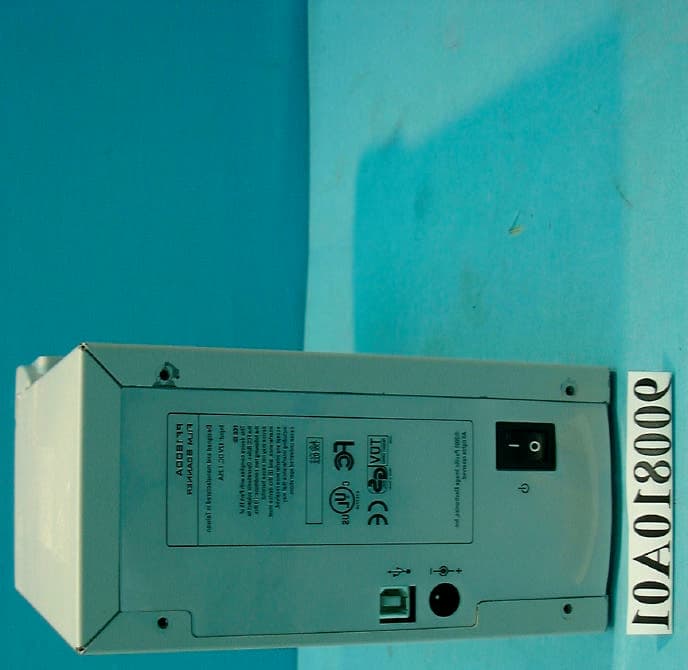
PF3600 PF3600 PF3600 PF3600 PF3600 PF3600
ID Label/Location Info
List of Exhibit EXHIBIT A Sample Label EXHIBIT B Test Report EXHIBIT C User Manual EXHIBIT D Circuit Diagram EXHIBIT E Block Diagram EXHIBIT F Photographs of EUT EXHIBIT A Sample Label LABEL Format: This device complies with Part 15 of the FCC Rules Operation is subject to the following two conditions: (1) This device may not cause harmful interference, and (2) This device must accept any interference received, including interference that may cause undesired operation. FCC ID : LXH-P0007-C Model No.: PrimeFilm3600P LABEL Size: 45 X30 mm LABEL Position: PF3600 LABEL
Internal Photos
PF3600 PF3600 PF3600 PF3600 PF3600 PF3600 PF3600 PF3600 PF1800 PF1800 I.T.E. Power Adaptor (UP01811120) DVE Power Adaptor (DSA-0151D-12) I.T.E. Power Adaptor (UP01811120) I.T.E. Power Adaptor (UP01811120) DVE Power Adaptor (DSA-0151D-12) DVE Power Adaptor (DSA-0151D-12)
Test Report
EXHIBIT B Test Report Test Report ----------------------------------------------------------------------------- 2/23 Report No.: PA315326 Training Research Co., Ltd., TEL: 886-2-26461146, Fax: 886-2-26461778 Model number List Item Model number Remark 1 PF3600P 1394&USB 2 PowerLook 360 1394&USB 3 PrimeFilm 3600P 1394&USB 4 3600 Film Scanner 1394&USB 5 FilmScan 3600 1394&USB 6 ScanElite 3600P 1394&USB 7 FS 3600 Film Scanner 1394&USB 8 PrimeFilm 3600PRO 1394&USB 9 PF1800L 1394 only 10 PowerLook 180L 1394 only 11 PrimeFilm 1800L 1394 only 12 1800L Film Scanner 1394 only 13 FilmScan 1800L 1394 only 14 ScanElite 1800L 1394 only 15 FS 1800L Film Scanner 1394 only 16 PrimeFilm LAB 1394 only Test Report ----------------------------------------------------------------------------- 3/23 Report No.: PA315326 Training Research Co., Ltd., TEL: 886-2-26461146, Fax: 886-2-26461778 Contents Chapter 1 Introduction Description of EUT.....................................................................................................................4 Configuration of Test Setup.........................................................................................................5 List of Support Equipment...........................................................................................................9 Chapter 2 Conducted Emission Test Test Condition and Setup...........................................................................................................11 Conducted Test Placement.........................................................................................................12 Chapter 3 Radiated Emission Test Test Condition and Setup...........................................................................................................16 Radiated Test Placement............................................................................................................17 Appendix A : Conducted test result..................................................................................................................18 Appendix B : Radiated test result.....................................................................................................................22 Test Report ----------------------------------------------------------------------------- 4/23 Report No.: PA315326 Training Research Co., Ltd., TEL: 886-2-26461146, Fax: 886-2-26461778 Chapter 1 Introduction Description of EUT: The EUT features: *Optical resolution 3600 x 3600 dpi *Automatically loads and scans 35mm roll films and filmstrips. *Superb color and image quality. *Auto focus for the sharpest images. *IEEE 1394 & USB interface (PF1800L without USB interface). *The most versatile solution. *High resolution and superb image quality. *Dual interface for convenience and speed. *Auto film loading and focus. Test method: Pretest was found that the emission of operating mode is worse than standby mode. So, The final test is made at the operating mode. There is a test program supplied by client, while test, the EUT was scanning continuously. There are two kinds of power supply maybe used DVE DSA-0151D-12 and I.T.E. UP01811120. During the pretest, there are four modes tested: “1394 by DVE 110V” mode, “USB by DVE 110V” mode, “1394 by I.T.E. 110V” mode and “USB by I.T.E. 110V” mode. The pretest was found out the testing mode: “1394 by DVE 110V” mode, and “1394 by I.T.E. 110V” mode were the worse two cases. The test placement as the photographs showed is the worst case emission placed. (If the emission is close to the ambient, the resolution BW and view resolution will be reduced and the data will be recorded by detection of maximum hold peak mode.) The testing configuration of test setup is showing in the next page. Test Report ----------------------------------------------------------------------------- 5/23 Report No.: PA315326 Training Research Co., Ltd., TEL: 886-2-26461146, Fax: 886-2-26461778 Configuration of test setup(Test mode: 1394 by I.T.E.) Connections: PC: *Serial Port --- via a 76cm shielded RS-232 cable to an external modem *Monitor Port --- a monitor with 1.5m length data cable. *Keyboard Port --- a keyboard with 1.7m length data cable. *Mouse Port --- a mouse with 1.8m long of data cable. *Printer port --- a printer with 1.80m length data cable. *USB Port A --- a joystick with 1.5m long, shielded and no ferrite bead data cable *USB Port B --- a mouse with 1.5m long, shielded and no ferrite bead data cable (Each port on PC is connected with suitable device) EUT: *1394 Port 1 --- via a data cable is 1.5m long, shielded, with a ferrite bead to the 1394 card that installed in the PC. *1394 Port 2 --- via a data cable is 1.5m long, shielded, with a ferrite bead that unterminal. *USB Port --- via a data cable is 1.45m long, shielded, with a ferrite bead that unterminal. *Power jack --- via a power cable is 1.23m long, non-shielded, with a ferrite bead that connect with a power adapter (Trade name: I.T.E., Model No.: UP01811120, Input: AC100-250~ 50-60Hz, 0.5A, Output: DC 12V, 1.5A ) that via a 1.75long, non-shielded, with aferrite bead power cable connect the power source. USB Joystick Printer Power Source Mouse Keyboard Monitor PC Modem EUT USB Joystick Test Report ----------------------------------------------------------------------------- 6/23 Report No.: PA315326 Training Research Co., Ltd., TEL: 886-2-26461146, Fax: 886-2-26461778 Configuration of test setup(Test mode: 1394 by DVE) Connections: PC: *Serial Port --- via a 76cm shielded RS-232 cable to an external modem *Monitor Port --- a monitor with 1.5m length data cable. *Keyboard Port --- a keyboard with 1.7m length data cable. *Mouse Port --- a mouse with 1.8m long of data cable. *Printer port --- a printer with 1.80m length data cable. *USB Port A --- a joystick with 1.5m long, shielded and no ferrite bead data cable *USB Port B --- a mouse with 1.5m long, shielded and no ferrite bead data cable (Each port on PC is connected with suitabl…
Text truncated - open the document above for the full version.
Test Setup Photos
Test Report ----------------------------------------------------------------------------- 12/23 Report No.: PA315326 Training Research Co., Ltd., TEL: 886-2-26461146, Fax: 886-2-26461778 Conducted Test Placement: (Photographs)(Test mode: 1394 by DVE) Test Report ----------------------------------------------------------------------------- 13/23 Report No.: PA315326 Training Research Co., Ltd., TEL: 886-2-26461146, Fax: 886-2-26461778 Conducted Test Placement: (Photographs)(Test mode: 1394 by I.T.E.) Test Report ----------------------------------------------------------------------------- 14/23 Report No.: PA315326 Training Research Co., Ltd., TEL: 886-2-26461146, Fax: 886-2-26461778 Conducted Test Placement: (Photographs)(Test mode: USB by DVE) Test Report ----------------------------------------------------------------------------- 15/23 Report No.: PA315326 Training Research Co., Ltd., TEL: 886-2-26461146, Fax: 886-2-26461778 Conducted Test Placement: (Photographs)(Test mode: USB by I.T.E.) Test Report ----------------------------------------------------------------------------- 17/23 Report No.: PA315326 Training Research Co., Ltd., TEL: 886-2-26461146, Fax: 886-2-26461778 Radiated Test Placement: (Photographs)
Contact Information
Applicant
Yang Chen(Project manager)
Test Firm
Training Research Co., Ltd.Jack Tsai
Technical Specifications
| # | Rule Parts | Frequency Range | Power Output |
|---|---|---|---|
| 1 | 15B | - | - |
Other Applications from Pacific Image Electronics Co
LXH-P0006-U
Dec 16, 2001Film Scanner
Equipment Class
JBP - Part 15 Class B Computing Device Peripheral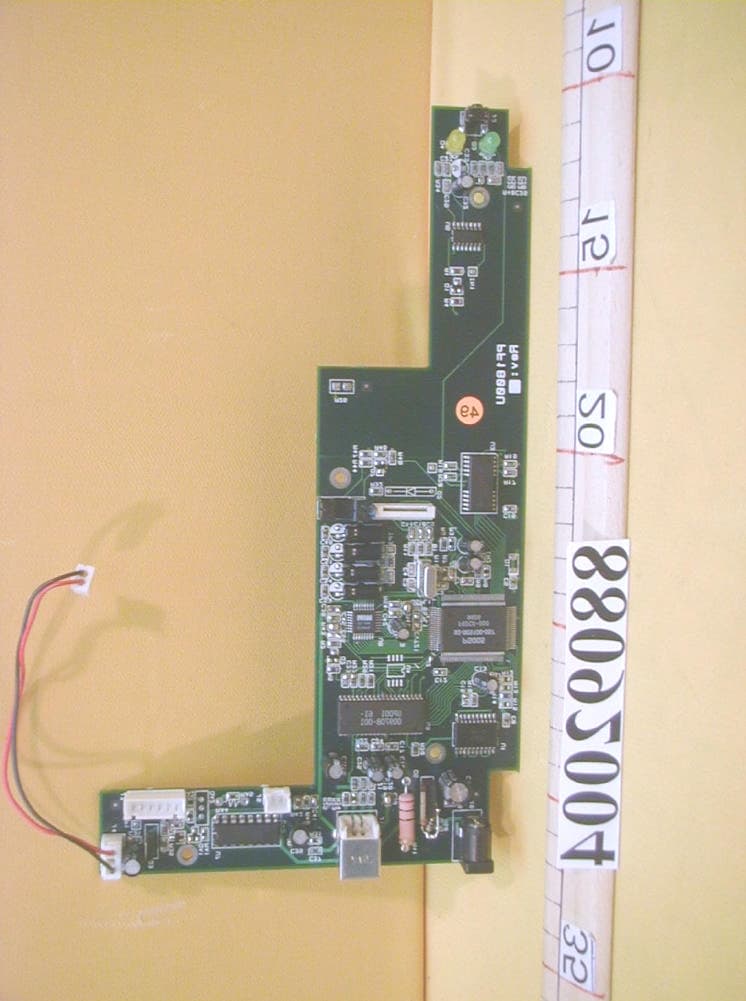
LXH-P0005-U
Dec 22, 1999JBP - Part 15 Class B Computing Device Peripheral
Equipment Class
JBP - Part 15 Class B Computing Device Peripheral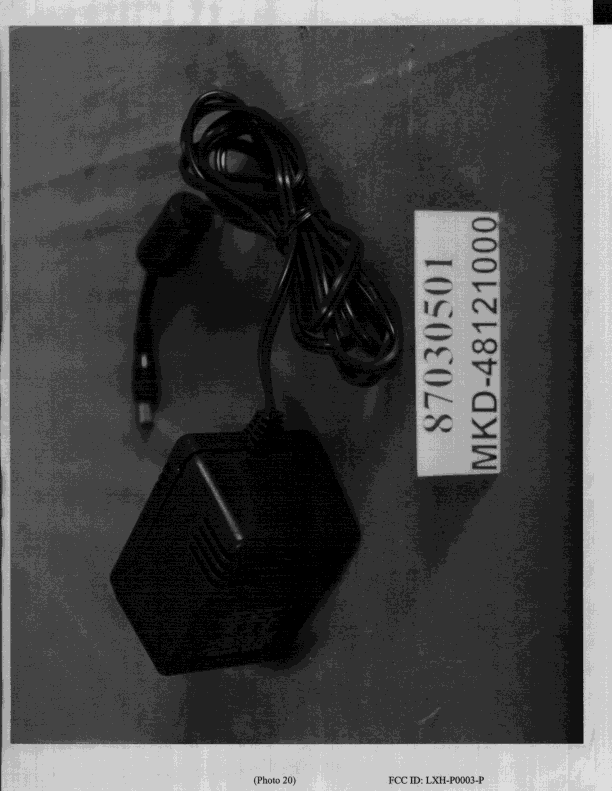
LXH-P0003-P
Aug 02, 1998JBP - Part 15 Class B Computing Device Peripheral
Equipment Class
JBP - Part 15 Class B Computing Device PeripheralLXH-P0001-S
Feb 26, 1998JBP - Part 15 Class B Computing Device Peripheral
Equipment Class
JBP - Part 15 Class B Computing Device PeripheralLXH-P0002-S
Feb 24, 1998JBP - Part 15 Class B Computing Device Peripheral
Equipment Class
JBP - Part 15 Class B Computing Device Peripheral